Run a workflow
Before you start
- An agent must be installed and signed in on the computer that has the project. See Set up your first AI agent.
- In a project someone shared with you, you need Can work access to run workflows.
Steps
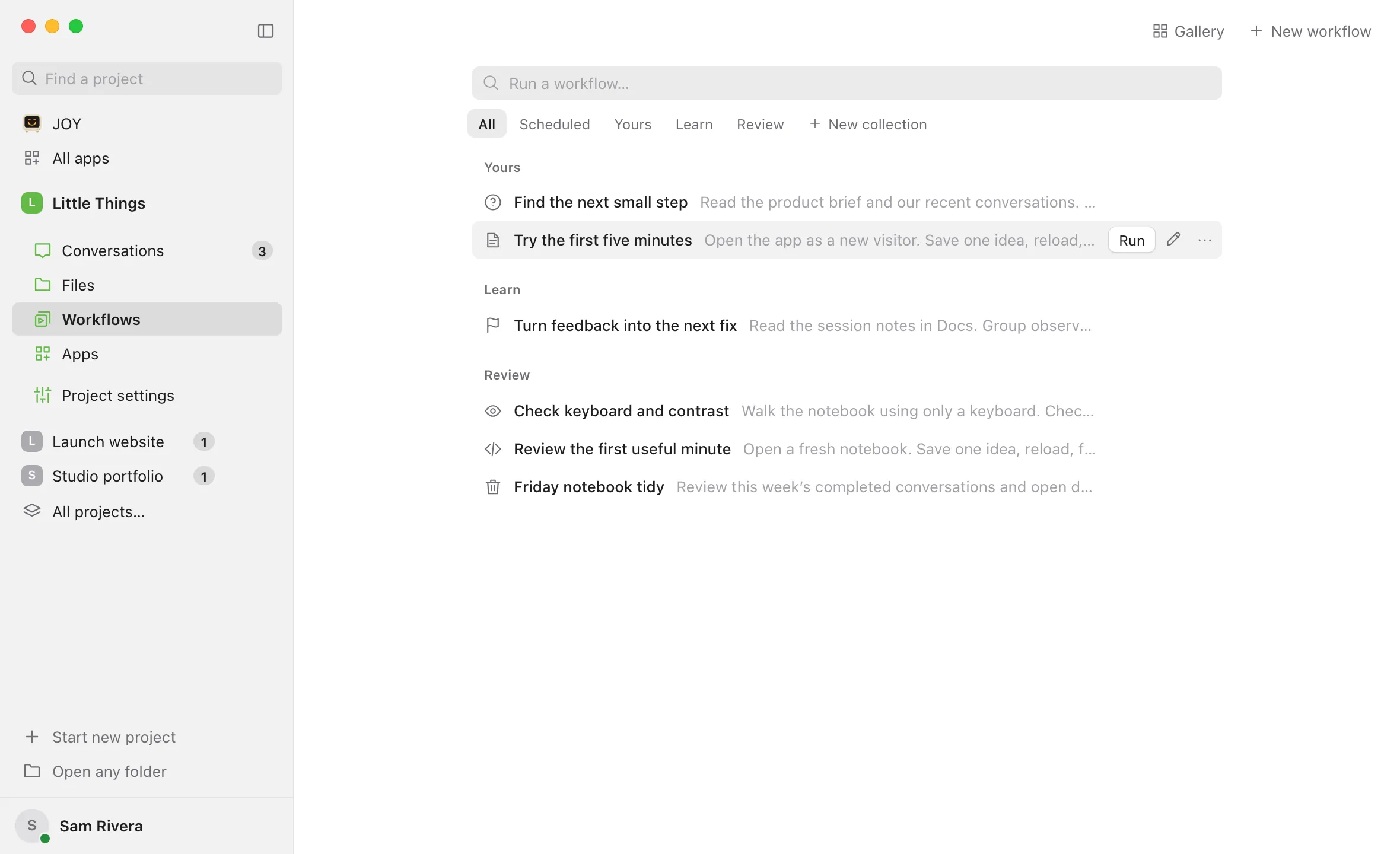
Open Workflows
Select Workflows in the rail on the left side of the window. On a phone, or in any narrow window, select Show sidebar at the top left first. In the iPhone app, open the project and select the Workflows tab.
Find the workflow
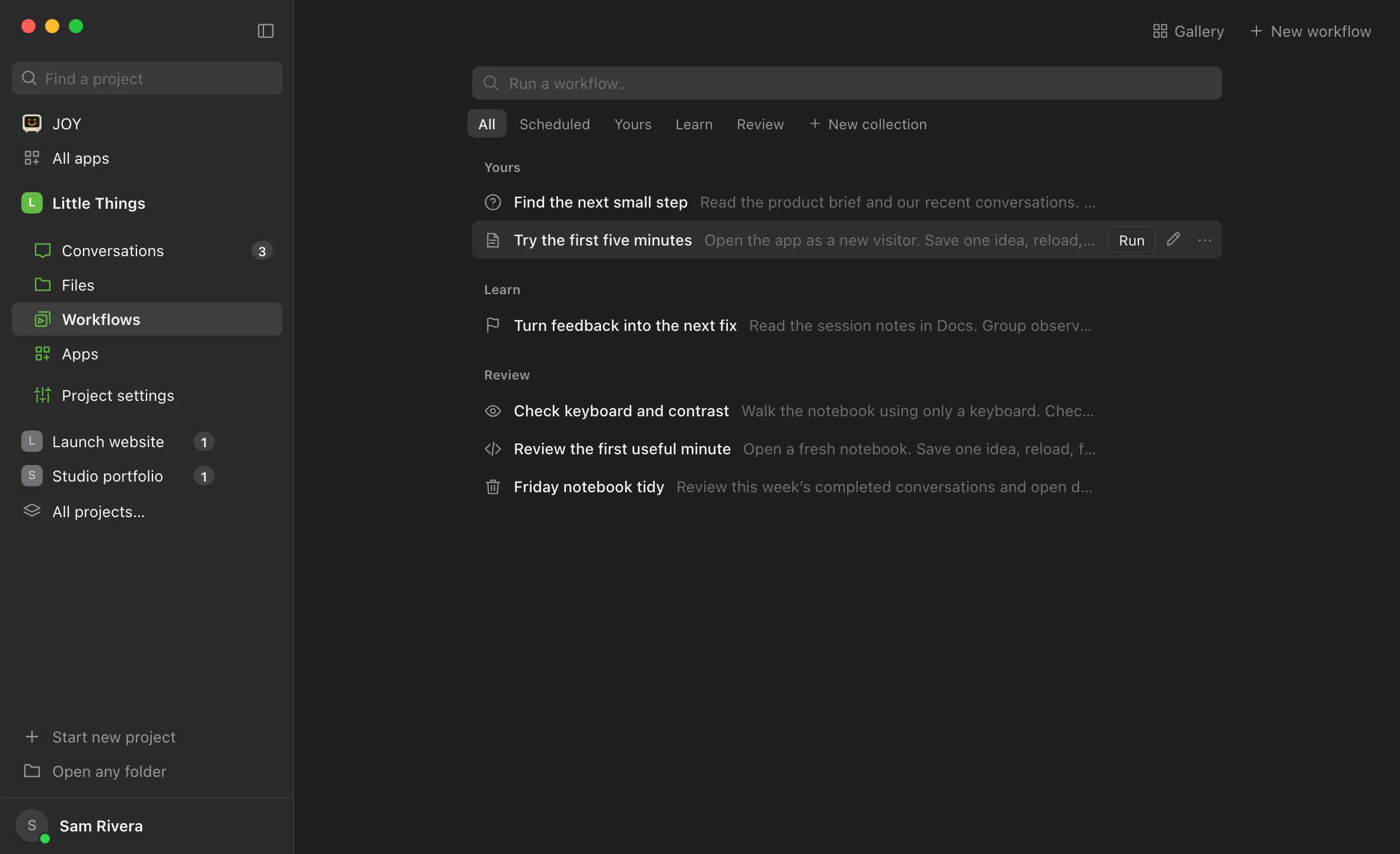
In All, workflows you’ve pinned come first, under Pinned, then each collection’s workflows, one per line. Type in the search field at the top, Run a workflow…, to list only the ones that match, or select Scheduled or a collection in the row of buttons under it.
Select Run
Point at the workflow’s line, and Run appears at its right. Select it to run the workflow. On a touch screen, Run is always showing. From the keyboard, type in the search field: the first match is highlighted, the Down and Up arrow keys highlight another, and Enter runs the highlighted one. Or select the workflow’s name to open its page, then select Run at the top right. In the iPhone app, select Run on the workflow, or open it and select Run workflow.
Follow the run
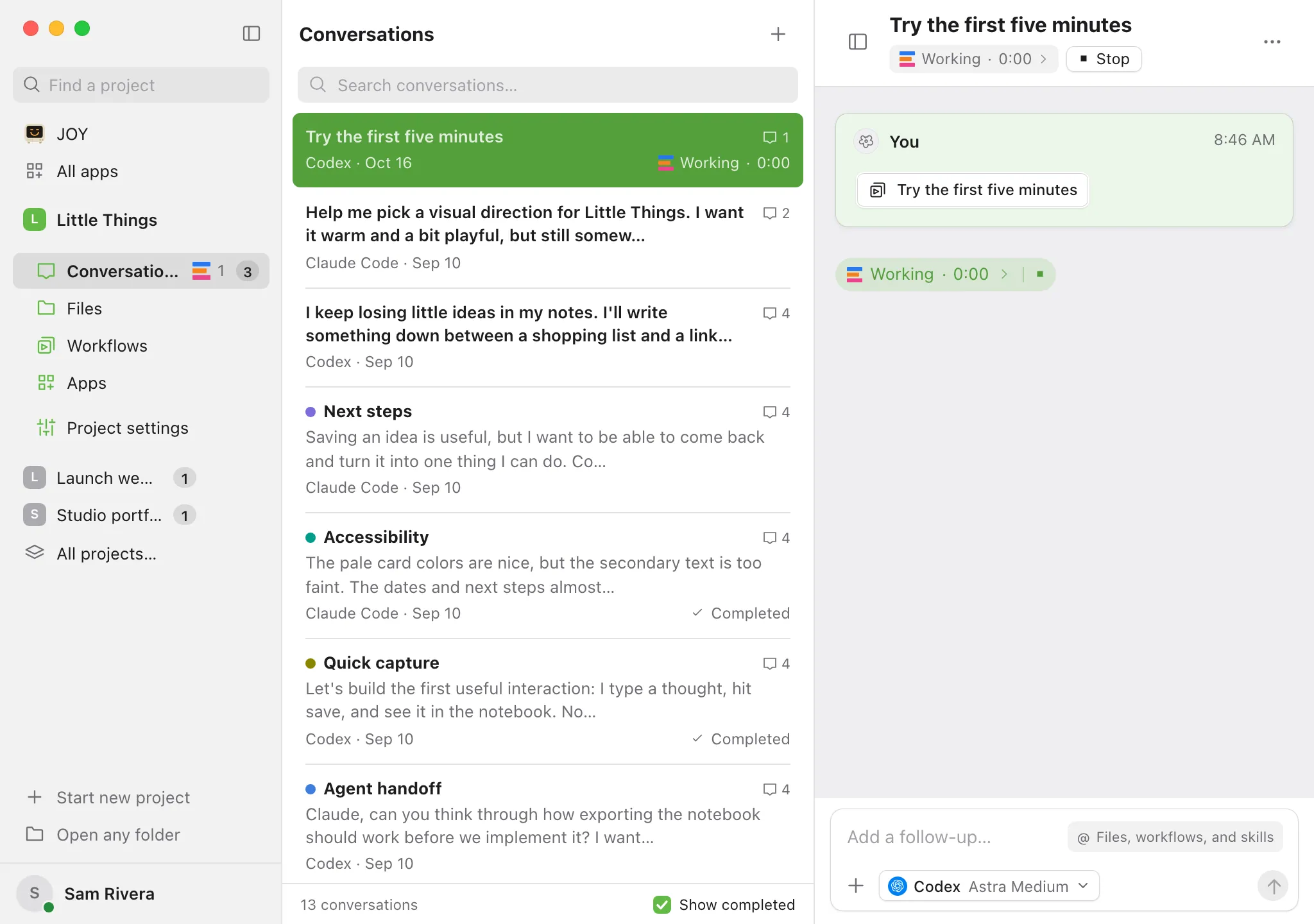
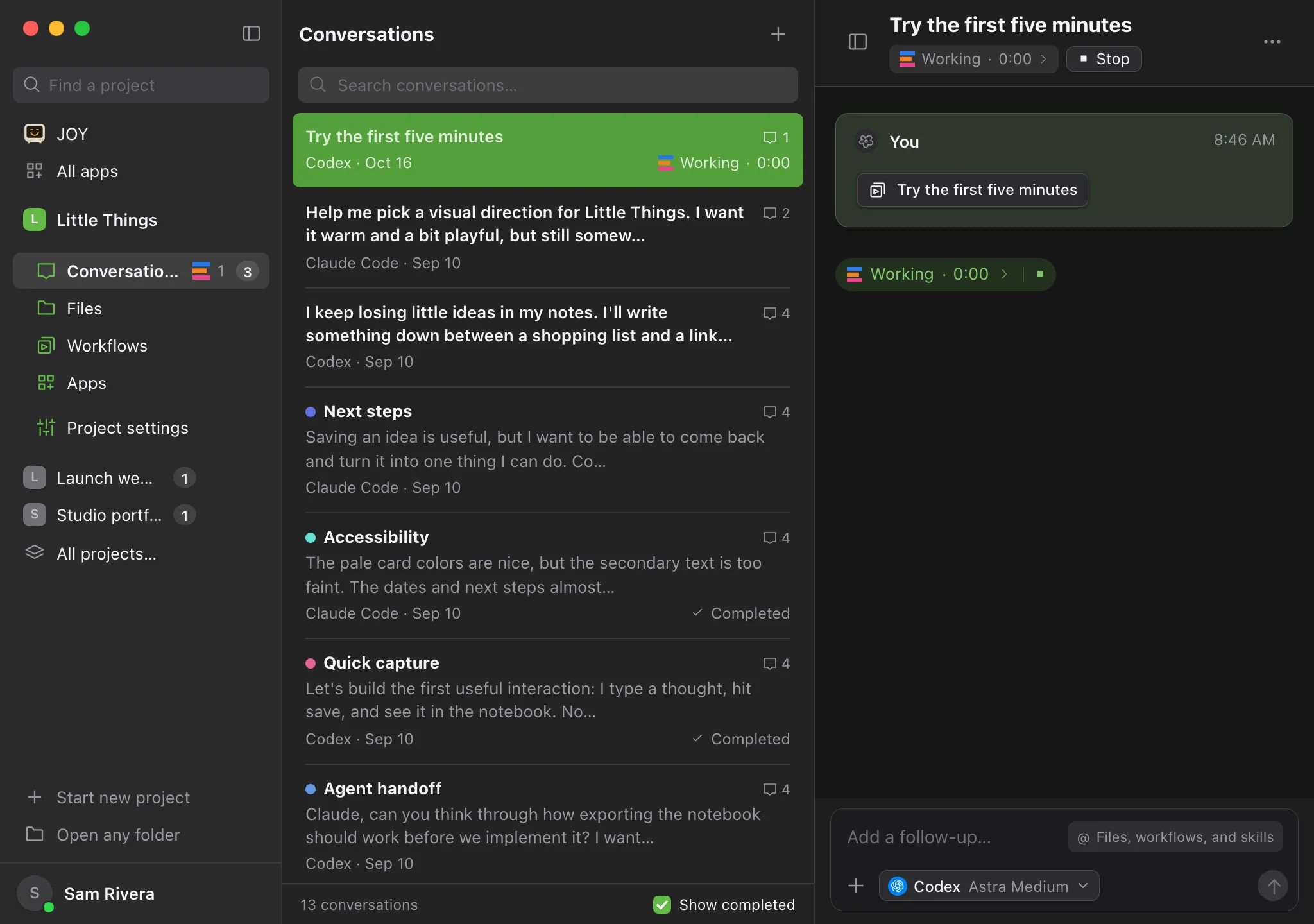
Enjoy switches to the new conversation, named after the workflow. Its first message shows the workflow as a chip, and the agent starts working.
Good to know
- Each run is its own conversation with a fresh agent session. Reply in it to steer the agent or ask follow-up questions, like any conversation.
- A run uses the workflow’s preferred agent if it has one. Otherwise it uses the agent settings you last used in the project. See Choose which agent runs a workflow.
- The run keeps a copy of the instructions from the moment it starts. Editing or deleting the workflow afterwards doesn’t change a run that’s already going.
- While a run is still working or waiting for your approval, the workflow’s line shows Running, and its Run button reads View run and opens that conversation. Run at the top of its page becomes View run too. In the iPhone app’s list, the button reads View run.
- You can’t start the same workflow twice at once. While a run is going, View run opens that conversation instead of starting a new run, and so does Enter in the search field. Once the run finishes, you can start another.
- Running a workflow yourself doesn’t change its schedule.
- Selecting Run on a workflow’s page saves any change you just made first, so the run uses it.
- To give the agent extra details for this run, add the workflow to a message instead. See Add a workflow to a message.
If something goes wrong
Run is greyed out
- The workflow shows Desktop review needed. Enjoy couldn’t confirm the workflow is still the one that was saved, for example because a scheduled workflow’s file was changed outside Enjoy, or because a device that saved it was removed. On your computer or in the web app, open it and check the instructions. Then select Confirm next to “Desktop review needed before running.” If that shows an error, see Edit a workflow. In the iPhone app, the button reads Review on your computer.
- You have View only access to the project.
“Workflow no longer exists.”
Someone deleted the workflow, perhaps from another device. If you need it back, see Delete a workflow for how to restore it from an earlier run.
The run fails with “Saved work changed or its origin record is missing.”
The workflow’s file was changed outside Enjoy since it was last saved. Open the workflow, check the instructions, and save it again. See Edit a workflow. Then run it again.
The conversation opens but the agent doesn’t start
The agent may not be signed in or installed on the computer. See A conversation failed and An agent won’t sign in.