Book a free orientation call
The orientation call is a free, 15-minute video call with Mo, who builds Enjoy and runs these calls himself. Bring an idea, a project you’ve started, or a question. You don’t need coding experience or a finished idea.
Before you start
- Install Enjoy on your computer. See Install Enjoy on your computer.
- Have an active free trial or Unlimited plan. You can start the trial while booking. See Create your account and start your free trial.
- Use the same email for your Enjoy account and your call.
Steps
Open the orientation page
Go to the orientation page. You can also find it in the footer of every page on enjoy.dev, under Manual: Orientation.
Select Schedule call
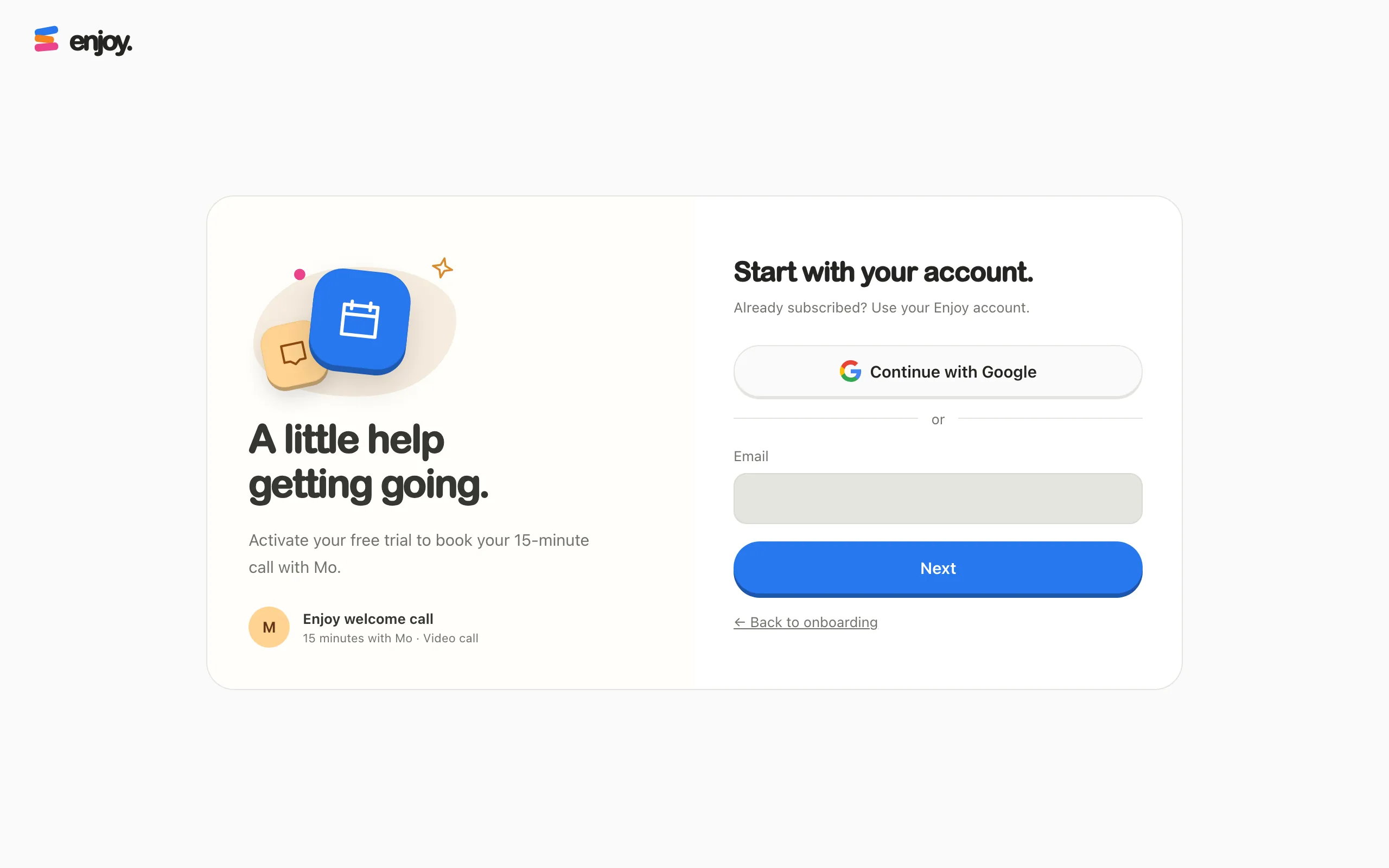
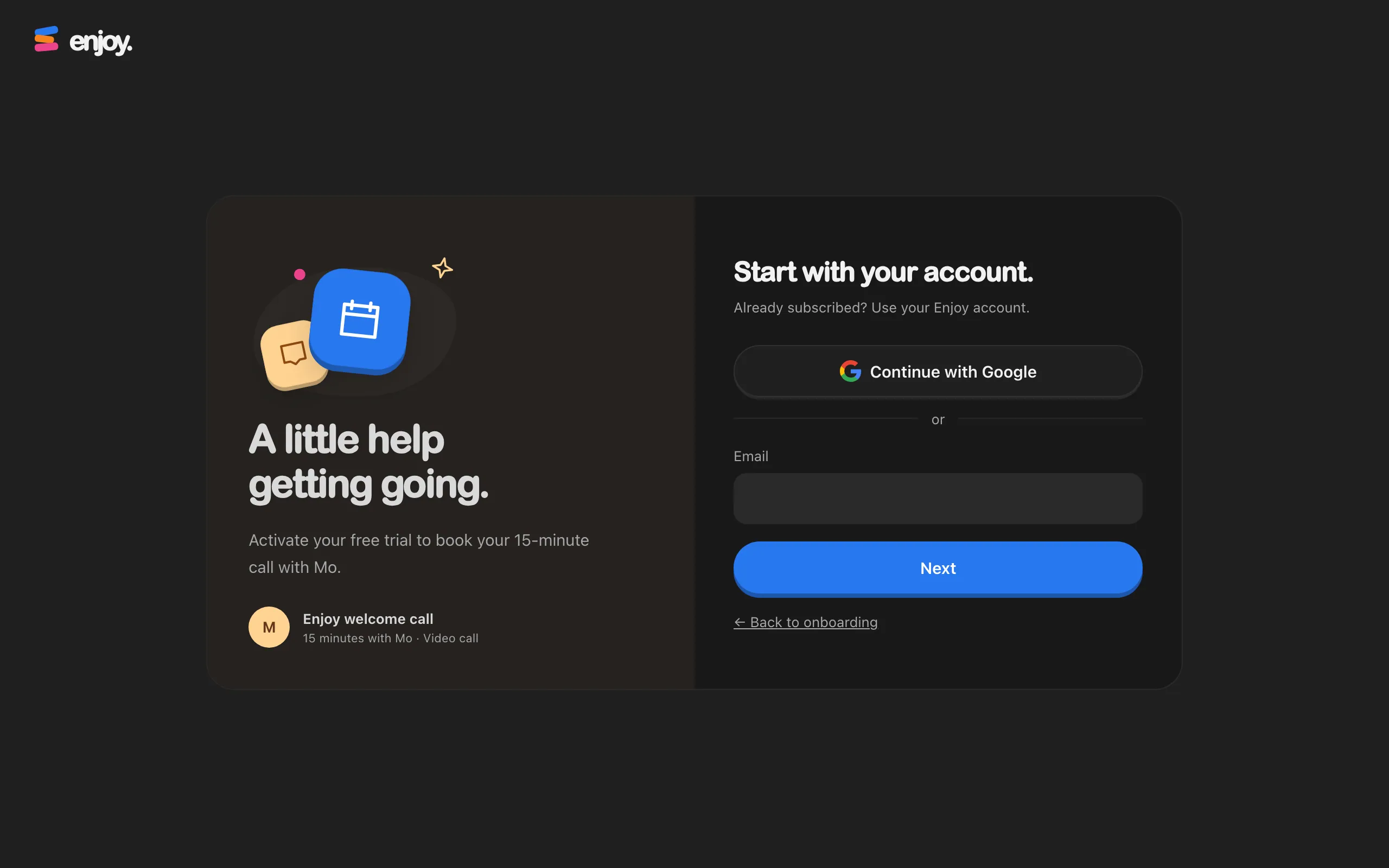
A booking page opens on app.enjoy.dev, titled Start with your account. If you’re already signed in there with an active plan, it goes straight to step 5.
Sign in with your Enjoy account
Select Continue with Google, or type your email and select Next. If the email already has an account, Enjoy emails you a six-digit code. Type it and select Next.
Activate your trial if needed
If your account doesn’t have an active plan yet, select Continue to checkout, or Restore Unlimited if your account has subscribed before, and finish checkout. If Enjoy then asks you to create a password, type the code it emailed you and a new password of at least 12 characters, and select Create password.
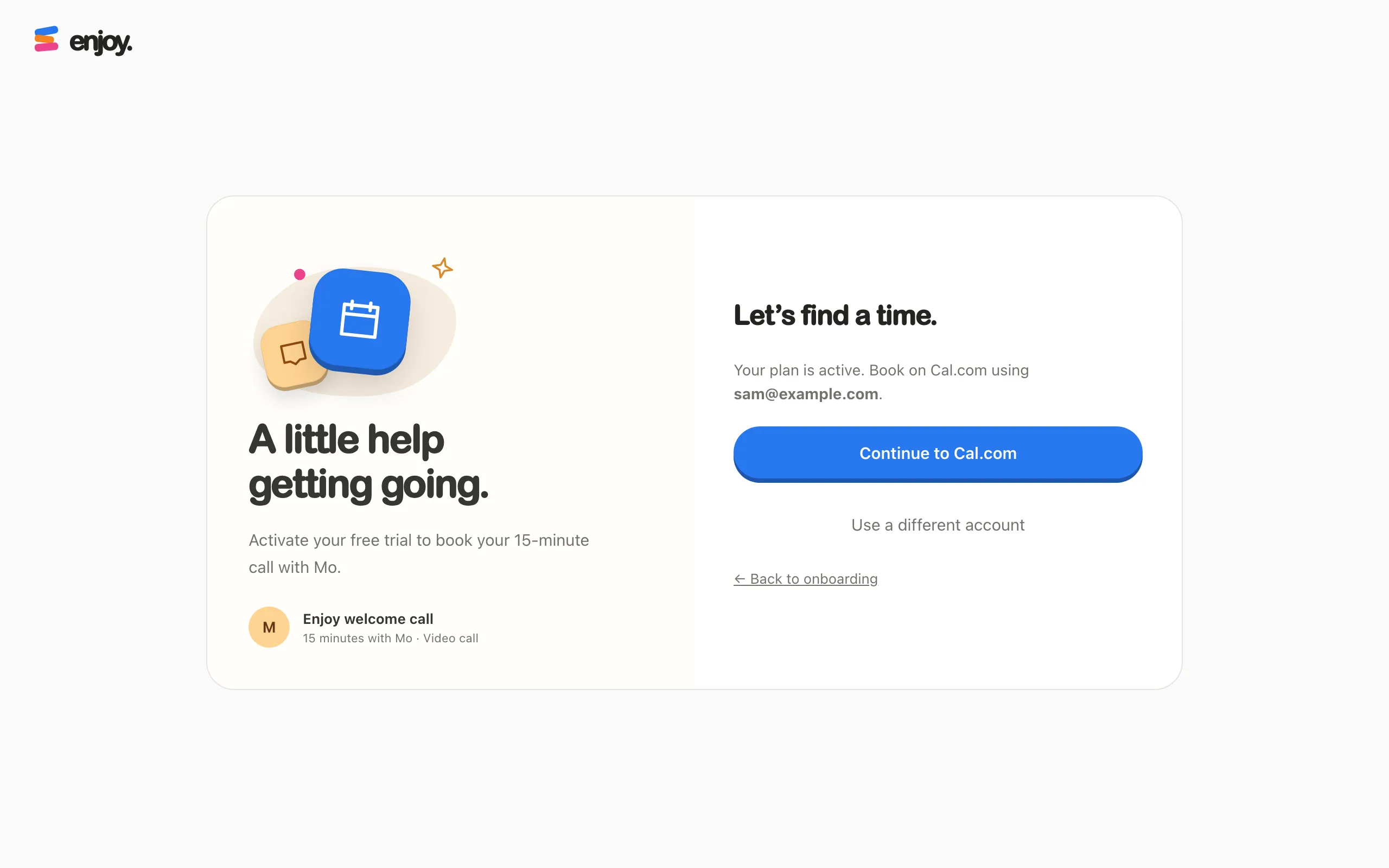
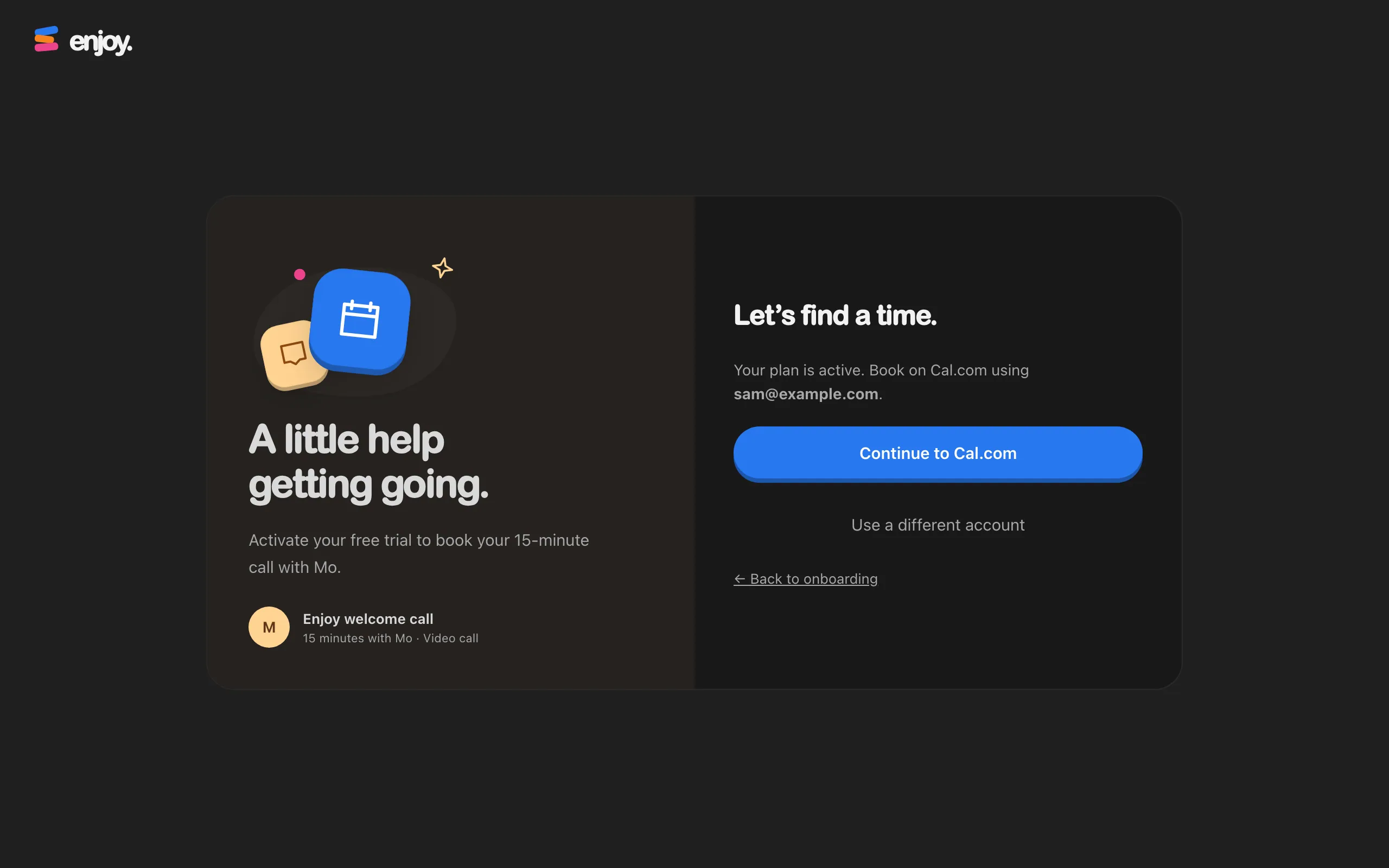
Select Continue to Cal.com
When your plan is confirmed, the page says Let’s find a time. and shows the email to book with.
Pick a time on Cal.com
Choose a time that suits you and book it with the same email.
Good to know
- On the call, you talk through your idea, set up Enjoy and your agents together, and leave with a clear next step for your project. If coding with AI is new to you, Mo explains the basics.
- Booking only opens once your free trial or Unlimited plan is active.
- To leave the booking page, select ← Back to onboarding.
- For quick questions, you can also ask in the Enjoy Slack community. See Join the Enjoy Slack community.
If something goes wrong
“Activate a free trial or subscription before booking your call.”
Your account doesn’t have an active plan. Select Activate your plan and finish checkout, then continue.
“Unable to confirm your plan. Please try again.”
Enjoy couldn’t check your plan. Select Try again. If it keeps happening, see Trouble connecting to Enjoy.
You can’t find a time that works
Email help@enjoy.dev. See Contact support.