Create a workflow
Before you start
- Open the project the workflow is for. Each workflow belongs to one project.
- If someone shared the project with you, you need Can work access. With View only access, New workflow is greyed out. See Project access.
Steps
Open Workflows
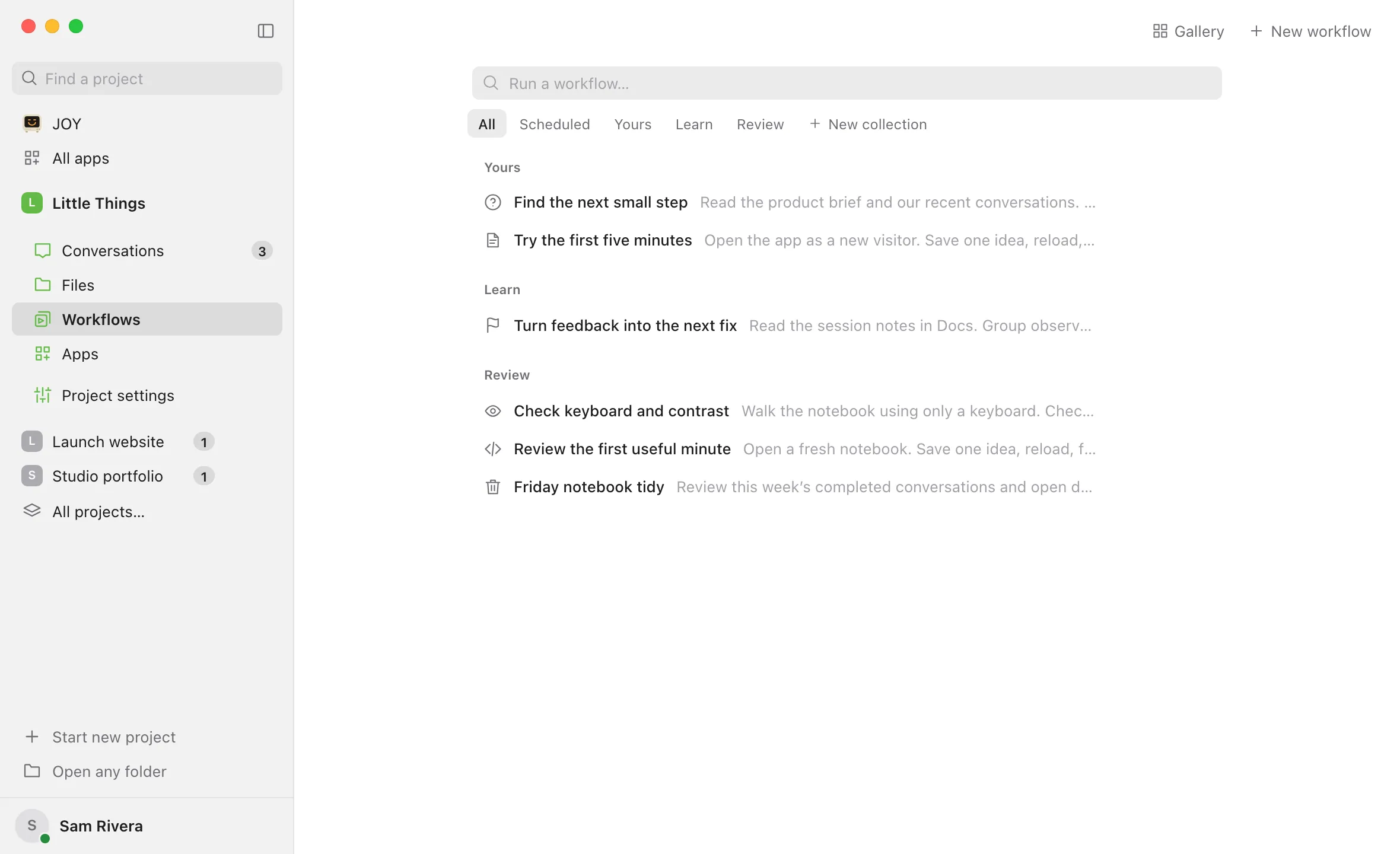
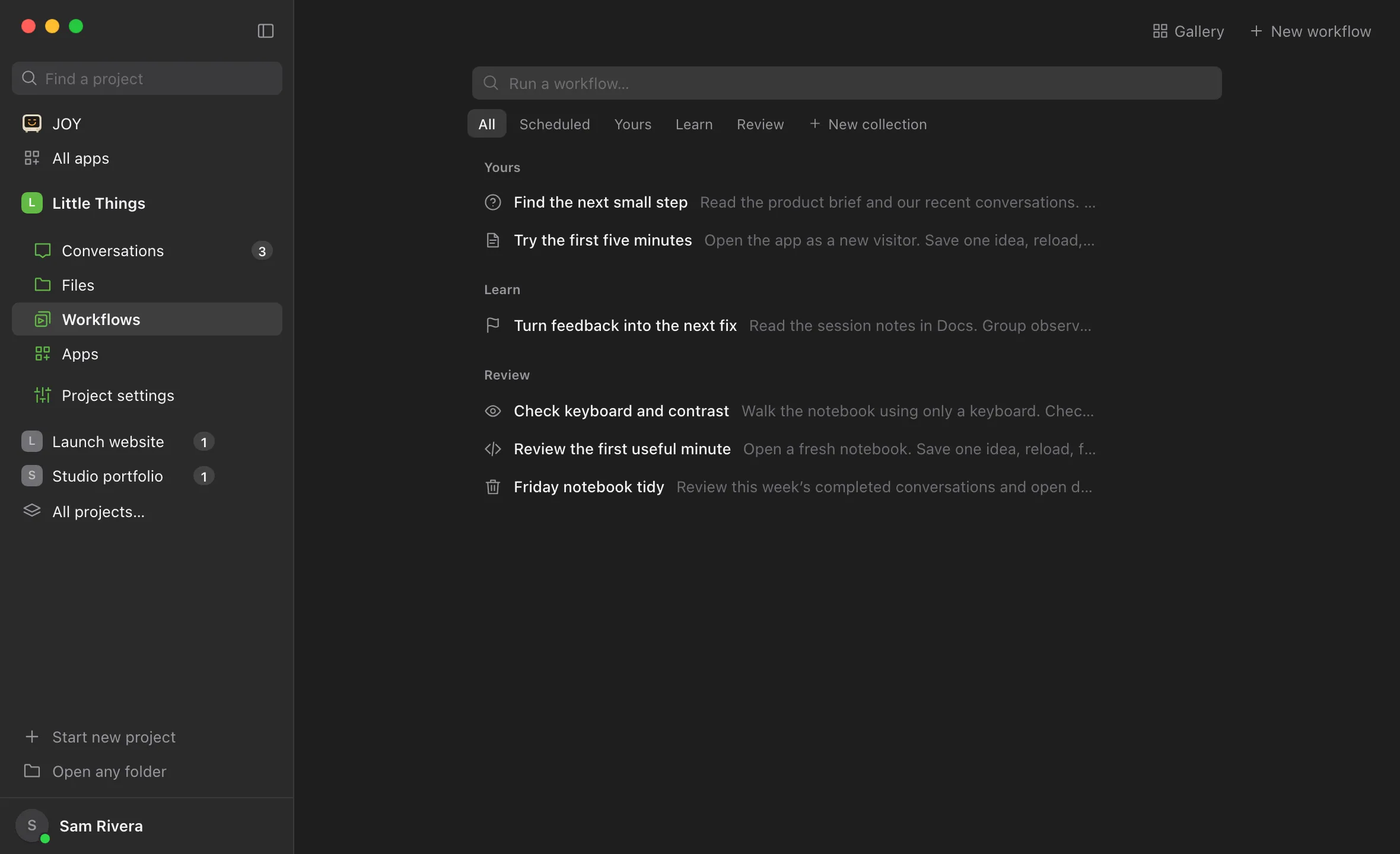
Select Workflows in the rail on the left side of the window. On a phone, or in any narrow window, select Show sidebar at the top left first.
Select New workflow
It’s at the top right, next to Gallery. A blank page opens over the library, with the cursor in the title. At the top right, it says Not saved yet.
Add a title, if you like
Type it where it says Untitled workflow. If you leave it empty, Enjoy names the workflow after the first 80 characters of its instructions.
Write the instructions
Select the space below the small menus, where it says Write your workflow…, and type what the agent should do, the way you’d write a message. There’s no formatting toolbar here, but the typing shortcuts from docs work, such as
#at the start of a line for a heading or-for a bullet. See Format text in a document.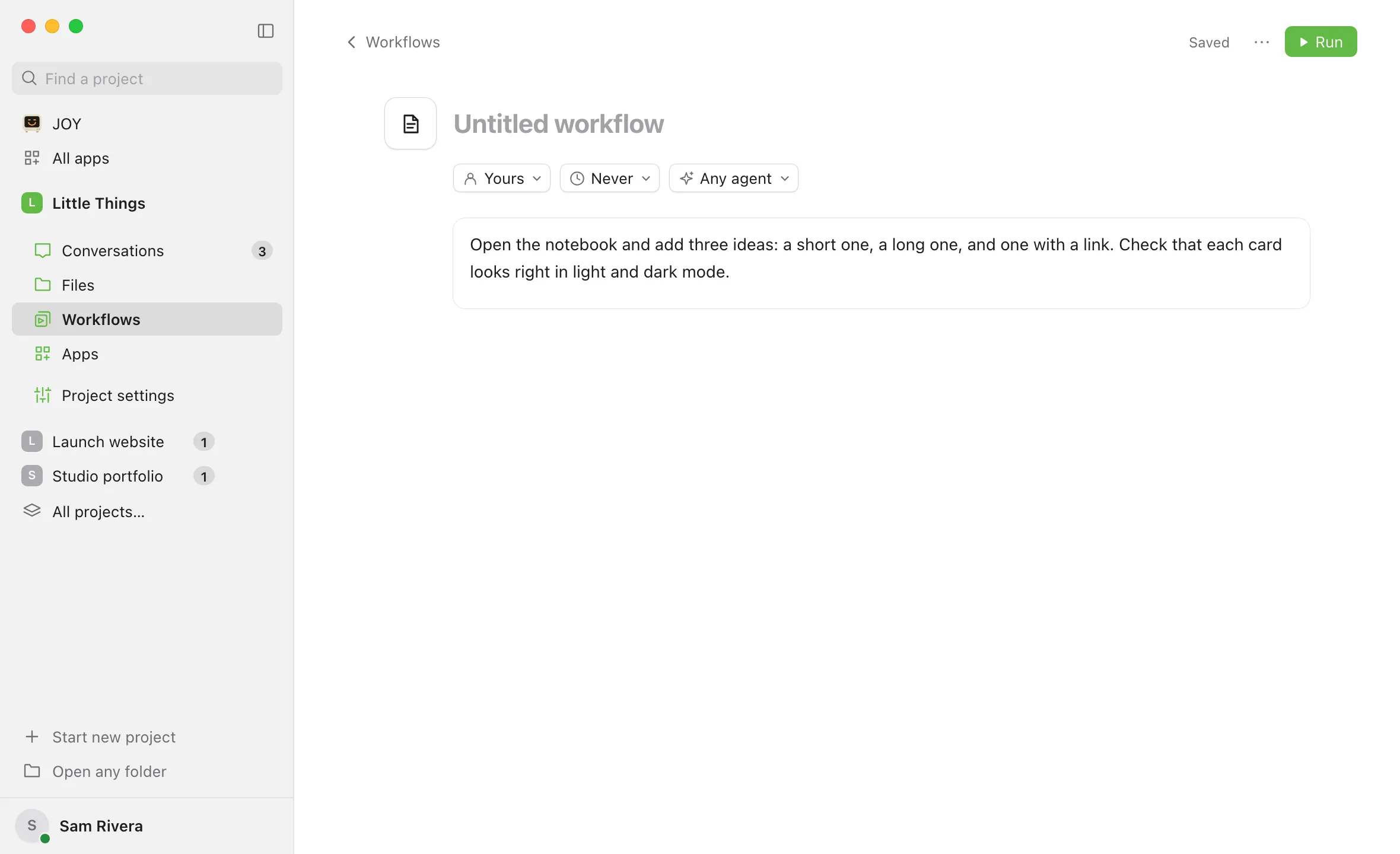
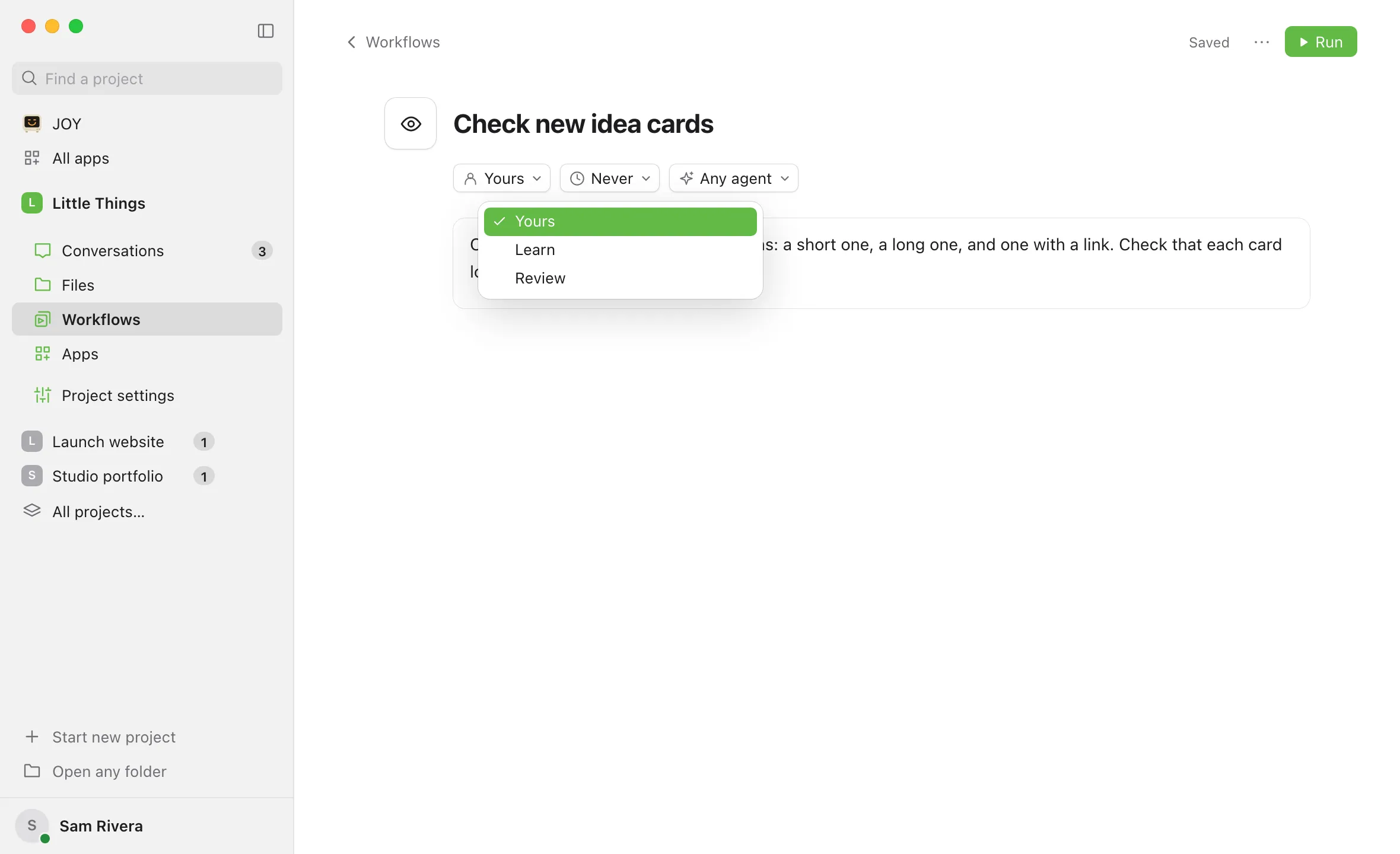
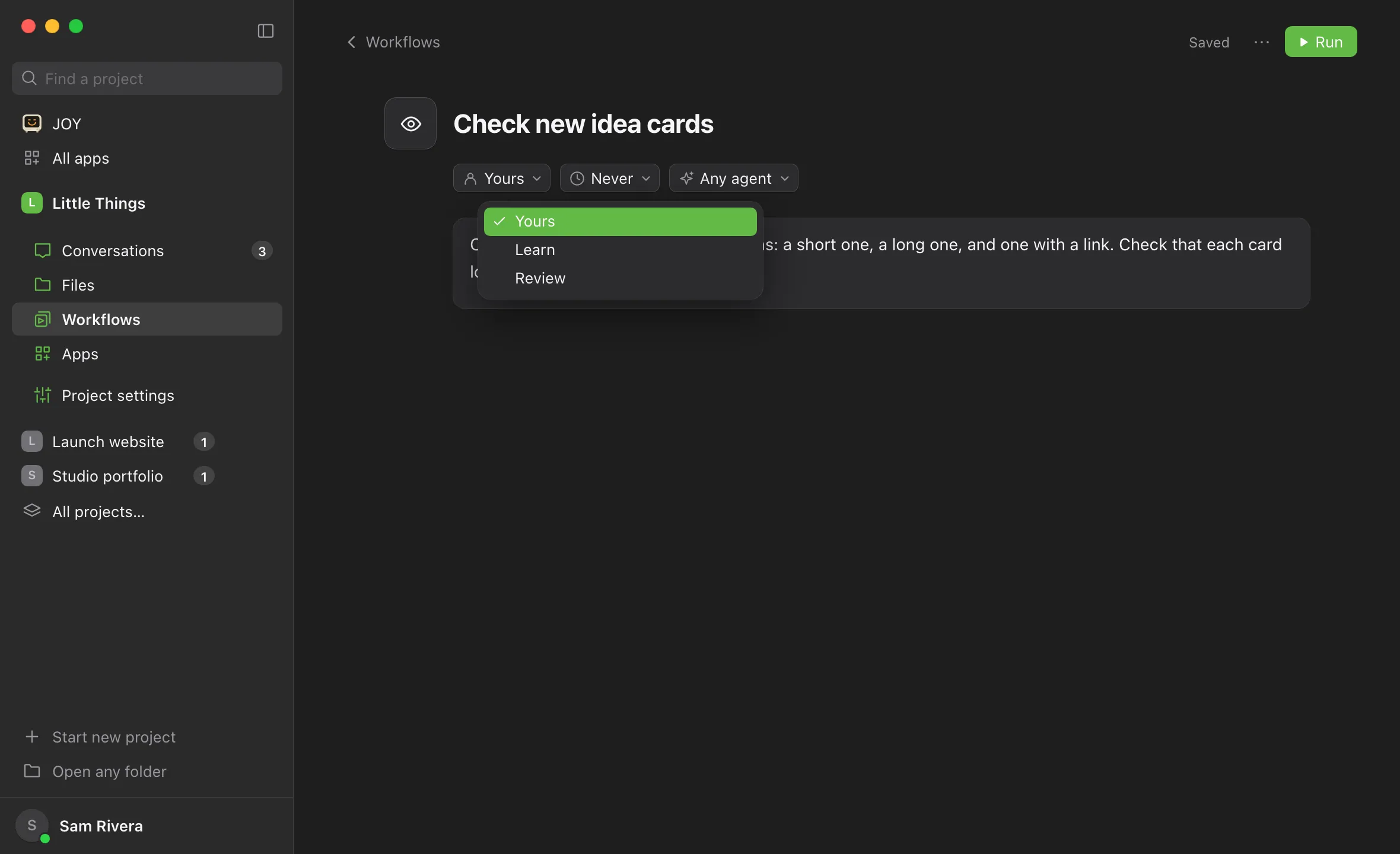
Choose a collection
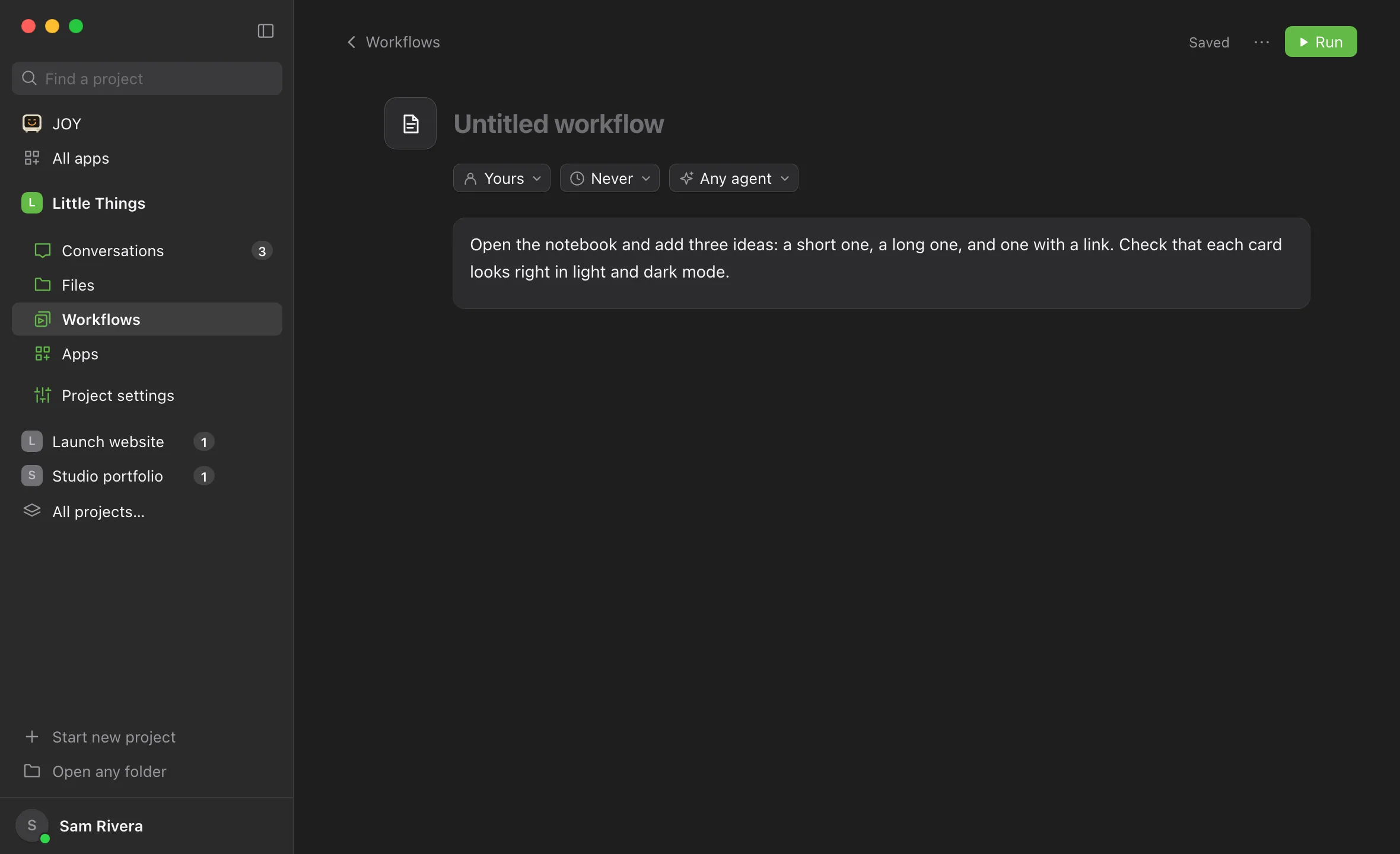
Select the first small menu under the title. It shows Yours, the default. Choose a collection from the menu. If you were viewing a collection when you selected New workflow, that collection is already chosen.
Check that it saved
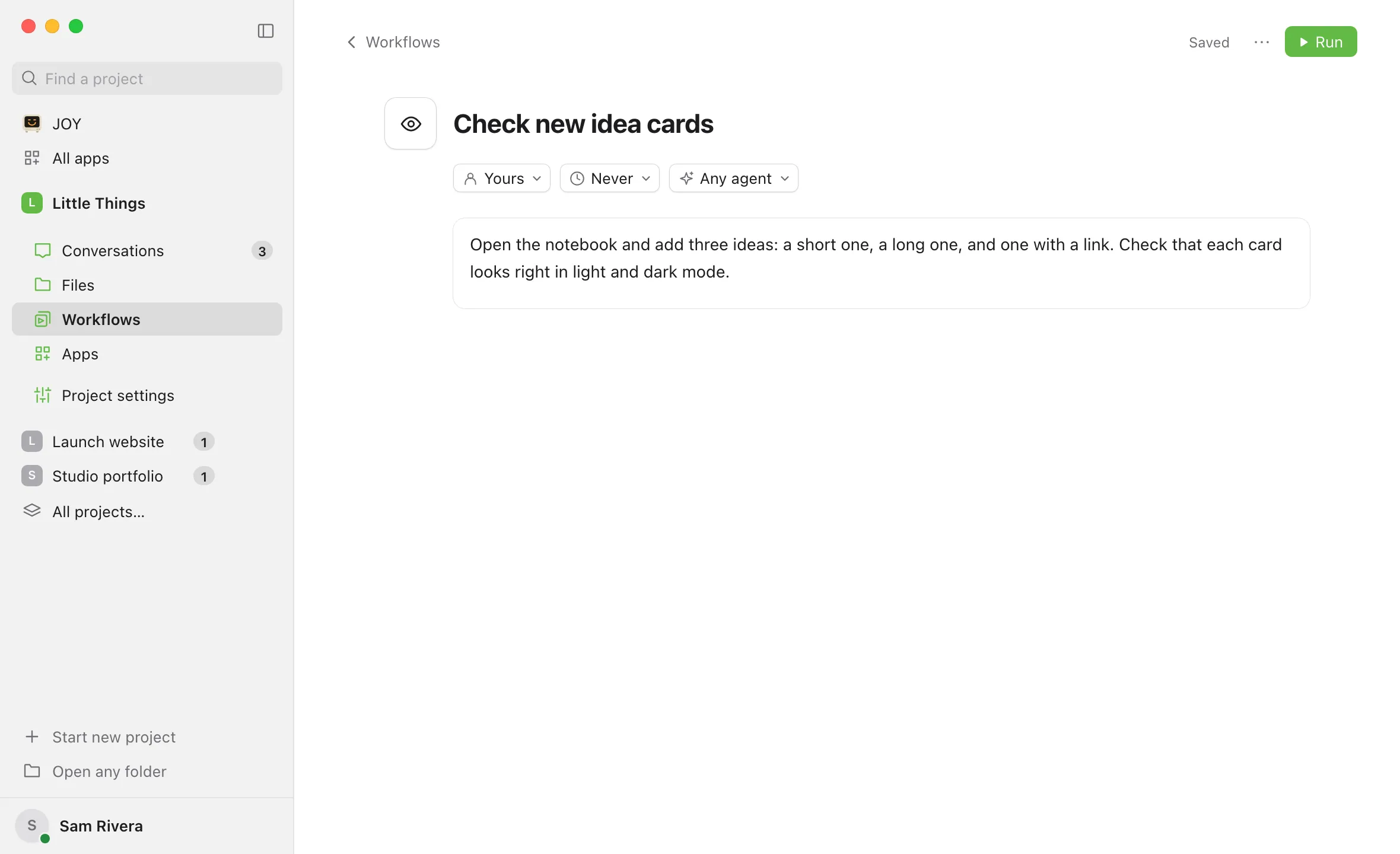
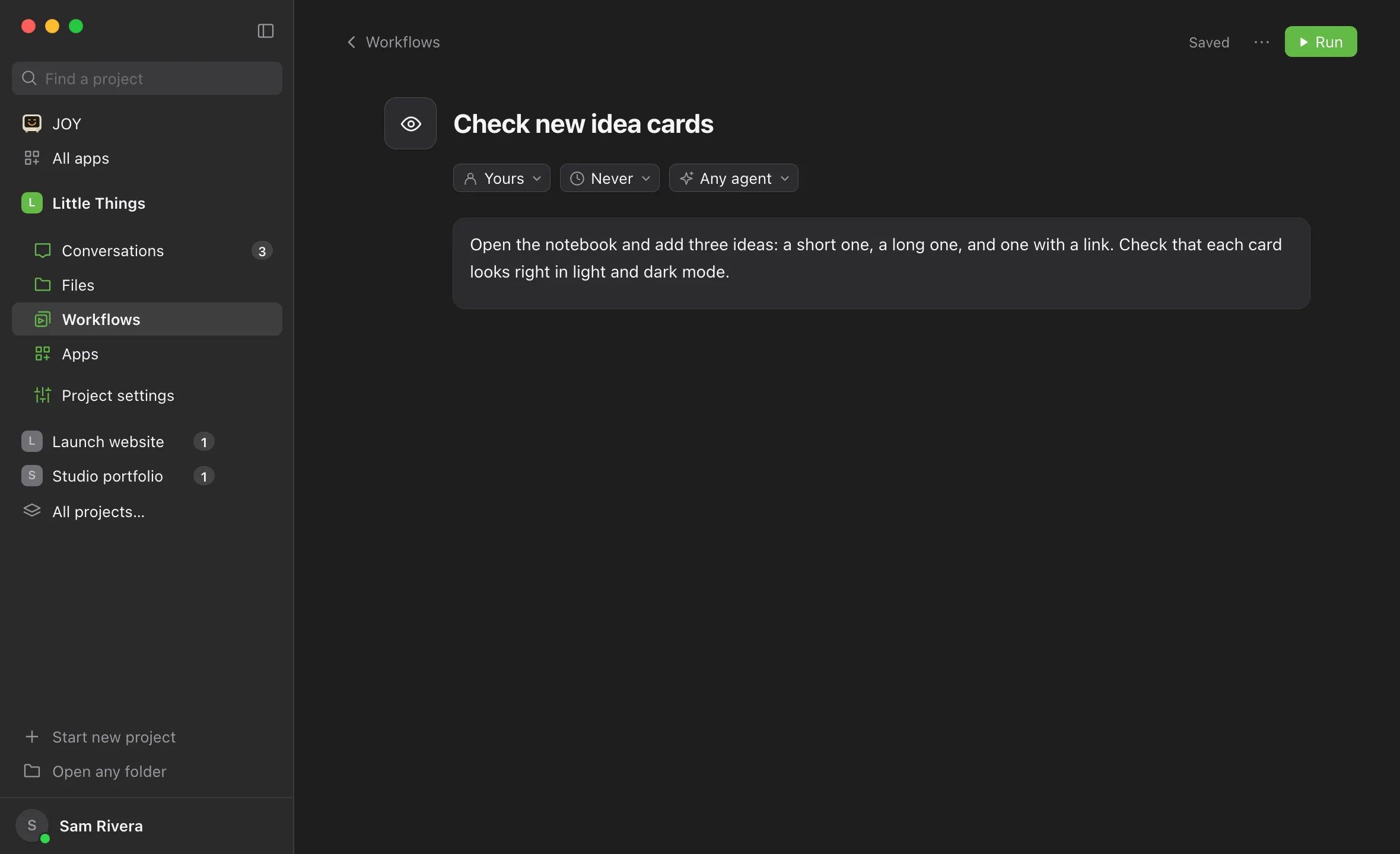
Enjoy saves the workflow a moment after you stop typing. The top right of the page shows Saving…, then Saved, and Run appears next to it.
Good to know
- There’s no Save button. Enjoy saves the workflow once it has instructions, and after that saves every change on its own, including when you leave the page or select Run.
- Until it has instructions, a new workflow isn’t saved. If you leave the page before typing any, nothing is kept.
- Saving doesn’t start the workflow and doesn’t use your agent. Run it when you’re ready. See Run a workflow.
- Two more optional settings sit beside the collection: Repeat, which shows Never, and the preferred agent, which shows Any agent. See Schedule a workflow and Choose which agent runs a workflow.
- Each run starts a fresh agent that doesn’t remember earlier runs. Write instructions that stand on their own: what to look at, what to produce, and how to check the result.
- To include another workflow as a later step, type @ in the instructions. See Link workflows.
- Titles can be up to 500 characters, and instructions up to 100,000 characters.
- To go back to the library, select Workflows at the top left or press Escape.
- You can also start from a new conversation: under the suggested workflows, select New workflow. Or add a ready-made one from the Gallery, or ask your agent to write it.
- The iPhone app can run workflows but can’t create them.
If something goes wrong
New workflow is greyed out
You have View only access to the project. Ask the project’s owner for Can work access.
The page shows Not saved
Enjoy couldn’t save the latest change. A message above the instructions says what to fix. For example, “Use a five-field cron schedule (minute, hour, day, month, weekday).” means the Repeat schedule needs fixing. See Write a custom schedule for a workflow. Once you fix it, Enjoy saves on its own.