Add a workflow to a message
Adding a workflow to a message is handy when you want to give the agent extra details this time, or use a workflow inside a conversation you already have. To run a workflow on its own, select Run instead. See Run a workflow.
Steps
Type @ in the message box
Type it at the start of the message or after a space. A picker opens for docs, workflows, and files.
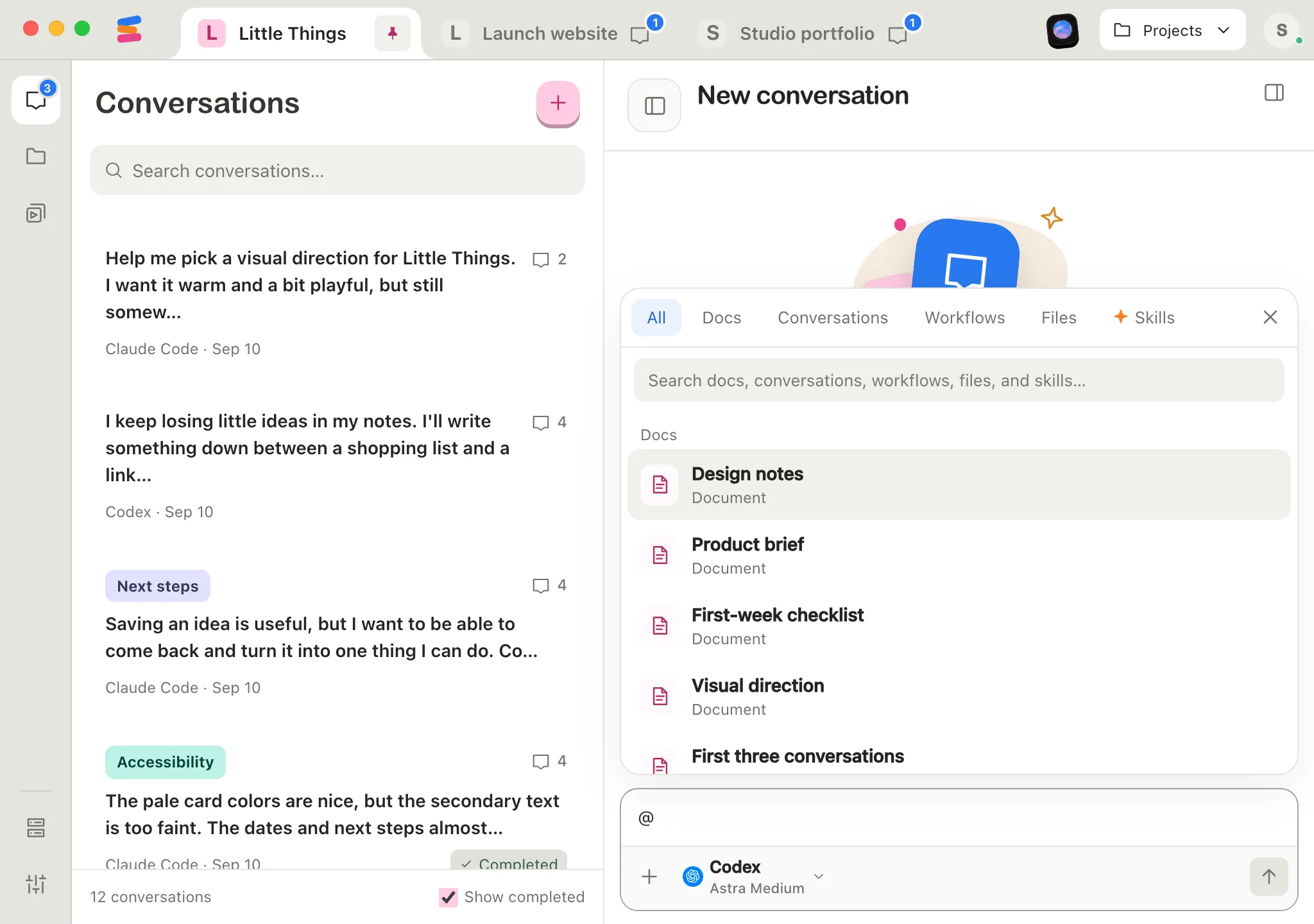
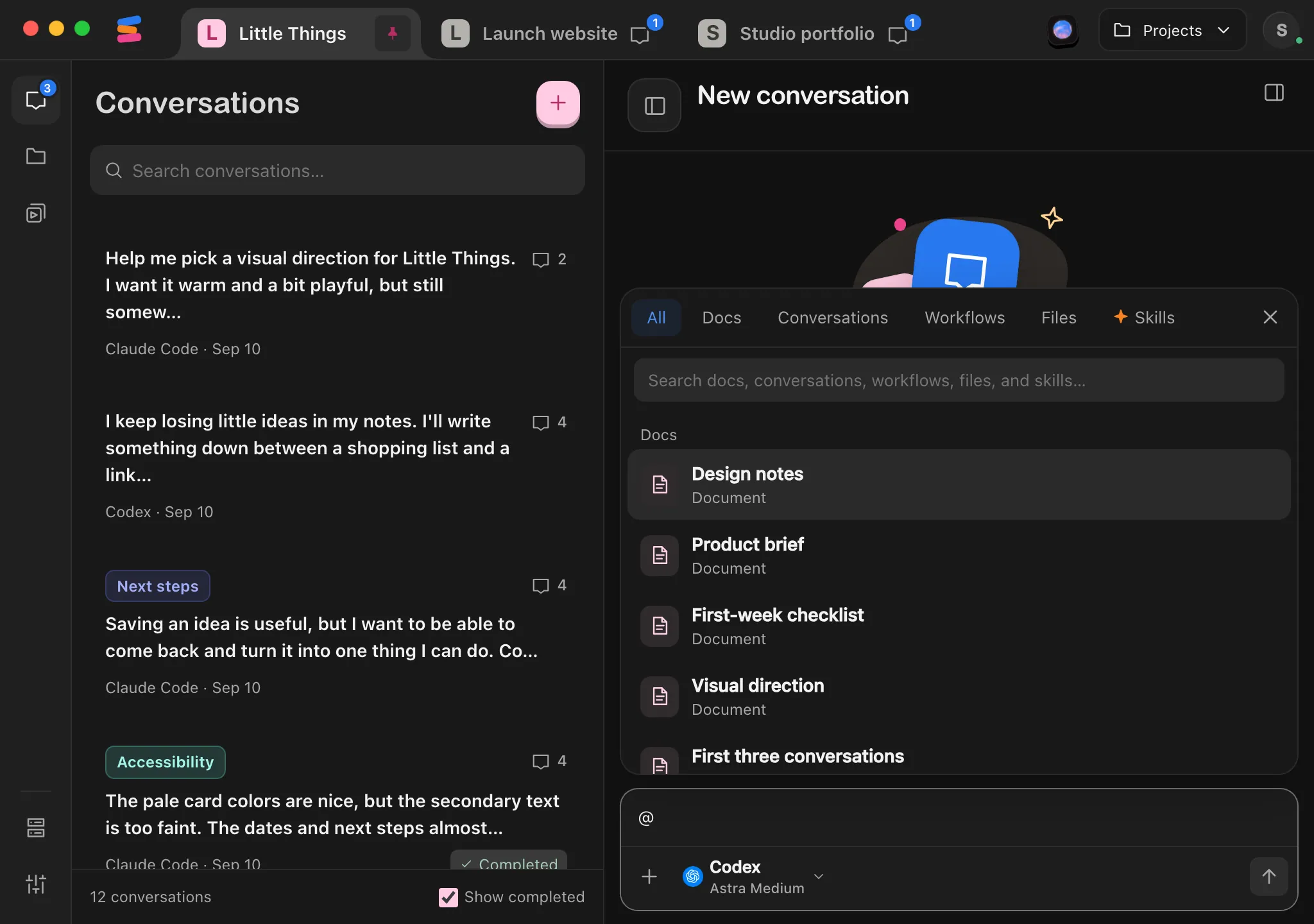
Show workflows
Select Workflows at the top of the picker, or stay on All. The Left and Right arrow keys switch between them.
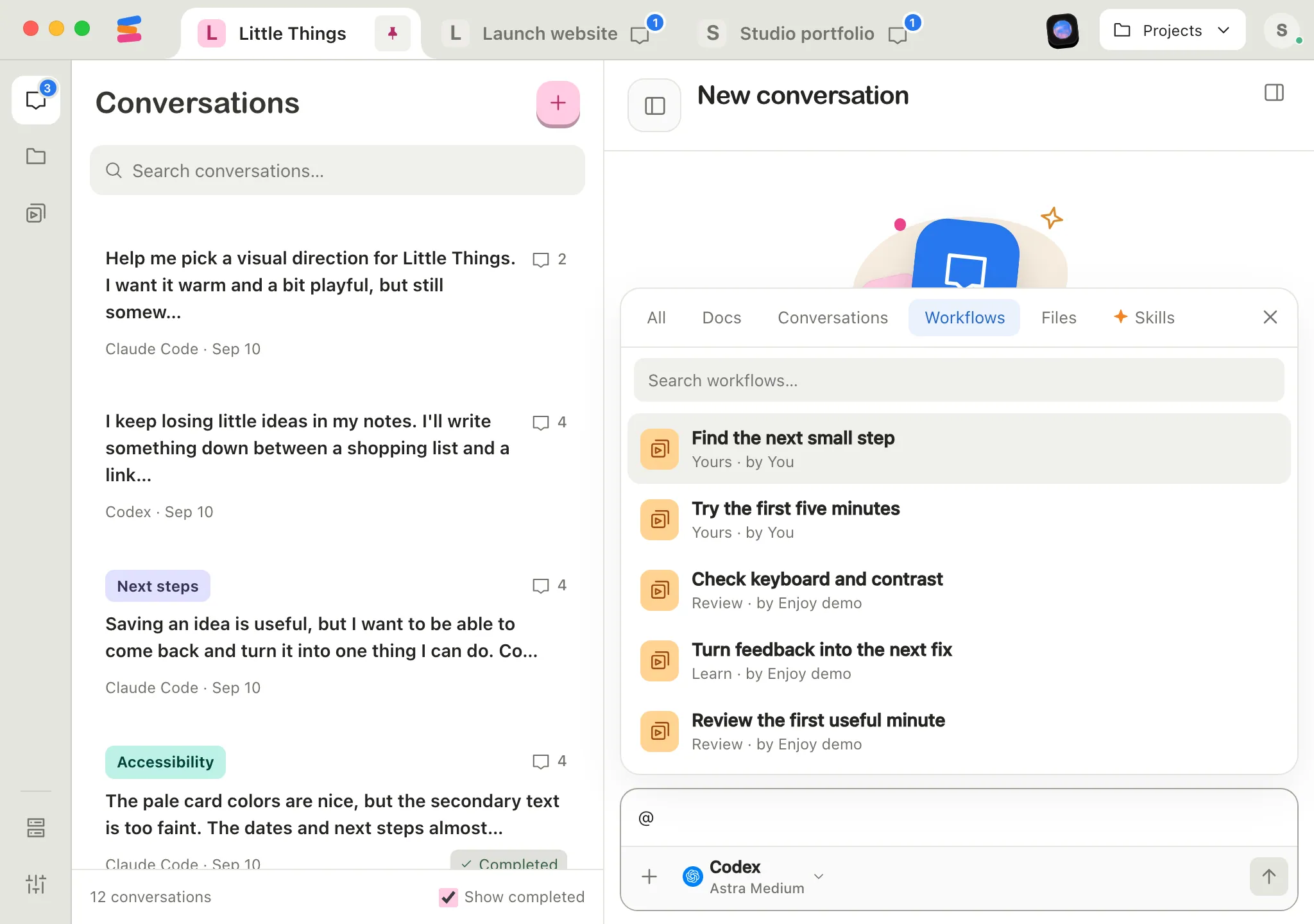
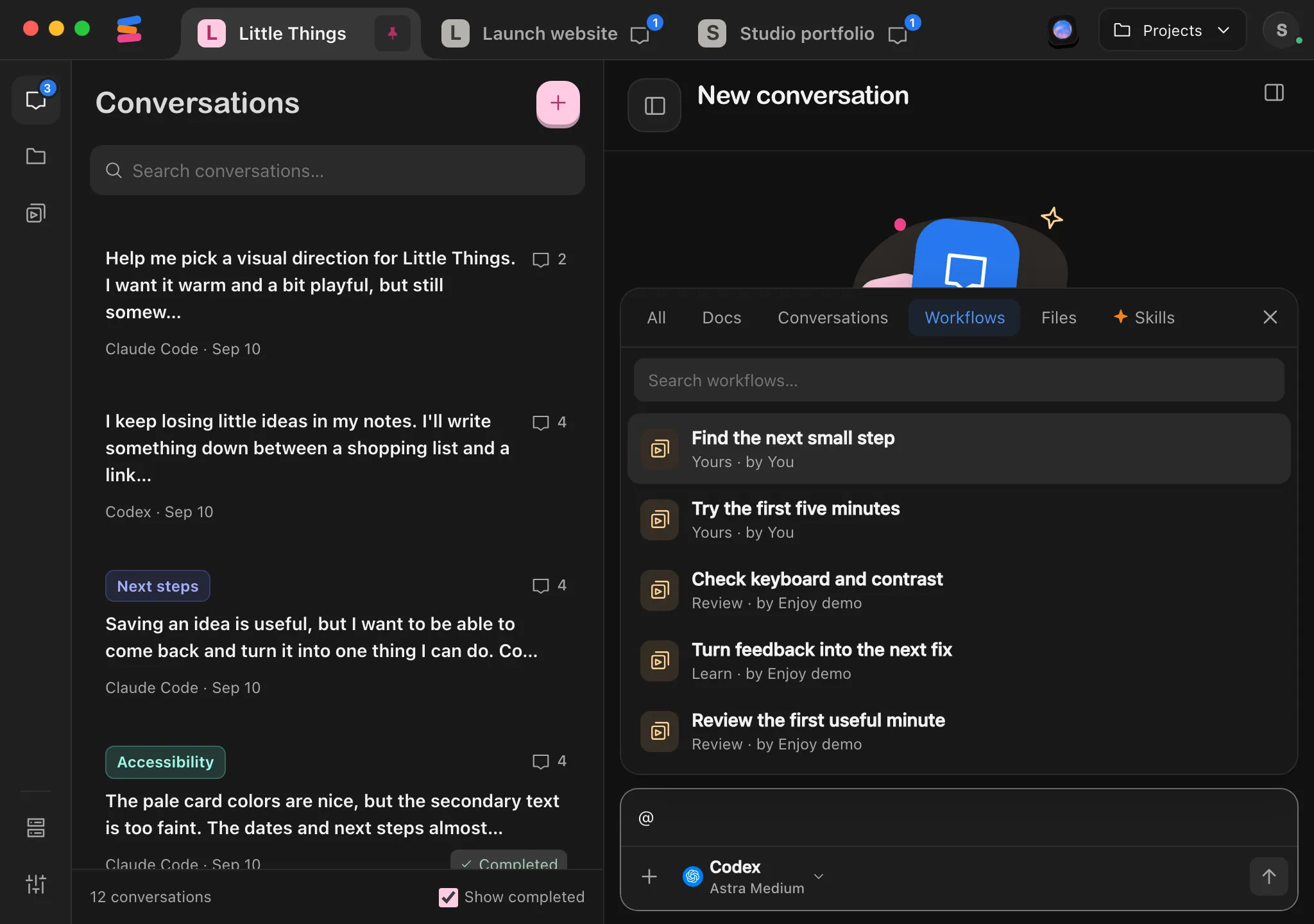
Search
Keep typing after the @ to filter by name or instructions. Each workflow shows its collection and author, and its preferred agent if it has one.
Choose the workflow
Select it, or use the Up and Down arrow keys and press Enter or Tab. Its numbered chip appears above the message box, and its marker, such as [1], goes into your message. Press Escape to close the picker without choosing.
![The message box with the workflow's marker [1] and a sentence typed after it, below its numbered chip. Highlighted: The workflow chip.](/help/shots/workflows/use-workflows-in-messages/4-light.webp)
![The message box with the workflow's marker [1] and a sentence typed after it, below its numbered chip. Highlighted: The workflow chip.](/help/shots/workflows/use-workflows-in-messages/4-dark.webp)
Add your details and send
Type anything else the agent should know, then press Enter or select the send button.
In the iPhone app, select the @ button in the message box, or type @. In Add context, select Workflows, then choose the workflow.
Good to know
- A new conversation suggests up to three workflows below What are you working on?, with your pinned workflows first. Selecting one adds it to the message box the same way. Nothing is sent until you send. Browse all workflows opens the Workflows tab, and New workflow starts a new one. The iPhone app suggests workflows on its new conversation screen too.
- On the computer app and the web app, adding a workflow with a preferred agent to a new conversation switches the message box to that agent’s settings. In an existing conversation, the agent stays the same.
- You can add up to 8 workflows to one message. To remove one before sending, select the × on its chip. Its marker is removed from your message too.
- Your message keeps a copy of the workflow as it was when you sent it. Editing or deleting the workflow later doesn’t change what you sent.
- In a sent message, hover over a workflow chip to see its instructions, or select it to open the workflow in the Workflows tab. If the workflow was deleted since, Enjoy shows the copy from your message and offers Save a copy, which saves it as a new workflow.
If something goes wrong
The workflow isn’t in the picker
- It may belong to another project. The picker only shows the current project’s workflows.
- It may show Desktop review needed in the Workflows tab, which keeps it out of the picker. See Run a workflow.
- It may already be in the message. Each workflow can be added once.
- You may have reached the limit. With Workflows selected, the picker says “Up to 8 workflows per message.”
The picker doesn’t open
Type @ at the start of the message or after a space. An @ right after other letters, as in an email address, doesn’t open it. With View only access to a shared project, you can’t write messages.