Schedule a workflow
Before you start
- Scheduled runs happen on the computer that has the project, even if you set the schedule from the web app. Enjoy must be open there at the scheduled time, with the workflow’s agent signed in.
Steps
Open the workflow
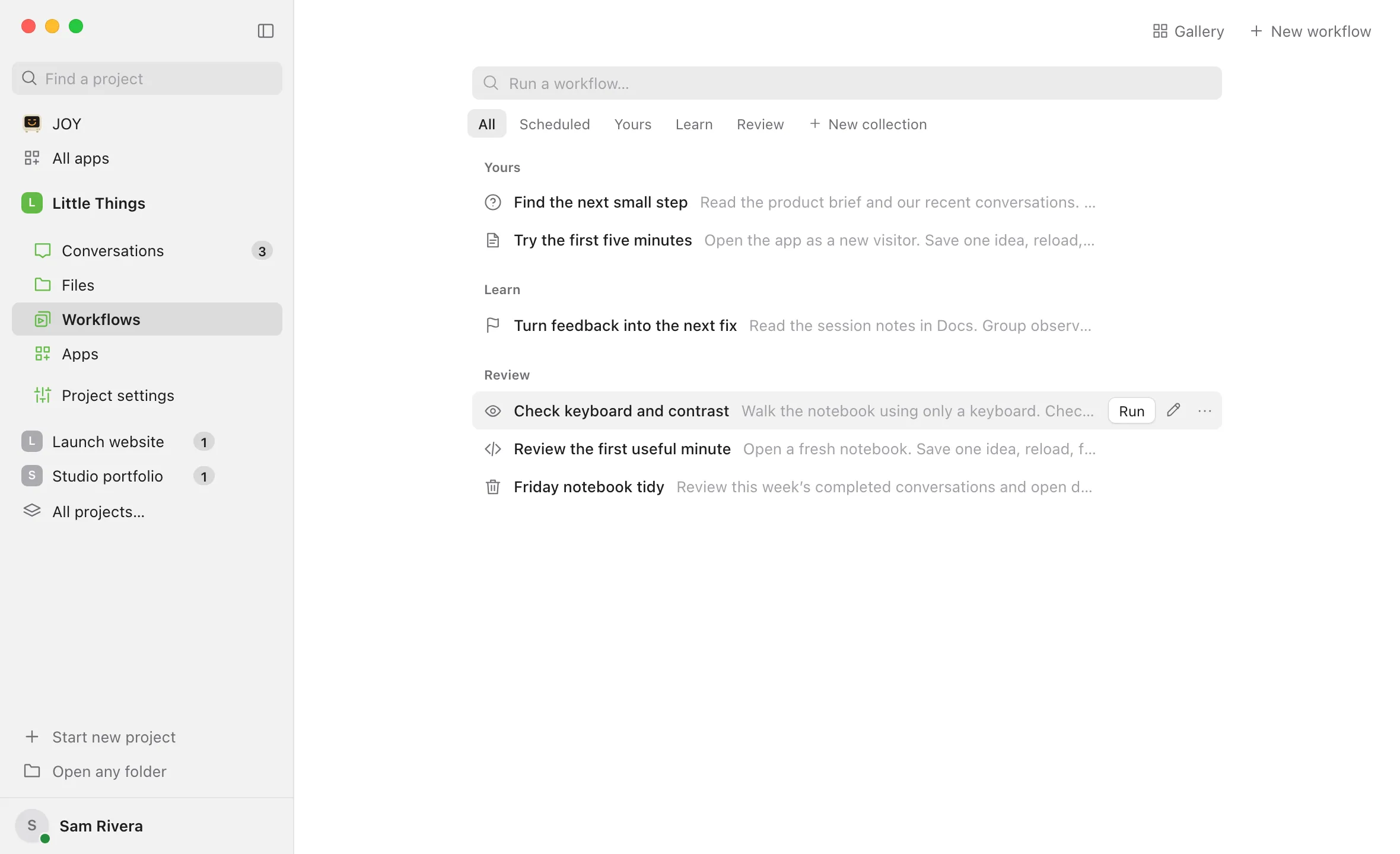
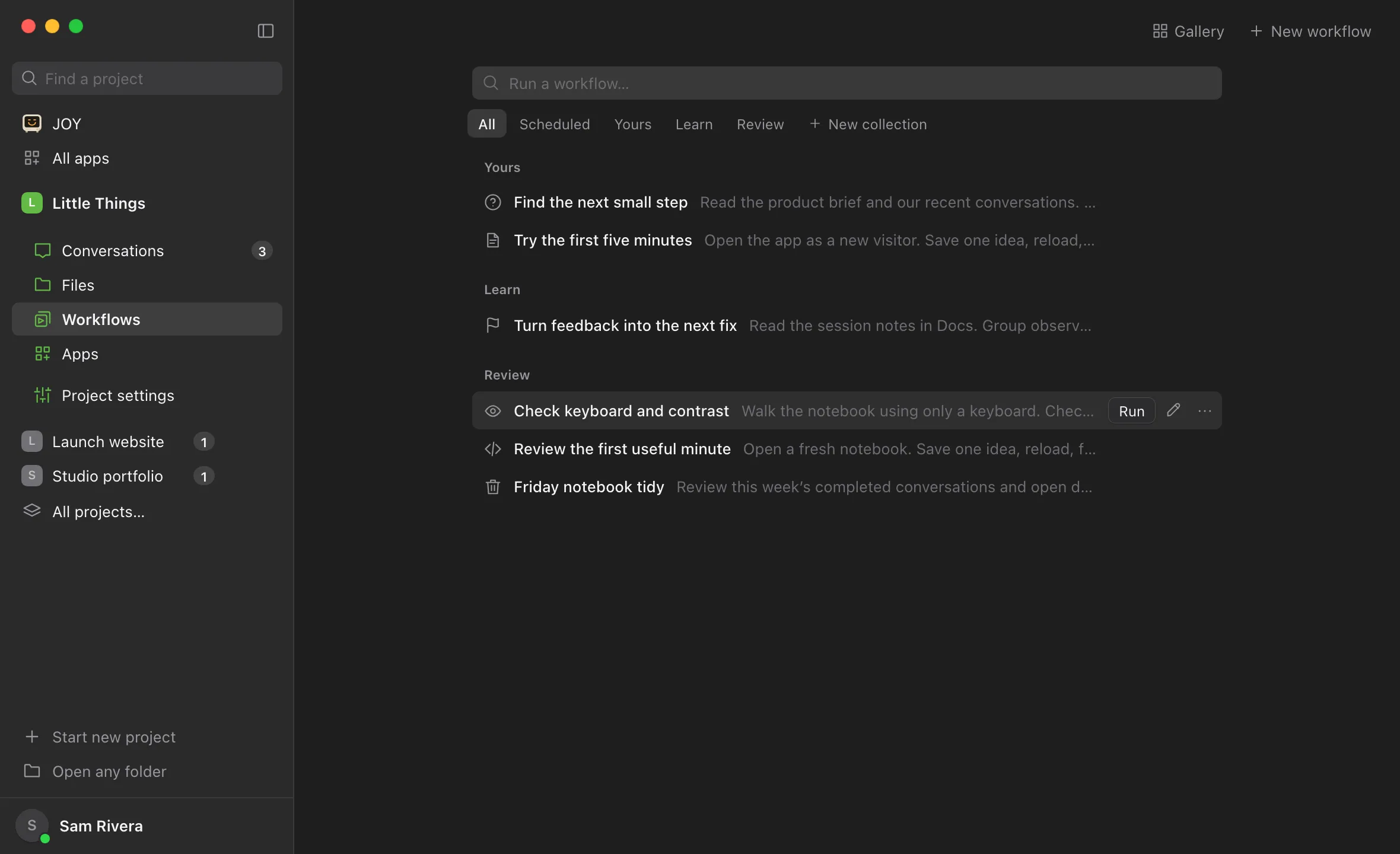
In Workflows, select the workflow’s name. Or point at its line and select Edit, the pencil that appears at the right of the line.
Select Repeat
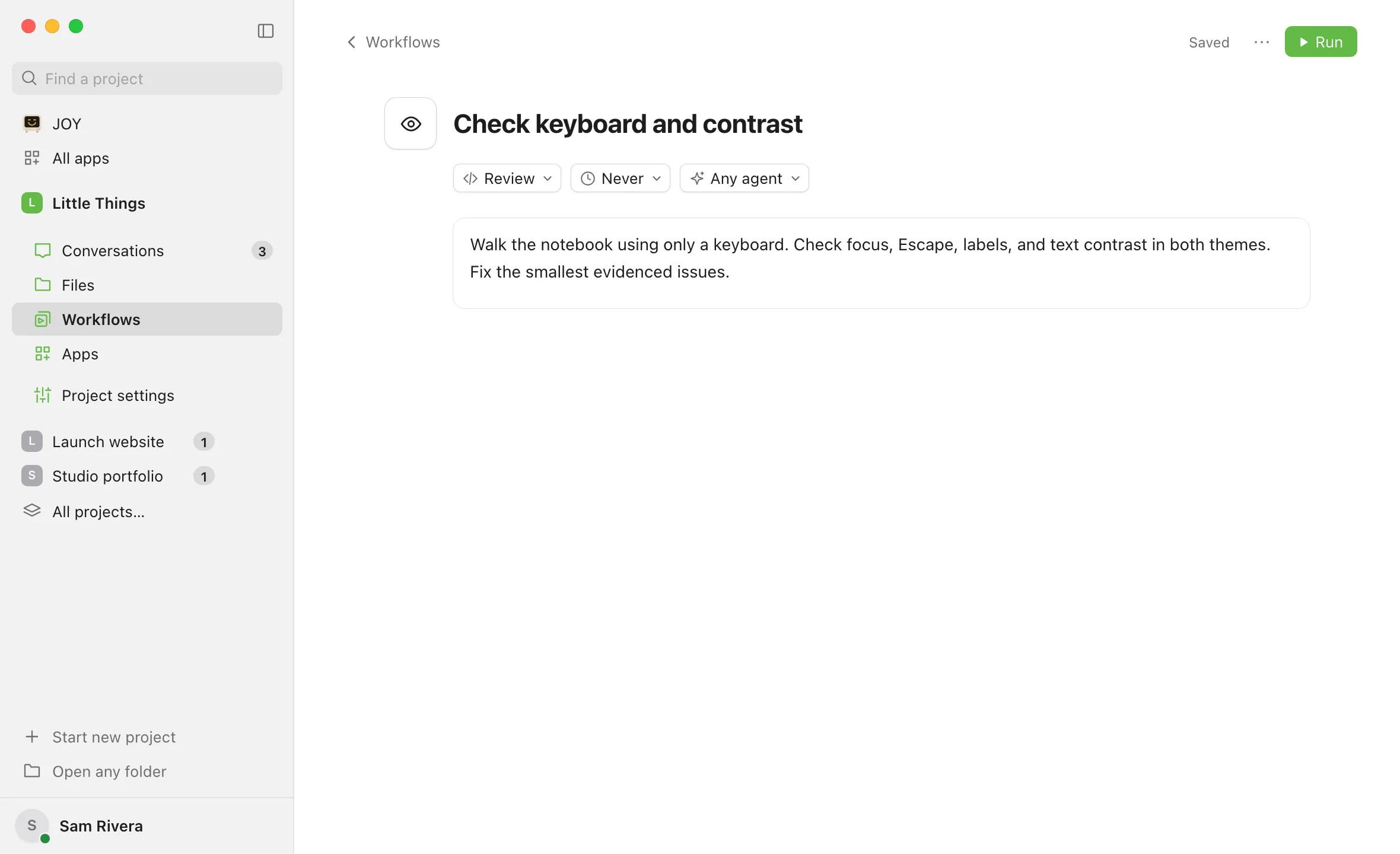
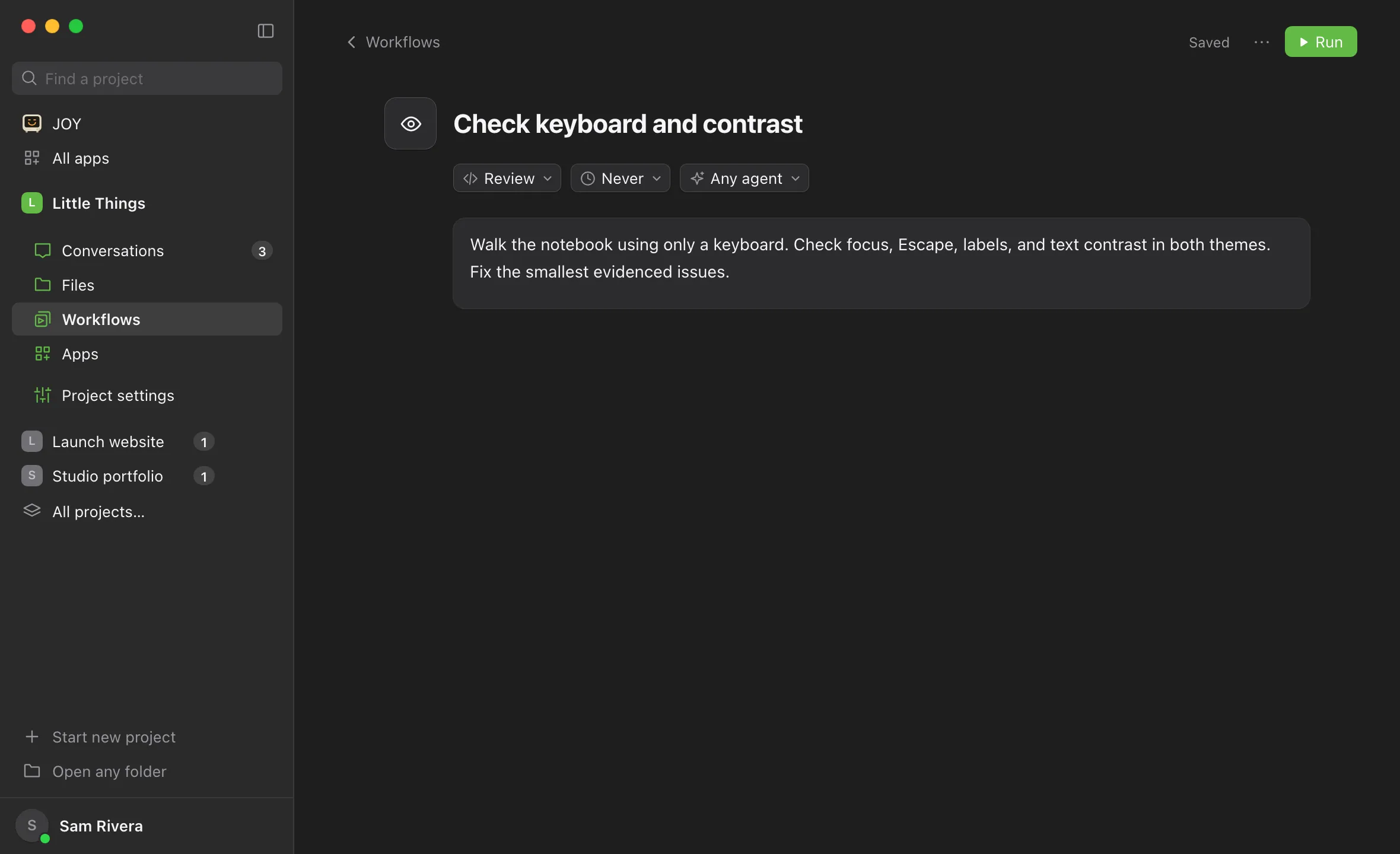
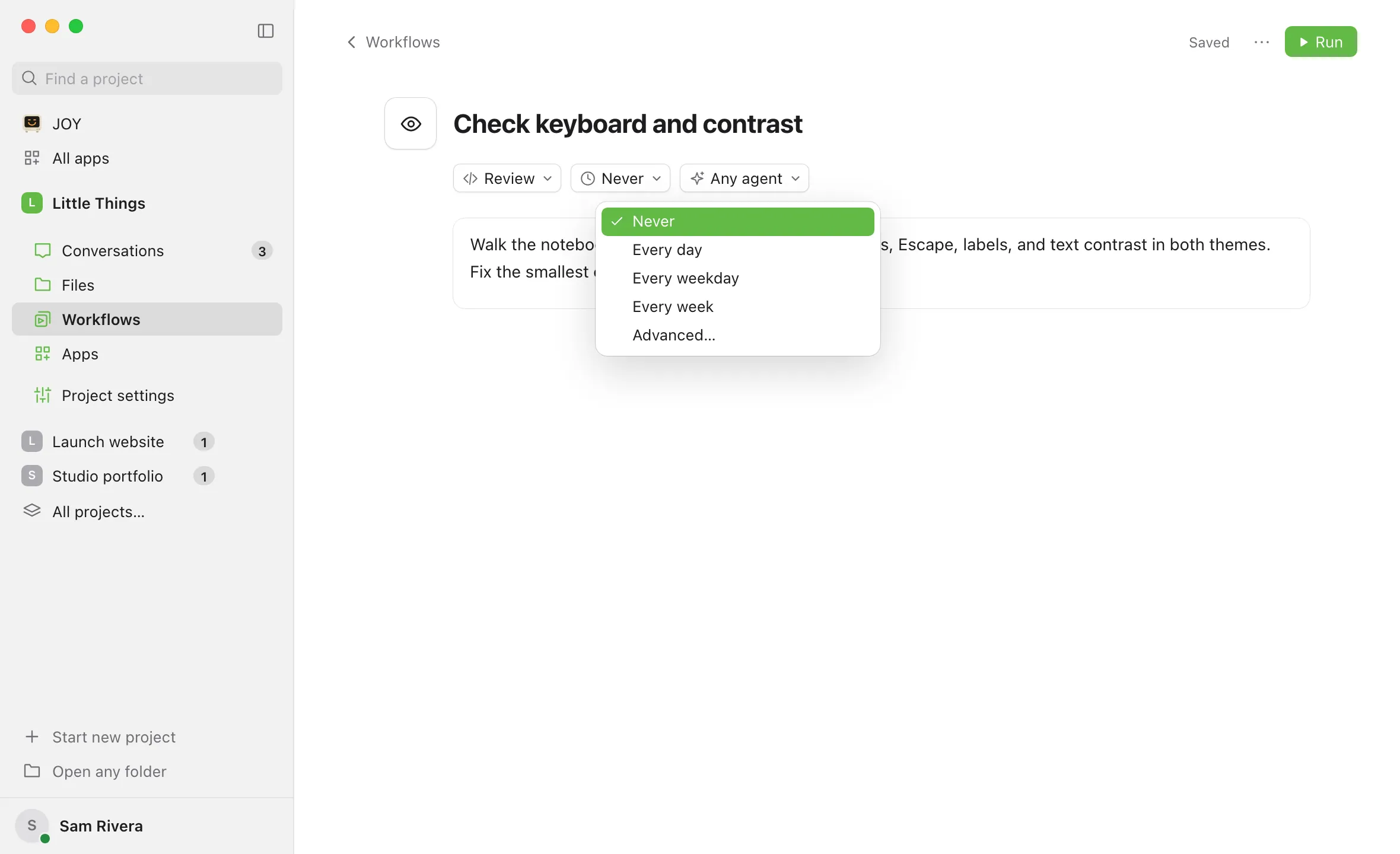
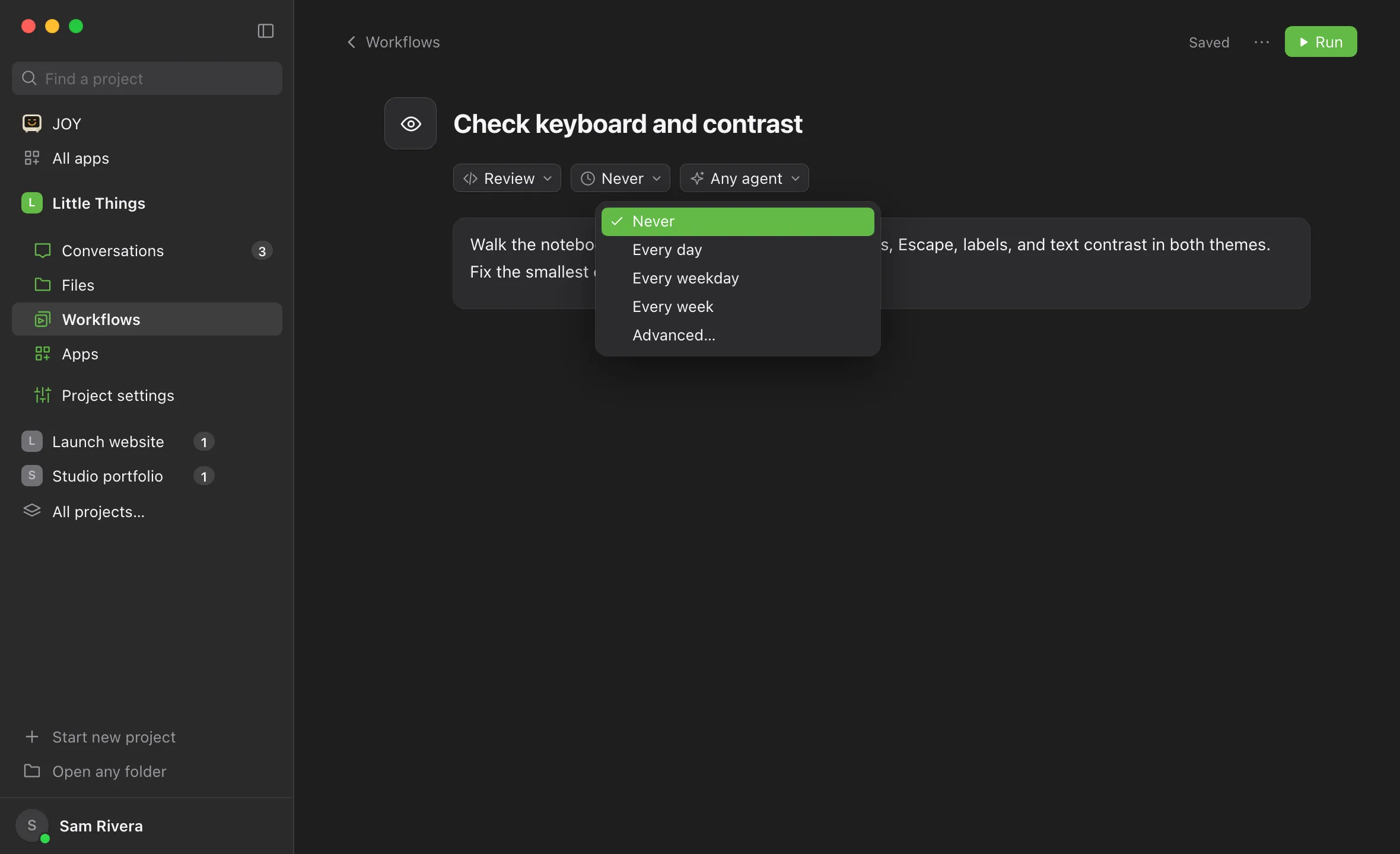
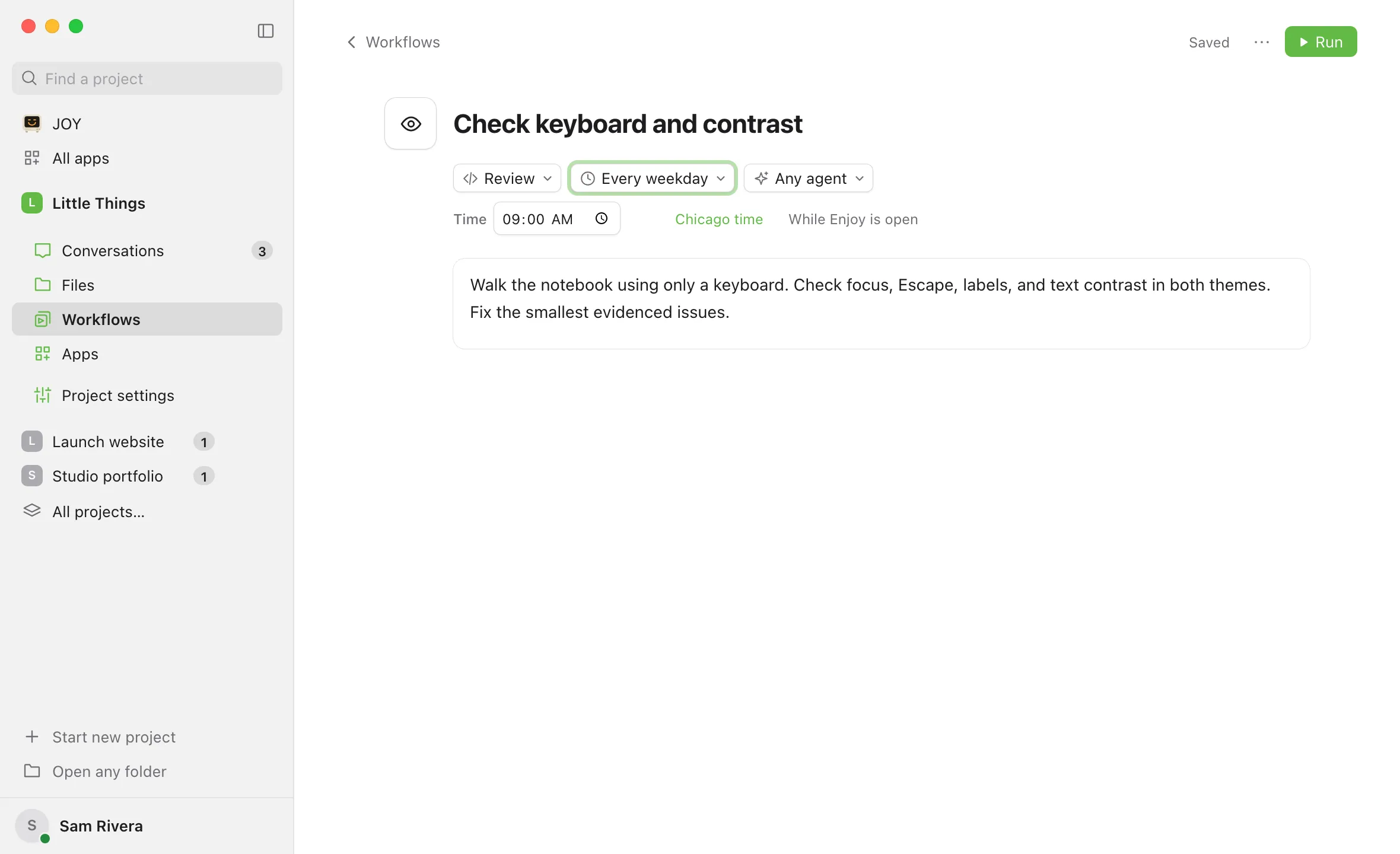
It’s the small menu with a clock under the title, between the collection and the preferred agent. It shows Never when the workflow has no schedule.
Choose how often
Choose Every day, Every weekday, Every week, or Advanced…. Never means the workflow only runs when you start it. The schedule’s settings appear below the menus.
Set the time
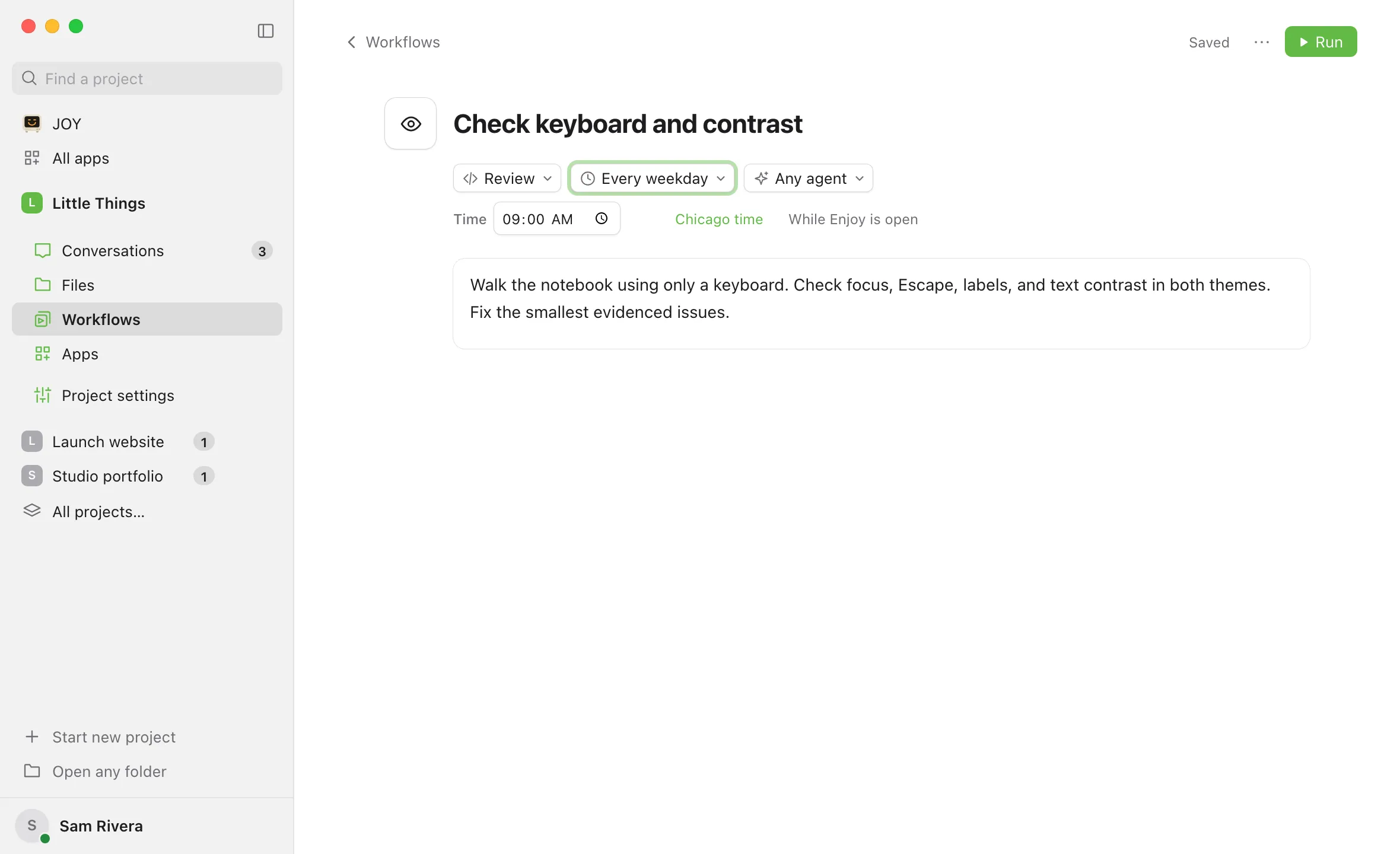
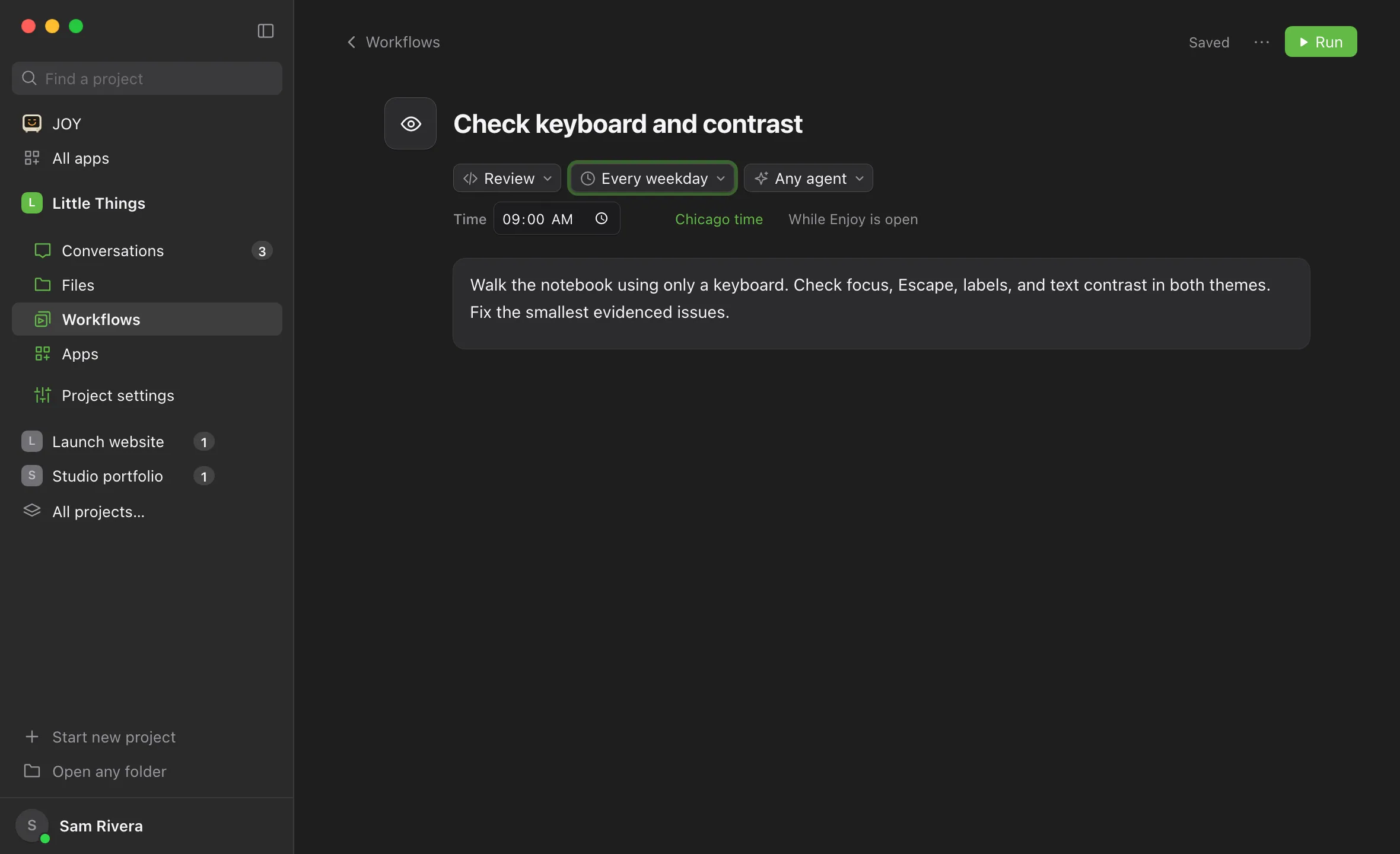
Type a Time. For Every week, also choose the Day. For Advanced…, type a Cron expression instead. See Write a custom schedule for a workflow.
Check the time zone
The line beside the time shows the time zone, such as New York time. To change it, select that line and type a time zone name in Timezone, such as Europe/London or America/Los_Angeles.
Check that it saved
Enjoy saves the schedule a moment after you change it. The top right of the page shows Saving…, then Saved. Selecting Scheduled, under the search field in Workflows, now lists it too, with how often it repeats at the right of its line.
Good to know
- Each run is a new conversation named after the workflow, using the workflow’s preferred agent or the agent settings you last used in the project. You’ll find it in Conversations.
- Enjoy must be running. On a Mac, closing Enjoy’s window keeps it running, but quitting stops scheduled runs. On Windows and Linux, closing the window quits Enjoy. The computer must also be awake. Any project can be on screen.
- The agent must be ready. If the workflow’s agent isn’t connected within a minute of the scheduled time, for example because it’s signed out, that time is skipped.
- Missed times are skipped, not made up. If Enjoy was closed or the computer was asleep, Enjoy waits for the next scheduled time. It doesn’t run a backlog when you return.
- Runs don’t pile up. If the previous run is still working or waiting for your answer, that scheduled time is skipped.
- Paused work skips runs. If the project shows Resume agent work, scheduled times are skipped until you resume.
- Running it yourself doesn’t move or change the schedule.
- To stop repeating, set Repeat to Never. It saves on its own.
- The iPhone app shows each workflow’s schedule, time zone, and next run, but can’t change them. Agents can also set schedules for you. See Ask your agent to create or change a workflow.
If something goes wrong
“Use a five-field cron schedule (minute, hour, day, month, weekday).”
The Cron expression for Advanced… isn’t one Enjoy can use, and the page shows Not saved. The workflow keeps its last saved schedule. See Write a custom schedule for a workflow and fix it. Enjoy saves once it works.
An error appears when you change the time zone
Enjoy didn’t recognize the name, and the page shows Not saved. Use a full time zone name with a region and city, such as America/Chicago, Europe/Paris, or Asia/Tokyo. Enjoy saves once it works.
The workflow shows Desktop review needed
Enjoy stopped running it because it couldn’t confirm the saved schedule and instructions, for example after its file was changed outside Enjoy, or after a device that saved it was removed. Open it, check the settings and instructions, and select Confirm next to “Desktop review needed before running.” If that shows an error, see Edit a workflow.