Edit a workflow
Steps
Open the workflow
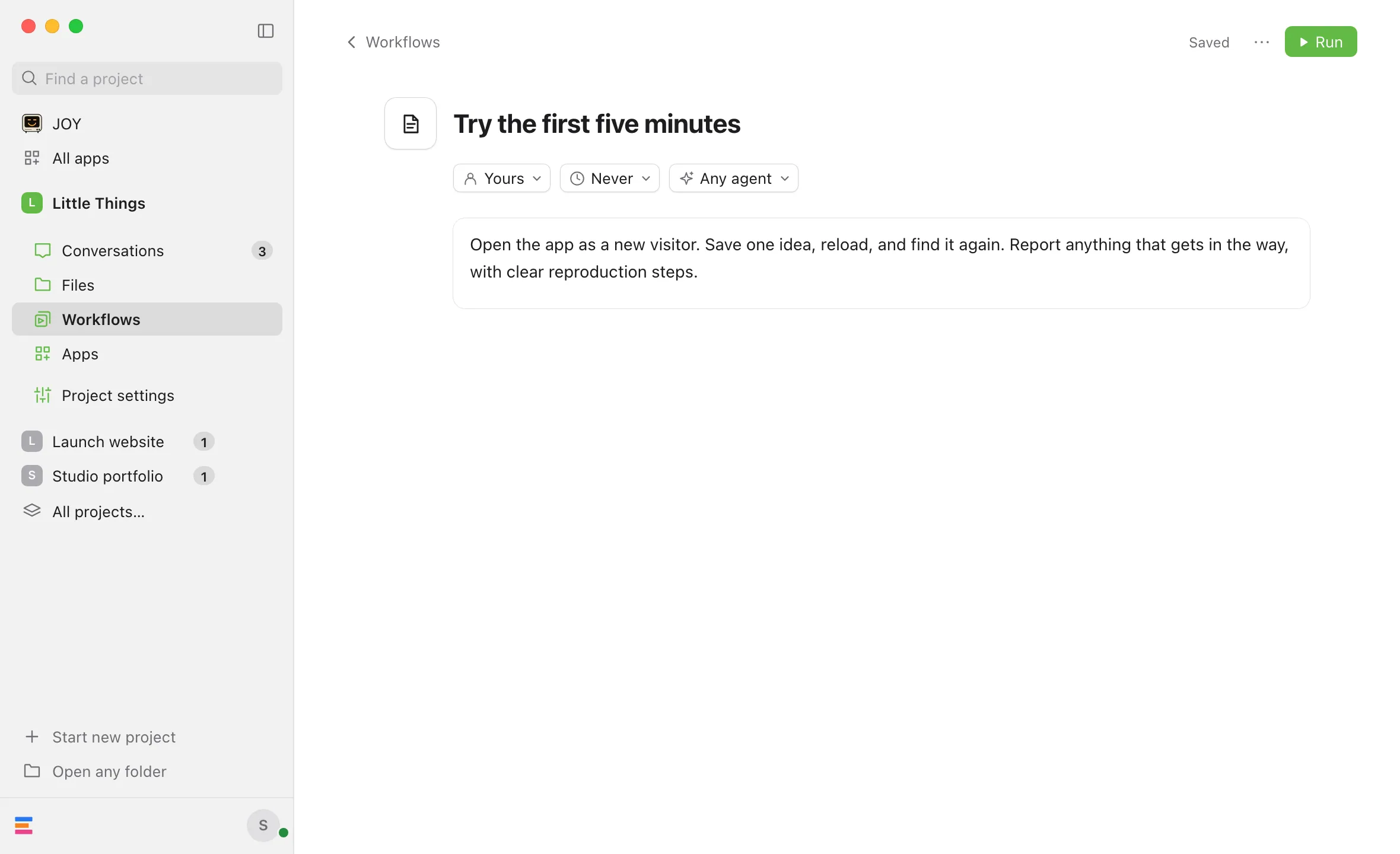
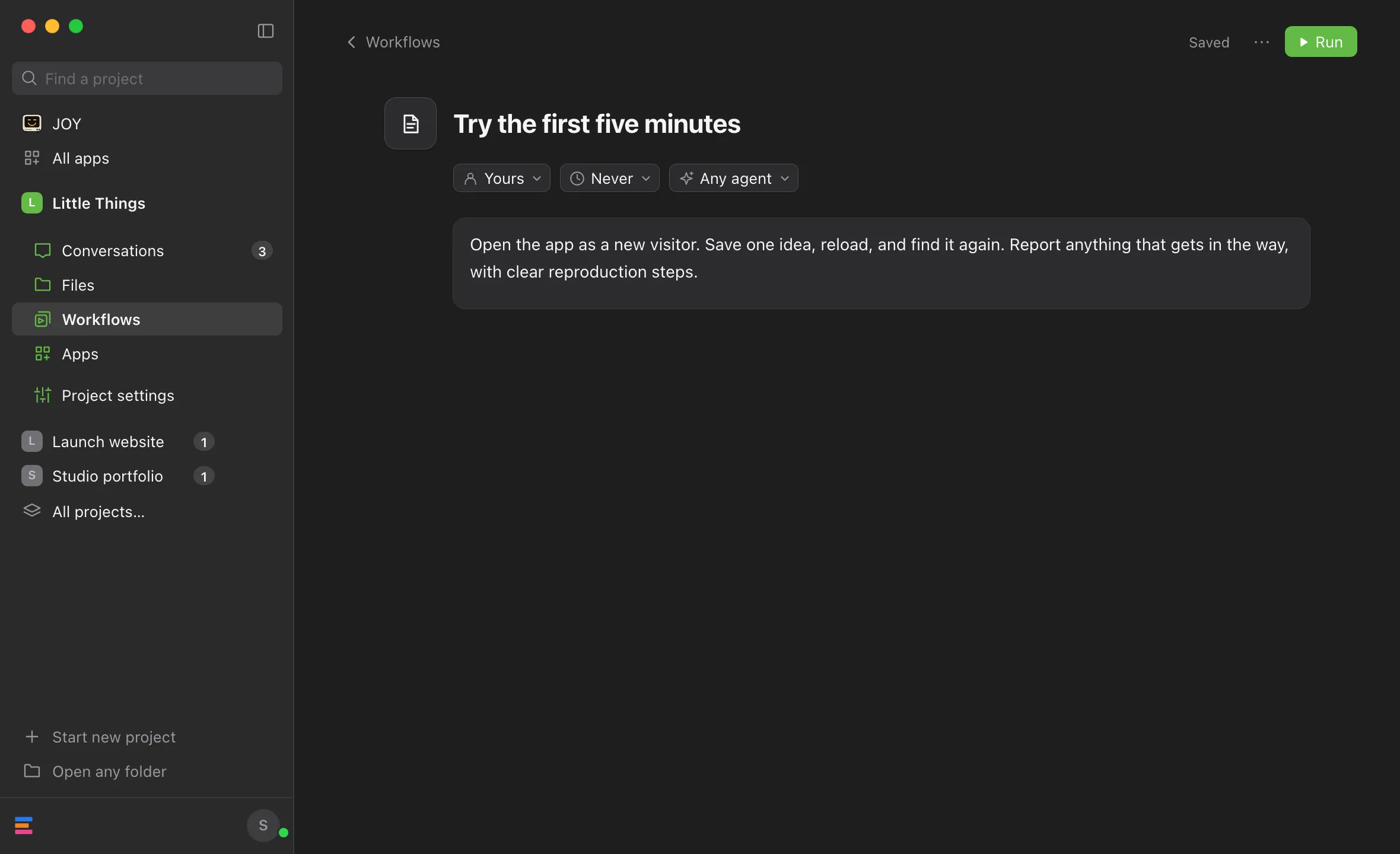
In Workflows, select the workflow’s name. Its page opens over the library. The page is also where you edit it.
Make your changes
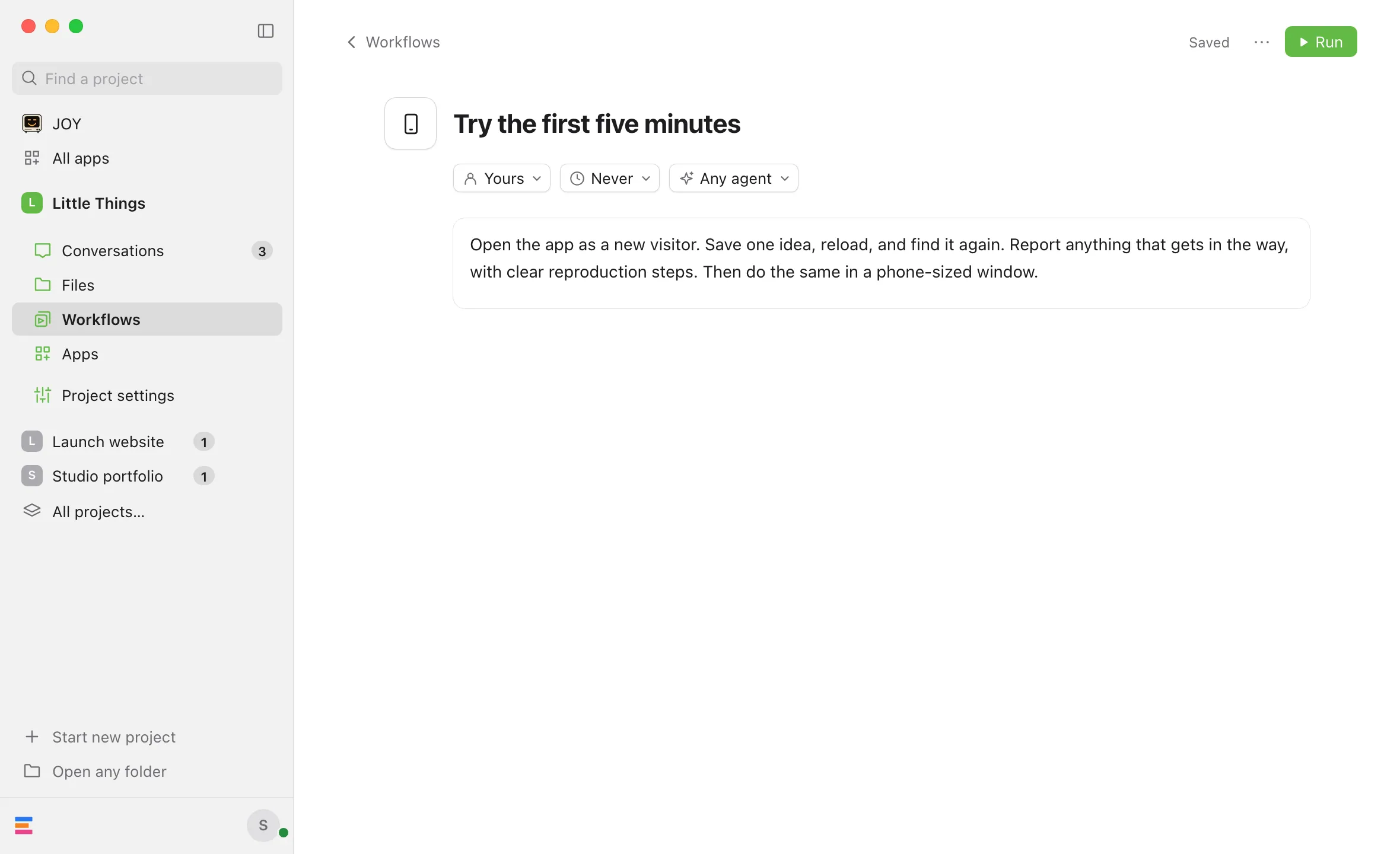
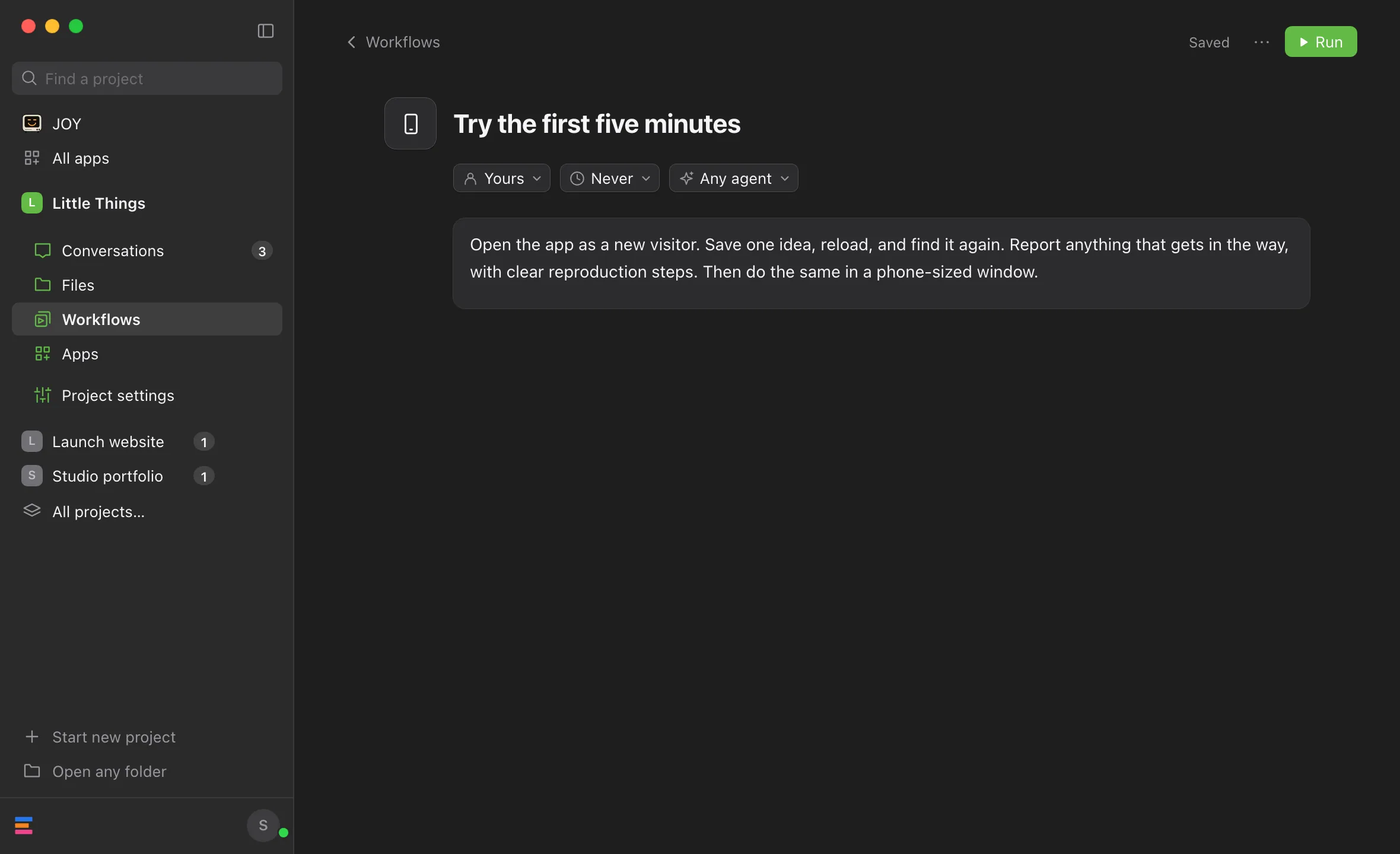
Type a new title at the top. Use the small menus under it to change the collection, Repeat, or the preferred agent. Select the instructions below them and type.
Check that it saved
Enjoy saves a moment after you stop typing, and when you leave the page or select Run. The top right of the page shows Saving…, then Saved.
Good to know
- There’s no Save or Cancel button. To undo a change in the instructions, press ⌘Z on a Mac or Ctrl+Z on Windows and Linux. The undone version saves too.
- To start typing in the instructions right away, point at the workflow’s line in the library and select Edit, the pencil. On a touch screen, the pencil is always showing.
- To go back to the library, select Workflows at the top left of the page or press Escape.
- To change a copy instead of the original, choose Duplicate from the ⋯ menu at the top right of the page. See Pin or duplicate a workflow.
- Changes apply from the next run. A run that’s already going keeps the instructions it started with, and messages you’ve sent keep their copy.
- To rename a workflow, change its title. To move it to another collection, choose one from the first menu under the title.
- To find or replace words in long instructions, click in them and press ⌘F (Ctrl+F on Windows and Linux). See Find and replace.
- Workflows from an installed collection can’t be changed. Their page says “This workflow comes from an installed collection.” Select Customize to save a copy without a schedule, named after the workflow with “(copy)” at the end, in Yours. The copy’s page opens, ready to change.
- Edit workflows in Enjoy rather than in another app. On the computer app, choose Open file from the ⋯ menu to open the workflow’s file in your default app. If a scheduled workflow’s file is changed there, Enjoy stops running it and shows Desktop review needed until you confirm it in Enjoy.
- Workflows that link to this one use its latest instructions the next time they reach it. See Link workflows.
- The iPhone app can’t edit workflows.
If something goes wrong
The page shows Not saved
Enjoy couldn’t save the latest change. If the instructions are empty, type some. A workflow needs instructions to be saved. Otherwise, a message above the instructions says what to fix, such as a Cron expression Enjoy can’t use. See Write a custom schedule for a workflow. Once you fix it, Enjoy saves on its own.
“Workflow no longer exists.”
The workflow was deleted while you were editing, perhaps from another device. Your text is still on the page. Copy it, then create a new workflow and paste it in. See Create a workflow.
The page has no menus and you can’t type in it
You have View only access to the project. Ask its owner for Can work access. A workflow from an installed collection, or a removed one opened from a message, also can’t be changed. Save a copy with the button on its page.
The workflow shows Desktop review needed
Enjoy couldn’t confirm the workflow is still the one that was saved, so it won’t run. This happens when a scheduled workflow’s file was changed outside Enjoy, or when a device that saved the workflow was removed. Its page says “Desktop review needed before running.” Check the instructions and Repeat, then select Confirm. Enjoy saves the workflow again, which clears the review.
If saving shows “The remote client that requested this work is no longer approved.”, the workflow was saved from a device that no longer has access. Create a new workflow with the same instructions, then delete the old one.
A run fails with “Saved work changed or its origin record is missing.”
The workflow’s file was changed outside Enjoy since it was last saved. Open the workflow and check the instructions. If its page shows Confirm, select it. Otherwise, save it again by changing something, such as a word in the title. Wait for Saved, then change it back. Then run it again.