Follow what your agent is doing
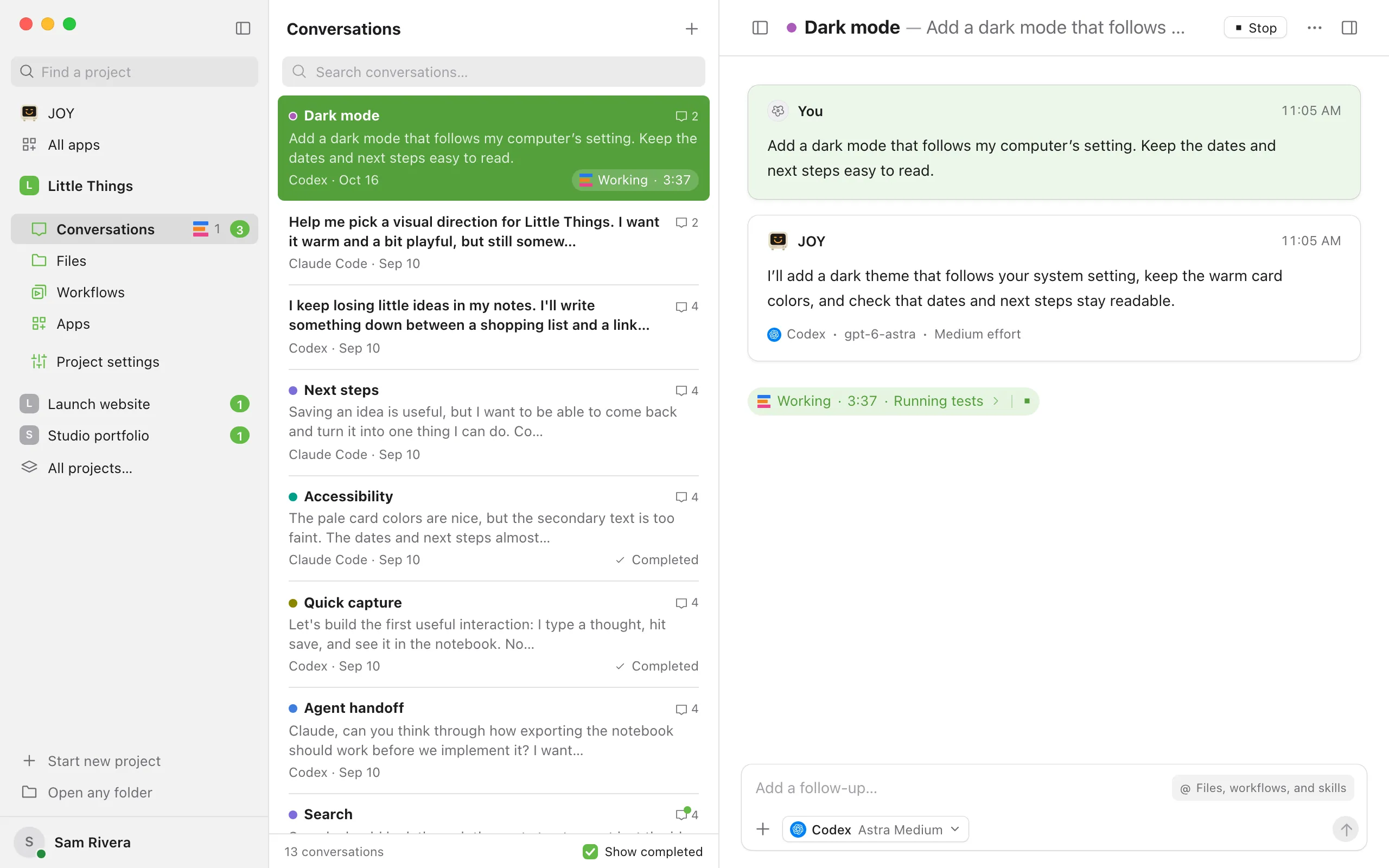
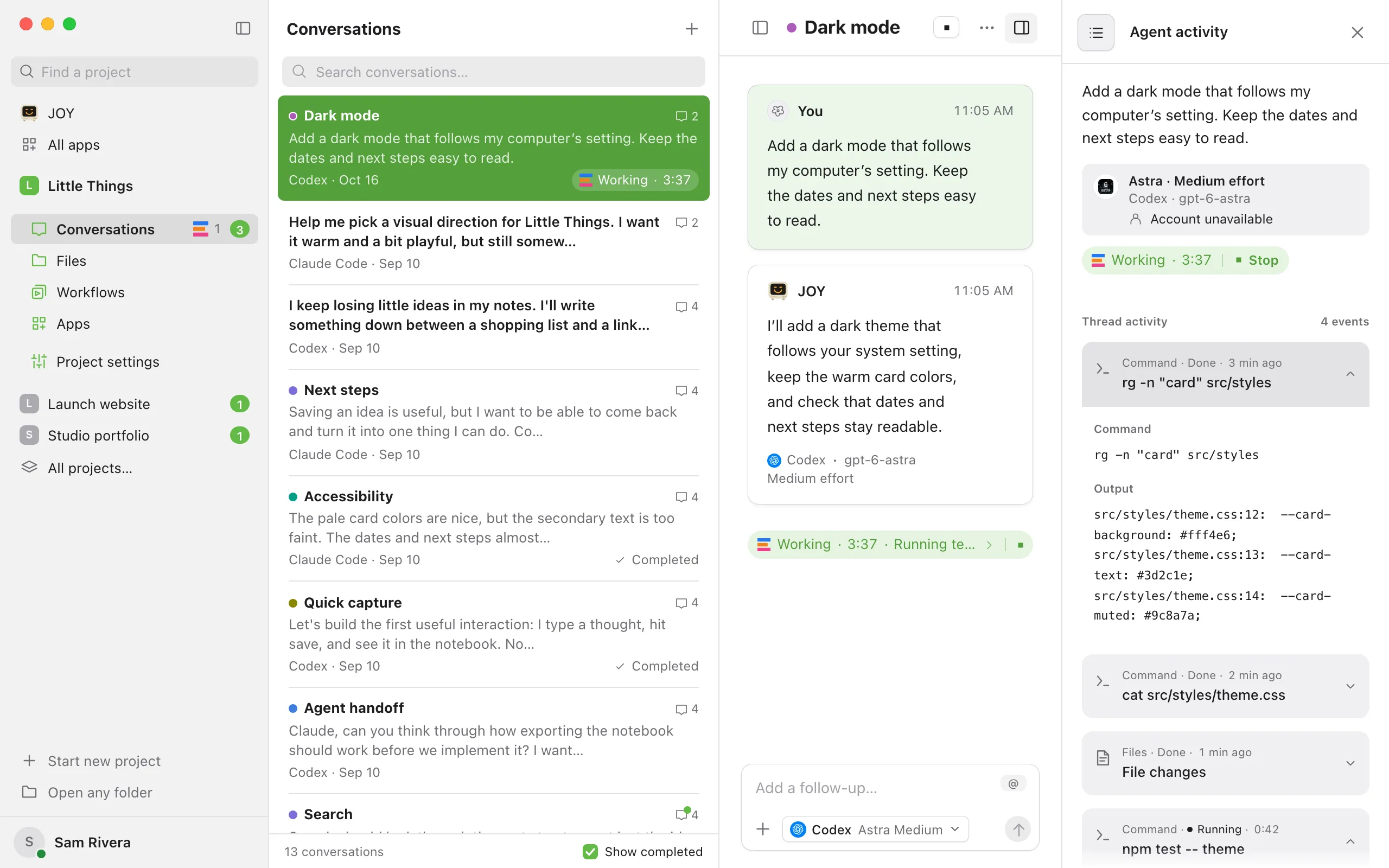
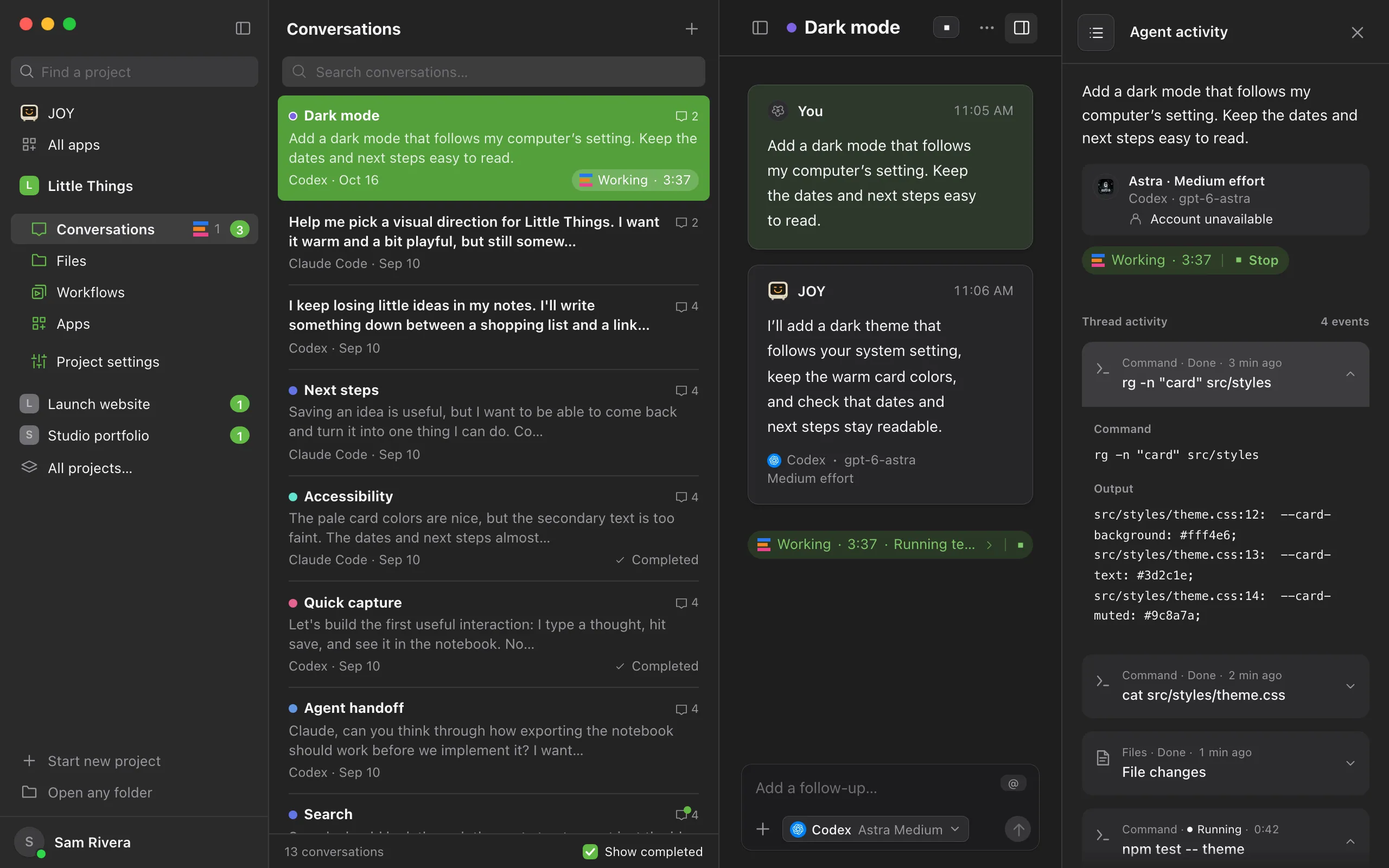
While an agent works, an indicator below the latest message says Working with a running timer and names the current step, such as Running tests or Editing index.html.
Steps
Open the activity panel
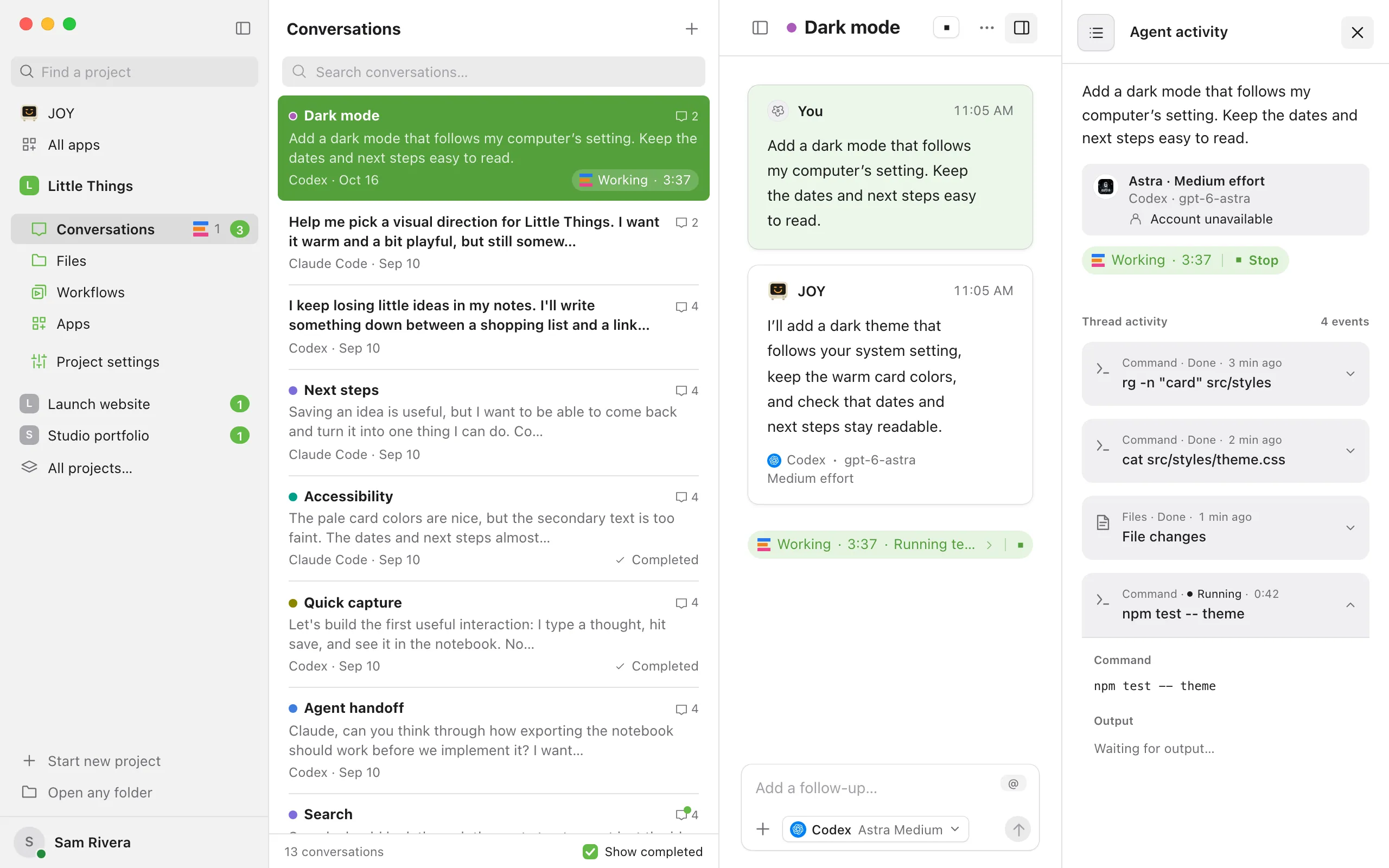
Select Show agent activity, the last button at the top right of the conversation. While the agent works, you can also select the Working indicator below the latest message. On wide windows the panel opens beside the conversation. On narrower ones it opens over it.
Read the steps
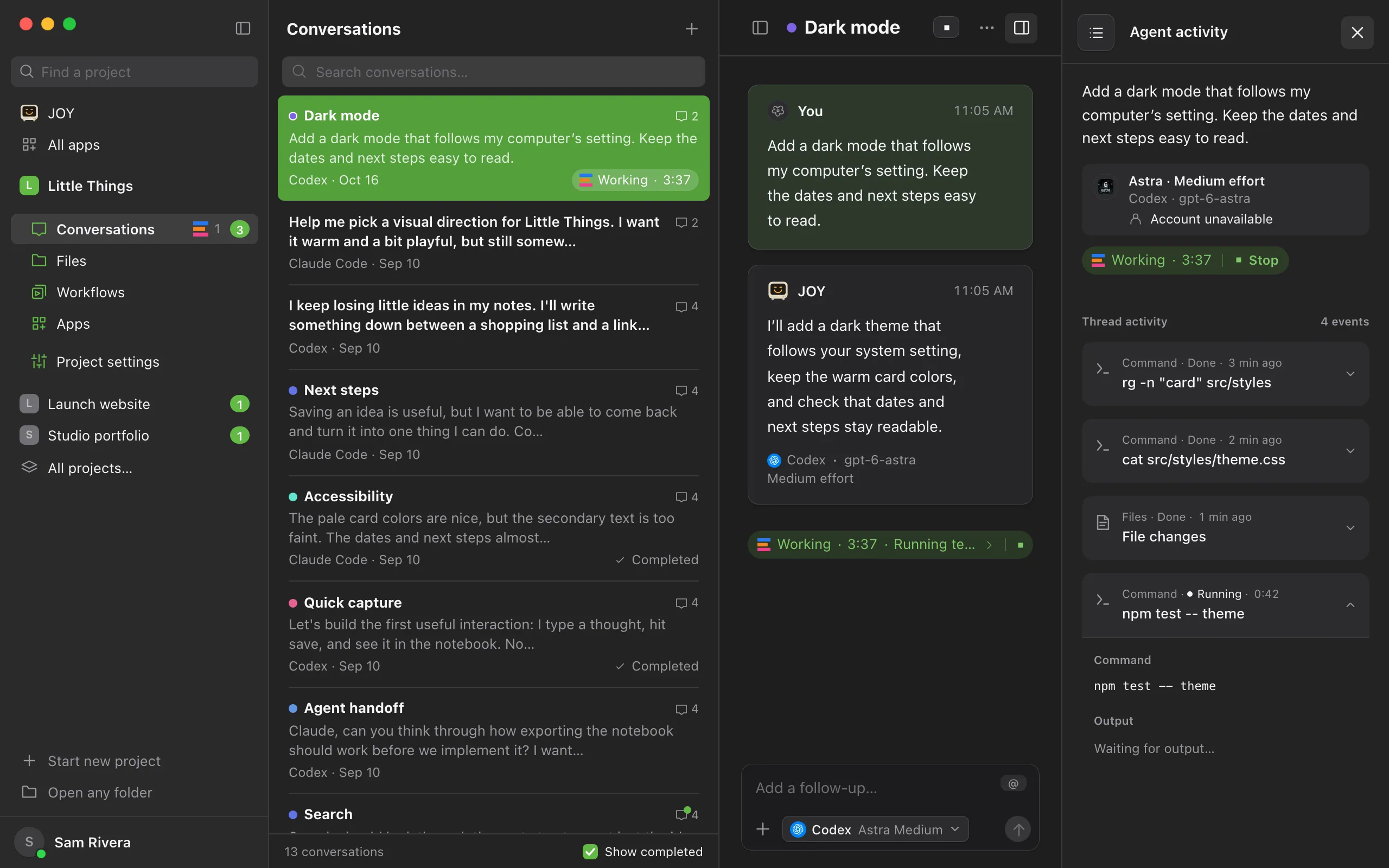
Under Thread activity, each step shows what kind it is, its status (Running, Done, Failed, or Interrupted), and its time. A running step shows a live timer. A finished step shows how long ago it ended.
Open a step for details
Select a step to see its command, input, and output. Steps that are running open on their own. The latest Thinking step stays open after it finishes, until a newer one starts or you close it.
Check on helper agents
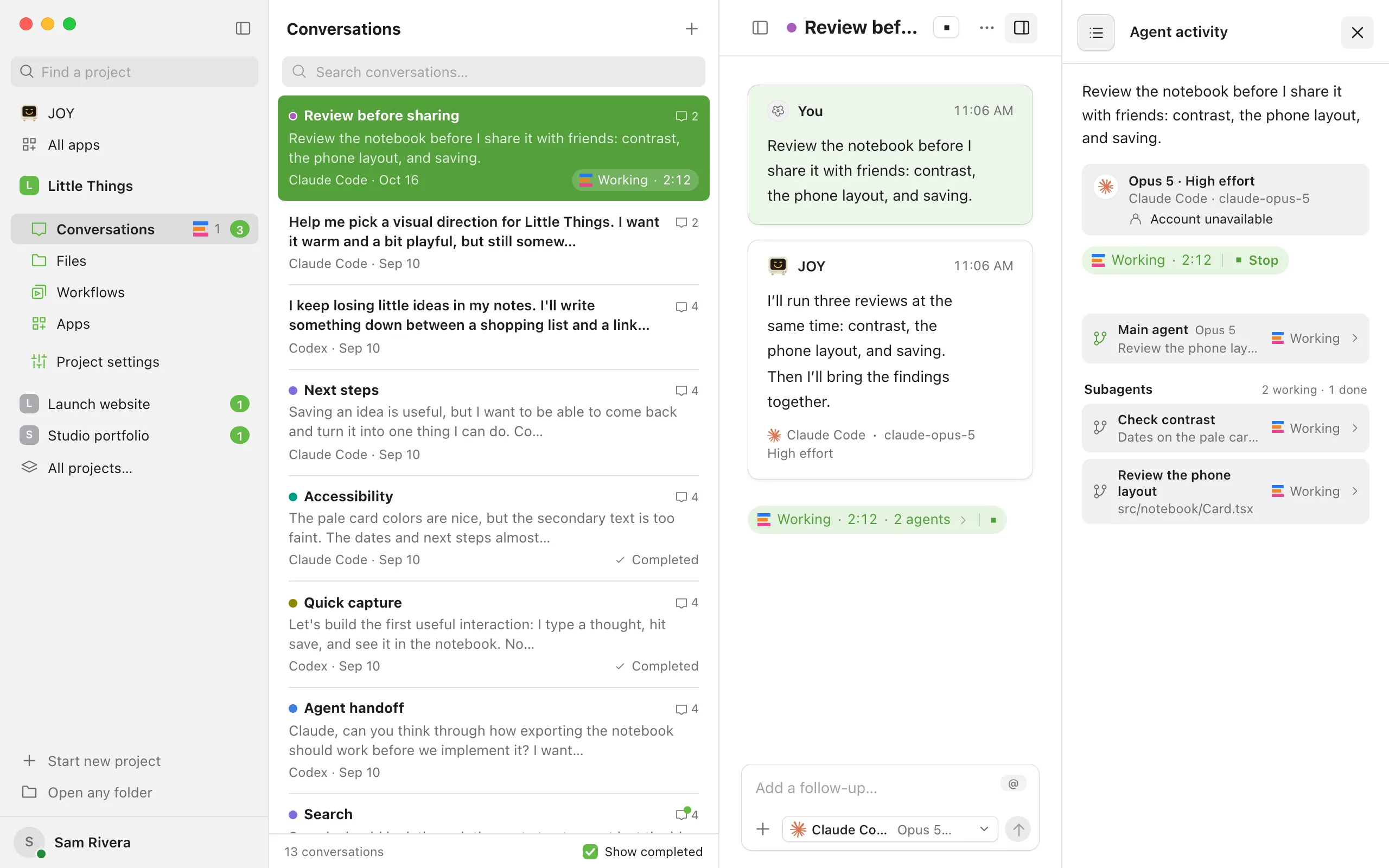
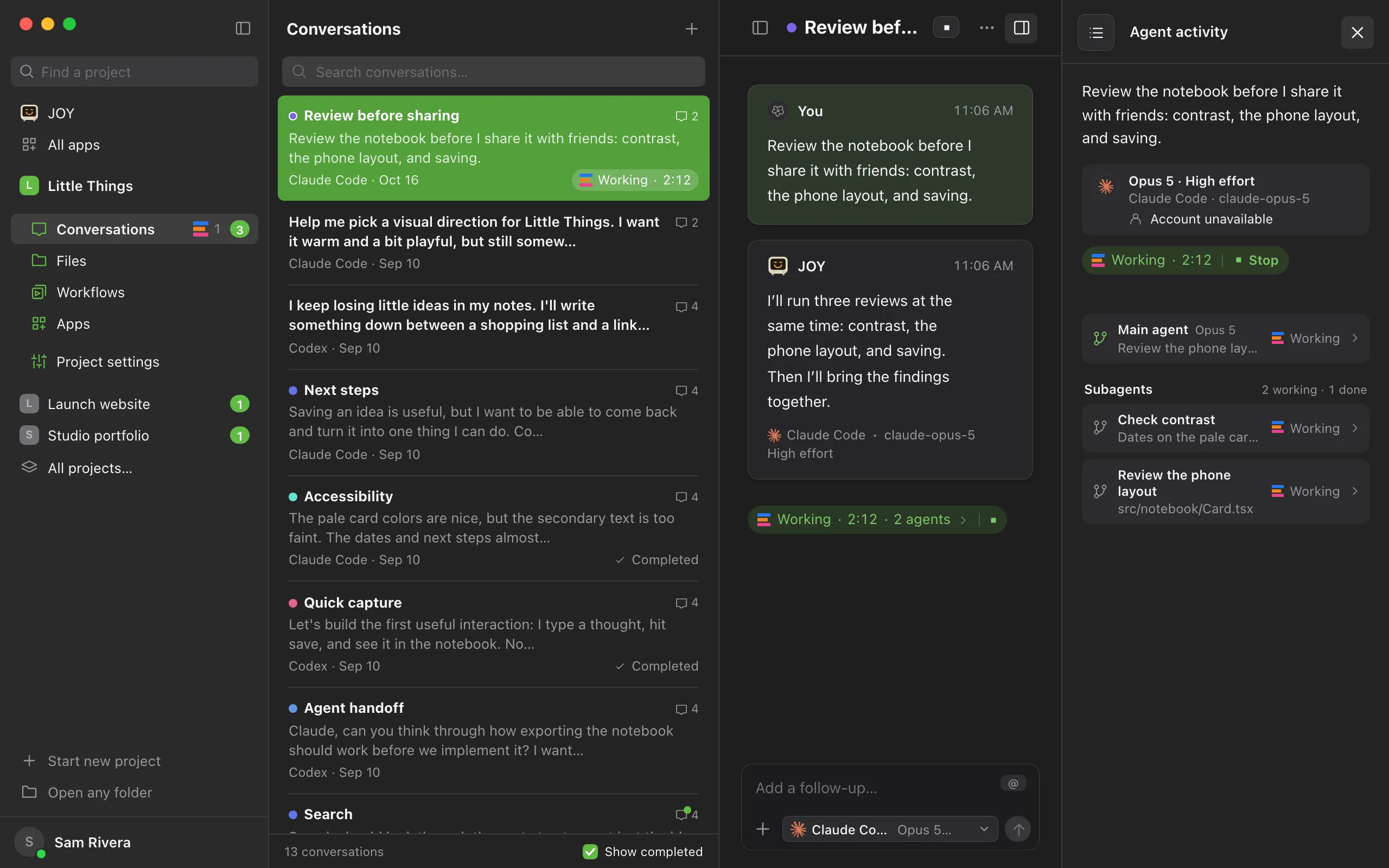
If the agent hands work to helper agents (subagents), the panel lists Main agent and Subagents, with how many are working and done. Select an agent to see only its steps, and select the back arrow (All agents) to return to the list.
Close the panel
Select the X (Close agent activity), or select Hide agent activity, the button that opened it.
Good to know
- In the computer app and the web app, the top of the panel names the model this request is running on while the agent works, with its effort and exact model ID, such as Opus 5.5 · Max effort. The composer shows the choice for your next message, so the two can differ. When Claude Code reports which model a helper agent uses, that model appears beside the agent’s name.
- On your own devices, the account beneath the running model is the sign-in that agent process reports. Changing the project’s account for future messages does not relabel a run already in progress. The iPhone Activity sheet shows the same run identity. If the agent cannot report an identity, it says Account unavailable; key-based or managed sign-ins may show API key or Managed sign-in instead of an email. The computer owner’s account identity is not shared with project members.
- While the agent works, Stop sits beside Working at the top of the panel. See Stop an agent.
- The Manual opens where the panel sits and takes its place while it’s open. Select Show agent activity to bring the panel back, which closes the Manual. See Read the Manual inside Enjoy.
- If you scroll up in the panel, it stops following new steps. Select Follow latest activity to jump back to the newest one.
- Compacting: an agent can only keep so much of a conversation in mind at once. When a long conversation reaches that limit, the agent summarizes the earlier part and keeps going. For Claude Code, Codex, Grok Build, and Muse Code, the status says Compacting during that time, and the panel records it as Compacting conversation, then Conversation compacted. Other agents show Working instead.
- Helper agents can appear for Claude Code, Codex, Antigravity, and Muse Code. The conversation stays Working until they finish, and the indicator shows how many are active, such as 2 agents. Select the done count in the Subagents heading to show or hide finished ones.
- When the agent has started processes, such as a website, the panel lists them under Processes. Select one to open it. See What’s in the Processes list.
- Each finished reply shows how long the agent worked, such as Worked for 3 minutes, beside the time.
- A Thinking step shows the agent’s reasoning as it arrives. Claude Code and Codex share a summary of their reasoning rather than all of it. Grok Build, OpenCode, and Muse Code show reasoning when their model shares it. Antigravity doesn’t share its reasoning, so it has no Thinking steps.
- Enjoy saves a short summary of every step with the conversation. Full details, such as command output, are kept only for recent steps while Enjoy is running, so older steps can show No further output recorded.
- In the computer app, a coffee cup can appear next to Stop, beside the conversation’s title, while the agent works. It means Enjoy is keeping your computer awake so the agent isn’t interrupted. See Keep your computer awake.
- In the iPhone app, select the working indicator at the end of the conversation, or open Conversation actions (the ⋯ button) and choose Activity.
If something goes wrong
The panel says “Waiting for the first update.”
The agent has started but hasn’t reported a step yet. This is normal for the first moments of a request. If nothing changes for a long time, see The agent seems stuck.
A step says Failed
The step didn’t succeed, for example a command that returned an error. The agent sees the same result and can try another way, so one failed step doesn’t mean the request failed. Open the step to read its output. If the whole conversation failed, see A conversation failed.
“Saved activity is unavailable.”
Enjoy couldn’t read this conversation’s activity file. The conversation itself still works, and the file is kept.