Fix an agent that won't sign in
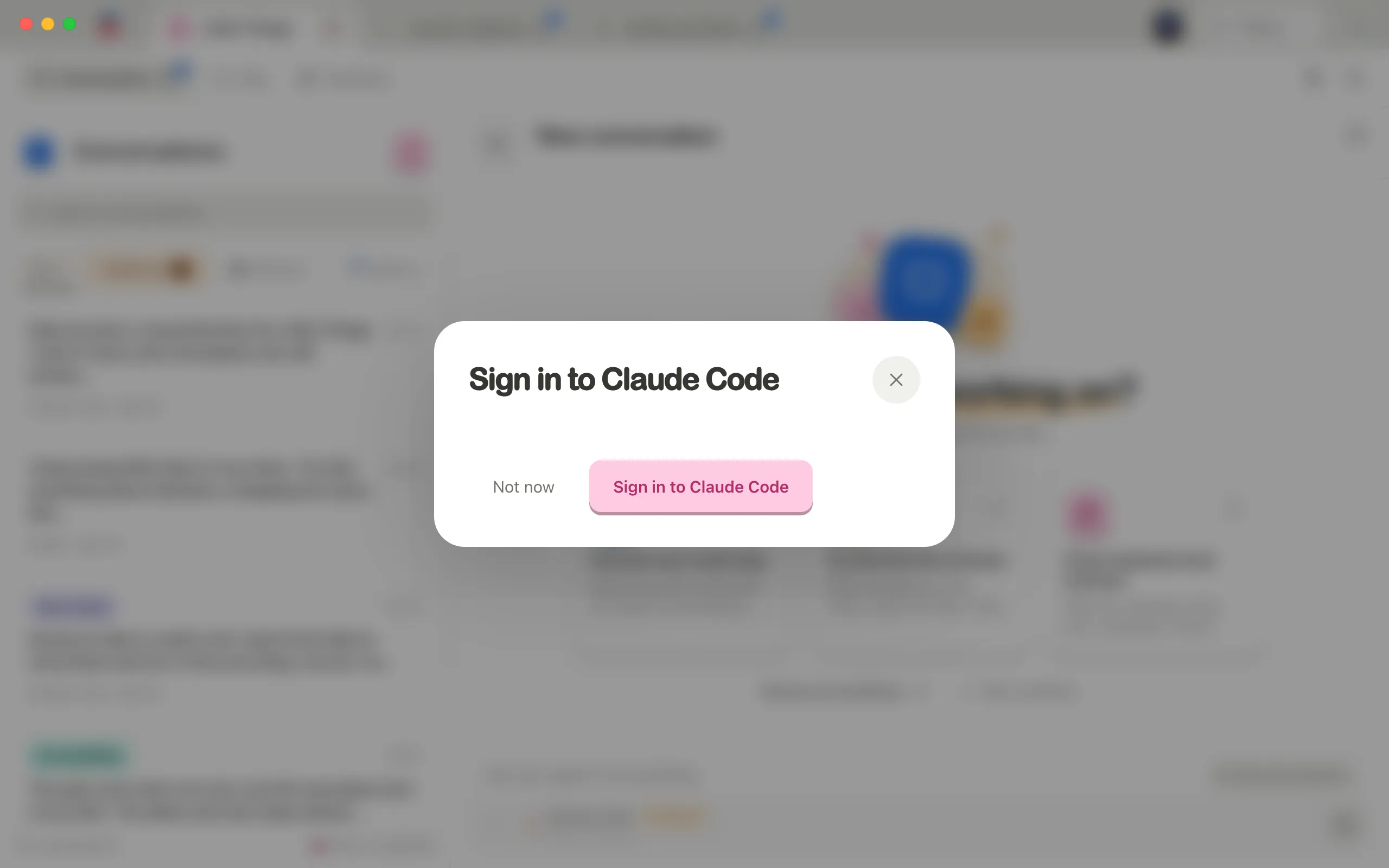
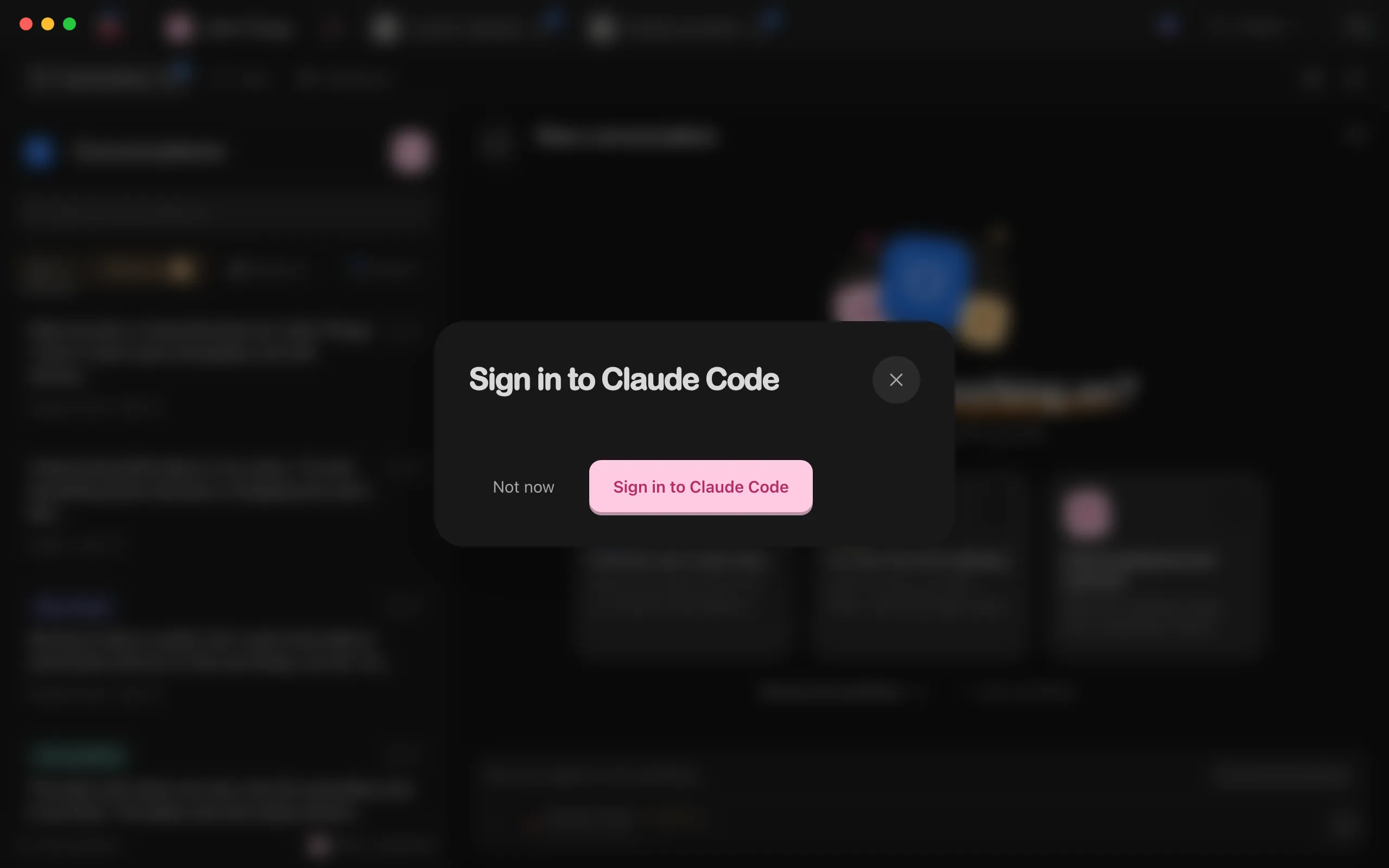
You sign in to each agent with the company that makes it, such as Anthropic for Claude Code, not with Enjoy. Signing in happens on the computer where Enjoy runs. Enjoy opens the Sign in to window when you choose or send a message to an agent that isn’t signed in. You can also open it from the agent settings in the message box: select Sign in under the agent’s name.
Steps
Start signing in
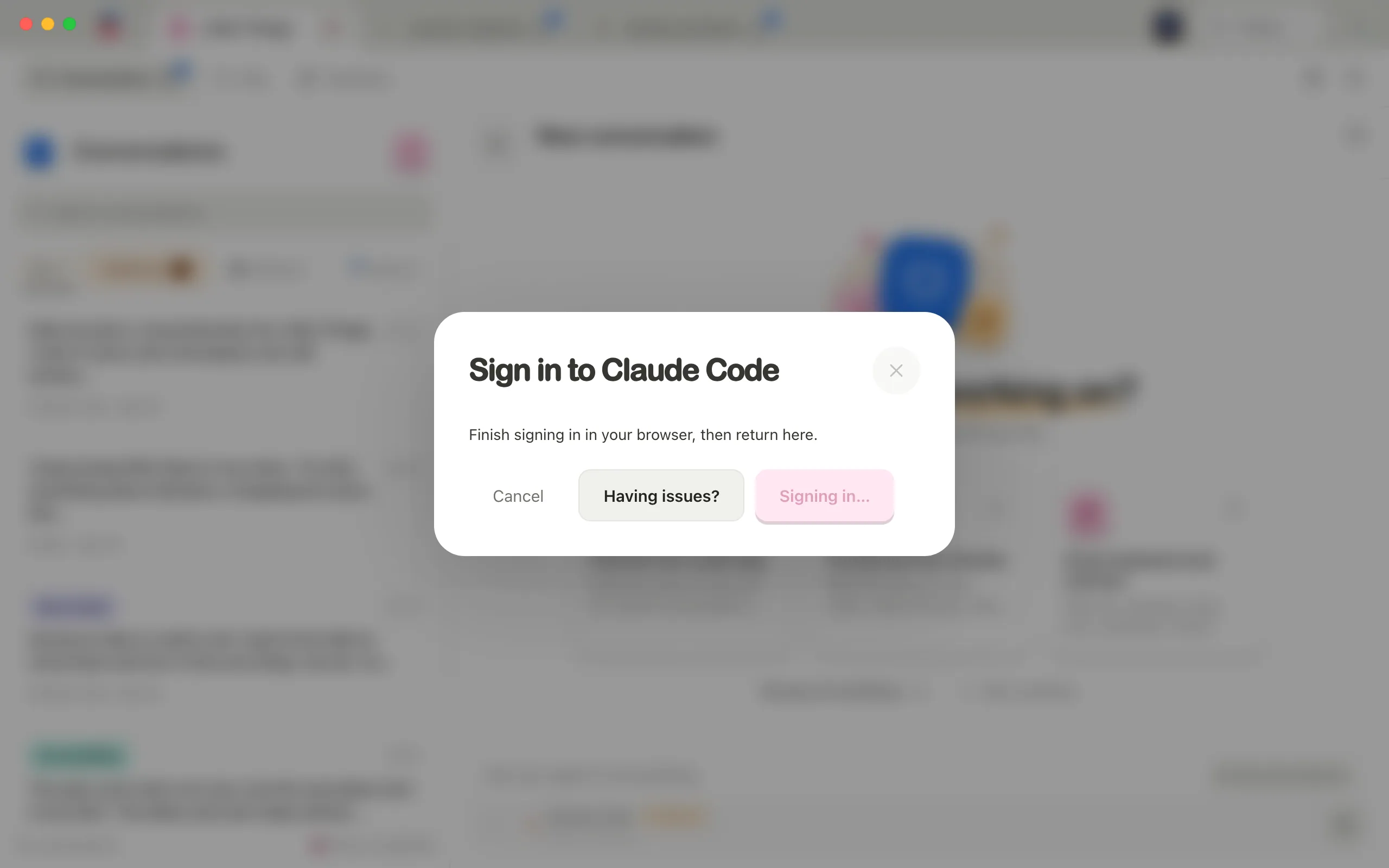
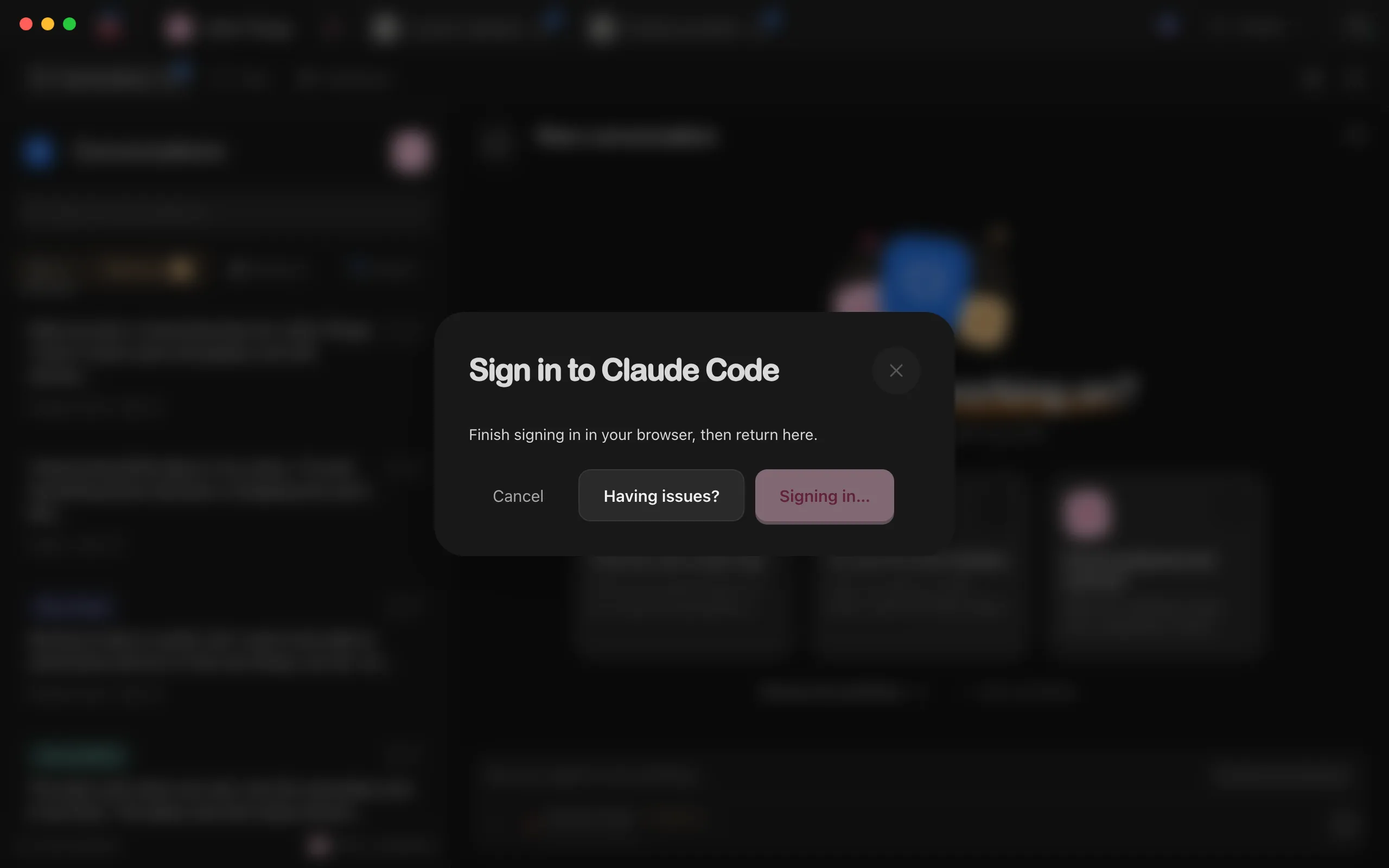
In the Sign in to window for your agent, select the button that names the agent, such as Sign in to Claude Code. Your web browser opens the agent’s sign-in page, and the button shows Signing in… while Enjoy waits.
Finish in your browser
Complete the sign-in there and return to Enjoy. If you get stuck, select Having issues?. It appears about eight seconds after you start.
Select Do it for me
Enjoy opens Terminal on a Mac, PowerShell on Windows, or a terminal on Linux, with the agent’s sign-in already running. Finish signing in there. Enjoy notices on its own and closes its sign-in window.
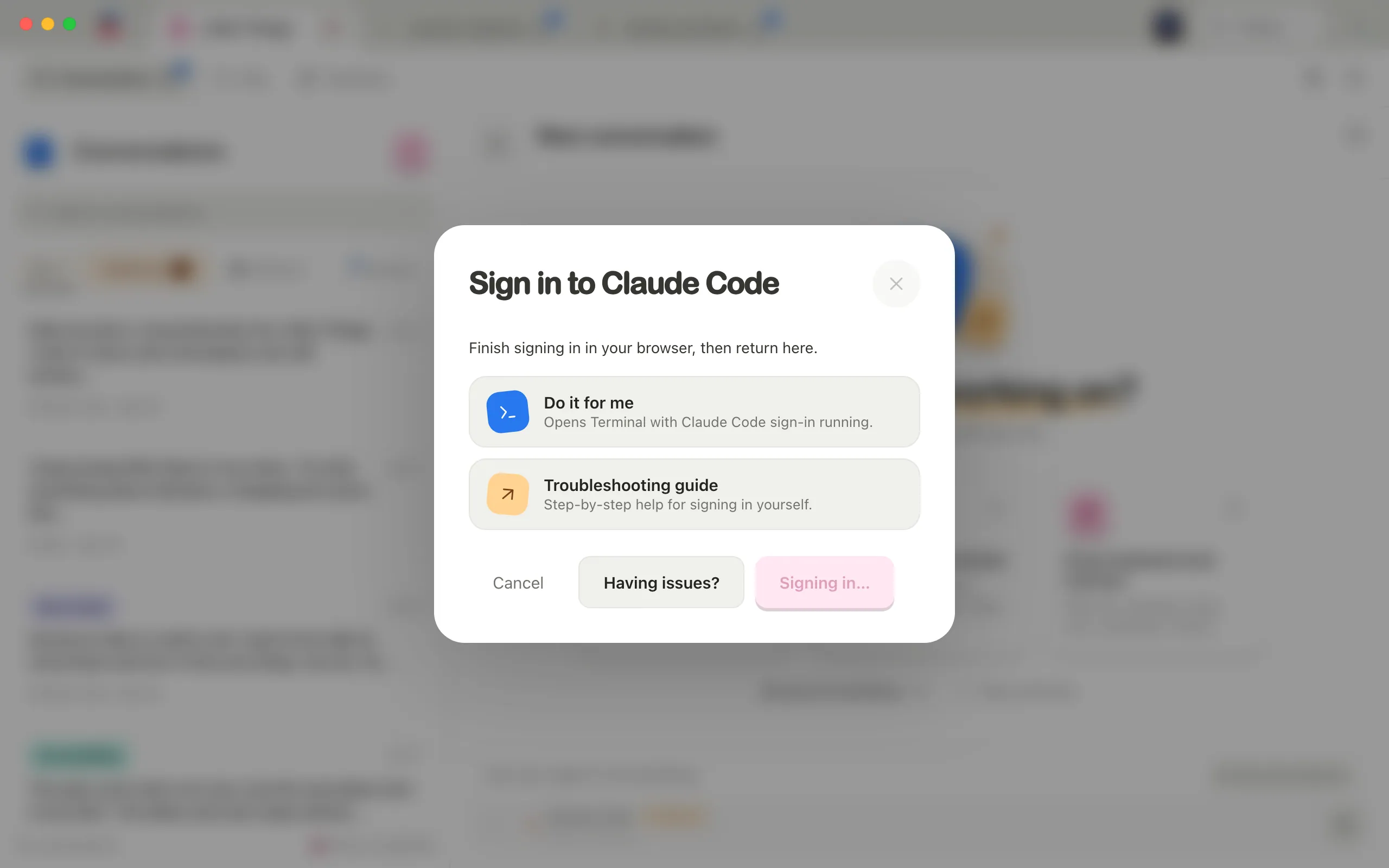
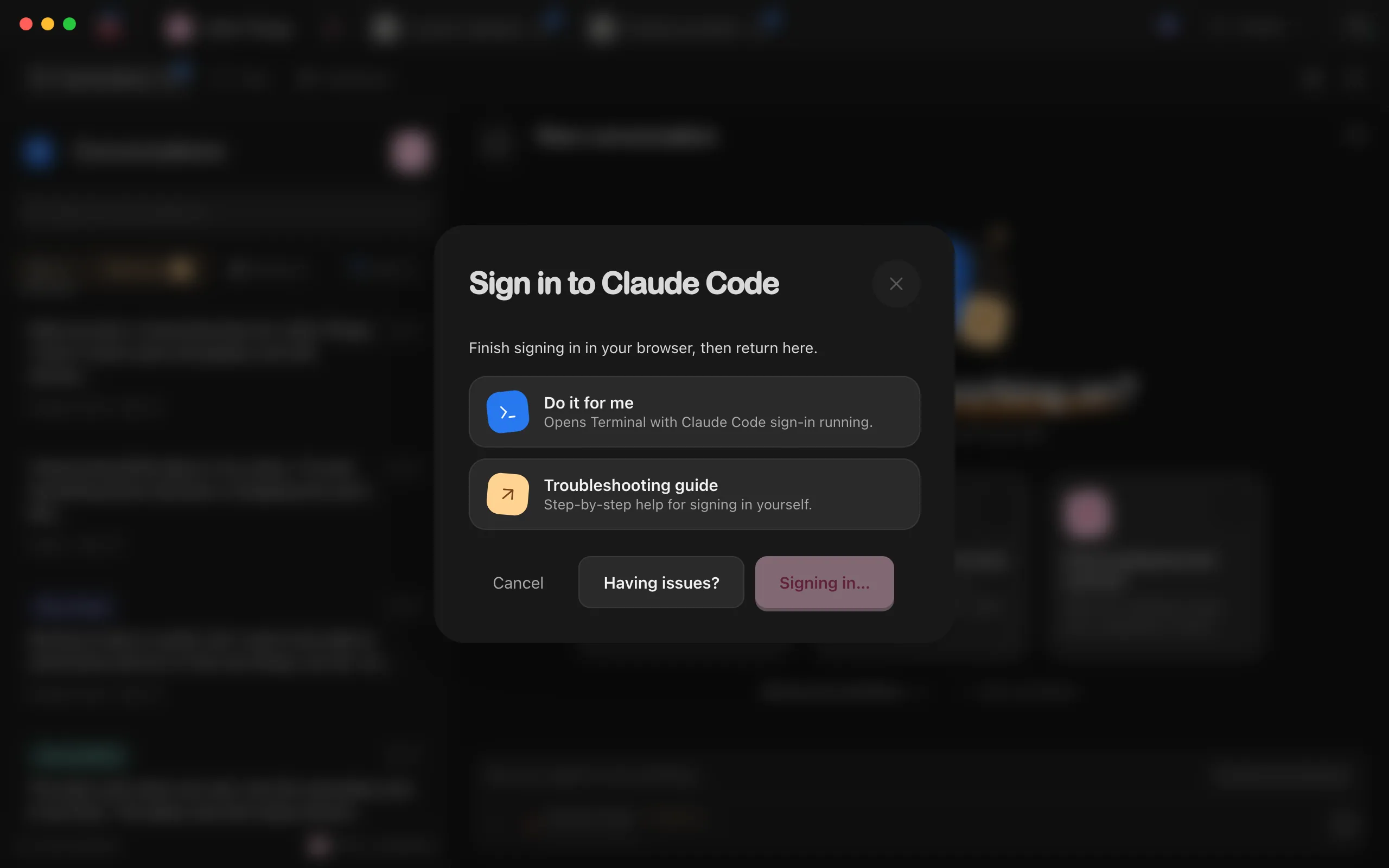
Or follow the troubleshooting guide
Select Troubleshooting guide to open the step-by-step sign-in guide for your agent. It shows how to open Terminal on a Mac or PowerShell on Windows, the command to type, and what you’ll see. If Enjoy already opened Terminal or PowerShell for you, start at its step 3.
Good to know
- Antigravity shows a code in your browser after you sign in. Enjoy then shows a Sign-in code box. Paste the code there and select Connect.
- Having issues? appears for Claude Code, Codex, Antigravity, and Grok Build. It doesn’t appear while you’re adding another account, or when the project uses an account you added in Enjoy instead of Default account.
- During first-run setup, Enjoy shows Finish in your browser while it waits. Select Open sign-in again for a fresh sign-in page, or Go back to choose a different AI.
- If Enjoy still asks you to sign in after you finished in Terminal or PowerShell, quit Enjoy and open it again. It checks your sign-in when it starts.
- In the web app and the iPhone app, Enjoy says Open Enjoy on your desktop to sign in to and the agent’s name. Your message stays where it is.
- In a project inside WSL, the agent signs in in the project’s Linux distribution, separately from Windows. In place of Having issues?, the window offers Use and the distribution’s name, such as Use Ubuntu-22.04 instead. It opens a terminal window in the distribution with the agent’s sign-in running. Finish there, and Enjoy notices. The step-by-step sign-in guide has a WSL version too. See Work on a project inside WSL.
- An agent can sign out on its own, for example when its sign-in expires. A conversation then shows Your sign-in session expired. Sign in again, then select Retry.
If something goes wrong
Sign-in didn’t finish. Try again to open a fresh sign-in page.
The message may start with the agent’s name. The browser sign-in didn’t complete. Select the sign-in button again, such as Sign in to Claude Code, and finish in the new page that opens.
Sign-in took a little too long. Let’s open a fresh sign-in page and try again.
This appears during first-run setup when the sign-in page waited too long. Select the button that starts with Continue to, such as Continue to Claude, and finish in the new page.
We couldn’t finish signing you in. You can try again, or choose a different AI below.
First-run setup couldn’t confirm that you signed in. Select the button that starts with Continue to to try again, or Choose a different AI.
We couldn’t use that code. Check it and try again.
The pasted code was wrong or out of date. Copy the whole, newest code from your browser and paste it again.
Couldn’t open Terminal. Try the guide below.
On Windows this says PowerShell, and on Linux a terminal. Enjoy couldn’t open it. Select Troubleshooting guide and sign in yourself.
Windows can’t reach [agent]’s sign-in at [address] in [distribution]. Sign in from your [distribution] terminal instead: run [command] there, then try again.
This happens in a project inside WSL. The agent’s sign-in waits in the distribution for your browser, and Windows can’t reach it there, for example because your .wslconfig file sets localhostForwarding=false or networkingMode=mirrored. Enjoy stops the sign-in before its page opens, so you don’t sign in in the browser for nothing. Usually the window says Windows can’t reach [distribution] to finish signing in from your browser. Sign in from a terminal there instead. in place of this message. Select Open and the distribution’s name, finish signing in in the window that opens, and come back to Enjoy.
When the window shows this message itself, a terminal can’t sign in for you, for example because you’re adding an account: a terminal signs in only the agent’s own account there. See what to do then.
[Distribution] can’t reach [server], but Windows can. Check WSL networking (DNS tunneling, proxy) for this distribution.
This happens in a project inside WSL: the sign-in couldn’t reach its server from the distribution, while Windows could. Select Help with WSL networking, or see what to try.
Enjoy couldn’t find the program. Install it again, then try signing in.
The agent isn’t installed, or Enjoy can’t find it. Install it first. See Fix an agent that won’t install.
Still stuck
Email help@enjoy.dev with a screenshot of Terminal or PowerShell. Don’t send sign-in codes. See What to include when you ask for help.