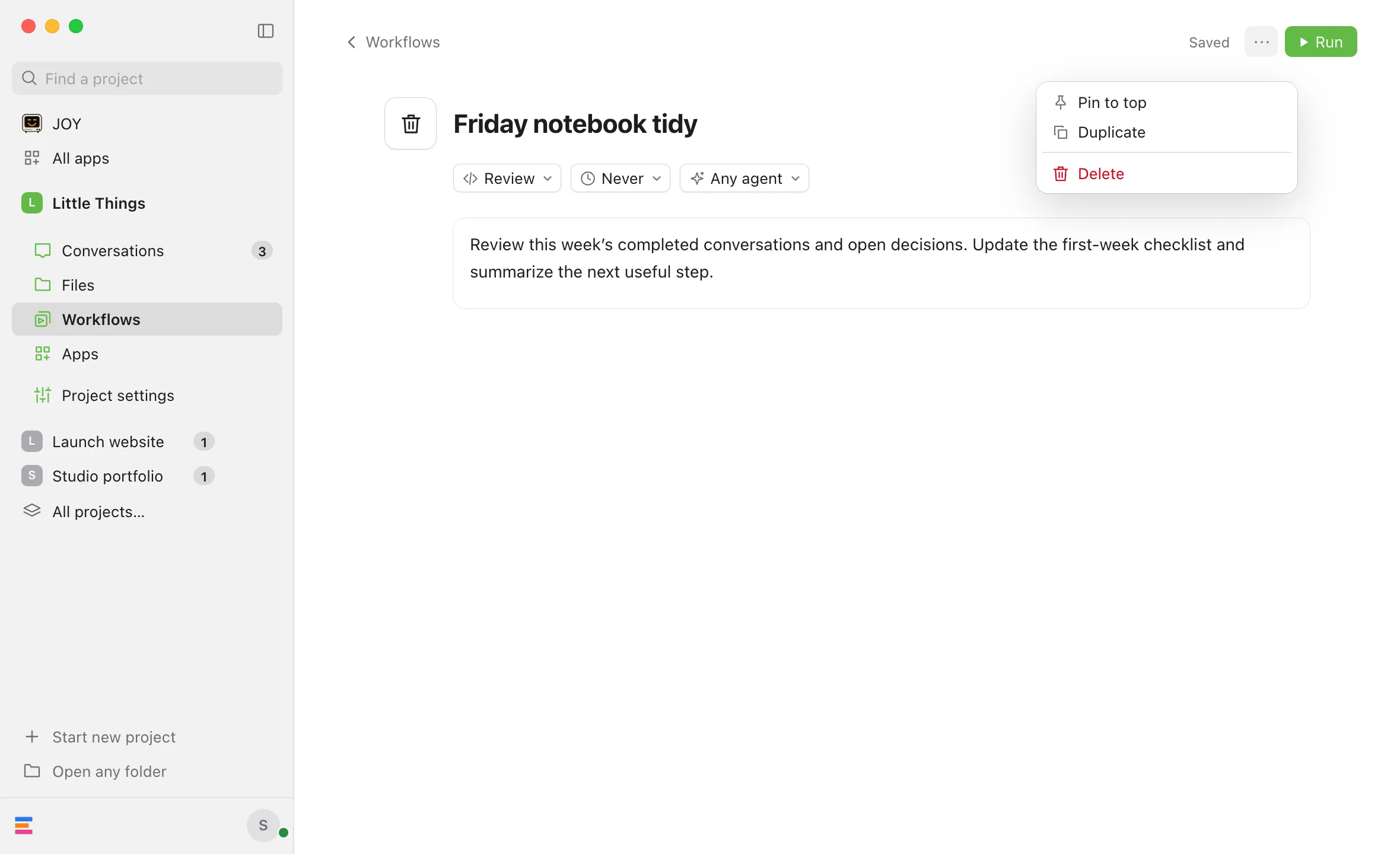
Delete a workflow
Steps
Good to know
- Its schedule stops with it, and if you pinned it, its pin is removed. Conversations from earlier runs, and messages that included the workflow, stay as they were.
- To bring it back, open a conversation where it was run or added to a message, and select the workflow’s chip. Its page opens with “This workflow was removed. This is the version used in your message.” Select Save a copy. Enjoy saves it as a new workflow without a schedule, named after the old one with “(copy)” at the end, and opens its page.
- To keep it but stop it repeating, set Repeat to Never instead. See Schedule a workflow.
- To delete many at once, delete their collection. See Organize workflows into collections.
- A workflow you added from the Gallery can be added again from there. See Add ready-made workflows from the Gallery.
- The iPhone app can’t delete workflows.
If something goes wrong
Delete isn’t in the ⋯ menu
Workflows from an installed collection can’t be deleted, and neither can a removed workflow opened from a message. With View only access to the project, Delete doesn’t show either. Ask its owner for Can work access.
There’s no ⋯ button
A new workflow gets its ⋯ button once it’s saved, when it has instructions. To throw away a new workflow you haven’t saved, leave its page by selecting Workflows at the top left.