Choose which agent runs a workflow
Steps
Open the workflow
In Workflows, select the workflow’s name. Its page opens. For a new workflow, select New workflow.
Open the preferred agent menu
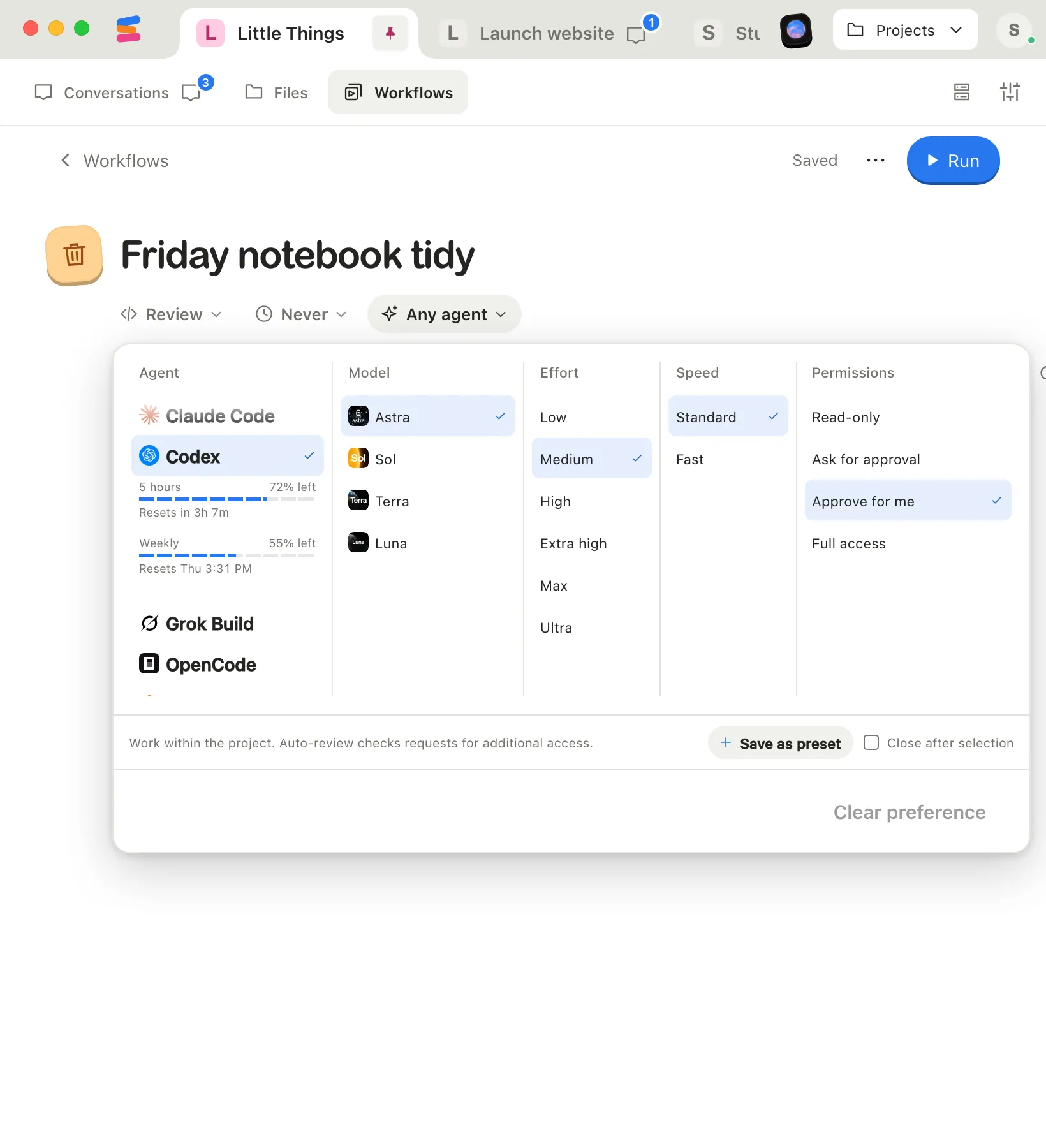
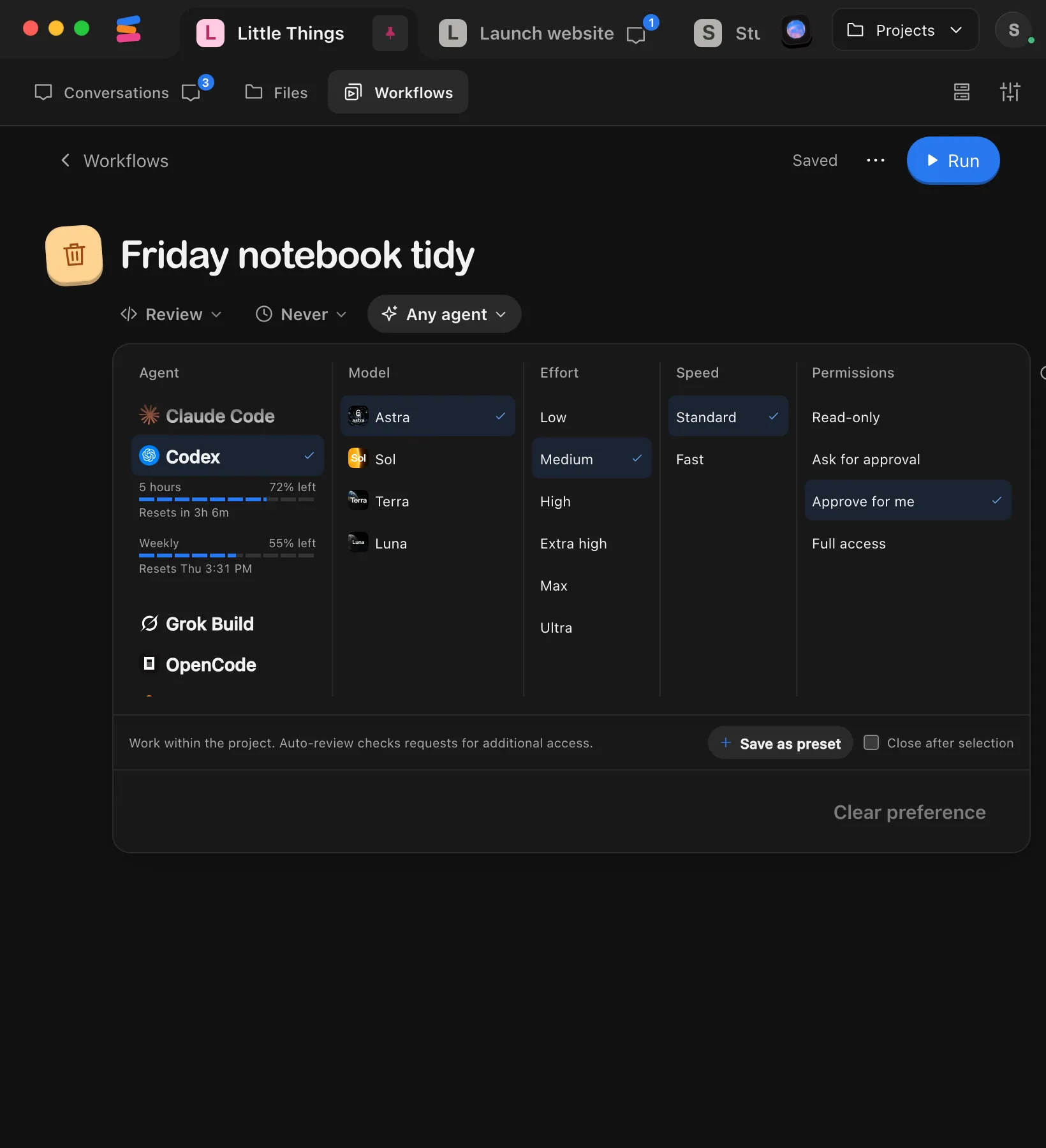
It’s the small menu with sparkles under the title, after the collection and Repeat. It shows Any agent until you choose one.


Pick the settings
Choose an Agent, then its Model, Effort, Speed, and Permissions. If the panel is too narrow to show every column, scroll sideways in it to reach Speed and Permissions. If you’ve saved presets, you can choose one under Presets instead.
Check that it saved
Select outside the panel to close it. The menu shows the settings you chose, and the top right of the page shows Saved. Rows in the library don’t show the agent.
Good to know
- Runs use the preference. Run and scheduled runs start their conversation with these settings.
- Without a preference, a run uses the agent settings you last used in this project.
- Adding the workflow to a message in a new conversation, on the computer app or the web app, switches that conversation to the preferred settings. In an existing conversation, the agent doesn’t change. See Add a workflow to a message.
- In a chain, the agent already working continues with the linked workflow. The linked workflow’s preference doesn’t apply. See Link workflows.
- To go back to Any agent, open the menu and select Clear preference. It saves on its own.
- The agent must be on the computer. You can pick any supported agent, even one that isn’t installed on this device. Runs happen on the computer that has the project, so that agent needs to be installed and signed in there. Scheduled times are skipped while it isn’t connected.
- Permissions decide what the agent may do without asking you. See Permissions.
- Agents that create or update workflows for you can’t set this. When an agent updates a workflow, its preferred agent stays as it was.
If something goes wrong
Scheduled runs don’t happen
Check that the preferred agent is installed and signed in on the computer that has the project. See A scheduled workflow didn’t run.
The agent shows as text, not a menu
You have View only access to the project, so you can’t change its workflows. Ask the project’s owner for Can work access. Workflows from an installed collection can’t be changed either. Select Customize on the workflow’s page to make your own copy.