Fix a conversation that failed
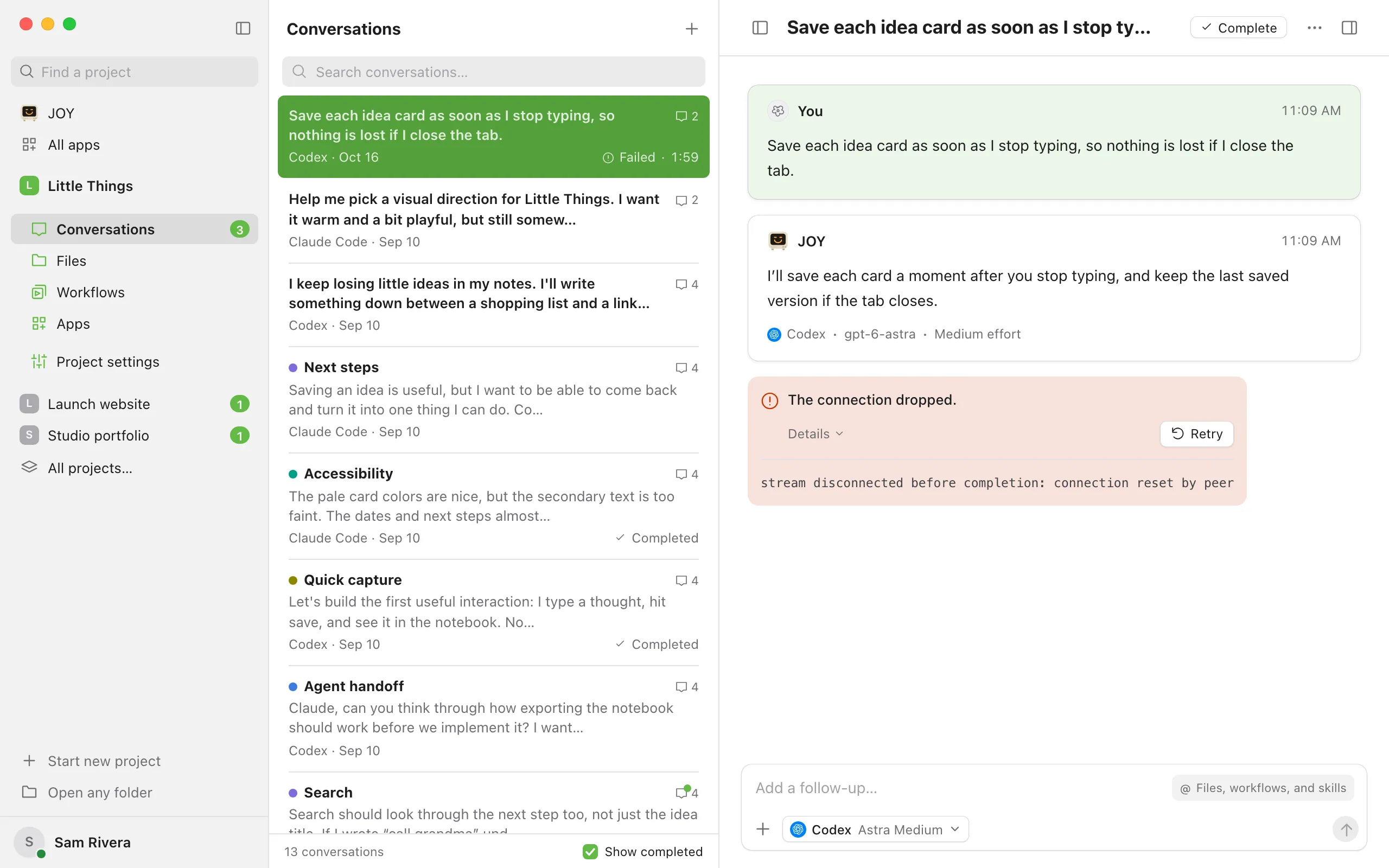
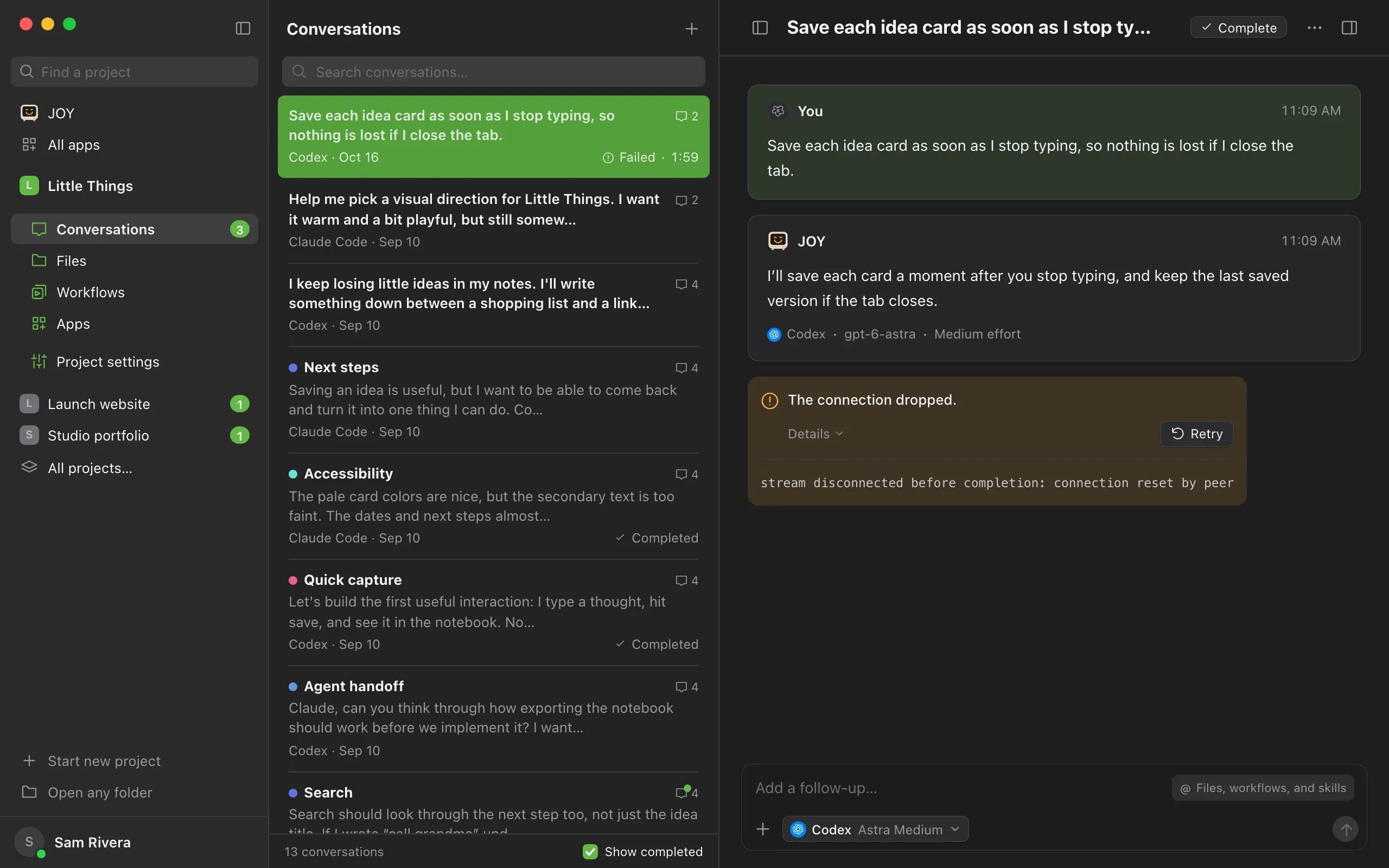
When an agent can’t finish a request, the conversation’s status changes to Failed. Under the last message, Enjoy shows a one-line reason, the agent’s own error under Details, and Retry.
Steps
Read the reason
The first line says what went wrong in plain words. Details below it shows the original error. Select Details to hide or show it. When the reason comes down to the agent’s account, such as an expired sign-in, a usage or request limit, or a model the account can’t use, the account the agent was using appears under it, such as sam@example.com.
Fix the cause
Find the matching section below. Some causes, like a dropped connection, only need a retry.
Select Retry
The agent continues the request where it stopped, keeping the work it already did. If it never got your message, Enjoy sends the message again. The conversation shows Trying again… while it starts.
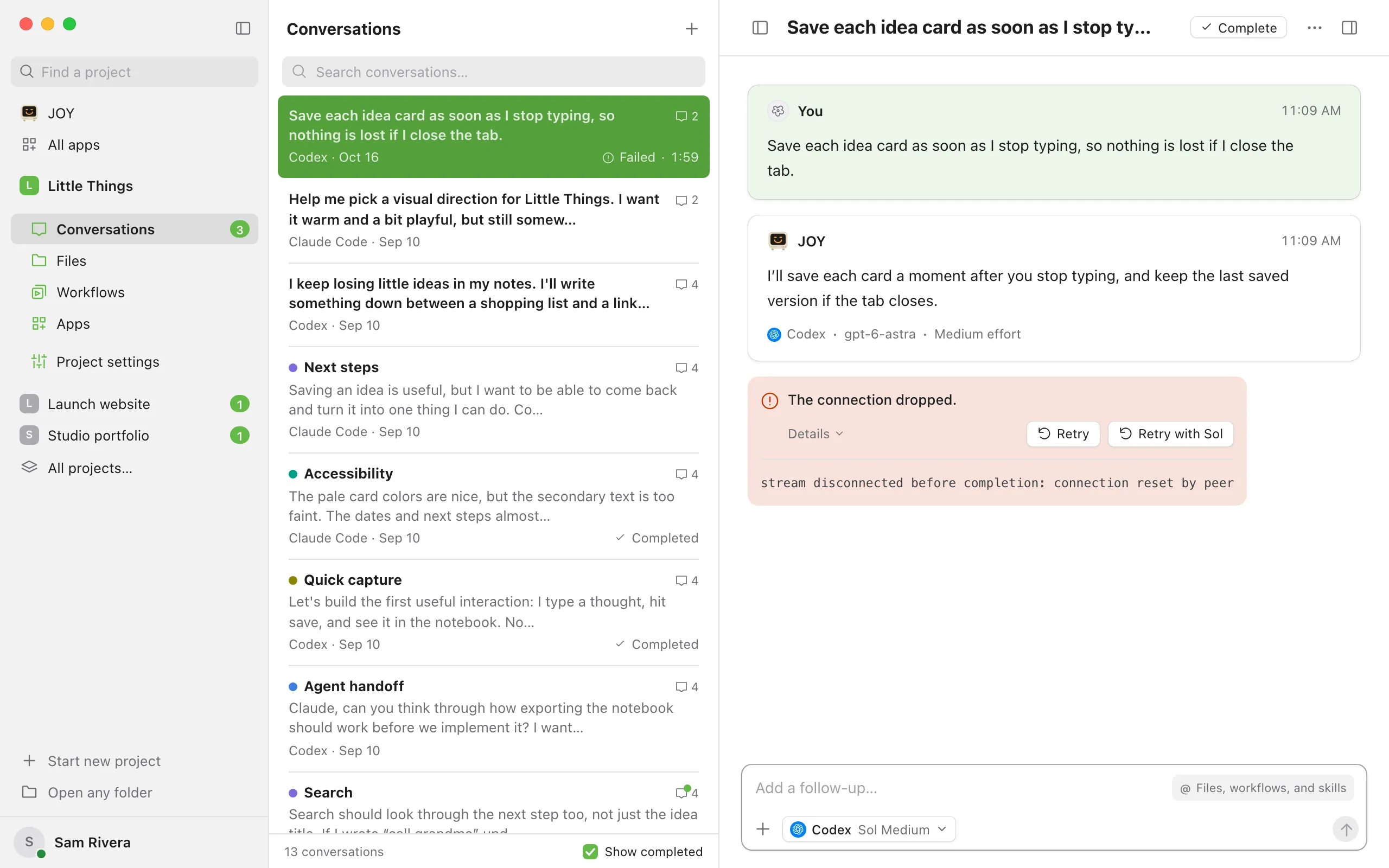
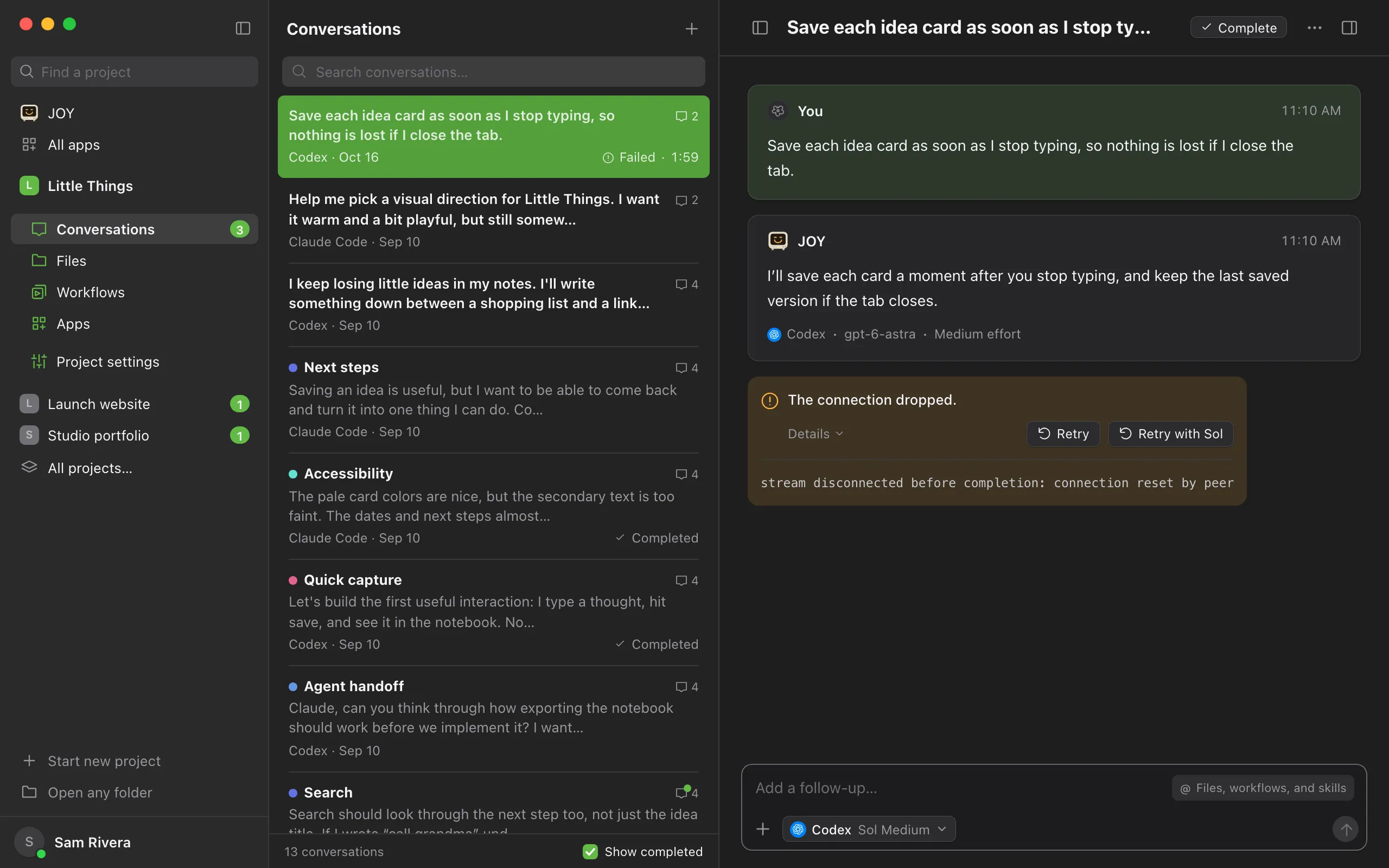
Or retry with different settings
If you change the agent, model, effort, speed, or permissions in the message box first, a second button appears, starting with Retry with and naming what changed. Select it to run the request with those settings.
Good to know
- In a project inside WSL, Details can say that the Linux distribution stopped during the agent’s work, as in Ubuntu-22.04 stopped while Claude Code was running., or that the agent couldn’t start there, as in Ubuntu-22.04 couldn’t start Claude Code: followed by why. Select Retry, which starts the distribution again. See Fix problems with a project in WSL.
- Messages you queued wait while the conversation has failed. Enjoy shows Queue paused. Send a message or retry to continue.
- Sending a new message also continues the conversation.
- The same reason and the full error also appear at the top of the agent activity panel. Select Show agent activity, the last button at the top right of the conversation, to open it.
- If the same request keeps failing, a new conversation with a clear summary of what you need often works better. See Start fresh when a conversation gets long.
- When you contact support, copy the text under Details into your email. See What to include when you ask for help.
If something goes wrong
This request couldn’t finish.
Enjoy didn’t recognize the cause. Read Details for the agent’s error, then select Retry.
The connection dropped.
The connection to the agent’s service was interrupted. Check your internet connection, then select Retry.
Your sign-in session expired.
Sign in to the agent again, then select Retry. See Fix an agent that won’t sign in.
Sign in to [agent], then retry.
The message names your agent, which isn’t signed in on your computer. In a project inside WSL, Details adds that the project uses the agent in its Linux distribution, where you sign in separately. Open the agent settings in the message box and select Sign in under the agent’s name. When you’re signed in, select Retry. See Fix an agent that won’t sign in.
Install [agent], then retry.
The message names your agent, which isn’t installed on your computer. In a project inside WSL, Details adds that Enjoy runs the project’s agents in its Linux distribution, and the agent isn’t installed there, even if it’s on Windows. Open the agent settings in the message box and select the agent, which shows Install under its name. When it’s installed, select Retry. See Fix an agent that won’t install.
[Agent] couldn’t connect.
Enjoy couldn’t start or reach the agent on your computer, and Details gives the reason. Enjoy may also show Reconnect above your conversations or at the top of the project, which checks the agent again. Select it, then select Retry.
The usage limit was reached.
The agent’s plan ran out of usage for now. By default, Enjoy waits for the usage to reset instead, and the conversation shows Waiting for usage. You see this failure when When usage runs out is set to Stop in App settings, or after you select Stop waiting. Select Wait and resume to have the conversation continue on its own once the usage resets, or Retry to try now. See What to do when an agent runs out of usage.
The request limit was reached. is different: the agent got too many requests in a short time. Wait a little, then select Retry.
This account can’t use the selected model. Choose another model, then try again.
The agent’s current account doesn’t include that model, for example after you switched accounts. Choose another model in the message box, then select the Retry with button.
This conversation is open in another app. Close it there, then retry.
The same agent session is open somewhere else, such as in a terminal. Close it there and select Retry. Or select Start a new session: the agent continues from this conversation’s history in a fresh session.
Your organization’s [agent] policy blocks the tools Enjoy needs. Use another agent, or ask your IT team to allow Enjoy.
Your workplace’s settings for that agent don’t allow the tools Enjoy adds to it. Choose another agent in the message box and select the Retry with button, or ask your IT team to allow Enjoy.
Details says “Saved work changed or its origin record is missing.”
Enjoy couldn’t confirm that the request is the one that was saved, for example because a workflow’s file was edited outside Enjoy. For a workflow, open it in Workflows, check its instructions, save it again, and run it again. See Edit a workflow. Otherwise, send your request again as a new message.
This conversation couldn’t load.
The status says Couldn’t load. Enjoy couldn’t read the conversation’s saved file, so there’s no Retry. Its contents are kept. See Fix a file that won’t save or load.