Pin or duplicate a workflow
Steps
Open Workflows
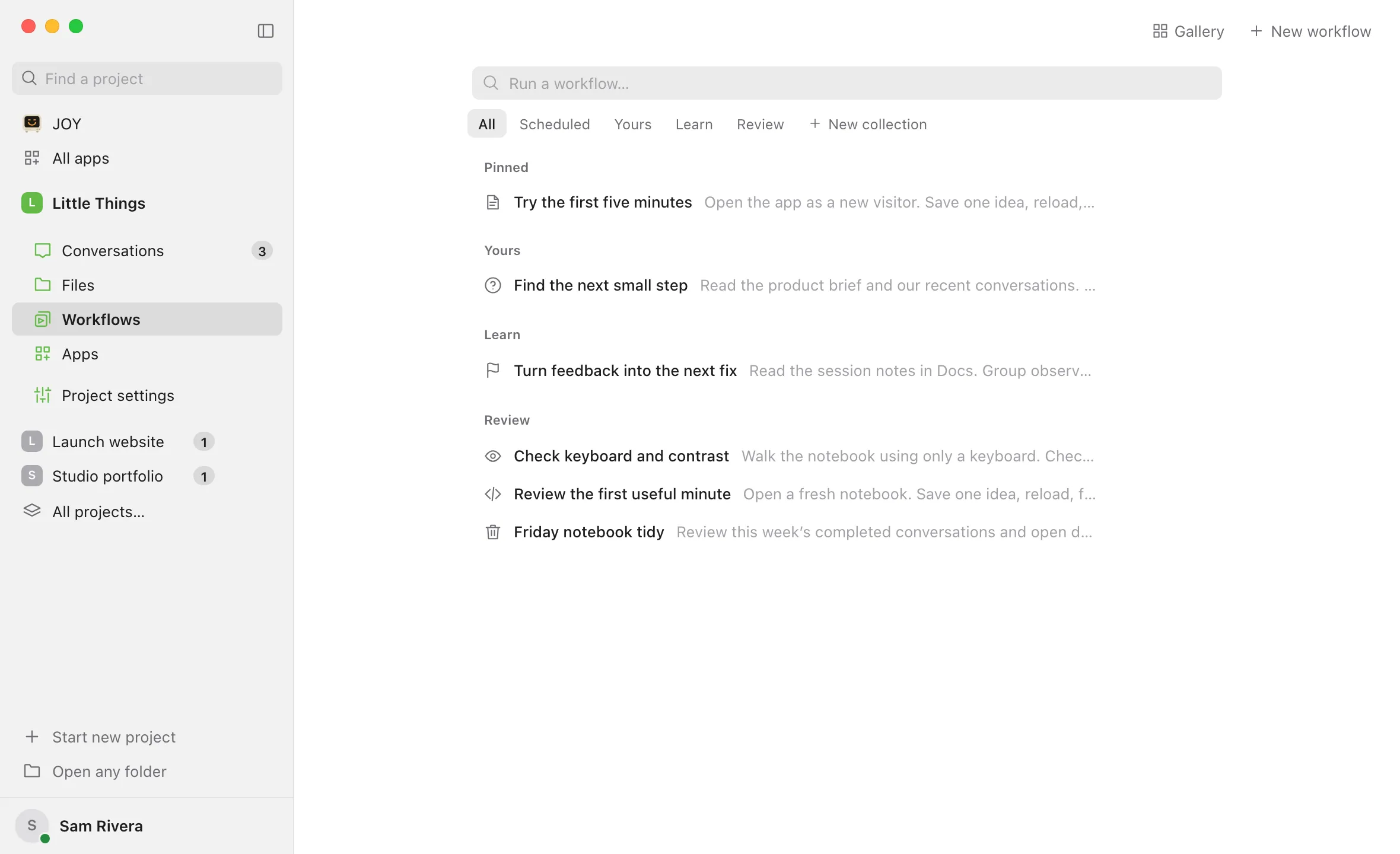
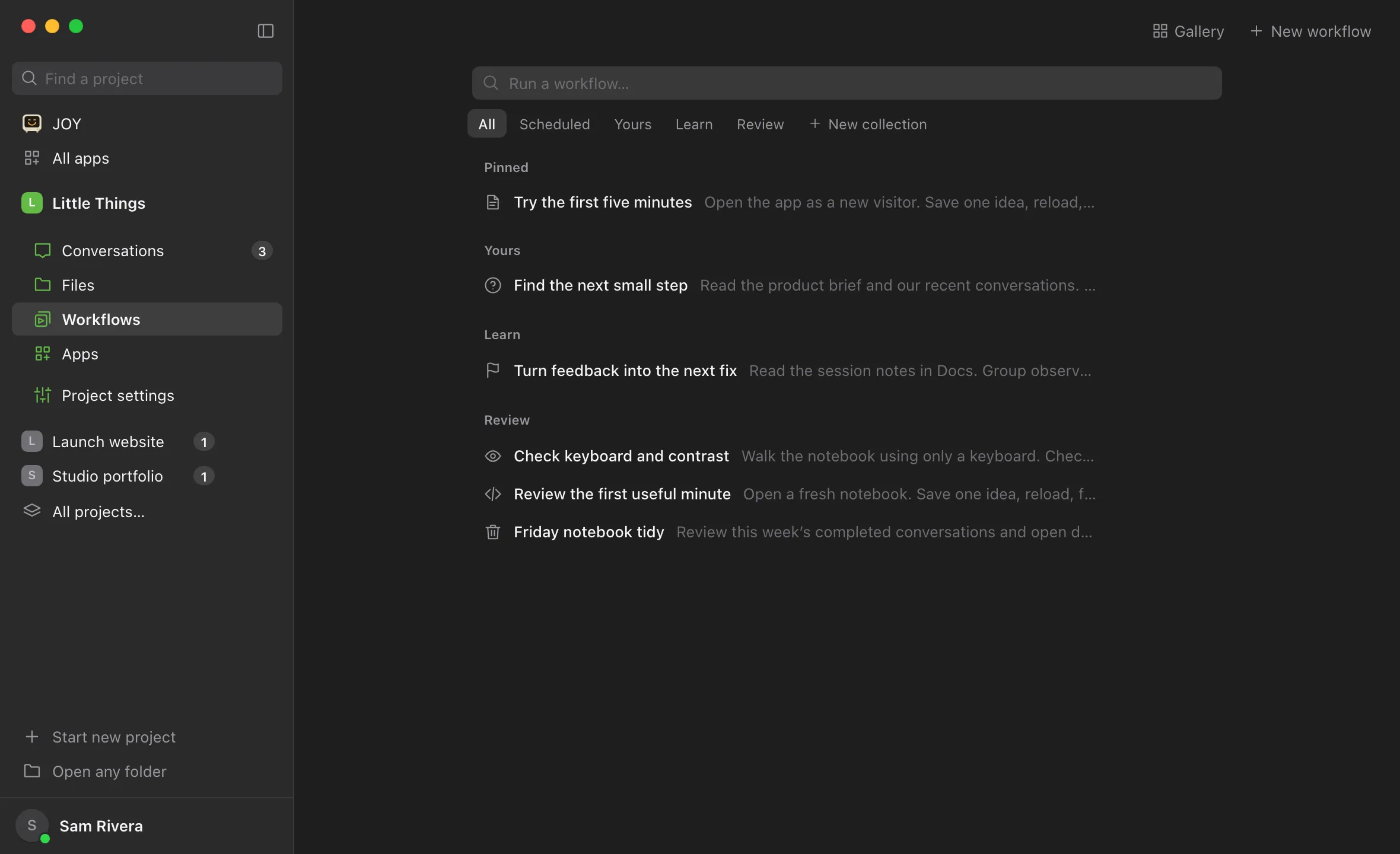
Select Workflows in the rail on the left side of the window. On a phone, or in any narrow window, select Show sidebar at the top left first.
Select the ⋯ button
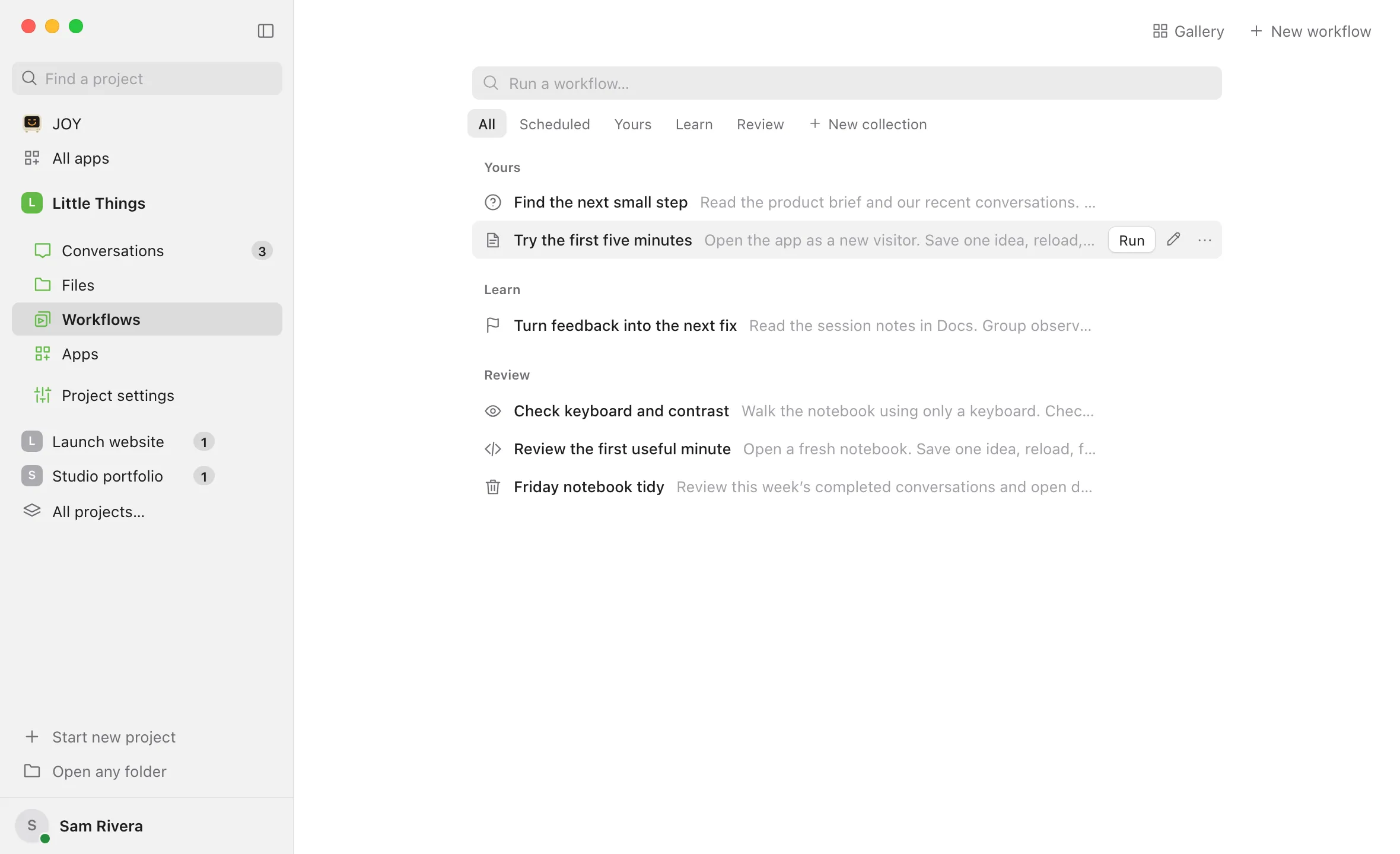
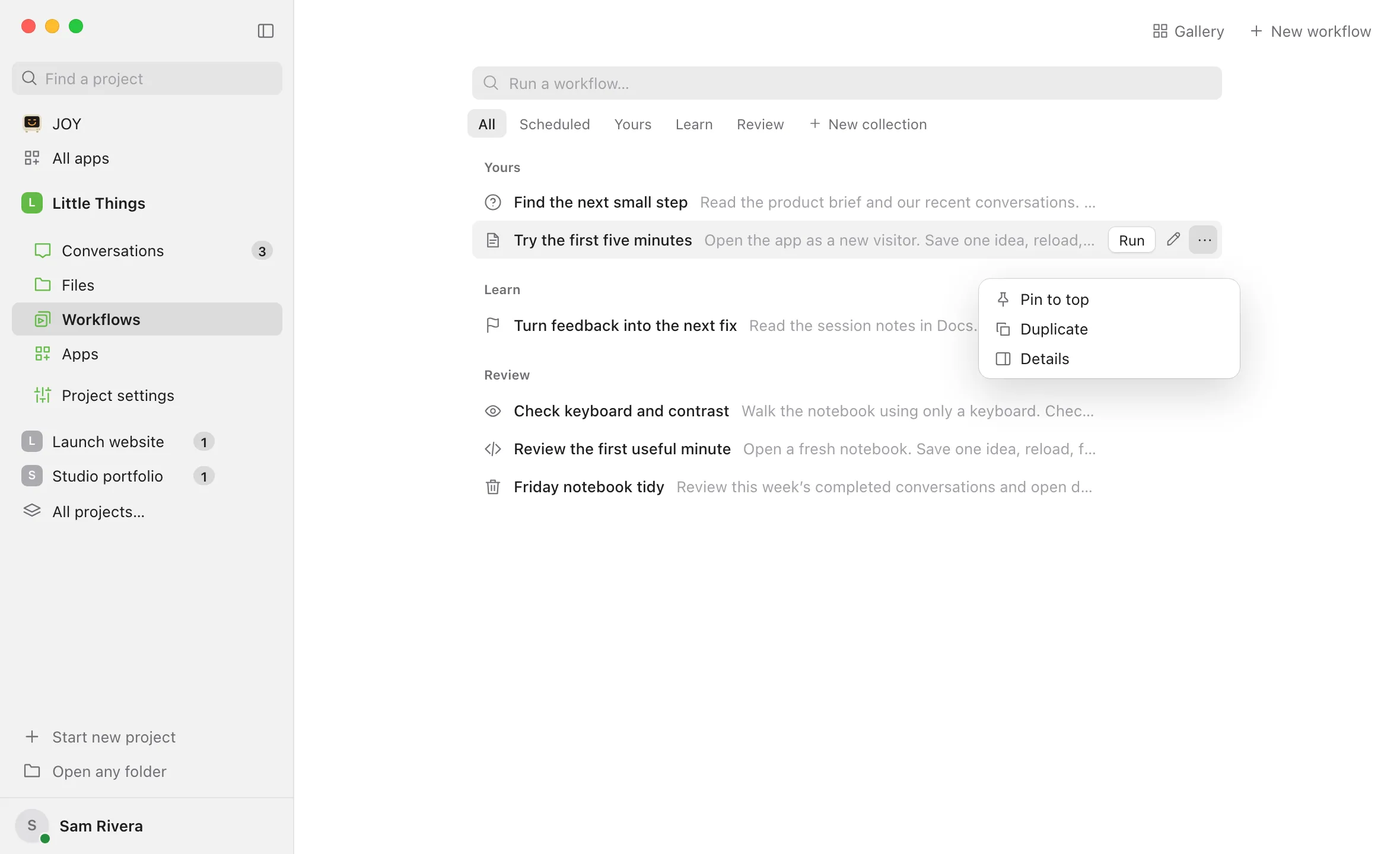
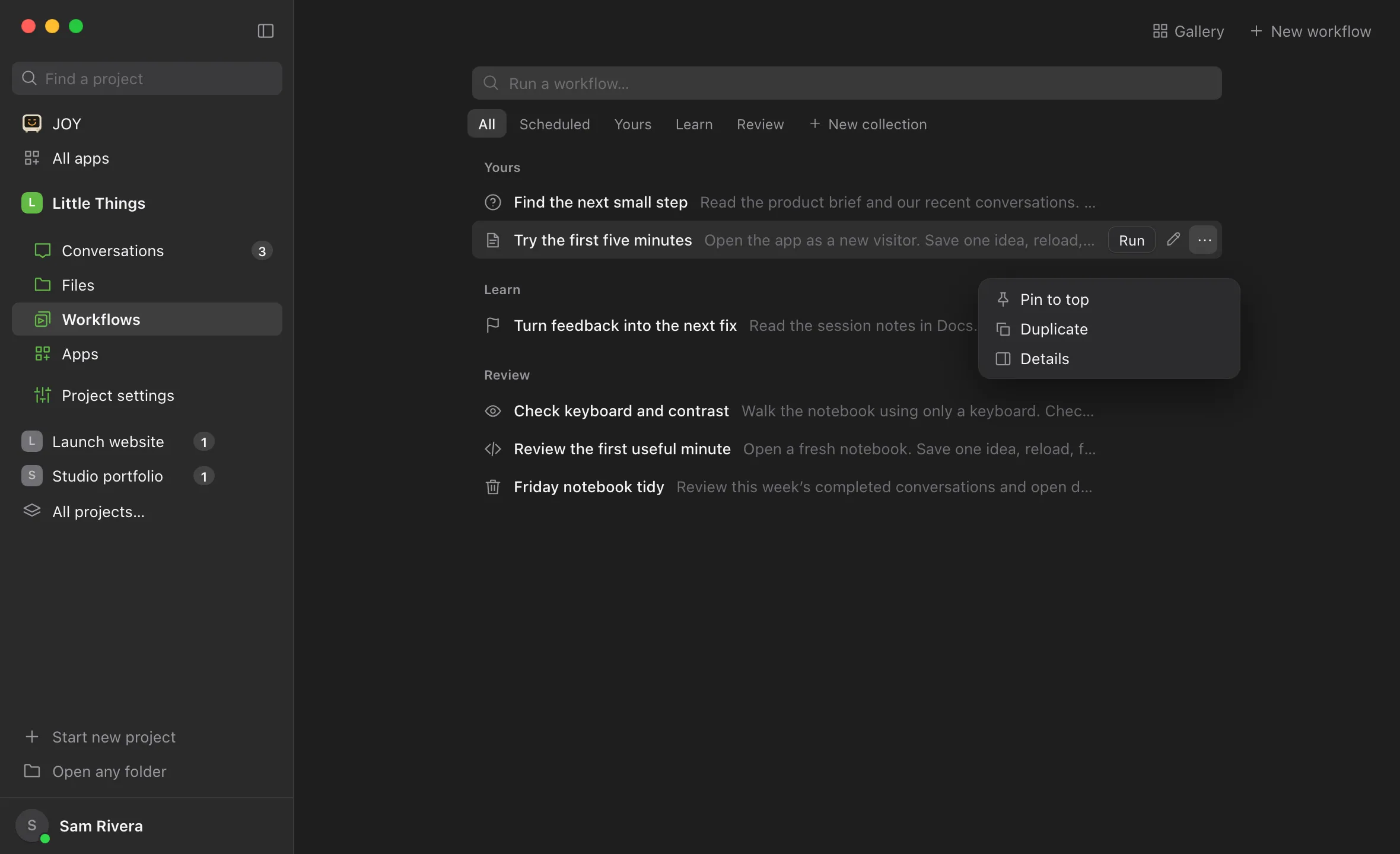
Point at the workflow’s line. Run, Edit (the pencil), and a ⋯ button appear at the right of the line. Select the ⋯ button. Its menu has Pin to top, Duplicate, and Details. On a touch screen, these buttons are always showing.
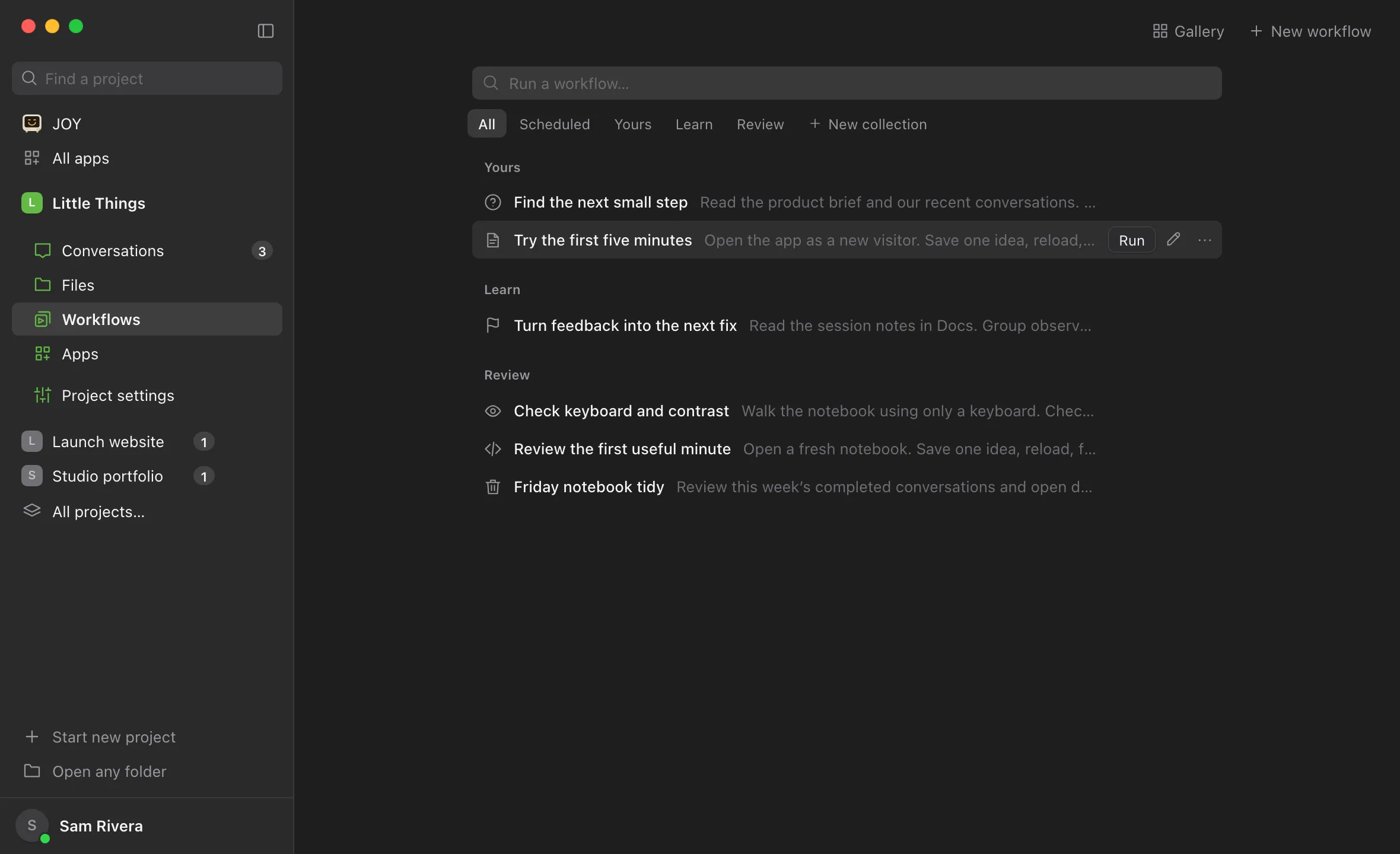
Choose Pin to top
You can also select the workflow’s name, then choose Pin to top from the ⋯ menu at the top right of its page.
Run it from Pinned
In All, pinned workflows come first, under Pinned. Point at the workflow and select Run, or select its name to open its page.
Choose Duplicate
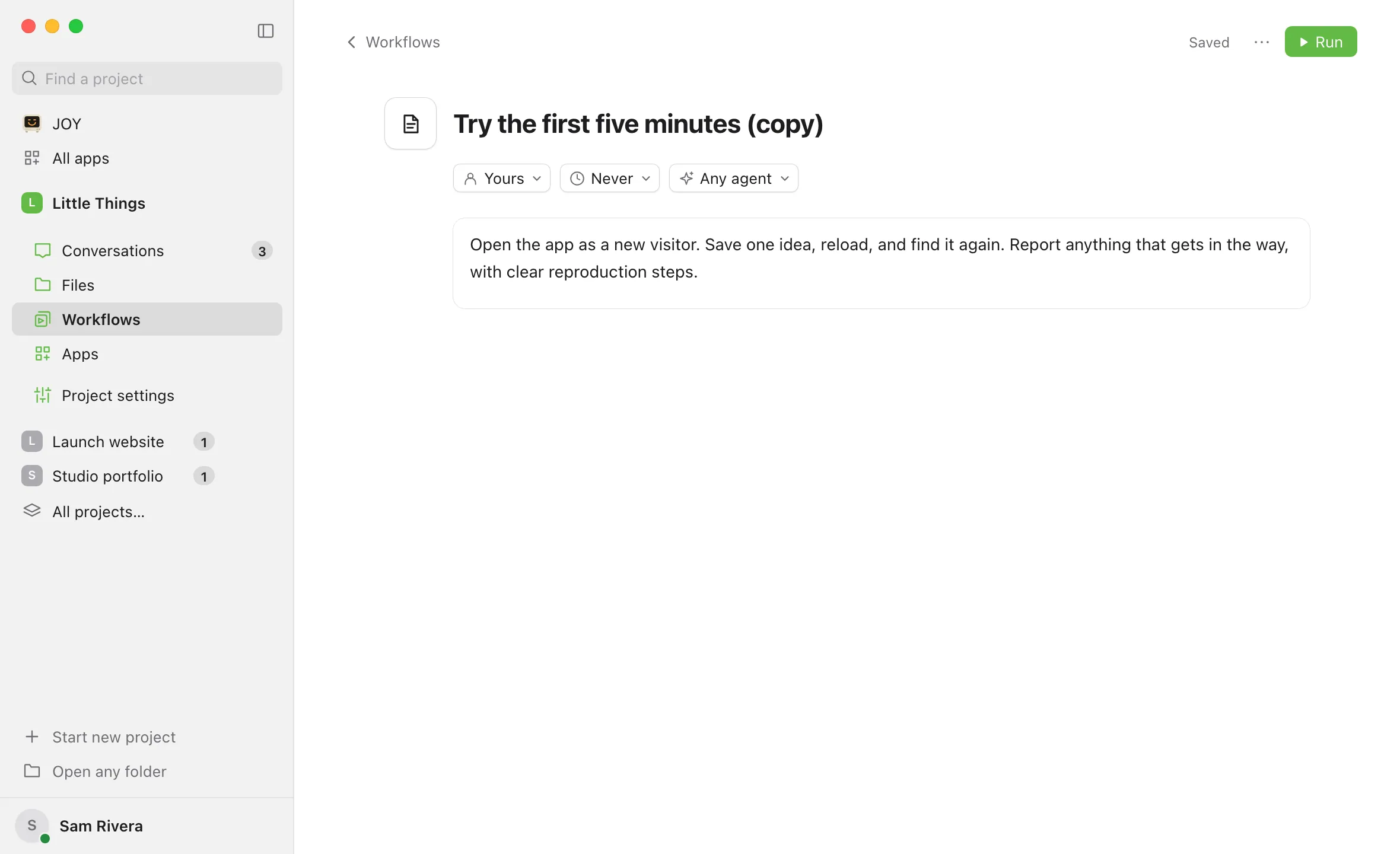
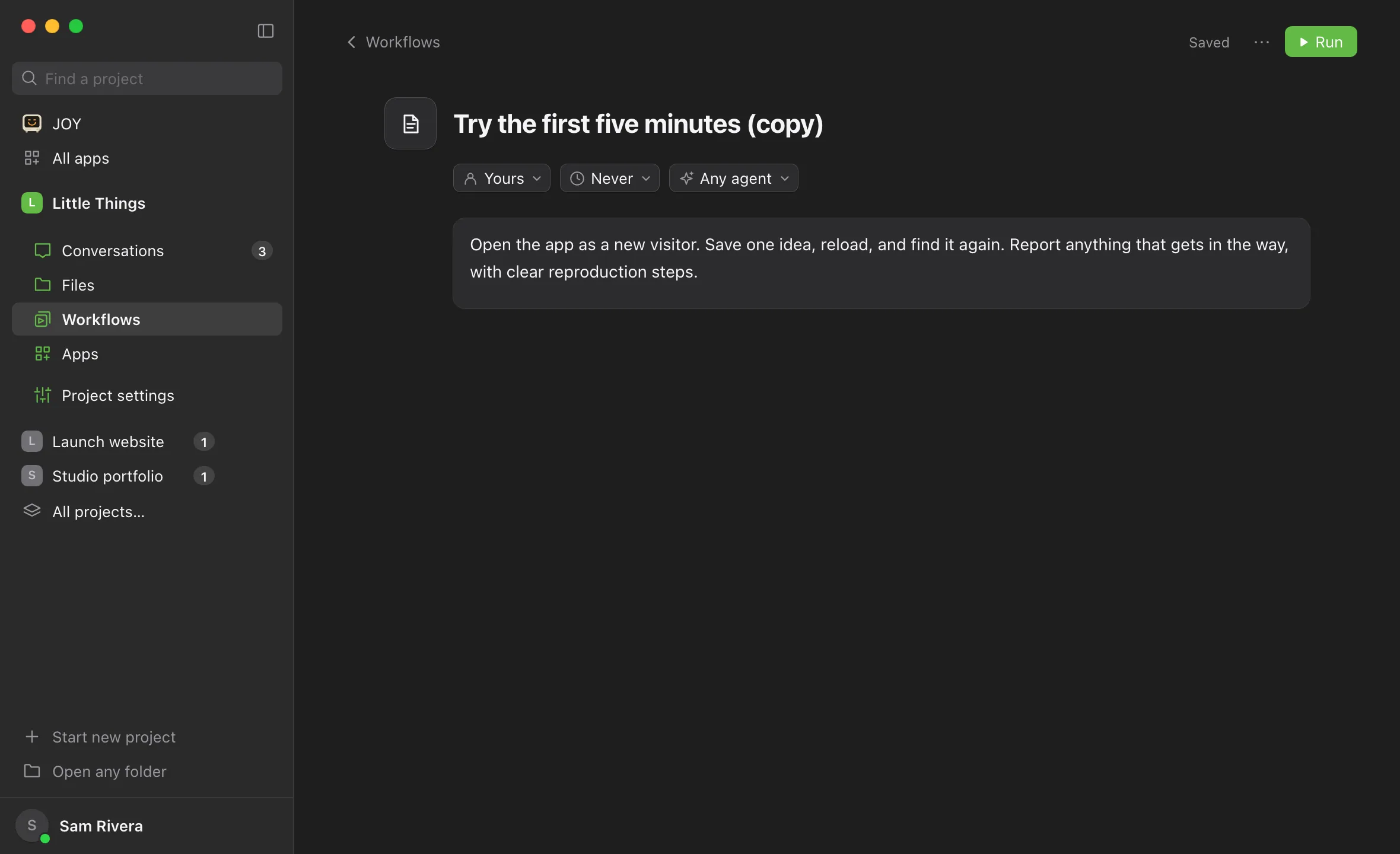
Open the workflow’s ⋯ menu again and choose Duplicate. It’s also in the ⋯ menu on the workflow’s page. Enjoy saves a copy right away, named after the workflow with “(copy)” at the end, and opens the copy’s page.
Change the copy
Change its title, settings, or instructions right on its page. Enjoy saves each change on its own, and the original stays as it was. See Edit a workflow.
Good to know
- Pins stay on this device. They belong to each project and are saved on this device. In the web app, they’re saved in this browser. Other devices, other people, and the iPhone app don’t see them.
- Pinned only appears in All, when something is pinned and nothing is typed in the search field. There, a pinned workflow isn’t listed again in its collection. When you select a single collection, or search, pinned workflows come first in their collection.
- Pins lead new conversations. Below What are you working on?, a new conversation suggests your pinned workflows first, in the order you pinned them, then fills the rest with your other workflows.
- To unpin, choose Unpin from the workflow’s ⋯ menu in the library or on its page.
- Deleting a pinned workflow removes its pin.
- A copy has no schedule. It only runs when you start it, even if the original runs on a schedule. To give it one, see Schedule a workflow.
- The copy goes in the same collection as the original, or in Yours when the original is in a collection you can’t add to. It keeps the original’s instructions and preferred agent.
- With View only access to a shared project, you can pin workflows but not duplicate them.
- The iPhone app doesn’t show pins and can’t duplicate workflows.
If something goes wrong
Duplicate is greyed out
You have View only access to the project. Ask its owner for Can work access.