Ask your agent to create or change a workflow
Steps
Ask in a conversation
Describe what the workflow should do and, if it should repeat, when. For example: “Save a workflow that checks our pricing page for broken links every weekday at 9 AM New York time.”
Let the agent save it
The agent saves the workflow with Enjoy’s own tools. Its reply usually links to the workflow.
Check what was saved
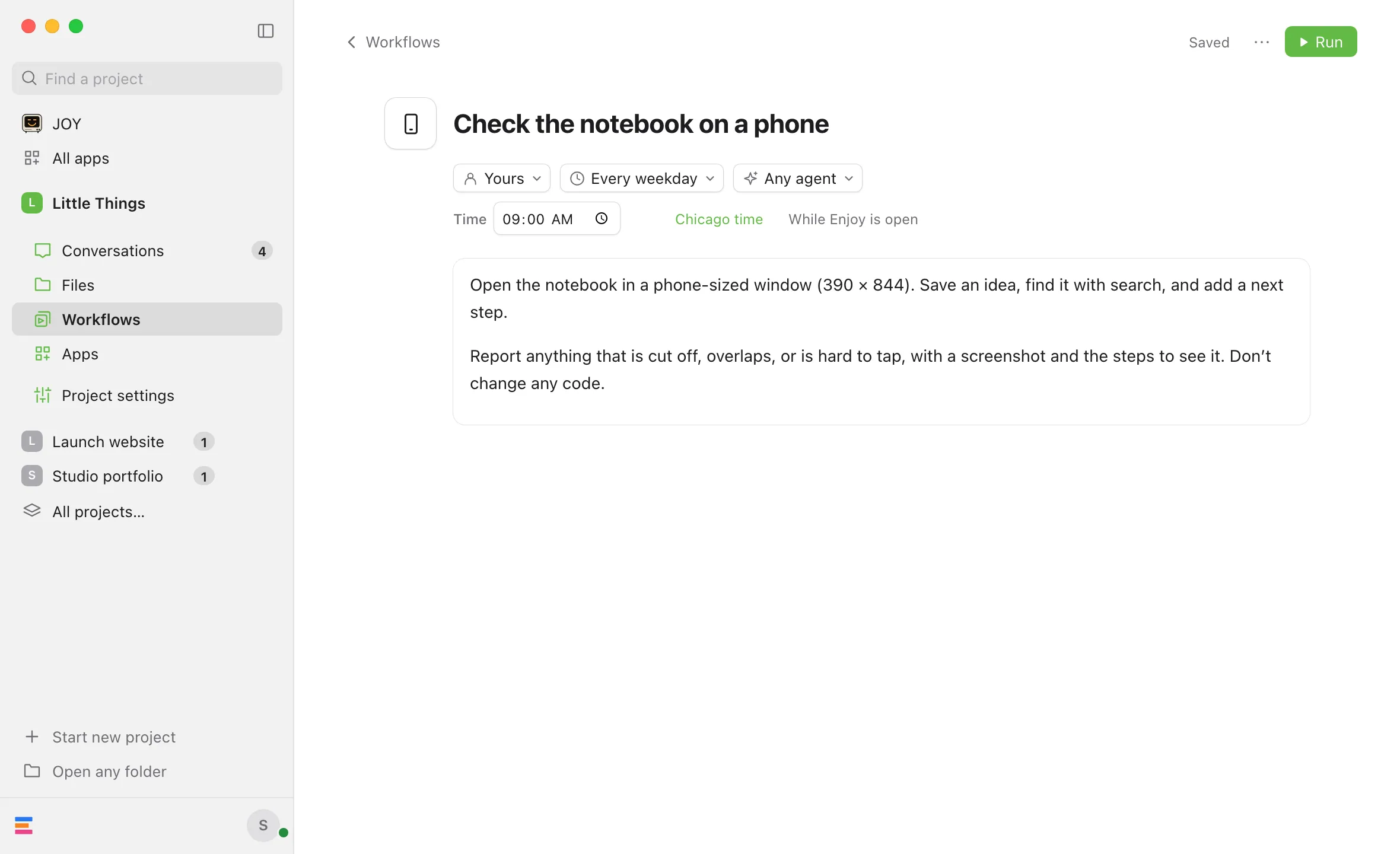
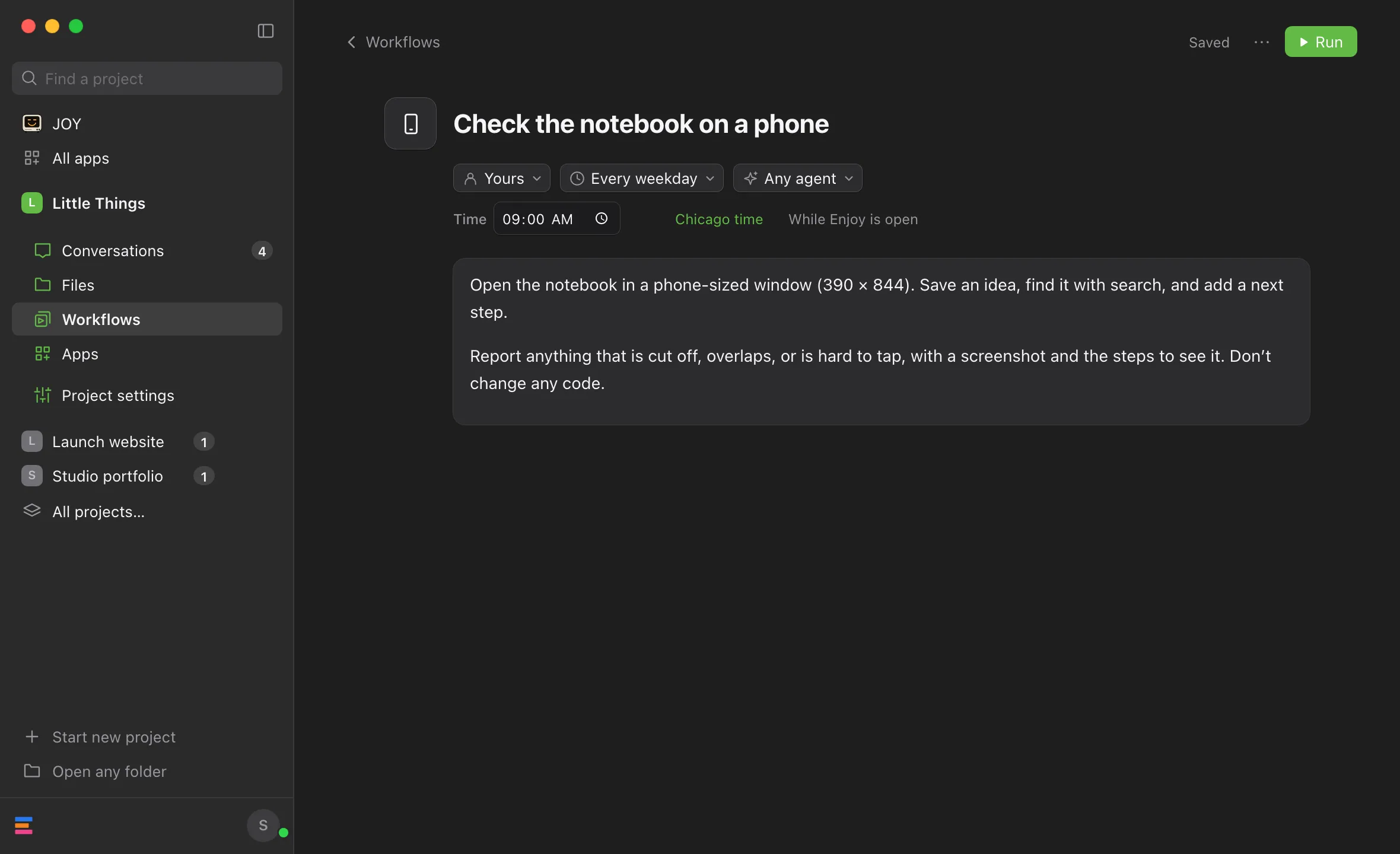
On the computer app and the web app, if you’re in that project, Enjoy switches to Workflows and opens the new workflow’s page. Otherwise, open Workflows and select its name. Check Repeat under the title, the time and time zone below it, and the instructions.
Adjust if needed
Change anything on the page yourself, and it saves on its own. Or ask the agent to change it.
Good to know
- Saving doesn’t run it. The workflow runs at its next scheduled time, or when you run it.
- Schedules start right away. A schedule an agent sets is active as soon as it’s saved, with no extra review.
- Agents can change existing workflows, including ones you wrote, and move them between collections. They read the latest version first, so they don’t overwrite changes made in the meantime.
- Agents can’t delete workflows or start runs. Do those yourself. See Delete a workflow and Run a workflow.
- Agents can’t set a preferred agent. Set it yourself. When an agent updates a workflow, its preferred agent stays as it was. See Choose which agent runs a workflow.
- Agents can look up your workflows and read their instructions, so you can ask questions like “Which of our workflows touch the release process?”
- If you’re writing a new workflow when the agent saves one, Enjoy waits until you leave that page before showing the agent’s. If another workflow’s page is open, Enjoy saves your changes there first.
- The iPhone app works too: ask in a conversation there, and the new workflow appears in the project’s Workflows tab.
If something goes wrong
The schedule doesn’t match what you asked for
Open the workflow to see the timing Enjoy actually uses: Repeat, the time, and the time zone under the title. Fix them there, and Enjoy saves on its own. Or ask the agent to correct it.
The agent says the workflow changed
Someone edited the workflow while the agent was working on it. The agent needs to read it again before updating. Ask it to try again.