Change what a teammate can access
Access is managed in the Enjoy computer app, on the computer you shared. Changes apply to every device the person uses.
Before you start
- At least one person has joined your computer. See Invite a team member.
Steps
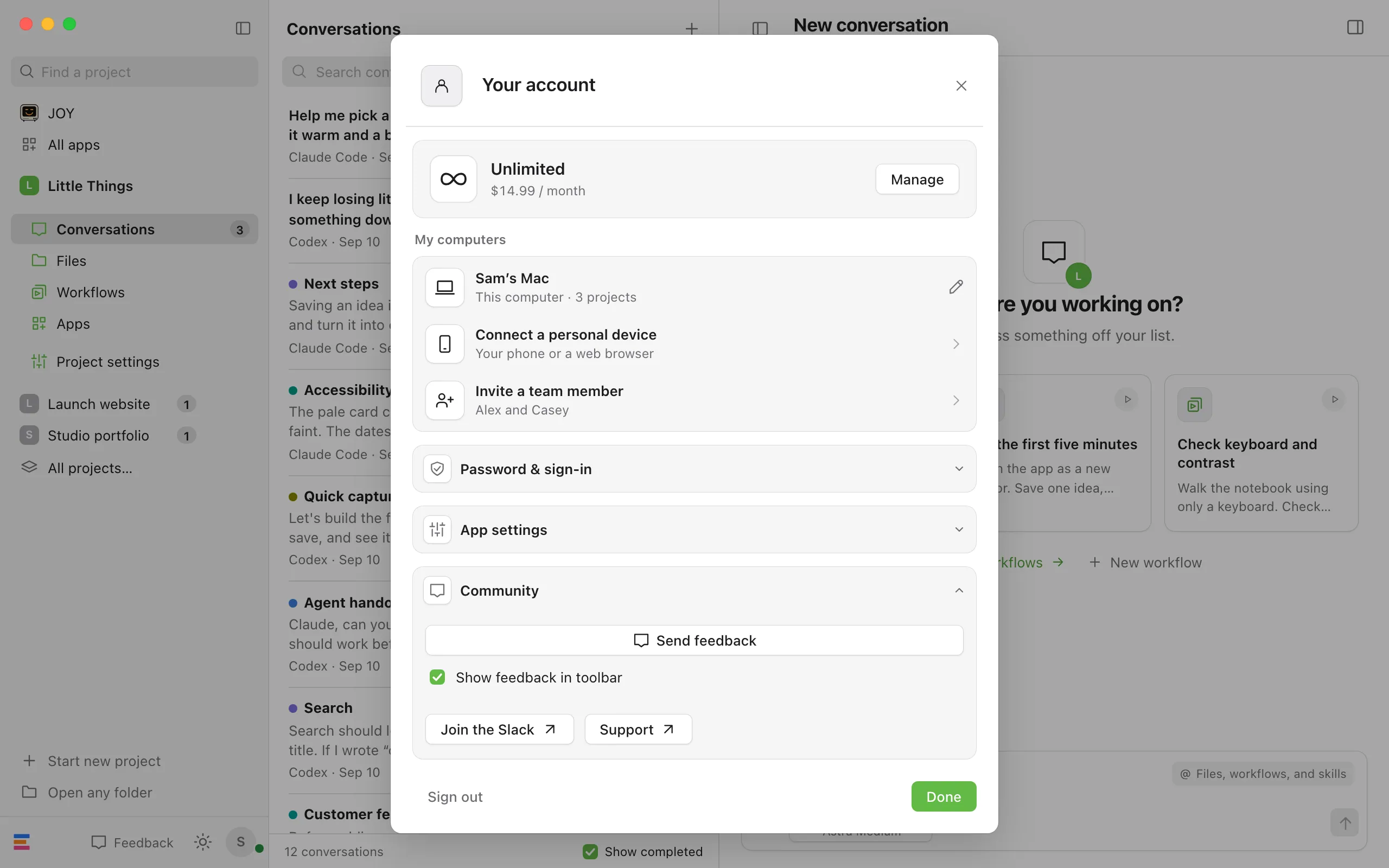
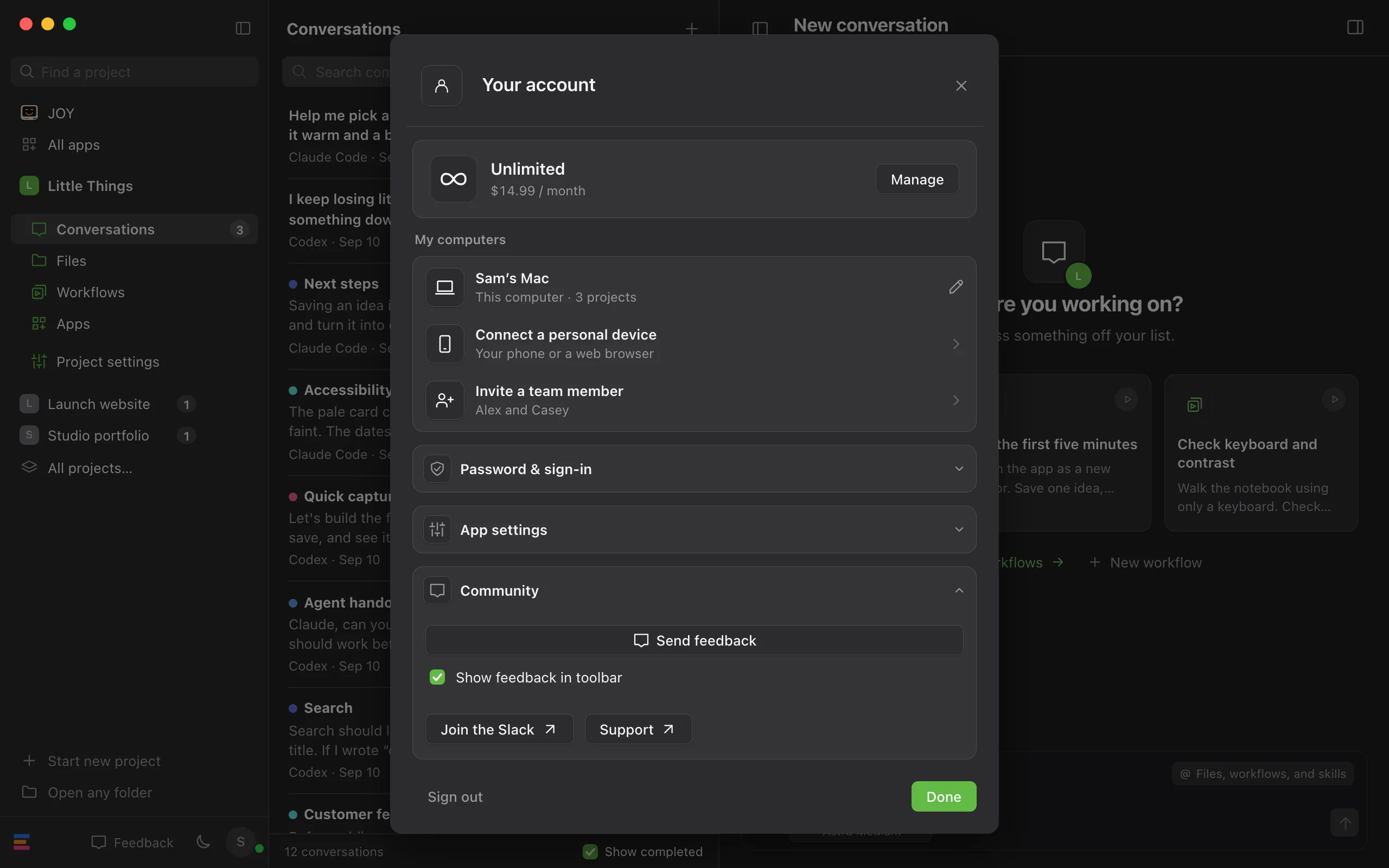
Open your account
Select the circle with your initial in the top-right corner of Enjoy.
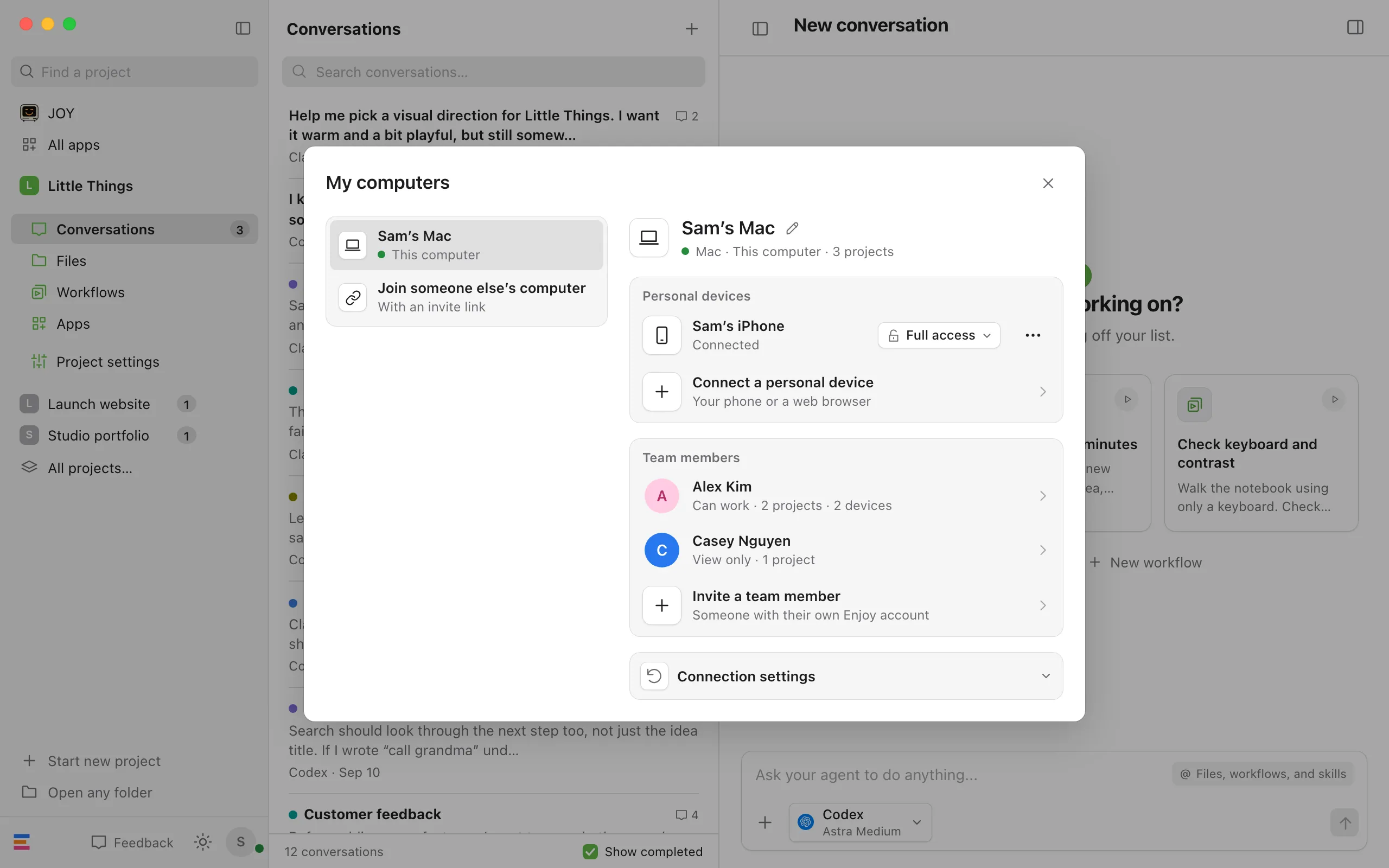
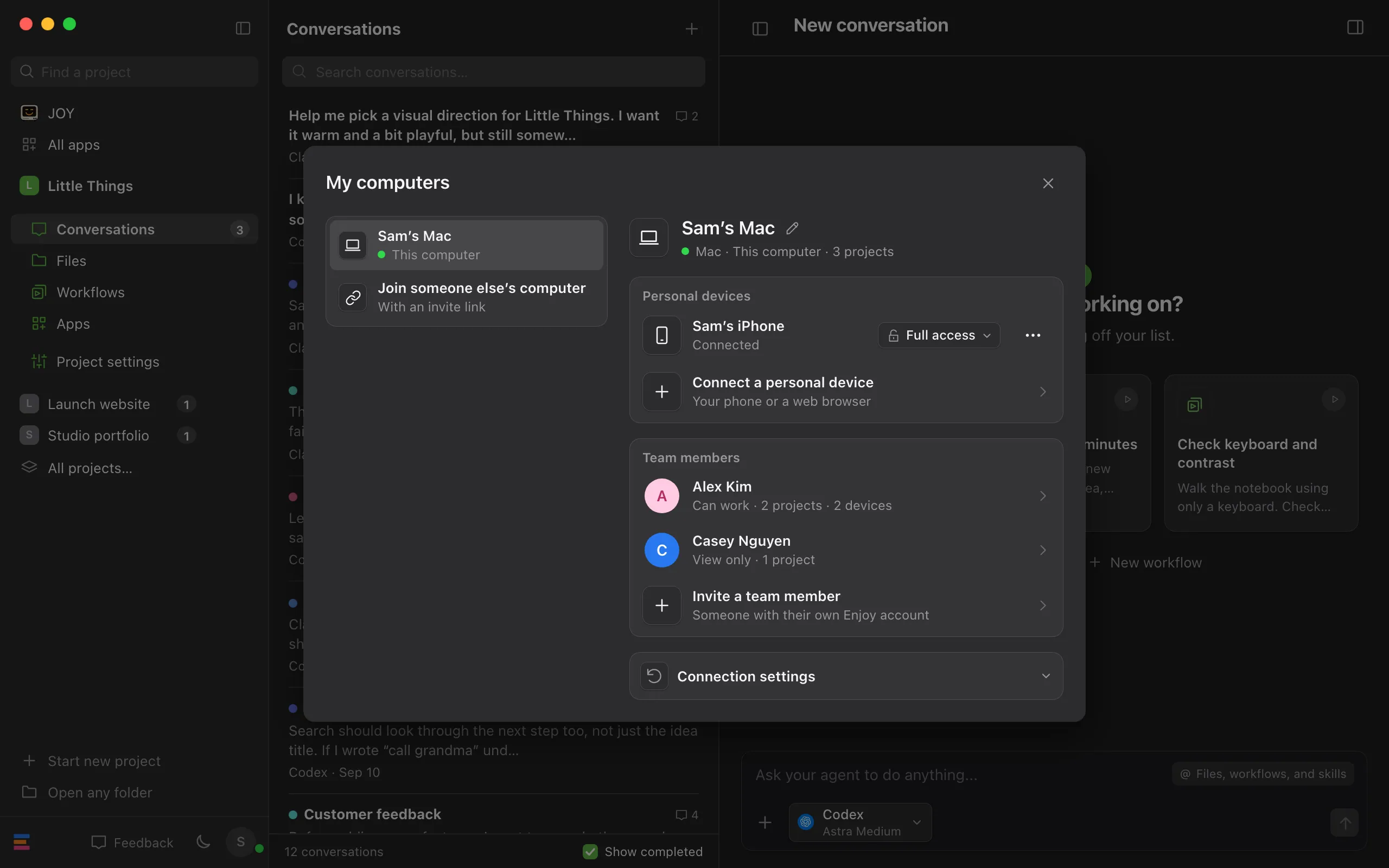
Open My computers
Under My computers, select your computer’s name.
Select the person
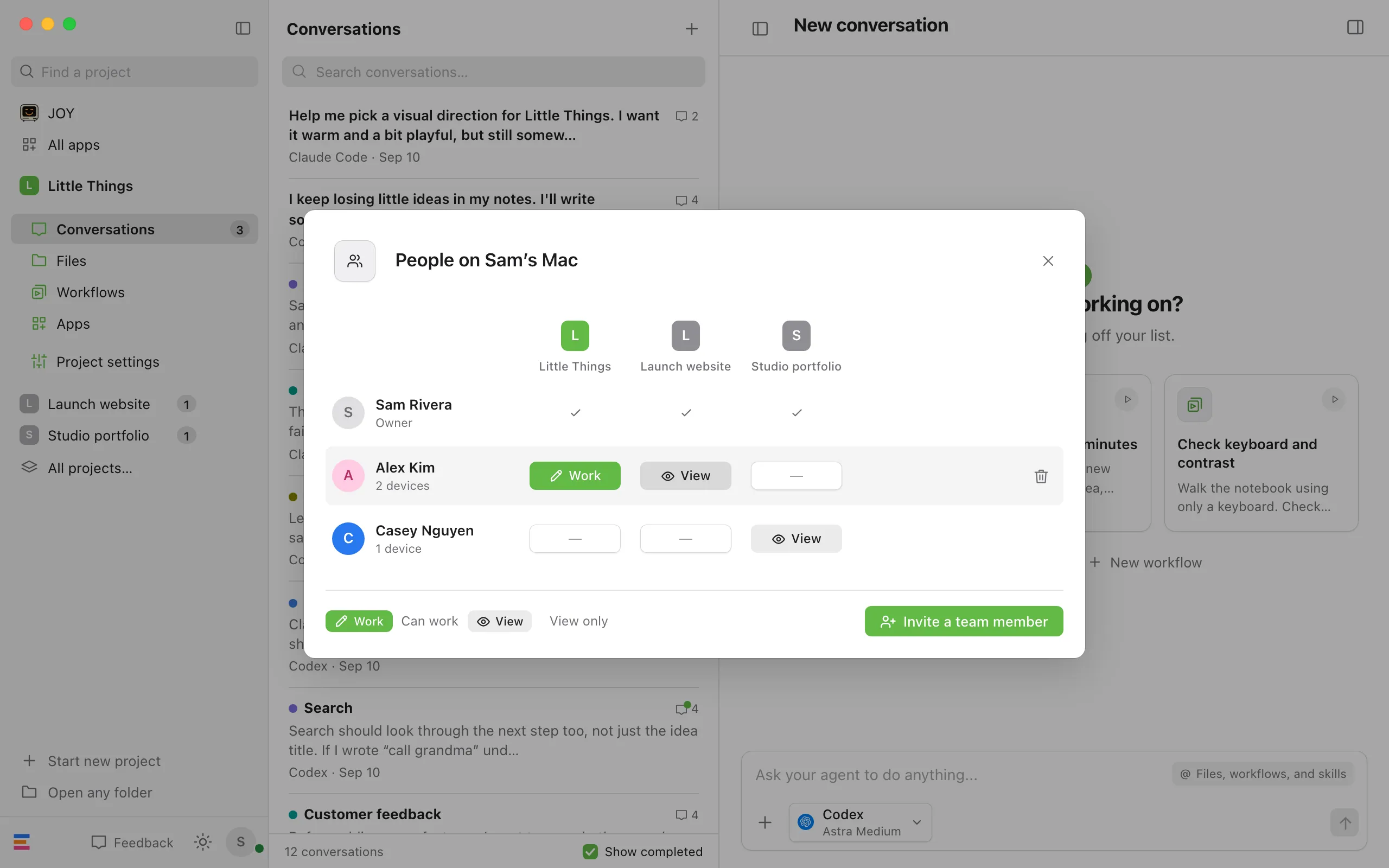
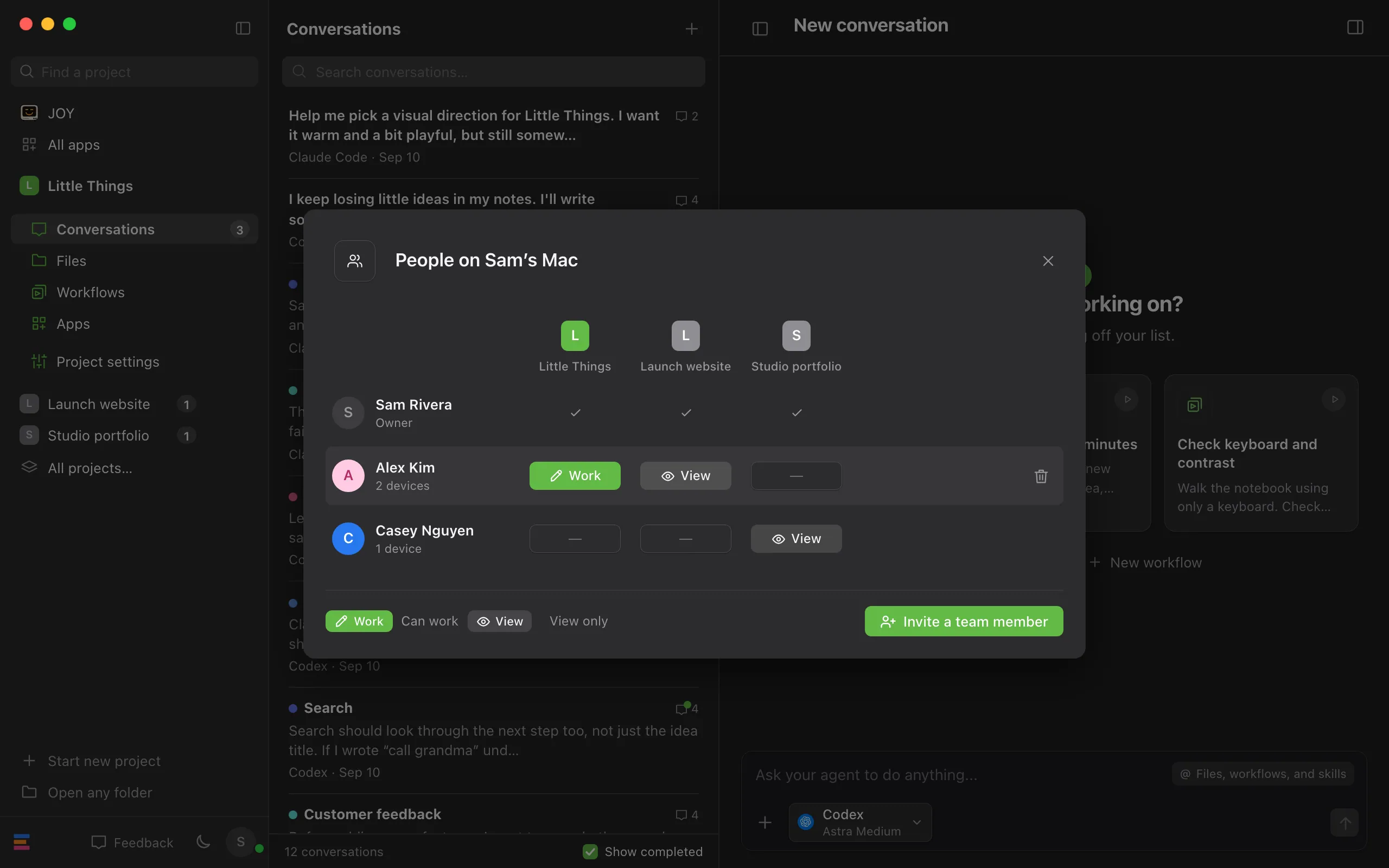
Under Team members, select their name. A window opens, titled People on followed by your computer’s name.
Change a project’s access
Each person is a row and each project is a column. Select a cell to move it through no access, View only, and Can work, then back to no access.
Close the window
Changes save on their own a moment after you stop clicking, and anything not yet sent is saved when you close.
Good to know
- Can work lets them start conversations and make changes. View only lets them read conversations and files.
- While a change is saving, Saving… shows under the person’s name.
- Changing someone’s access stops anything they have running on your computer. They can start it again in any project where they can still work.
- If you take away a project, it leaves their list. If they’re connected at the time, they see a note that you stopped sharing it, with Remove from your projects. If you take away their last project, Enjoy asks whether to remove them from your computer. Select Cancel to keep their access as it was.
- The columns show the projects in Enjoy on this computer. If someone also has access to projects you’ve removed from Enjoy, their row shows how many, such as +1 project. Select the line under their name, then Stop sharing to end that access.
- The legend at the bottom shows Work for Can work and View for View only.
If something goes wrong
Unable to change access. Try again.
The change didn’t save, and the cell goes back to what it was. Check that this computer is online, then try again.