Organize workflows into collections
Every workflow belongs to one collection. Yours holds the workflows you create unless you choose another collection.
Steps
Open Workflows
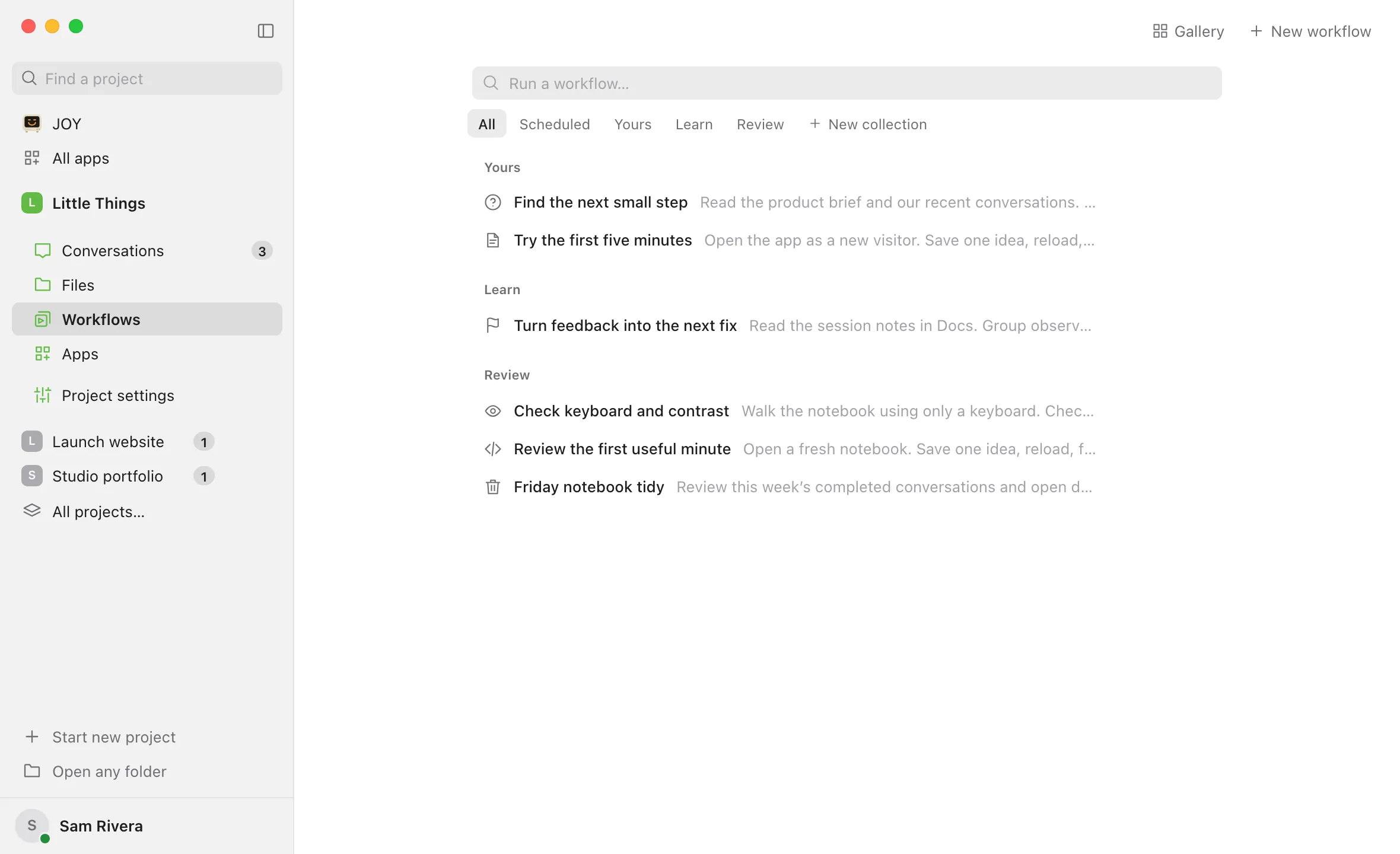
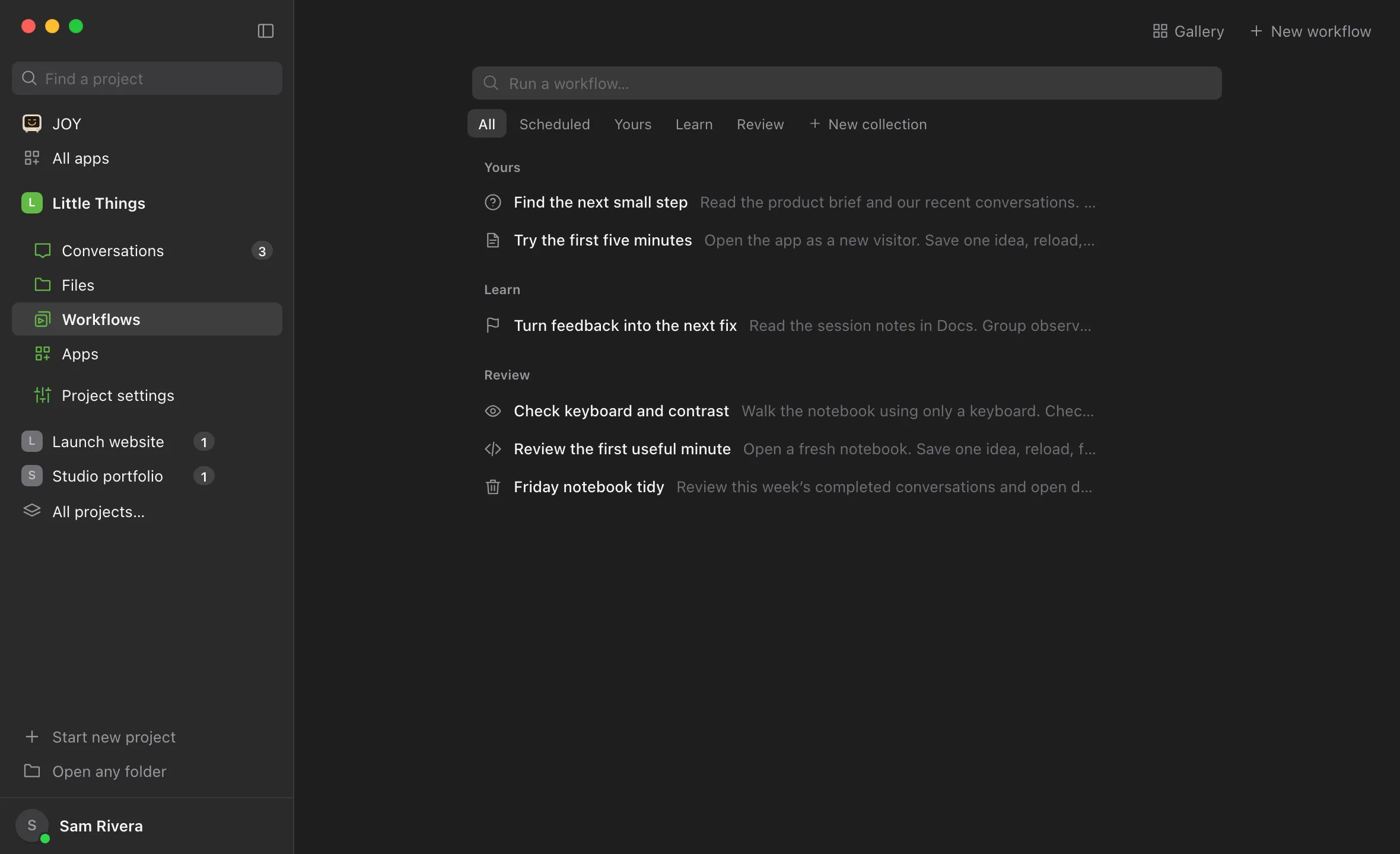
Select Workflows in the rail on the left side of the window. On a phone, or in any narrow window, select Show sidebar at the top left first.
Select New collection
It’s at the end of the row of collection buttons under the search field. The New collection page opens.
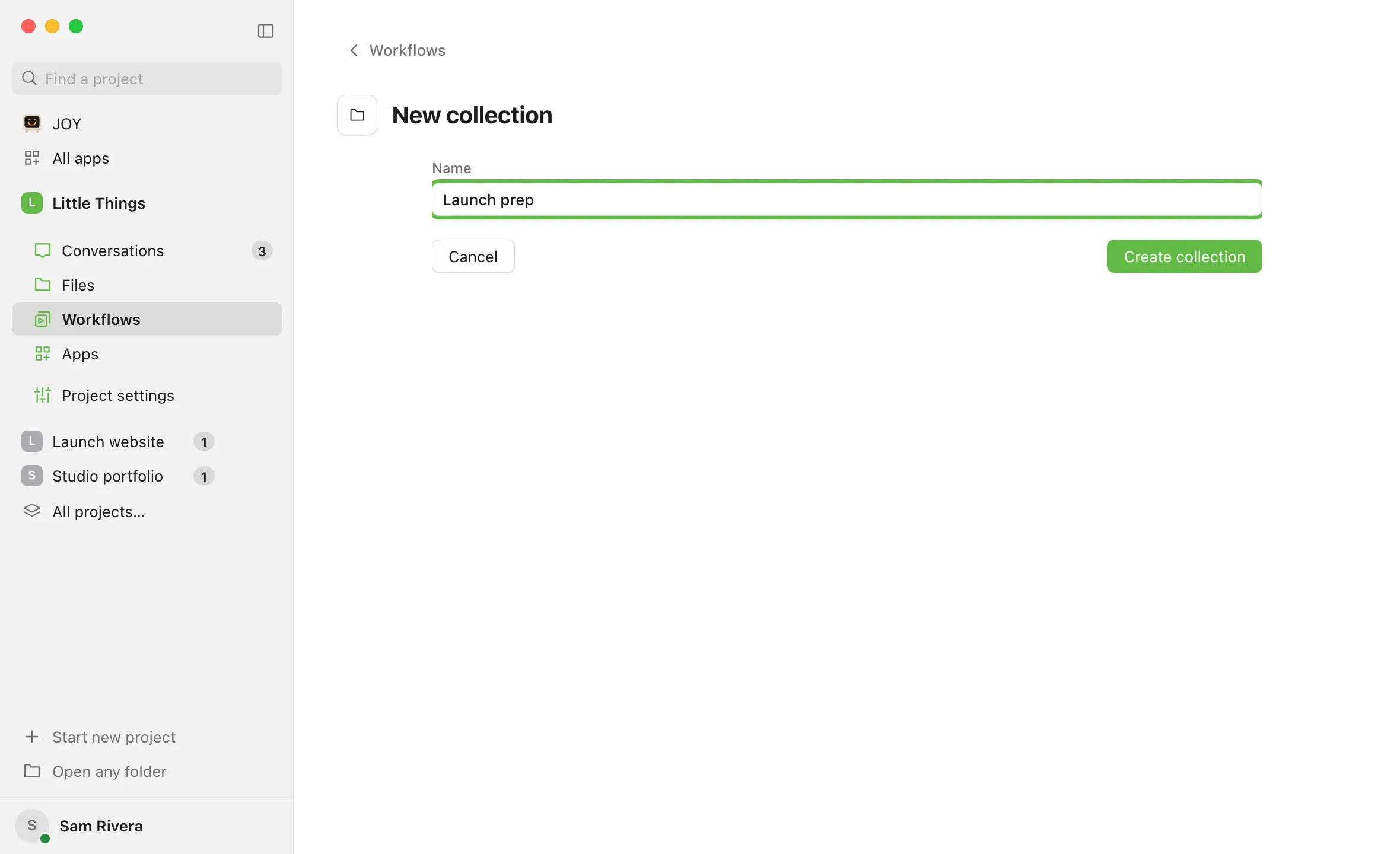
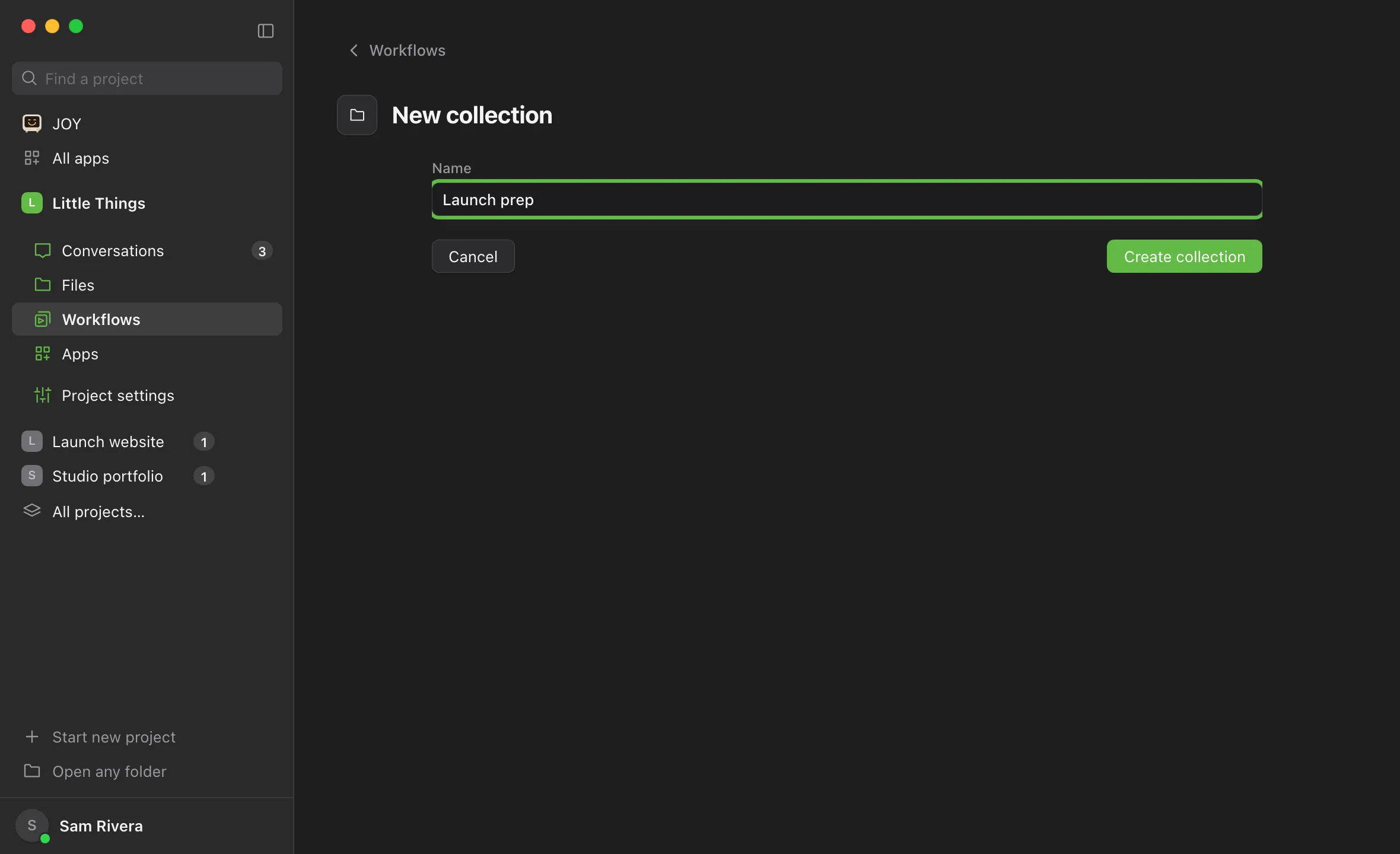
Name it
Type a name in Name.
Select Create collection
You go back to the library with the new collection selected. It shows No workflows yet.
Add workflows to it
While the collection is selected, select New workflow. The new collection is already chosen. To move an existing workflow, open it and choose the collection from the first small menu under its title. It saves on its own.
Good to know
- In All, each collection’s workflows are listed under its name, one per line. Workflows you’ve pinned are listed first, under Pinned, instead of in their collection.
- To show one collection, select its button under the search field. Only its workflows are listed, with any pinned ones first. Select All to go back.
- Gallery workflows go into a collection named after their Gallery category, such as Daily or Shipping. See Add ready-made workflows from the Gallery.
- To delete a collection, point at its name above its workflows. A ⋯ button appears at the right of the name. Select it and choose Delete collection. Enjoy asks you to confirm, beside the heading, and says how many workflows it holds. Select Delete collection again. This deletes every workflow in the collection and their schedules from this project. Conversations from earlier runs stay. There’s no undo. On a touch screen, the ⋯ button is always showing.
- Yours can’t be deleted. Delete its workflows one at a time. See Delete a workflow.
- Collections belong to one project. Names can be up to 500 characters, and a project can have up to 500 collections. If a collection with the same name already exists, Enjoy shows that one instead of making another.
- The iPhone app lists collections as filters but can’t create or delete them.
If something goes wrong
New collection or Create collection is greyed out
Create collection stays greyed out until you type a name. If New collection is greyed out, you have View only access to the project. Ask its owner for Can work access.
“This project has too many collections.”
A project can have up to 500 collections. Delete ones you no longer use.