Link workflows so one runs after another
For example, a “Prepare a release” workflow can end with “When you’re done, run @Write the release notes.” Each workflow stays small, and you can run either one on its own too.
Steps
Open the first workflow
In Workflows, point at the workflow’s line and select Edit, the pencil, to start typing in its instructions. Or select the workflow’s name, then select its instructions.
Type @ where the next step goes
Type it at the start of a line or after a space, for example after “When you’re done, run “. A Workflows list opens.
Find the workflow to link
Keep typing to filter the list. The highlighted workflow’s instructions show below it, so you can check it’s the right one.
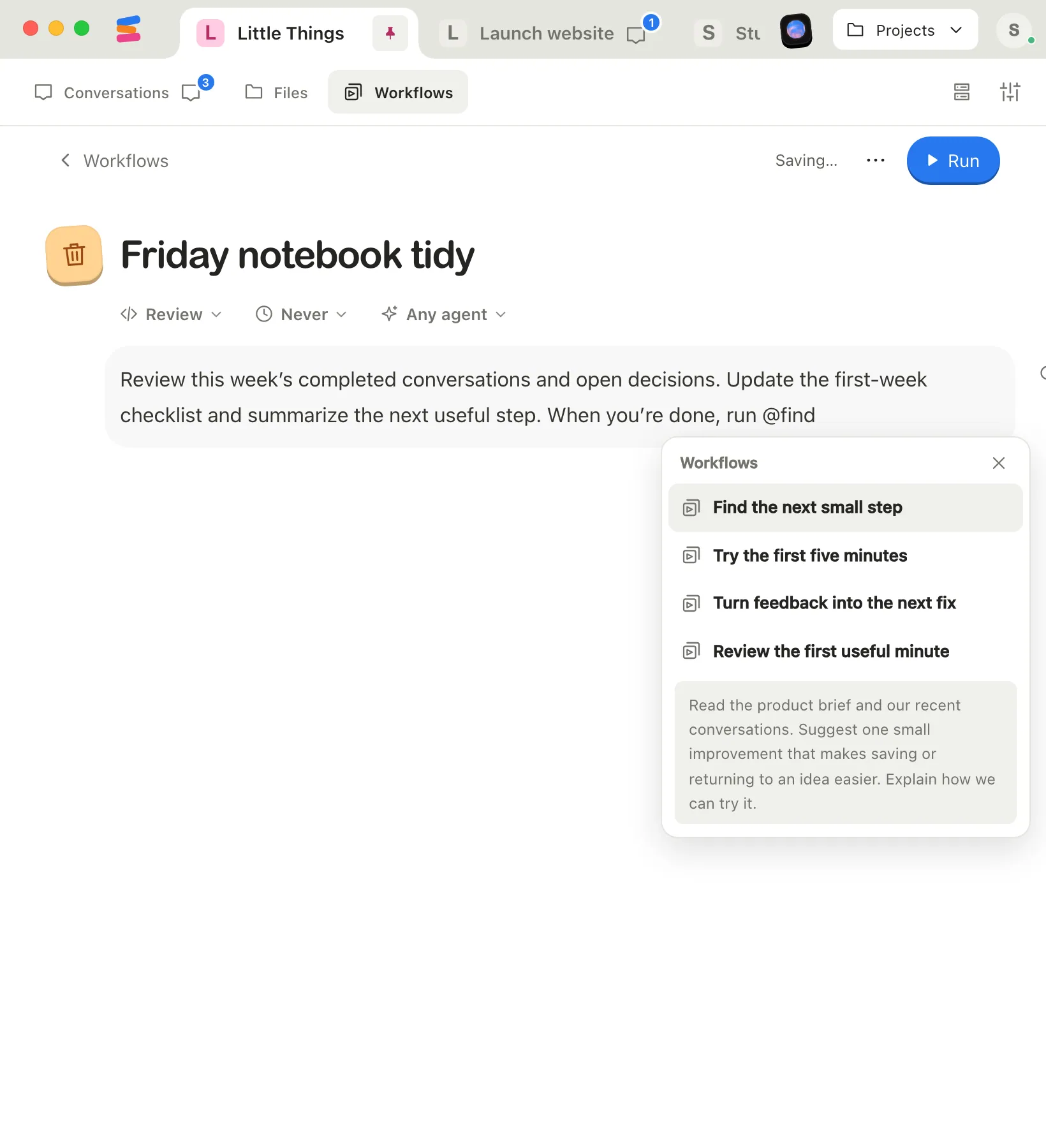
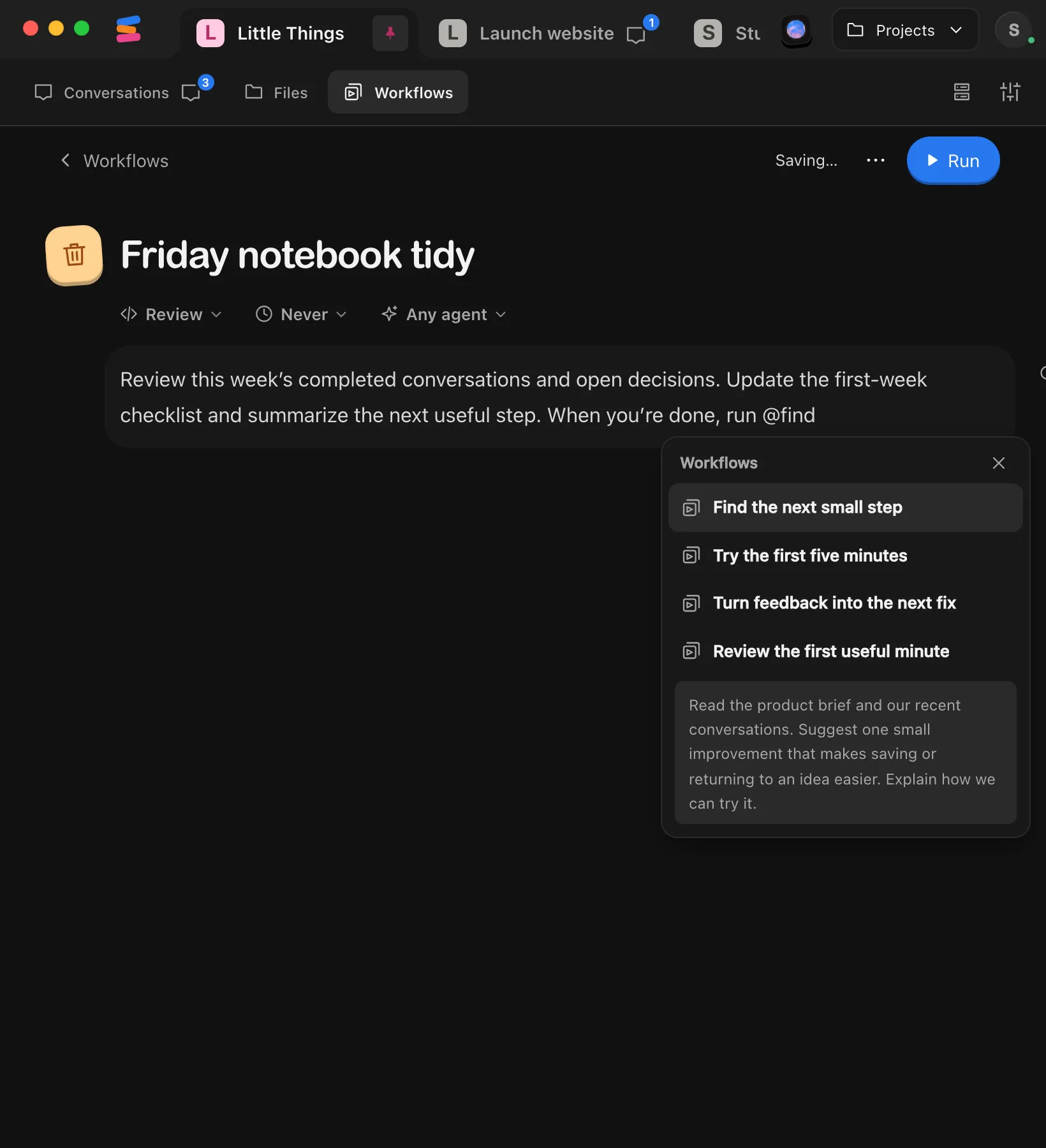
Insert it
Select it, or press Enter or Tab. It appears in the instructions as @ followed by its name. Press Escape to close the list without choosing.
Check that it saved
Enjoy saves the instructions a moment after you stop typing, and the top right of the page shows Saved. The next time this workflow runs, the agent continues with the linked one when it gets there.
Good to know
- The chain stays in one conversation. When the agent reaches the link, it reads the linked workflow and follows it in the same conversation, with the same agent. It doesn’t start a new conversation or switch to the linked workflow’s preferred agent.
- Linked workflows are read when the agent gets to them, so they use their latest saved instructions. Only the workflow you start is copied at the moment the run begins.
- The link points to the workflow itself. Renaming the linked workflow doesn’t break it. The name shown in the instructions stays as you inserted it.
- Select a link to open its workflow. Your edits to the current workflow are saved first. To select the link itself instead, for example to delete it, hold Command (Ctrl on Windows and Linux) as you select it.
- The agent reports what it can’t follow. If a linked workflow was deleted or shows Desktop review needed, the agent tells you instead of running it. It also stops if workflows link to each other in a loop.
- A workflow can’t link to itself, and workflows that show Desktop review needed aren’t offered.
- Typing @ in the message box works differently: it attaches a copy of a workflow to your message. See Add a workflow to a message.
If something goes wrong
“No workflows match.”
No saved workflow in this project matches what you typed after @. Check the name, or create the workflow first and come back.
“Couldn’t load workflows.”
Enjoy couldn’t read the project’s workflows at that moment. Select Try again.