Add ready-made workflows from the Gallery
Steps
Open the Gallery
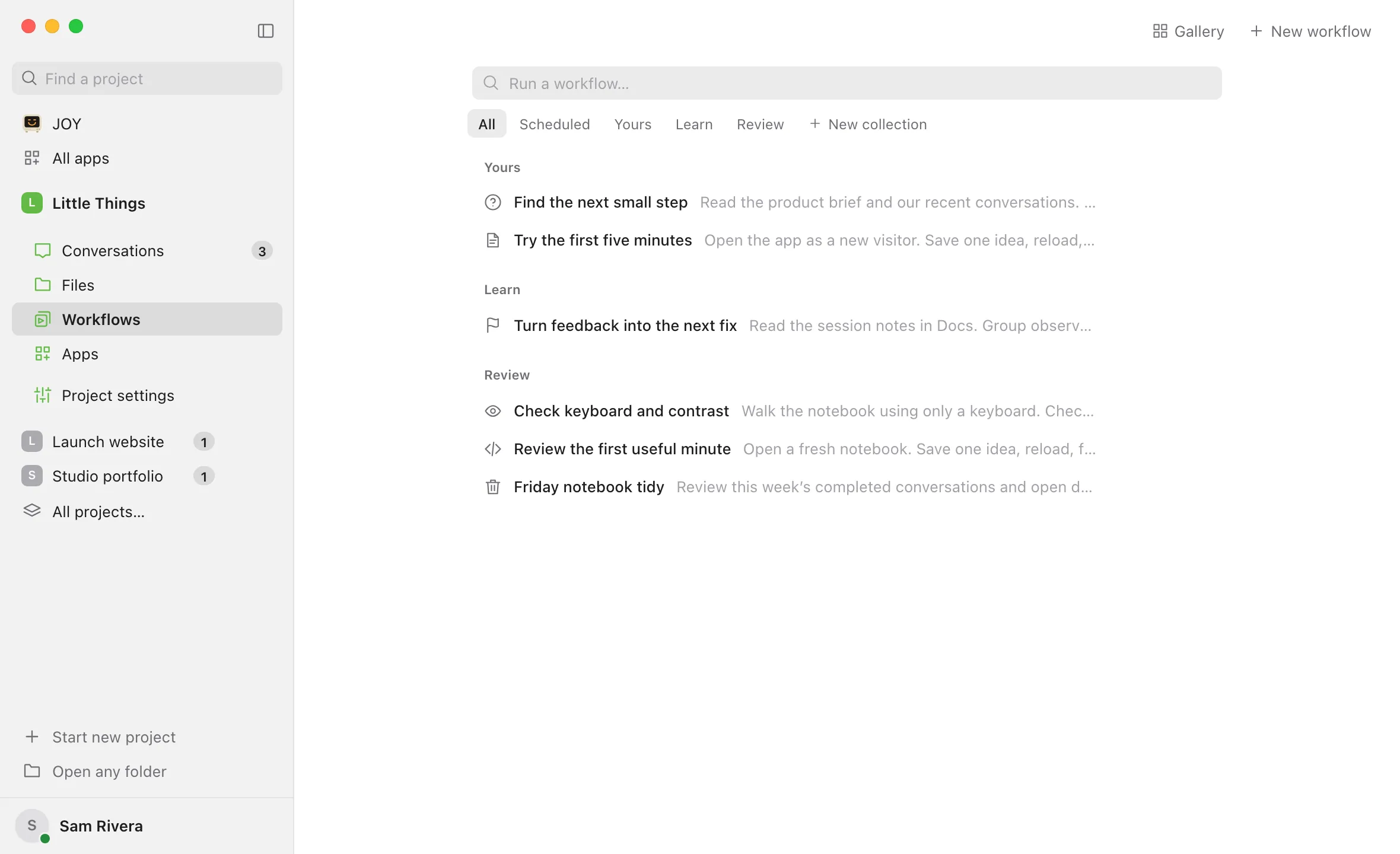
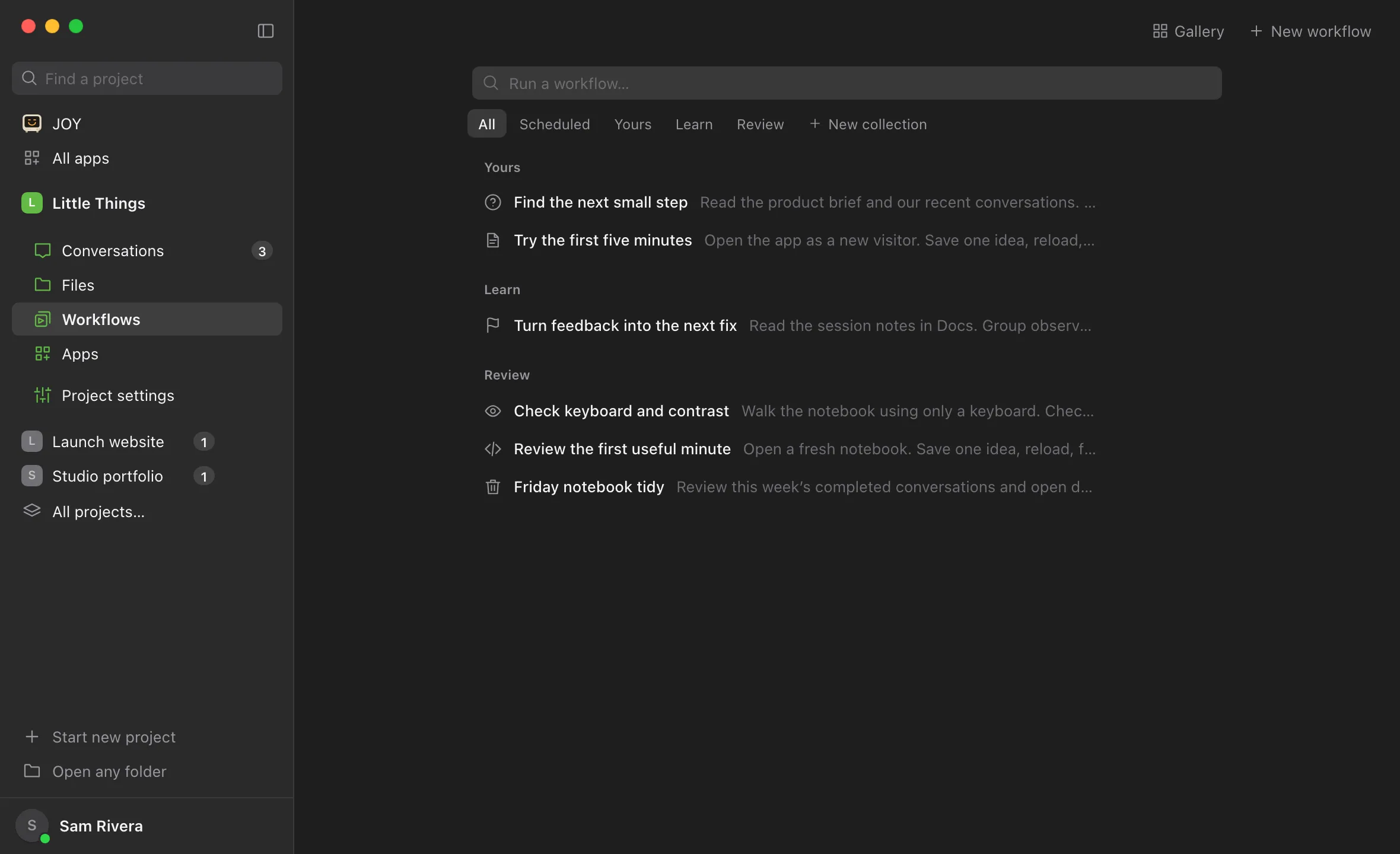
In Workflows, select Gallery at the top, next to New workflow.
Browse or search
Scroll through Featured, Editor Picks, and the category shelves. Select a category at the top, such as Daily or Code health, or type in Search the gallery.
Read the details
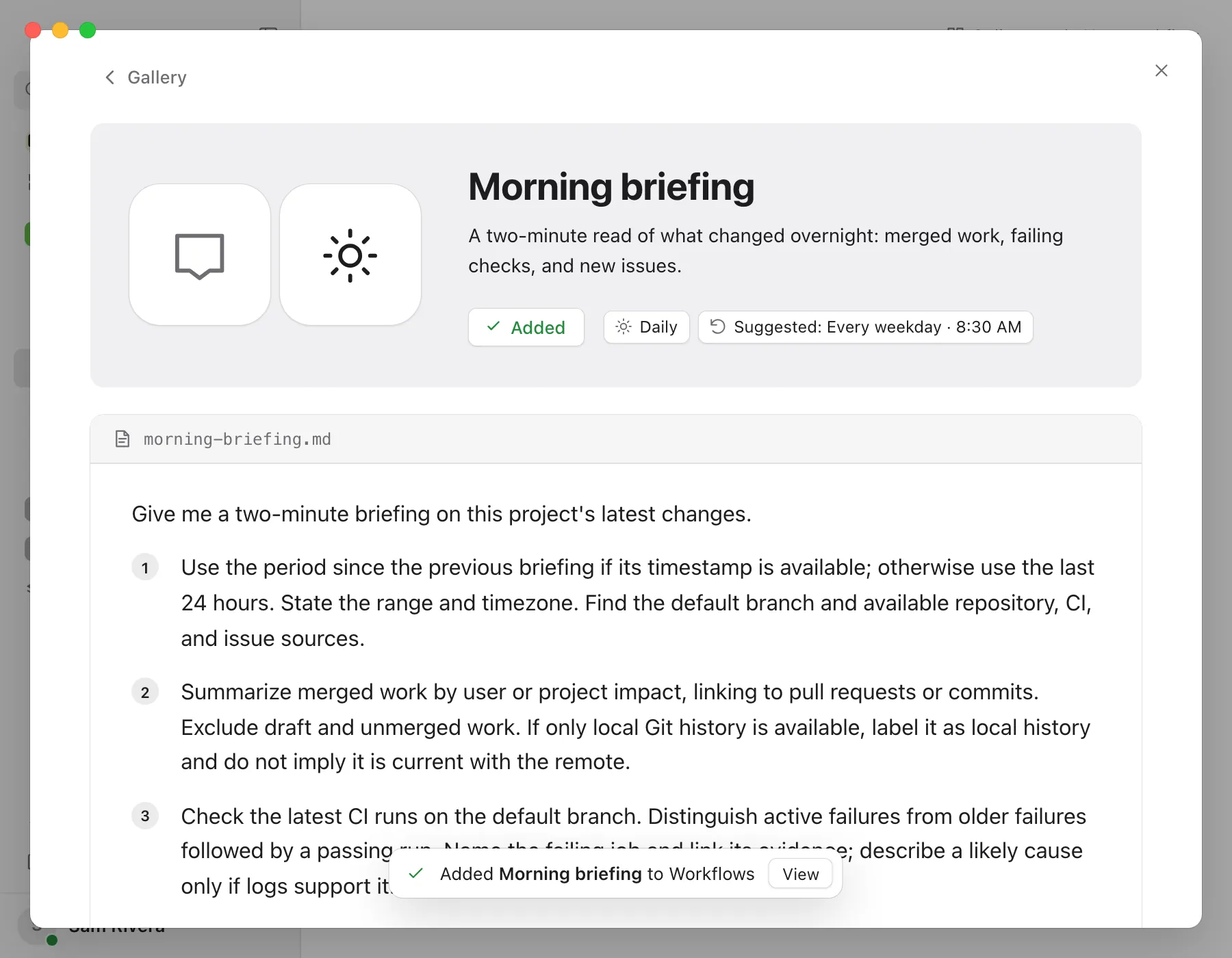
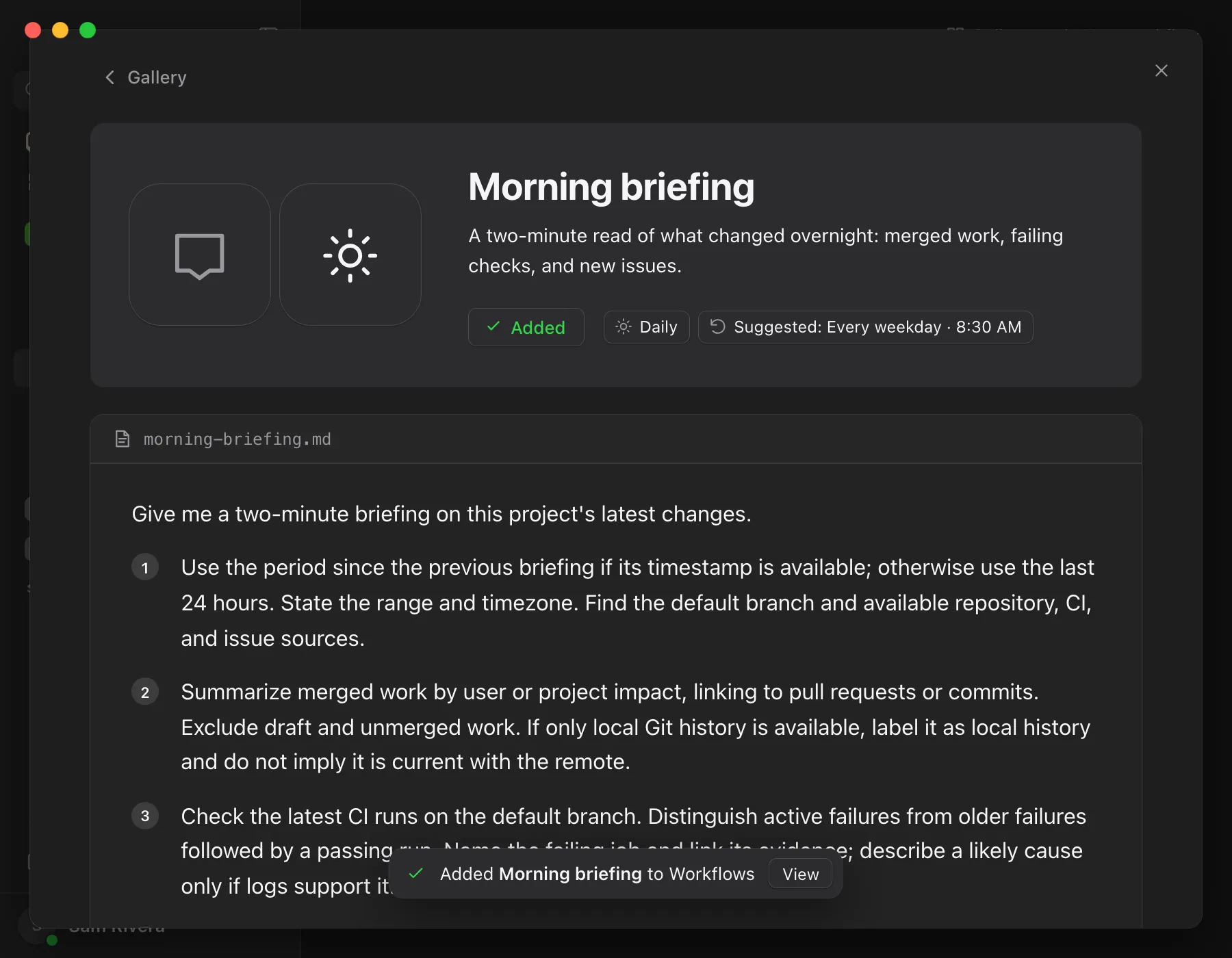
Select a workflow’s name, or Details in Featured. Its page shows what it’s for, its category, a suggested schedule if it has one, and the full instructions the agent will follow.
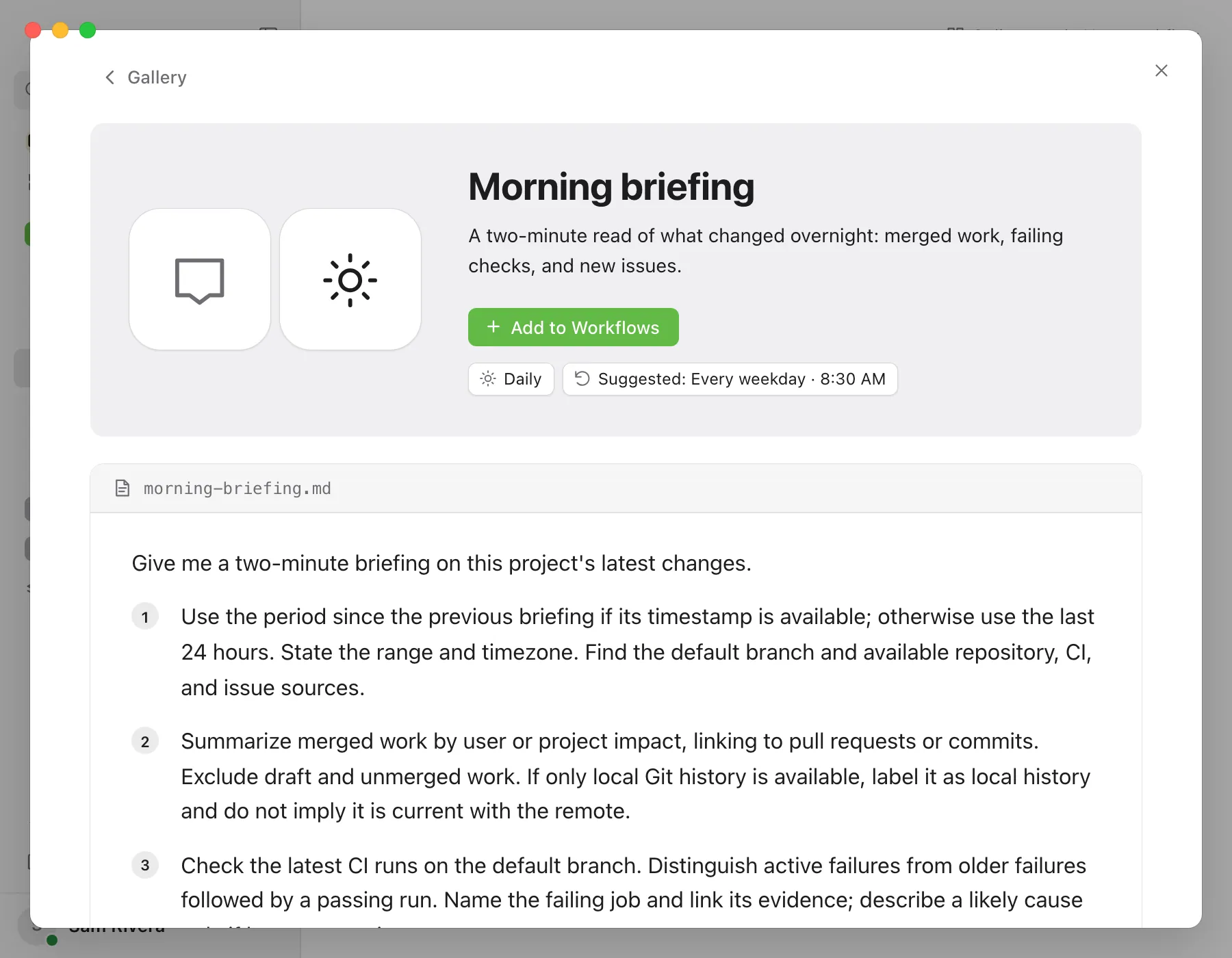
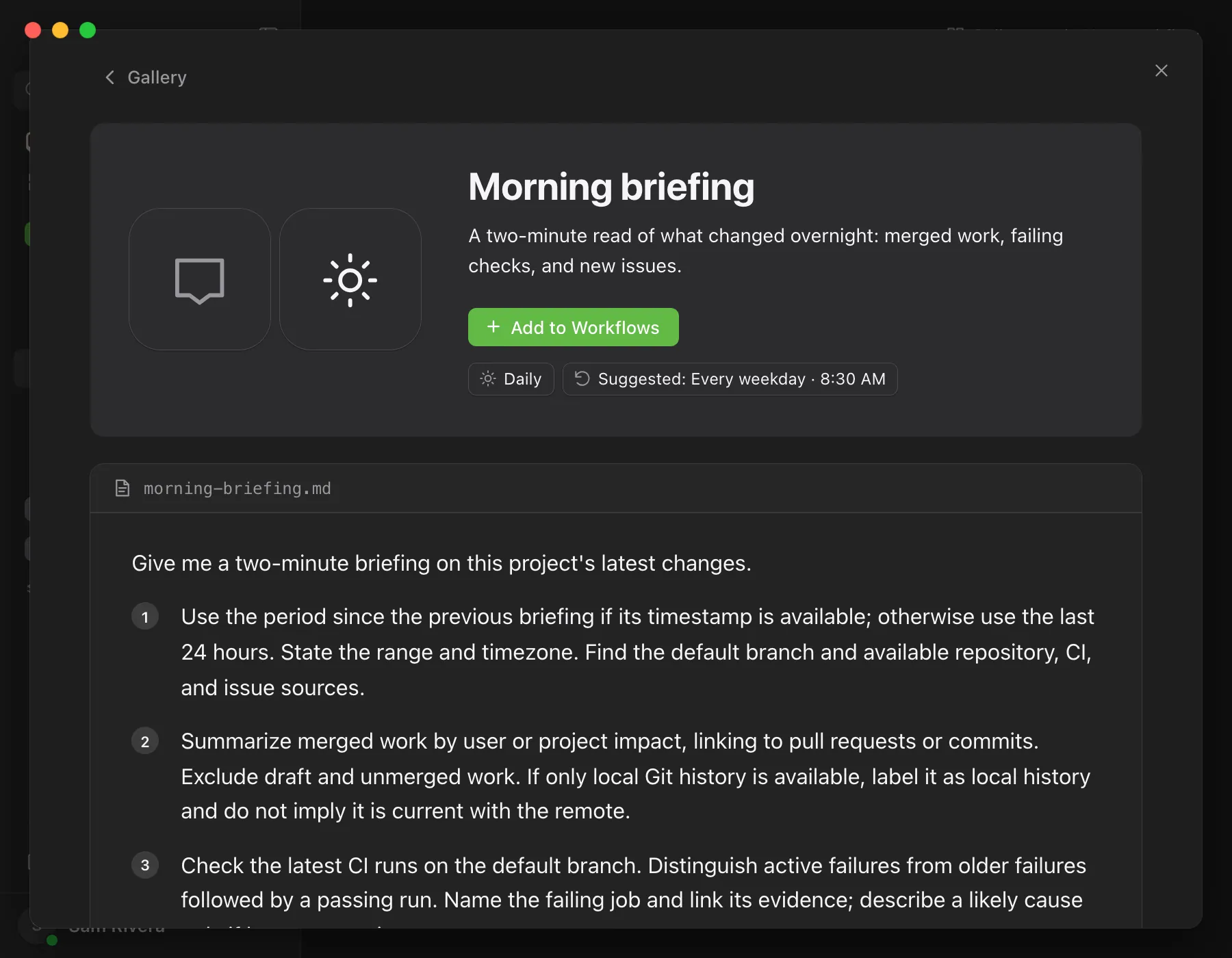
Select Add to Workflows
On cards, the button is called Add. It changes to Added, and a message at the bottom confirms the workflow was added.
Open it
Select View in that message, or select Added. The Gallery closes and the workflow’s page opens in Workflows, with Run at the top right.
Good to know
- Added workflows are yours to change. Each one is an ordinary workflow in the project. You can edit, schedule, run, or delete it like any other.
- They’re grouped by category. Enjoy puts each one in a collection named after its Gallery category, such as Shipping.
- They start on demand. A suggestion such as “Suggested: Every weekday · 8:30 AM” isn’t set for you. Set Repeat yourself. See Schedule a workflow.
- Added shows when the project has a workflow with the same instructions. If you edit those instructions, the Gallery shows Add again, and adding it makes a second copy.
- Updates to the Gallery in new versions of Enjoy don’t change workflows you’ve already added.
- The categories are Daily, Computer, Shipping, Code health, Writing, Research, ShipAcademy (marketing and copywriting, such as an About page, a launch plan, or a pricing offer), and Fun.
- Design workshop comes first in Featured and Editor Picks. The agent builds a page in your project with three to five interactive design directions to compare, refines the one you like, and applies it to your product only when you clearly choose it.
- To leave a workflow’s page, select Gallery at its top or press Escape. To close the Gallery, press Escape again or select the × at the top right.
- The iPhone app doesn’t have the Gallery.
If something goes wrong
Add is greyed out
You have View only access to the project. Ask its owner for Can work access.
“Couldn’t add” appears at the bottom of the Gallery
Enjoy didn’t add the workflow. The message includes the reason. Try again, and if it keeps failing, check that you can still create workflows in the project.