What to do when an agent seems stuck
Agents often work for many minutes on bigger tasks, so a long Working isn’t always a problem. These steps help you tell whether it’s busy, waiting on you, or truly stuck.
Steps
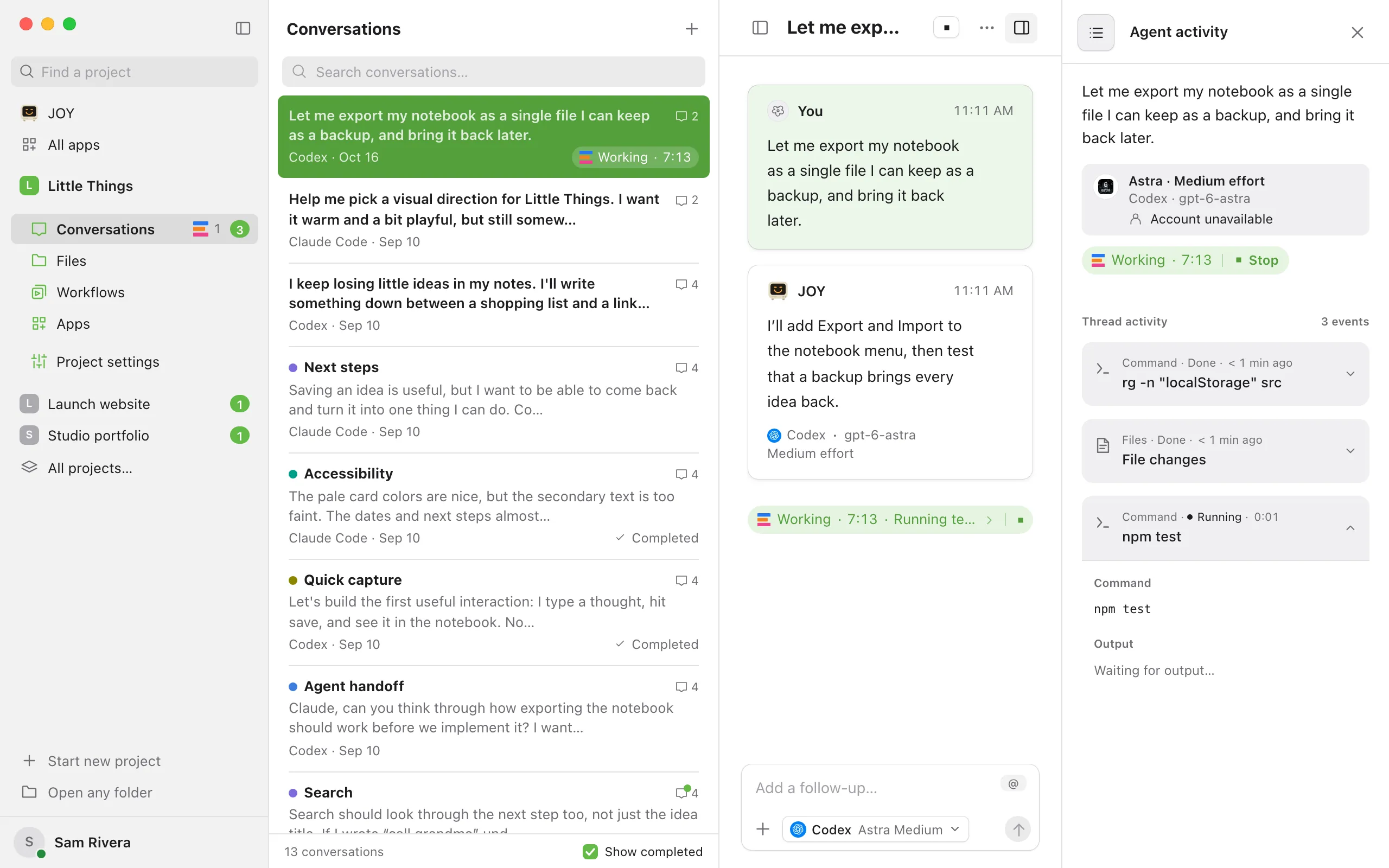
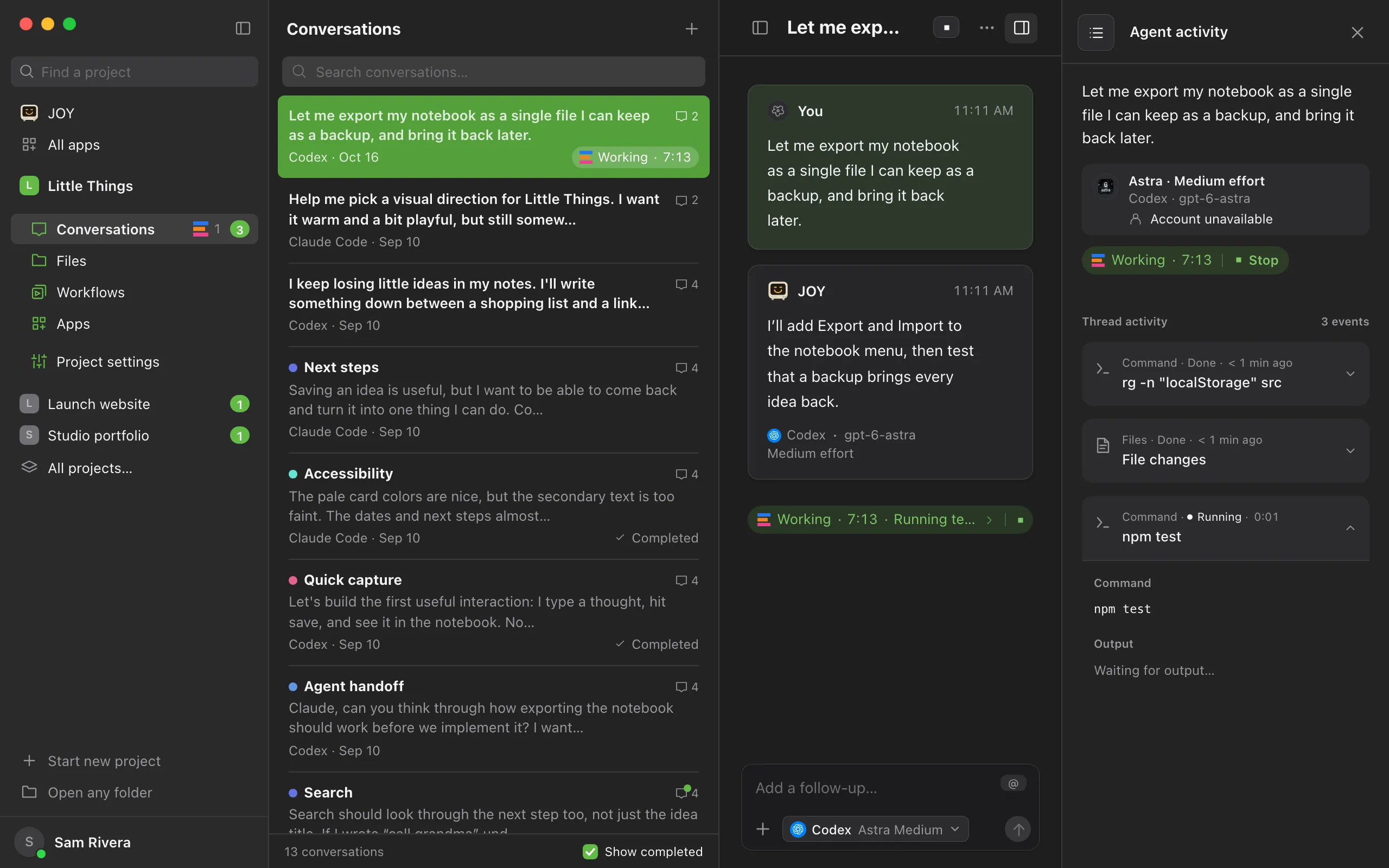
Open the activity
Select Show agent activity, the last button at the top right of the conversation, or the Working indicator below the latest message. The Agent activity panel shows the status, such as Working with its timer, and lists each step the agent took. The step it’s on now says Running with a live timer, and finished steps show how long ago they ended. If new steps keep appearing, the agent is still busy.
Check whether it’s waiting on you
If the status says Needs input, the agent asked a question or needs your approval. Answer it in the conversation and it carries on. In the web app, a request that says Review and approve this action in Enjoy on your desktop. can only be approved in the computer app. See Answer your agent’s questions.
Give it a moment if it says Compacting
Claude Code, Codex, Grok Build, and Muse Code summarize the earlier part of a long conversation to make room. The status says Compacting, and the activity shows Conversation compacted when it’s done.
Send a follow-up
Type a message. While the agent works, Queue saves it for after the current turn, and Send lets the agent take it up when it’s ready. A sent message waits at the end of the conversation with Send now, which stops the current work and sends right away.
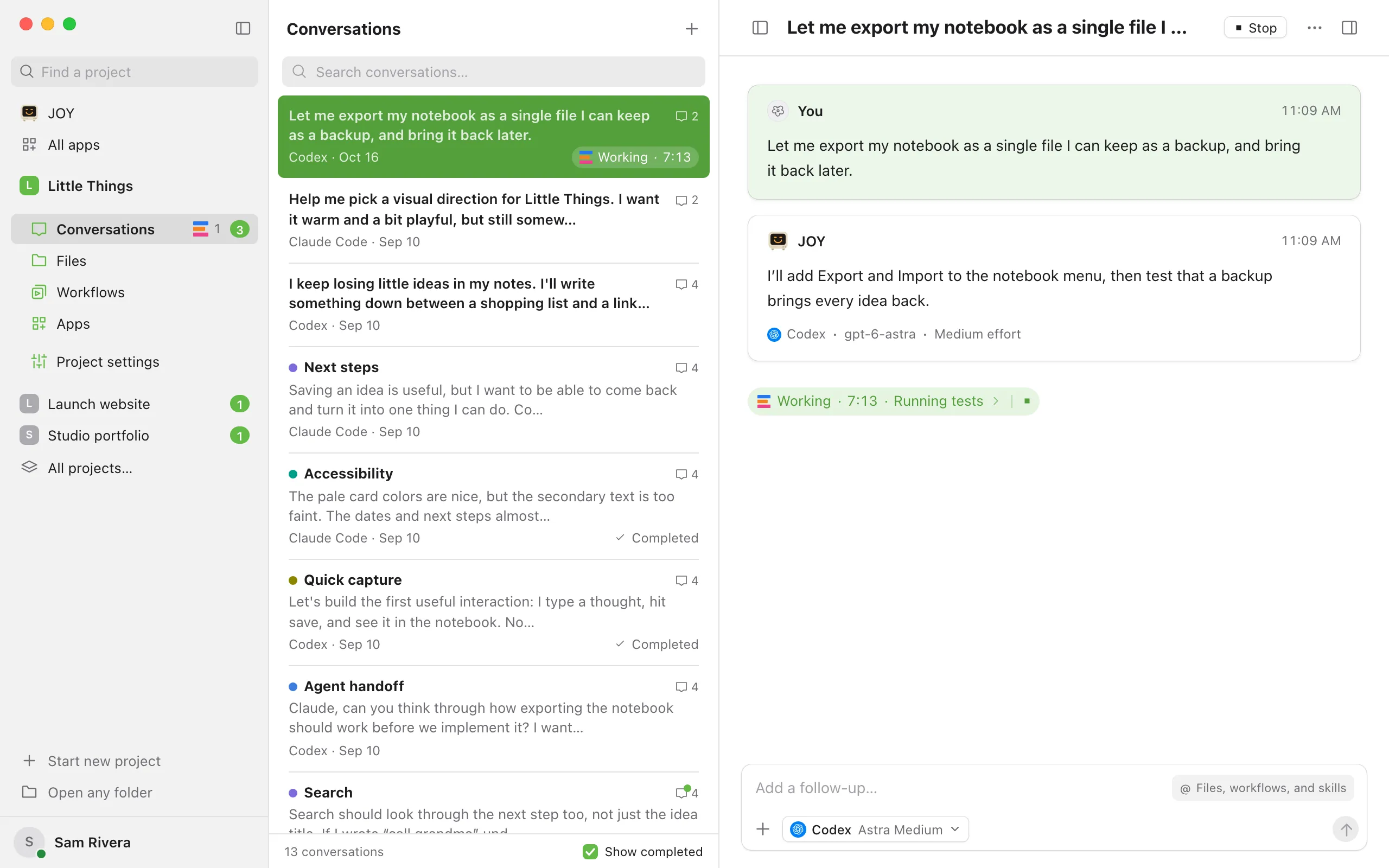
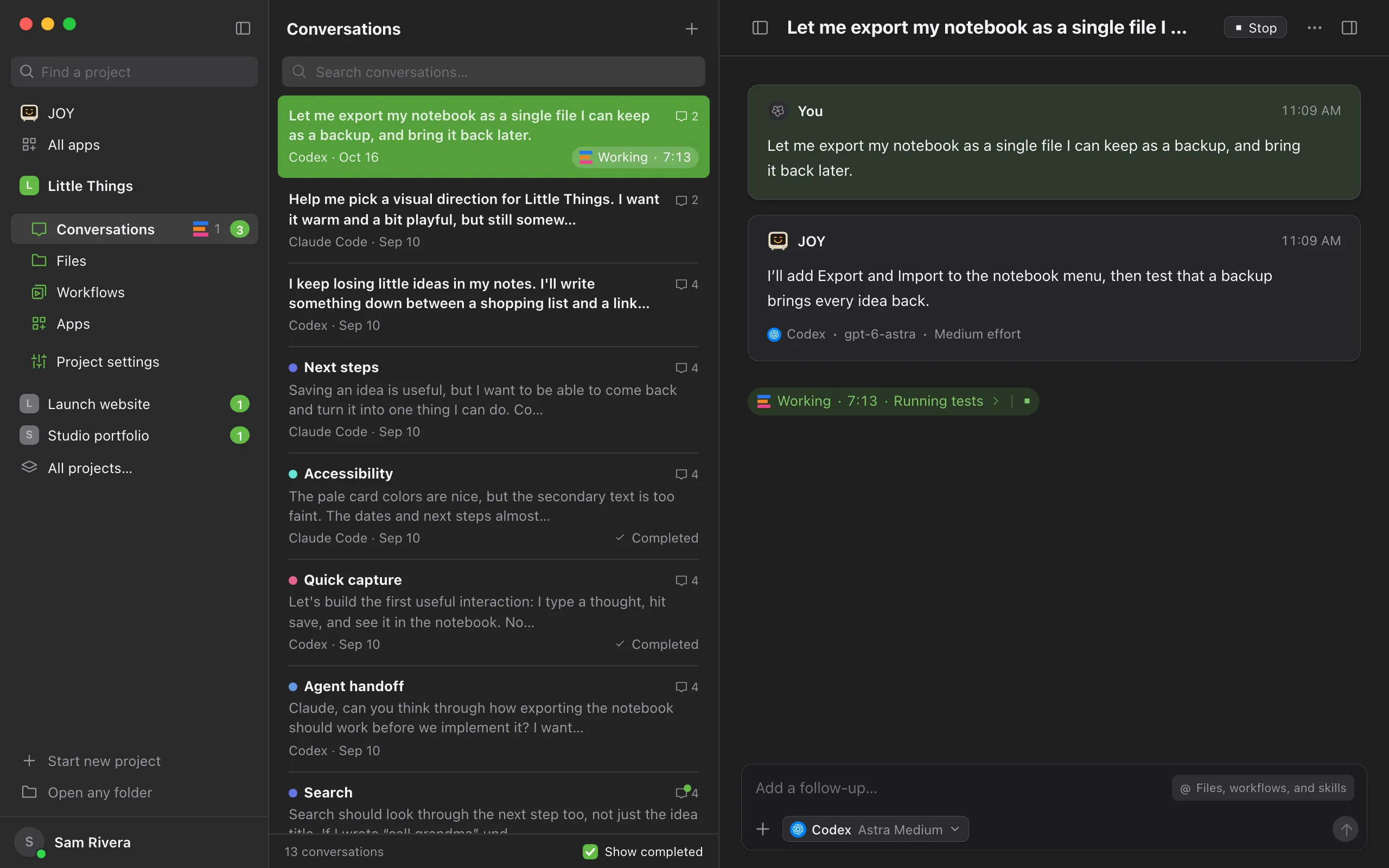
Stop the work if it’s really stuck
Select Stop beside the conversation’s title. The conversation shows Stopped. with Retry. Select Retry to have the agent continue where it stopped, or send a new message with clearer directions.
Good to know
- When an agent uses helper agents, the indicator under the latest message shows how many are working, such as 2 agents. Stopping the conversation stops them too.
- After its main work, Muse Code can keep working for a while to review what it did. The activity then shows a Checking the work step.
- In the computer app, a coffee cup can appear next to Stop while an agent works. It means Enjoy is keeping your computer awake so the work isn’t interrupted. See Keep your computer awake.
- In the web app or on your phone, the work keeps running on your computer even if you close the app.
- If the agent keeps repeating the same attempts, a fresh start often helps. See What to do when an agent goes in circles.
If something goes wrong
Queue paused. Send a message or retry to continue.
The conversation was stopped or failed, so queued messages wait. Select Retry, or send a new message with Send. See Send follow-ups while the agent works.
The status says Failed
The agent stopped with an error. The conversation explains what happened. See Fix a conversation that failed.