Fix an agent that won't install
Enjoy installs agents for you on the computer where it runs. It downloads the agent maker’s official installer, runs it without asking for administrator rights, then checks that the agent starts.
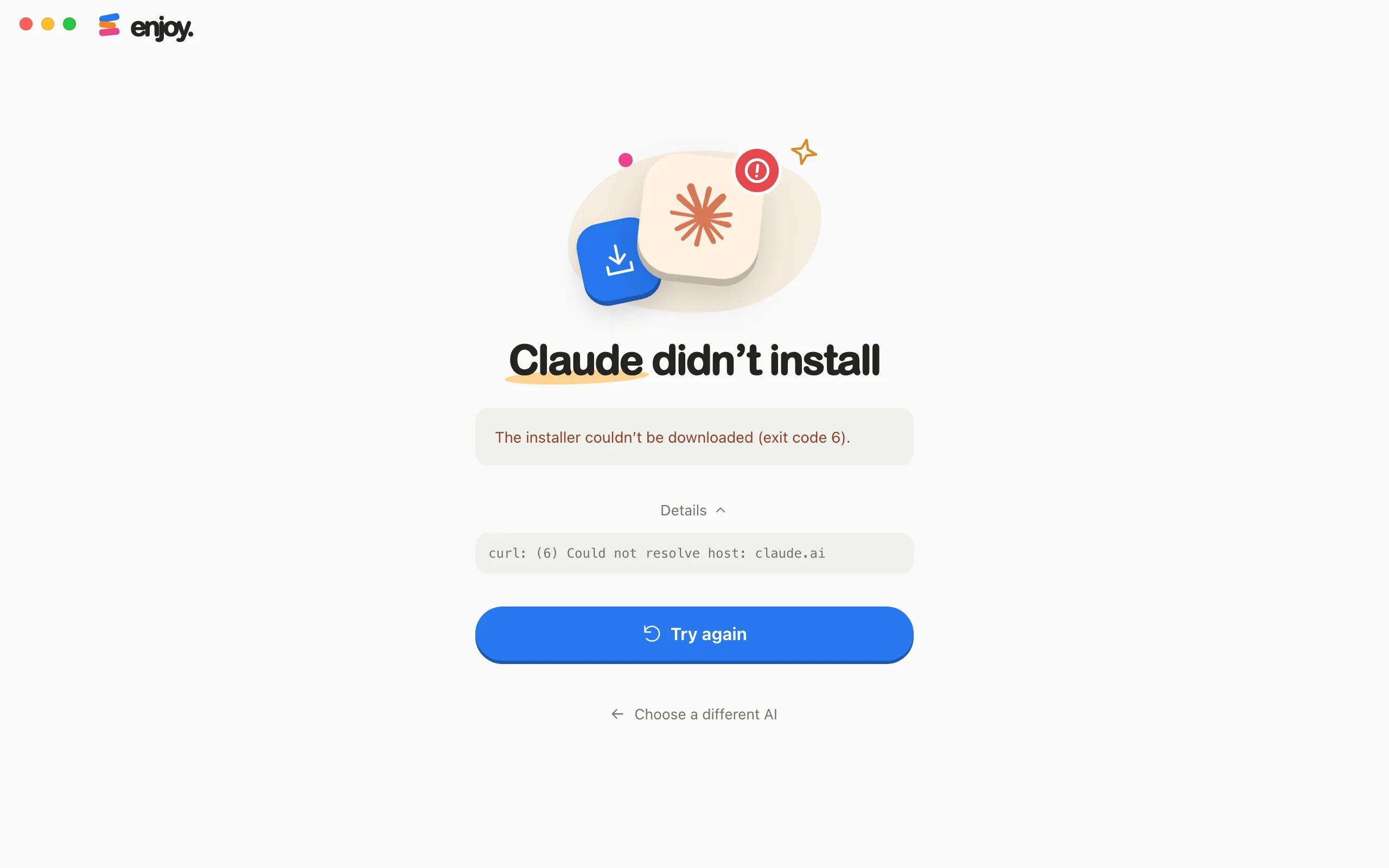
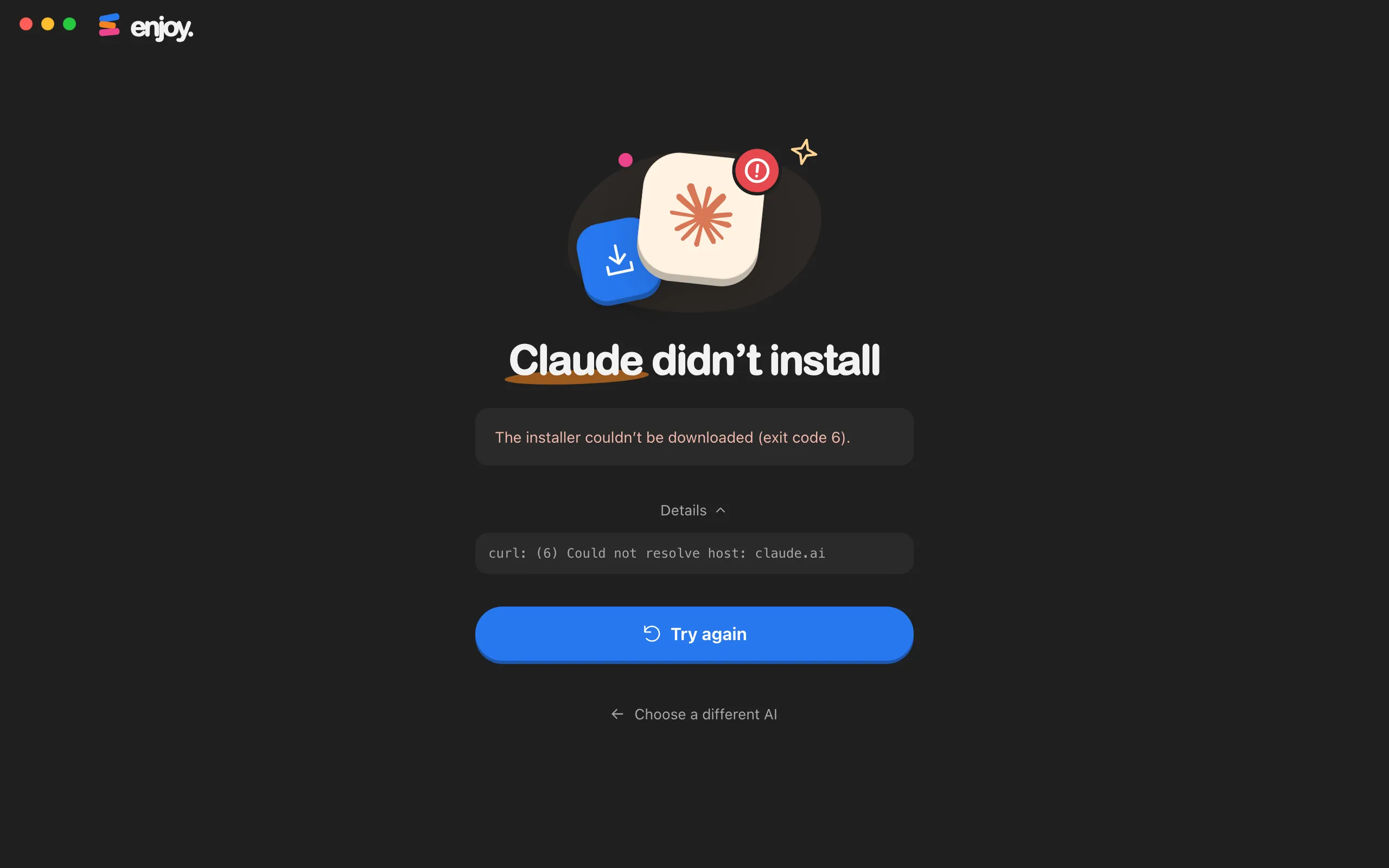
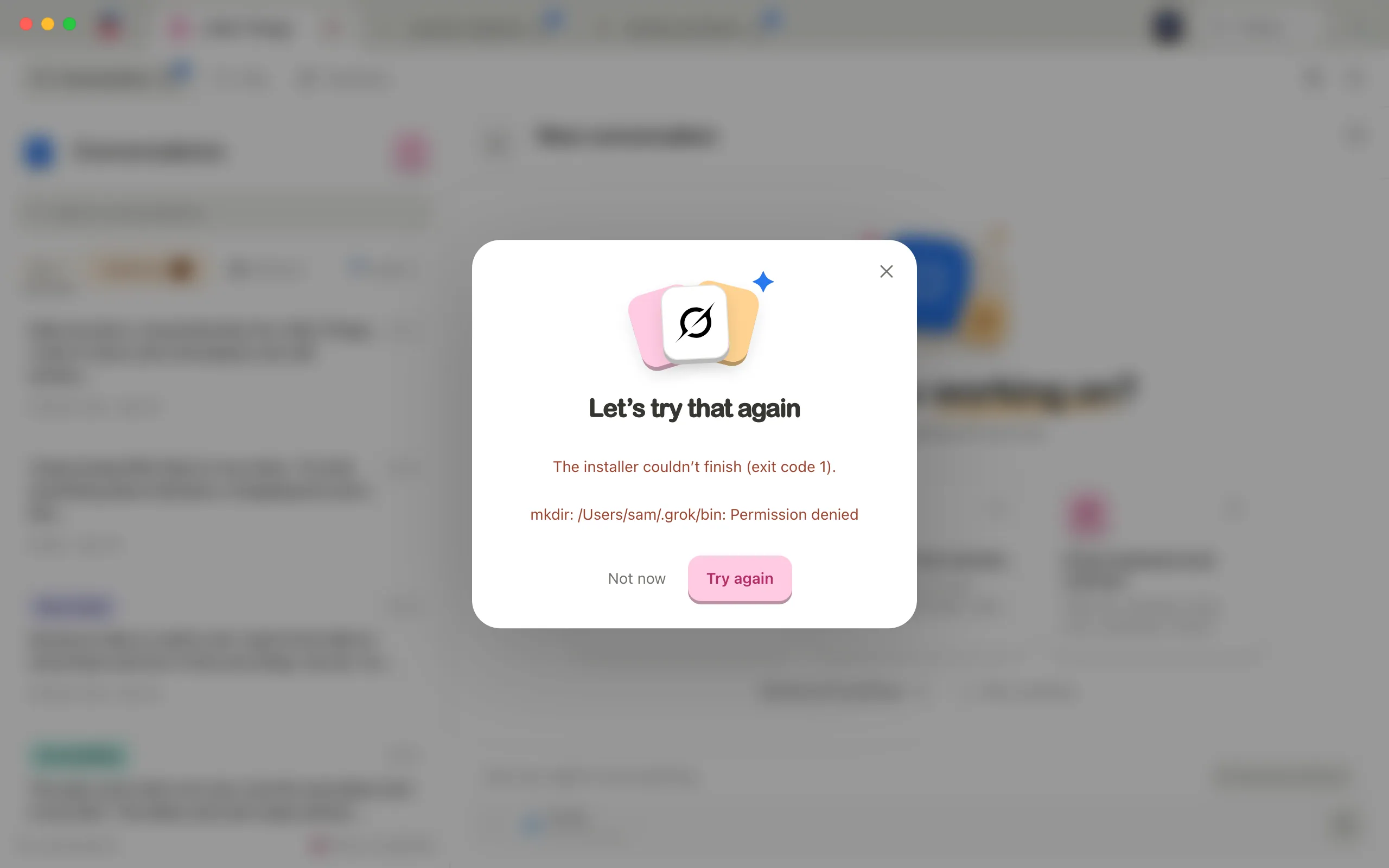
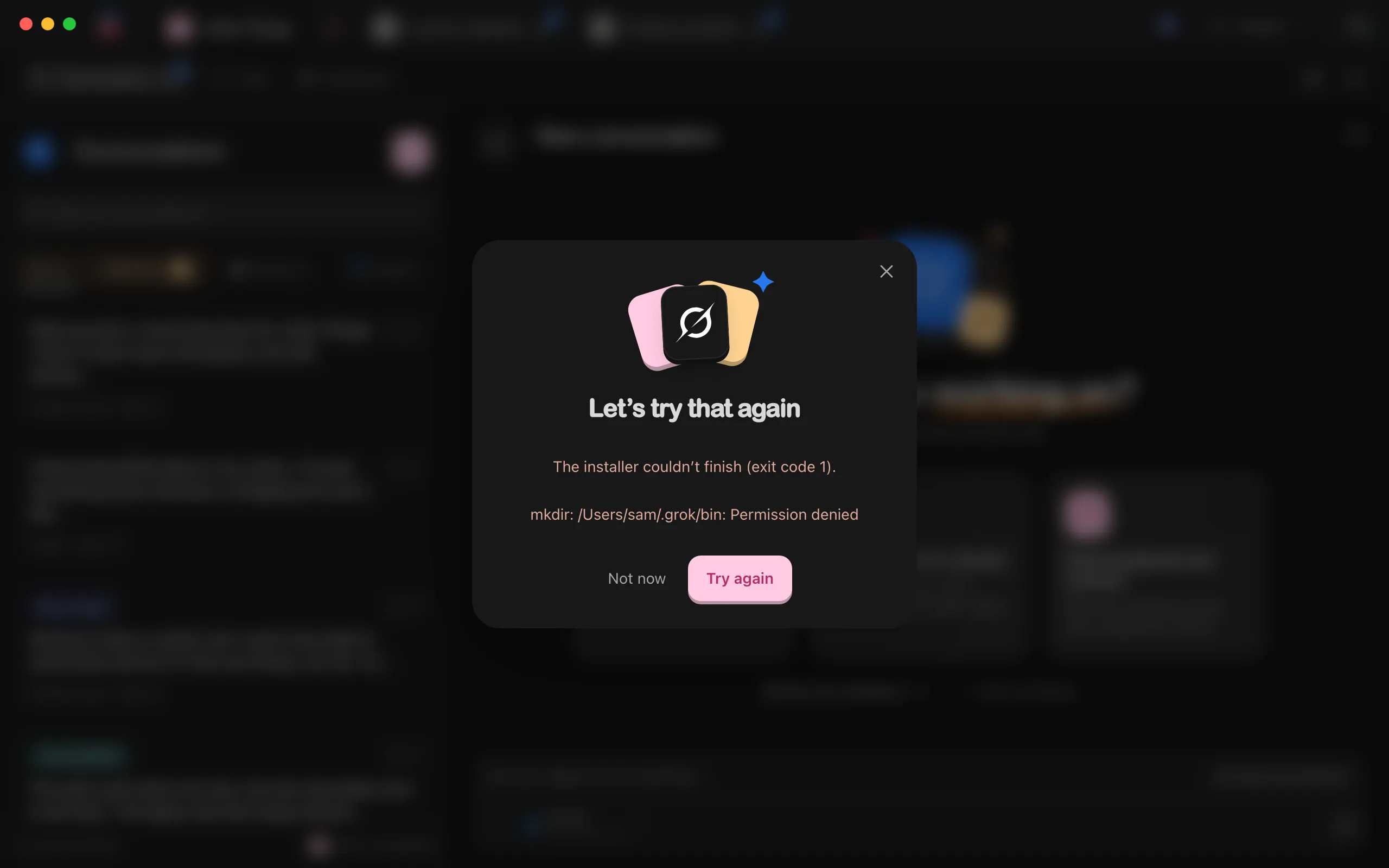
You might see the problem in a few places: a card saying the agent didn’t install during first-run setup, a window titled Let’s try that again after you chose to install an agent from the message box, a notice above your conversations saying the agent is not installed, or a failed conversation that asks you to install the agent, then retry.
Steps
Read what went wrong
The first sentence says which part failed: downloading the installer, running it, or starting the installed program. During first-run setup, select Details to see the installer’s own messages. In the Let’s try that again window, they follow the first sentence.
Check your internet connection
The installer comes from the agent maker’s website. If you’re on a work network, a VPN, or a filter that blocks downloads, try another network.
Check free space and permissions
The installer needs room on your disk and a place it can write to.
Select Try again
Installing can take a few minutes.
Pick another agent if it keeps failing
During first-run setup, select Choose a different AI. In the Let’s try that again window, select Not now, then pick another agent in the message box. You can come back to this agent later.
Good to know
- During first-run setup, Pause stops an install that’s taking too long.
- When an install finishes, Enjoy may ask you to sign in to the agent next. See Sign in to an agent.
- If a project’s agent isn’t installed, a notice above your conversations says the agent’s name followed by is not installed. To install it, or to pick another agent, open the agent settings in the message box. Agents that aren’t on your computer show Install under their name. See Install an agent.
- In a project inside WSL, Enjoy installs the agent in the project’s Linux distribution with the agent’s official Linux installer, even if it’s installed on Windows. The window names the distribution and shows each step, such as Download the installer, Install in Ubuntu-22.04, and Check Codex. When the installer fails, its own messages appear under the reason. See Work on a project inside WSL.
- If you contact support, copy the text under Details into your email. See Contact support.
If something goes wrong
The installer couldn’t be downloaded
Enjoy couldn’t get the installer from the internet. The message may include (timed out) or an exit code. Check your connection, then select Try again.
The installer couldn’t finish
The installer started but stopped with an error. Its own messages follow, or appear under Details. Read them for the cause, fix it, then select Try again.
The installed program couldn’t start
The agent installed, but it didn’t run when Enjoy checked it. Read the messages that follow for the reason, check that your computer allows the program to run, then select Try again.
Installation timed out. Check your internet connection, then try again.
The download or install took too long. Check your internet connection, then select Try again.
Enjoy couldn’t create a temporary folder for setup. Check your available space and folder permissions, then try again.
Free up some disk space, then select Try again.
Another setup or update is still running. Wait for it to finish, then try again.
Enjoy installs, signs in, and updates one agent at a time. Wait a minute and try again.
The installer finished, but Enjoy couldn’t find a working version of the program. It may be incompatible with this computer or need an update.
The program may not support this computer, or may need an update. Try again later. If it still fails, choose a different agent and contact support with the details.
We couldn’t finish installing the program. No further error details were provided. Please try again.
The install didn’t work, and Enjoy got no reason for it. Check your connection and free space, then select Try again. If it keeps happening, choose a different agent.
[Distribution] needs [programs] to install [agent]. Install them there, then try again.
This happens in a project inside WSL, before anything downloads. The agent’s installer needs programs the distribution doesn’t have, such as curl. Install them in the distribution’s terminal, for example with sudo apt install curl on Ubuntu, then select Try again.
[Distribution] can’t reach [server], but Windows can. Check WSL networking (DNS tunneling, proxy) for this distribution.
This happens in a project inside WSL. The installer couldn’t reach its server from the distribution, while Windows could. The window shows what each side found, then Help with WSL networking. See what to try.
Couldn’t check your programs
During first-run setup, Enjoy first looks for agents that are already on your computer. If it can’t check one, the reason appears above Which AI would you like to use?, and you can still choose any AI. Choose the agent that failed to install a fresh copy with its company’s official installer. If you fix the program yourself, select Check my computer again.