What to include when you ask for help
The Enjoy team answers at help@enjoy.dev. A few details in your first email save a lot of back and forth.
Steps
Note where it happened
Say whether you were in the computer app, the web app, or the iPhone app, and which computer and system you use, such as a Mac, Windows, or Linux. For the web app, include your browser.
Find your Enjoy version
In the computer app on a Mac, choose Enjoy, then About Enjoy. On Windows and Linux, choose Help, then About. On Windows, the menus open from the button with three lines in the top-left corner of Enjoy. For the iPhone app, the connection report in step 5 includes the app’s version.
Describe what happened
Write what you did, what you expected, and what you saw instead, and roughly when. Mention whether it happens every time.
Copy the exact error
Copy the message word for word, or take a screenshot. Many errors have more behind them:
- A failed conversation shows the agent’s own error under Details.
- A failed update has Copy next to What went wrong, which copies the error, your versions, and where Enjoy is installed.
- A failed agent install during setup has the installer’s messages under Details.
Attach Enjoy’s logs
A log is a file where Enjoy notes when it starts and quits, problems it runs into, and the details of a crash.
- Computer app: choose Help, then Show logs. Your file manager opens with the current log, enjoy.log, selected. Attach it to your email. If Enjoy closed unexpectedly a while ago, attach the older files in the same folder too.
- iPhone app: if it can’t connect, select the round button with your initial at the top of the Projects or Computers screen to open Settings. Under Support, select Export connection logs, check the report, then select Share report and attach it to your email.
Send it
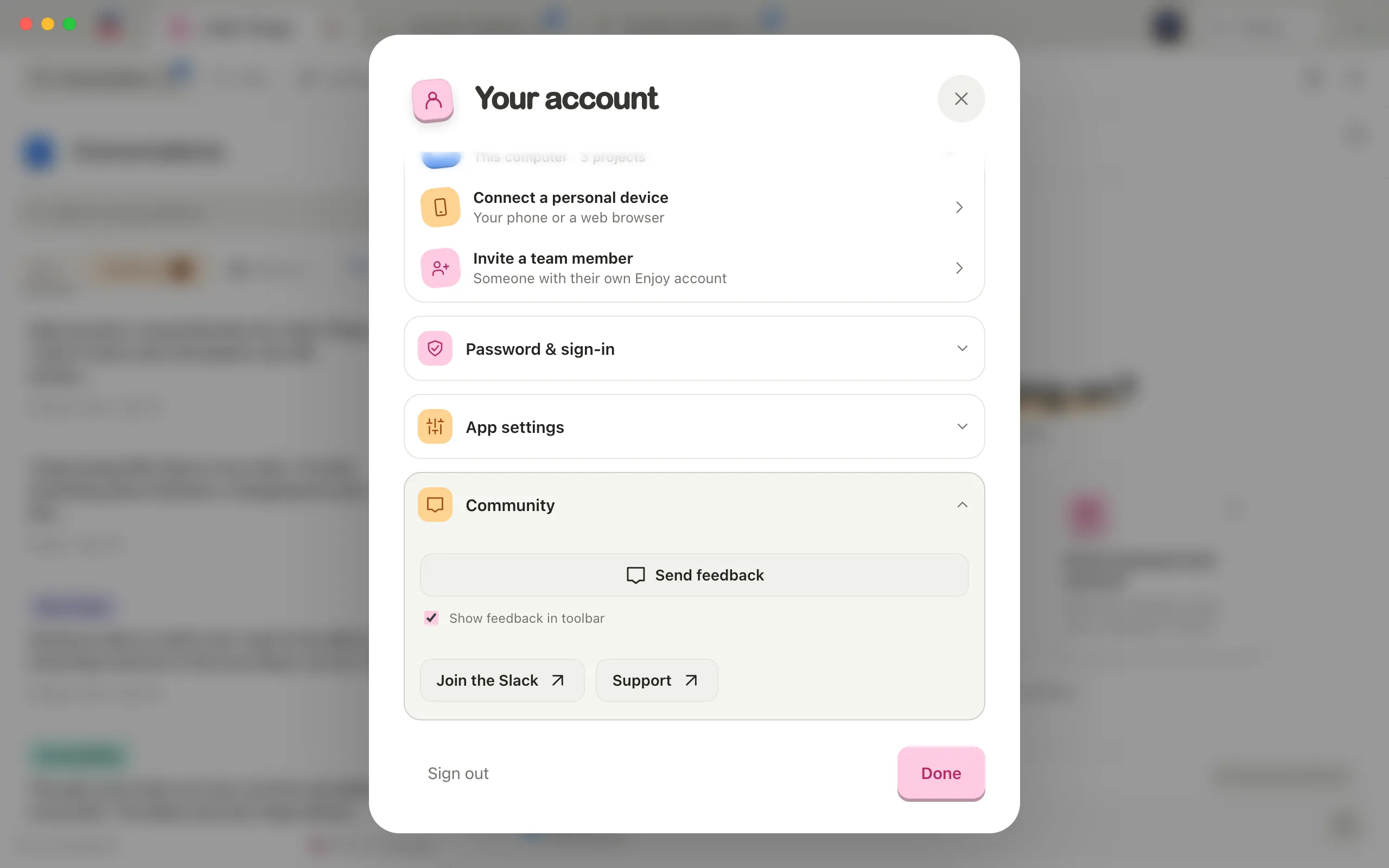
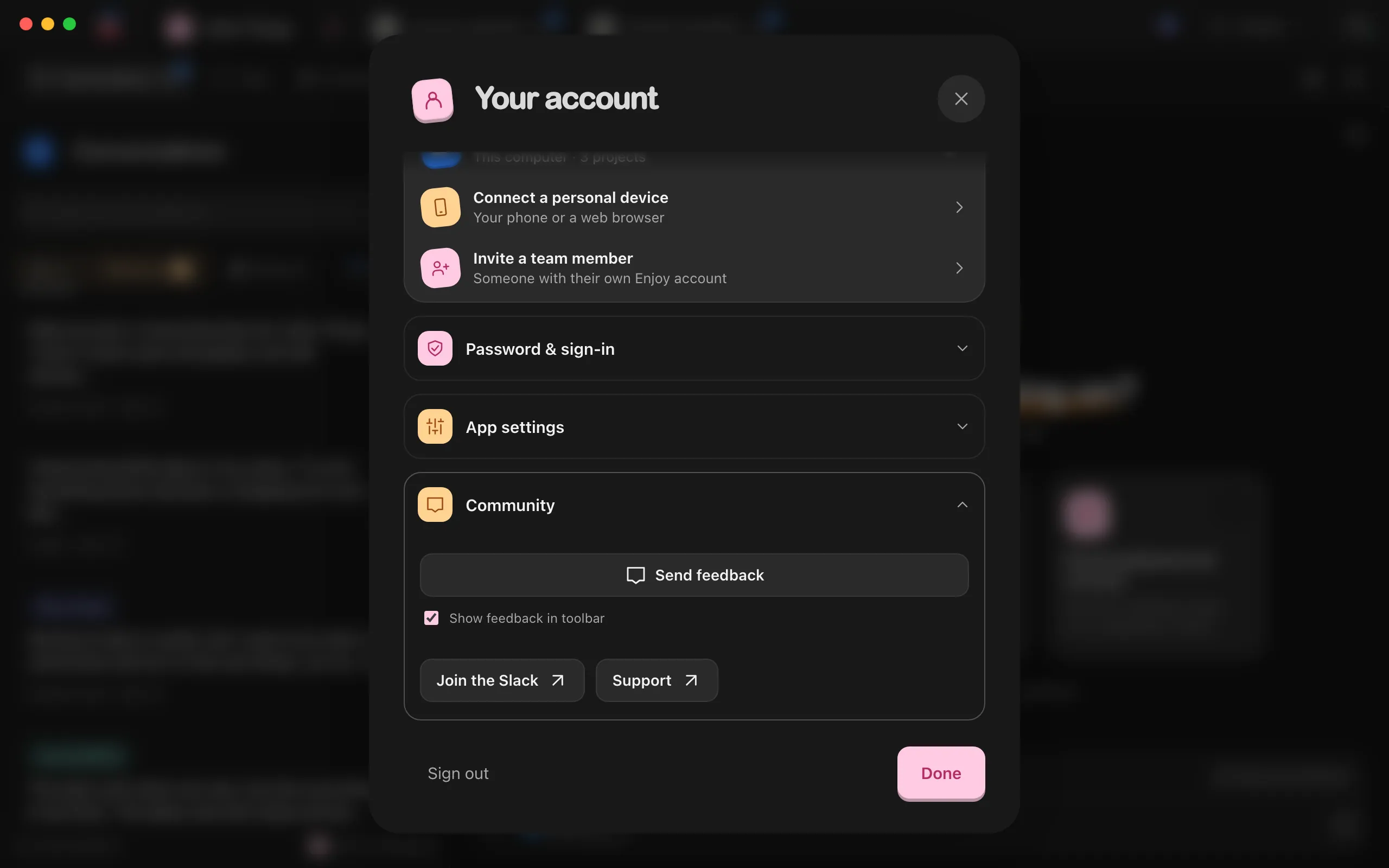
In the computer app, choose Help, then Contact support. You can also select Support under Community in Your account, or write to help@enjoy.dev from any email app. See Contact support.
Good to know
- On a Mac, you can open Enjoy’s web console for more error details: right-click inside the app, choose Inspect Element, then select Console. This works in the regular desktop app. Close the inspector when you’re finished, and check any copied output for private information before sharing it.
- Leave out passwords, sign-in codes from agents, pairing codes, email confirmation codes, and password reset links. Leave out API keys and other secrets from your project files too. See Keep passwords and API keys safe.
- When you send feedback from the computer app, check Include app logs to attach the recent part of the same log. See Send feedback or a testimonial.
- The computer app keeps its logs in ~/Library/Logs/app.enjoy.desktop on a Mac, %LOCALAPPDATA%\app.enjoy.desktop\logs on Windows, and ~/.local/share/app.enjoy.desktop/logs on Linux. Each file holds up to 1 MB. When one fills up, Enjoy renames it with the date and starts a new one, keeping the last few.
- The computer app’s logs hold Enjoy’s own notes, which can include the names of files and folders on your computer. On Linux, they also hold warnings from the system libraries that draw Enjoy’s window. They don’t include your conversations, what agents write, or your passwords. Open the files in a text editor to check them before you send them.
- The iPhone connection report covers up to 300 connection events from the last 24 hours, plus app details. Conversations and credentials are left out.
- For a connection problem, also say which internet provider you use and whether Enjoy works on another network, such as mobile data.
- For questions and ideas rather than problems, the community Slack is a good place to ask. See Join the Enjoy Slack community.
- To suggest an improvement, use Feedback in the top bar, or Send feedback under Community in Your account. See Send feedback or a testimonial.
If something goes wrong
Couldn’t copy
Copy in a failed update couldn’t reach your clipboard. Take a screenshot of the panel instead.
Unable to show logs
Enjoy couldn’t open your file manager, or it hasn’t saved a log yet. The message includes the folder where the logs are kept. Open that folder yourself, or copy its location into your email.
Unable to prepare connection logs. Try exporting again.
The iPhone app couldn’t build the report. Select Export connection logs again.