Fix a project that's unavailable
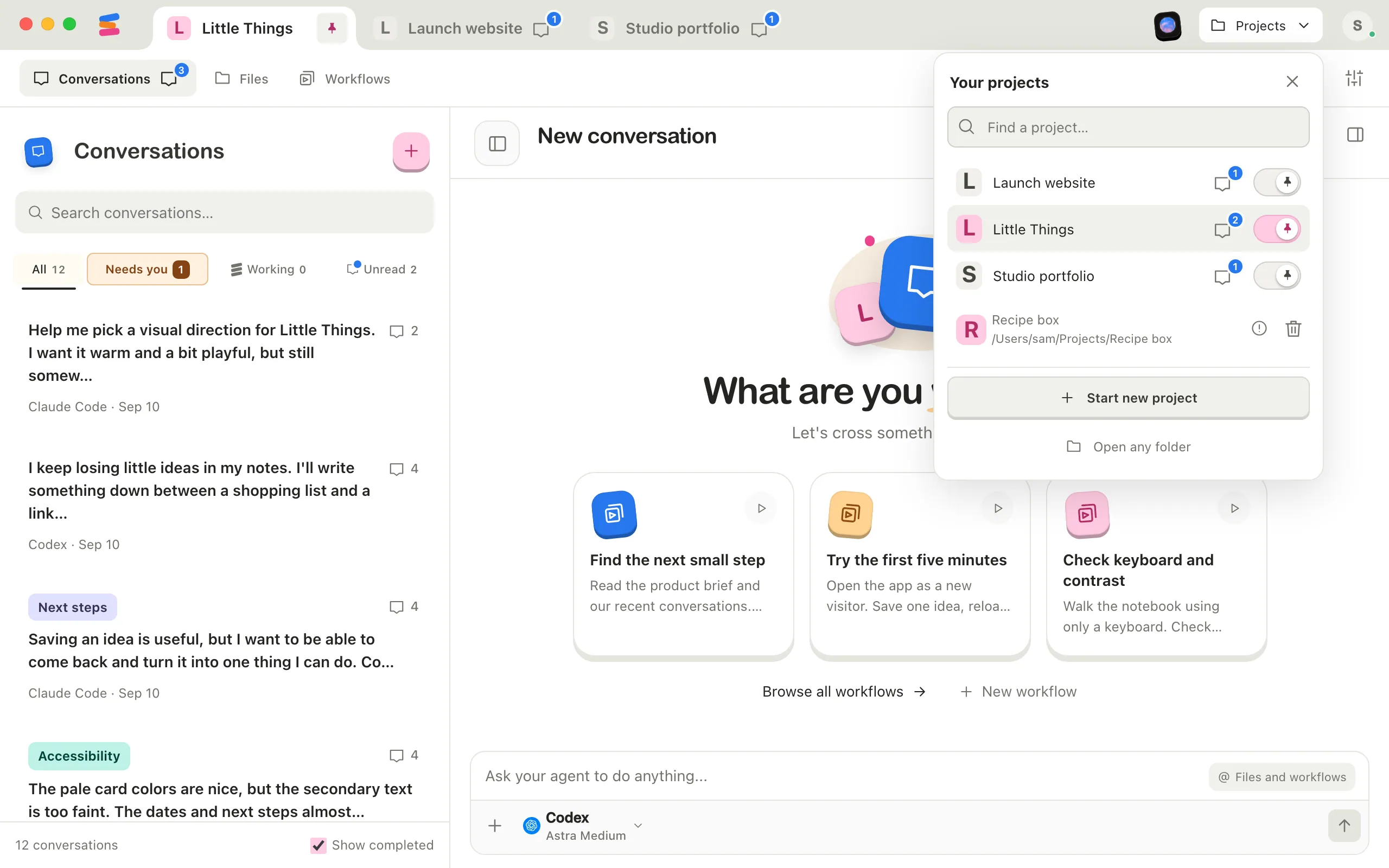
Enjoy remembers each project’s folder. When it opens and can’t use a folder, that project moves to the bottom of your project list with a warning icon. Your files aren’t changed.
Steps
See why
Select Projects at the top of the window, after the project tabs, to open your project list. Point at the project with the warning to see its folder and the reason. With no project open, the same list is on the start screen.
Put the folder back if it moved
If you moved, renamed, or deleted the folder, or it’s on a drive that isn’t connected, move it back or connect the drive. Then quit Enjoy and open it again.
Allow access if Enjoy was blocked
On a Mac, a reason that mentions Privacy & Security means macOS isn’t letting Enjoy use that folder. Open System Settings, select Privacy & Security, and allow Enjoy to use the folder. Then quit and reopen Enjoy.
Or open the folder from its new place
Bring in the folder where it is now, as an existing project. See Bring an existing project into Enjoy. It starts without its earlier conversations until you reconnect them, as described below.
Remove the old entry
Select the trash button beside the unavailable project, then Remove. This only takes it off Enjoy’s list. All project files stay on disk.
Good to know
- Enjoy checks your projects each time it opens, so quitting and reopening is how you retry.
- A project inside WSL shows its Linux path and a chip with its distribution’s name, such as Ubuntu-22.04. Beside it, a round arrow, which says Try again when you point at it, tries again without restarting Enjoy, for example after you update WSL. See Fix problems with a project in WSL.
- Enjoy keeps each project’s conversations, docs, and workflows in its own storage, linked to where the project folder is. Putting the folder back where it was reconnects them.
- To reconnect them to a folder you opened from a new place, open that project’s Project settings, select Storage, then Change folder…. Choose the old project’s folder of Enjoy files, and when Enjoy asks whether to use the files in that folder, select Use these files. Unless you chose another place, that folder is named after the project, inside Enjoy’s application data. On a Mac, that’s
~/Library/Application Support/app.enjoy.desktop/projects/. See Choose where a project’s conversations are stored.
If something goes wrong
Could not open project
The folder couldn’t be found or read. The message continues with the folder’s path and your system’s reason. On a Mac, it may end with Allow Enjoy access to this folder in macOS Privacy & Security, then reopen the project. On Windows and Linux, it may say to check that your account can read and write the folder.
This project’s Enjoy files aren’t available
The project keeps its conversations in a folder you chose, and that folder can’t be found, for example because it’s on a drive that isn’t connected. Reconnect the drive and reopen Enjoy. If the files are gone for good, remove the project from Enjoy and add it again to start fresh.
This workspace is already open in another Enjoy process
Another copy of Enjoy has this project open. Quit the other copy, then reopen Enjoy.
Enjoy can’t lock …
While a project is open, Enjoy holds a lock on a file in its Enjoy files, so no other copy of Enjoy uses them at the same time. Here it couldn’t take that lock for another reason. The message names the lock file and ends with your system’s reason, such as a folder your account can’t write to, or a drive or network folder that doesn’t support locks. Fix what it says, then quit and reopen Enjoy.
Enjoy is moving this project’s files. Try again in a moment.
A move of the project’s Enjoy files was still in progress. Wait for it to finish, then quit and reopen Enjoy.
A message that names WSL or a Linux distribution
The project is inside WSL, and Enjoy couldn’t use its distribution, as in Update WSL to open this project: run wsl –update. Each message has a section in Fix problems with a project in WSL.
Your projects didn’t load
Enjoy couldn’t restore your projects at startup. Select Try again. If a connection problem caused it, Connection help appears too. See Fix connection problems.