Fix a file that won't save or load
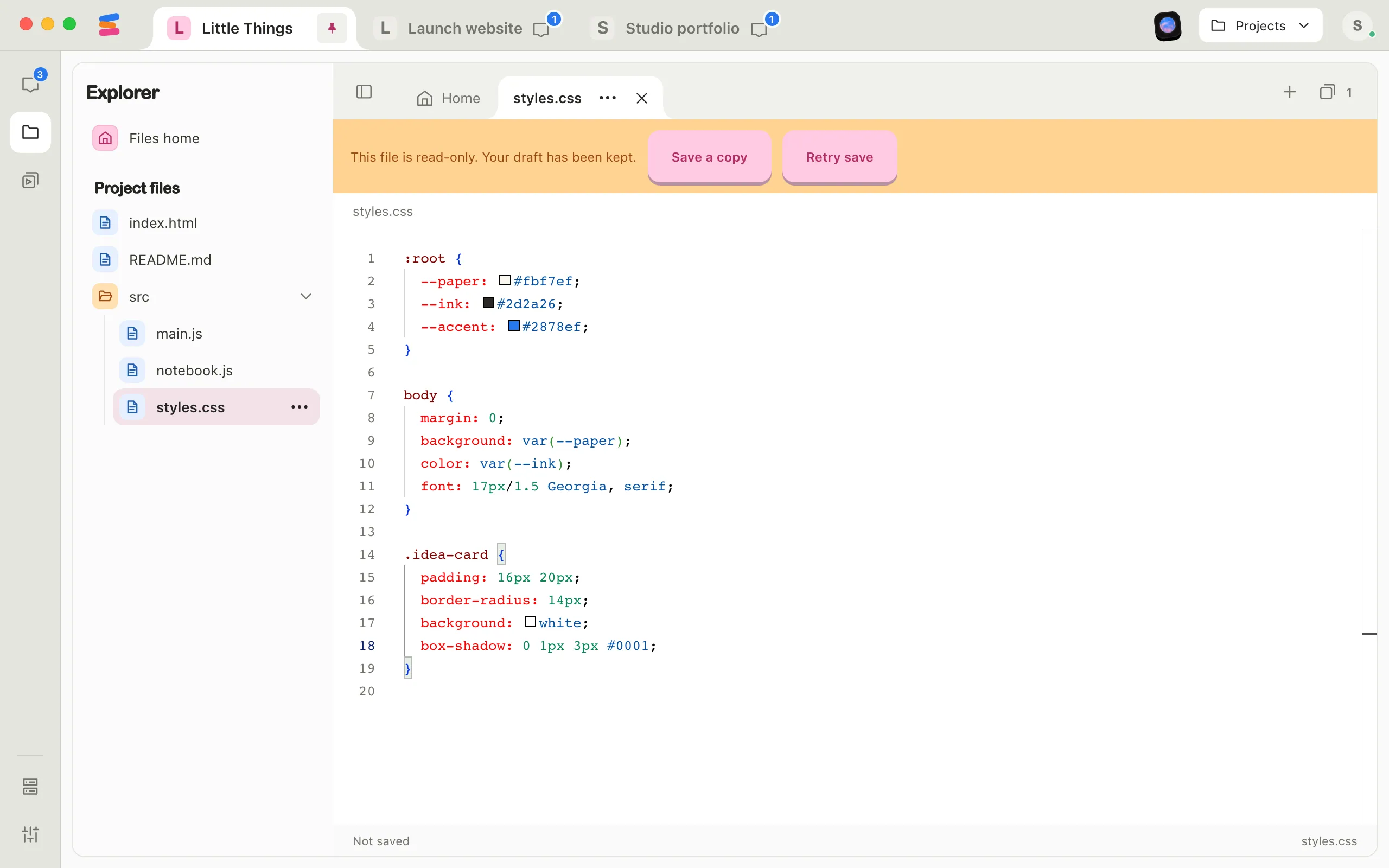
Enjoy saves docs and project files by itself as you type. The bar at the bottom of the editor shows how it’s going: Saved, Unsaved changes, Saving…, Not saved, or Conflicting changes. Whatever goes wrong, Enjoy keeps your draft until it’s saved somewhere.
Steps
Check the bar at the bottom
Saving… means Enjoy is still writing, so give it a moment. Not saved means it tried and failed. Conflicting changes means the file changed somewhere else while you edited. See What happens when a file changes while you edit it.
Read the message, then select Retry save
A message above the editor says what went wrong. Fix the cause using the matching section below, then select Retry save.
Keep your version safe if it still won’t save
For a project file, select Save a copy to put your version in a new file next to the original.
Watch for a message at the top of the project
Unable to save changes: followed by a reason means Enjoy couldn’t write your project’s conversations, docs, or workflows to disk. Enjoy keeps the changes and tries again by itself, and the message goes away once a save works. Fix the reason it gives, such as a full disk.
Check for unavailable files
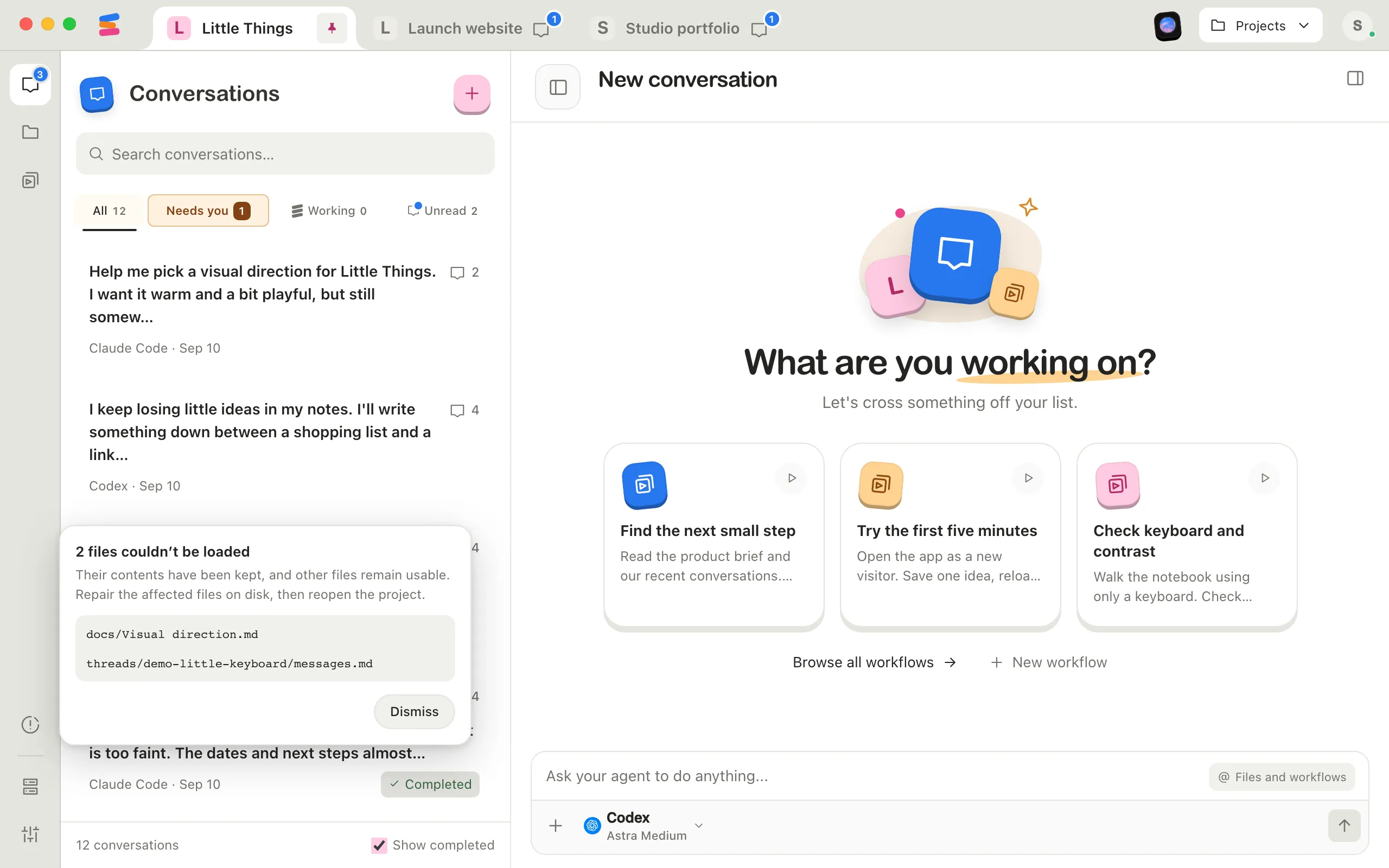
An amber warning icon near the bottom of the rail on the left side of the window, above Processes, means some workspace files are unavailable. Select it to see which ones. See the section below.
Good to know
- A project file has to be under 500,000 characters and 2 MB to edit in Enjoy. Larger ones show This file is too large to edit here. Open them in another app instead. See Open a file in another app.
- If a doc’s bar says View only, you can read it but not change it here, for example on a computer someone shared with you as view only.
- Enjoy keeps each project’s conversations, docs, and workflows in the project’s storage folder. To find it, open Project settings, select Storage, then select the button that shows the folder, such as Show in Finder. See Choose where a project’s conversations are stored.
- In a project inside WSL, Enjoy saves project files in the Linux distribution, keeping a script’s permission to run and the file’s line endings. If the distribution stopped, saving starts it again.
- If you quit the computer app while something is unsaved and it can’t finish saving, it says Could not save before quitting with the reason and stays open. Quit again to retry. On Windows and Linux, closing the window quits Enjoy.
If something goes wrong
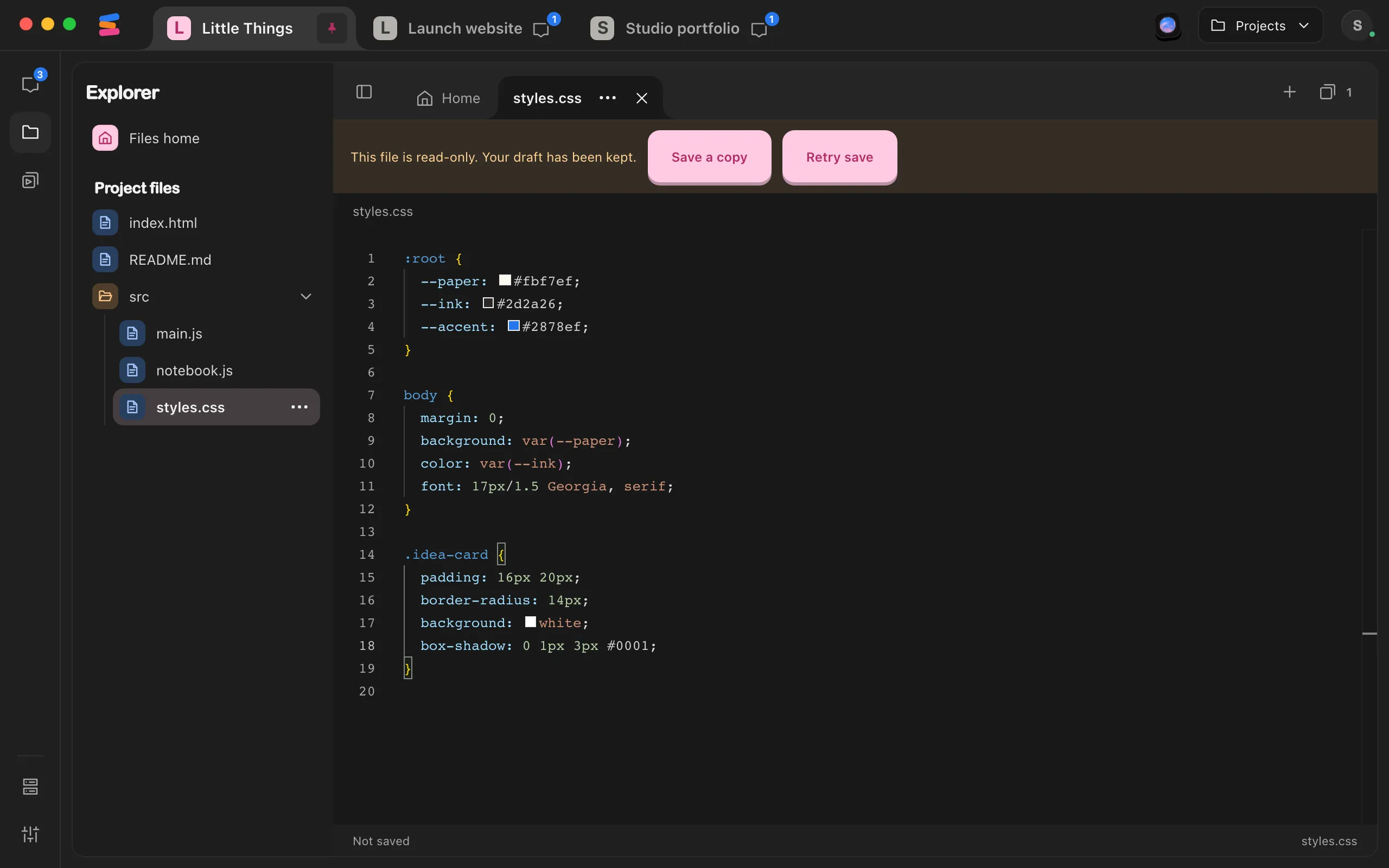
This file is read-only. Your draft has been kept.
The file’s permissions don’t allow changes. Select Save a copy to keep your version in a new file. Or allow changes to the original outside Enjoy, then select Retry save.
Text files must be smaller than 500,000 characters and 2 MB.
Your edits made the file too big for Enjoy’s editor. Select Save a copy, or make the file smaller.
This file was removed. Your draft has been kept.
The file was deleted while you edited it. Select Save a copy to keep your version.
Some workspace files are unavailable
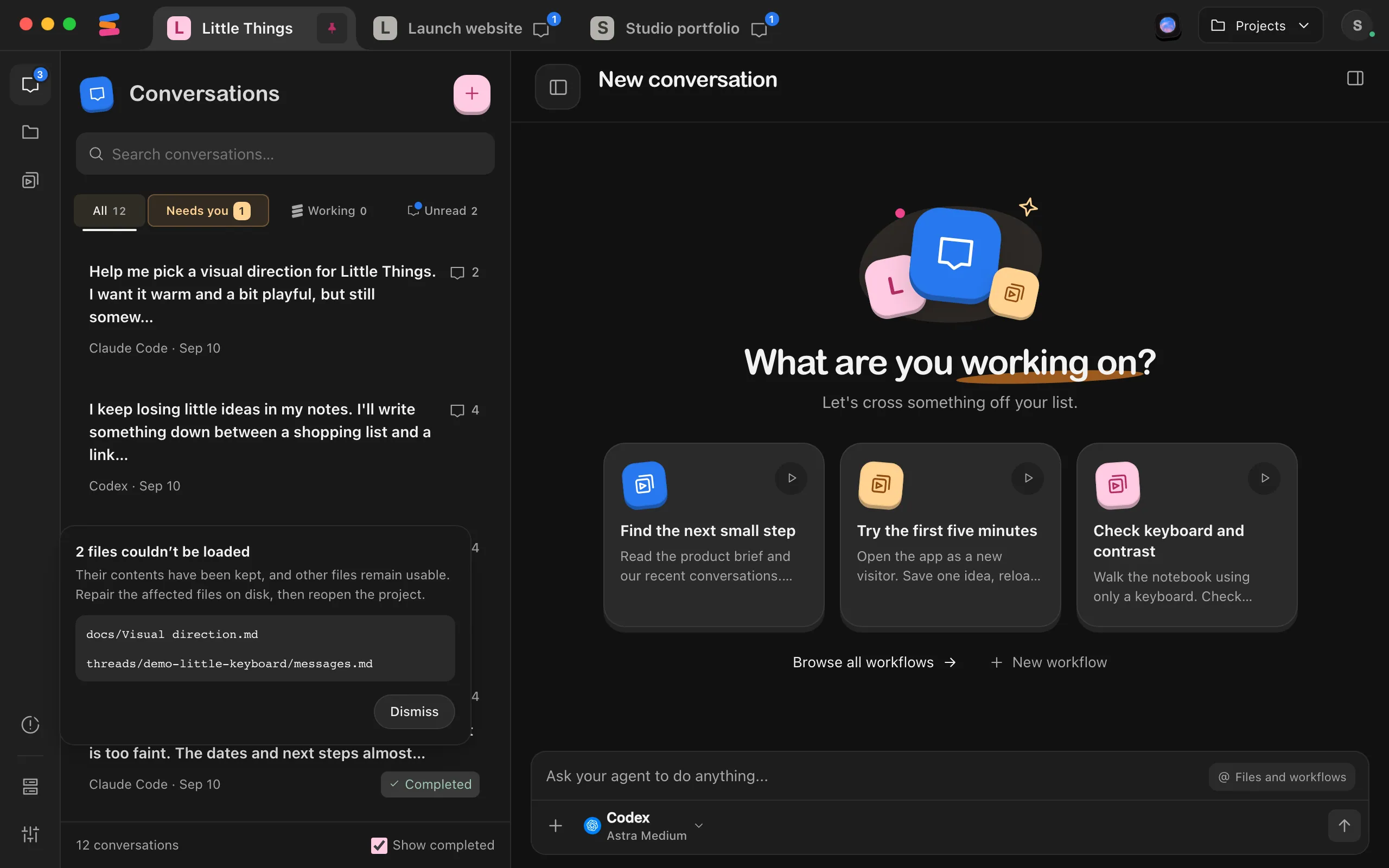
Select the amber warning icon near the bottom of the rail, above Processes. Its badge counts the files, and it opens a list of them under a title such as 2 files couldn’t be loaded. Their contents have been kept, and other files remain usable. These are files in the project’s storage folder that Enjoy couldn’t read, and Enjoy doesn’t change them. If you have a backup of the folder, restore those files from it, then quit and reopen Enjoy. Otherwise, email help@enjoy.dev with the list. Select Dismiss to hide the warning; it comes back if a different set of files becomes unavailable.
This document couldn’t be opened
The doc’s saved file couldn’t be read. The original file has been preserved. Repair it on disk to continue. Until it’s repaired, Enjoy won’t edit, archive, or delete it. Follow the steps for unavailable files above.
This conversation couldn’t load.
The conversation’s status says Couldn’t load. Its saved files couldn’t be read, and their contents are kept. Follow the steps for unavailable files above.
[Distribution] stopped, so Enjoy paused saving this project’s records.
This appears on the card at the top of the conversation list, for a project inside WSL whose conversations, docs, and workflows are still in a .enjoy folder in its Linux distribution. Enjoy keeps your changes and saves them once the distribution is back. Select Try again on the card. See Fix problems with a project in WSL.
Return to this document’s computer to finish saving. Your draft has been kept.
You switched to another computer before your edits were saved. Switch back, and the doc finishes saving by itself. For a project file, the message says Return to this file’s computer to finish saving. Switch back, then select Retry save. See What happens when a file changes while you edit it.