Fix the warning on your account button
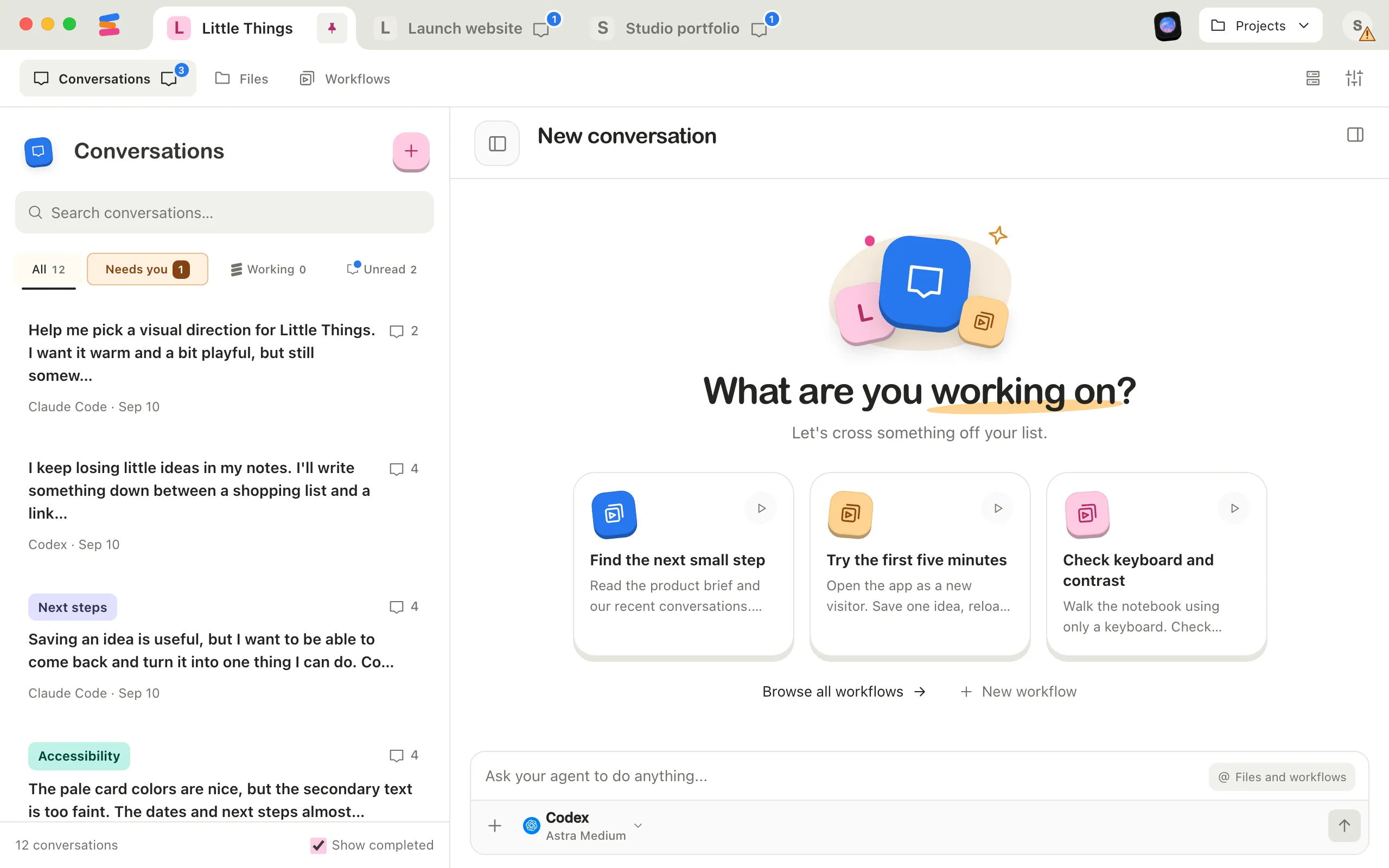
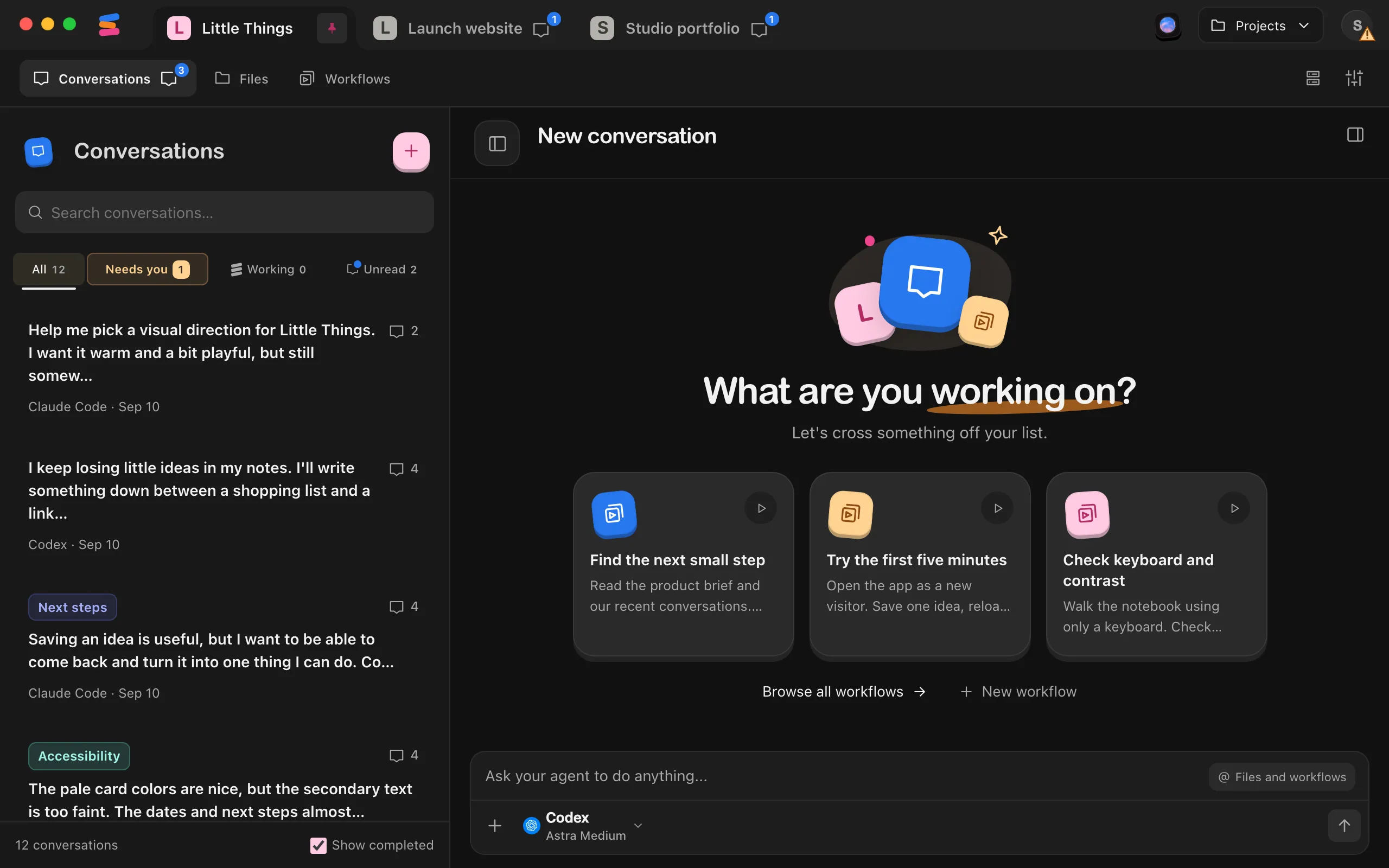
Your computer keeps a security key that lets your phone and browsers connect to it. If Enjoy can’t find that key, it puts a small warning triangle on the circle with your initial in the top-right corner. Pointing at the circle shows Other devices can’t connect — open your account to fix it. You can keep working on this computer in the meantime.
Steps
Open your account
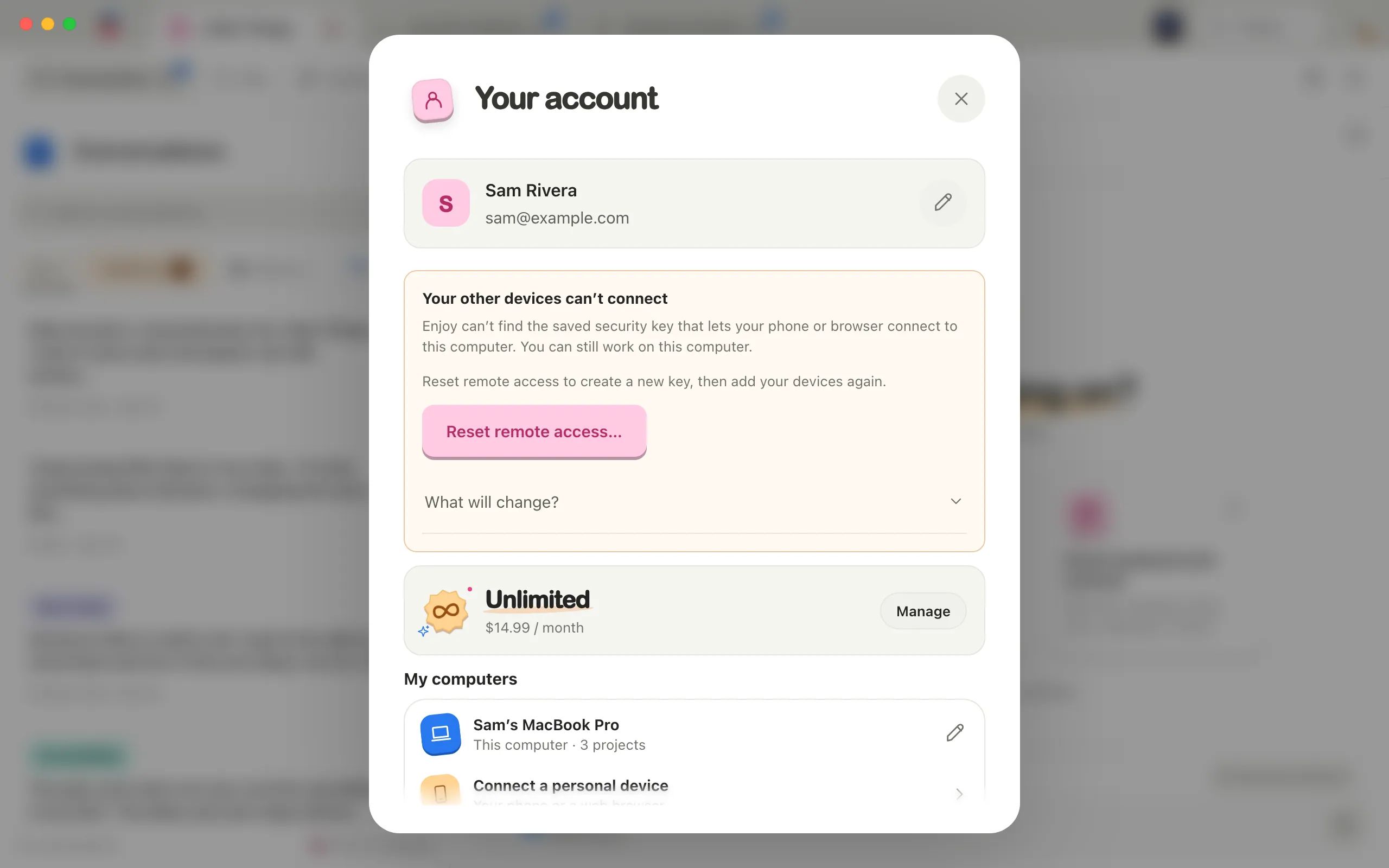
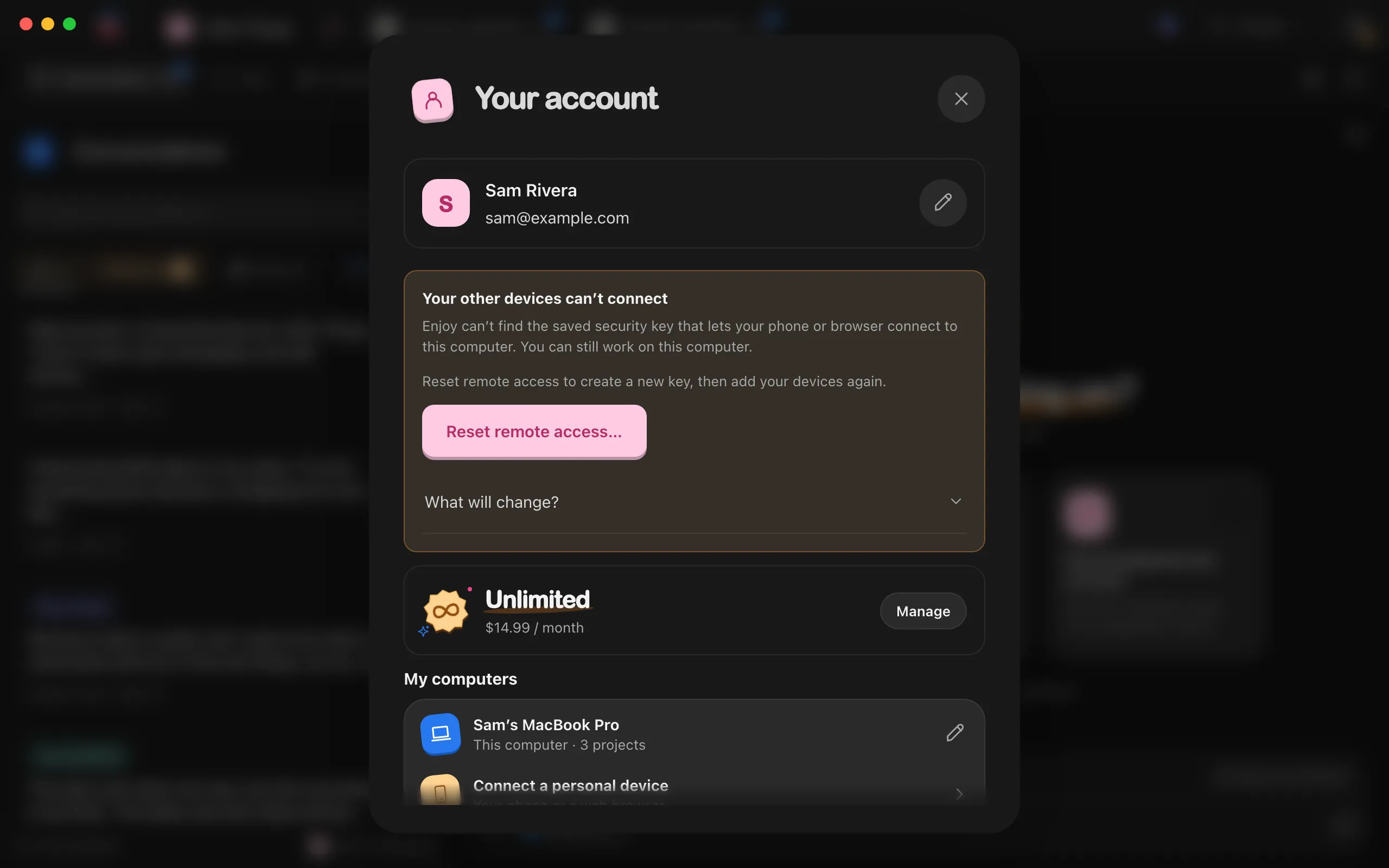
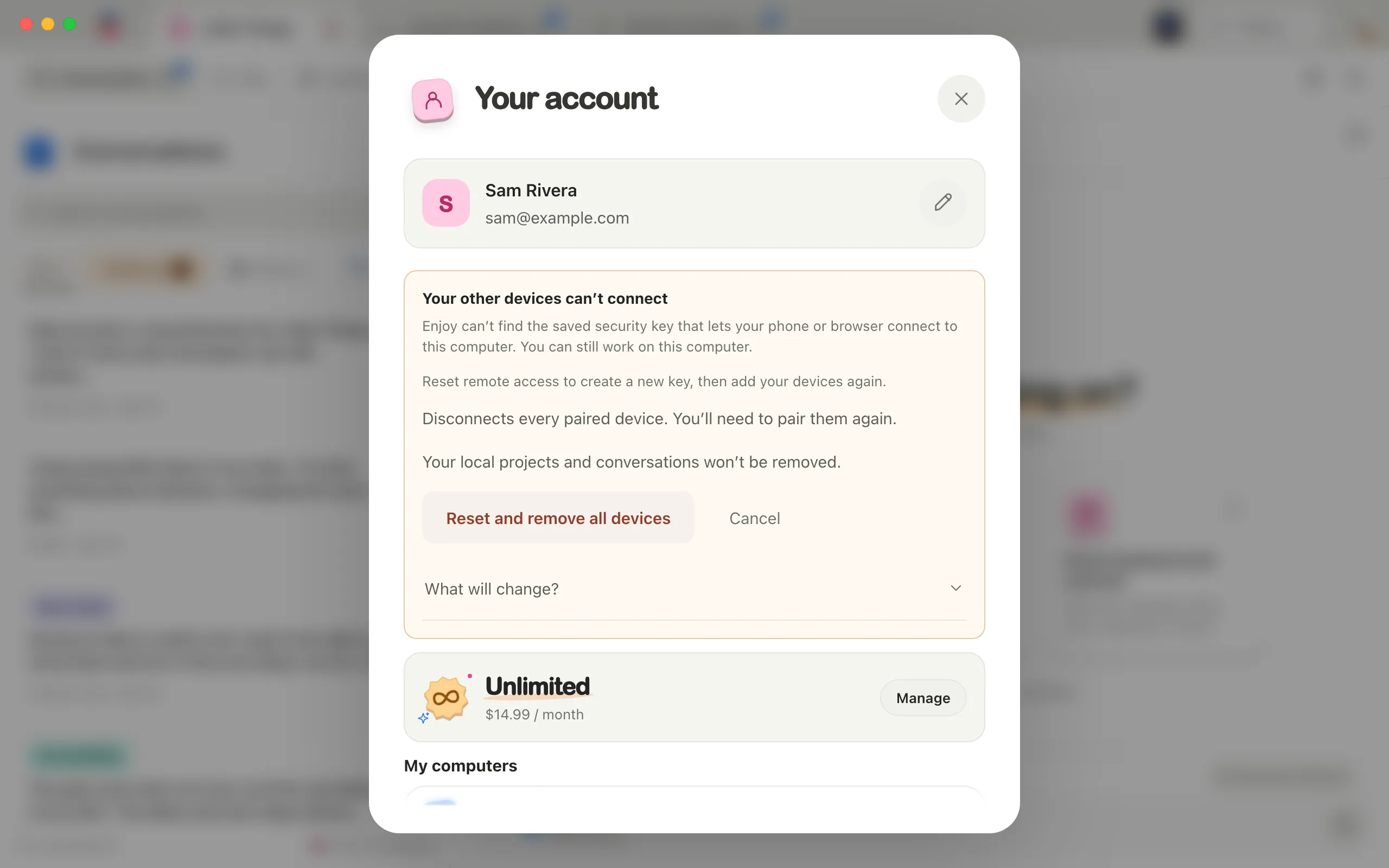
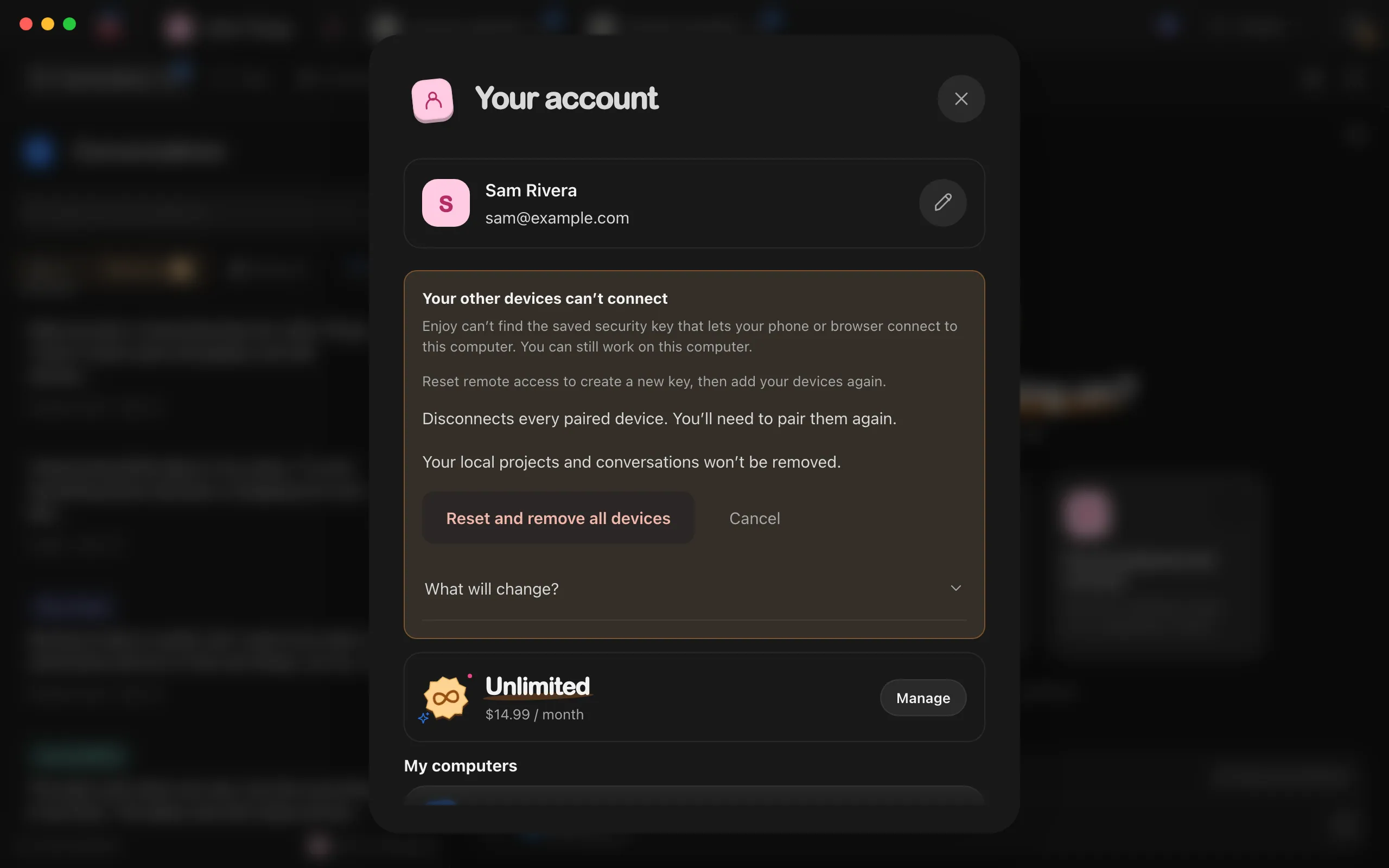
Select the circle with the warning. Your account opens with Your other devices can’t connect at the top.
Select Reset remote access…
Enjoy explains that this Disconnects every paired device and that your local projects and conversations won’t be removed.
Select Reset and remove all devices
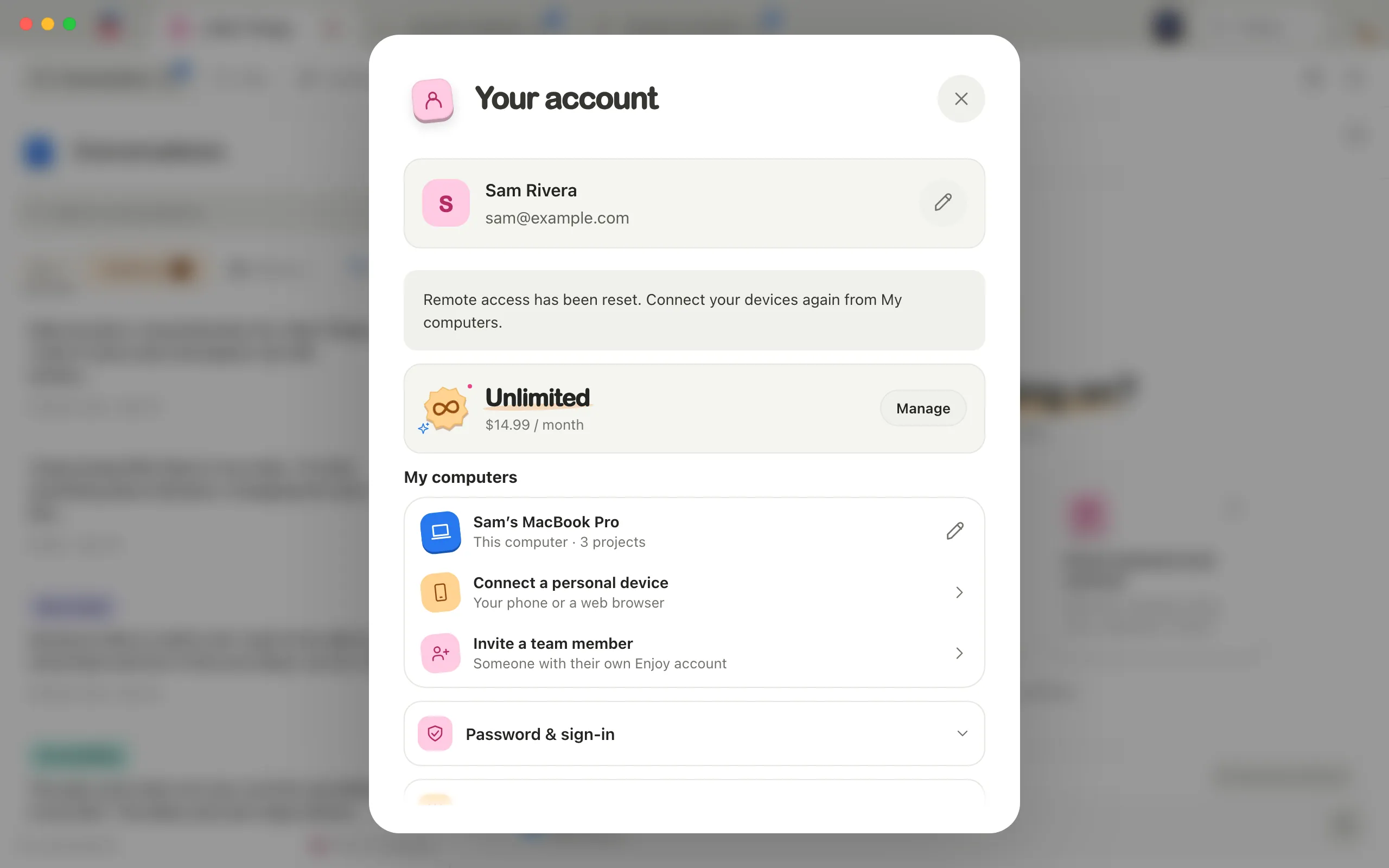
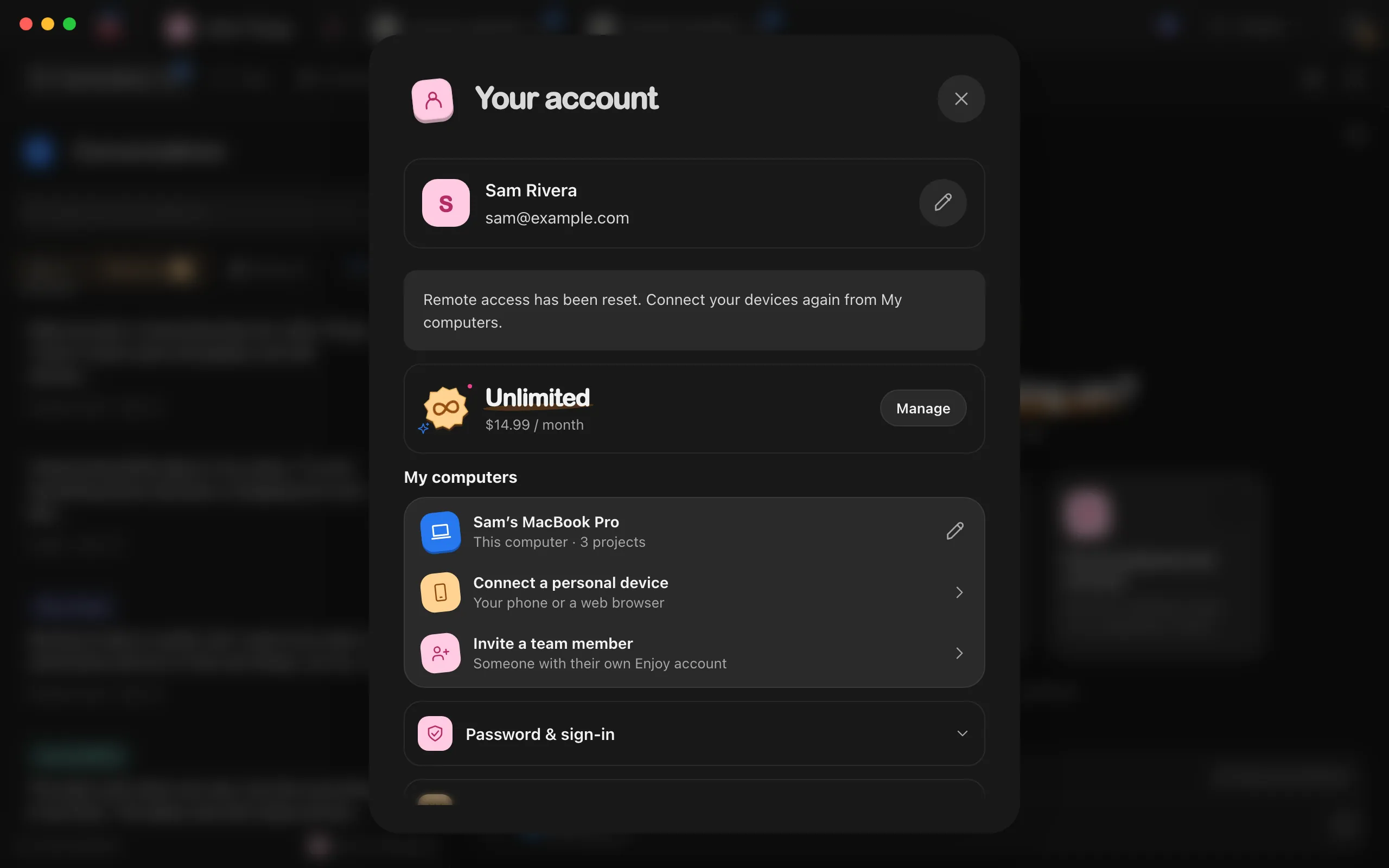
Enjoy creates a new key. When it’s done, it says Remote access has been reset. Connect your devices again from My computers.
Connect your devices again
On this computer, select Connect a personal device under My computers, then connect each phone and browser with a new code. See Connect your phone.
Good to know
- Resetting doesn’t change your projects, conversations, or Enjoy account.
- Team members on this computer lose access too, and need new invites. See Reset remote access.
- Until you reset, phones and browsers can’t reach this computer, but everything works on the computer itself.
- Select What will change? under the warning to read what resetting does before you start.
- You can also reset remote access when nothing is wrong, for example to disconnect every device at once. See Reset remote access.
If something goes wrong
The reset shows an error
A message under the buttons says why the reset didn’t finish, such as Reset failed. Select Reset and remove all devices again. If it keeps failing, contact support with the message. See Contact support.