Save agent settings as a preset
A preset is useful when you switch between a few setups, such as a quick, low-effort one for small fixes and a careful one for planning.
Steps
Set up the settings you want
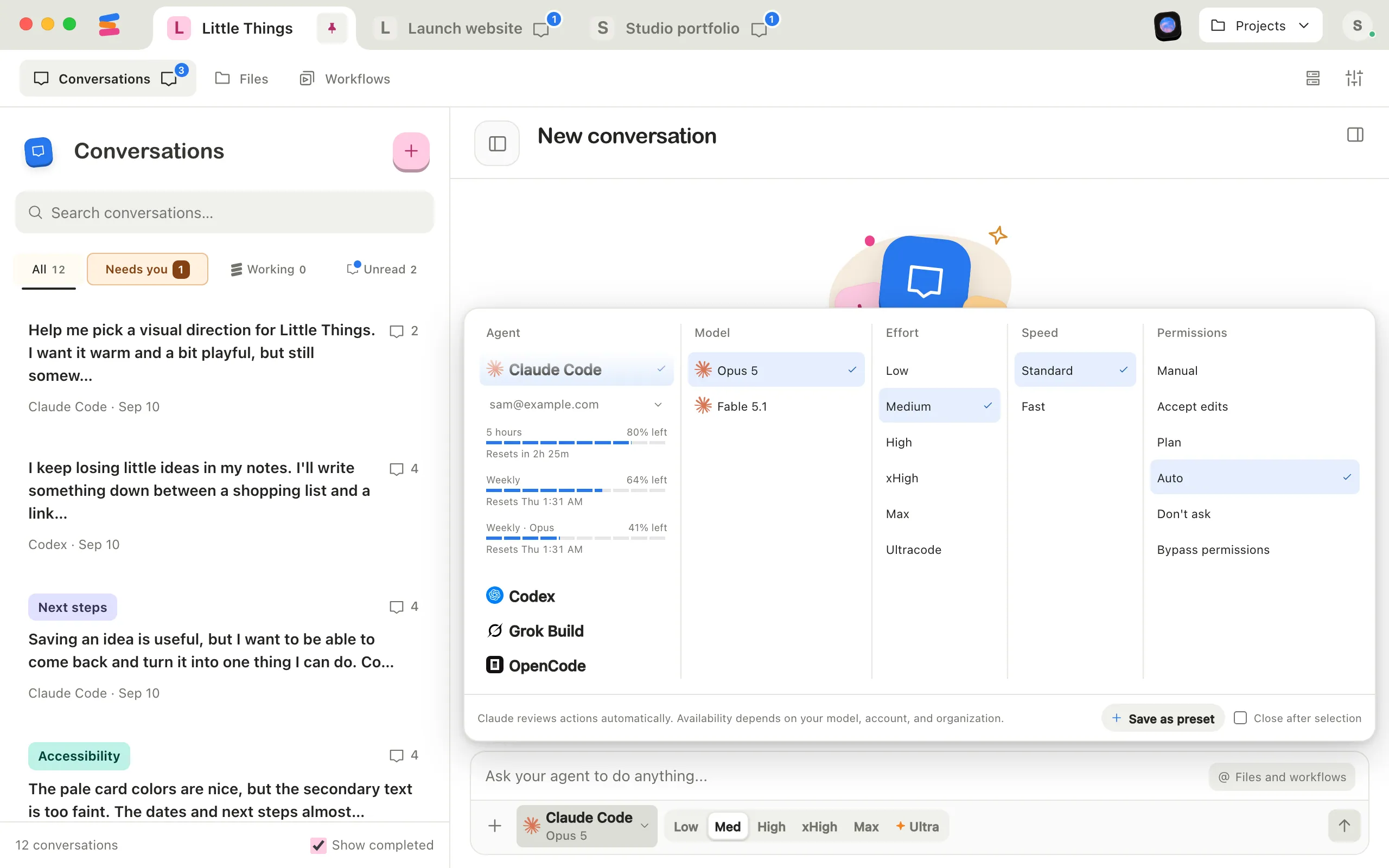
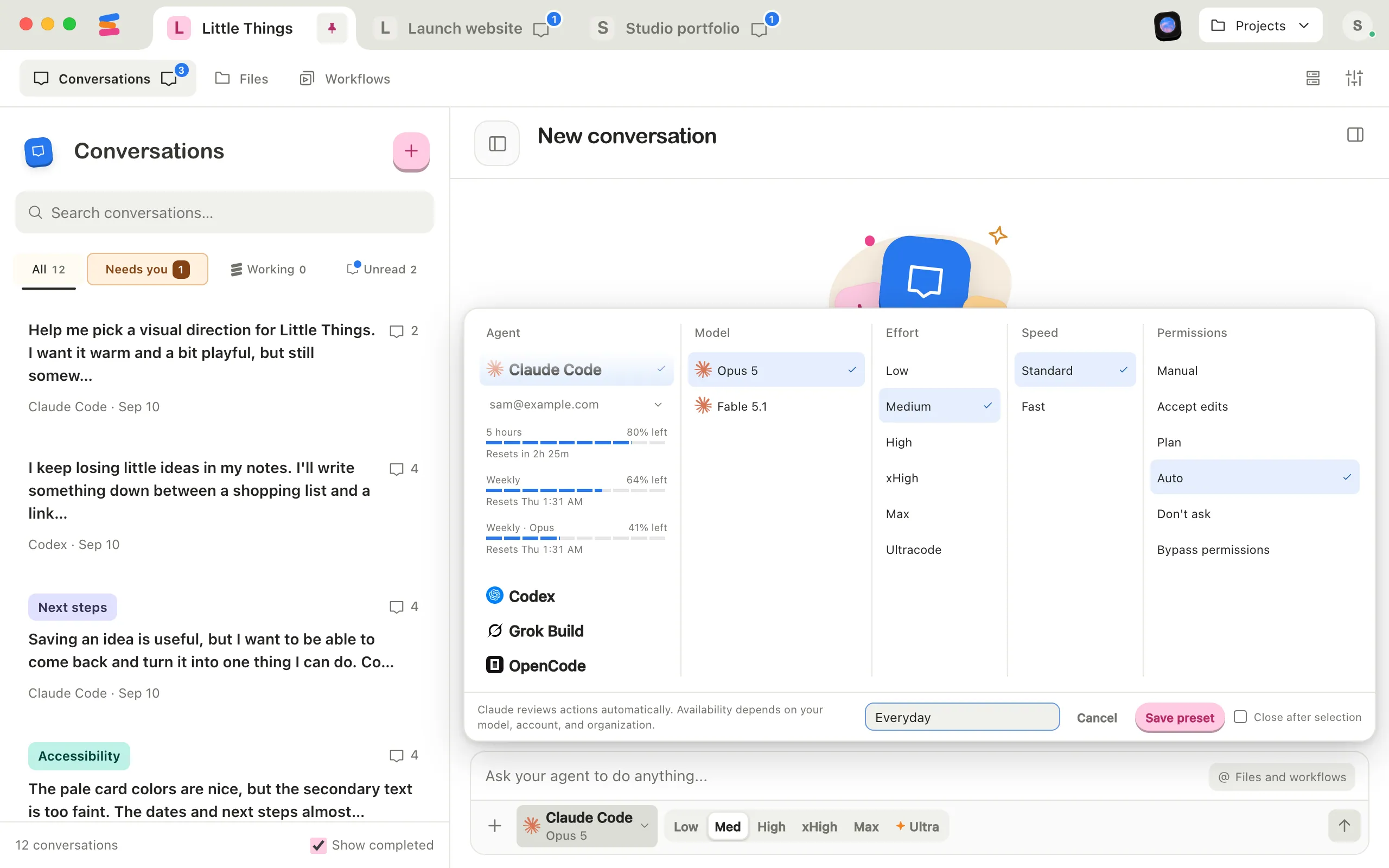
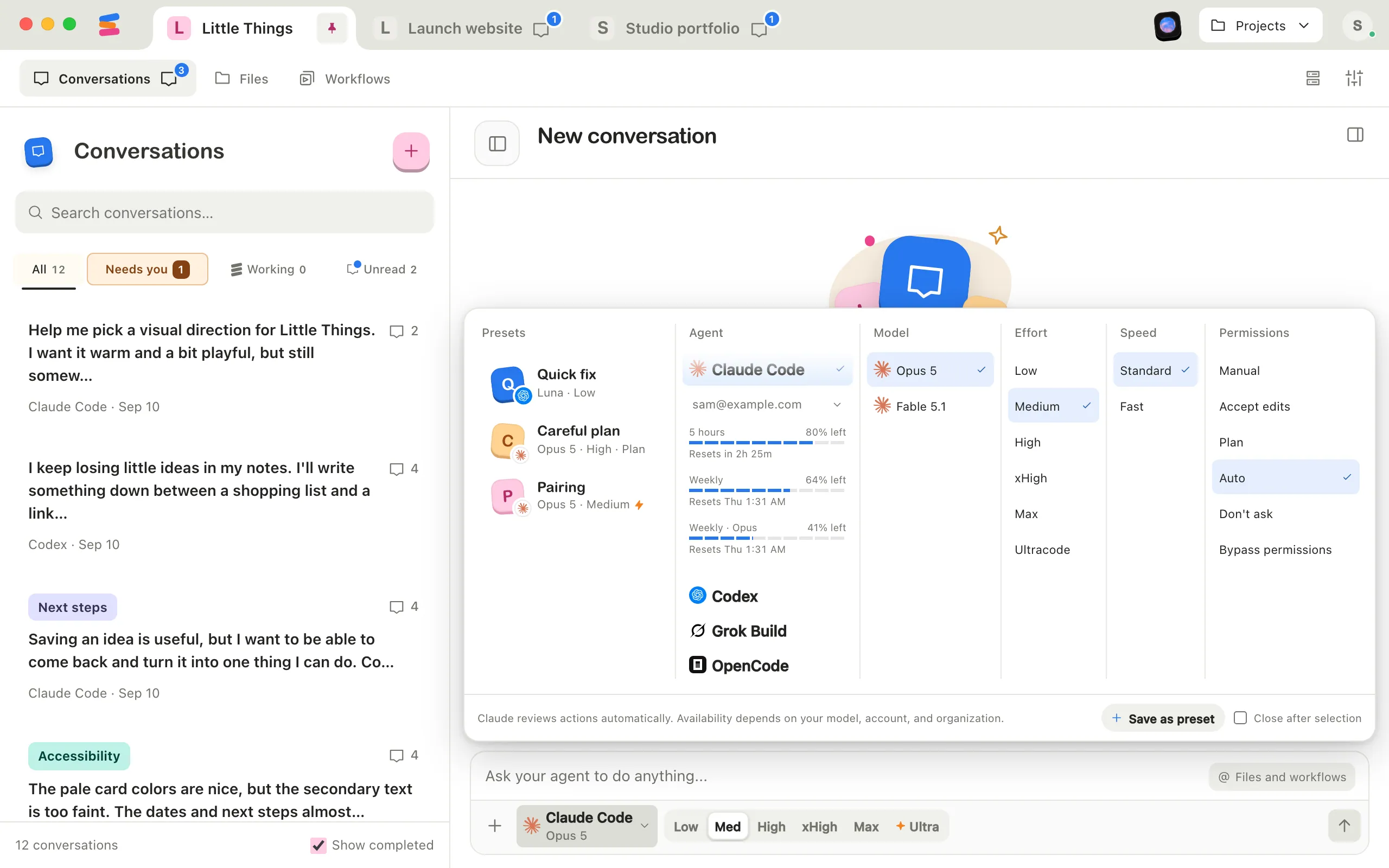
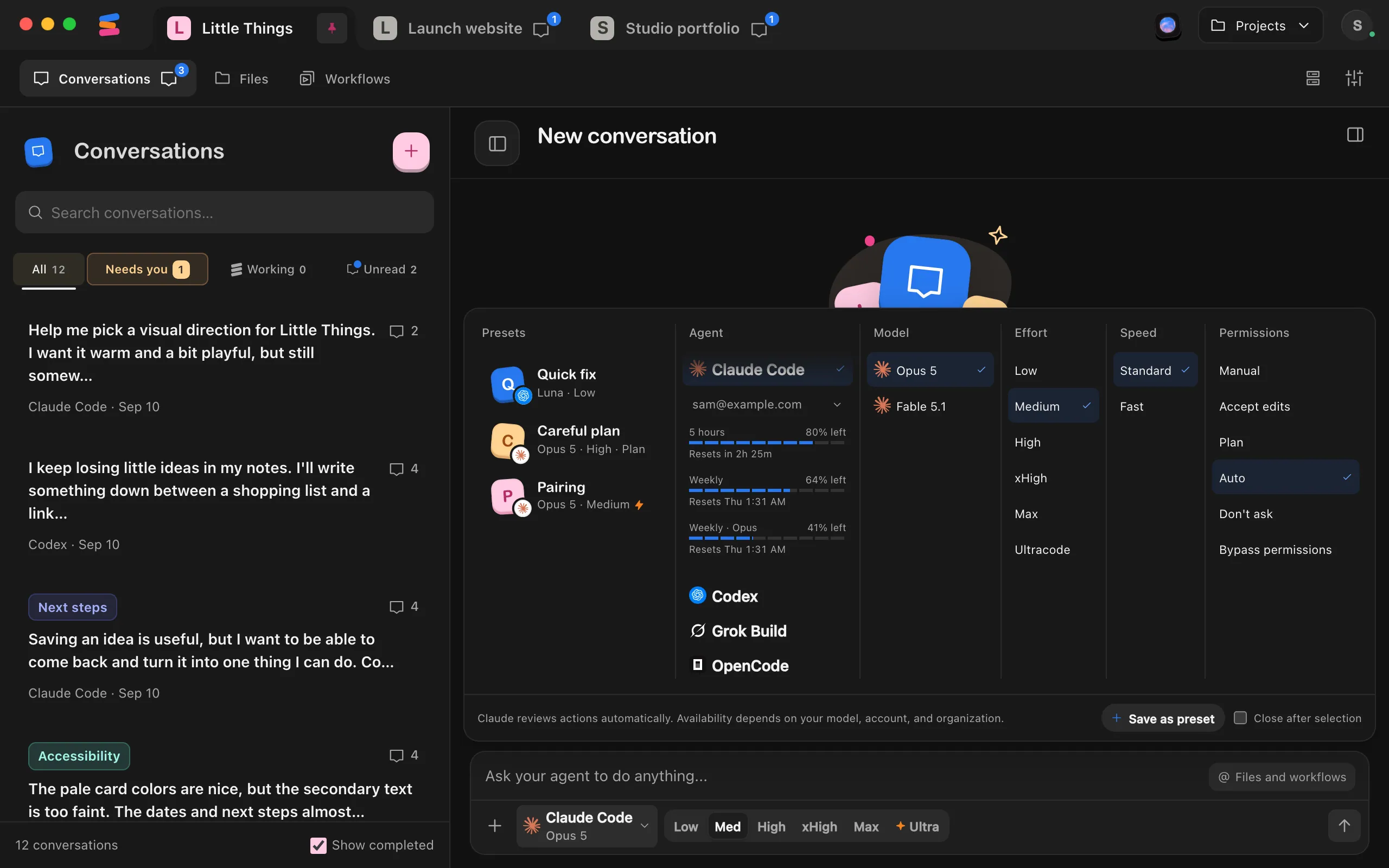
Select the agent button at the bottom of the message box, then choose the agent, model, effort, speed, and permissions.
Select Save as preset
It’s at the bottom of the agent settings. A name field appears, filled in with the model and effort, plus Fast when it’s on.
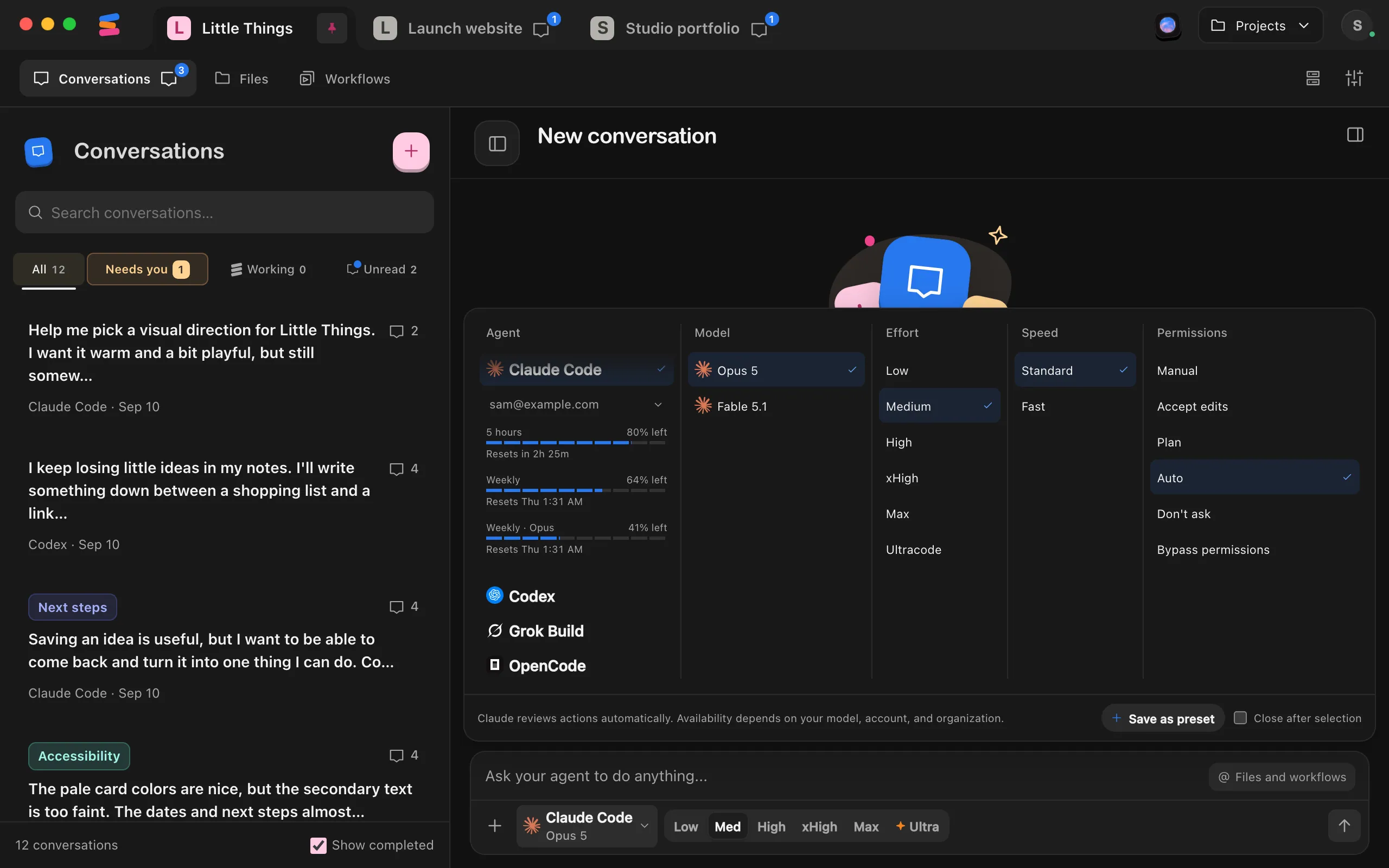
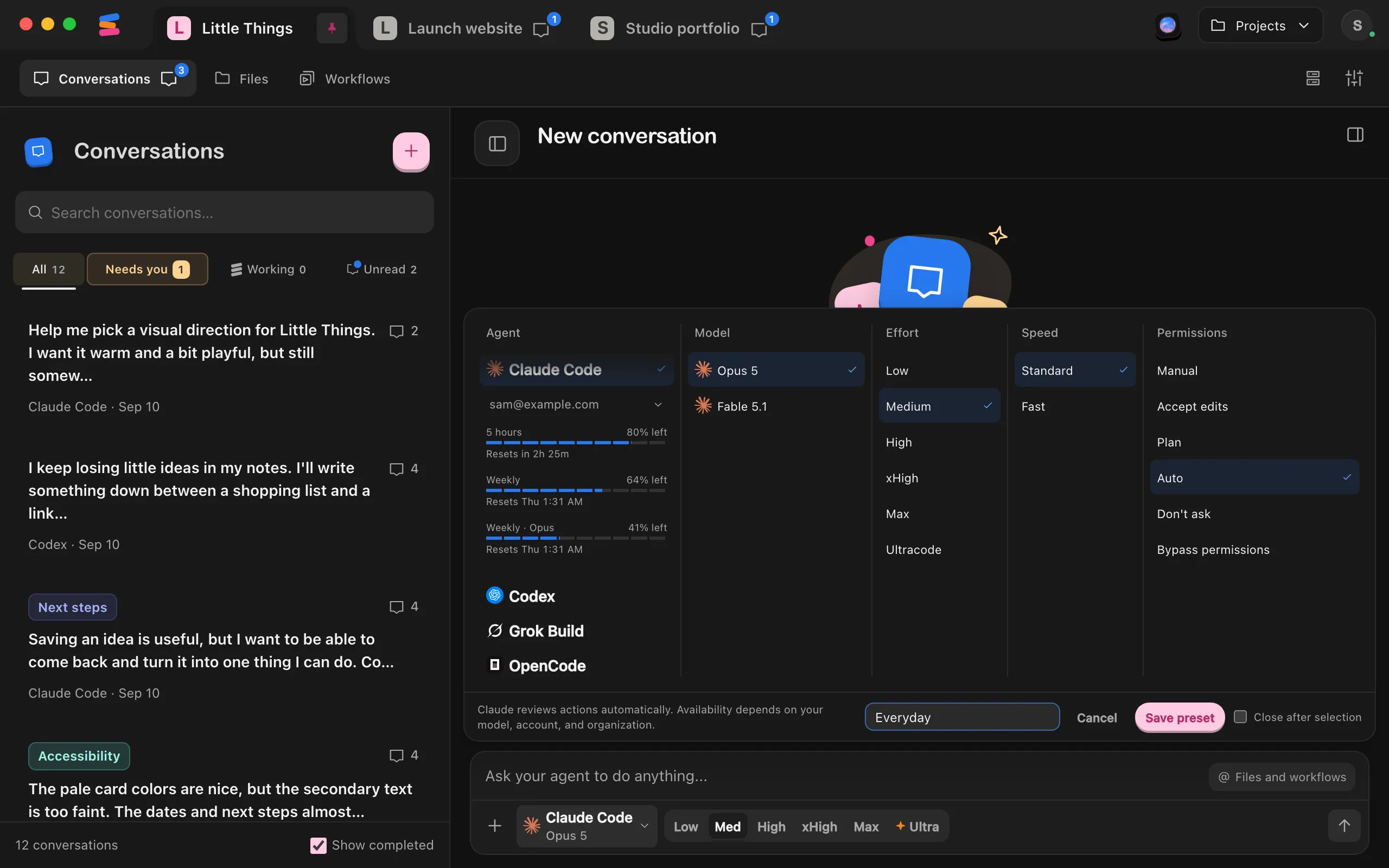
Type a name and select Save preset
Names can be up to 60 characters. You can also press Enter to save, or Escape to cancel. The bottom of the settings now shows Saved as and the preset’s name.
Apply a preset
Open the agent settings and select a preset in the Presets column on the left. The agent, model, effort, speed, and permissions all change at once, and the settings close.
Good to know
- Each preset gets a color, shows the first letter of its name and its agent’s logo, and lists its model and effort. It also lists its permission mode when that’s not the agent’s usual one, and shows a lightning bolt when Fast is on.
- When your current settings match a preset, the agent button shows the preset’s name instead of the agent’s.
- Presets appear in every project, and when you choose a workflow’s preferred agent. They’re saved on your computer, and the web app shows the same presets while it’s connected to that computer. Saving or removing a preset in the web app changes it on your computer too.
- Each of your computers keeps its own presets. On someone else’s computer, you keep your own presets in your browser, and you don’t see theirs.
- Save as preset works once a model is selected.
- A preset is grayed out when its agent isn’t installed. In the web app, it’s also grayed out when its permission mode isn’t the one your computer allows for that conversation.
- If the agent no longer offers the preset’s effort, speed, or permission mode, Enjoy uses the agent’s usual setting instead.
- To remove a preset, point to it and select the trash can (Remove preset). It’s removed right away, without asking.