Fix a scheduled workflow that didn't run
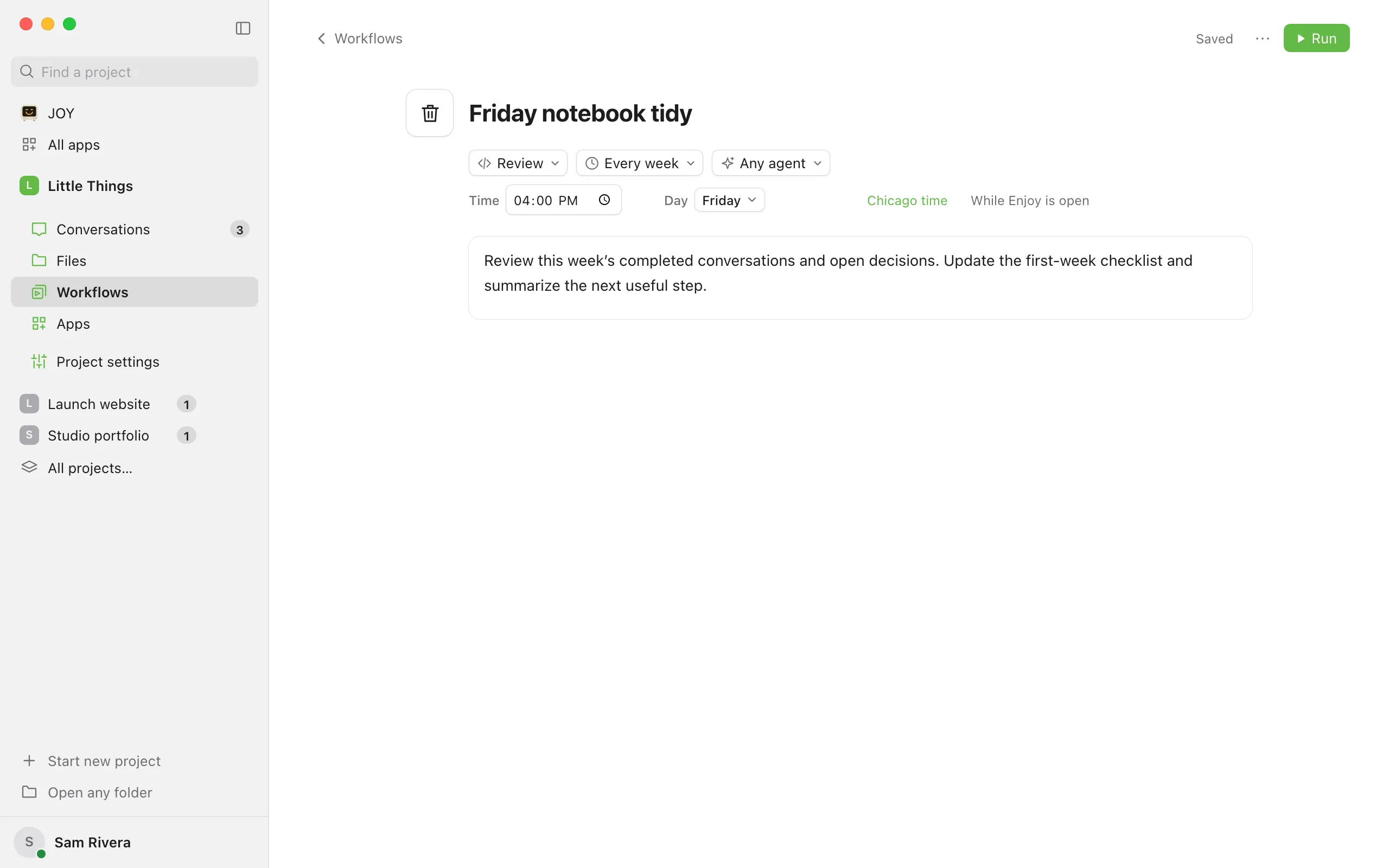
A scheduled workflow runs on the computer that holds its project, while Enjoy is open there. A workflow’s page reminds you under its schedule with While Enjoy is open.
Steps
Check that Enjoy was open
At the scheduled time, Enjoy has to be running on that computer, and the computer has to be awake. If it wasn’t, that run is skipped. Enjoy doesn’t make up missed runs later. The next run happens at the next scheduled time. On a Mac, closing Enjoy’s window keeps it running, but quitting stops scheduled runs. On Windows and Linux, closing the window quits Enjoy.
Check that the project isn’t paused
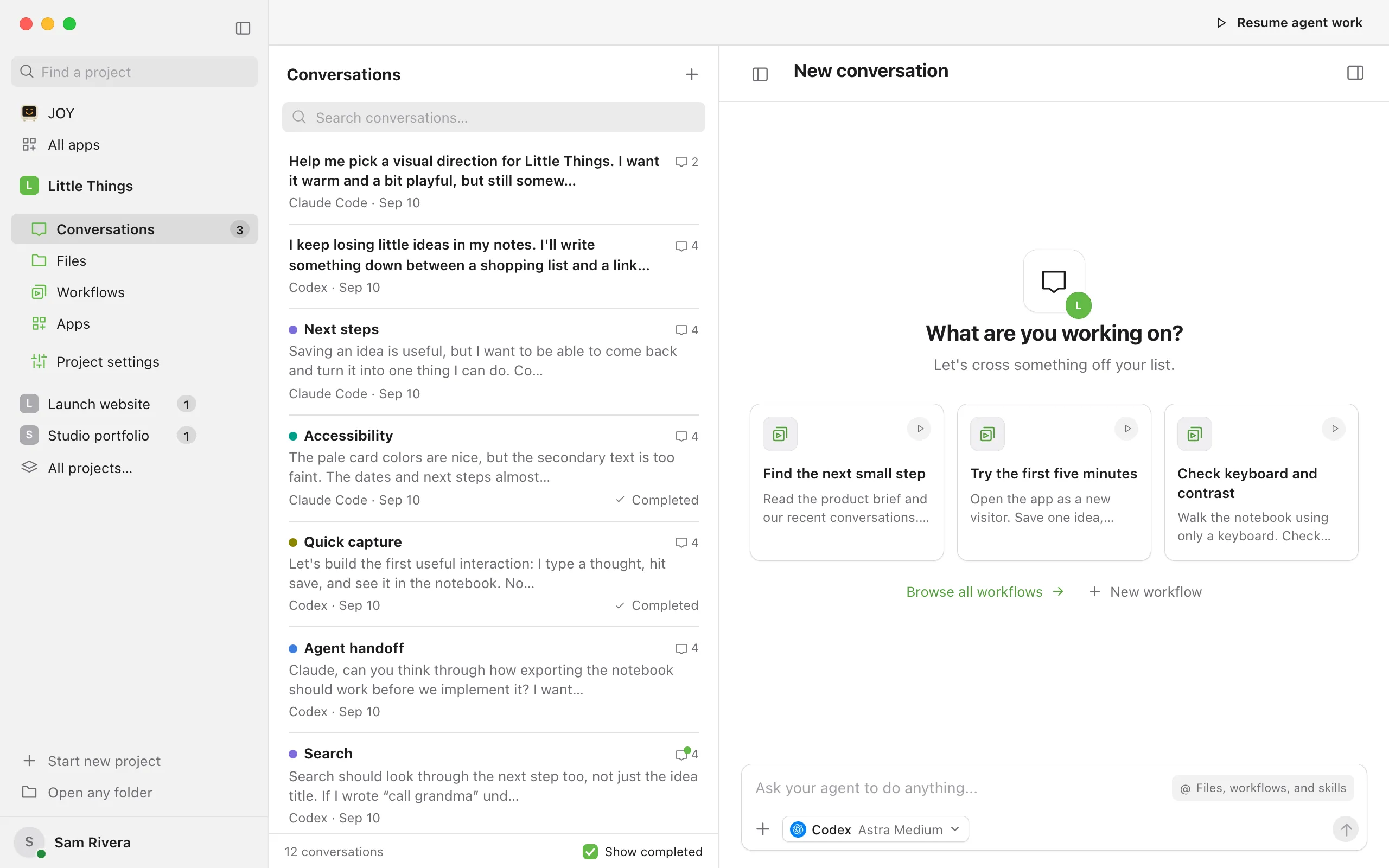
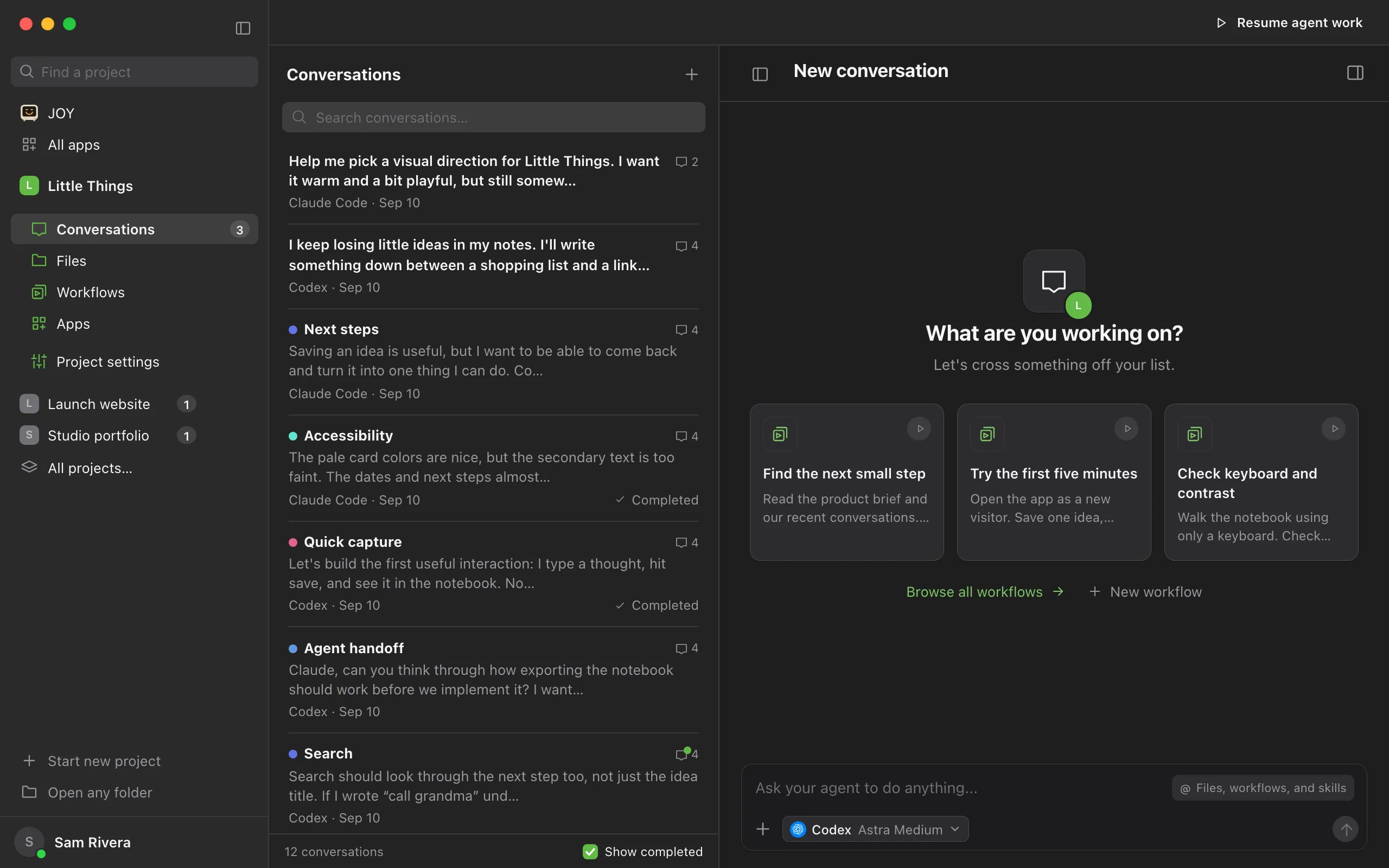
If the project shows Resume agent work, its agent work is paused and scheduled runs are skipped. Select Resume agent work.
Check the workflow’s agent
The workflow runs with its preferred agent, or with the agent settings you last used in the project. That agent has to be installed and signed in on that computer. If it isn’t ready within a minute of the scheduled time, for example because it needs you to sign in, that time is skipped. See Choose which agent runs a workflow and Fix an agent that won’t sign in.
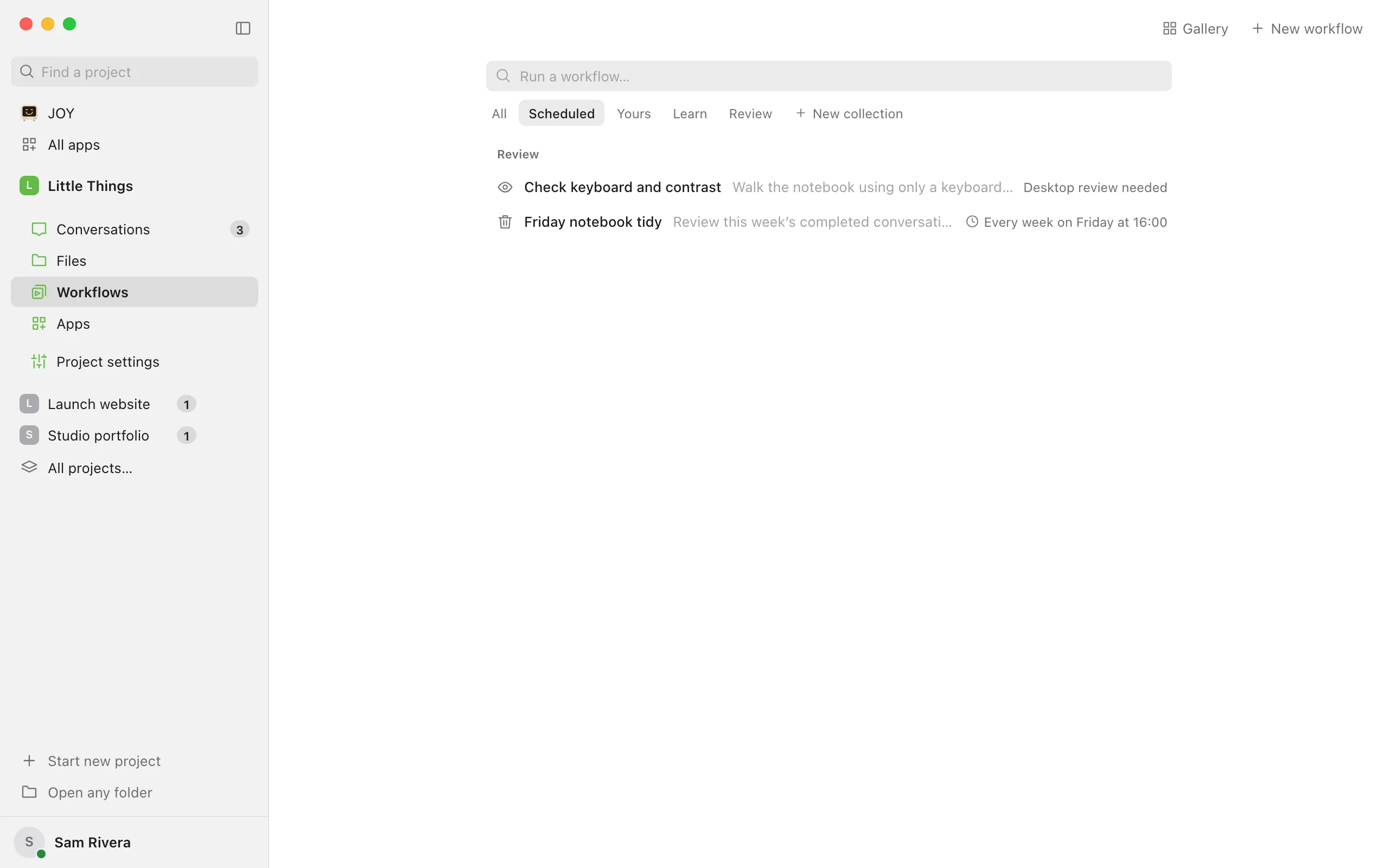
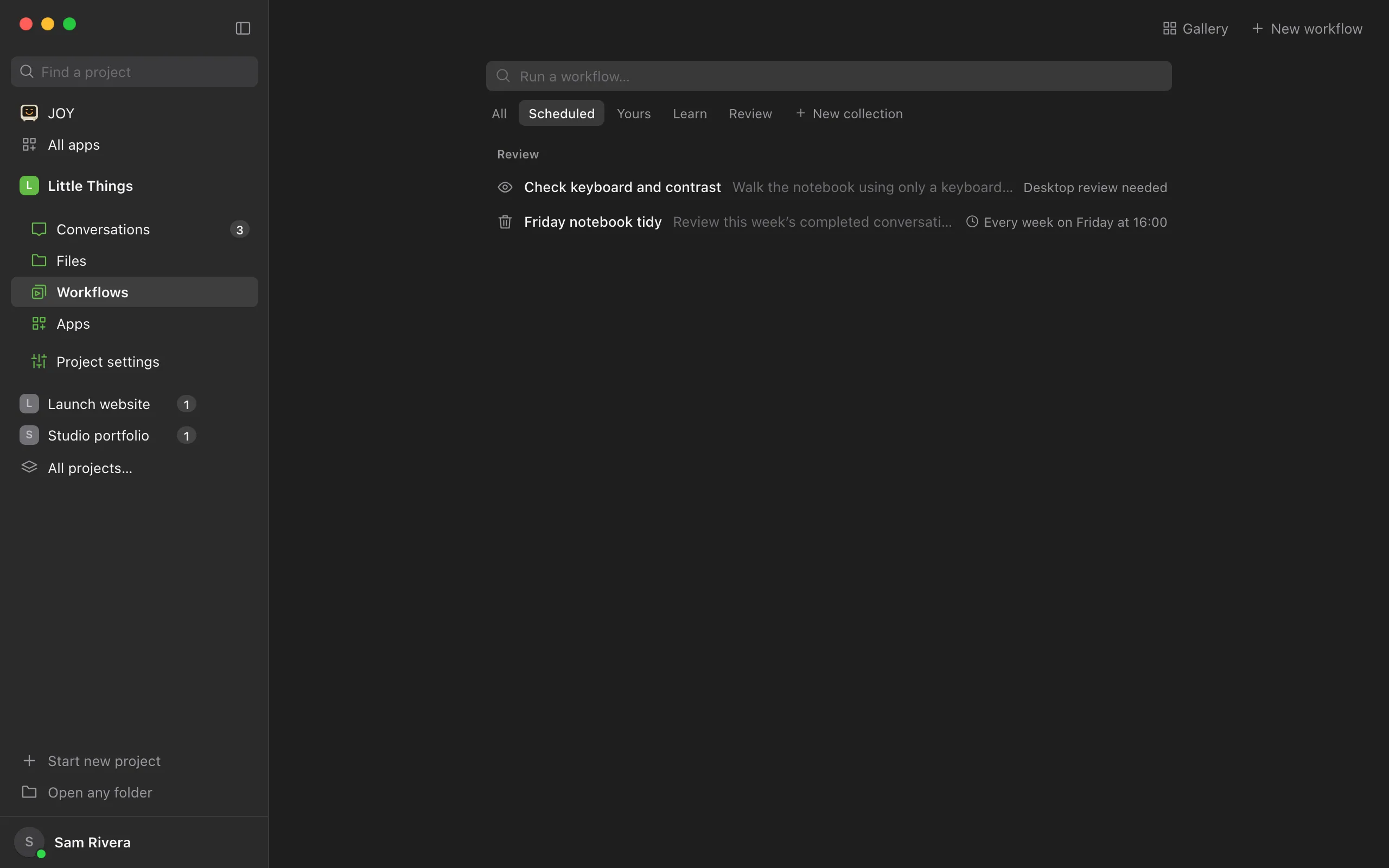
Look for Desktop review needed
In Workflows, select Scheduled to see your scheduled workflows. One with this label at the right of its line doesn’t run on a schedule or by hand, and its Run button is greyed out. See the section below.
Check the time and timezone
In Workflows, select the workflow’s name. Under its title, Repeat shows how often it runs. Below it are the Time, the Day for weekly schedules, and the timezone, shown as a city name followed by time, such as Chicago time. Runs follow that timezone. To change it, select it and type a name in Timezone. Changes save on their own.
Run it now
Select Run at the top right of its page, or point at the workflow’s line in Workflows and select Run, to run it by hand while you sort out the schedule.
Good to know
- A scheduled run starts a new conversation named after the workflow. Its first message comes from Enjoy scheduler.
- If the previous run of the same workflow is still working, or waiting for your answer, that scheduled time is skipped.
- Running a workflow by hand doesn’t change its schedule.
- Only the project’s main folder runs its schedules. If you open a worktree’s folder in Enjoy as a project of its own, its copies of the schedules don’t run there.
- Schedules always run on your computer, never on your phone or in the web app, so keep the computer on and awake. See Keep your computer awake.
If something goes wrong
Desktop review needed
Enjoy stopped running the workflow because it couldn’t confirm that it’s still the one that was saved. This happens when the workflow’s file was changed outside Enjoy, or when a phone, browser, or team member that created or changed it was later disconnected from your computer. On your computer, open the workflow and check its instructions and Repeat. Then select Confirm next to “Desktop review needed before running.” Enjoy saves the workflow again, which clears the review.
If that shows an error saying “The remote client that requested this work is no longer approved.”, create a new workflow with the same instructions and schedule instead, then delete the old one. See Edit a workflow and Create a workflow.
Review this workflow on the desktop before running it.
You tried to run a workflow marked Desktop review needed, for example from the web app. Follow the steps above on your computer.
A run fails with “Saved work changed or its origin record is missing.”
The workflow’s file was changed outside Enjoy since it was last saved. The conversation fails, and Details shows this message. Open the workflow, check the instructions, and save it again. See Edit a workflow. Then run it again.