Choose a model
Each agent offers several models. Which ones you see depends on the agent, its version, and your account with the company that makes it.
Steps
Open the agent settings
At the bottom of the message box, select the agent button.
Look through the Model column
Point to a model to read its description at the bottom of the settings.
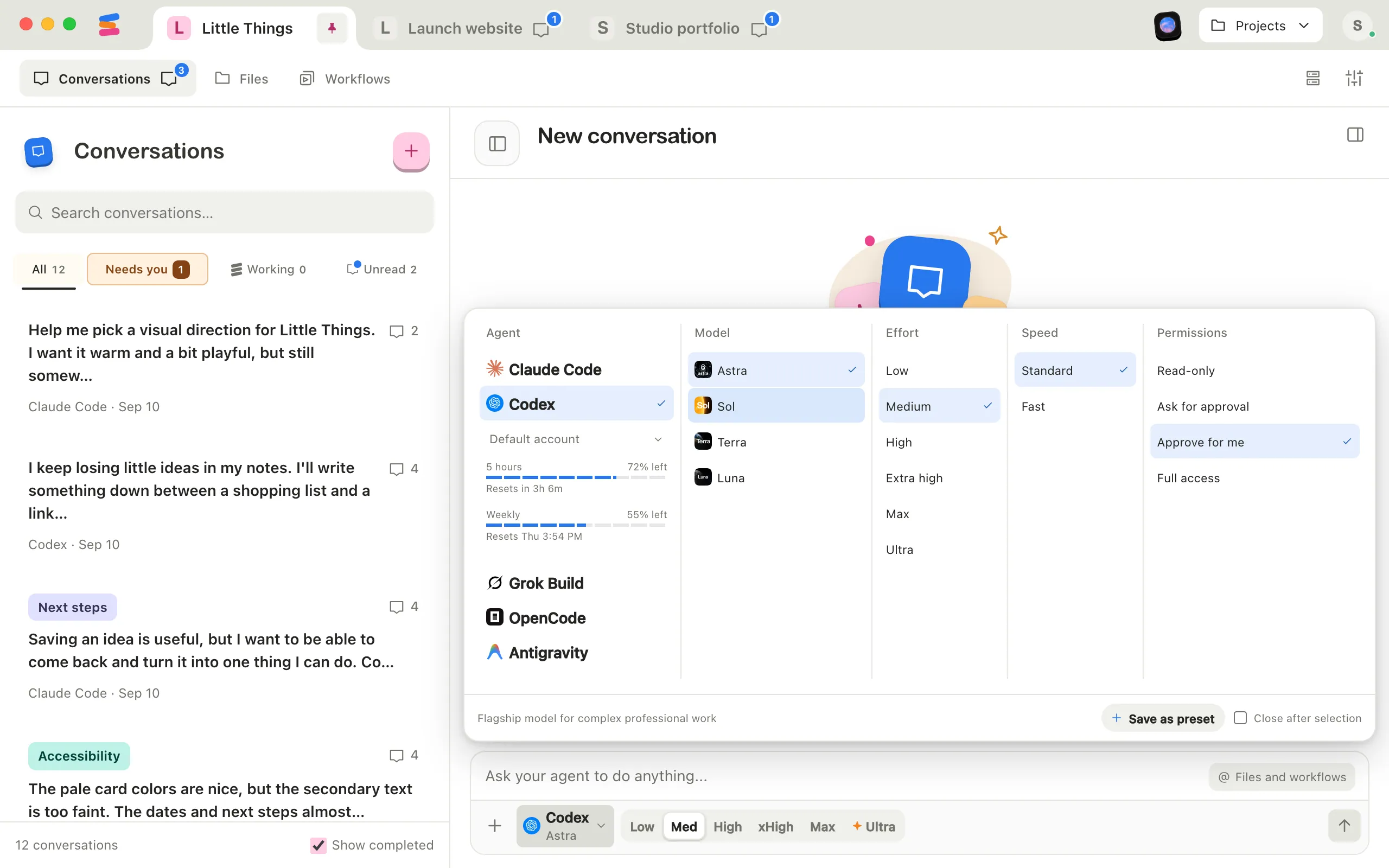
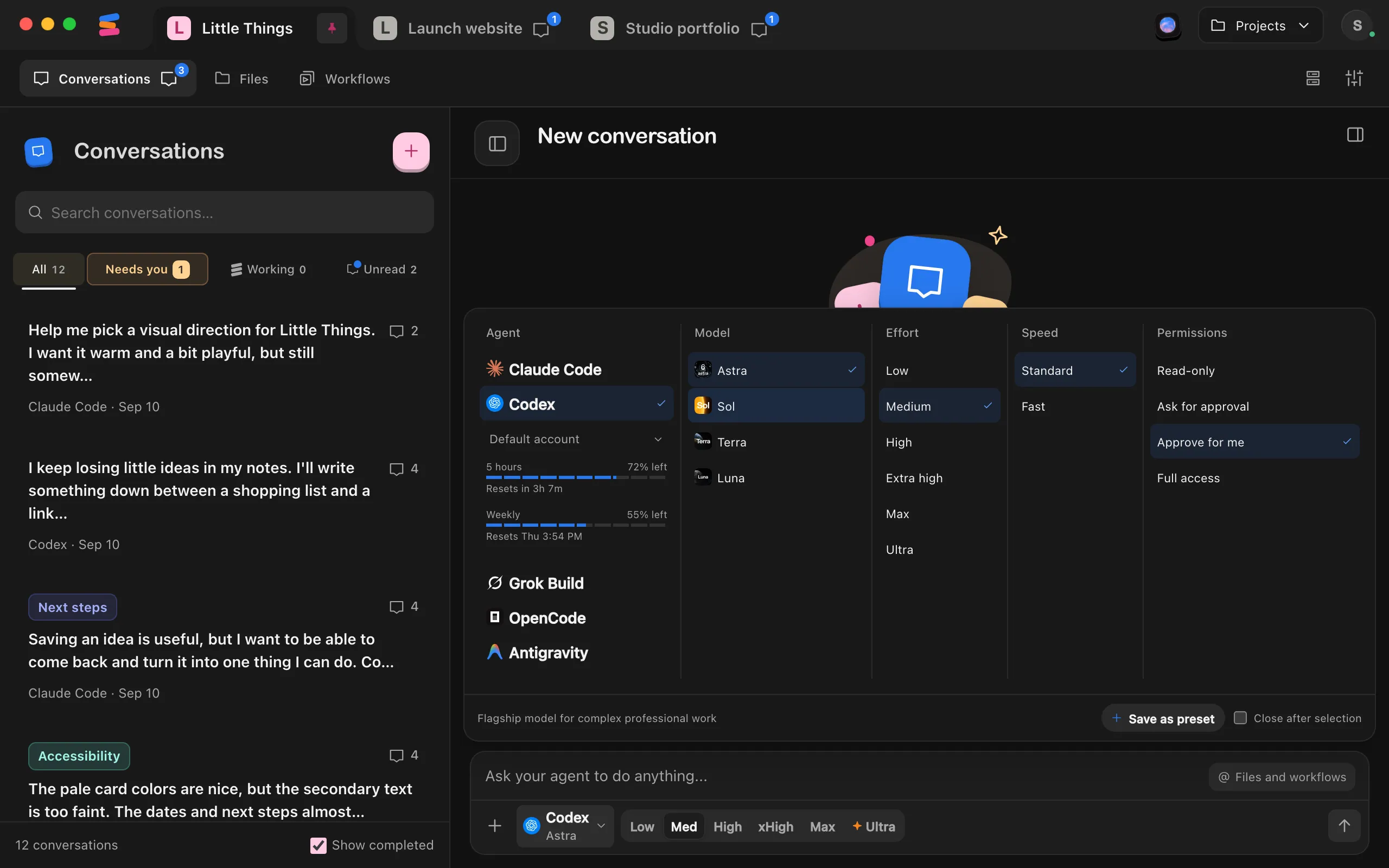
Select a model
A check mark appears beside it, and the agent button shows its name.
Send your message
The new model handles it.
In the iPhone app, select the button in the message box that shows the model and effort, then choose a model on the Model screen.
Good to know
- Enjoy asks the agent for its current models each time you open the settings, so new models appear without an Enjoy update.
- Muse Code is the exception: it only updates its own model list when its app starts. In the desktop app, the circular arrow beside Model makes Muse Code fetch its latest models. It spins while it works, then shows a check mark, and the new models appear in the list.
- Enjoy remembers the last model and effort you used with each agent and selects them the next time you use that agent.
- If the model you chose before isn’t in the agent’s list anymore, it stays at the top of the list. Point to it to see Your saved choice.
- When two models have the same name, Enjoy adds each model’s ID in parentheses so you can tell them apart.
- A conversation can use different models for different messages. Point to a reply to see the model and effort it used.
- You can save a model together with your other settings as a preset.
If something goes wrong
Choose a model before sending
No model is selected. Open the agent settings and select one. If the column says Loading models…, wait a moment for the list to arrive.
No models available
The agent didn’t list any models. Its sign-in may have expired, or it may need an update. Check for a Sign in badge on the agent button, and see Update an agent. OpenCode needs at least one provider set up. See Use OpenCode with free, local, or your own models.
A new Muse Code model is missing
In the desktop app, select the circular arrow beside Model. Enjoy has Muse Code fetch its latest models, and the list updates when it’s done. If it couldn’t refresh, check your connection and select the arrow again.
Could not load models from this agent
Close the agent settings and open them again to retry. The models you saw before stay in the list while Enjoy retries.
This account can’t use the selected model
Your plan, or the account you switched to, doesn’t include that model. Choose another model in the message box. The failed message then offers Retry with and the new model’s name, which tries again with it.
Another model took over
An orange box such as Opus 4.8 took over appears in the conversation when the agent switches models partway through your request. Claude Code switches to an earlier model when Opus 5.5’s safeguards stop a response, and the rest of that request runs on the earlier model. On the desktop or web, select Stop in the box while the agent is still working if you don’t want it to continue on that model, or Learn more for Anthropic’s explanation.