Send follow-ups while the agent works
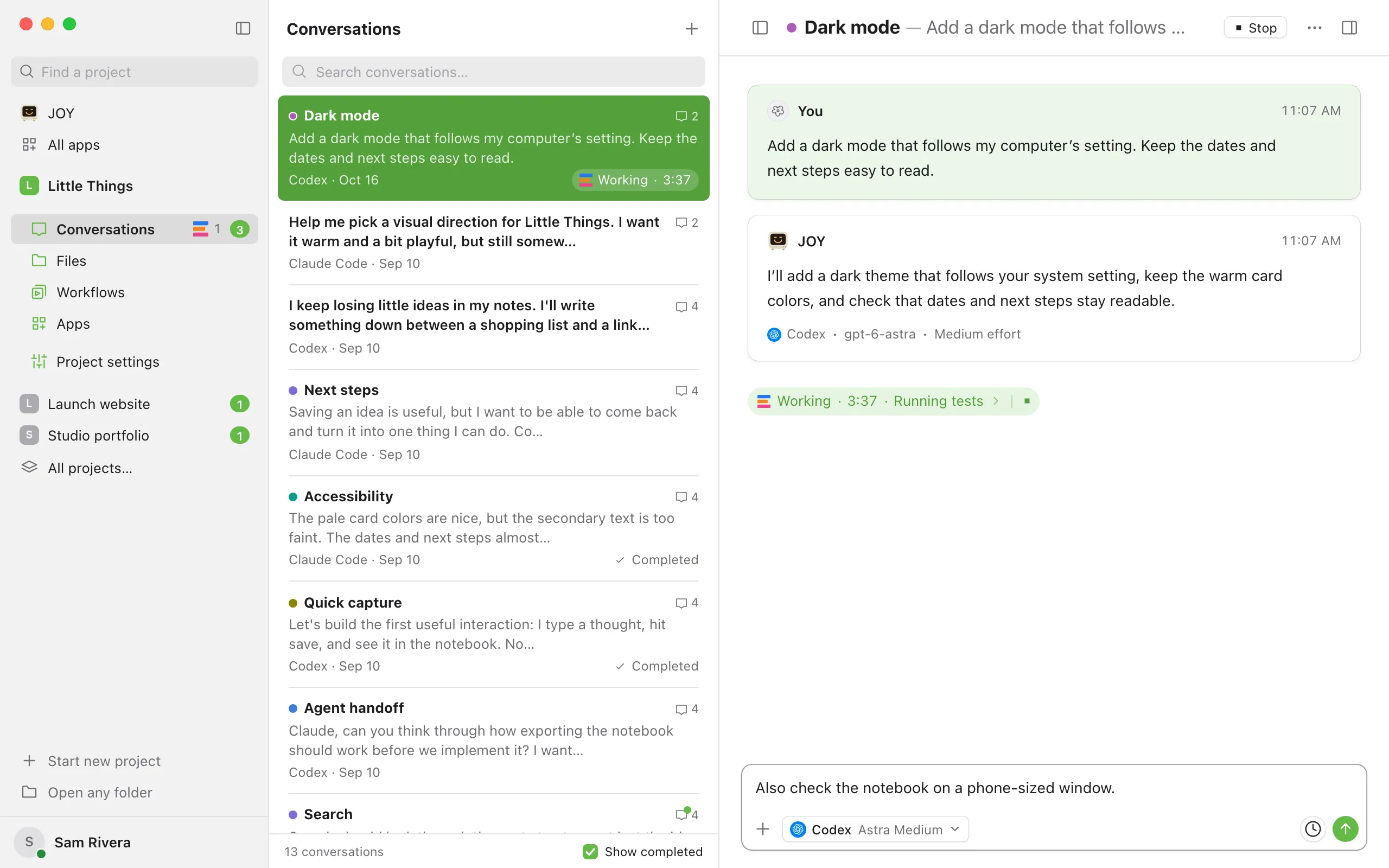
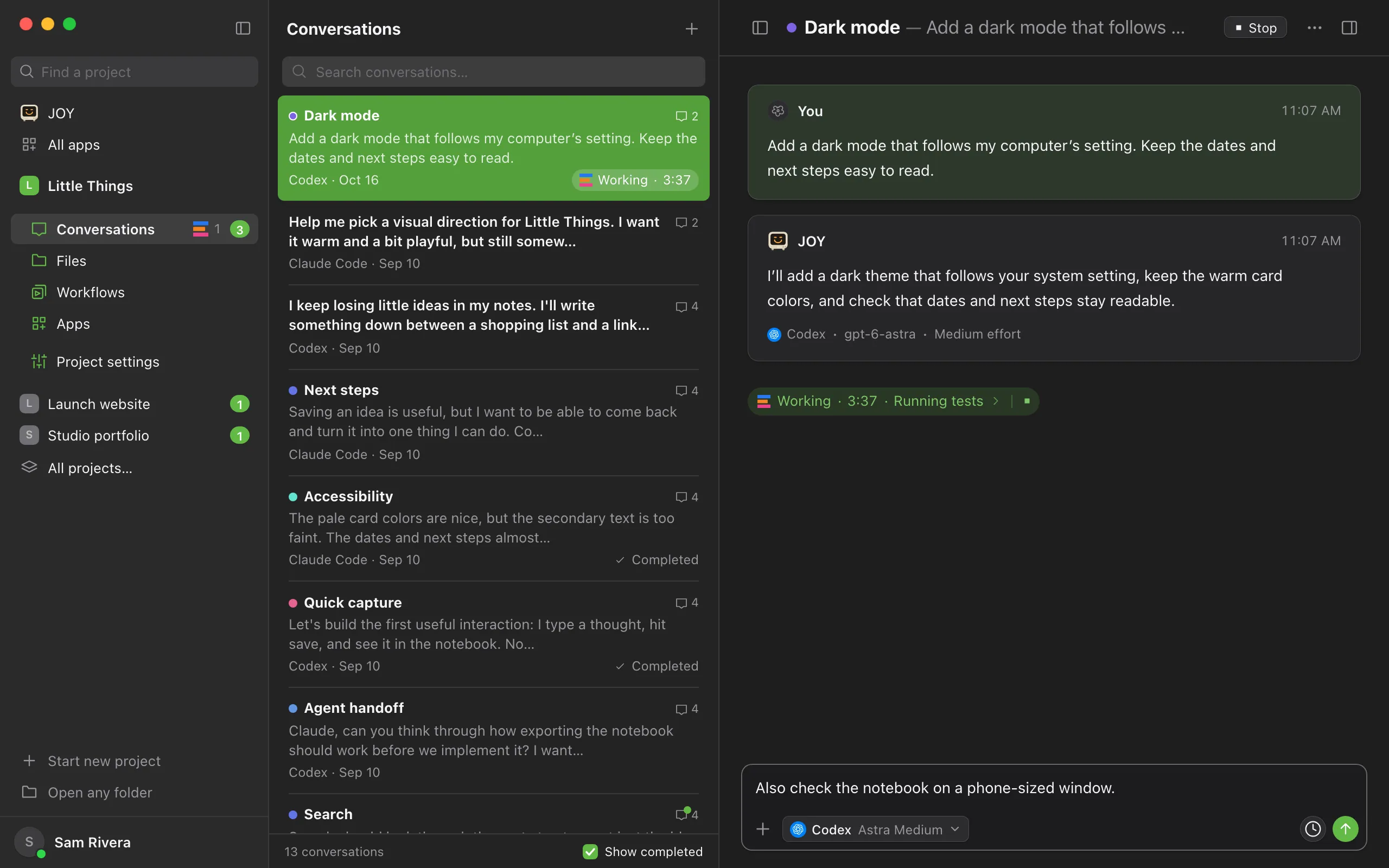
You don’t have to wait for the agent to finish before you write again. While it works, the message box offers two ways to send a follow-up: Queue and Send.
Steps
Type your follow-up
While the agent is working, type in the message box as usual.
Queue it or send it
Press Enter, or select the clock button (Queue), to hold the message until the agent finishes its current work. To hand it to the agent as soon as it can take it, press ⌘Enter on a Mac or Ctrl+Enter on Windows and Linux, or select the arrow button (Send). Each button shows its name when you point to it.
Manage queued messages
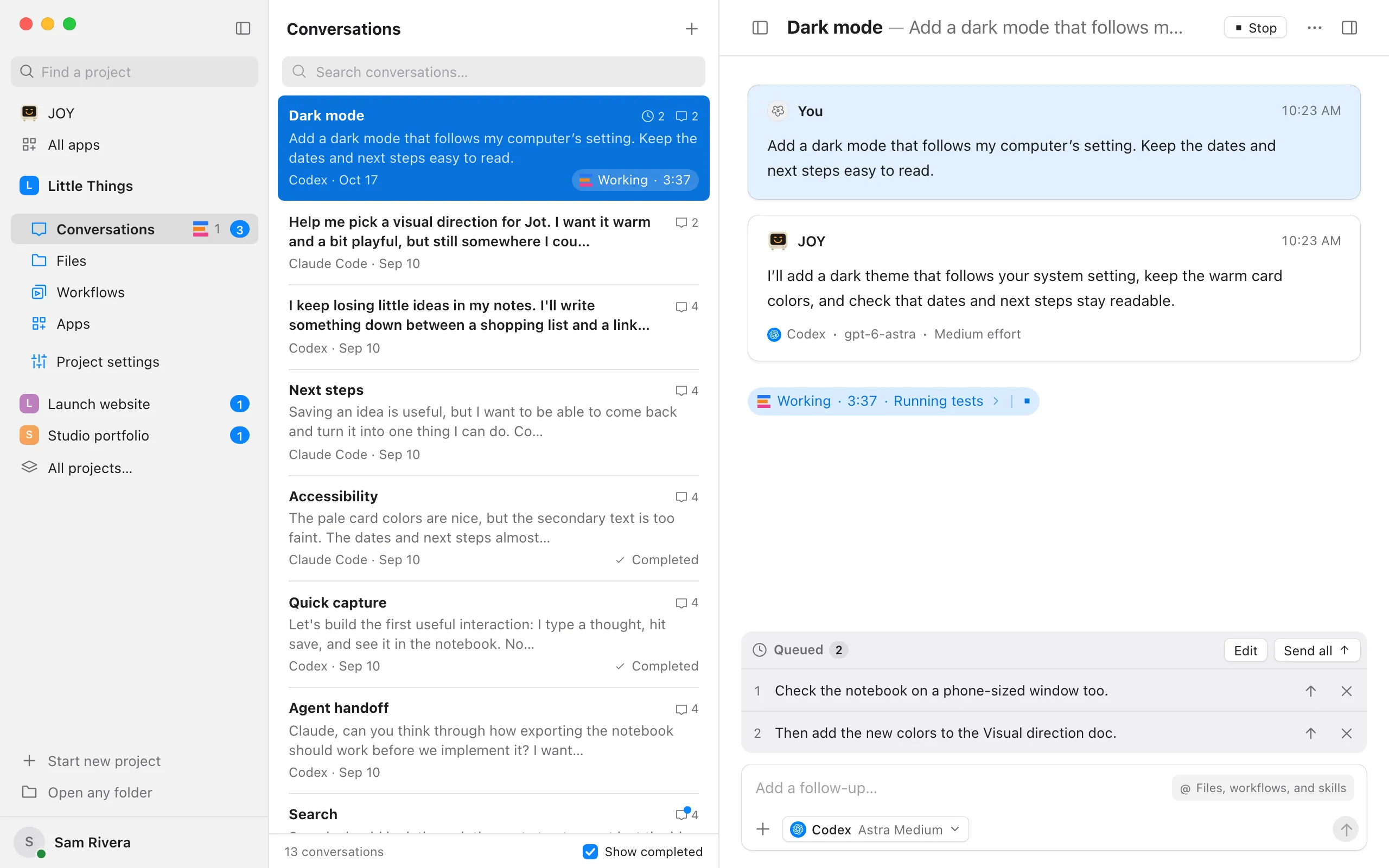
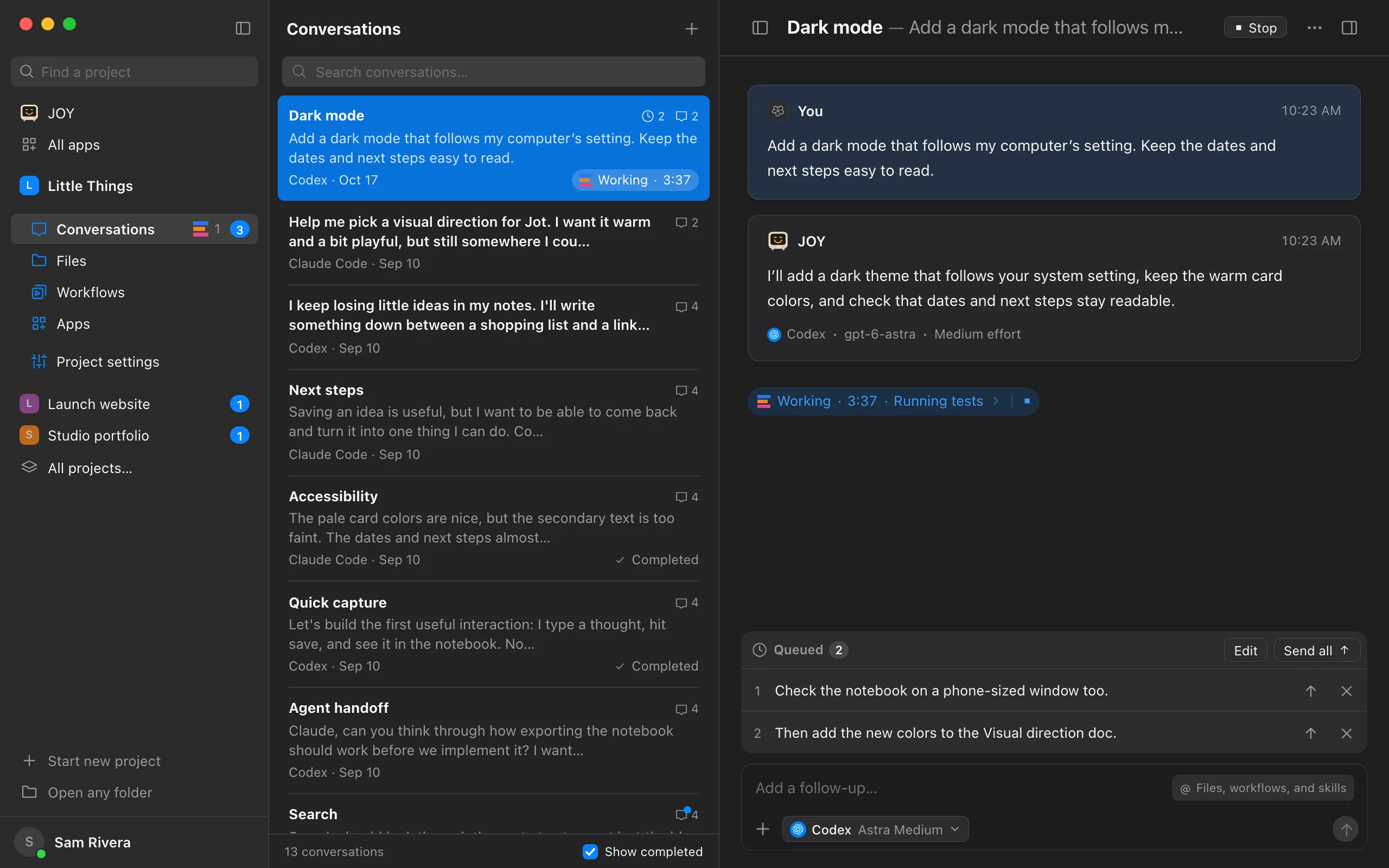
Queued messages wait above the message box under Queued, numbered in order. Select the arrow beside a message to send it now, the same way as Send, or select Send all to send all of them. Select the X to move a message back into the message box.
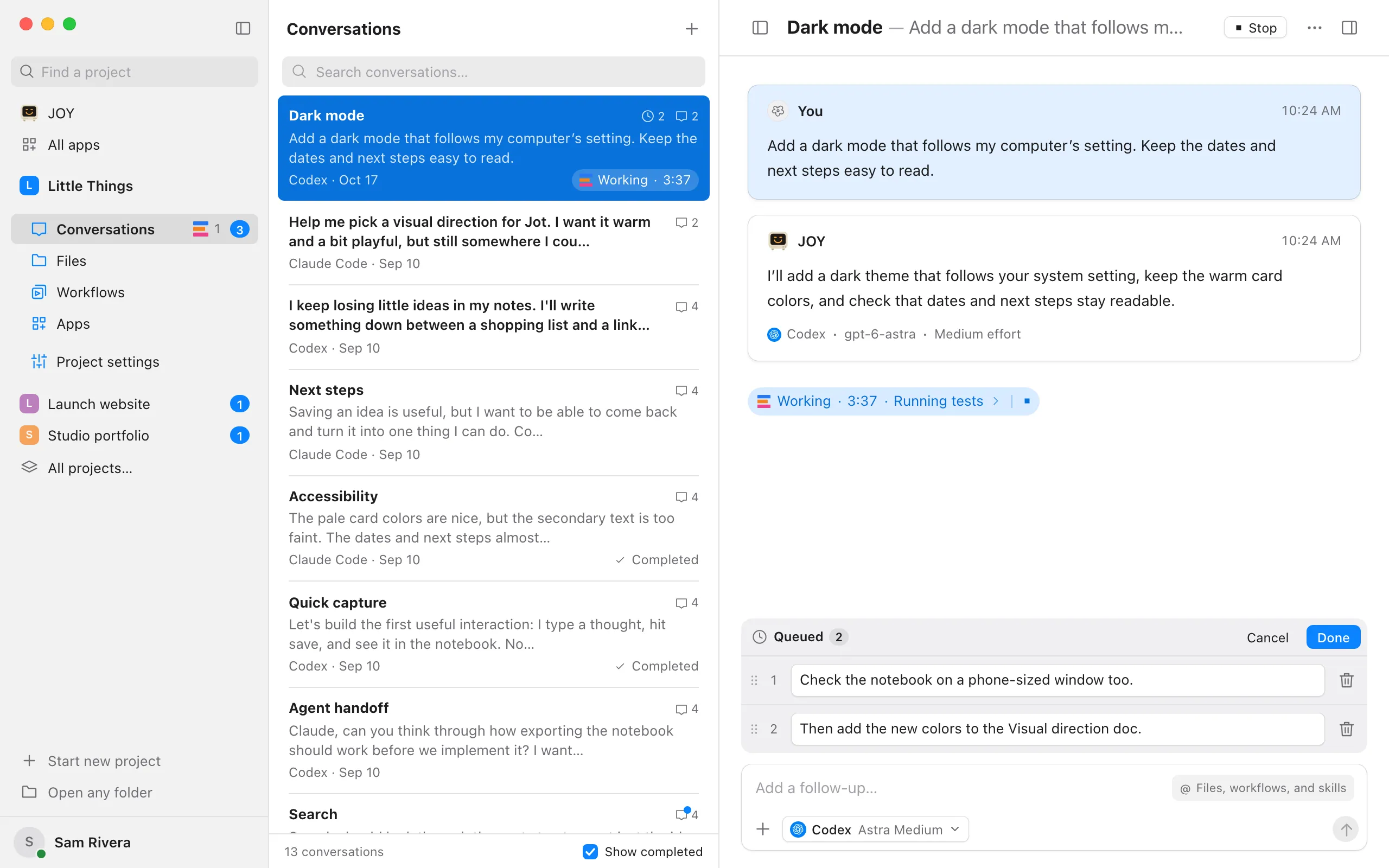
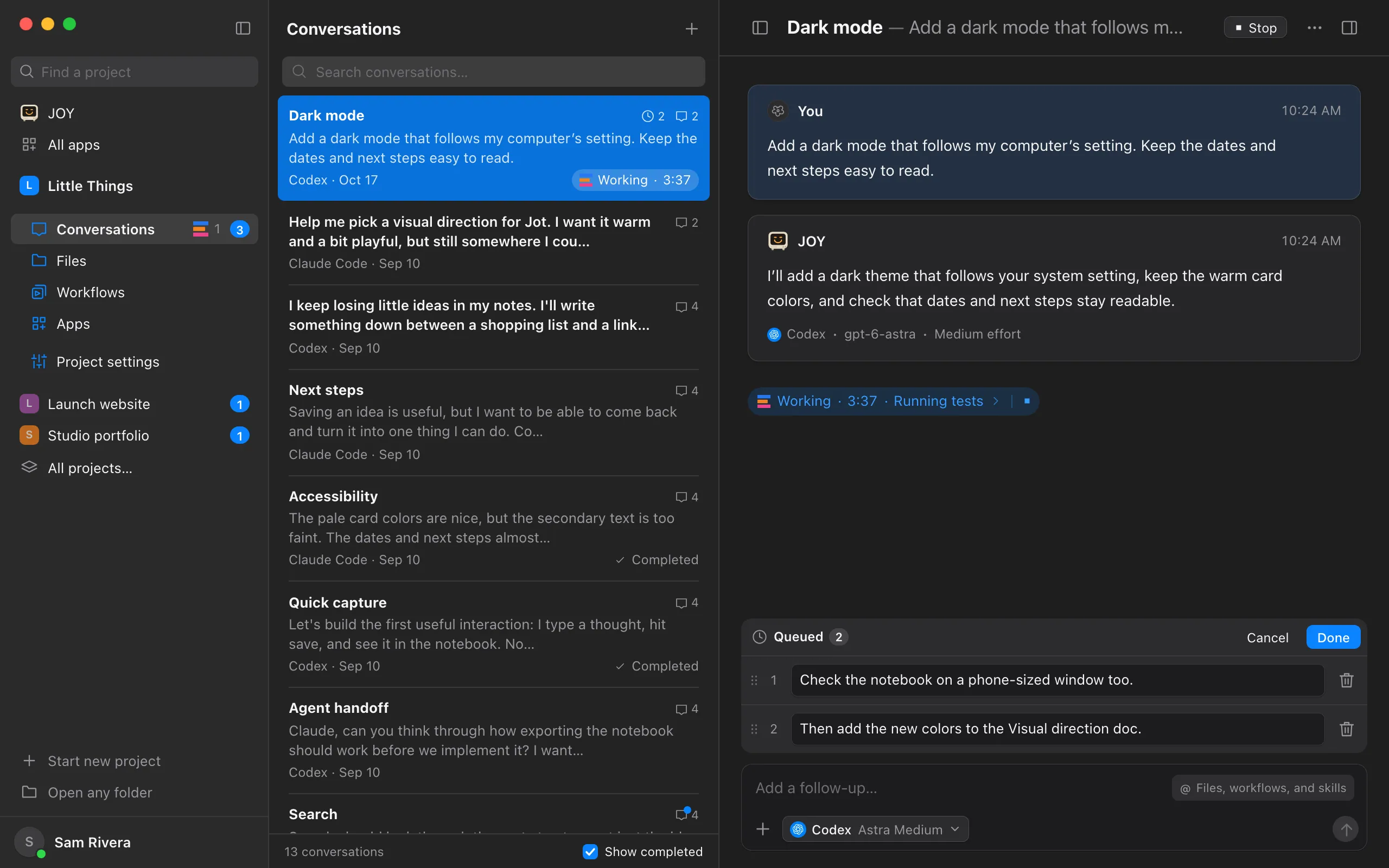
Edit the queue
Select Edit beside Send all to change queued messages where they wait. Each one becomes a box you can type in. Drag a message by its handle to move it, or press Option+↑ or Option+↓ on a Mac (Alt+↑ or Alt+↓ on Windows and Linux). Select the trash button to delete it. Drag images or files onto a message, or paste them into it, to attach them to that message. Select Done, or press Enter, to save every change at once. Cancel, or Escape, keeps the queue as it was.
Manage pending messages
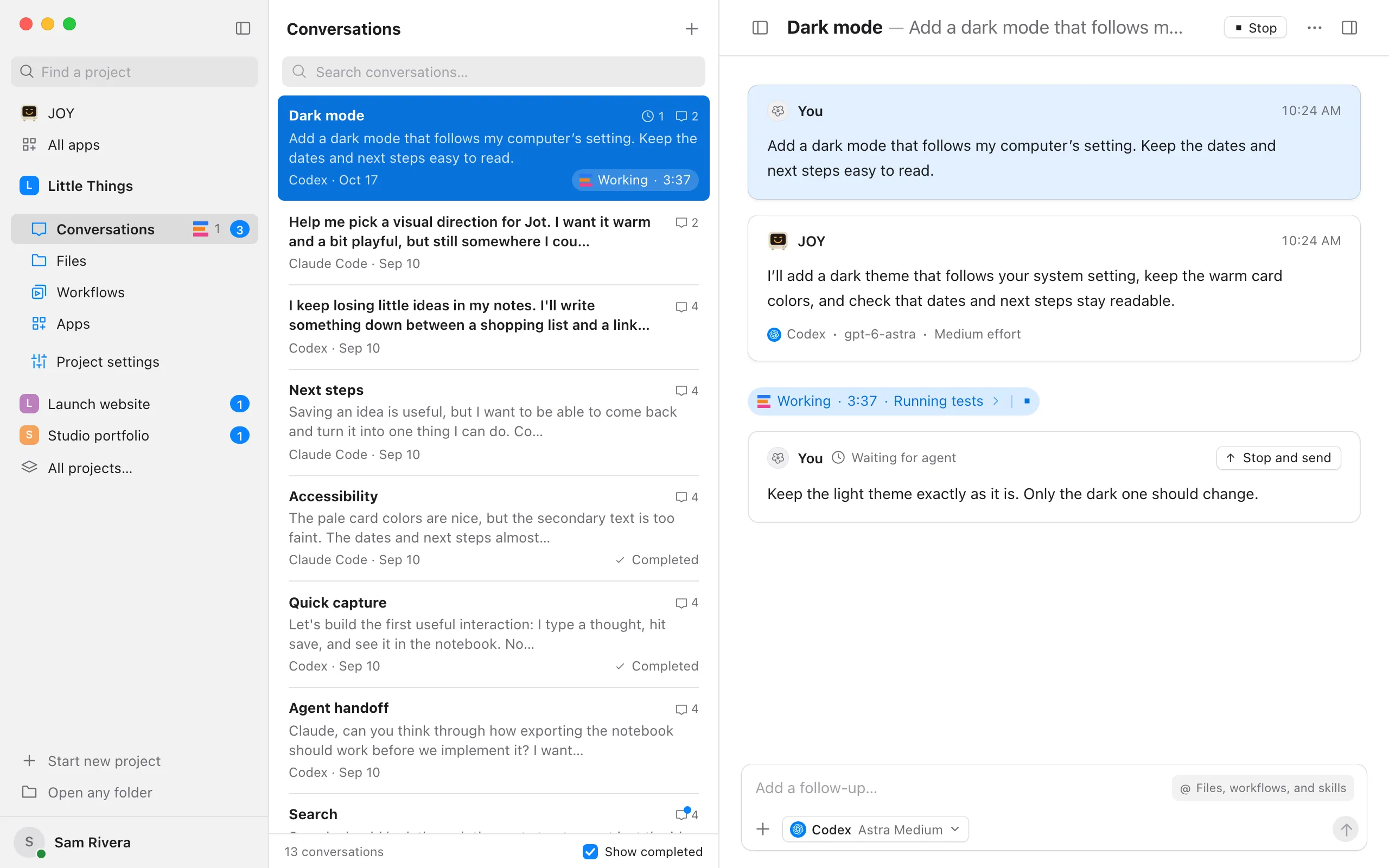
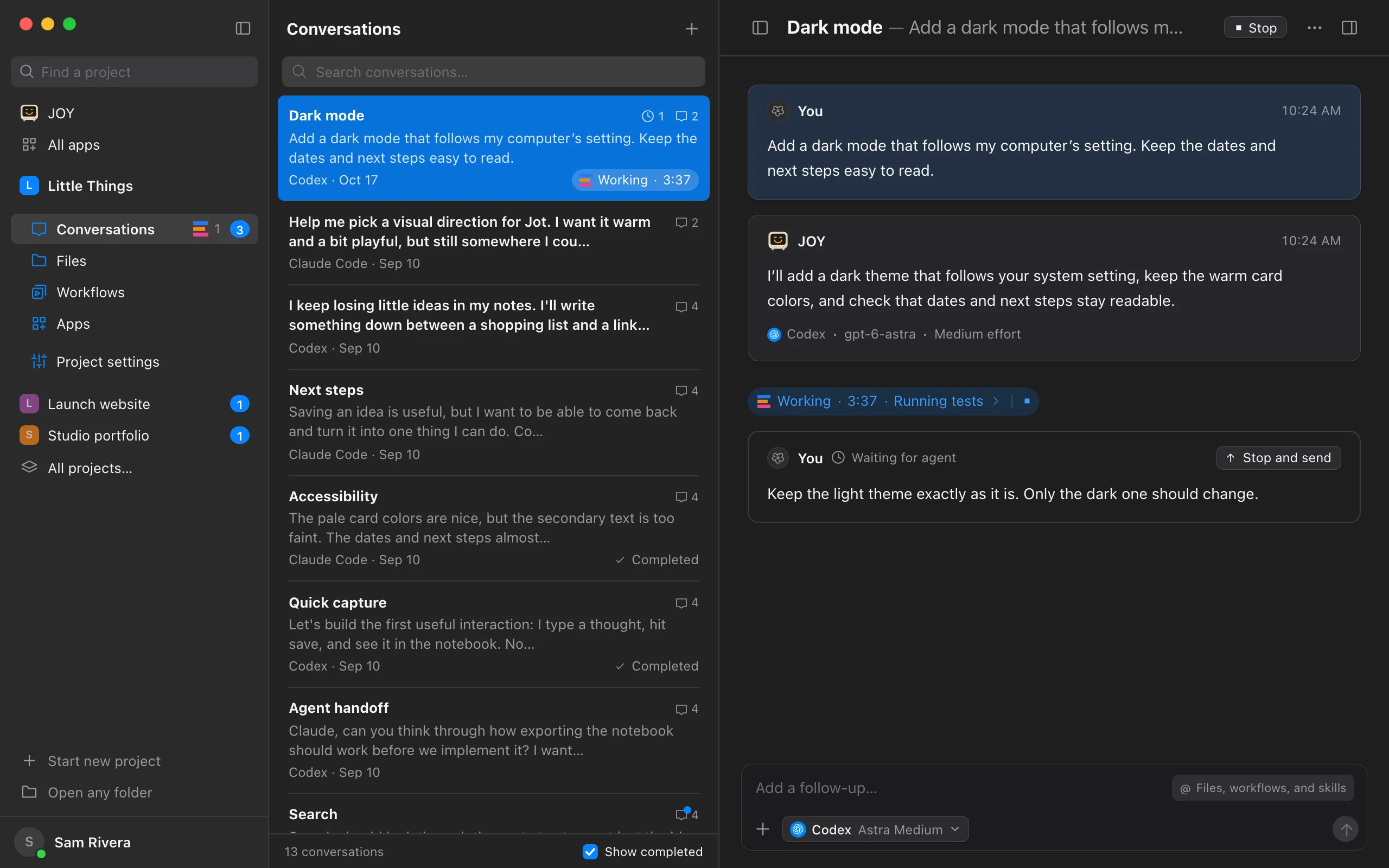
A follow-up appears at the end of the conversation. Waiting to send means Enjoy is still holding it. Waiting for agent means it has been handed to the agent, which has not yet confirmed taking it in. To hand it to the agent right away, select Send now. The button reads Stop and send instead when Enjoy has to stop the agent’s work to send the message. When a message can be withdrawn, hover over it and select the trash button (tap it on iPhone).
Good to know
- Queue is for things that can wait. When the agent finishes, Enjoy sends the first queued message as a new request, then the next one after that finishes, and so on.
- If the agent finishes with a question, queued follow-ups can still run. The conversation shows Working while it handles the follow-up, and the earlier question stays available to answer. After the queued work finishes, an unanswered question puts the conversation back in Needs input (Needs you on iPhone).
- Send is for corrections the agent should see soon. Claude Code, Codex, and Muse Code can take a sent message in during their current work. OpenCode, Grok Build, and Antigravity read it when their current work ends.
- When Claude Code, Codex, or Muse Code takes in a sent message during its work, Enjoy asks it to briefly acknowledge the message before continuing. Messages it takes in together get one acknowledgement.
- If the agent is waiting for you to allow a request or answer one of its own questions, sending a message declines it for you, so the agent can read your message instead of waiting. Queuing a message leaves the request waiting. See Approve or decline agent requests.
- If you change the agent, model, effort, speed, or permissions in the message box before sending, the message waits until the current work ends.
- Sent messages that wait for the current work to end go to the agent together, in its next turn. Messages sent with different settings go in separate turns.
- A sent message goes ahead of anything in the queue.
- To start on something else without waiting, fork the conversation. The fork gets a copy of the messages so far, and the agent here keeps working. See Fork a conversation.
- Moving a queued message back adds it to the end of your current draft, with its attachments, so nothing you’ve typed is lost. The trash button deletes a pending message instead.
- While you edit the queue, the agent keeps working. If it finishes before you select Done or Cancel, the queue shows Held while you edit and the next message waits for you. On your other devices, the queue shows Being edited.
- A queued message you empty while editing is deleted when you select Done. A message’s workflows and skill stay as they were; to change those, move it back to the message box.
- Claude Code can withdraw a sent message while it is still in Claude’s queue, without stopping the current work. Enjoy removes it only after Claude confirms cancellation. Codex and Muse Code don’t offer this per-message withdrawal after handoff. Messages held for OpenCode, Grok Build, or Antigravity can be deleted before Enjoy starts sending them.
- Send now hands waiting messages to Claude Code without stopping it, as Send now does in Claude’s own terminal. A command or helper agent Claude is waiting for moves to the background and keeps running, and Claude reads your messages right away. A step that has only just started can take a few seconds to move. If Claude can’t move the step, it cuts that step short instead, but it keeps its session, its background commands and helpers, and the rest of the request.
- Stop and send appears instead when Enjoy has to stop the agent first: with other agents, when a message waits for the current work to end because you changed its settings, or when a message was not delivered. It stops the agent’s work, including any helper agents, then sends the messages as a new request.
- In the conversation list, a clock with a number shows how many messages are queued or waiting.
- A conversation can hold up to 1,000 queued messages.
- In the iPhone app, the send button queues your message while the agent works. To send it the way Send does instead, touch and hold the send button and choose Send.
If something goes wrong
“Queue paused. Send a message or retry to continue.”
The conversation stopped or failed, so queued messages aren’t being sent. Select Retry, or send a new message with Send. While messages are queued, pressing Enter adds to the queue, so use Send or ⌘Enter on a Mac, or Ctrl+Enter on Windows and Linux. See Stop an agent.
A waiting message says Not delivered or Delivery unconfirmed
Not delivered means the agent didn’t accept the message, for example because one of your own Claude Code hooks blocked it. Enjoy shows the reason, and the agent still finishes the rest of its work. Delivery unconfirmed means the connection ended before the agent confirmed it. Select Stop and send to send waiting messages again.
A pending message has no trash button
Enjoy cannot withdraw that message in its current state. It may already be in use by the agent, its provider may not support withdrawal after handoff, or its original connection may have ended. Stopping work does not undo a message the agent has already read.
“The agent could not confirm cancellation. The message was kept.”
The message may have left the agent’s queue before you selected trash. Enjoy keeps it visible because cancellation was not confirmed. A connection or cancellation error also keeps the message in place.
“A queued message was sent or removed while you were editing. Edit the queue again.”
Someone sent or removed one of the messages from another device while you were editing, so Enjoy didn’t save your changes. Select Cancel, then Edit again.
“This conversation’s queue is full. Send or remove queued messages first.”
The queue has 1,000 messages. Select Send all, or remove some with the X.