Answer your agent's questions
Sometimes an agent needs you to choose before it can go on, such as which design to use or whether to keep an old feature. It asks in the conversation and stops working until you answer. While it waits, the conversation’s status says Needs input.
Steps
Open the conversation
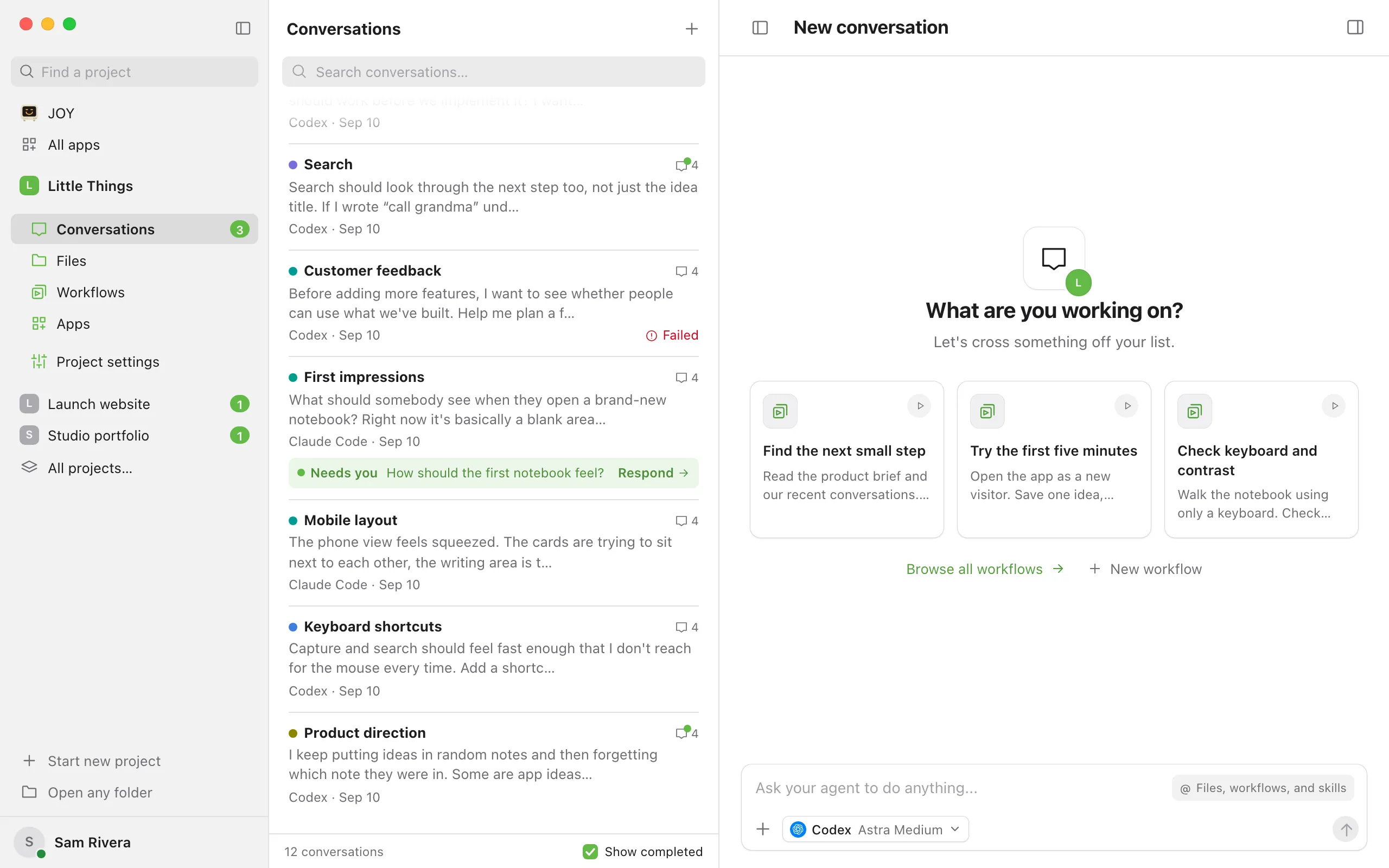
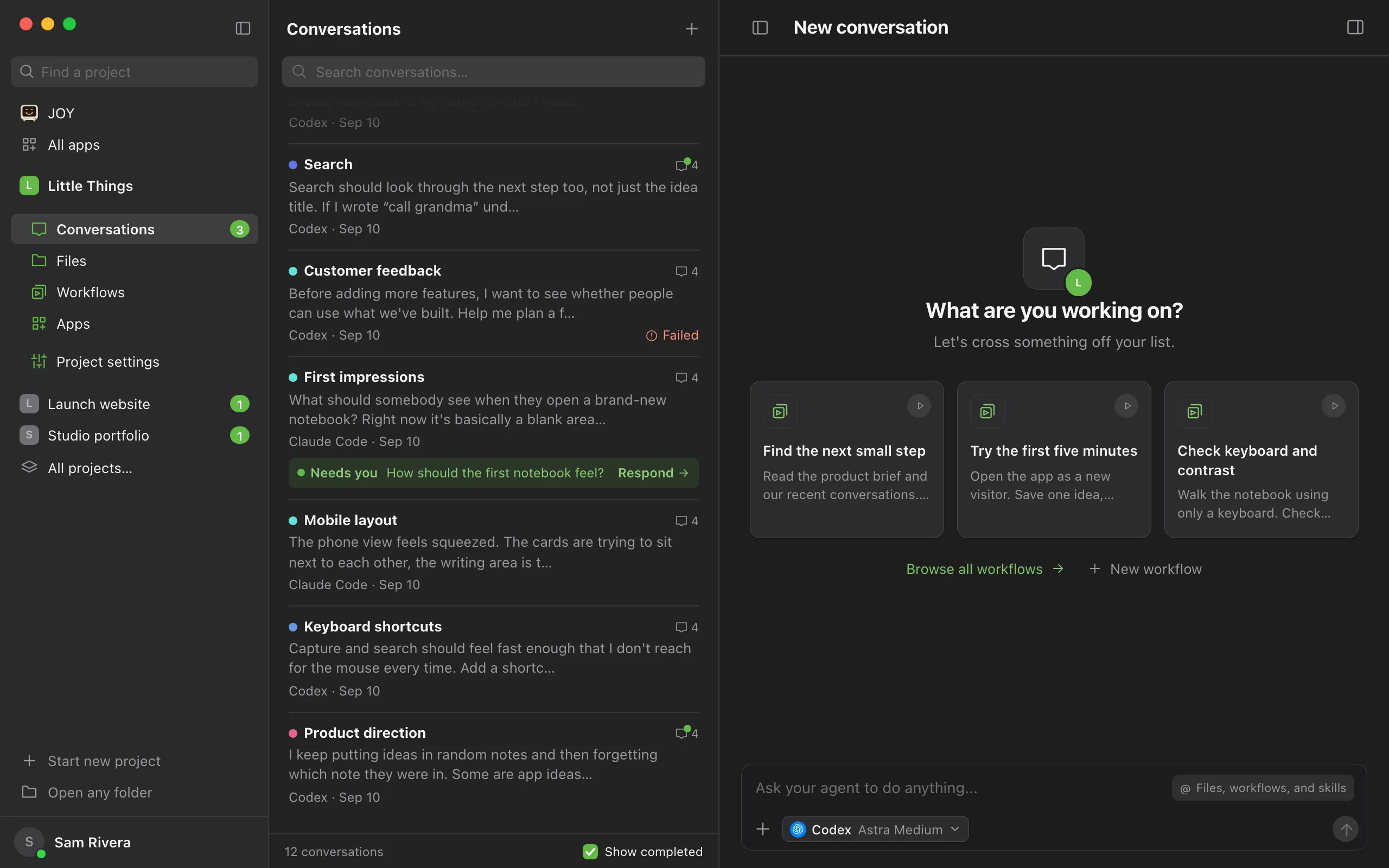
In the conversation list, a conversation waiting for you shows a Needs you box with the question. Select Respond to open it at the question. In Compact view, the row shows a Needs you badge instead, so select the conversation itself.
Read the question
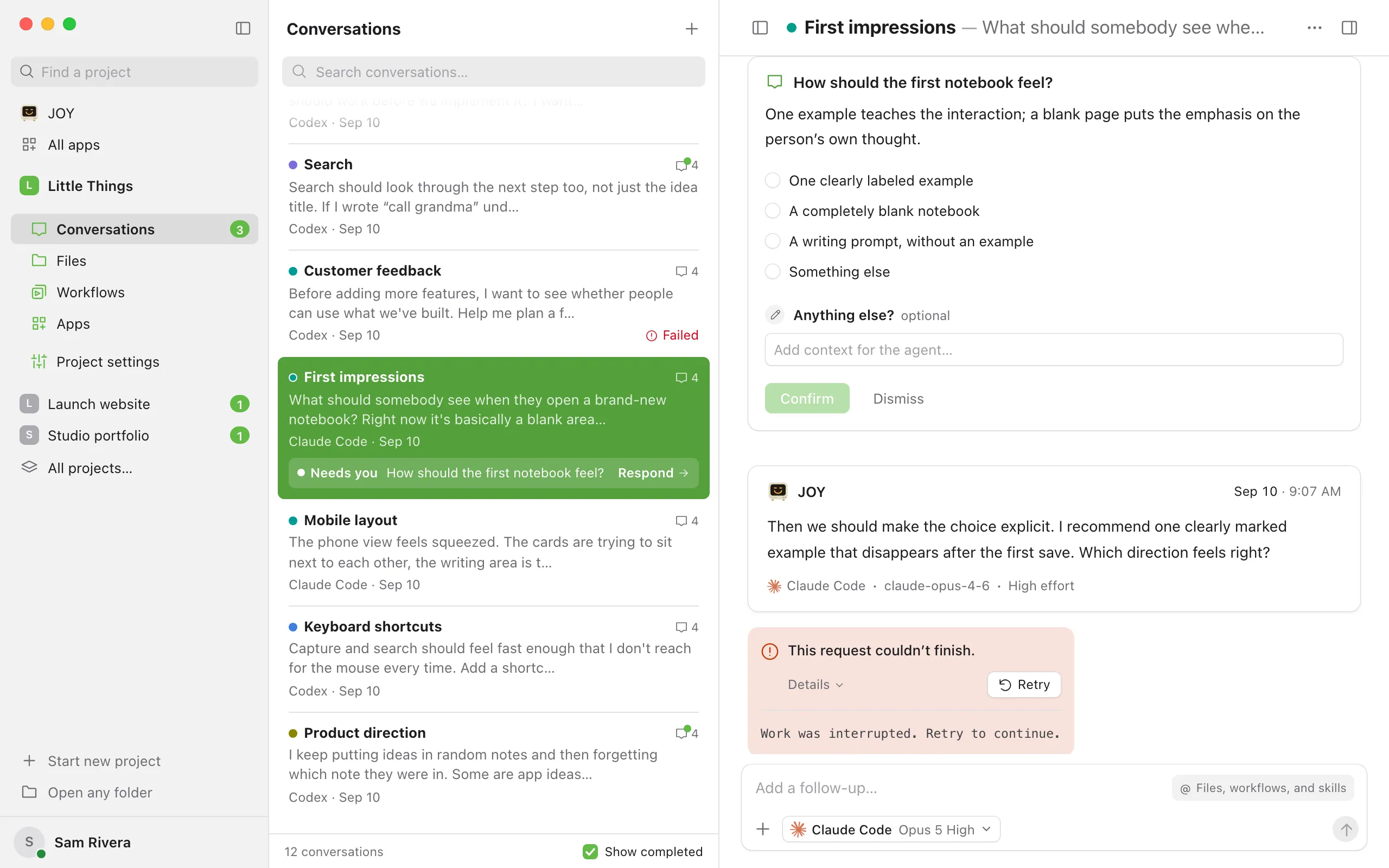
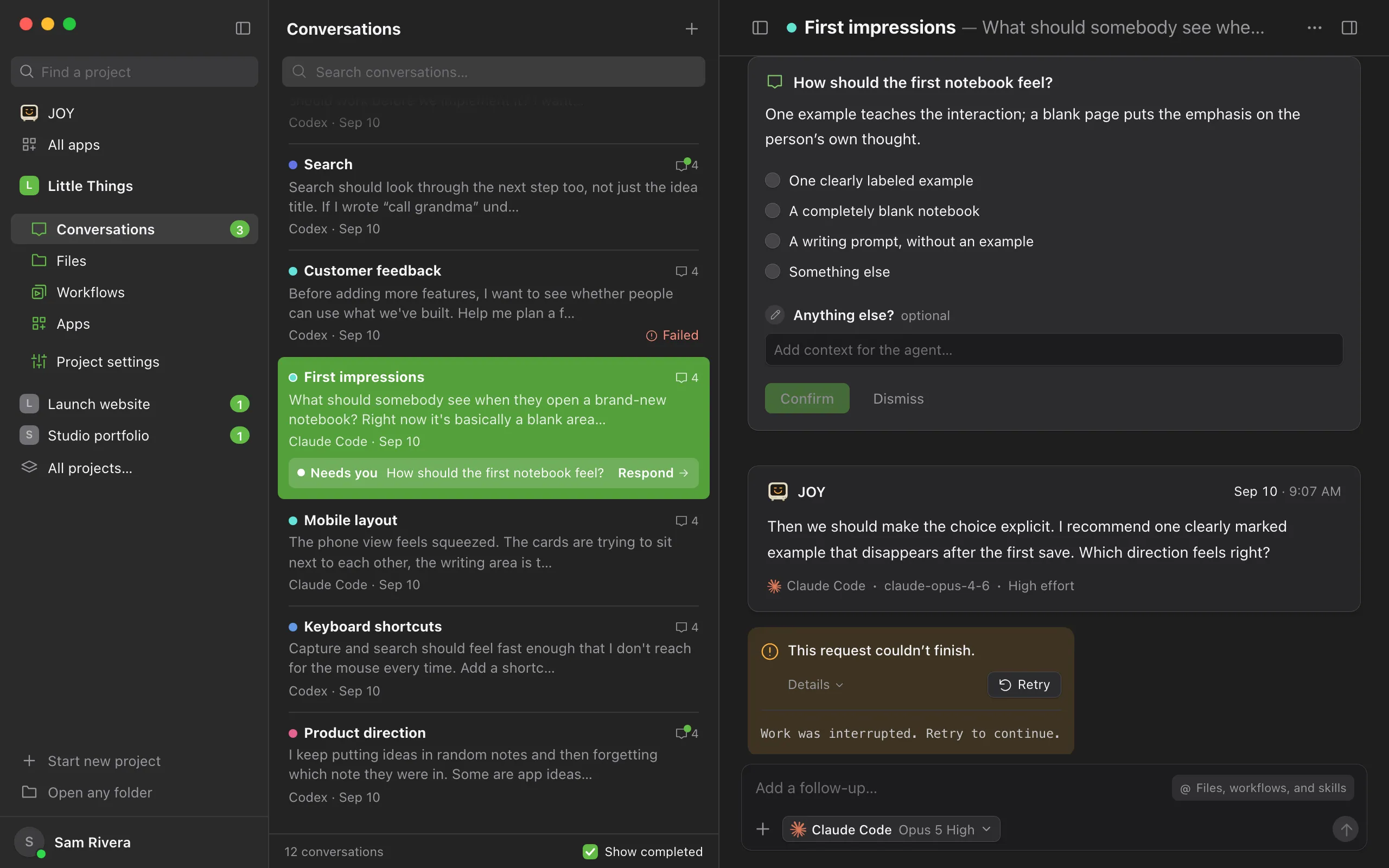
The card shows the agent’s question and any details it added.
Pick an option, and add a note if you like
Select one of the options. To tell the agent more, type in Anything else? at the end of the card. If none of the options fits, select Something else and explain in the note, or just write the note without picking an option. When the agent didn’t offer options, type your answer in Your answer.
Send your answer
Select Confirm, or Send answer once you’ve written a note. You can also press Enter in the note. Press Shift+Enter for a new line.
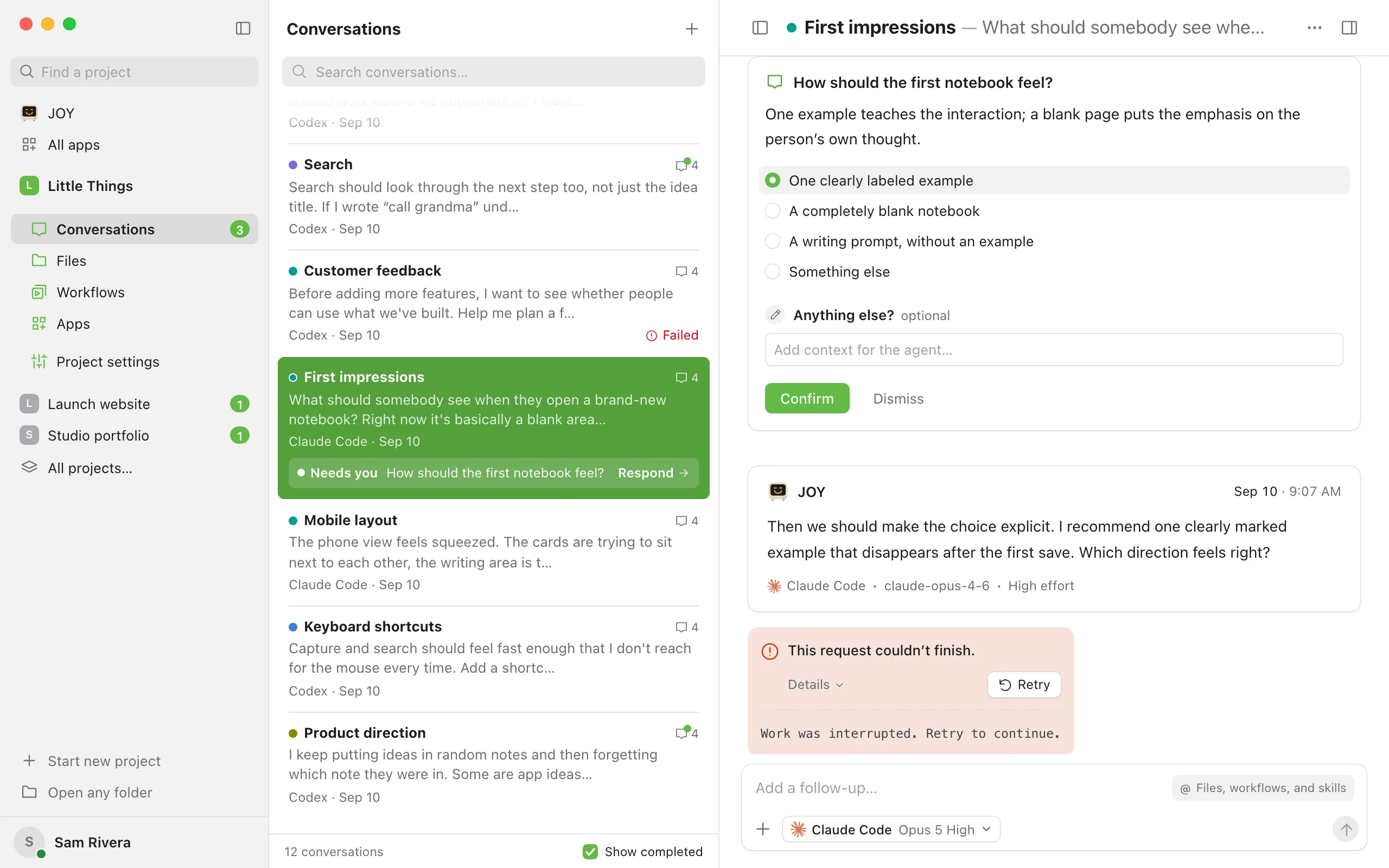
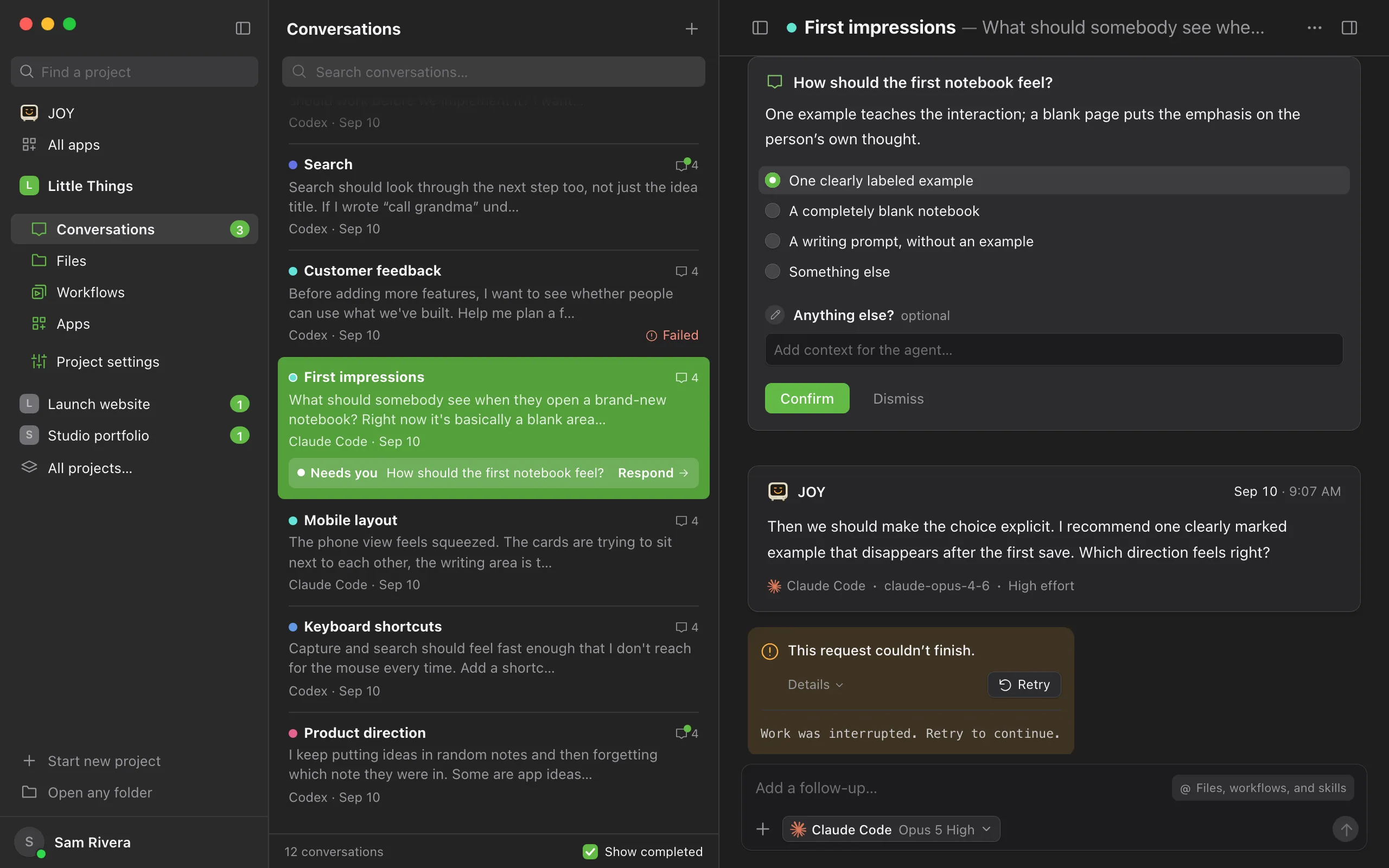
The agent receives your answer as your next message in the conversation and continues working.
Good to know
- The note is optional, and it goes with your answers in the same reply. It’s required only when you choose Something else. A note on its own also answers any question you leave without an option, so you can send just the note.
- When the agent asks several questions at once, they appear in one card titled Two things before I continue or A few things before I continue. Answer each one, then select Send 3 answers (the number matches the questions). There’s one note for the whole card, so you can add context that covers all of your answers. The button is available once every question has an answer or you’ve written a note, and the card shows how many you’ve answered.
- Your answer runs with the agent, model, and effort shown in the message box, like a typed reply.
- To close a question without answering, select Dismiss. Nothing is sent to the agent, and the conversation no longer needs you. In a card with several questions, Dismiss closes all of them.
- Dismissed a question by mistake? Expand its Dismissed row in the conversation and select Undismiss. The question (or the whole card, if it held several) opens again so you can answer it; nothing is sent to the agent until you do. A question you already answered can’t be reopened this way.
- If you send a new message instead of answering, the open question closes as dismissed.
- Queued follow-ups keep earlier questions open and can run while you decide. The conversation shows Working during that work and opens at its latest messages, with the earlier question still answerable where it was asked. Afterward it shows Needs input again if a question still needs your answer (Needs you on iPhone).
- After you answer, the card folds into a line such as 1 decision with Resolved, or 3 questions with Answered together. Select it to see what you chose and your note.
- In the computer app and the iPhone app, answers and notes you’ve started are saved, so you can switch conversations or quit and finish later. See How Enjoy keeps your unsent messages.
- Complete beside the conversation’s title, and the Mark as completed button above the message box, stay hidden while a question is waiting. Answer or dismiss it first. See Mark a conversation as completed.
- In the web app, select Review pending question at the top of the conversation to jump to the question, then Latest messages to go back.
- You can answer, dismiss, and undismiss questions in the iPhone app too. There, the answer button always says Send answer, and Undismiss appears on a dismissed question.
- Codex and Muse Code sometimes ask through their own question tool instead. Those cards offer only the listed choices and Confirm, without Something else, a note, or Dismiss. Answer on the computer that runs the project or on a personal device with Full access.
- To be told when an agent needs you, see Choose sounds and notifications.
If something goes wrong
The card asks you to approve on your desktop
That’s a permission request, or a question asked through Codex’s or Muse Code’s own question tool. Limited devices and team members answer these on the computer that runs the project. Personal devices with Full access can answer them remotely. See Approve or decline agent requests.
“This question no longer exists.”
The question was removed, for example because its conversation was deleted on another device. Open the conversation list to see what’s still there.