Fix a preview that won't load
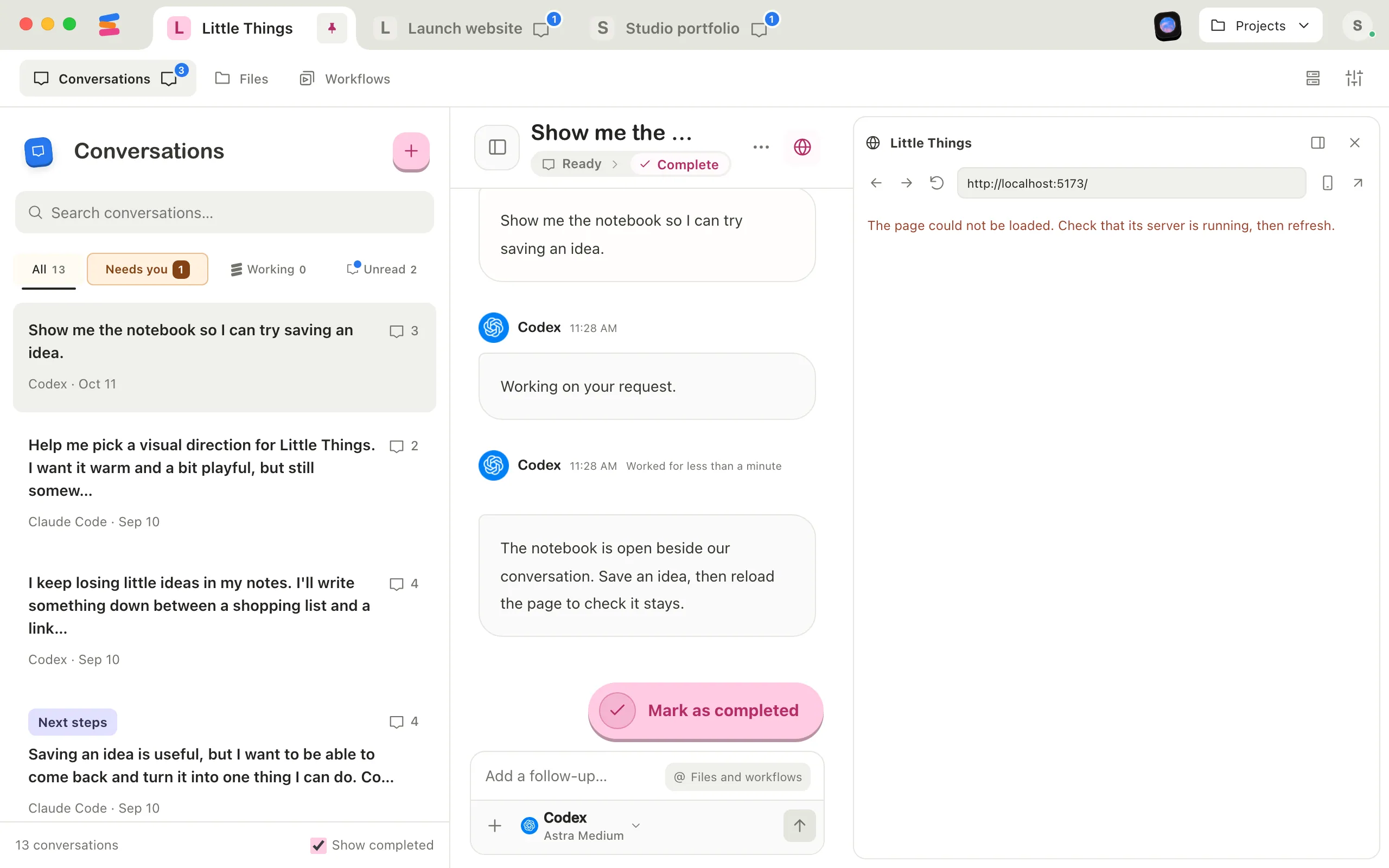
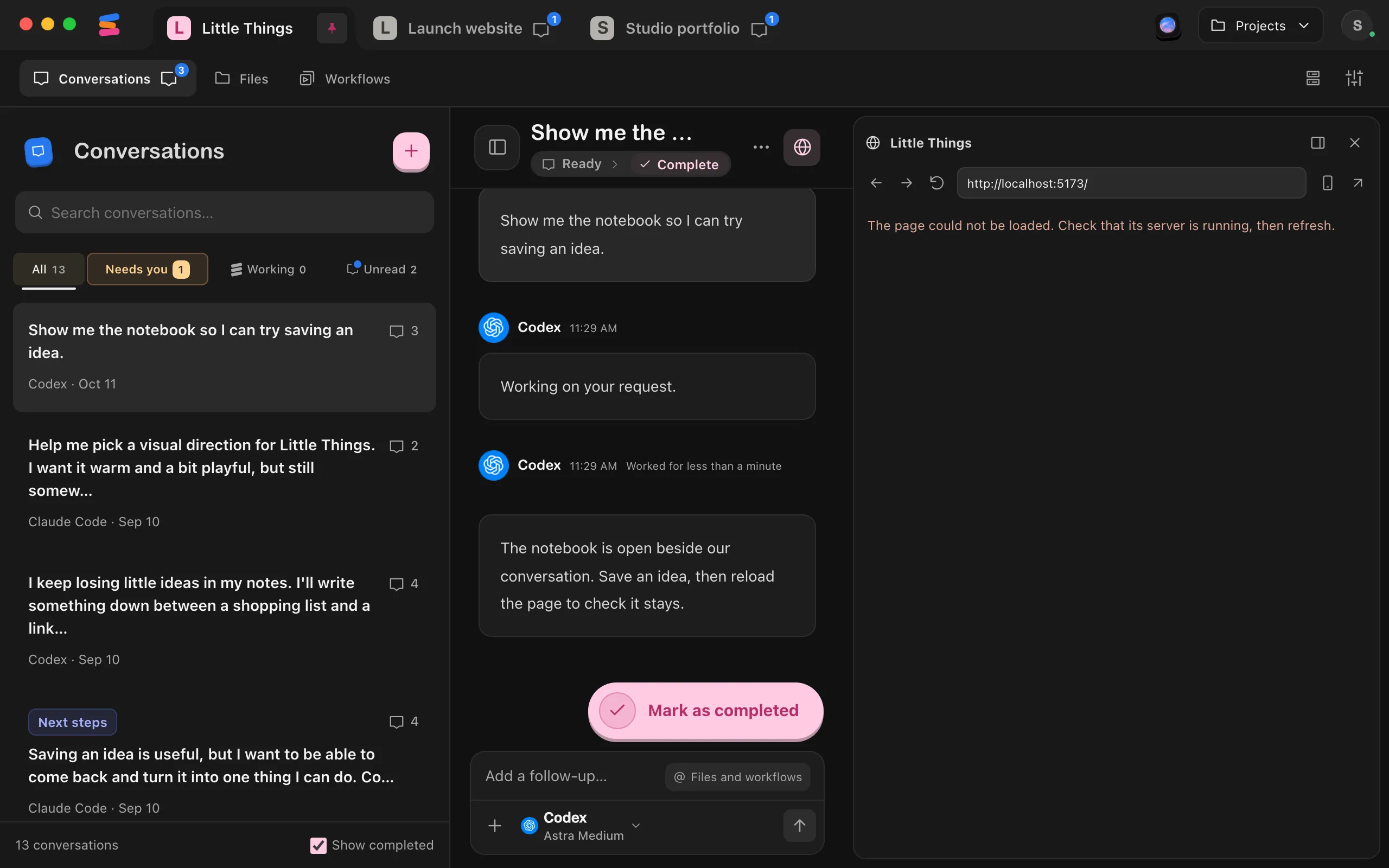
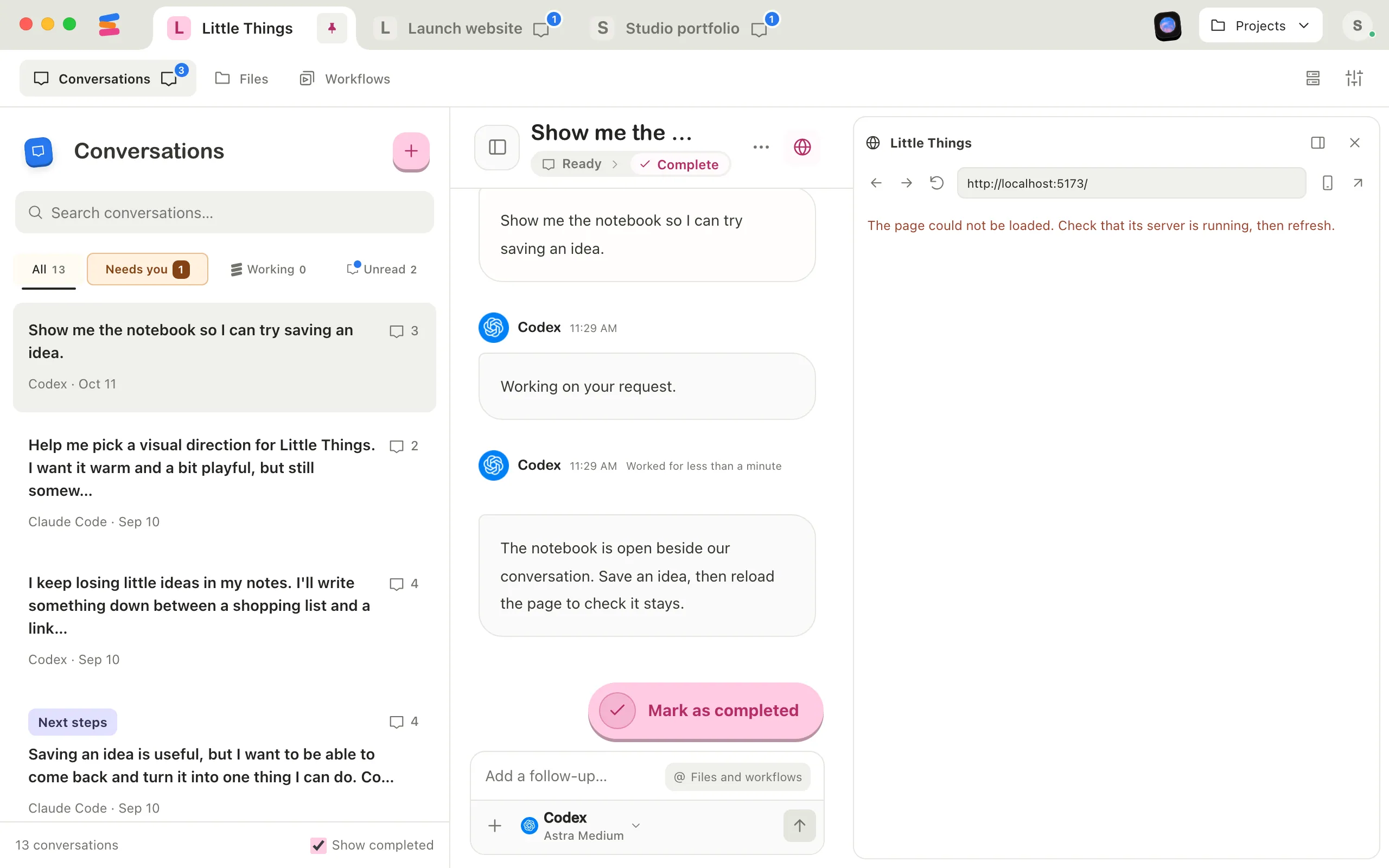
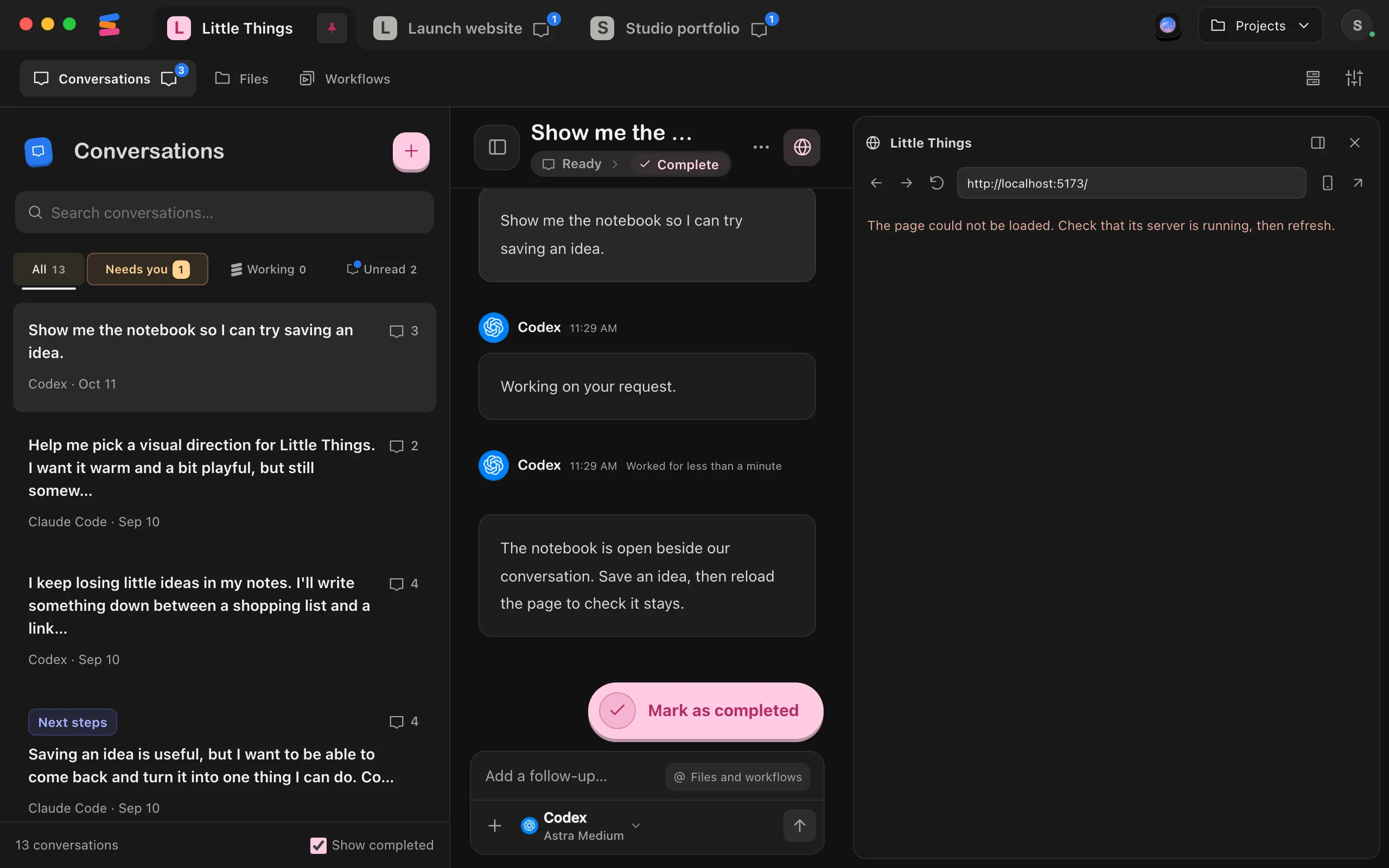
The preview shows a website that your agent started on your computer, such as the site you’re building. That website runs as a process on your computer. If the process stops, the preview has nothing to show.
Steps
Refresh the preview
Select the refresh button in the preview’s toolbar, labeled Refresh product. In the iPhone app, it’s Refresh.
Check that the site is running
Open Processes in your project and look for the site’s process. A running one says Running. See What’s in the Processes list.
Ask the agent to start it again
If the process stopped, ask in the conversation, for example: “Start the site again and show it to me.” When the agent opens the same preview again, Enjoy retries the page.
Open it in your own browser
Select Open in external browser in the preview’s toolbar to see whether the site loads outside Enjoy. In the web app, select Open product in a new tab. In the iPhone app, select Open in Safari.
Good to know
- On a Mac, Enjoy notices quickly when a page fails to load and says so instead of staying blank. On every system, a page that’s still loading after 30 seconds gets a message too.
- When the agent opens the same preview again, a page that’s already working isn’t reloaded, so you don’t lose your place.
- On your phone or in the web app, the preview comes from your computer, so the computer must be online with Enjoy open. See See your site from the web app or your iPhone.
- In a project inside WSL, the site runs in the Linux distribution. With WSL’s default networking, Windows opens it at
localhost, such as http://localhost:5173, and with mirrored networking too, unless its server listens only on[::1]. If its address says Linux only, see An address says Linux only below, and Work on a project inside WSL for how these projects work.
If something goes wrong
On your phone and in the web app, most of these messages start with your site’s name, shown here as [Site].
The page could not be loaded. Check that its server is running, then refresh.
The site’s server isn’t answering. Start it again through the agent, then refresh.
The page is taking too long to load. Check its server or refresh to try again.
The page didn’t finish loading within 30 seconds. Refresh, or ask the agent to restart the site.
[Site] isn’t running on your computer right now
The message names your computer. The website stopped on it. Ask the agent to start it, then select Try again.
[Site] isn’t ready yet
The preview has been getting ready for more than 90 seconds. Select Try again. If it keeps happening, check that the site is running on your computer.
Couldn’t open [site]
Enjoy couldn’t show the website through your computer. The message may give a reason. Select Try again, and check that your computer is online.
[Site] only opens on your computer
The site’s address isn’t one of your computer’s own addresses, such as localhost, so Enjoy can’t show it on other devices. Open it in the computer app instead.
Your computer is offline
The message names your computer, which is asleep, off, or not running Enjoy. Open Enjoy on it, then try again. See Fix a phone or browser that can’t reach your computer.
Update Enjoy on your computer to see [site] here
The computer’s copy of Enjoy is too old for remote previews. Update it. See Update Enjoy. In a web browser, when the computer can update from there, the message also offers Update and the computer’s name, and the preview opens once the computer is back. On someone else’s computer, the message asks you to have its owner update Enjoy.
Previews are busy right now. Try again in a little while.
Wait a little, then open the preview again. If Enjoy says Previews are paused for now., try again later.
An address says Linux only
This happens in a project inside WSL, in the computer app on Windows. Processes shows each address the site’s server listens at. One marked Linux only is a server in the distribution that Windows can’t reach, so it can’t open in the preview or your browser. Select the address to read why, and Help beside the reason to come back here:
- It listens on [address] in [distribution], and Windows can’t reach that address. Ask the agent to use 127.0.0.1 instead. The distribution uses WSL’s mirrored networking, which doesn’t let Windows reach a server that listens only at IPv6’s own address, which starts with
[::1]. Ask the agent, for example: “Restart the server on 127.0.0.1.” A server that listens on0.0.0.0or::opens from Windows too. - Windows can’t reach [address] in [distribution]. Check WSL’s networking settings. Enjoy found the server in the distribution, but Windows doesn’t reach it.
Enjoy is tested with WSL’s default networking, called NAT, in which Windows reaches servers in the distribution at localhost. Mirrored networking reaches them too, except one that listens only on [::1]. With localhostForwarding=false, Windows can’t reach any server in the distribution. Try these, then ask the agent to start the server again:
- Free the port on Windows. If a program on Windows uses the same port, such as another copy of the site, stop it, or ask the agent to use another port.
- Check your
.wslconfigfile. It’s in your Windows user folder: press Windows+R, typenotepad %UserProfile%\.wslconfig, and press Enter. A linelocalhostForwarding=falsestops Windows from reaching every Linux server, so delete it. If a line saysnetworkingMode=mirroredand the address still says Linux only after the agent starts the server on 127.0.0.1, delete that line to go back to the default networking. - Restart WSL. After changing the file, save it, run
wsl --shutdownin PowerShell, and select Try again on the distribution’s card in Enjoy.