Switch between projects
The quickest way to switch is a project tab at the top of the window: select it, or press ⌘1 through ⌘9 on a Mac, or Ctrl+1 through Ctrl+9 on Windows and Linux, to open the first to ninth tab. For projects without a tab, use the Projects menu.
Steps
Select Projects
It’s at the top of the window, after the project tabs. The menu, Your projects, lists pinned projects first, then the others, each in alphabetical order.
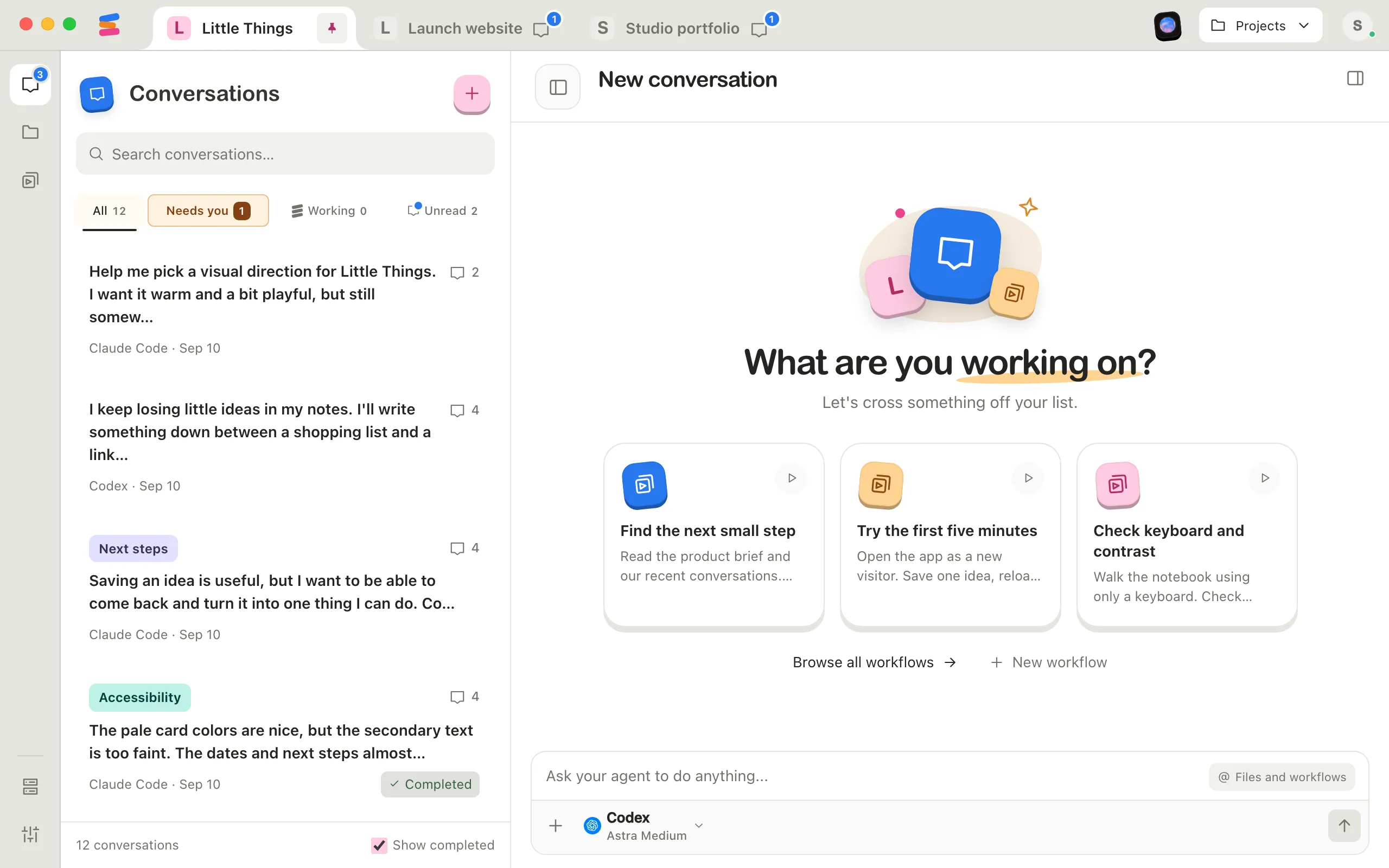
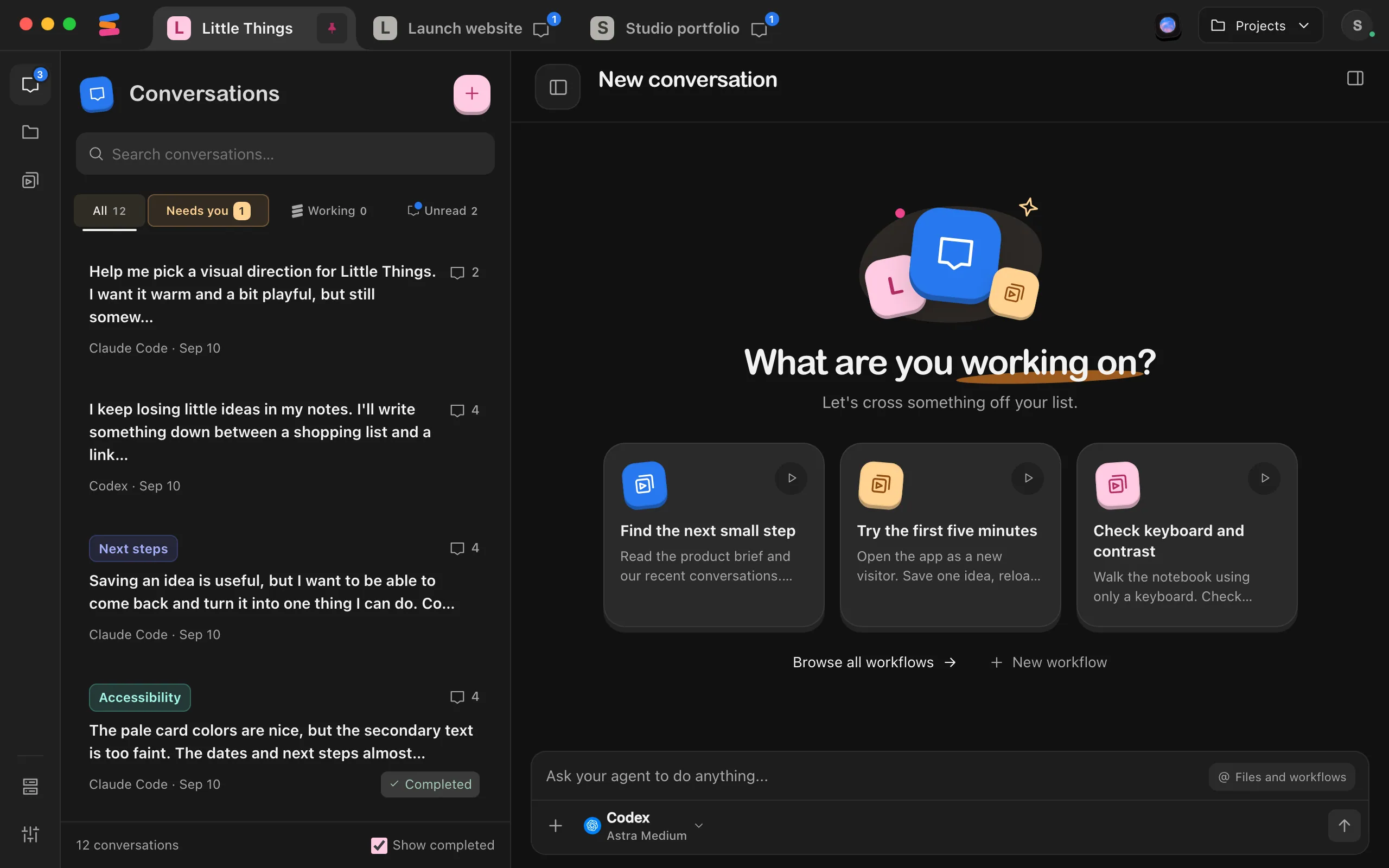
Type part of the project’s name
Type in Find a project… to narrow the list. It matches project names and folder paths.
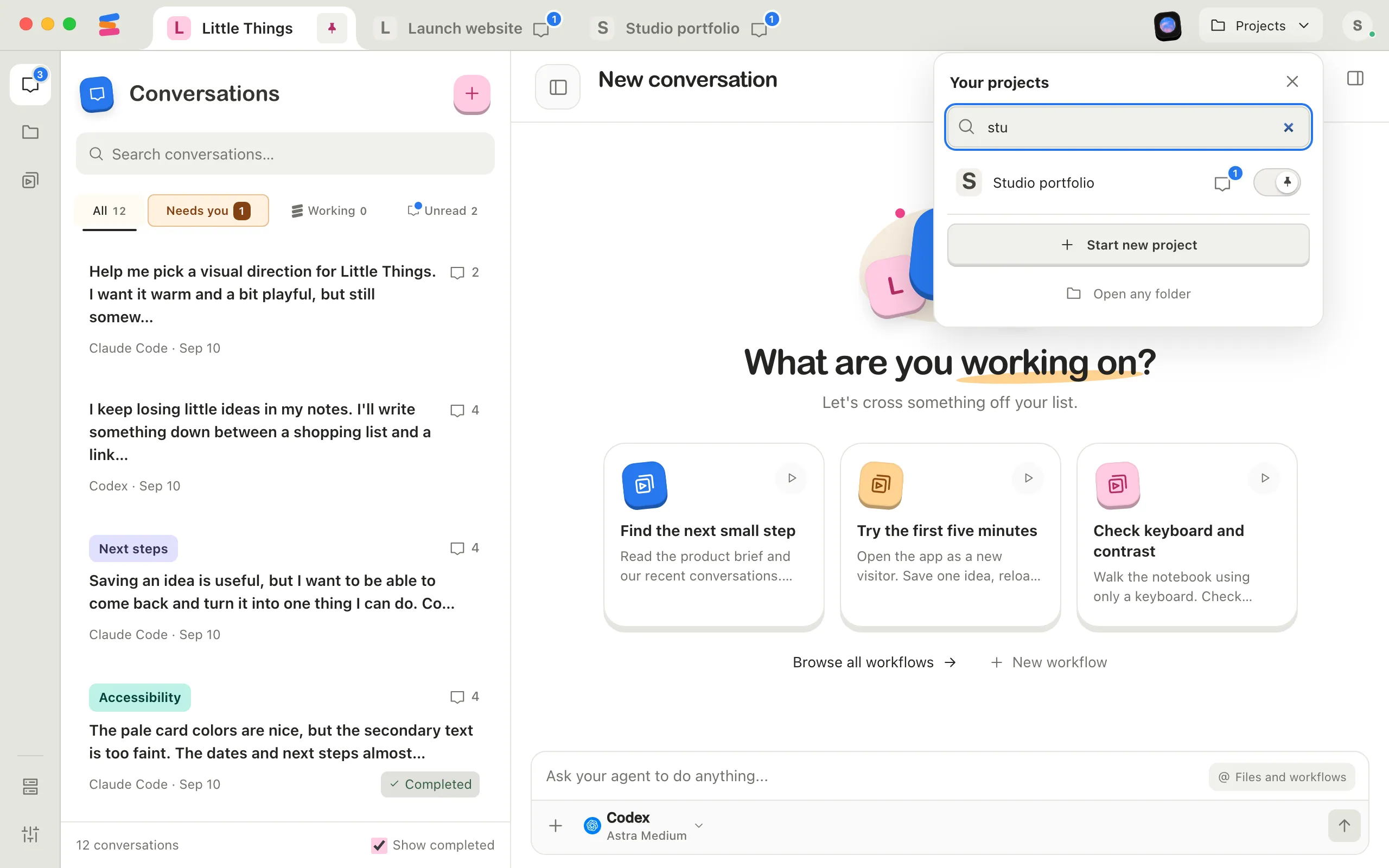
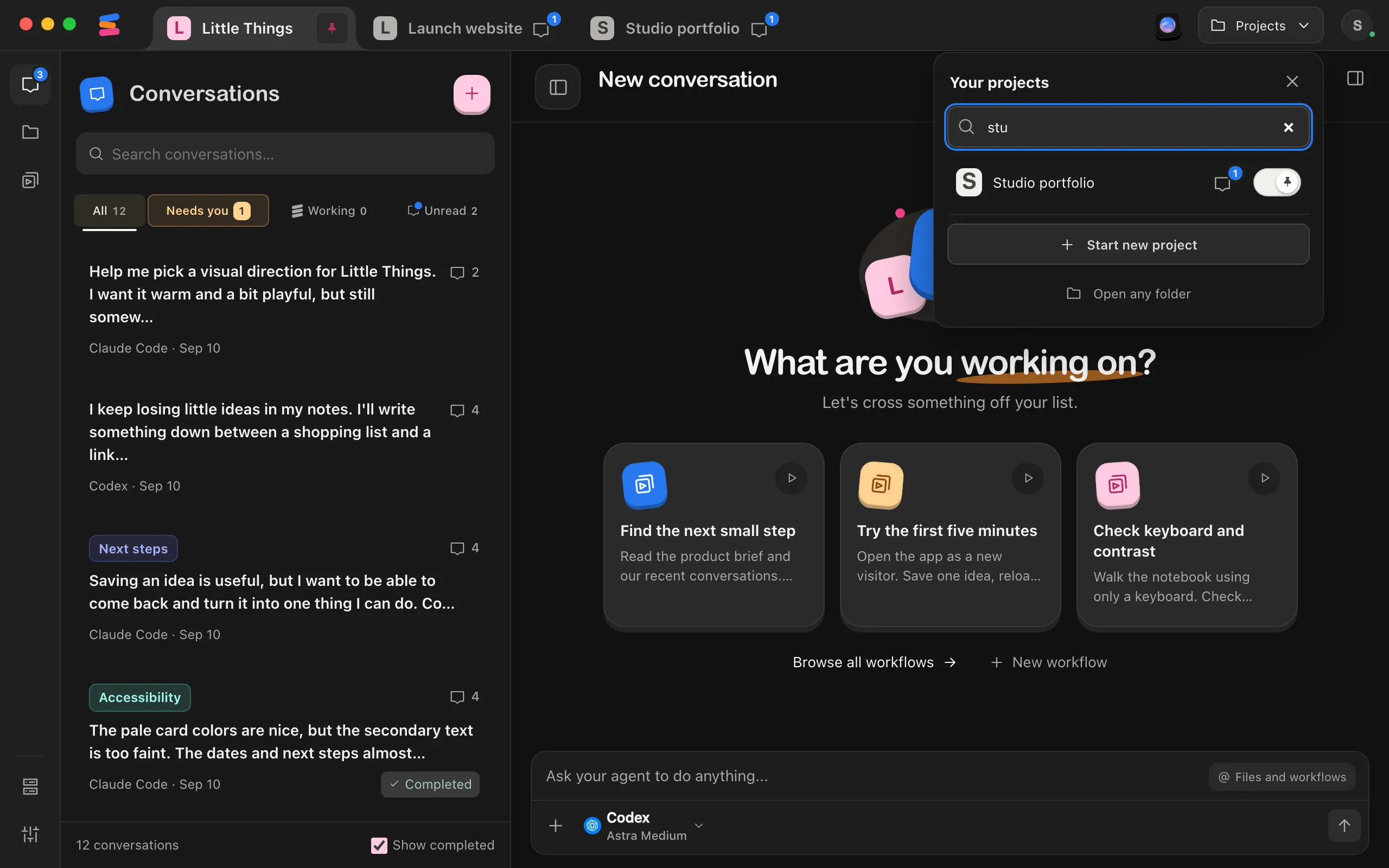
Select the project
Enjoy switches to it and shows the screen you last had open there.
Good to know
- Small colored bars with a number on a project mean that many agents are working there. A number in a colored capsule counts its unread conversations. On Projects, these numbers add up the projects that don’t have a tab.
- To give a project a permanent tab, pin it. See Pin projects as tabs.
- The current project’s tab doesn’t show working or unread numbers. Its sections and tools, from Conversations to Project settings, are in the rail on the left side of the window, and Conversations there shows its activity. On a phone, or in any narrow window, the sidebar floats over the page when you select Show sidebar at the top left. See A tour of the Enjoy window.
- Press ⌃1 to ⌃5 on a Mac, or Alt+1 to Alt+5 on Windows and Linux, to switch to Conversations, Files, Workflows, Apps, or Processes in the current project. ⌥⌘1 to ⌥⌘5, or Ctrl+Alt+1 to Ctrl+Alt+5, still work too.
- The numbered shortcuts don’t work while a menu or dialog is open.
- When you point to a project in the menu, buttons appear for its settings and, in the computer app, for removing it from Enjoy. The switch at the end of each row pins or unpins it. See Change a project’s name and settings and Remove a project from Enjoy.
- Apps, just before Projects, lists the apps of all your projects, and selecting one switches to its project. Apps you pin to the tab bar get tabs after your project tabs. See Open, pin, and stop an app.
- When Enjoy starts, it opens the project you used last.
- Enjoy reopens up to 30 projects when it starts, the ones you used most recently. If a project you haven’t used in a while is missing after a restart, open its folder again with Open any folder. Its conversations come back with it.
- In the web app, the tabs and the Projects menu show the projects on the computer you’re connected to. On a computer someone shared with you, the menu is titled Shared by and their name.
If something goes wrong
A project shows an alert icon and can’t be opened
Enjoy couldn’t open the project’s folder, for example because it was moved, renamed, or is on a drive that isn’t connected. Projects like this are listed at the bottom of the Projects menu, with their folder’s path. Point to one to see the reason. See Fix a project that’s unavailable.
“No matching projects.”
Nothing matches what you typed. Check the spelling, or clear the search box to see every project.