Import past Claude Code and Codex conversations
If you used Claude Code or Codex in a terminal, an editor, or their own apps before Enjoy, those conversations are saved on your computer. Enjoy can find the ones that belong to a project and add them to its conversation list.
The first time you open a folder in Enjoy, it checks for these conversations. If it finds any, it offers to import them right away, starting at step 2 below. Any other time, start from Project settings.
Before you start
- The project is open in Enjoy on the same computer where you used Claude Code or Codex. See Bring an existing project into Enjoy.
- It’s the exact folder the agent worked in. Conversations from a subfolder or another copy of the project don’t match.
Steps
Open Import conversations
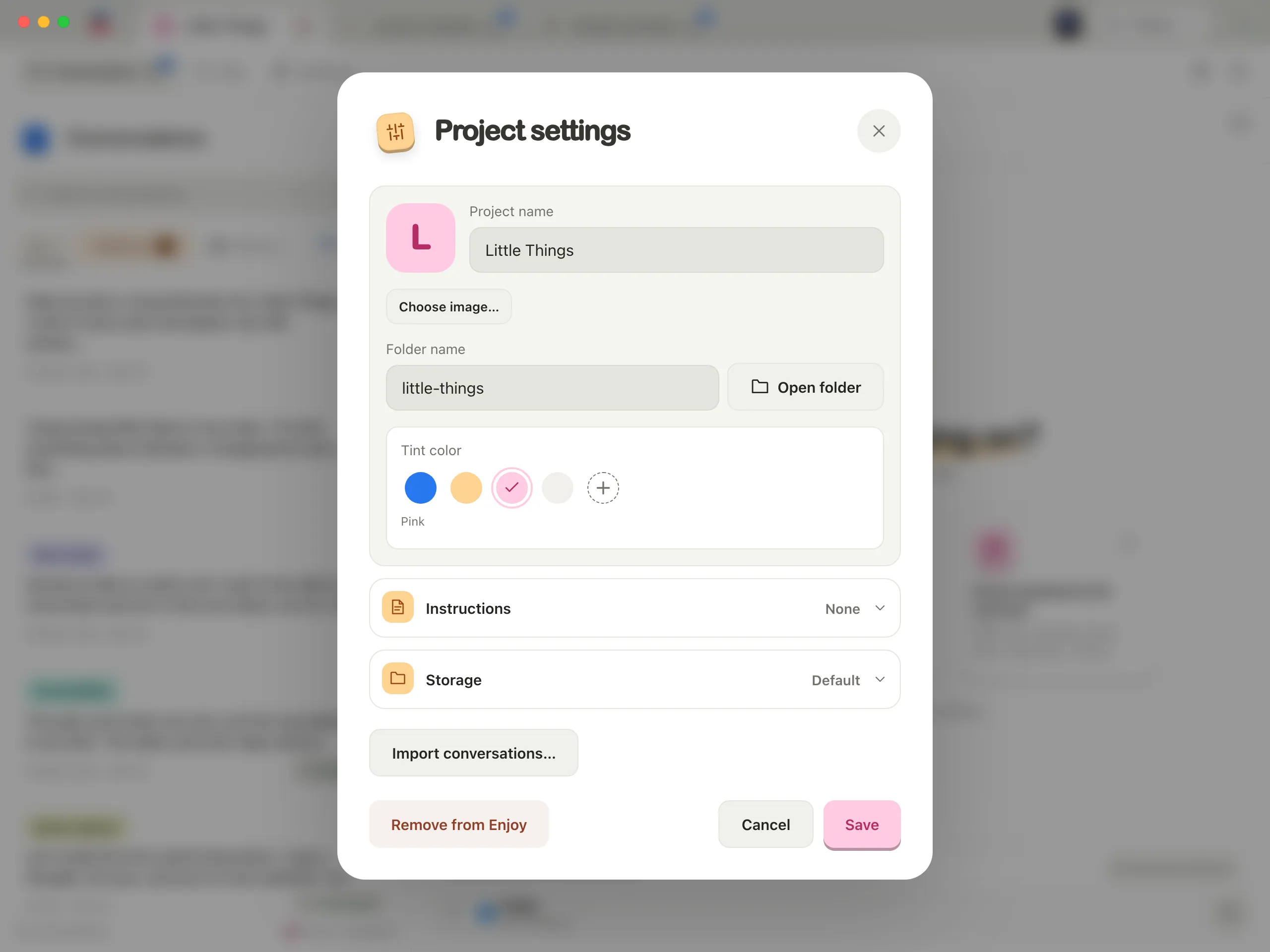
Select Project settings, then Import conversations… at the bottom. Enjoy shows Checking this project’s local conversations… while it looks.
Review what Enjoy found
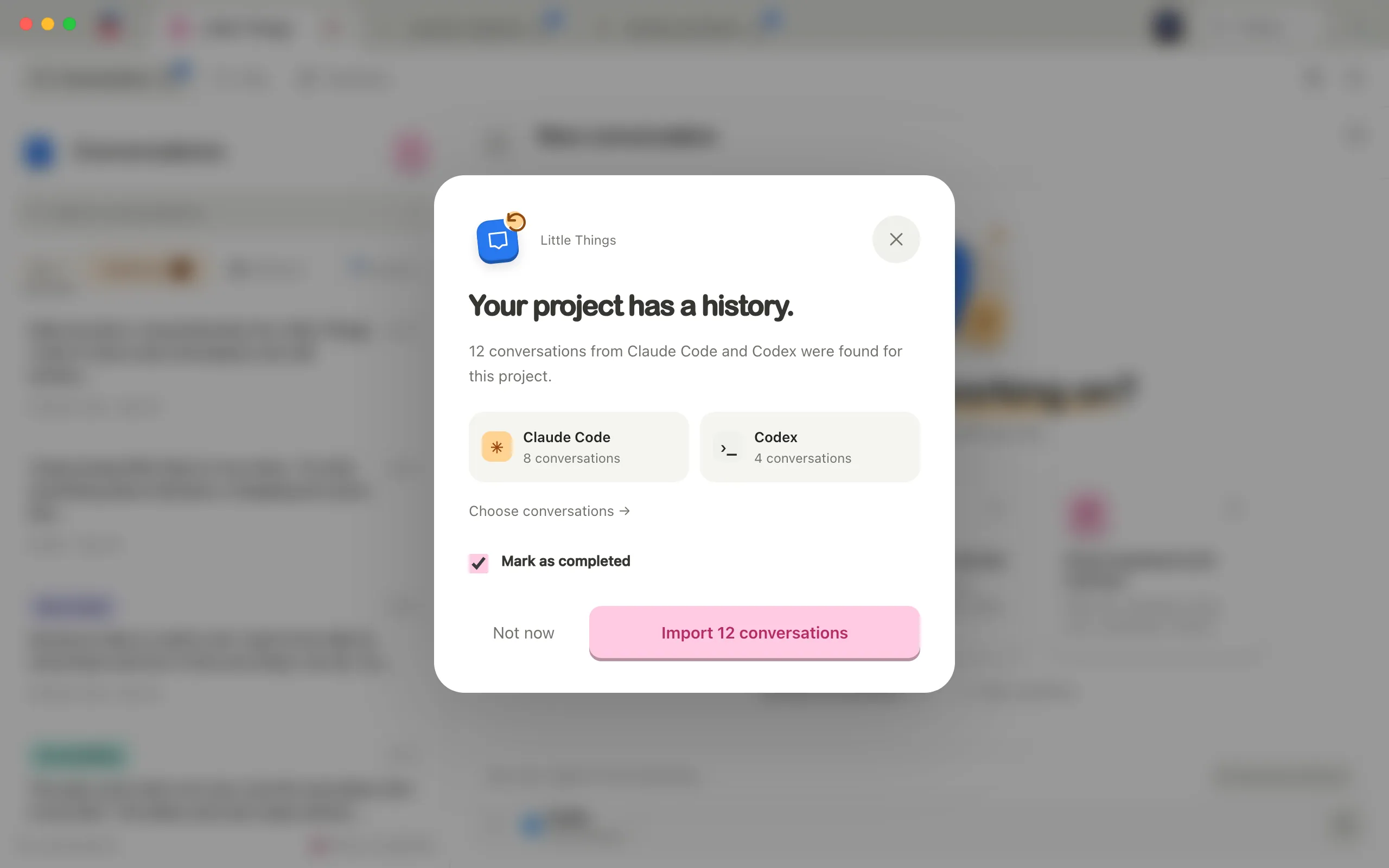
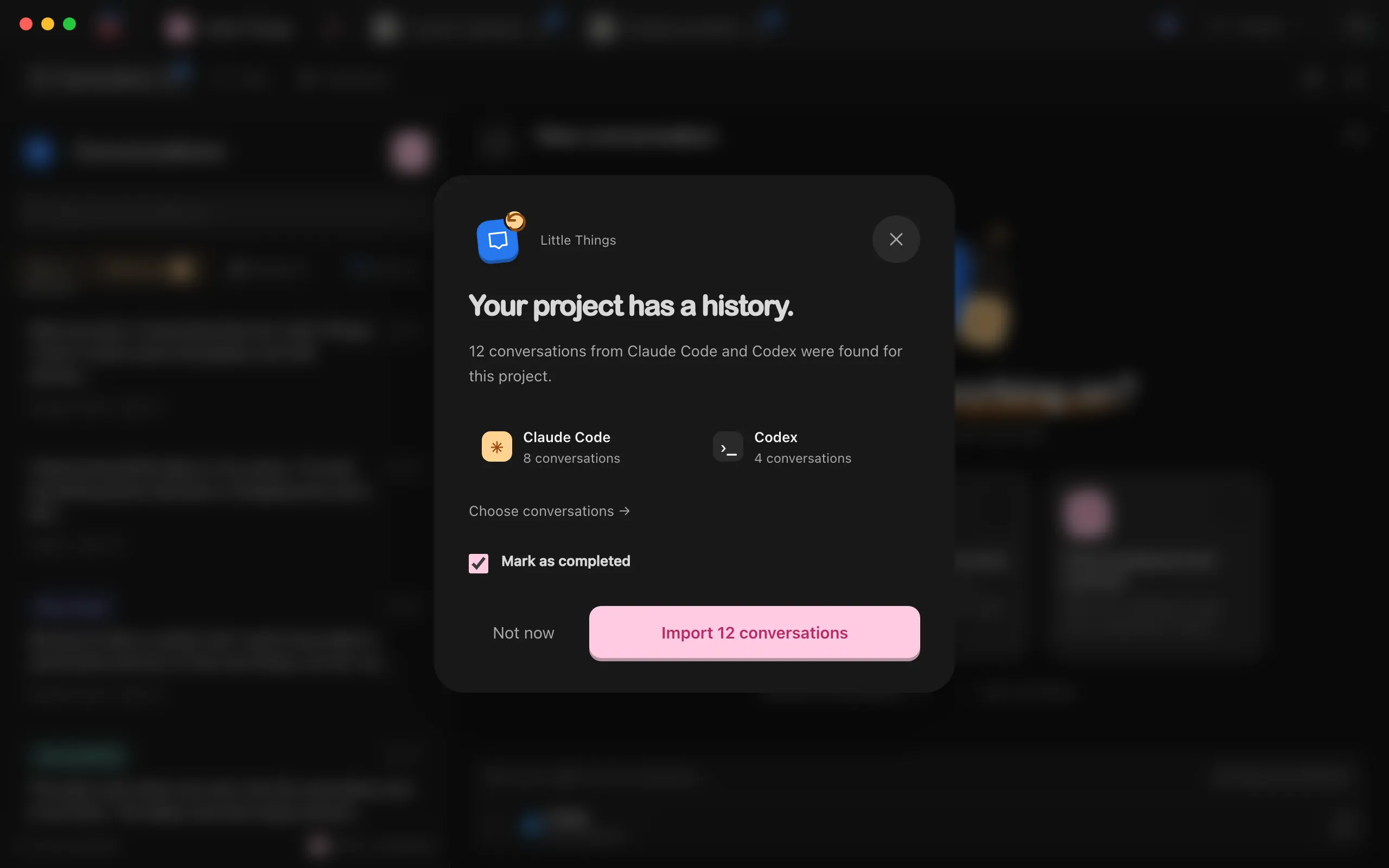
Your project has a history. shows how many conversations it found from Claude Code and Codex. To choose which ones to bring in, select Choose conversations → and check or uncheck them.
Select Import
The button names how many conversations it will import, such as Import 12 conversations. Leave Mark as completed checked to file them as completed, or uncheck it to add them to your open conversations.
Select Done
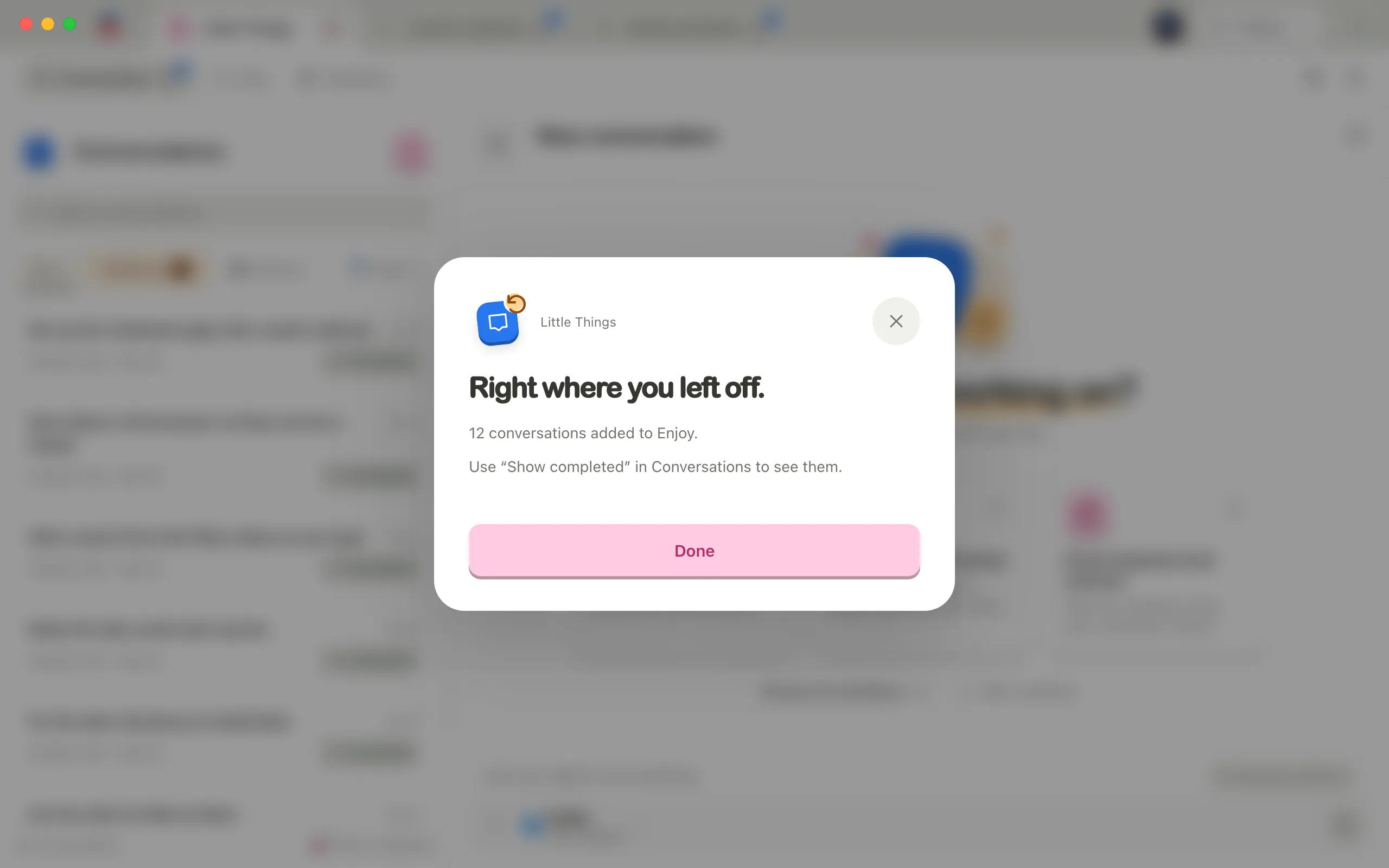
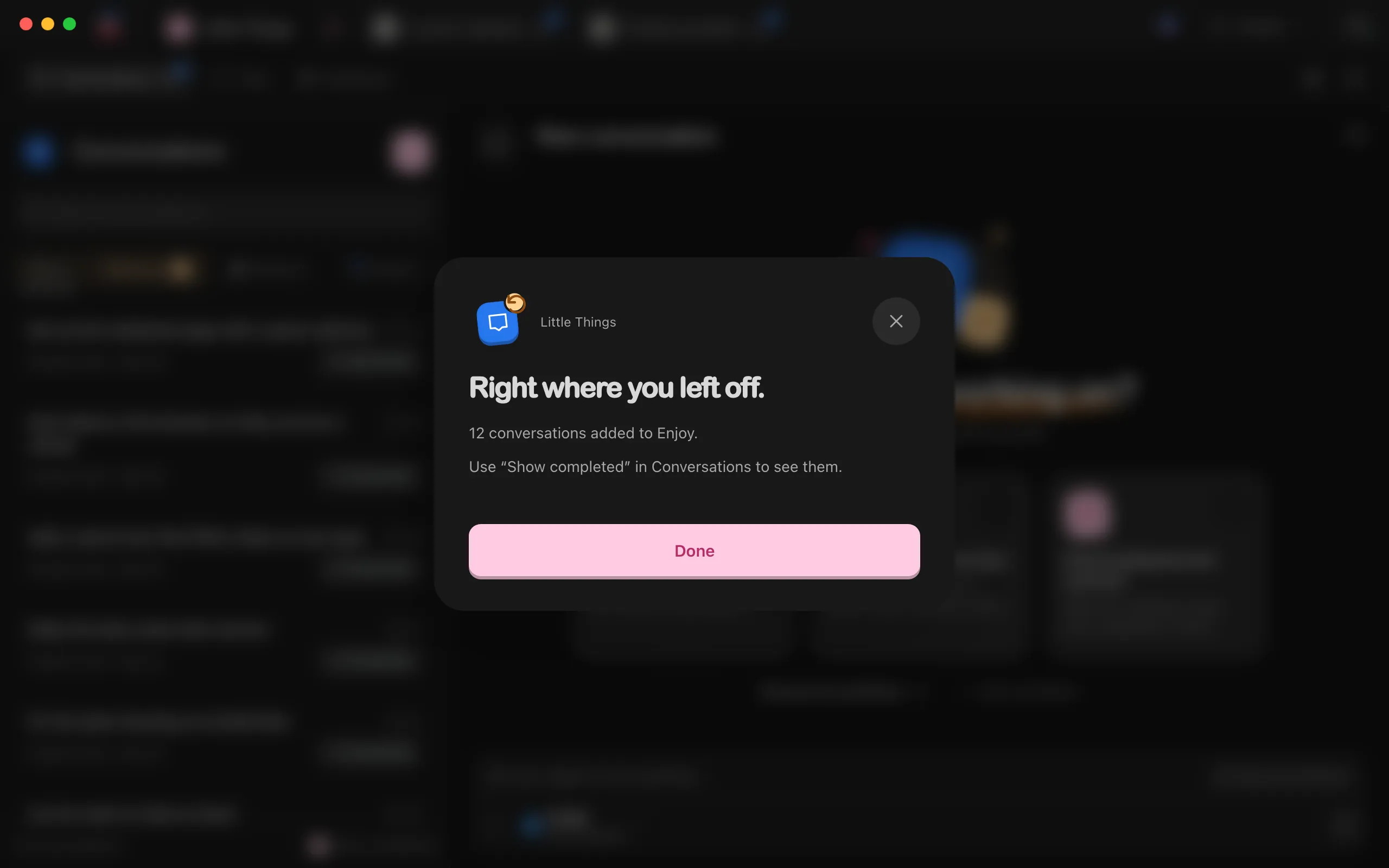
Right where you left off. confirms how many conversations were added.
Good to know
- Imported conversations marked as completed appear with your other completed conversations. If you’ve cleared Show completed at the bottom of the conversation list, select it again to see them.
- Enjoy offers to import only once per folder. If you select Not now, you can still import those conversations later from Project settings.
- Importing doesn’t run anything. Your agents don’t start working until you send a message.
- When you send a message in an imported conversation, the agent starts a new session in Enjoy and receives the earlier messages, so it can pick up where you left off.
- Enjoy imports the text of the messages. Images and attached files are replaced with a note such as [Image in the original conversation — not imported], and the agent’s tool activity isn’t imported.
- Enjoy reads the conversations without changing them. The originals stay where Claude Code and Codex saved them.
- Conversations already in Enjoy are skipped, including ones you started in Enjoy.
- You can import up to 1,000 conversations at a time. When there are more, the first 1,000 are selected. Run the import again for the rest.
- Claude Code deletes conversations from a terminal after 30 days unless you changed that setting, so older ones may not be found.
- For a project inside WSL, Enjoy also looks in the project’s Linux distribution, where Claude Code and Codex keep their conversations in
~/.claudeand~/.codex, or the foldersCLAUDE_CONFIG_DIRandCODEX_HOMEname in your terminal settings there. A conversation counts when it was recorded in the project’s Linux folder. If the distribution stops while Enjoy looks, the window says so, such as Ubuntu-22.04 stopped. See Work on a project inside WSL. - Importing is only in the computer app.
If something goes wrong
“No new conversations were found for this project.”
Check that you opened the exact folder Claude Code or Codex worked in. For Codex, conversations from a worktree only match after you hand them off to your project folder. The Claude Code and Codex import guides show how to find the right folder. After fixing it, select Check again.
“A few need another try.”
Some conversations couldn’t be imported. Each one lists its reason. Select Retry with the number of conversations to try them again, or Done for now to stop.
A conversation is too large to import
Very long conversations can be over Enjoy’s import limits. The message says so, and the original stays where it was.