Bring an existing project into Enjoy
Any folder on your computer can be a project, whether it’s an app you started with another tool, a website you downloaded, or a folder of documents. Opening it in Enjoy doesn’t move or change your files.
Before you start
- The project’s files are in a folder on this computer. If your project is on Lovable, Replit, or another service, download it first. The import guides show how for Lovable, Replit, Claude Code, and Codex.
Steps
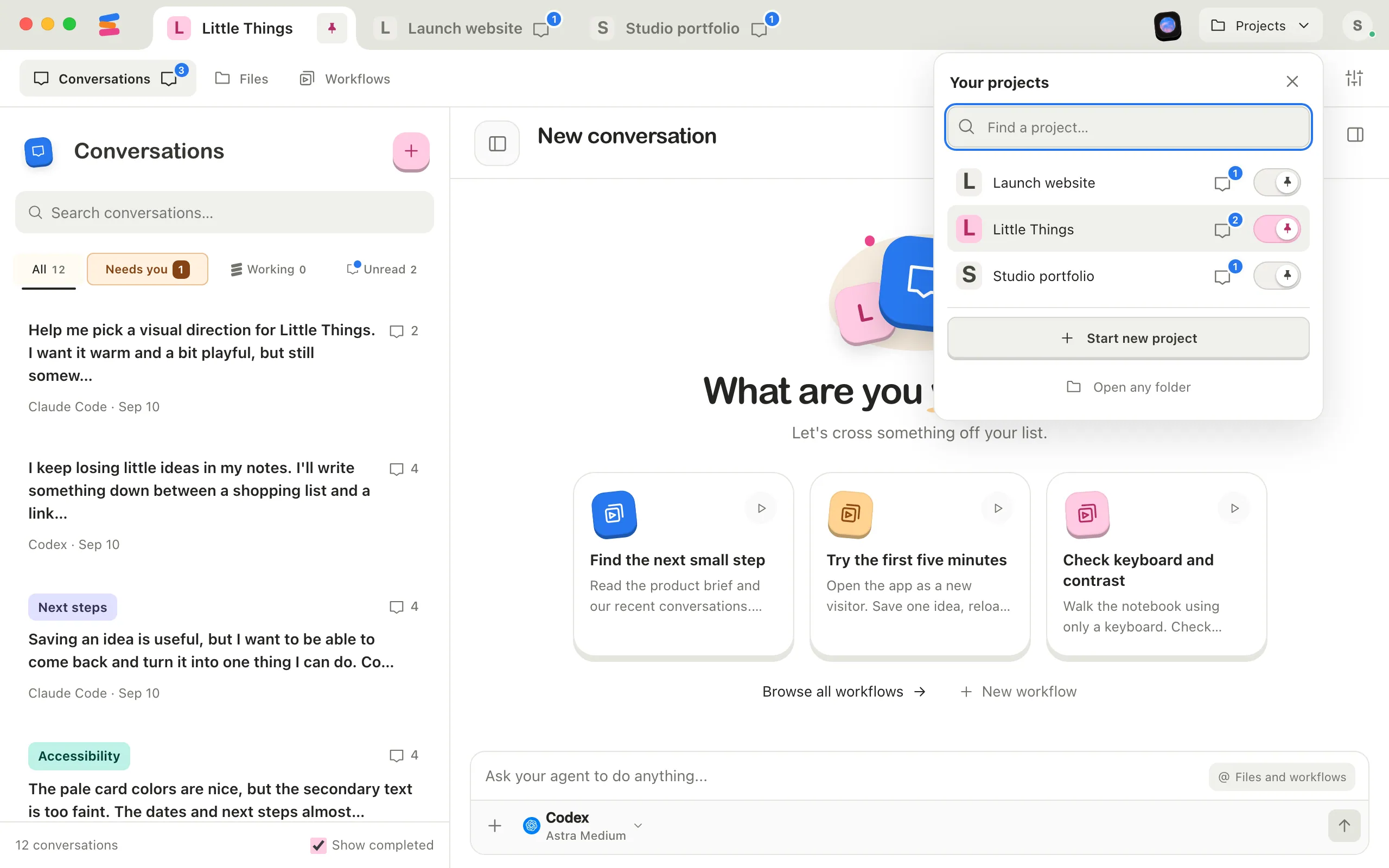
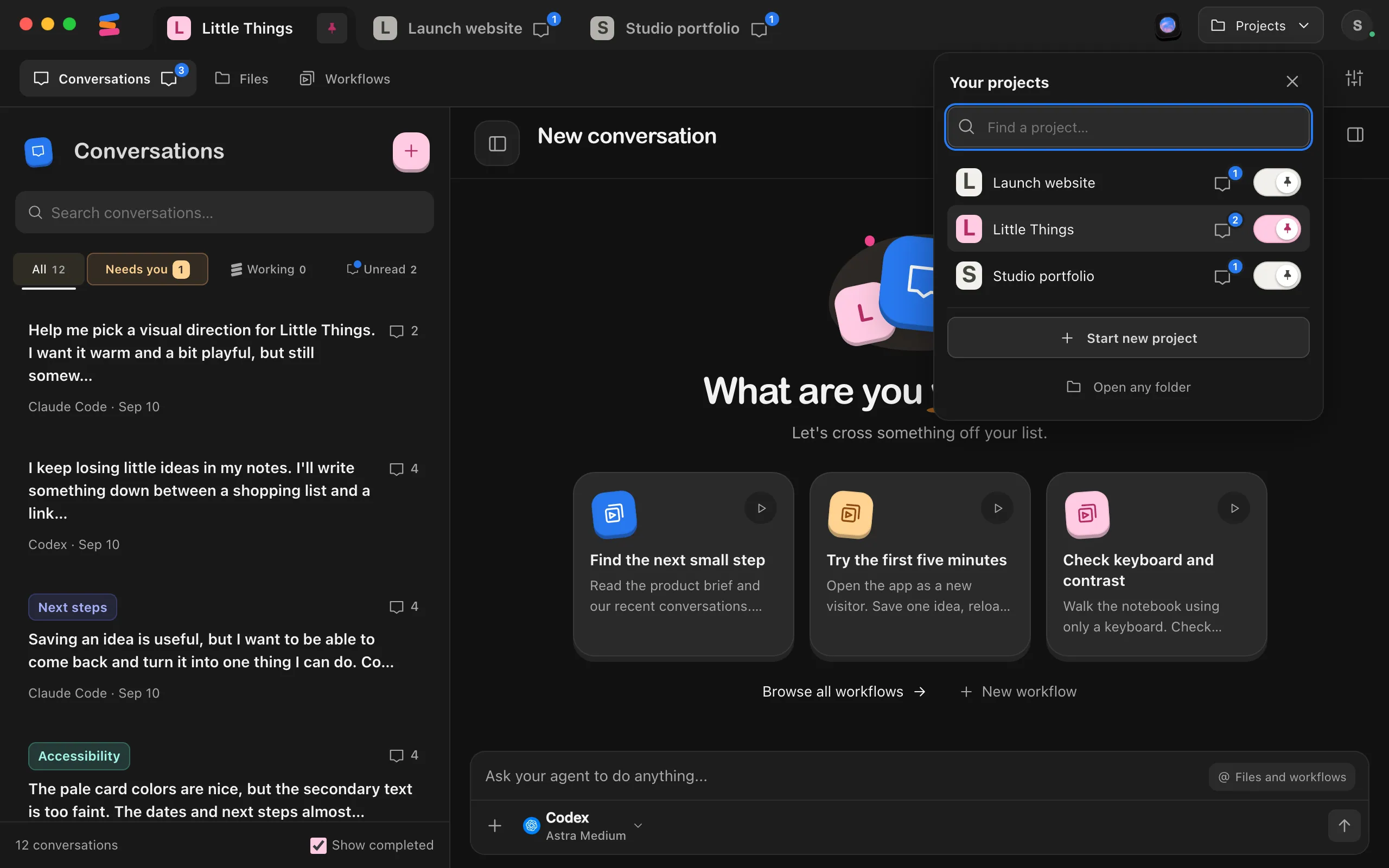
Select Open any folder
Select All projects… in the sidebar, then Open any folder at the bottom of the menu. It’s also at the bottom of the sidebar, and before you have any projects, right under All projects….
Choose the project’s folder
In the window that opens, select the folder that holds the whole project, and confirm. For a project you worked on with Claude Code or Codex, that’s the folder the agent worked in.
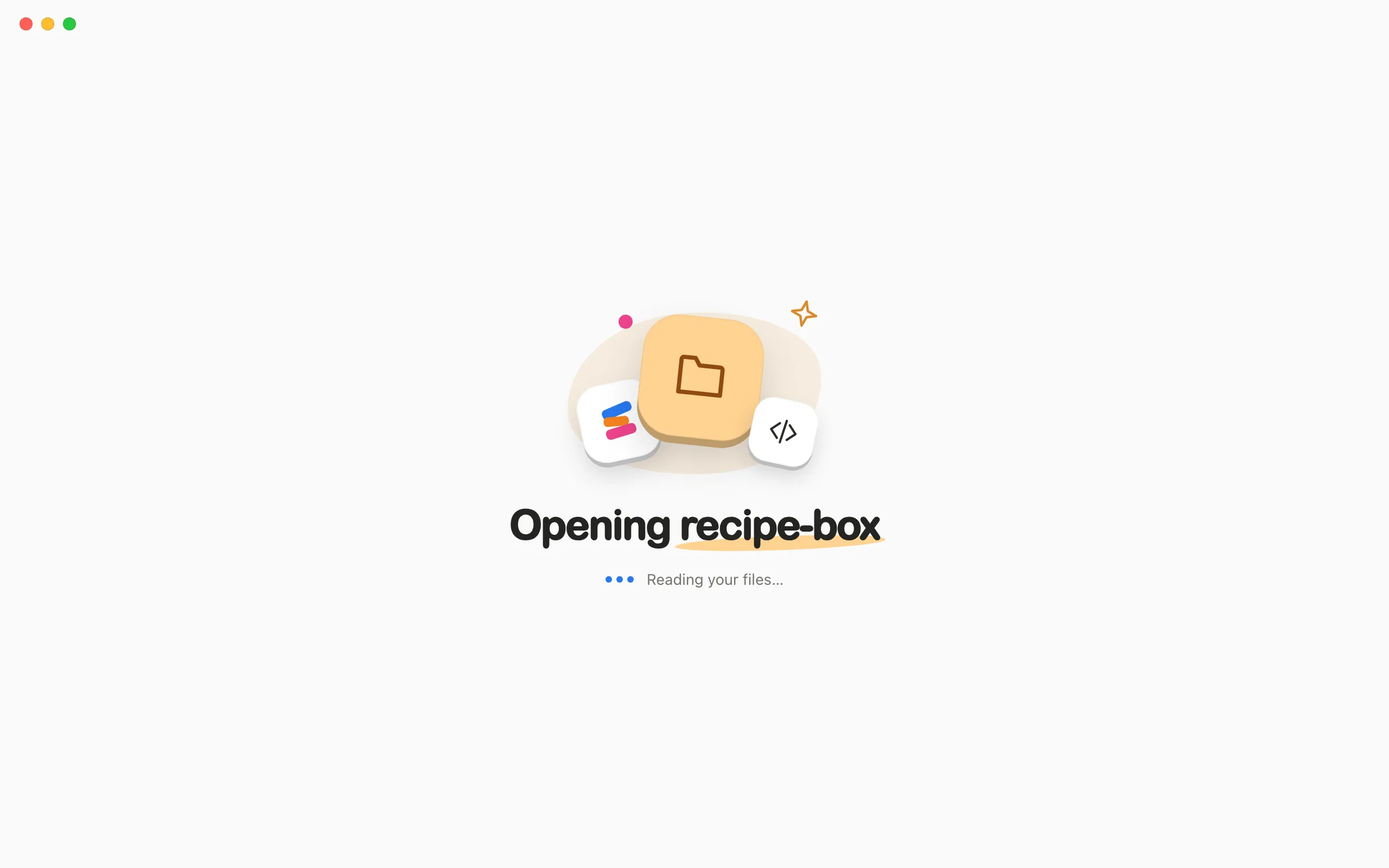
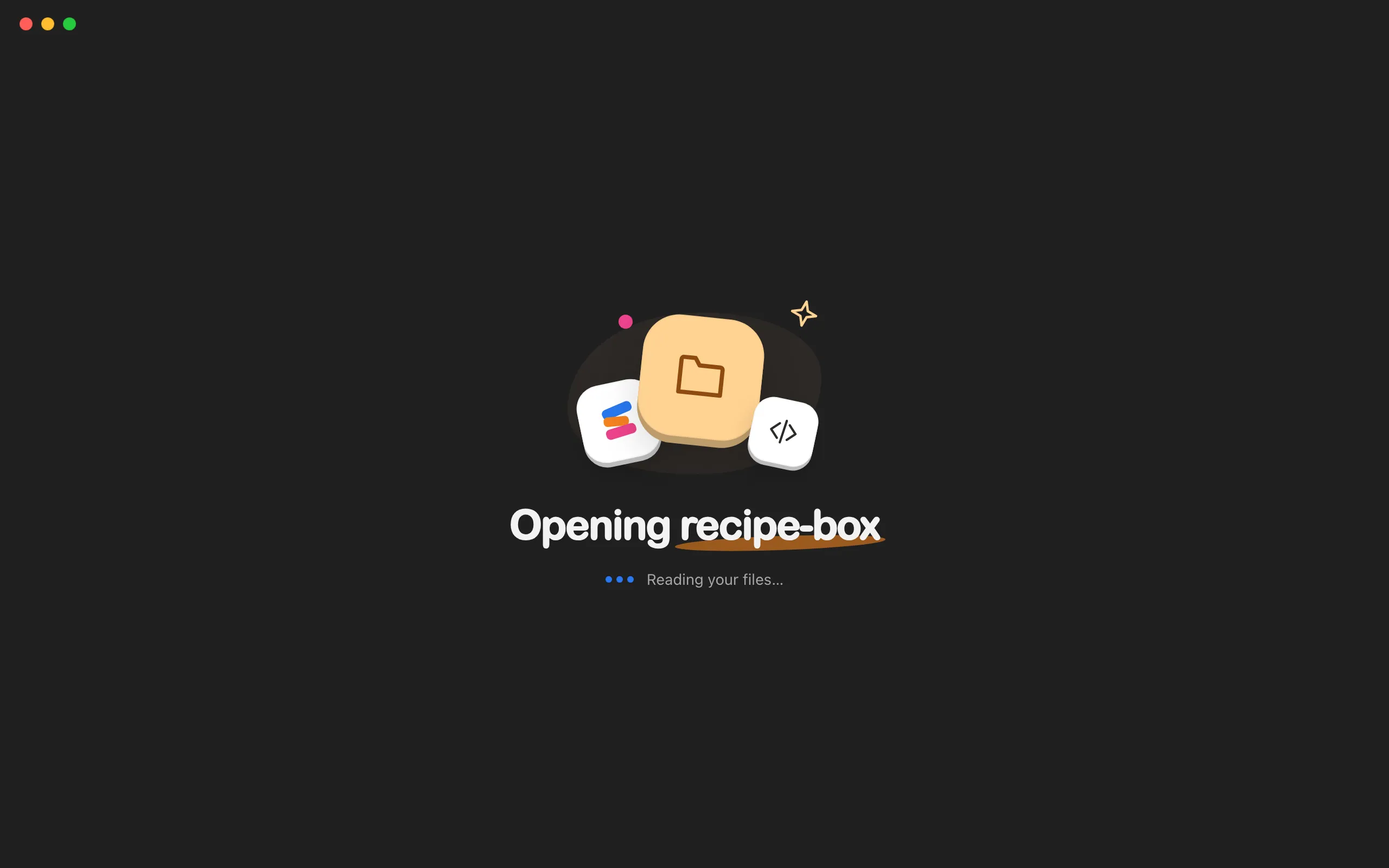
Wait while Enjoy reads it
Enjoy shows Opening with the folder’s name and Reading your files…. Large folders can take a little longer, and then it says Still opening….
Ask your agent to look around
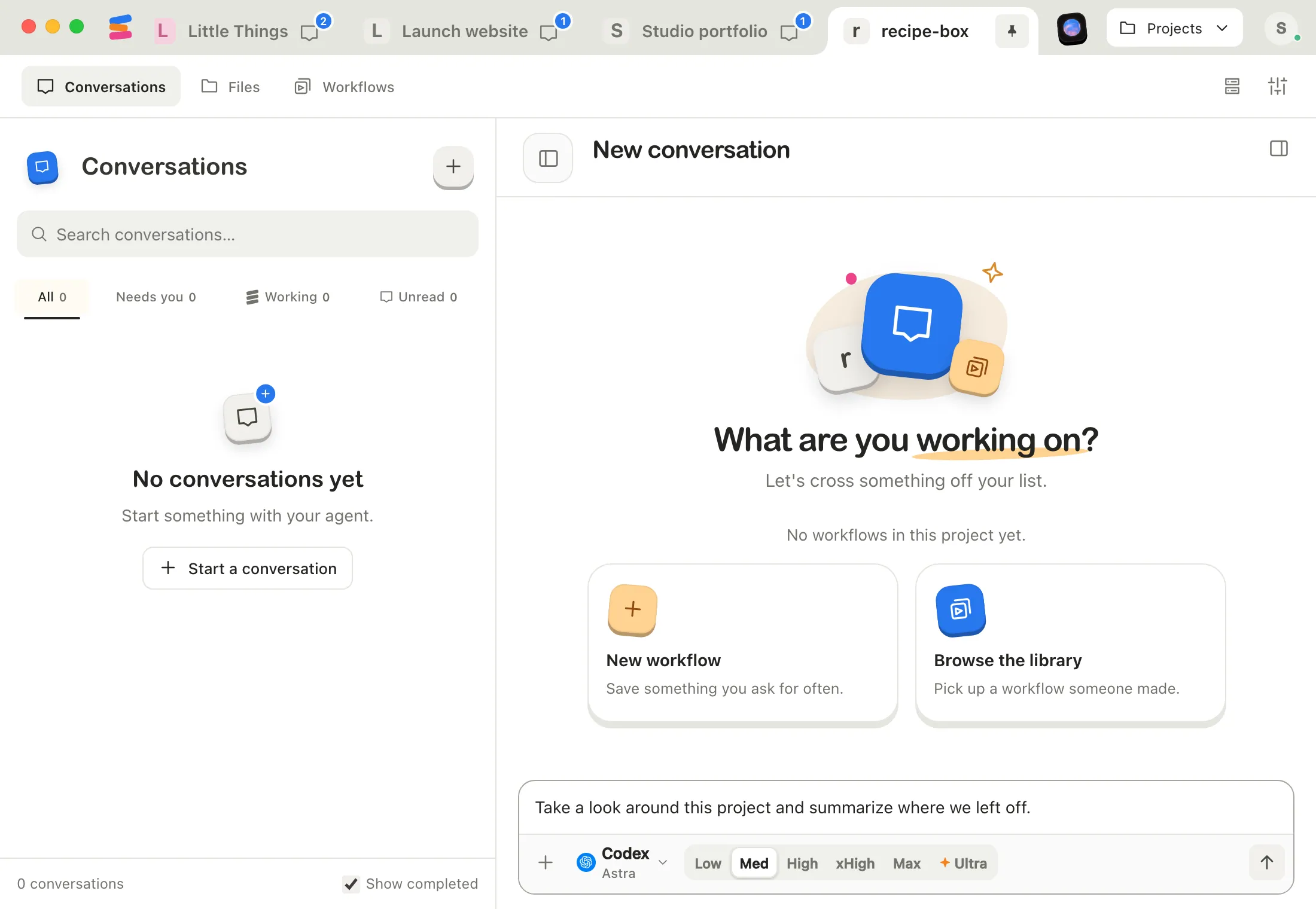
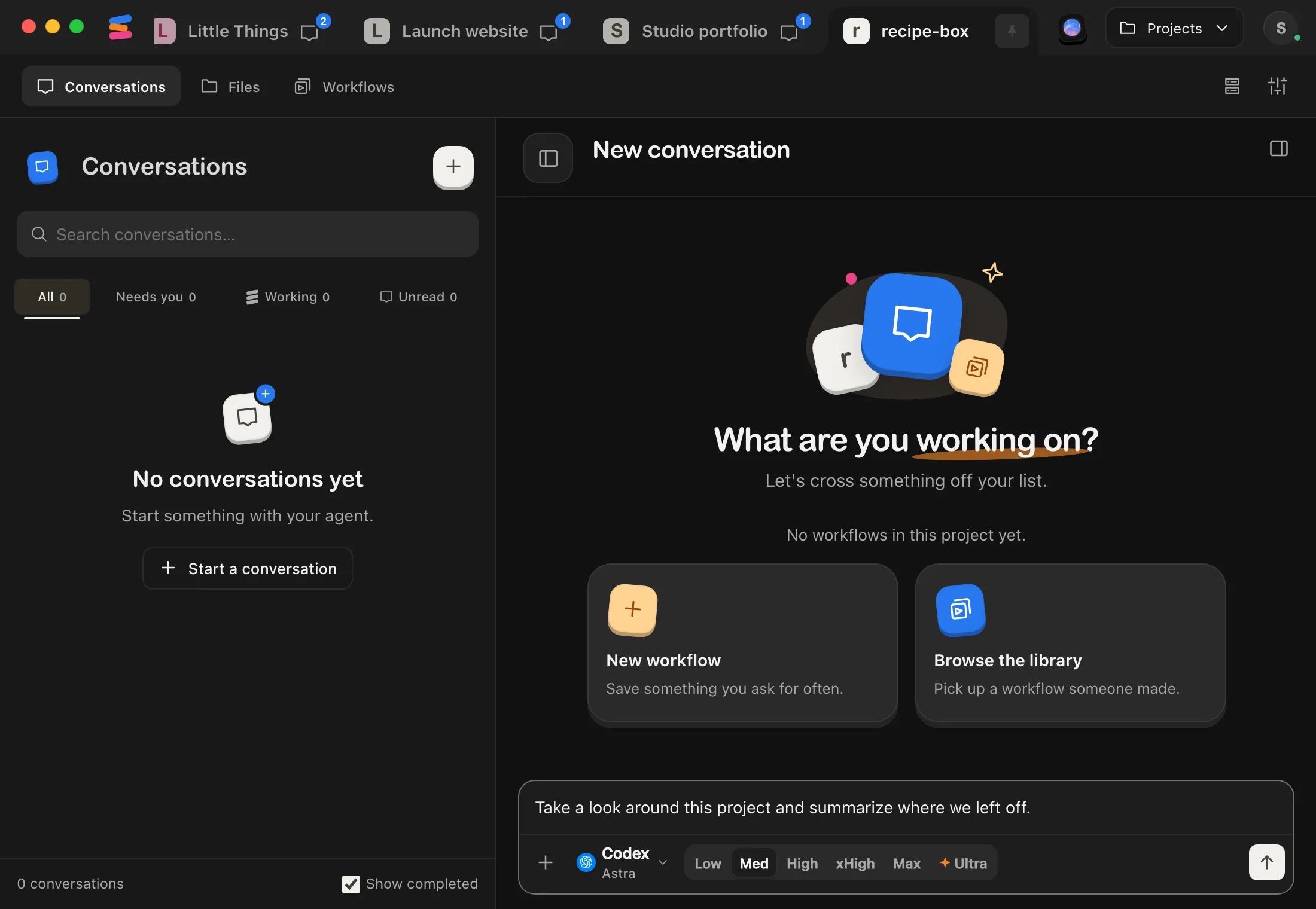
The project opens on a new conversation. A good first message is “Take a look around this project and summarize where we left off.”
Good to know
- The project’s name starts as the folder’s name. You can change it in Project settings. See Change a project’s name and settings.
- Enjoy keeps the project’s conversations, documents, and workflows in its own storage, outside the folder. See Choose where a project’s conversations are stored.
- Opened projects are pinned as tabs automatically. Opening a folder that’s already in Enjoy switches to it.
- If you open a folder you removed from Enjoy before, from the same place on your computer, its earlier conversations, documents, and workflows come back.
- If you used Claude Code or Codex in this folder, Enjoy offers to import those conversations the first time you open it. See Import past Claude Code and Codex conversations.
- Projects from older versions of Enjoy kept their records in a
.enjoyfolder inside the project. When you open one, Enjoy offers to move those records into its own storage. See Choose where a project’s conversations are stored. - On Windows, a folder inside a WSL Linux distribution, such as Ubuntu, opens as a project in WSL, whose Git and agents run in that distribution. See Work on a project inside WSL.
- You can only open folders from the computer app. Your phone and the web app can’t open folders on your computer.
If something goes wrong
“This workspace is already open in another Enjoy process”
Another copy of Enjoy on this computer has the project open. Quit the other copy, then try again.
“Enjoy can’t lock …”
Enjoy couldn’t lock the project’s Enjoy files for a reason other than another copy of Enjoy using them. The message ends with your system’s reason. See Fix a project that’s unavailable.
“This folder is on drive C:. Open C:\… instead.”
On Windows, the folder is on a Windows drive, as a WSL distribution shows it. A folder you choose under /mnt, such as /mnt/c/src/app, opens by its Windows path on its own. This message appears when the distribution shows Windows drives somewhere else, such as /c/src/app, or for a project an earlier version of Enjoy opened that way. Open the Windows path the message names instead. Other messages that name WSL or a Linux distribution are in Fix problems with a project in WSL.
“Enjoy is moving this project’s files. Try again in a moment.”
Enjoy is moving this project’s records to a different folder. Wait for the move to finish, then open it again.
“Enjoy is already opening this project. Try again in a moment.”
Enjoy is still opening this folder from an earlier request. Wait a moment, then open it again.
“This project’s Enjoy files aren’t available at …”
The project’s records were kept in a folder that Enjoy can’t reach right now, such as one on a drive that isn’t connected. Reconnect the drive and try again. If those files are gone for good, remove the project from Enjoy and open the folder again to start fresh. See Fix a project that’s unavailable.