Change a project's name and settings
Each project has its own settings. The project’s name is what Enjoy shows on tabs and in lists. The folder name is the actual name of the folder on your computer, and you can change either one.
Steps
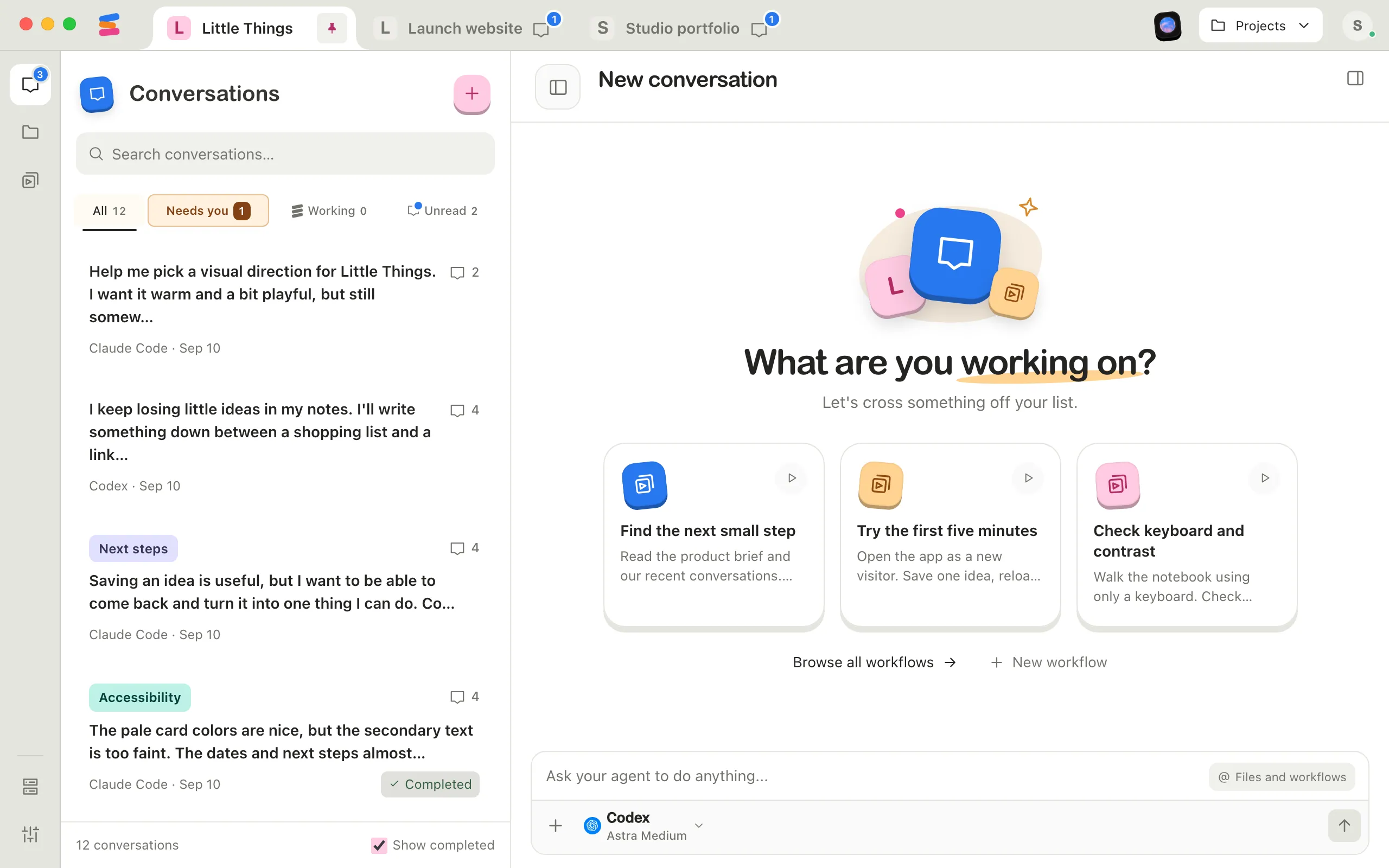
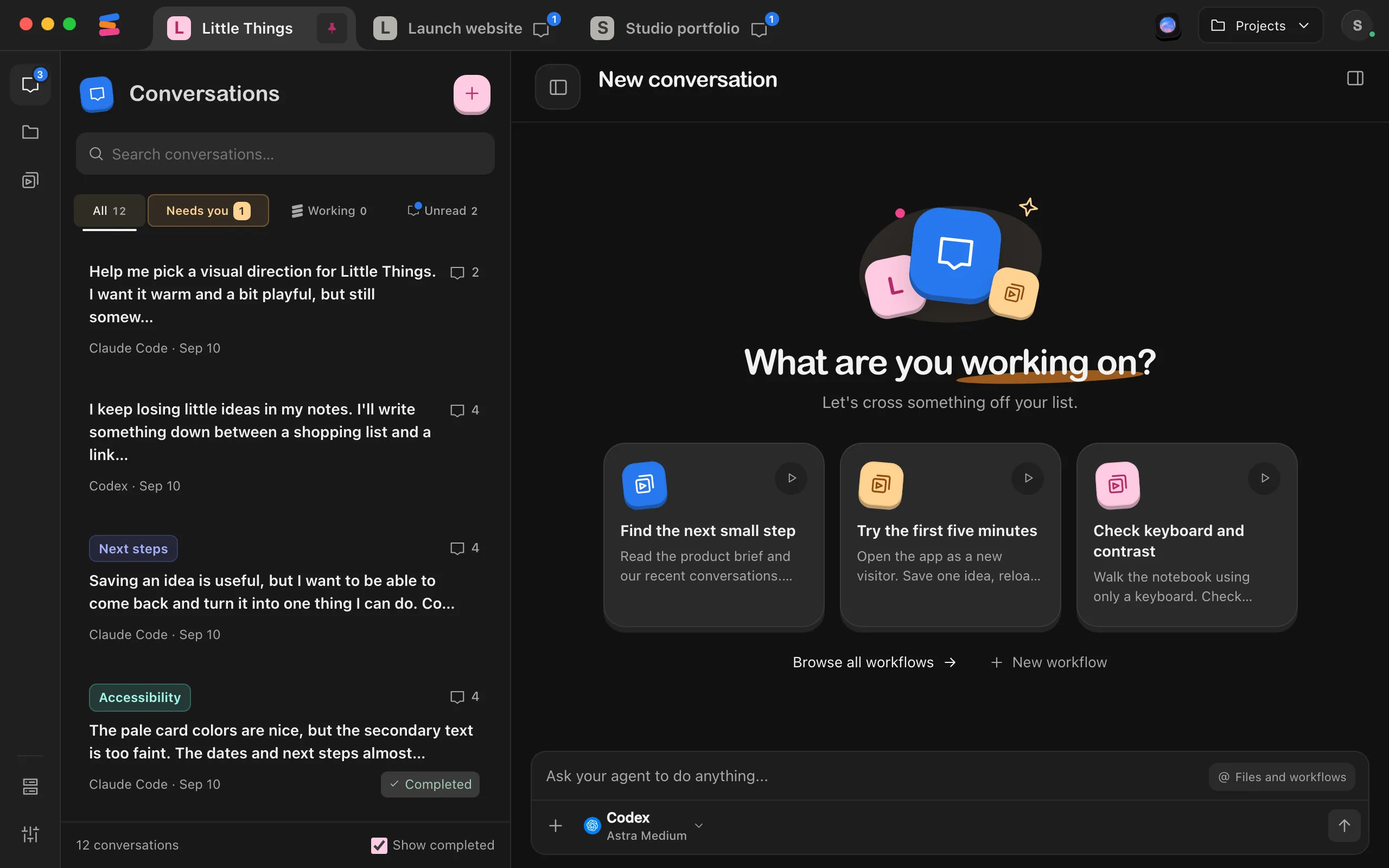
Select Project settings
It’s the button with sliders at the bottom of the rail on the left side of the window. On a phone, or in any narrow window, select Show sidebar at the top left first. You can also select Projects, point to any project, and select its settings button, which has the same sliders.
Change the name
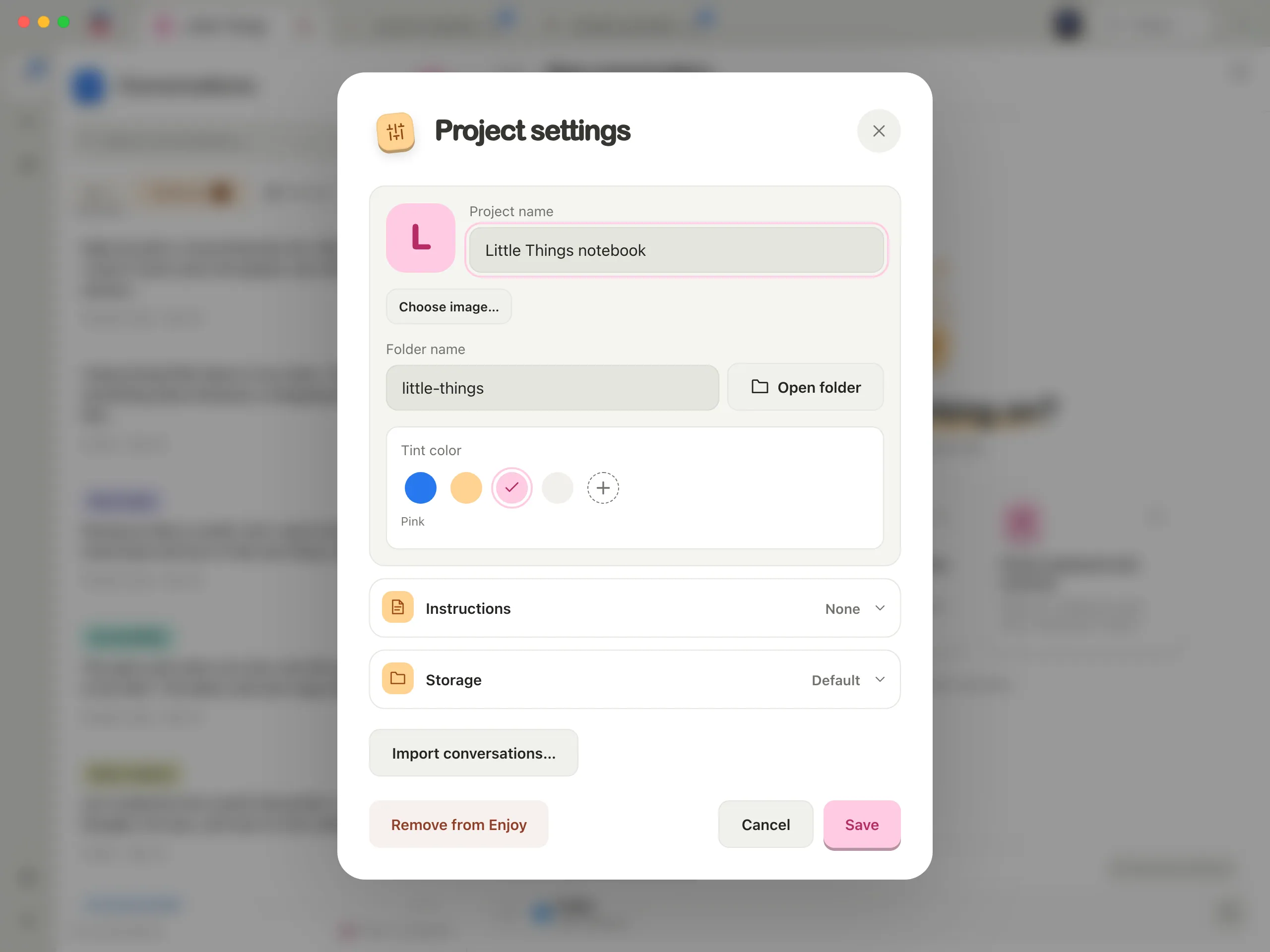
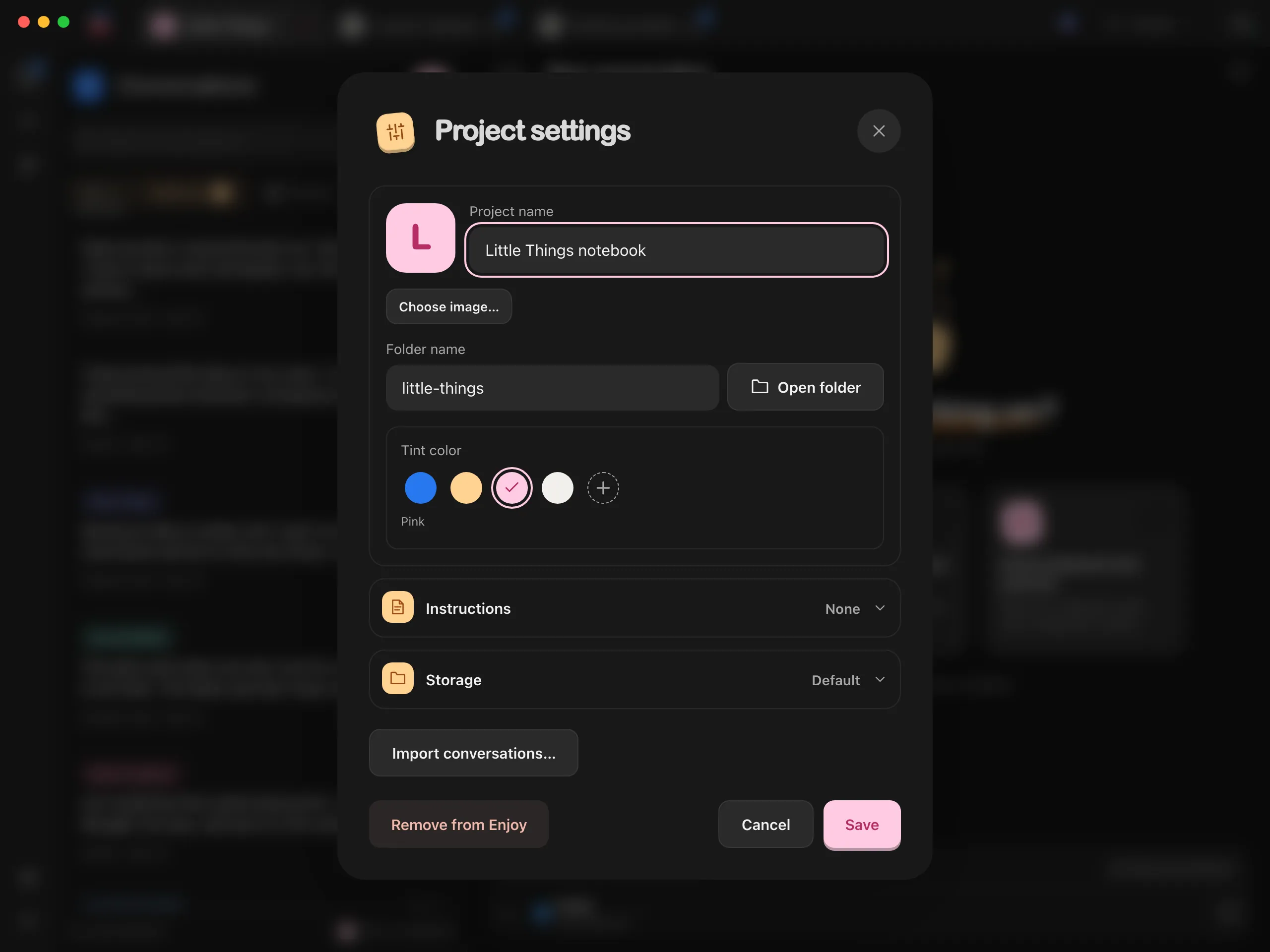
Type a new name in Project name. This doesn’t rename the folder.
Rename the folder if you want
In the computer app, type a new name in Folder name to rename the project’s folder on your computer.
Select Save
Your changes apply. To leave without saving, select Cancel.
Good to know
- Open folder, beside the folder name, opens the project’s folder in Finder, File Explorer, or your file manager.
- The other parts of Project settings have their own guides:
- The image and Tint color: Change a project’s color and image.
- Instructions for your agents: Give agents instructions for a project.
- Agent accounts, the account each agent uses in this project: Use a different account in each project.
- Storage, where the project’s conversations, documents, and workflows are kept: Choose where a project’s conversations are stored.
- Import conversations…: Import past Claude Code and Codex conversations.
- Remove from Enjoy: Remove a project from Enjoy.
- The name, image, color, and instructions are saved when you select Save. Changes under Agent accounts and Storage apply right away.
- Before you rename the folder, stop any agents working in the project. After the rename, each conversation’s agent starts a new session in the renamed folder and receives the conversation so far.
- In the web app, you can change the name, image, color, and instructions. You can see the folder name there but not change it. Open folder, Agent accounts, Storage, importing, and removing are only in the computer app.
- If your device has view-only access to the project, you can see its settings but not change them.
If something goes wrong
“Stop active agents before renaming the folder.”
An agent is working in the project. Wait for it to finish or stop it, then save again. See Stop an agent.
“Enter a folder name without path separators or reserved characters”
Folder names can’t contain / \ : * ? " < > |, can’t end with a period, and can’t start or end with a space. Choose a different name.
“A file or folder with this name already exists”
Another file or folder next to the project’s folder already uses that name. Choose a different one.
“Save or resolve pending document changes before renaming the folder.”
A document in the project has changes that aren’t saved yet. Save it or resolve the changes in Files, then try again.
“… is not installed. Choose an agent in Project settings.”
This message appears at the top of the conversation when the agent this project started with isn’t installed on this computer. Project settings has no place to choose an agent. Instead, open the agent settings at the bottom of the message box. To keep working, choose an agent that’s installed. To clear the message, select the missing agent under Agent, which shows Install, then select Install and the agent’s name. See Install an agent and Switch agents in a conversation.