Switch agents in a conversation
Each conversation can move between agents as often as you like. You might ask a second agent to review the first one’s work, or carry on with another agent when one plan runs low.
Before you start
- Install the agent you want and sign in to it on your computer. See Install an agent and Sign in to an agent.
Steps
Open the agent settings
In the conversation’s message box, select the agent button.
Choose an agent in the Agent column
If it isn’t installed, Enjoy offers to install it. If it isn’t signed in, Enjoy asks you to sign in.
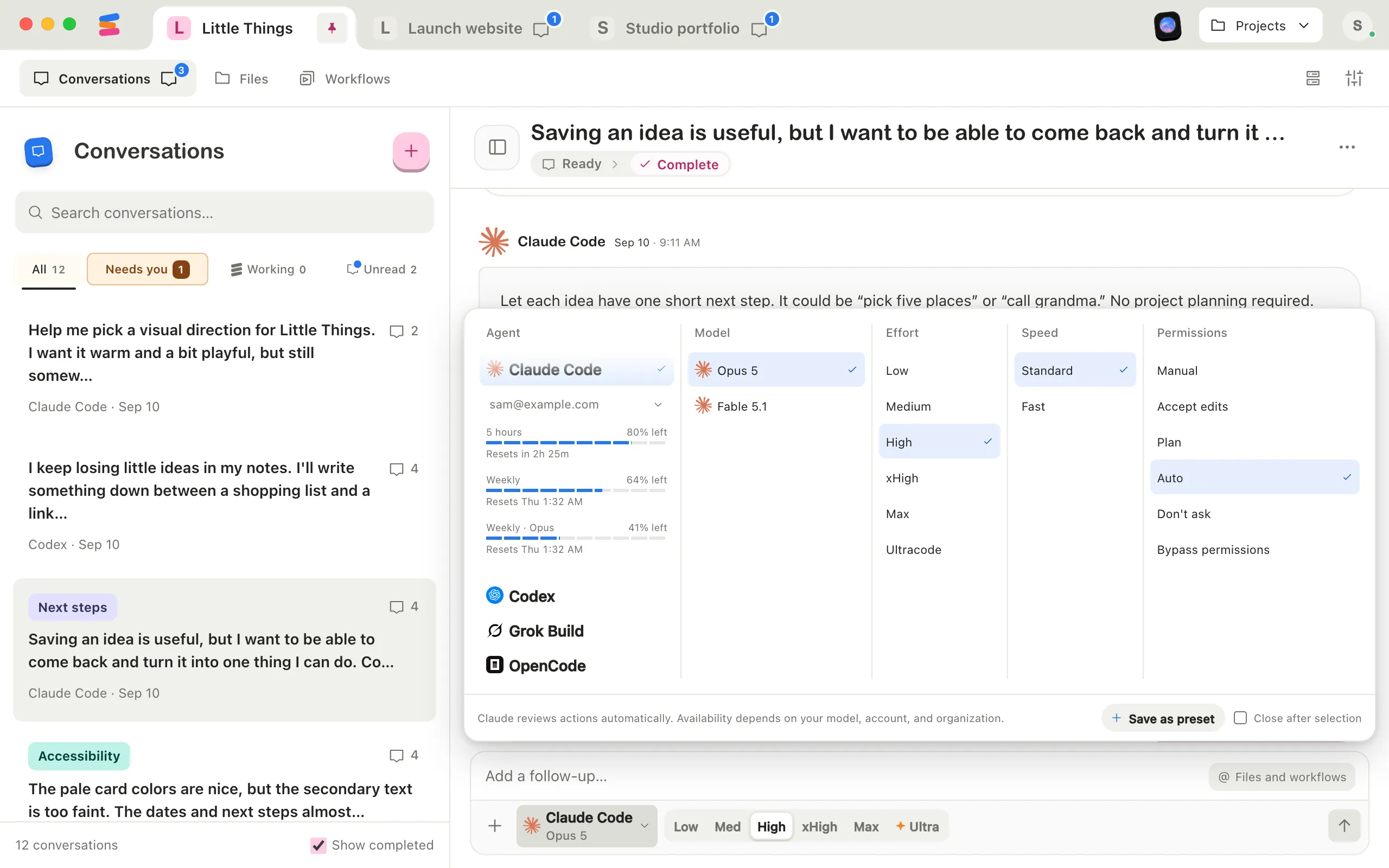
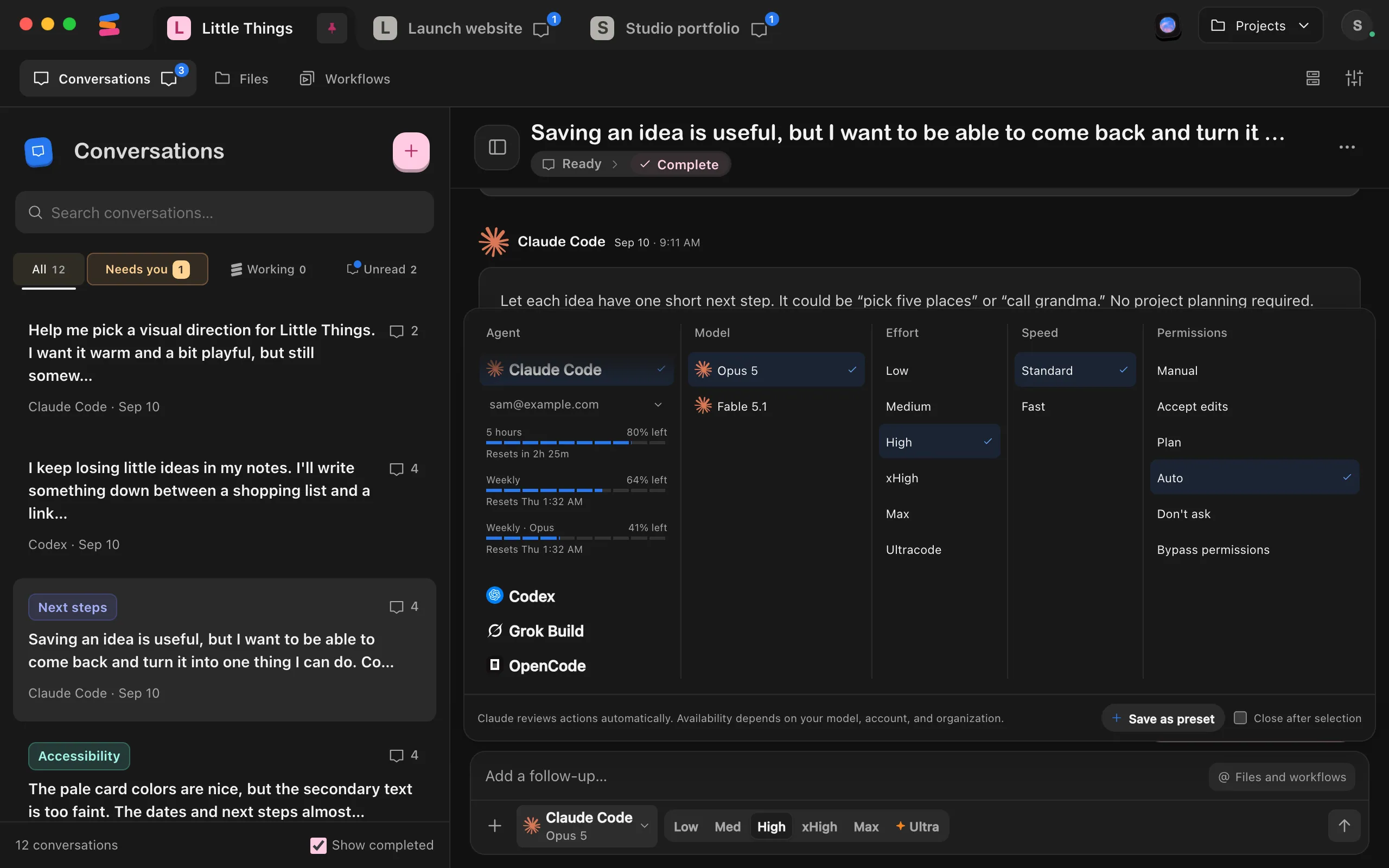
Check the other settings
The model, effort, speed, and permission mode change to the new agent’s. Adjust them if you like.
Send your message
The new agent picks up the conversation from there.
Good to know
- The switch happens when you send. Until then, the conversation stays with its current agent.
- The new agent gets the conversation so far, including replies from other agents, before it works on your message.
- Each agent keeps its own place in a conversation. When you switch back to an agent, it continues where it left off, with the model, effort, speed, and permission mode it last used there.
- An agent that hasn’t worked in this conversation starts with the model and effort you last used with it, the permission mode you last sent with it in this project (or its usual one), and Standard speed.
- If the current agent is still working when you send, your message waits until that work ends, then goes to the new agent.
- Websites and other processes the previous agent started keep running. Enjoy asks agents to check what’s already running before they start another.
- JOY answers every message. The line under each reply names the agent that did the work, with its model and effort.
- New conversations start with the agent and settings you used last in the project.
- Web app: you can switch to installed agents. A Full access browser can use the new agent’s saved or usual permission mode. On Limited devices and shared computers, agents that need broader permissions show Unavailable. Install missing agents on your computer first.
- iPhone app: select the button in the message box that shows the model and effort, then select the agent’s name at the top of Model, and choose an agent. Full and Limited follow the same rules as the web app. An agent you can’t choose there says why, such as Install on your desktop or Choose on your desktop.
If something goes wrong
Wait for this agent’s delegated agents to finish
The current agent has helper agents still working on parts of the task. Wait for them to finish, or stop the work, then send again. See Stop an agent.
The agent is not installed
The message names the agent, such as Codex is not installed. Install it from the Agent column, then send again.
The agent asks you to sign in
Its sign-in is missing or expired. Finish signing in, then send your message. See Sign in to an agent.