Use a different account in each project
Per-project accounts work with Claude Code, Codex, and Grok Build, the agents that keep saved accounts. Antigravity, OpenCode, and Muse Code use the same setup in every project.
Before you start
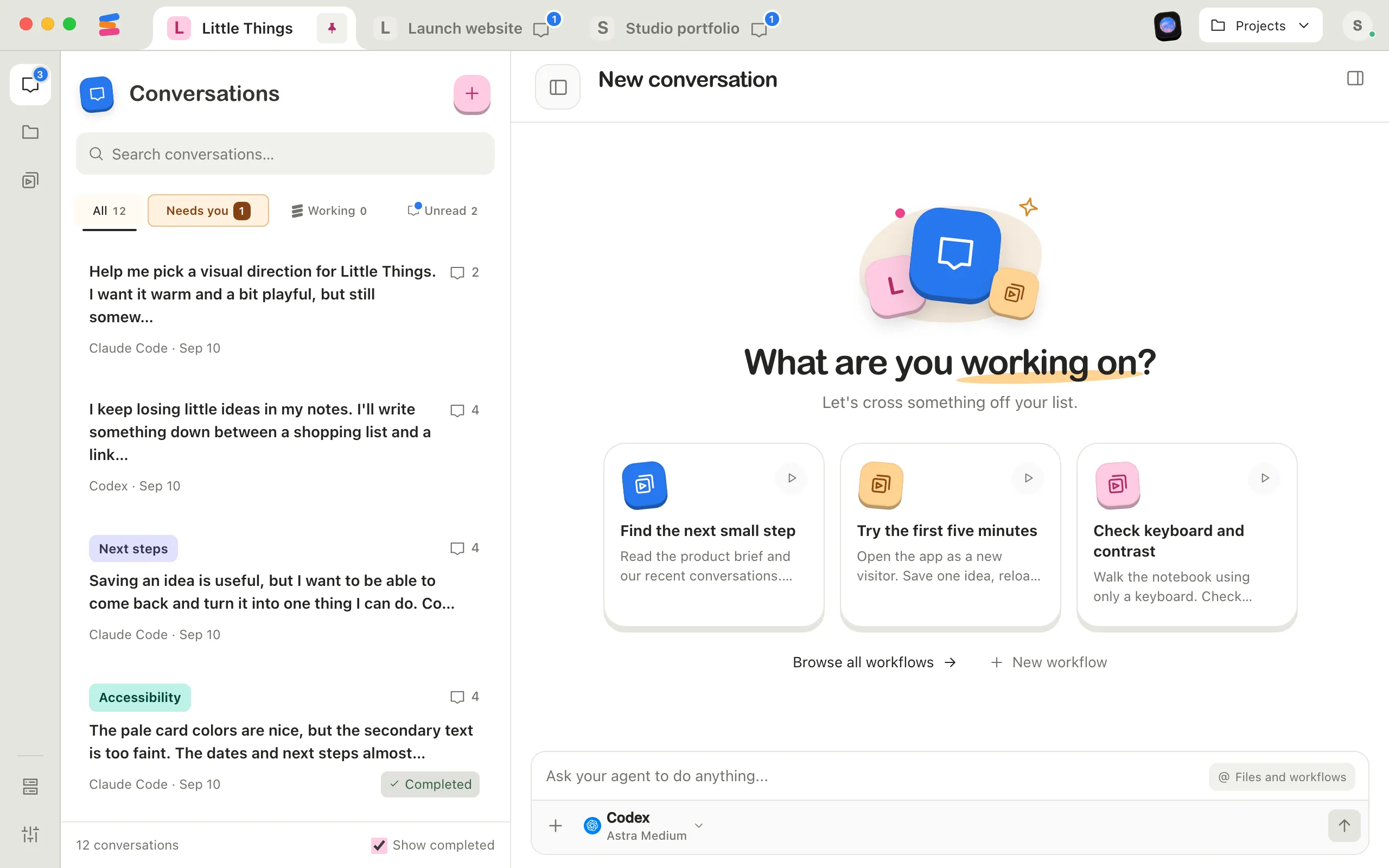
- Use the Enjoy app on your computer, and open the project you want to set up.
- You can add accounts as you go. To add them from the agent settings instead, see Switch between agent accounts.
Steps
Select Project settings
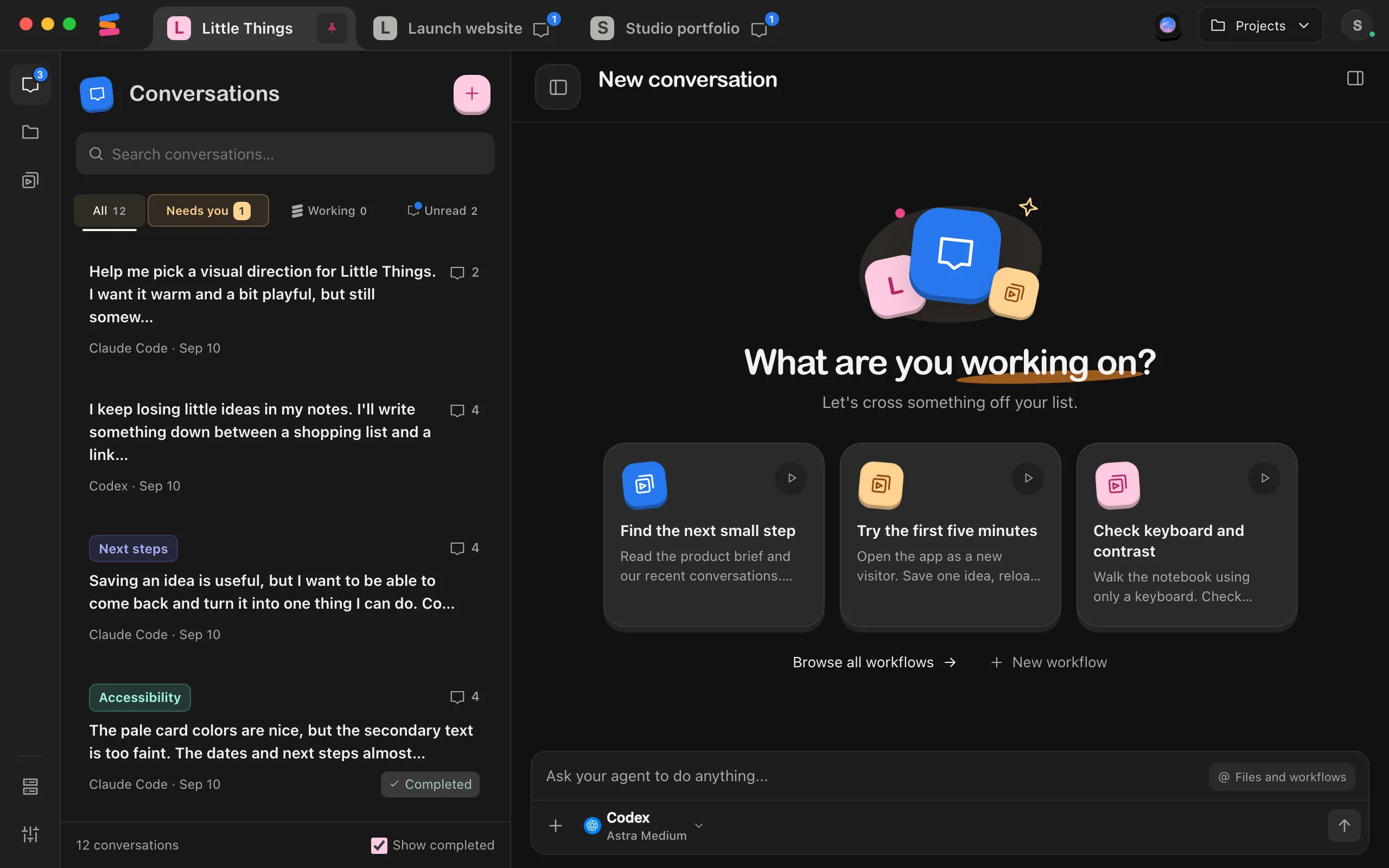
It’s the button with sliders at the bottom of the rail on the left side of the window. You can also choose Accounts for every agent… in an agent’s account menu in the agent settings.
Select Agent accounts
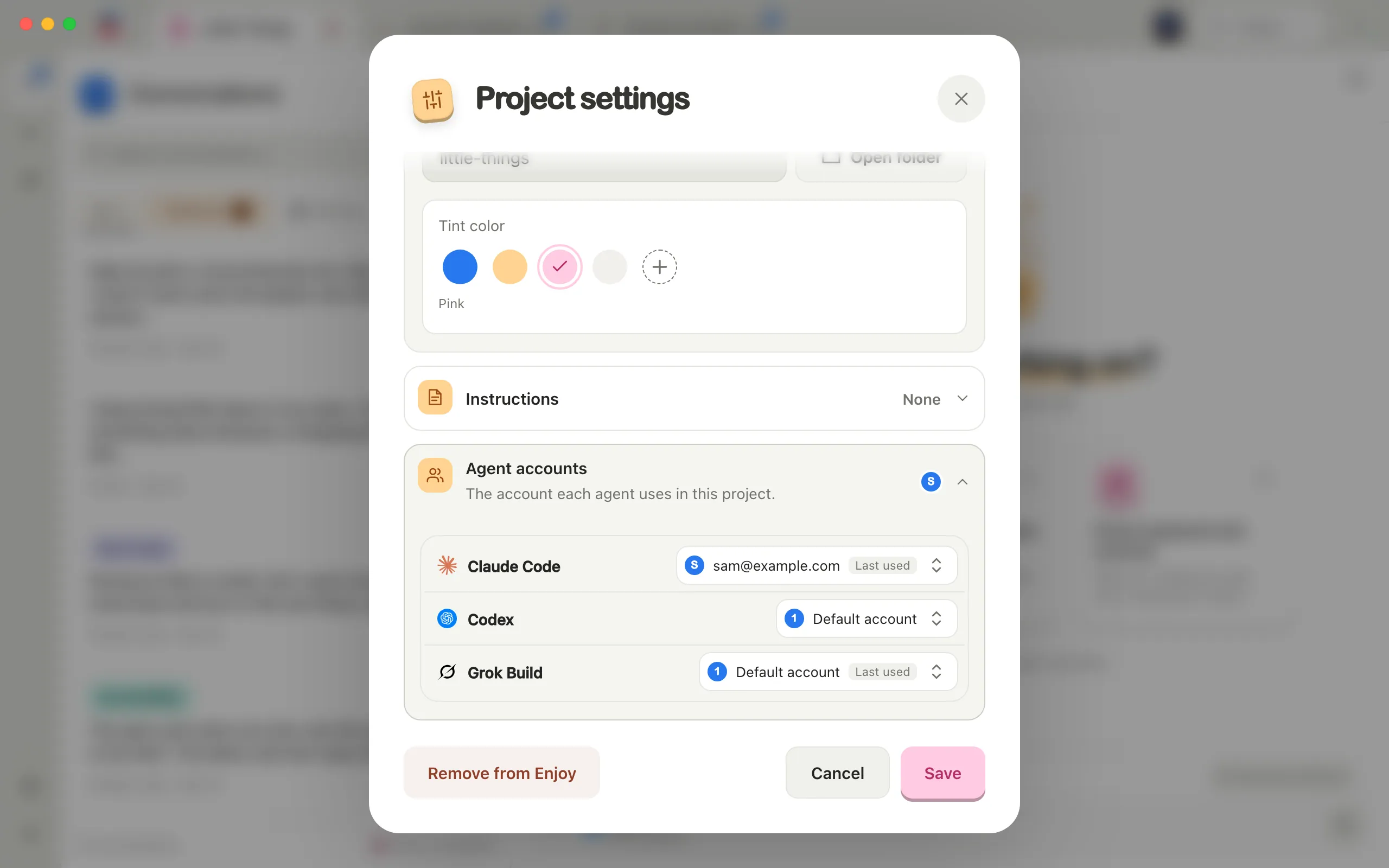
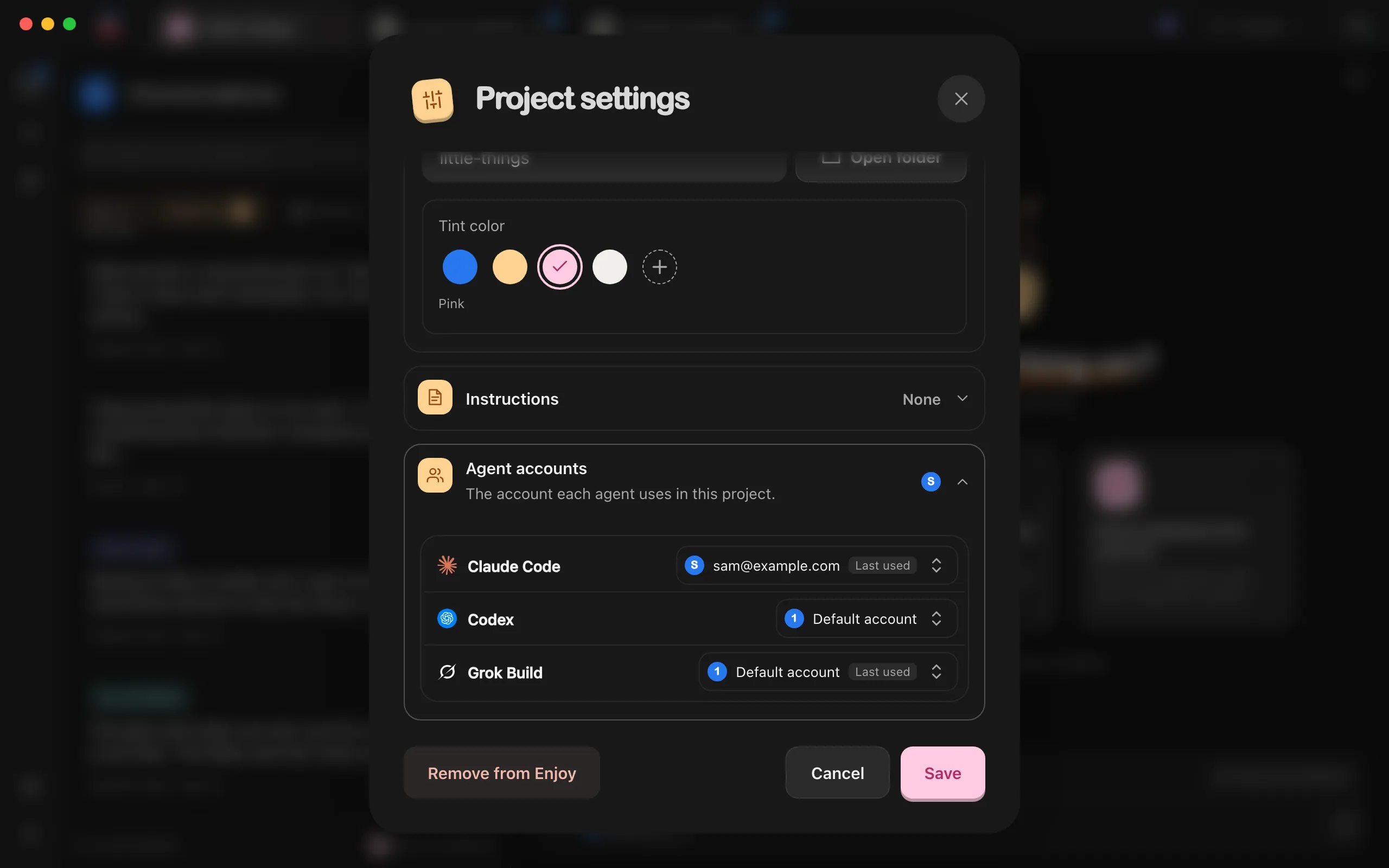
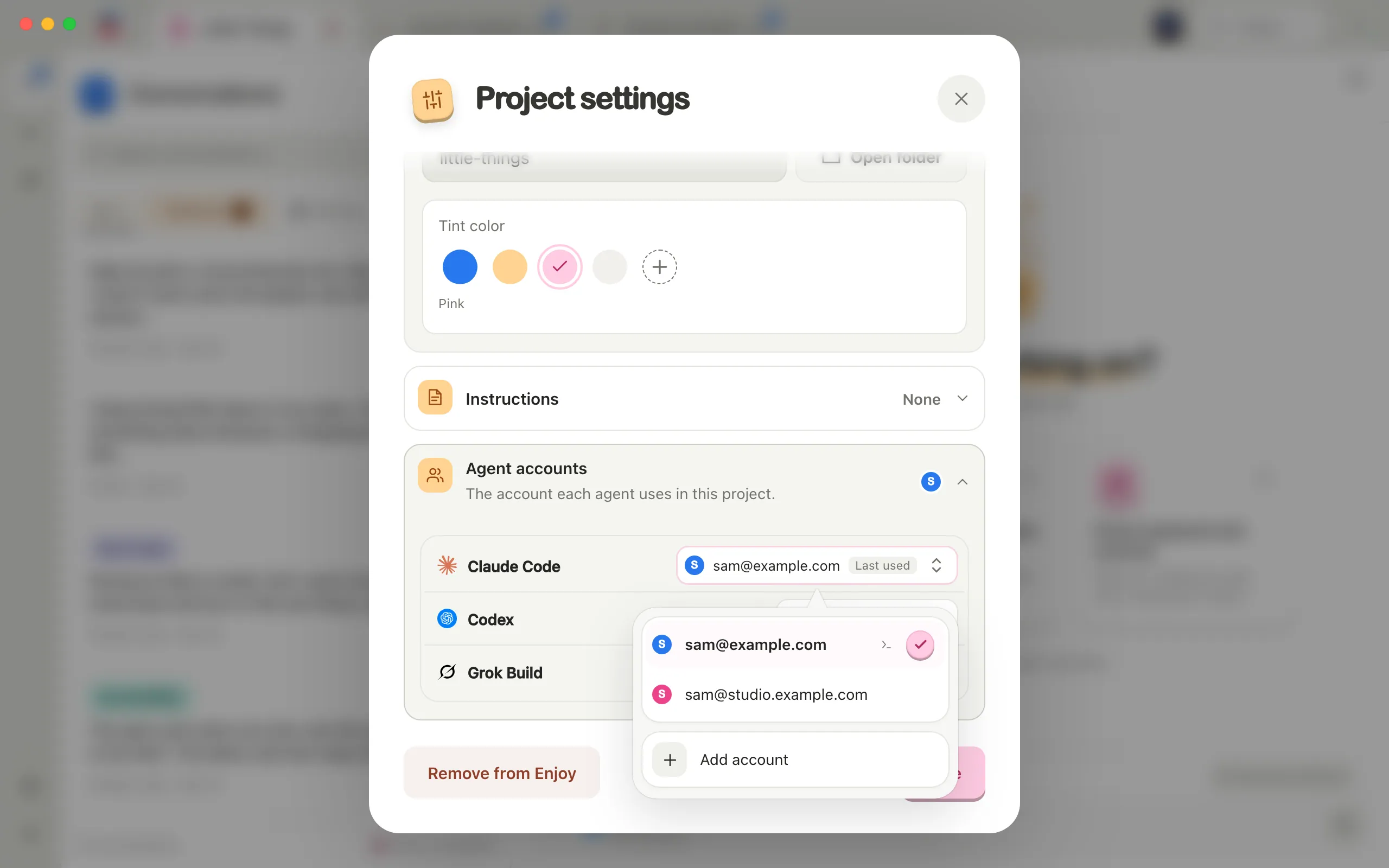
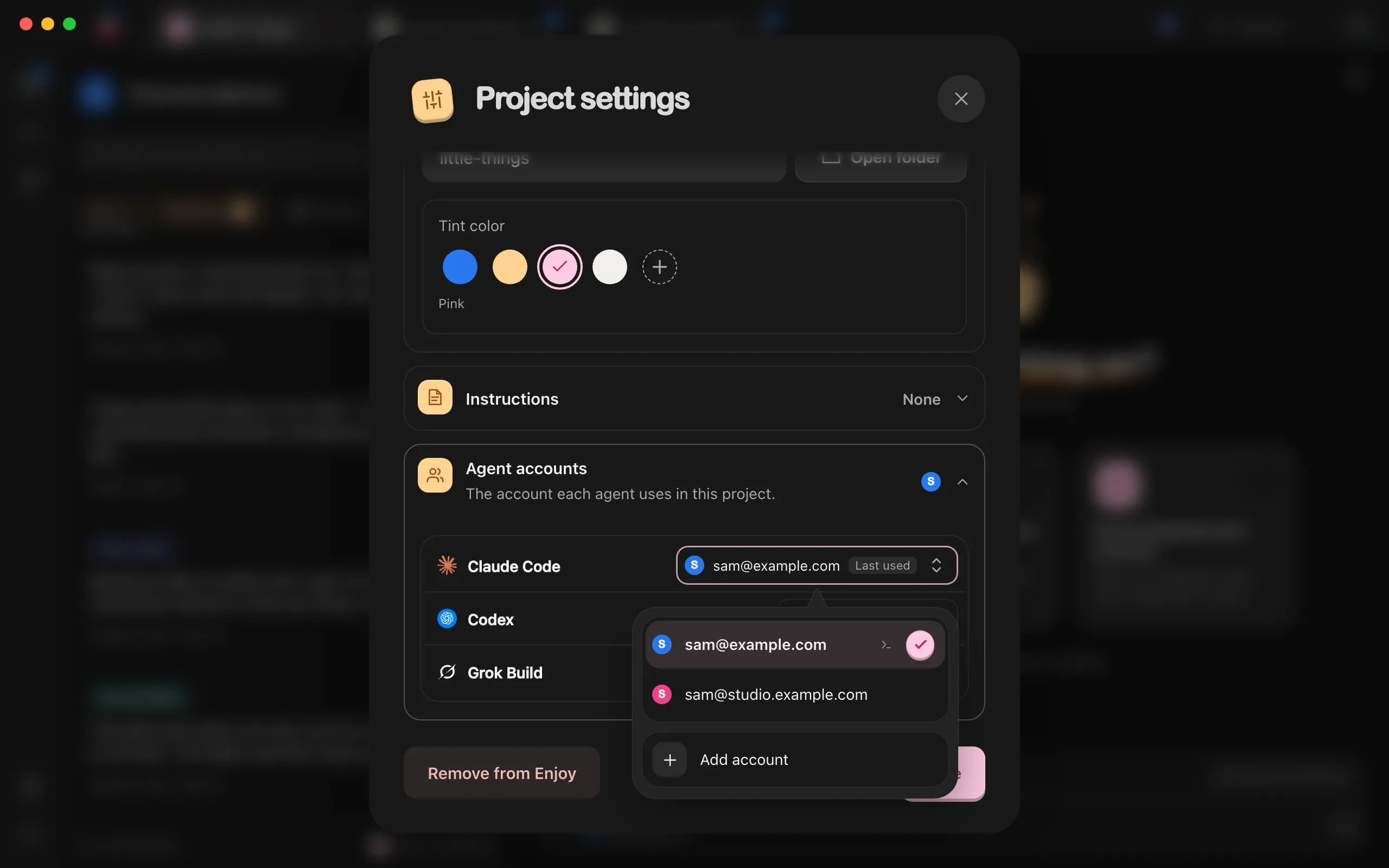
The section reads The account each agent uses in this project. It lists each installed agent that keeps saved accounts, with the account it uses here.
Select an agent’s account
A menu lists that agent’s saved accounts. Choose one, or choose Add account to sign in with a new one.
Close Project settings
Account changes take effect right away, so you don’t need to select Save.
Good to know
- Last used next to an account means the project hasn’t chosen one. It uses whichever account you picked most recently in any project. Choosing an account in step 3 makes the choice this project’s own.
- Choosing an account from the agent settings in a project, under the agent’s name, also sets that project’s account.
- Work that’s already running finishes on its account. The project’s next messages use the new one.
- Signing in from a project signs in the account that project uses.
- The usage under an agent in the agent settings is for that project’s account.
- If you remove an account, projects that used it switch to the account you picked most recently, or to the default account, the one your terminal also uses.
- In a project inside WSL, the section names the distribution, such as The account each agent uses in this project, from your Ubuntu-22.04 accounts. It lists the accounts saved in that distribution, which every project there shares. While the distribution is stopped, an agent shows Couldn’t list with why, and Enjoy lists its accounts again once the distribution is back.
- On computers where saved accounts aren’t available, Agent accounts doesn’t appear. See Change an agent’s account by signing out.
- For the rest of Project settings, see Change a project’s name and settings.