Change a project's color and image
Each project has a color and a small icon. The icon shows the first letter of the project’s name until you give it an image. Both appear on the project’s tab and in the Projects menu.
Steps
Select Project settings
It’s the button with sliders at the bottom of the rail on the left side of the window. On a phone, or in any narrow window, select Show sidebar at the top left first.
Choose a tint color
Under Tint color, select one of the four swatches: Blue, Apricot, Pink, or Ivory. To use any other color, select the + swatch and pick one. The color’s name, or its color code, appears below the swatches.
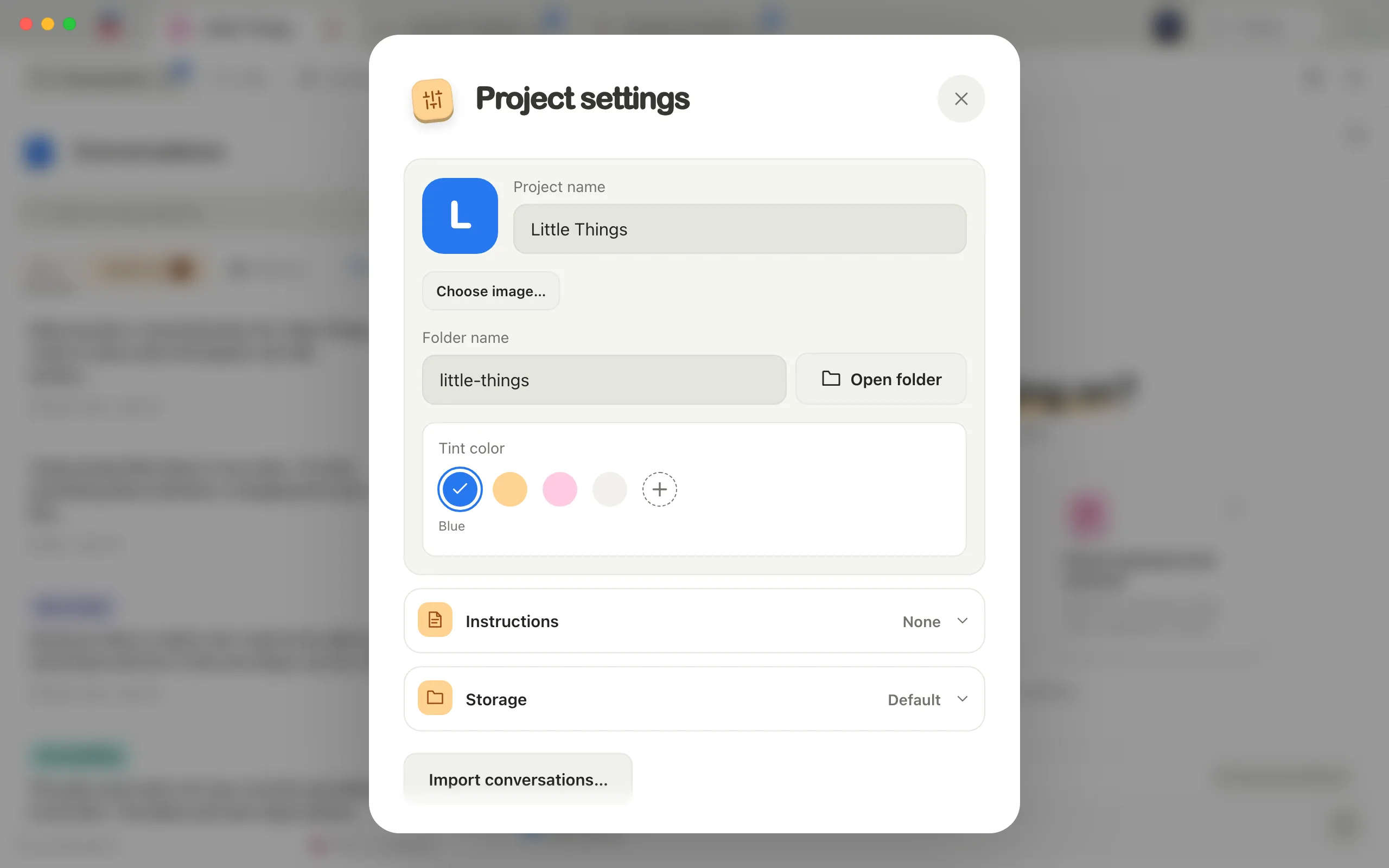
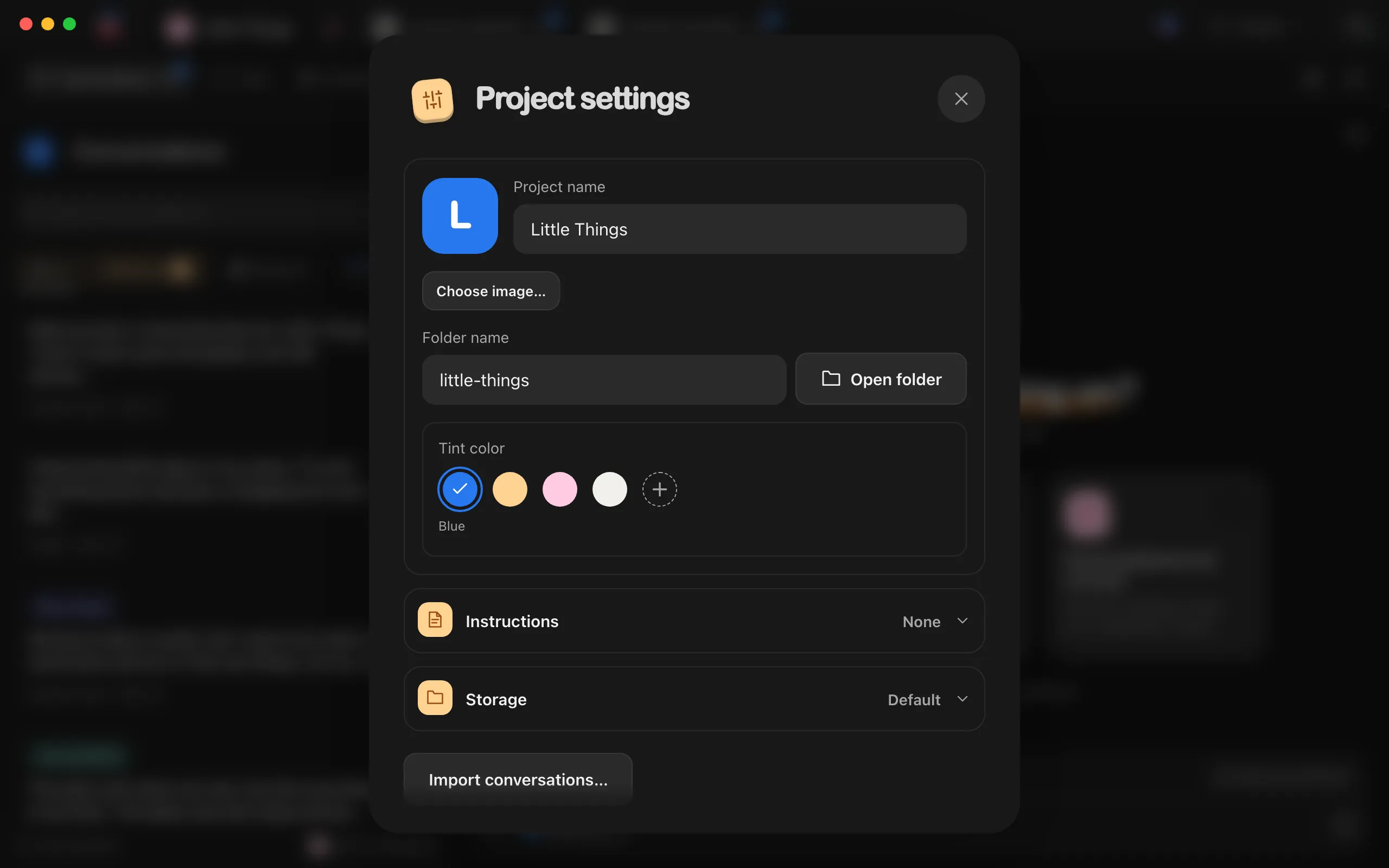
Choose an image if you want one
Select Choose image…, or Change image… if the project already has one, and pick a PNG, JPEG, or WebP image smaller than 5 MB. The icon at the top of Project settings shows a preview.
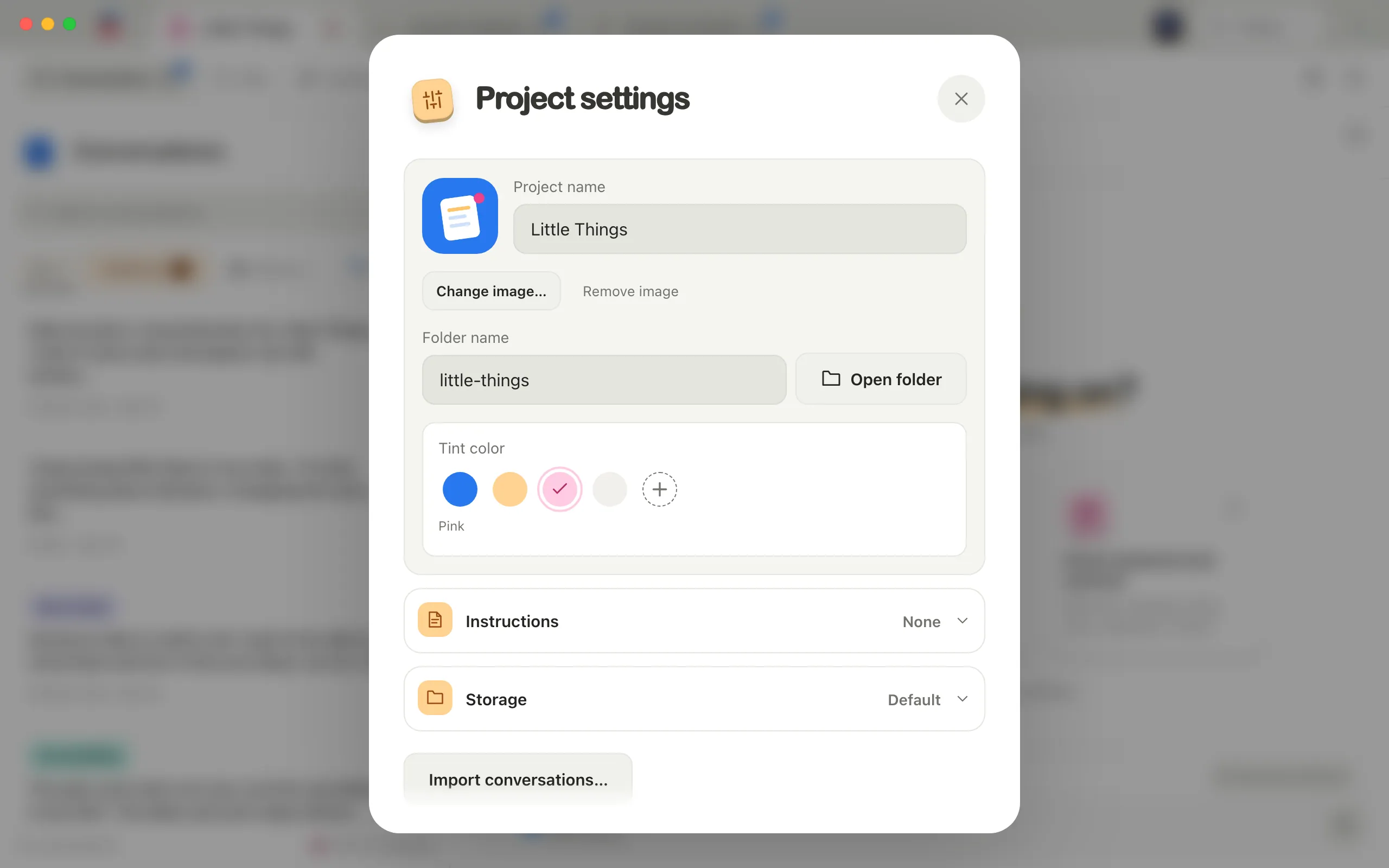
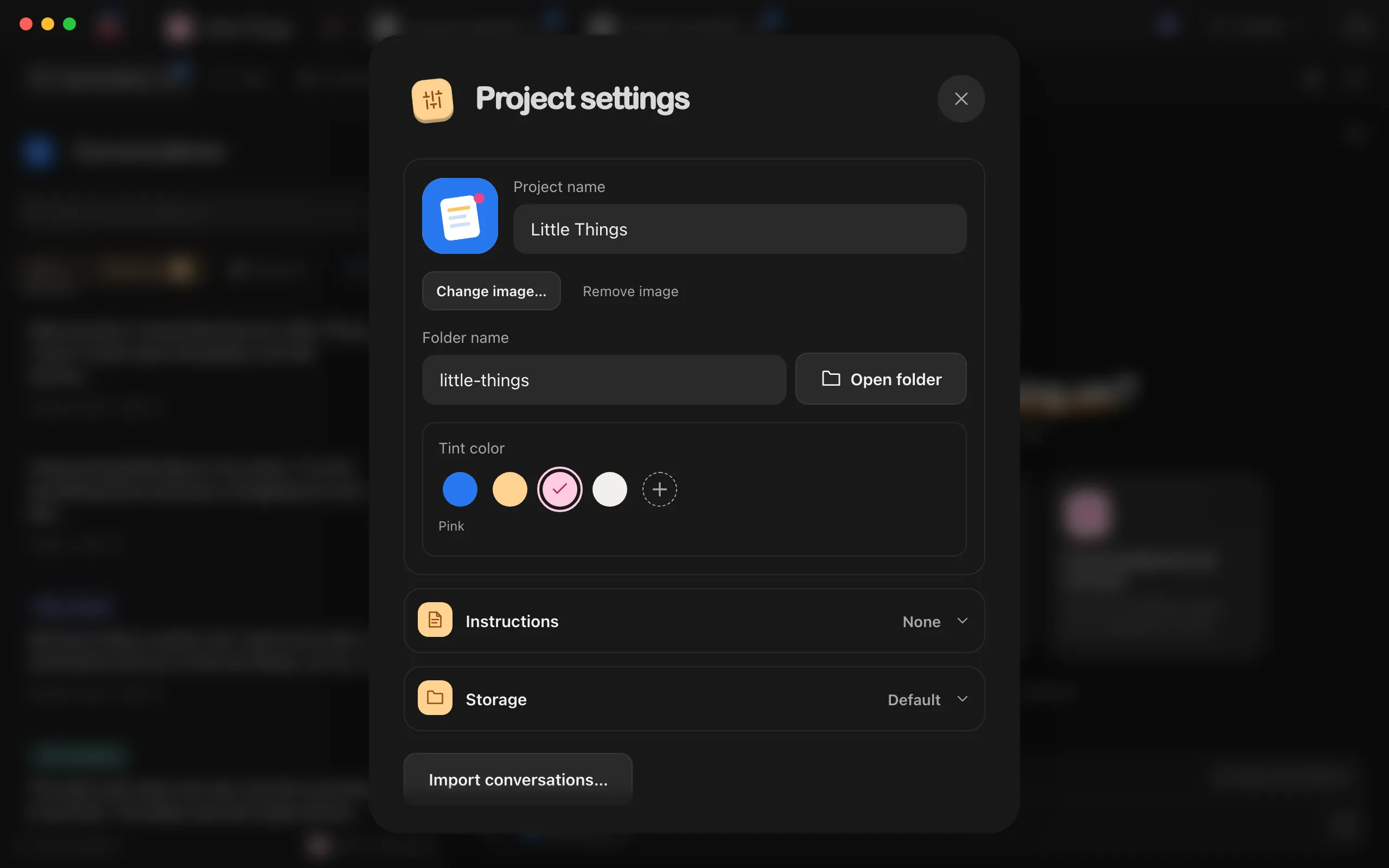
Select Save
The tab and the rest of Enjoy update.
Good to know
- Enjoy crops the image to a square from its center and makes it at most 256 by 256 pixels. Square images with a simple shape look best at tab size.
- Enjoy keeps its own copy of the image with the project’s Enjoy files, so you can move or delete the original.
- To go back to the letter, select Remove image, then Save.
- Until you choose a color, Enjoy picks one of the four preset colors based on the project’s name.
- While you’re in a project, Enjoy uses its color for some buttons and highlights, such as Mark as completed in a conversation.
- In the web app, you can change the color and image the same way. In the iPhone app, you choose a color when you create a project. See Start a new project.
If something goes wrong
“Choose a PNG, JPEG, or WebP image.”
The file is in another format, such as HEIC or GIF. Save or export it as PNG, JPEG, or WebP, then choose it again.
“Choose an image smaller than 5 MB.”
Make the image smaller, or export a smaller copy, then try again.
“Could not open this image. Try another.”
Enjoy couldn’t read the file as an image. It may be damaged. Choose a different file.