Open and edit project files
Project files are the files in your project’s folder, the ones agents create and change as they build. Documents work a little differently; see Find your way around Files.
Steps
Open Files
Select Files in the rail on the left side of the window. On a phone, or in any narrow window, select Show sidebar at the top left first.
Find the file
Look under Project files on Files home and select folders to go into them, or use the explorer. See Browse and search your project’s folders.
Select the file
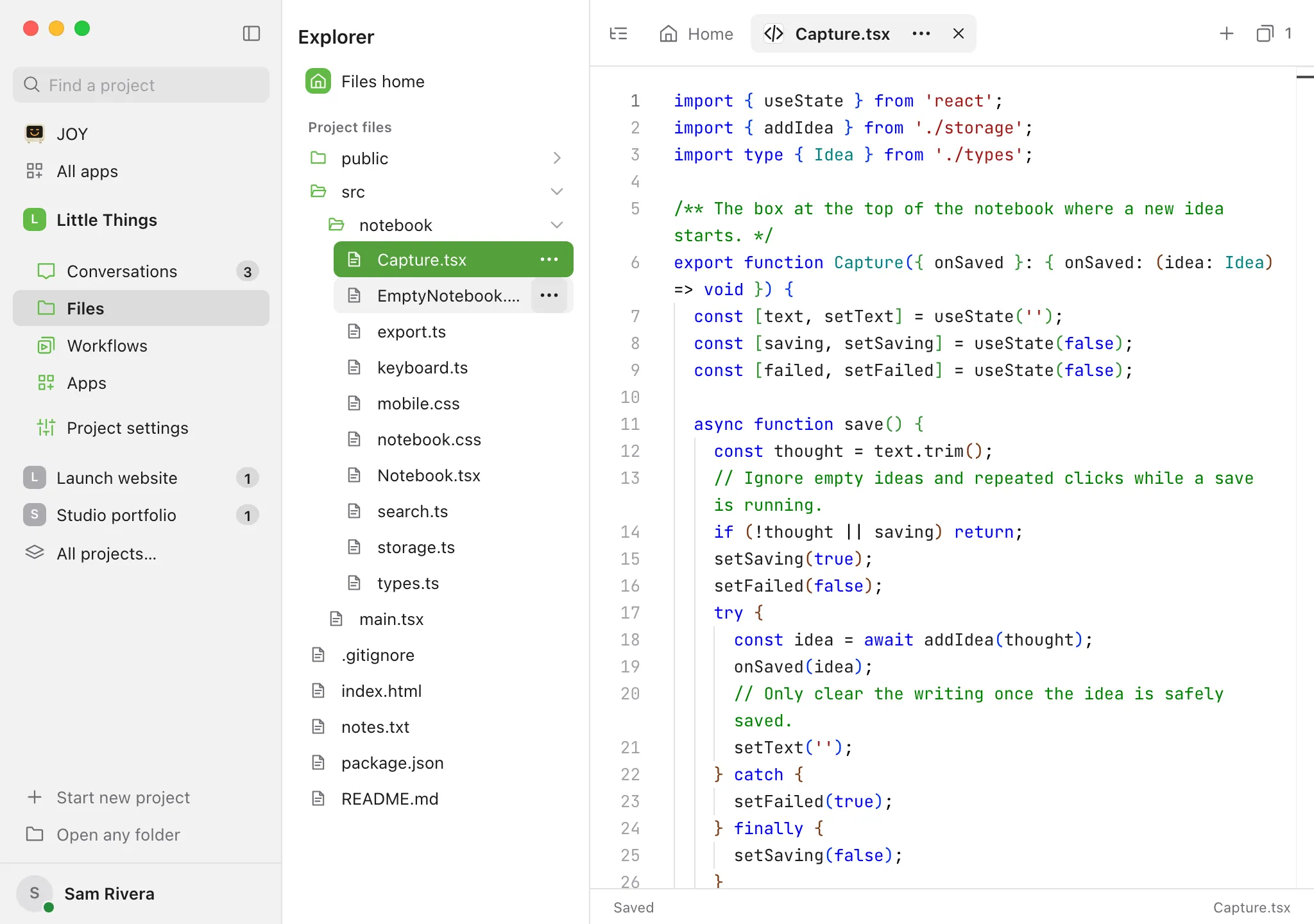
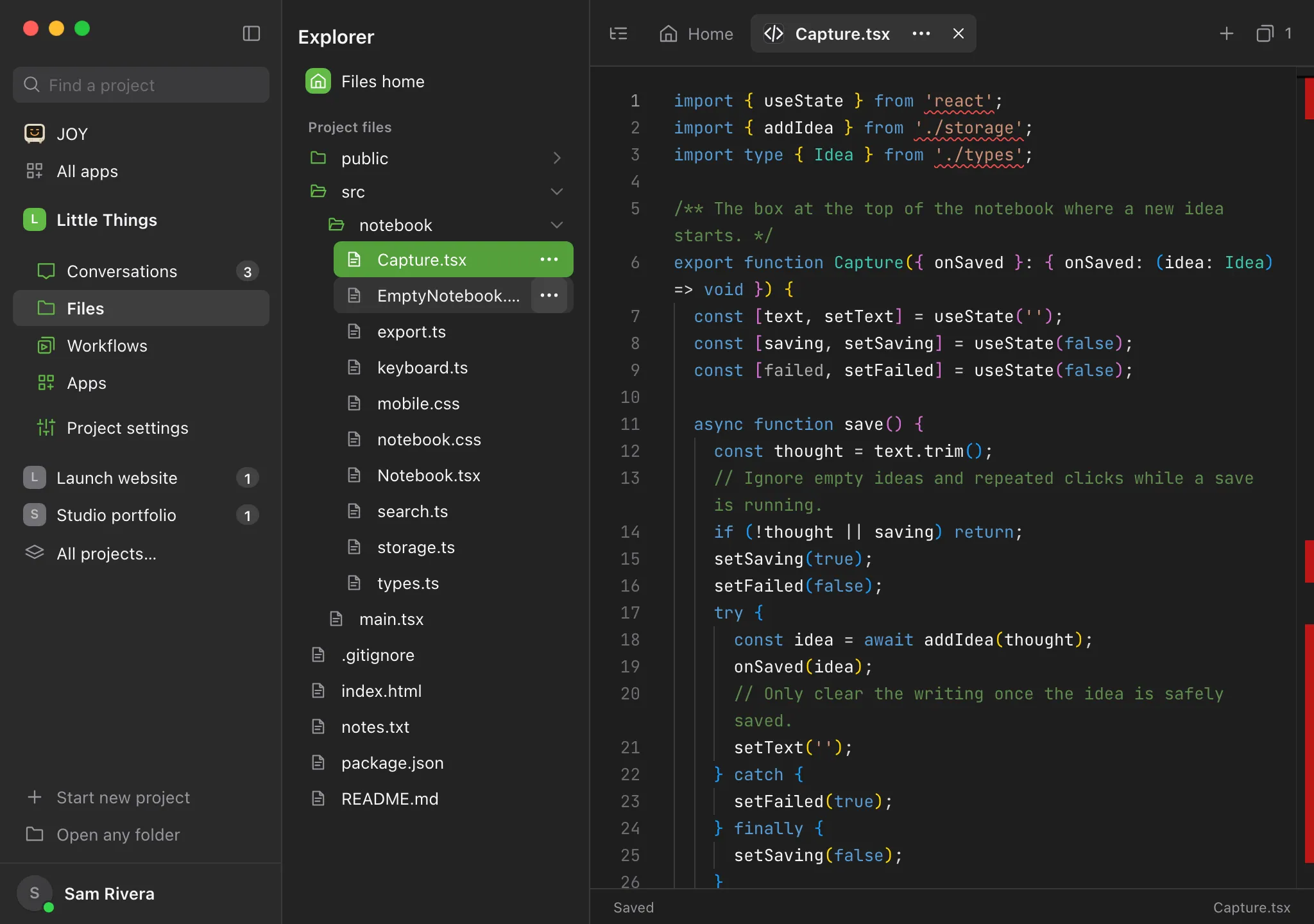
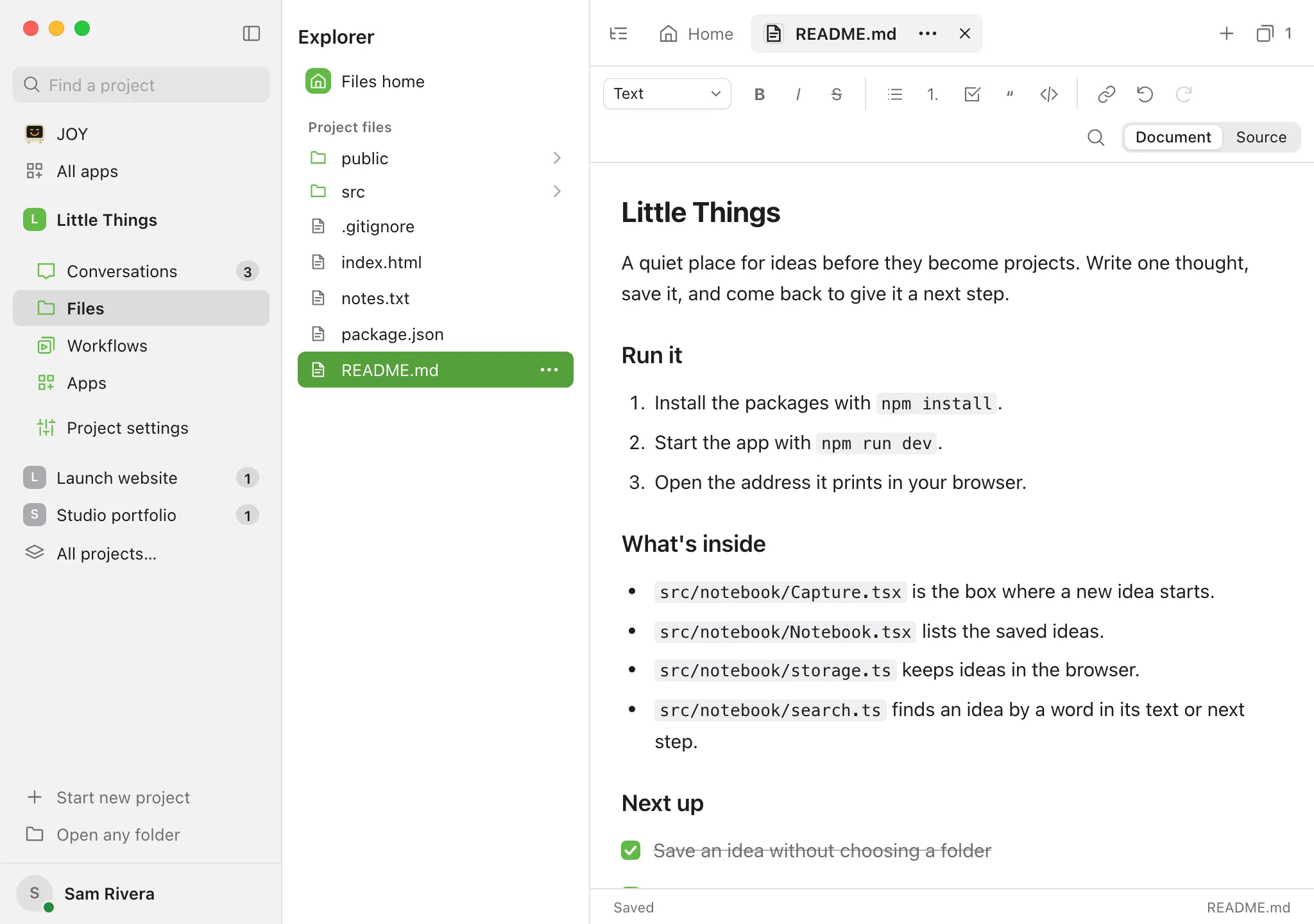
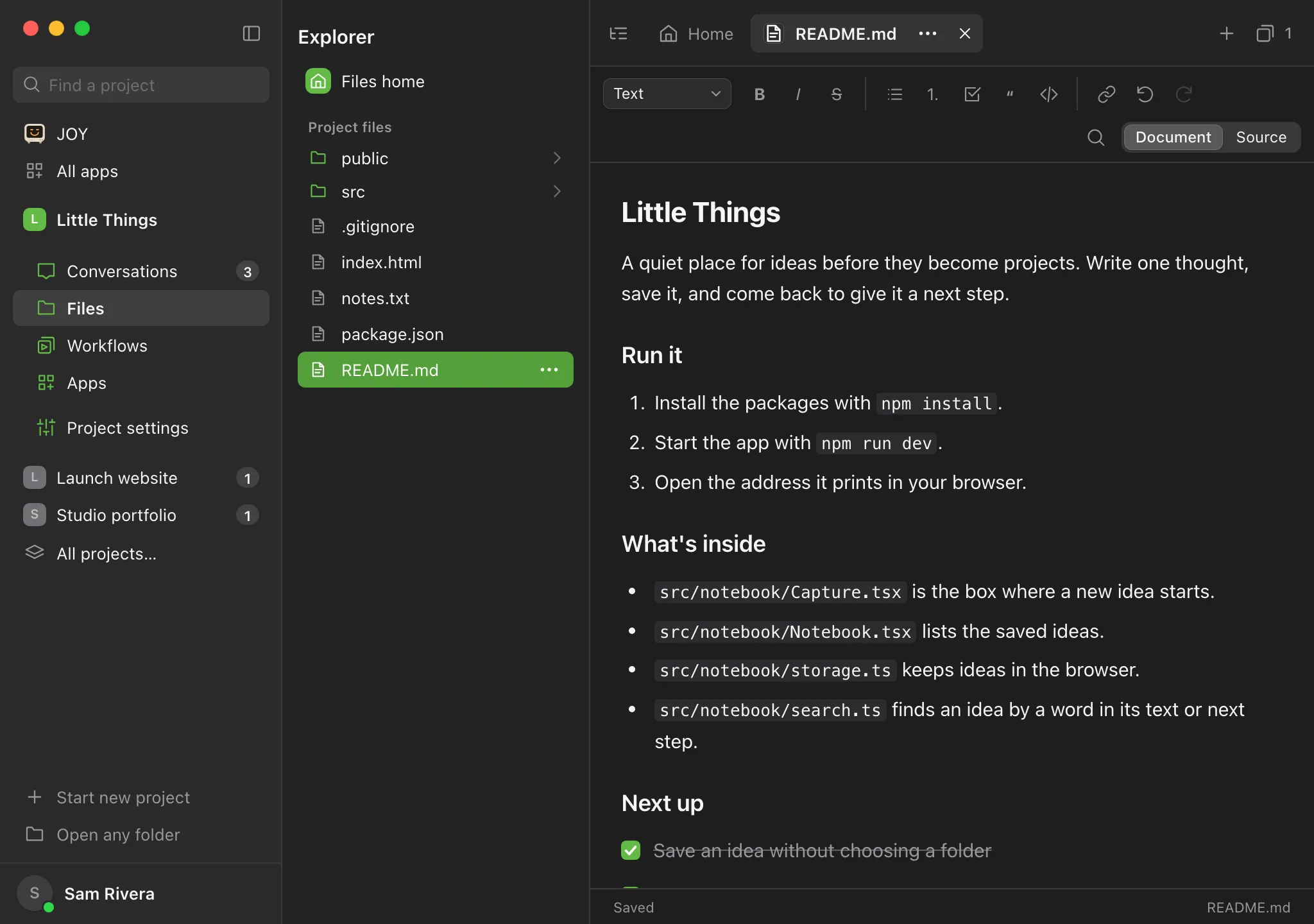
It opens in its own tab. Code and other text files open in a code editor with line numbers and colors for the file’s language. Markdown files open as a formatted page.
Make your changes
Enjoy saves a moment after you stop typing, and again when you move to anything else. In the code editor, press ⌘S on a Mac or Ctrl+S on Windows and Linux to save right away. The bar at the bottom says Saved when it’s done.
For a Markdown file, choose a view
Select Source at the top right to edit the Markdown text, or Document to go back to the formatted page.
Good to know
- The bar at the bottom of the tab shows the save status: Saved, Unsaved changes, Saving…, Not saved, or Conflicting changes.
- PNG, JPEG, GIF, and WebP pictures up to 2 MB open as a preview.
- In the computer app, audio and video files of any size play in their tab with your computer’s own player. Formats include MP3, M4A, WAV, FLAC, MP4, MOV, and WebM, as far as your computer can play them. On the web and on your phone, they show No preview available; play them in the computer app.
- Enjoy edits text files up to 500,000 characters and 2 MB. For bigger files and files that aren’t text, you’ll see This file is too large to edit here or No preview available. In the computer app, for a project on that computer, select Open externally to open the file in another app.
- Symbolic links (shortcuts to other files) are listed but can’t be opened.
- The formatted view of a Markdown file has the same toolbar and find and replace as documents. See Format text in a document.
- If a Markdown file has content the formatted view can’t keep, such as HTML, it opens in Source instead, usually with a note explaining why.
- Select code and then Start a conversation to ask an agent about it. See Start a conversation about selected code.
- In the computer app, these editors are apps built into Enjoy, and you can open a file in a different app, including ones your project’s agents made. See Open a file with a different editor.
- If Enjoy closes before a change is saved, your draft is kept on that device and comes back the next time you open the file there.
- To edit files on your phone, see Use Files on your iPhone.
- In a project inside WSL, Enjoy reads and saves files in the Linux distribution. Saving keeps a script’s permission to run and the file’s line endings, and files whose names have
:or\open there too. If the distribution stopped, saving a file starts it again. See Work on a project inside WSL.
If something goes wrong
“This file changed elsewhere. Your draft has been kept.”
The file changed on disk while you had unsaved edits, often because an agent edited it. Select Save a copy to keep your version as a new file. See What happens when a file changes while you edit it.
“This file is read-only. Your draft has been kept.”
Your computer doesn’t allow changes to this file. Select Save a copy to keep your edits in a new file.
“Text files must be smaller than 500,000 characters and 2 MB.”
The file would be too big to save from Enjoy. Make it shorter, or edit it in another app.
“This file can’t play here”
Your computer’s player can’t play this audio or video format. Select Open externally to play it in another app.
“This file couldn’t be opened”
The audio or video file was moved, renamed, or deleted after you opened it. Find it again in Files, or select Retry once it’s back.
The bar at the bottom says “Not saved”
Select Retry save. If it keeps failing, see Fix a file that won’t save or load.
“Return to this file’s computer to finish saving.”
You switched to a different computer before the file saved. Switch back to the computer the project is on, then select Retry save.