Start a conversation about selected code
Steps
Open the file in Files
Open a code file, or a document. See Open and edit project files.
Select the code or text
Drag across it, or hold Shift and use the arrow keys.
Select Start a conversation
A small Start a conversation button appears above what you selected.
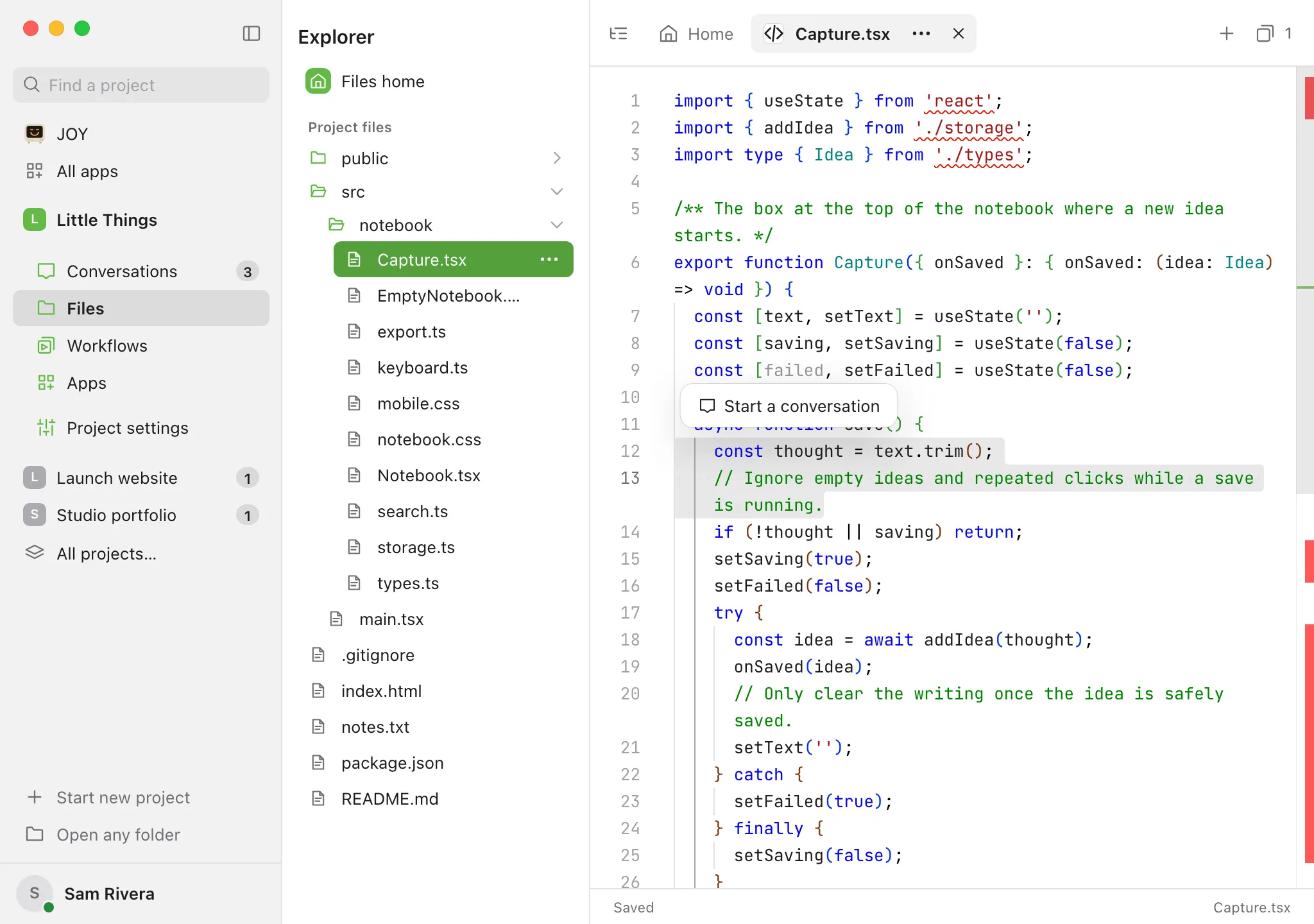
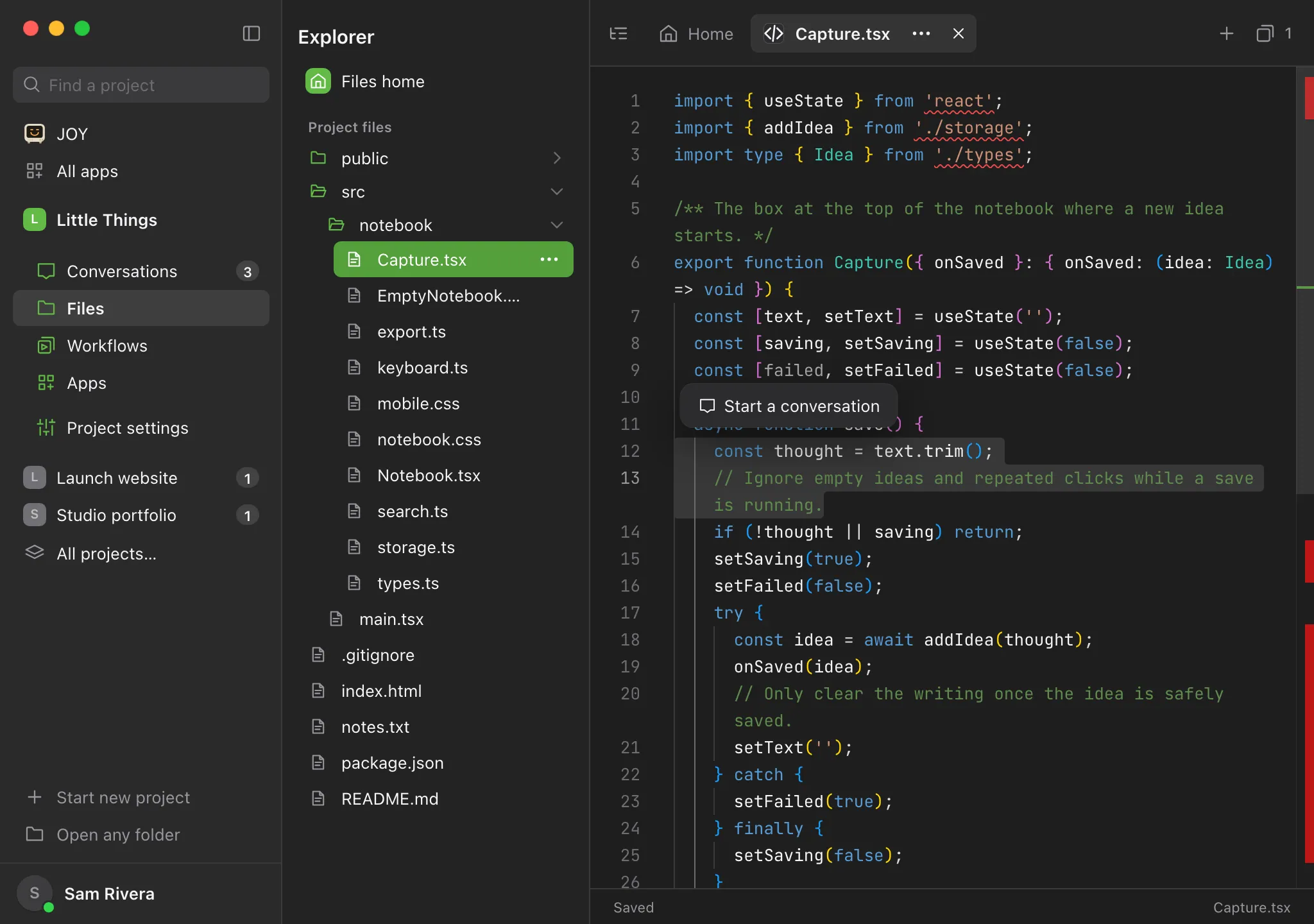
Add your question
Enjoy switches to Conversations, opens a new conversation, and puts the text you selected in the message box. Type what you want, such as “What does this do?” or “Make this button bigger.”
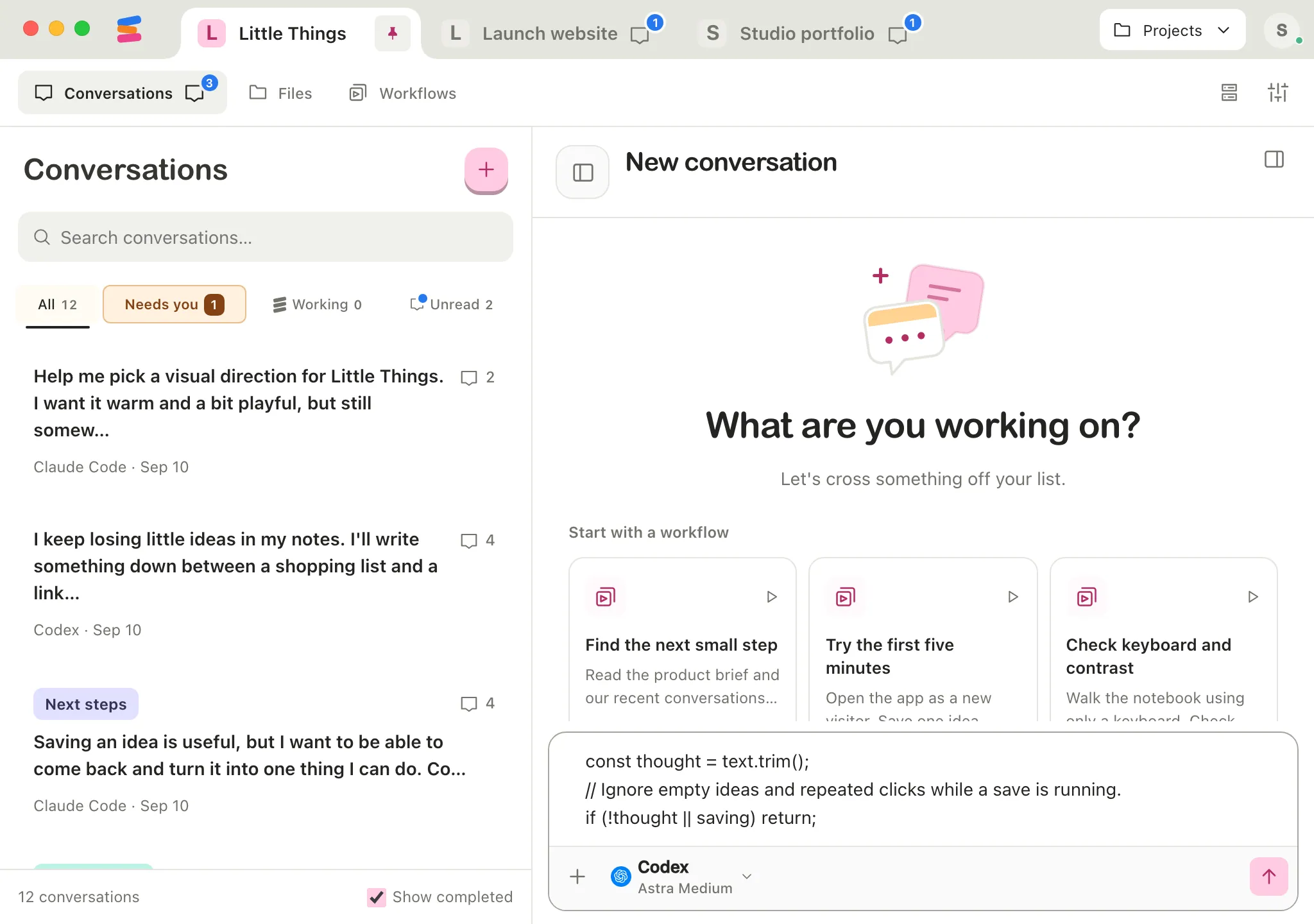
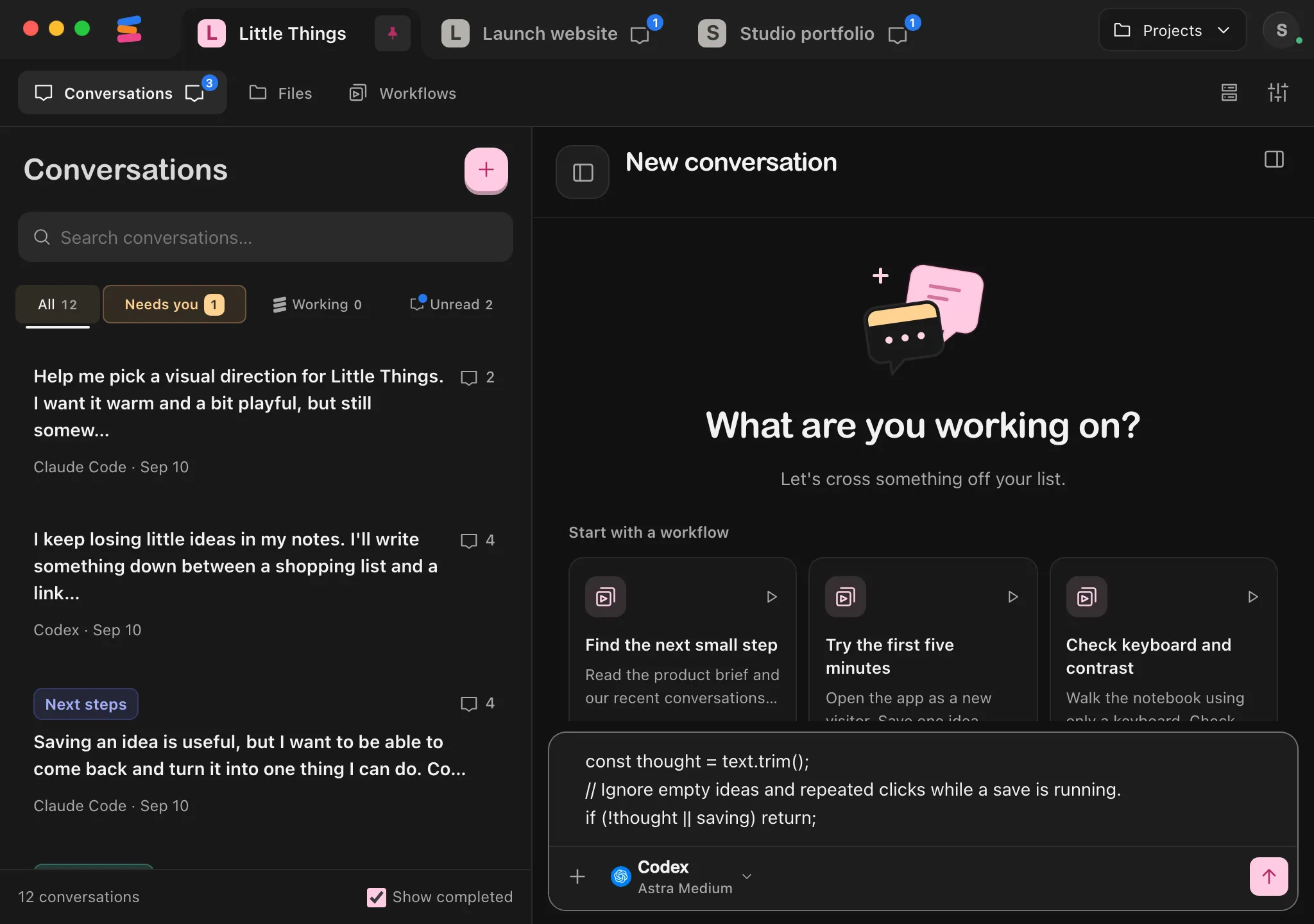
Send it
Choose the agent and settings you want, then send. See Start a conversation.
Good to know
- Only the selected text goes into the message, not the file’s name. Say which file it’s from, or type @ to add the file. See Mention docs, conversations, files, and workflows with @.
- If you’d already started writing a new conversation, the selected text is added after what you wrote.
- In the code editor, you can also press F1 and choose Start a conversation from the list of commands.
- The button appears in the code editor, which opens code files and Markdown files in Source view, and in documents in Rich text view. It doesn’t appear in a document’s Raw view, in a Markdown file’s Document view, or in the iPhone app.
- The button doesn’t appear if you have view-only access to the project.
- The button only appears in the tab you’re looking at. Press Esc or select elsewhere to hide it.
If something goes wrong
The button doesn’t appear
Make sure you selected more than spaces, and that you’re in one of the views above. In a Markdown file, select Source at the top right first.