Open a file with a different editor
Files opens text files and documents in apps. Markdown and Code are built in, and your project can have apps of its own that open certain file types. See What are apps?
Before you start
- Use the computer app, with a project that’s on that computer.
Steps
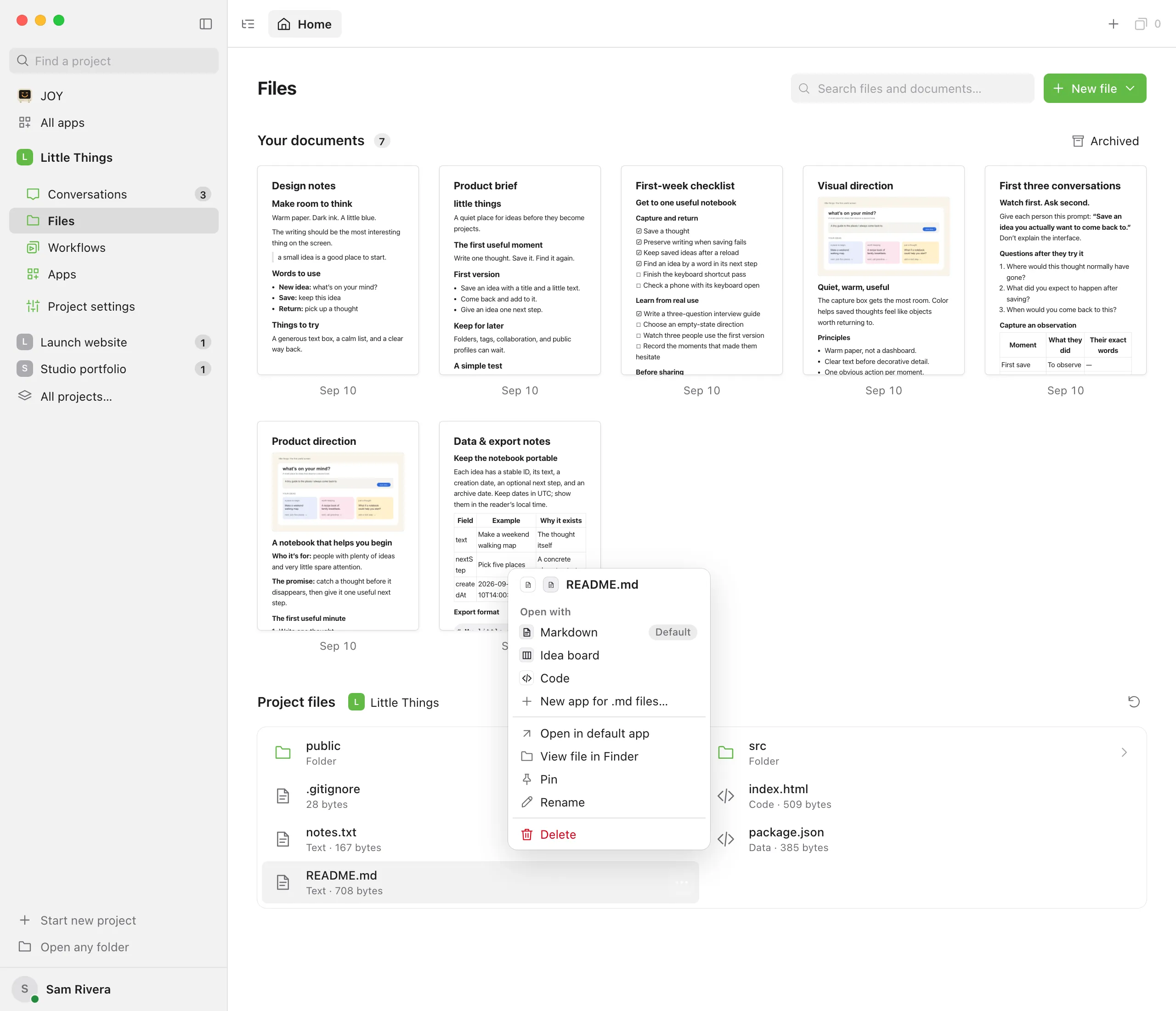
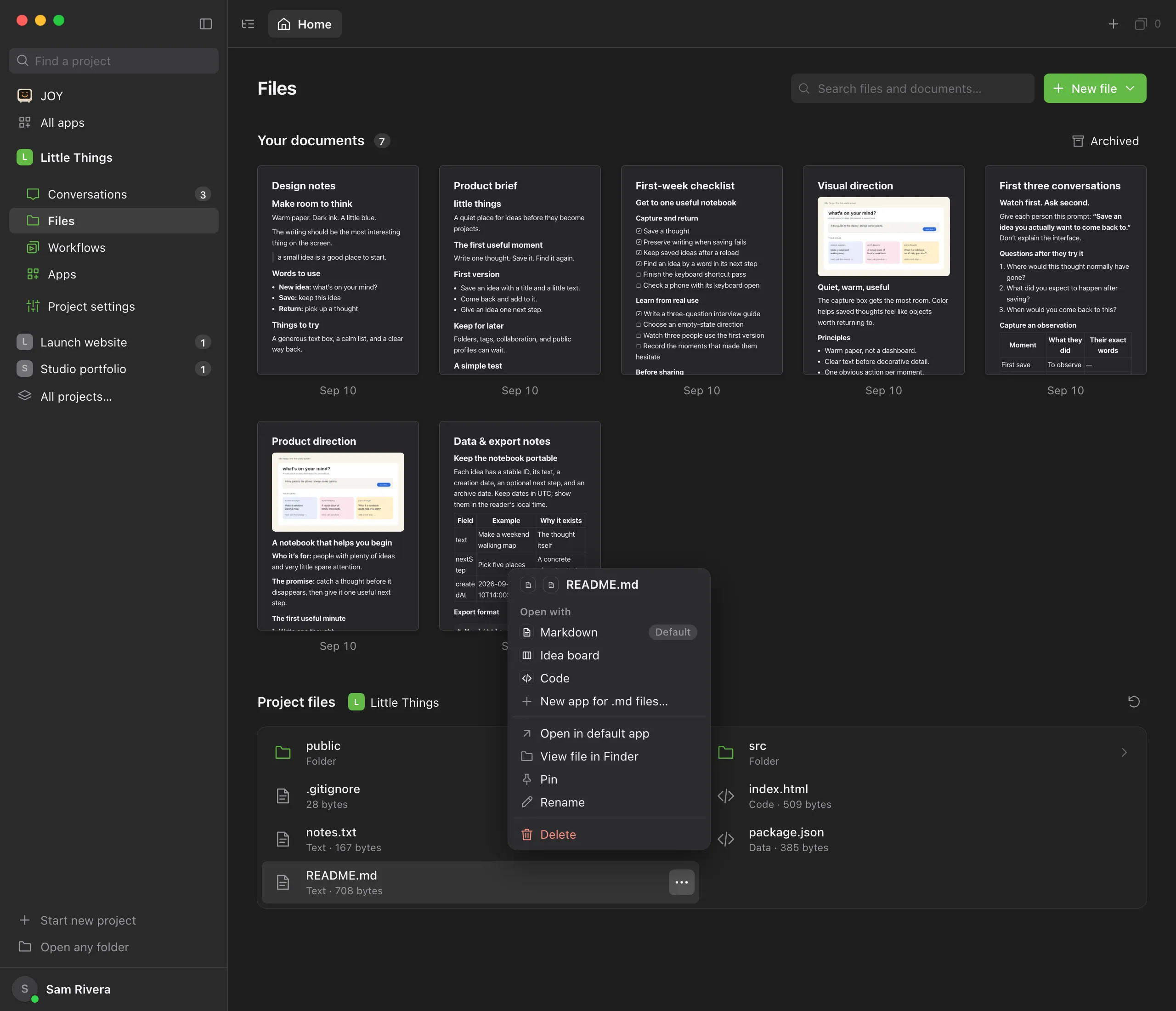
Open the file’s menu
In Files, right-click a project file or document, or point to it and select the … button. The Open with group at the top lists every app that can open it. Default marks the one it normally opens with.
Choose an app
The file opens in that app, or its open tab switches to it.
Switch apps from the tab
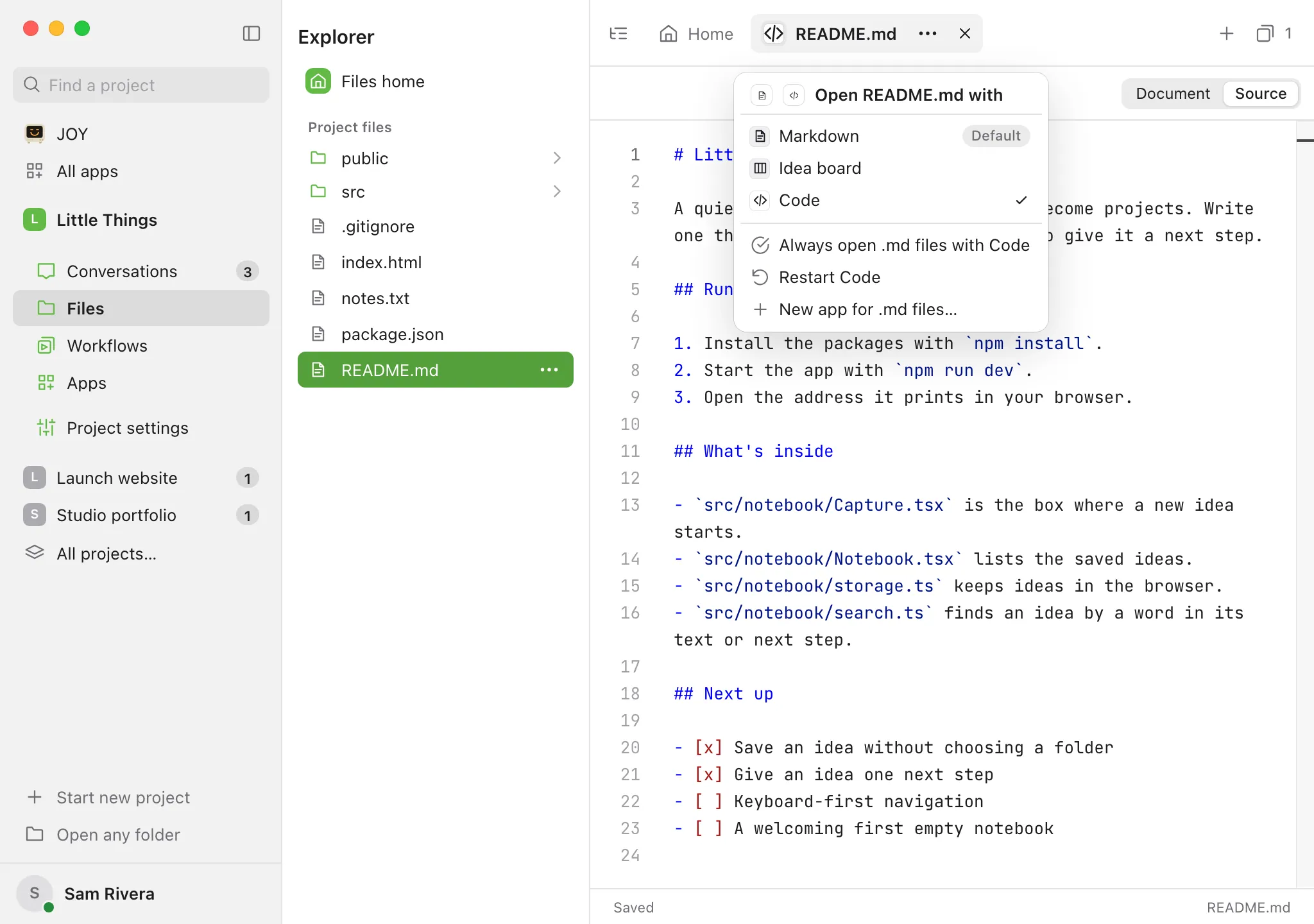
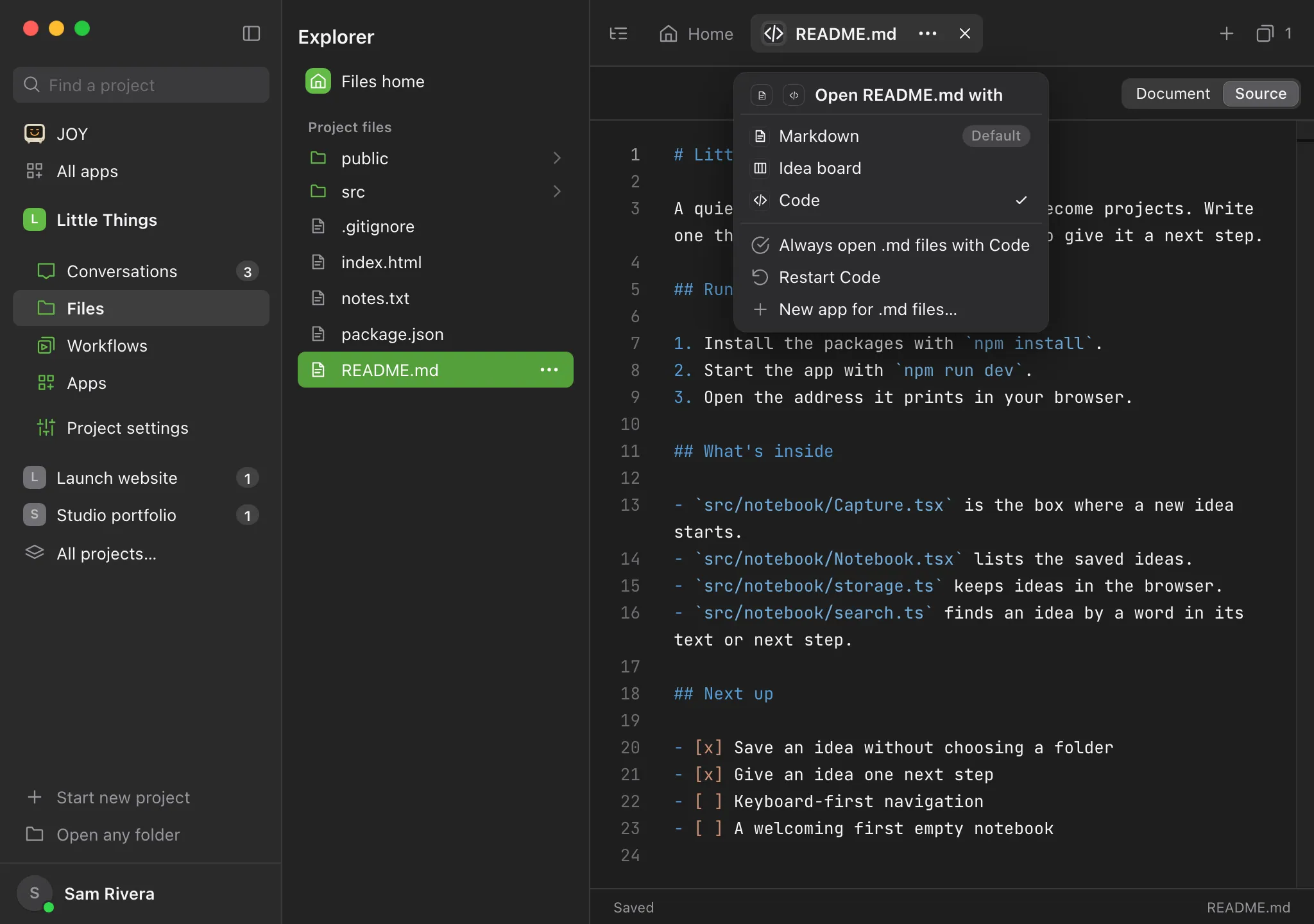
Select the app’s small key at the start of the file’s tab to see the same list. A check marks the app the tab is using.
Make it the default for that file type
In the tab’s menu, choose the option that starts with Always open, such as Always open .md files with Code. It appears when the tab’s app isn’t already the default.
Restart the app if it acts up
In the tab’s menu, choose Restart followed by the app’s name.
Good to know
- An app you choose from Open with applies to that tab. If you close the tab and open the file again, it opens with the default.
- After the default come your project’s apps for that file type, then apps from your other projects, with their project’s name beside them, then apps that open any text file.
- You can also set defaults in Apps: open an app’s … menu and choose an Always open option.
- The default for
.mdfiles also applies to documents. - To make a built-in editor the default again, switch the tab to Markdown or Code, then choose its Always open option.
- Pictures and other files that aren’t text always open in Files’ own viewer.
- If an app can’t edit a file without losing something, the file switches to Code, or to the document editor for a document, and a note at the top says why.
- Defaults are saved on each computer.
- New app for .md files…, with the file’s type, comes after the apps in both menus. It starts a new app with “Make an app that opens .md files and “ in the message box. See Make an app with an agent.
- The tab’s menu also has Change followed by the app’s name, which starts a conversation to change it (not for Markdown or Code), and, for an app with a page of its own, Open followed by its name and by itself.
- If an app’s code changed since you last saw it, a one-line note above the file says so. See Check what changed in an app.
- Editor plugins made with earlier versions of Enjoy, in the Enjoy folder in your home folder under Plugins, are listed too. For those, Change opens the editor as a project of its own, and Delete followed by its name moves it to the Trash and removes its project from Enjoy.
If something goes wrong
“couldn’t open this file”
The message starts with the app’s name and shows details below it. Select Try again. For an app that isn’t built in, select Change followed by its name to fix it with an agent, or choose a different app from Open with.
“didn’t connect to Enjoy”
The app’s page loaded but never connected. The full message, after the app’s name, is “didn’t connect to Enjoy. Its page needs to load enjoy.js and call enjoy.connect().” Choose Change followed by the app’s name, and pass that message to your agent.
The tab says the app stopped
Select Start followed by the app’s name. If it also says “It changed since it last ran, so it waits for you to start it.”, check what changed first. See Check what changed in an app.
“Couldn’t load apps”
Enjoy couldn’t list its apps, and the rest of the message says why. When the message says “so files open in the built-in editors”, Files opens files in the editors built into Enjoy until that’s fixed. Otherwise the apps Enjoy listed before still open files. Enjoy lists its apps again each time you come back to its window.
“Couldn’t read your choices of app for each type of file”
Enjoy couldn’t read which app you chose to always open each type of file with, and the rest of the message says why. Files opens files in the built-in editors meanwhile. Enjoy keeps the file that holds your choices as it is.
“Couldn’t load this project’s apps”
The project’s enjoy-apps folder couldn’t be read, so its apps may be missing from Open with. See Open, pin, and stop an app.
There’s no Open with group
You’re in the web app or the iPhone app, or you’re using another computer’s project. Apps open files only in the computer app, for projects on that computer. Menus in the archive don’t have the group either; restore the document first. See Archive and restore documents.