Browse and search your project's folders
Steps
Open Files
Select Files in the rail on the left side of the window. On a phone, or in any narrow window, select Show sidebar at the top left first. Under Project files, you’ll see the folders and files at the top of your project folder.
Select a folder to open it
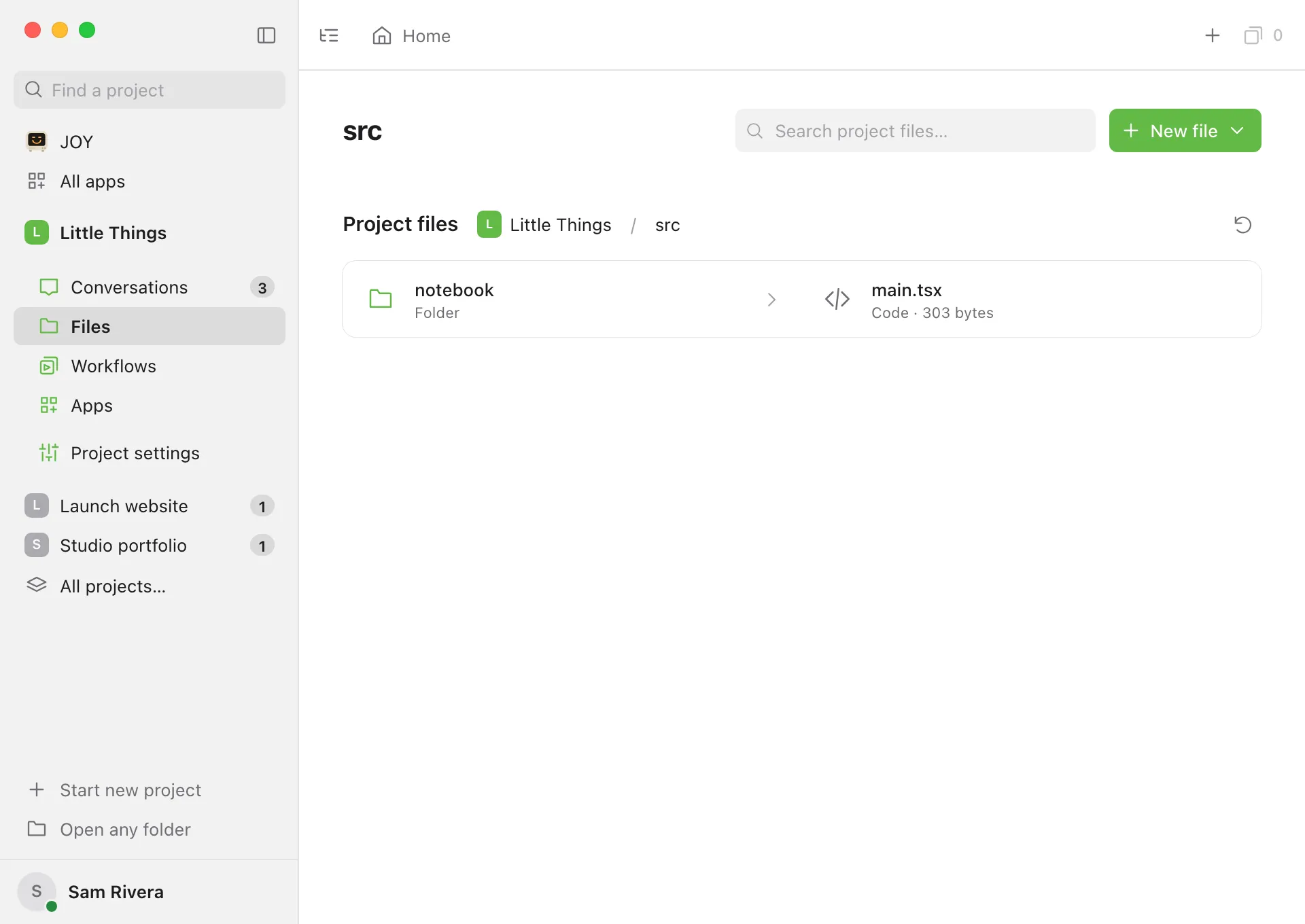
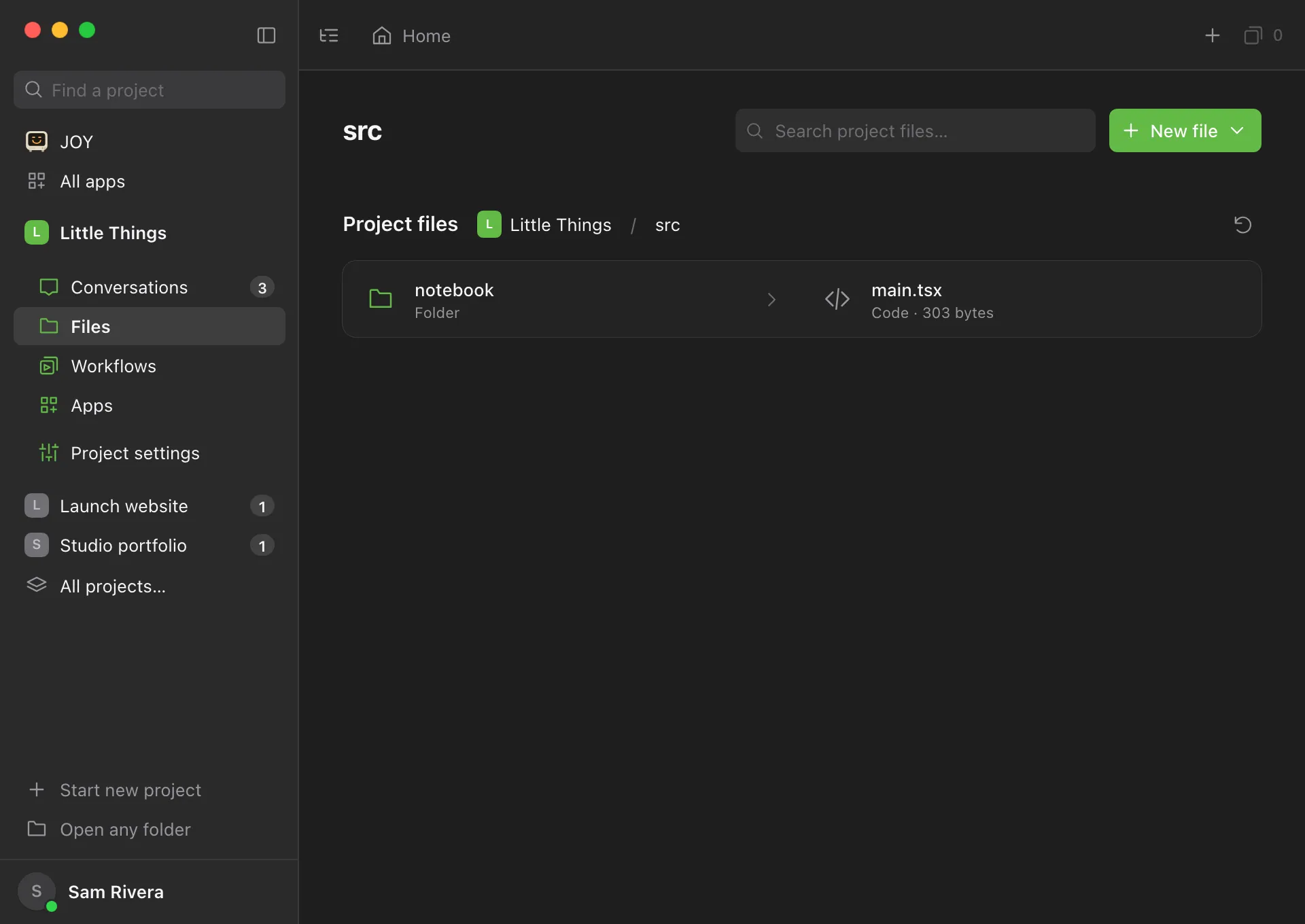
The heading changes to the folder’s name, and the path above the list shows where you are.
Go back up
In the path, select a folder’s name to go back to it, or the project’s name to return to the top. Select Home in the tab bar to go all the way back to Files home.
Search the folder
Type in Search project files… to show only the items in this folder whose names contain what you typed.
Use the explorer for a tree view
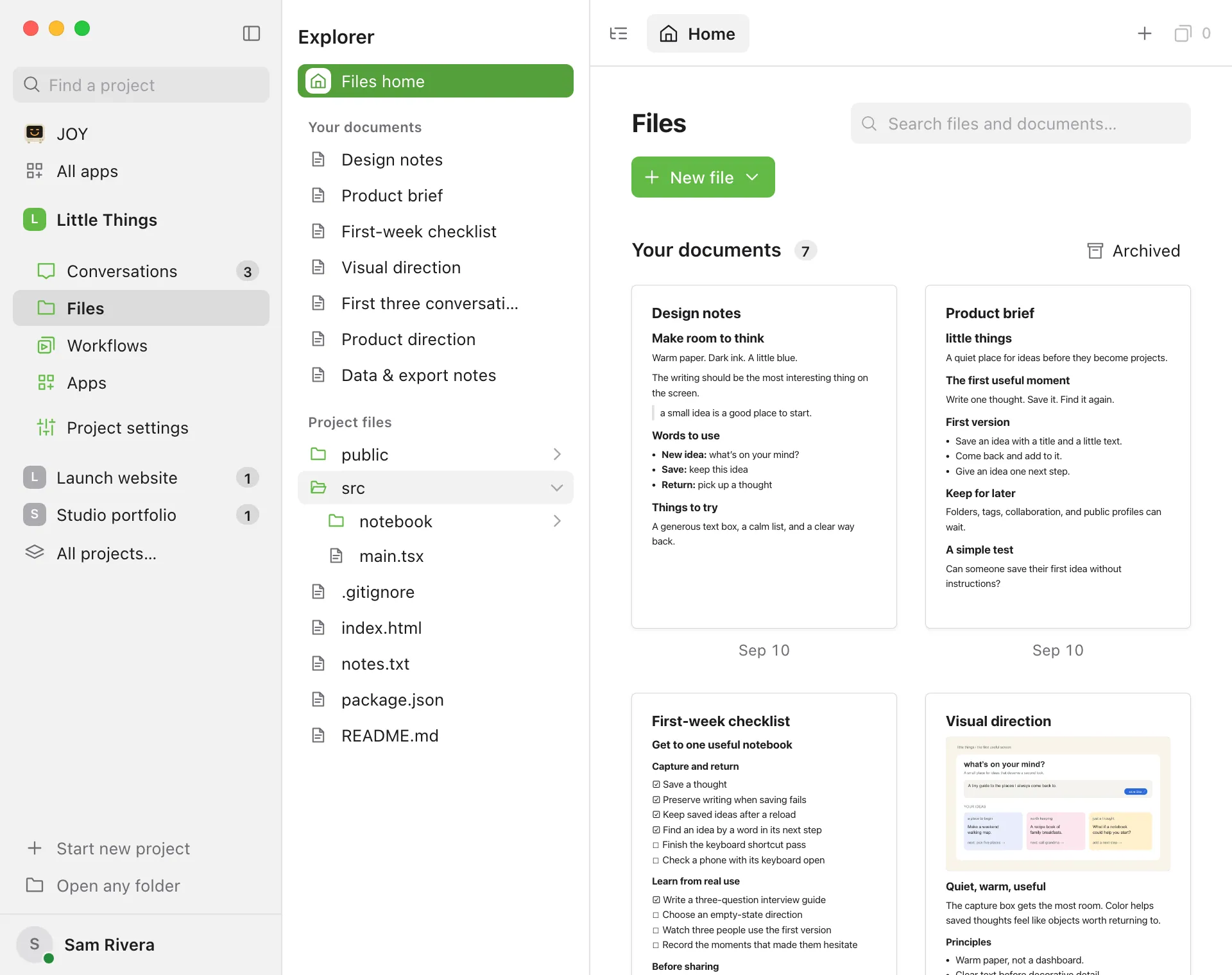
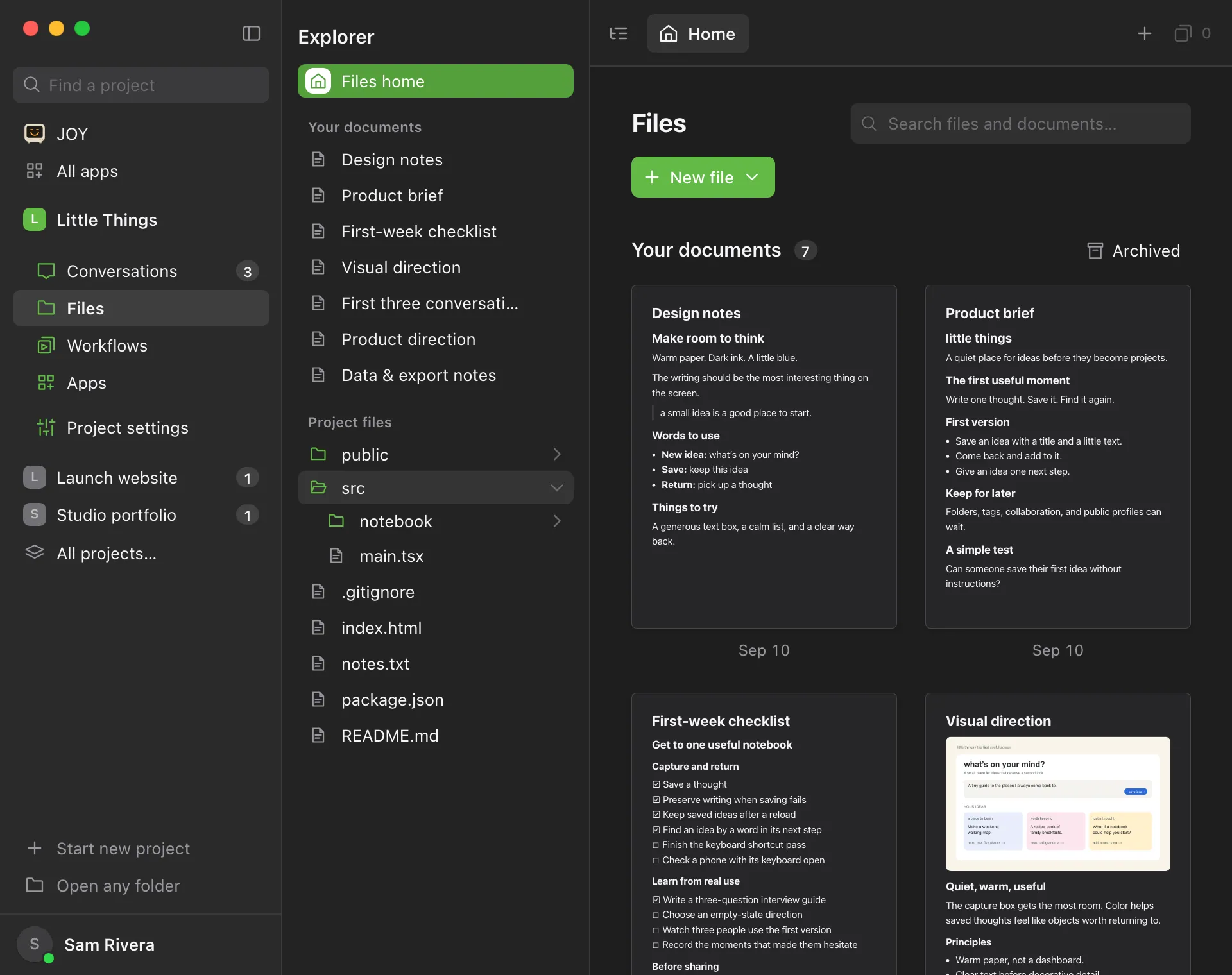
Select Show explorer at the left end of the tab bar. Select a folder to expand or collapse it, and a file to open it.
Good to know
- Folders come first, then files, in alphabetical order. Each file shows its kind and size, such as “Code · 4 KB”.
- The search box looks only at names in the folder you’re in. It doesn’t look in subfolders or inside files. On Files home, the same box also searches your documents.
- To find a file anywhere in the project, type @ in a message. See Mention docs, conversations, files, and workflows with @.
- The
.gitfolder is hidden. Other hidden files, whose names start with a dot, are listed. - A folder shows up to 2,000 items. For bigger folders you’ll see Showing the first 2,000 entries. Open a smaller folder to browse more.
- To pick up files an agent added recently, select Refresh files, the round arrow at the right end of the Project files heading. The list also refreshes when you come back to the Enjoy window.
- Your documents is hidden while you’re in a folder. Select Home to see your documents again.
- When you switch to another section and back, Files returns to the folder you were in.
- If your project has worktrees, the project’s name in the path opens Browse files in, and a chip beside Project files in the explorer does the same. Choose a worktree to browse its files, or your main folder to come back. Choose the copy you’re already in to return to its top. Your documents stay the same in every copy. See Try ideas side by side in worktrees.
- A tab keeps the copy it was opened from. Tabs from a worktree show the worktree’s colored tile. When you switch copies, the file you have open opens from the other copy beside it, if that copy has it. Otherwise Files shows that copy’s Files home.
- In a project inside WSL, Enjoy lists and searches the files in the Linux distribution, so names Windows can’t use, such as ones with
:, are listed too. A name that isn’t valid text can’t be shown, and the list says how many it left out, such as 2 items with unsupported names aren’t shown. - In the web app, your browser’s Back and Forward buttons move between the folders you opened.
- To browse on your phone, see Use Files on your iPhone.
If something goes wrong
“No files match in this folder.”
Nothing in this folder has your search text in its name. Check the spelling, or open the folder the file is in and search there.
A file you expect isn’t in the list
If an agent made it recently, select Refresh files. If it still doesn’t appear, it may be in another folder. Type @ in a message to search the whole project.
The list shows an error
Select Try again. In a project inside WSL, if the error says the distribution stopped, select Try again on the distribution’s card at the top of the conversation list first: browsing doesn’t start it. In the web app, or when you use another computer’s project, check that the computer the project is on is turned on and connected to the internet.