Work on a project inside WSL
WSL, the Windows Subsystem for Linux, runs Linux on your Windows PC. Linux comes in versions called distributions, such as Ubuntu. When a project’s folder is inside a distribution, Enjoy runs everything for it there: Git, your agents, and the programs they start. They work as the distribution’s default user, the one its terminal opens as, with the same settings your terminal there uses, such as your SSH keys and the programs on your PATH.
Before you start
- WSL version 2.0.0 or later. In PowerShell,
wsl --versionshows yours, andwsl --updateupdates it. - A distribution that uses WSL 2, for a 64-bit Intel or AMD processor. In PowerShell,
wsl --list --verboseshows 2 under VERSION. - Git 2.34 or later in the distribution. In its terminal,
git --versionshows yours. Ubuntu 22.04 and later have it. - The project’s folder is inside the distribution, such as
/home/you/app. A folder on a Windows drive, such as/mnt/c/src/app, opens as a Windows project instead, by its Windows path.
Steps
Select Open any folder
Select Projects at the top of the window, then Open any folder at the bottom of the menu.
Go to your distribution
In the window that opens, select Linux in the list on the left, then your distribution, such as Ubuntu. Or type its address in the bar at the top, such as
\\wsl.localhost\Ubuntu\home, and press Enter.Choose the project’s folder
Open your home folder, select the project’s folder, and select Select Folder.
Wait while Enjoy opens it
If the distribution isn’t running, Enjoy starts it. The first time, Enjoy also sets itself up there, which takes a moment longer.
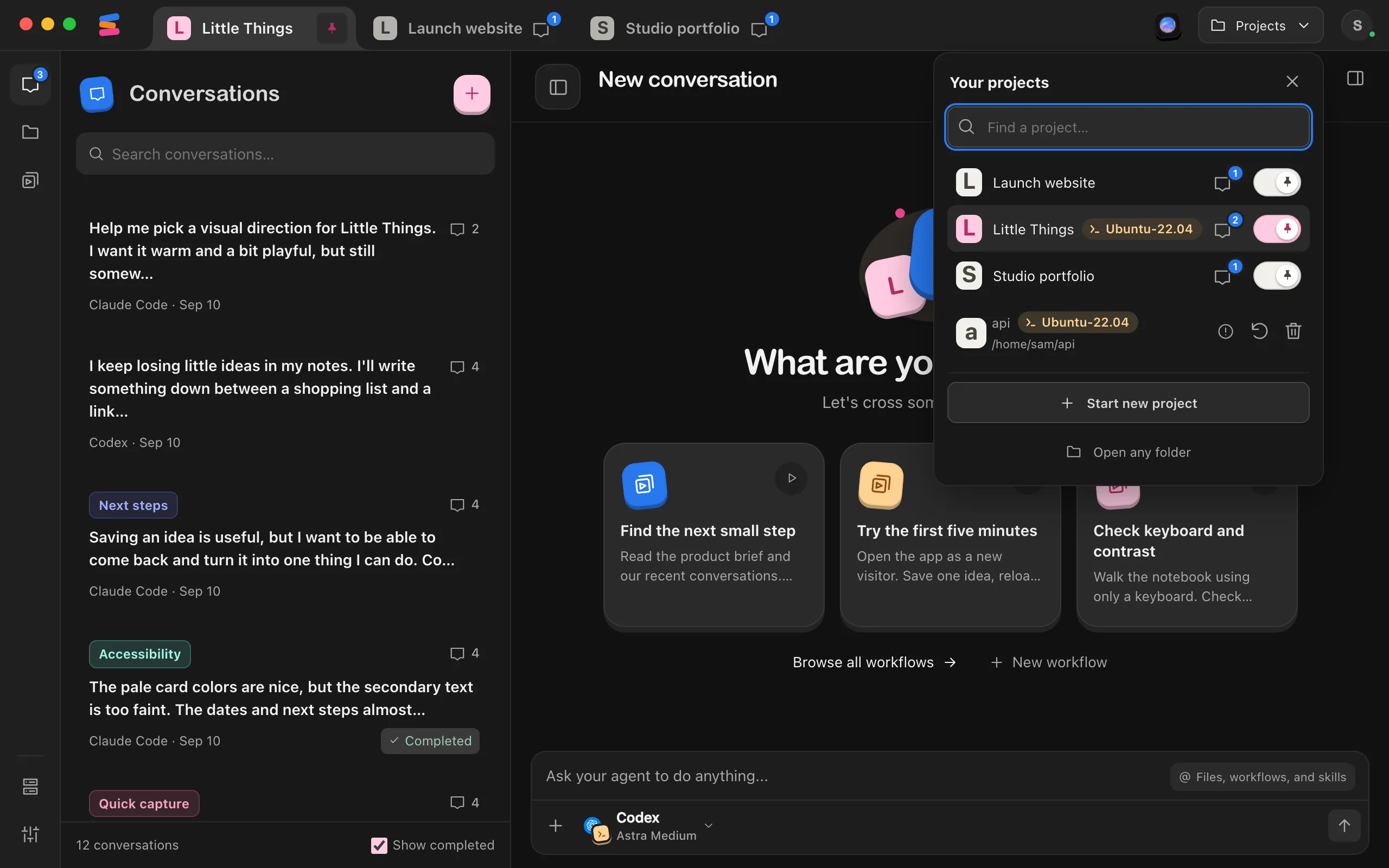
Check where the project is
Select Projects. The project’s row shows a chip with the distribution’s name, such as Ubuntu-22.04. In Project settings, the project’s Linux path, such as
/home/you/app, shows under its folder.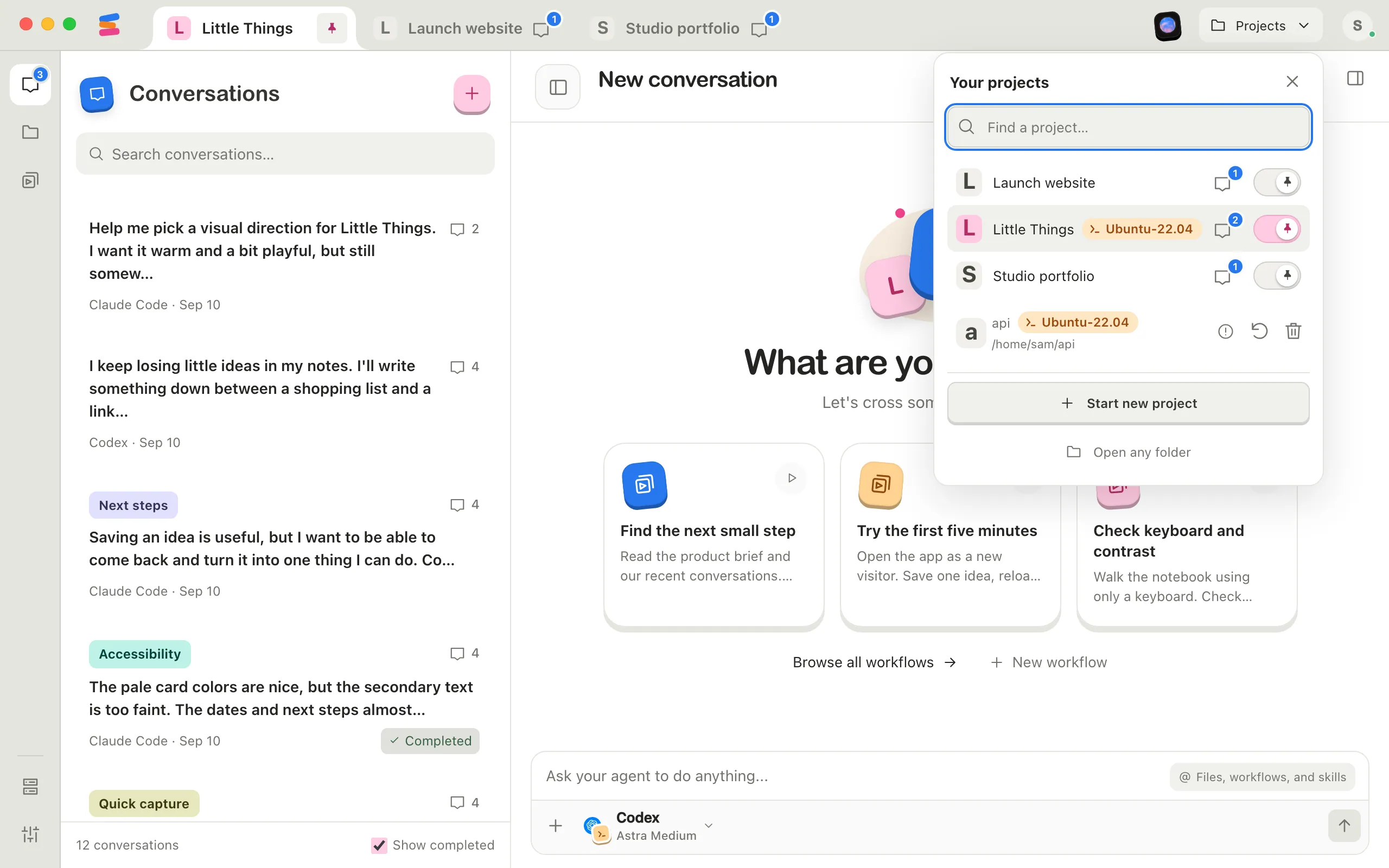
Open the agent settings
Select the agent button at the bottom of the message box. The top of the agent settings names the distribution and says Agents for this project run here. Agents that aren’t installed in the distribution show Install, even if they’re installed on Windows.
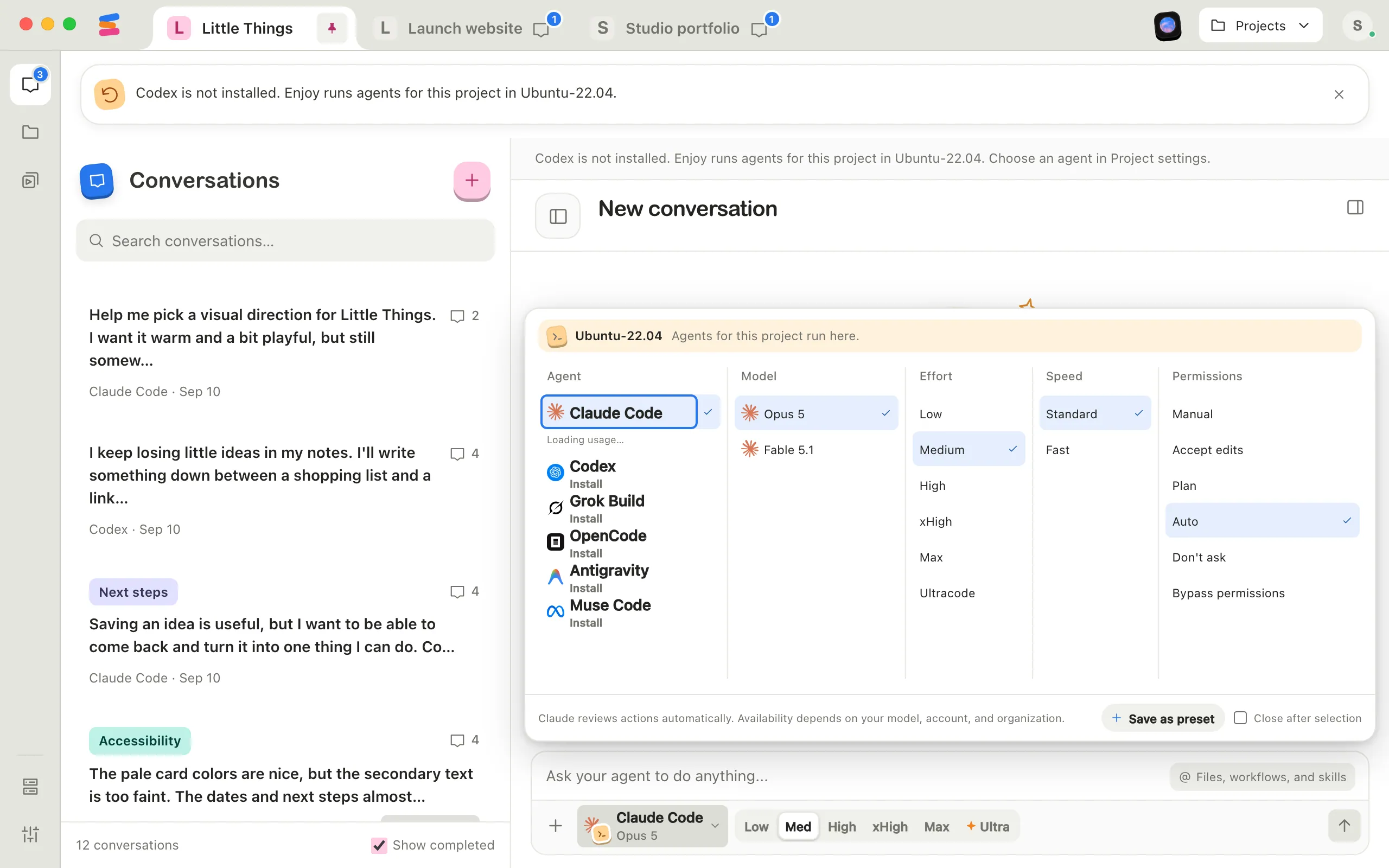
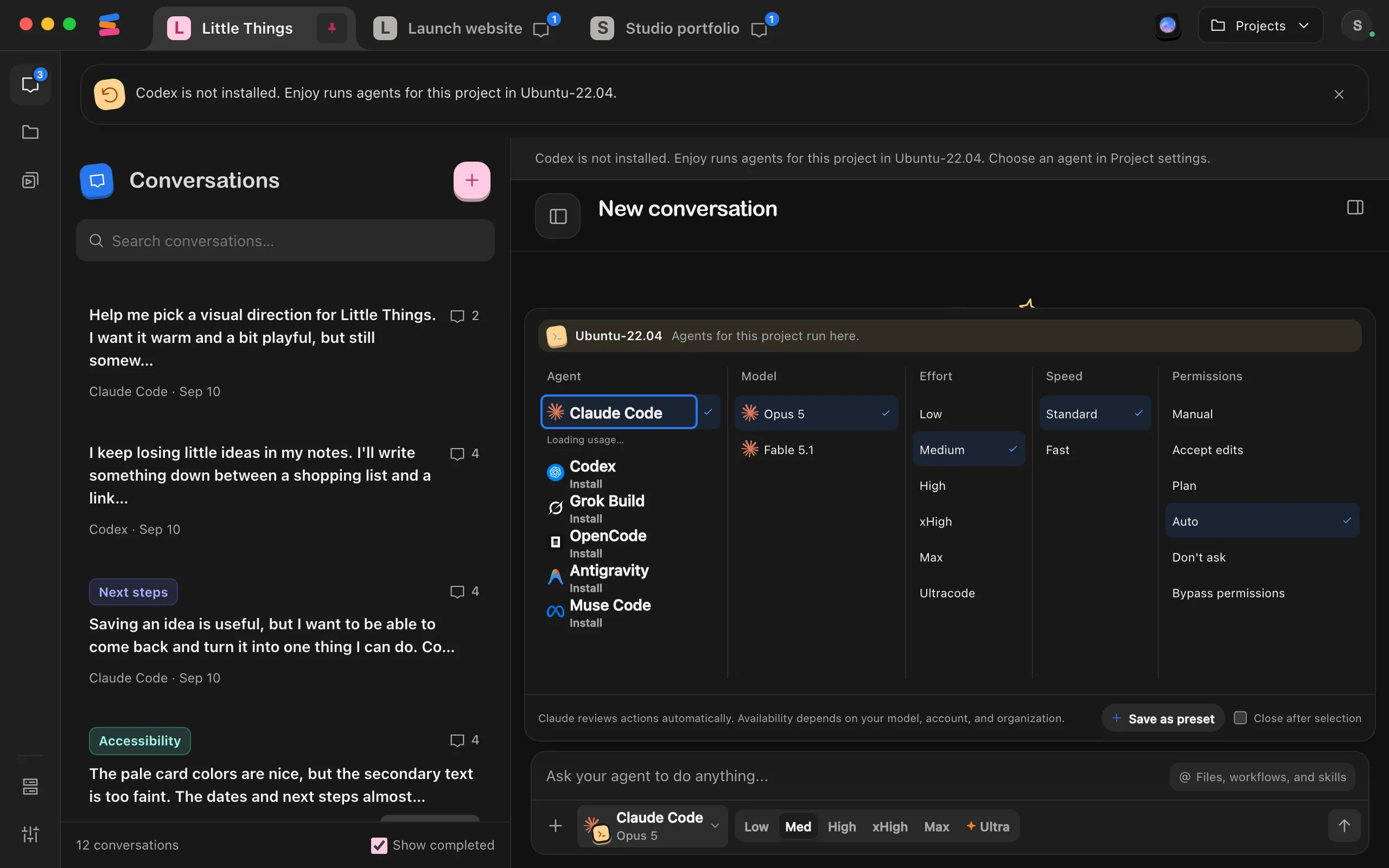
Install an agent there
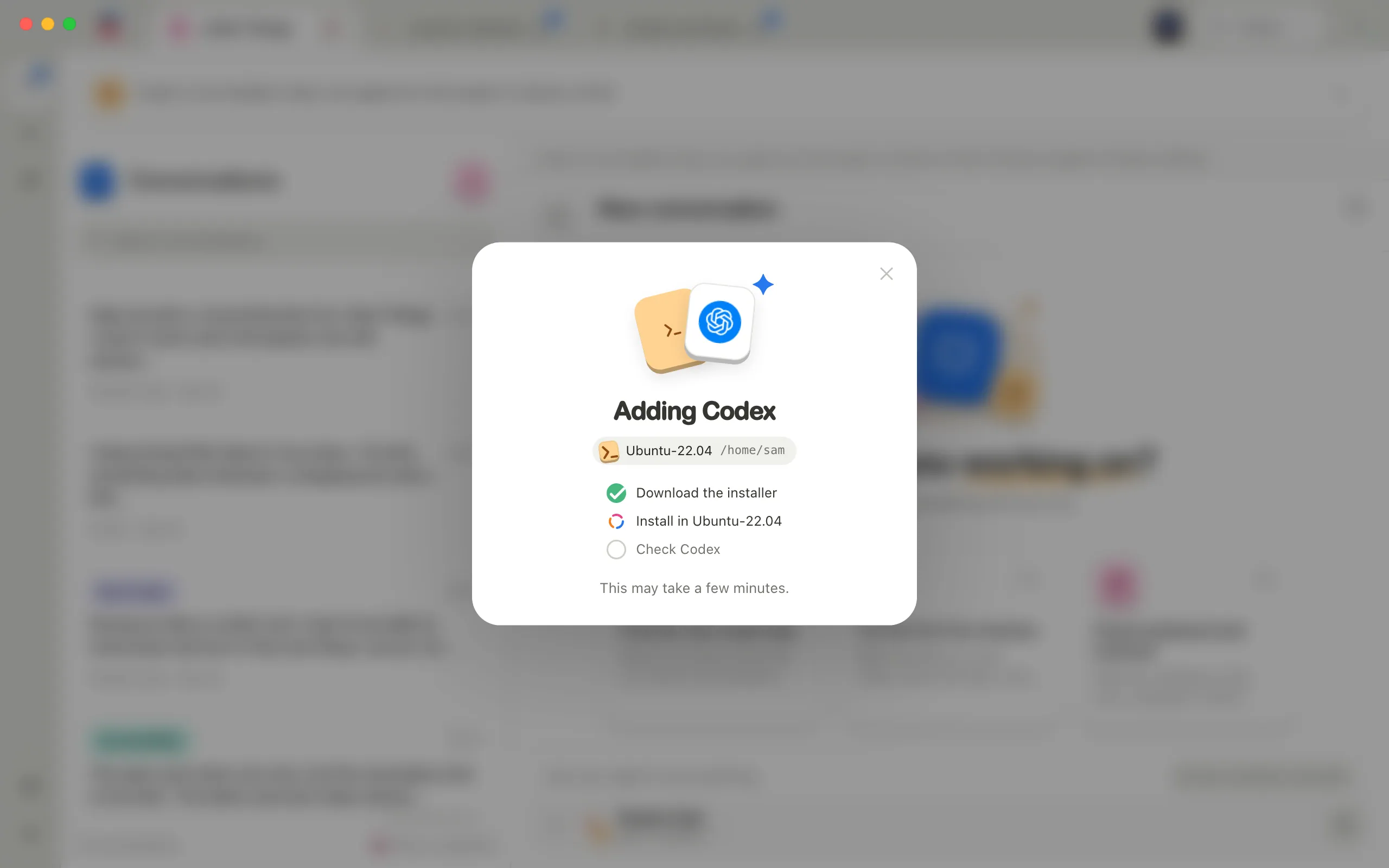
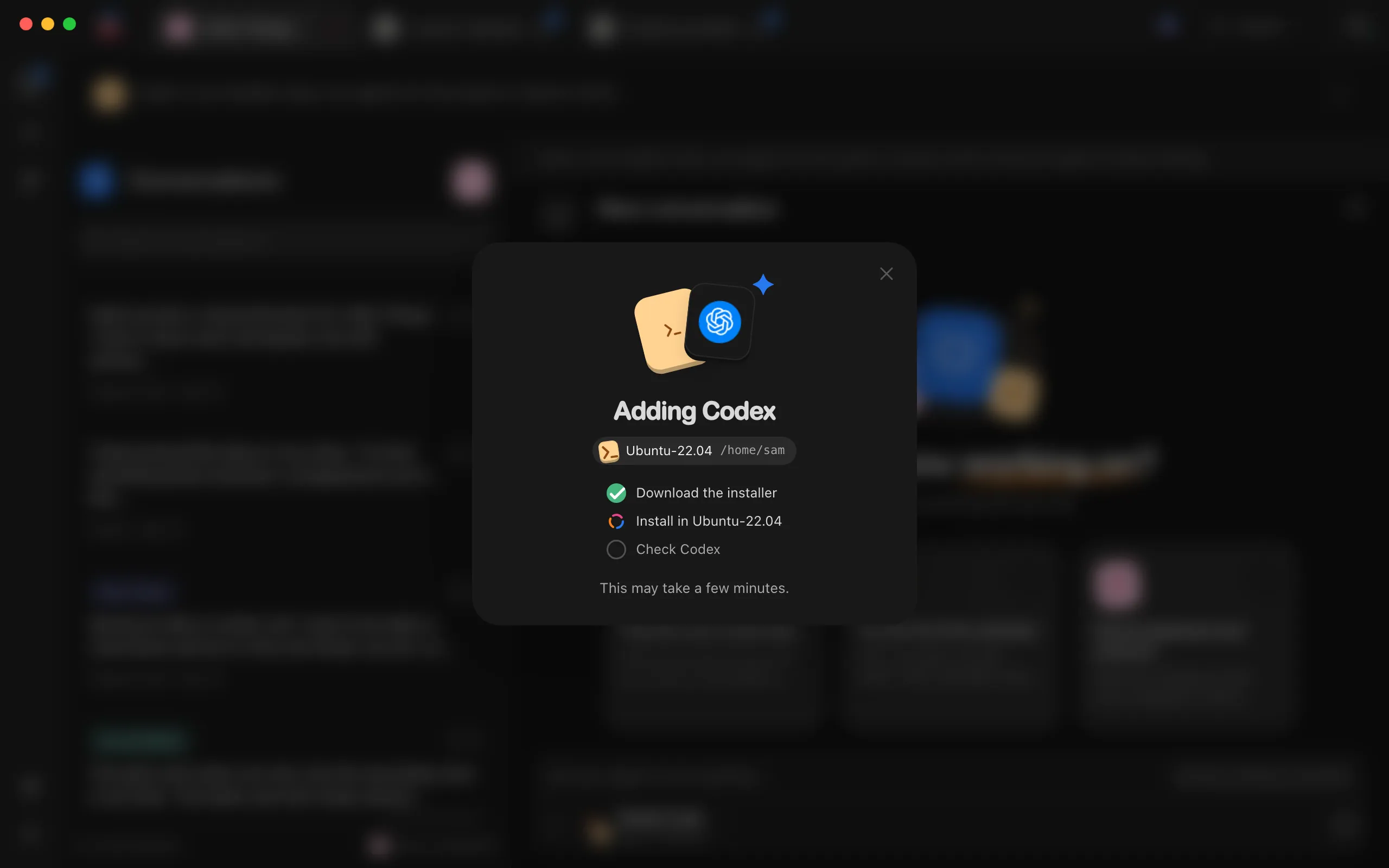
Select an agent that shows Install. A window such as Add Codex? says This project’s agents run in Linux, so Enjoy installs Codex there. Select Install and the agent’s name, such as Install Codex. While Enjoy works, the window shows each step, such as Install in Ubuntu-22.04. See Install an agent.
Sign in there
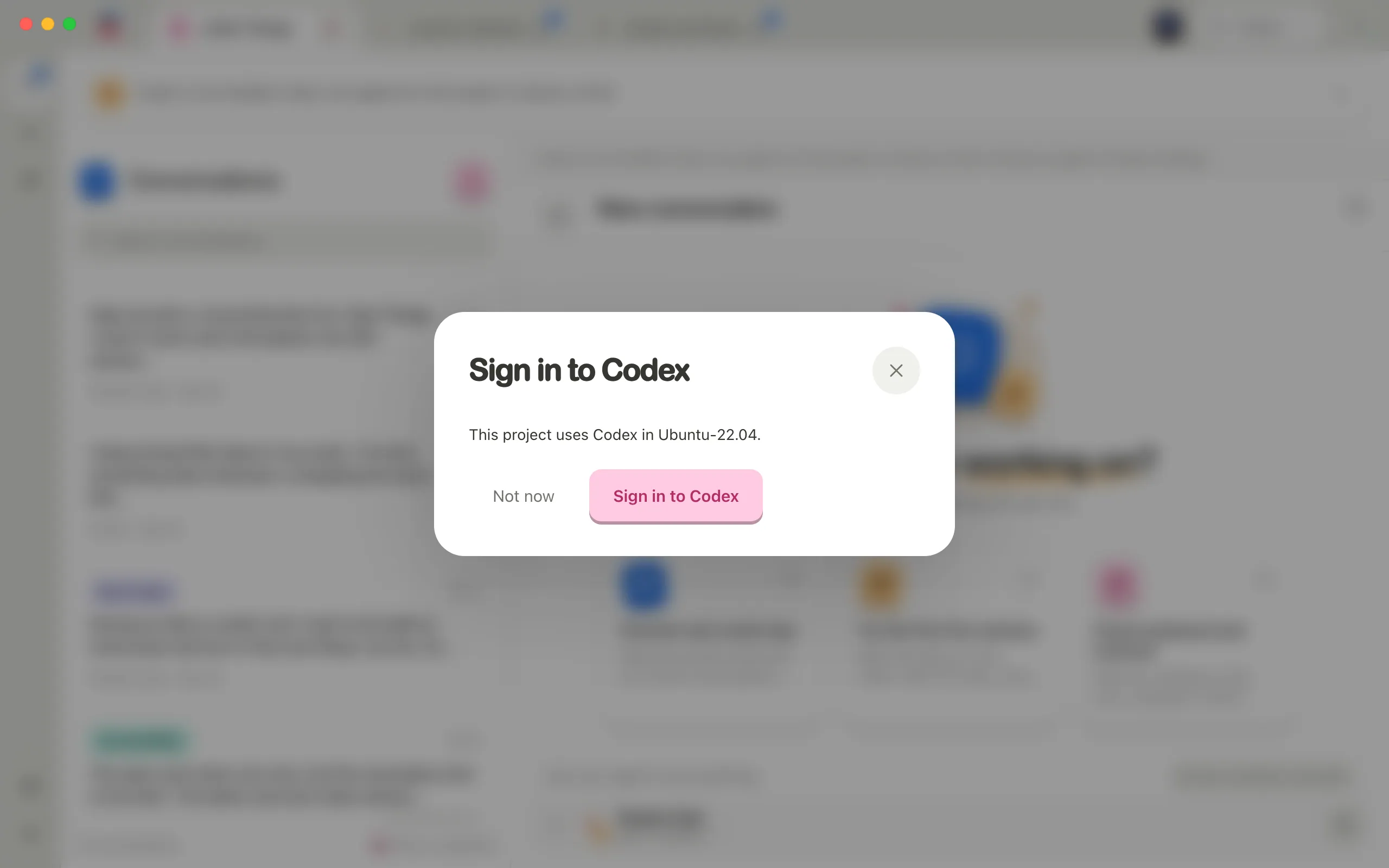
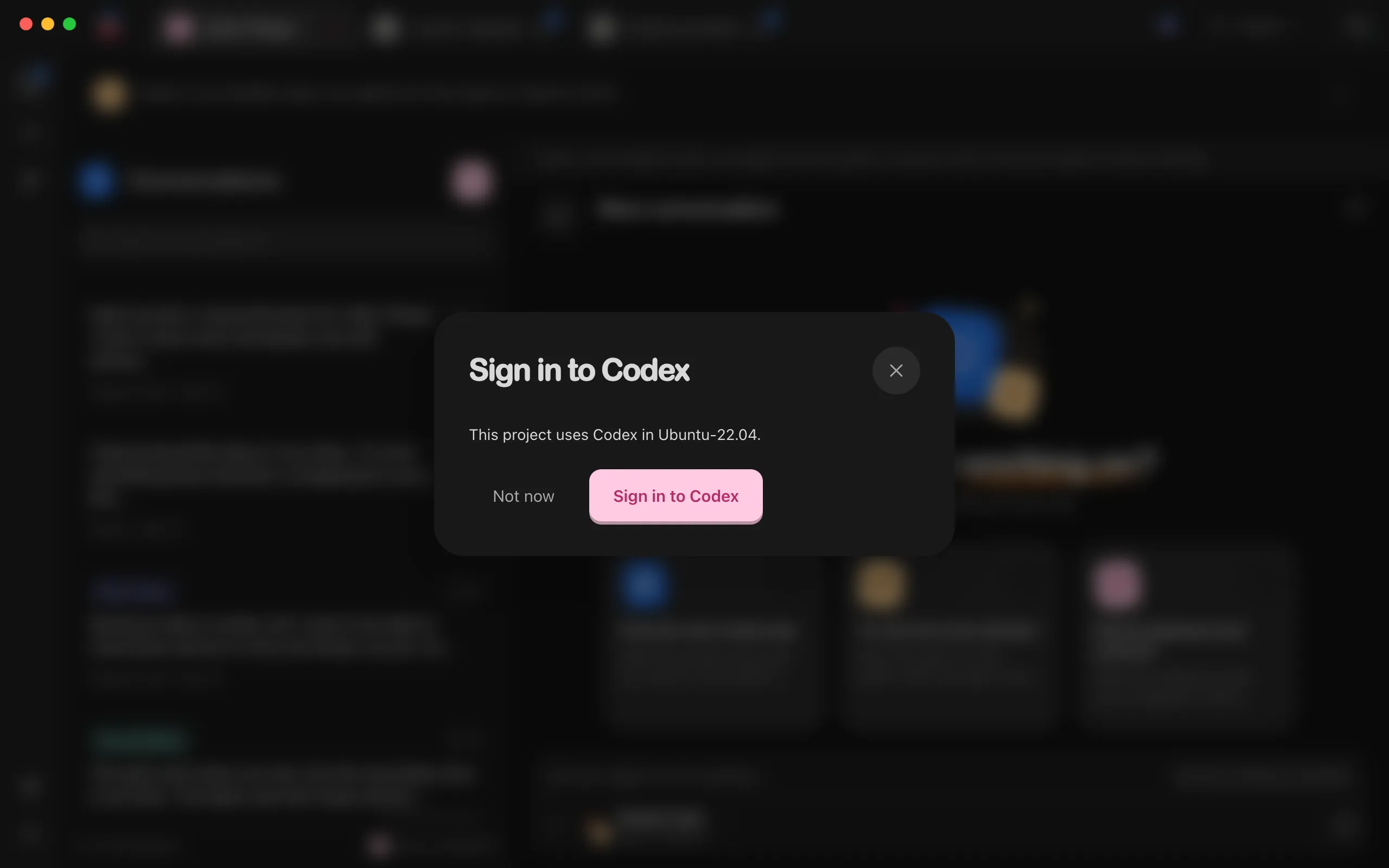
When the agent needs you to sign in, the sign-in window names the distribution, such as This project uses Codex in Ubuntu-22.04. Select the sign-in button, such as Sign in to Codex, and finish in your browser. See Sign in to an agent.
Good to know
- Agents are set up once per distribution. Agents you install, sign in, and add accounts to in a distribution serve every project there, separately from Windows. A small Linux key on the agent button marks where they run.
- Finding it. Find a project… in the Projects menu also finds a project by its Linux path or its distribution’s name.
- The distribution’s card. At the top of the project’s conversation list, a card named after the distribution shows while it starts, when it stops, when something’s wrong, and with warnings. It isn’t there while all is well. See Fix problems with a project in WSL.
- Speed. Git and agents work on the project’s files directly inside Linux, so they don’t wait on the slower network share Windows reaches the distribution through.
- Starting and stopping. Enjoy keeps the distribution running while a project in it is open. Once you quit Enjoy or close the last project in it, WSL usually stops it within about half a minute, unless something else keeps it running, such as a terminal open there. If you stop it yourself, for example with
wsl --shutdown, Enjoy starts it again only when you do something that needs it, such as sending a message, using Git, or selecting Try again. Enjoy waits up to a minute for it to start. Projects still opening when Enjoy starts show a spinner beside their name until their distribution is ready. - Attachments. Enjoy keeps the project’s conversations, docs, workflows, and attachments on Windows, not in the distribution. Agents open attachments through the distribution’s view of your Windows drive, such as
/mnt/c, so the distribution needs WSL’s automount, which is on unless you turned it off in/etc/wsl.conf. - Processes. Programs your agents leave running, such as a website’s server, run in the distribution. They keep running only while the distribution does: after you quit Enjoy, WSL usually stops it within about half a minute, and they end with it, unless something else keeps it running, such as a terminal open there.
wsl --shutdownand restarting Windows stop them too. After the agent that started them ends, they may not be able to start Windows programs. With WSL’s default networking, their websites open from Windows atlocalhost. With mirrored networking they do too, unless a server listens only on[::1], and withlocalhostForwarding=falsenone opens from Windows. If an address says Linux only, see An address says Linux only. See also What’s in the Processes list. - If Enjoy closes unexpectedly, the programs its agents were running in the distribution end too, except the ones in the Processes list, which keep running only while the distribution does, as above.
- Apps. Apps don’t run in projects inside WSL yet. The project’s Apps says Apps don’t run in WSL projects yet., and its agents can’t make or open apps. Files still opens the project’s files in the built-in editors and in editors from earlier versions.
- Conversations from before. Earlier versions of Enjoy ran a WSL project’s agents on Windows. Those conversations carry on: when you send a message, the agent in the distribution starts a new session with the conversation’s history.
- New projects. Start new project in the Projects menu can put a new project’s folder in a distribution: in the Create project folder window, select Linux in the list on the left, then your distribution and the folder to put it in, such as your home folder. You can also create the folder in the distribution’s terminal, for example with
mkdir ~/my-app, then open it. Projects you start from your iPhone go on Windows, in the Enjoy folder in your home folder. - Your phone and the web app show projects inside WSL like any other project, without the distribution’s name.
- Not supported: distributions that use WSL 1, distributions for Arm processors, and the distributions Docker Desktop and Rancher Desktop keep for themselves. For a WSL 1 distribution, Enjoy says so and gives the command that converts it to WSL 2.
- Removing Enjoy. Delete all application data… in the Help menu also removes what Enjoy put in each distribution. See Delete all application data. Uninstalling Enjoy can’t reach your distributions. To clean one up by hand, first remove the accounts you added in Enjoy for its agents, which signs them out, then run
rm -rf ~/.local/share/app.enjoy.desktop/wsl ~/.local/share/app.enjoy.desktop-wsl ~/.local/state/app.enjoy.desktop/wslin its terminal. That leaves Enjoy for Linux’s own data alone, if you use it there.
If something goes wrong
Messages from WSL and the distribution, such as Update WSL to open this project: run wsl –update., each have a section in Fix problems with a project in WSL.