Use Files on your iPhone
Before you start
- Connect the iPhone app to the computer your projects are on. See Connect your phone.
Steps
Open Files
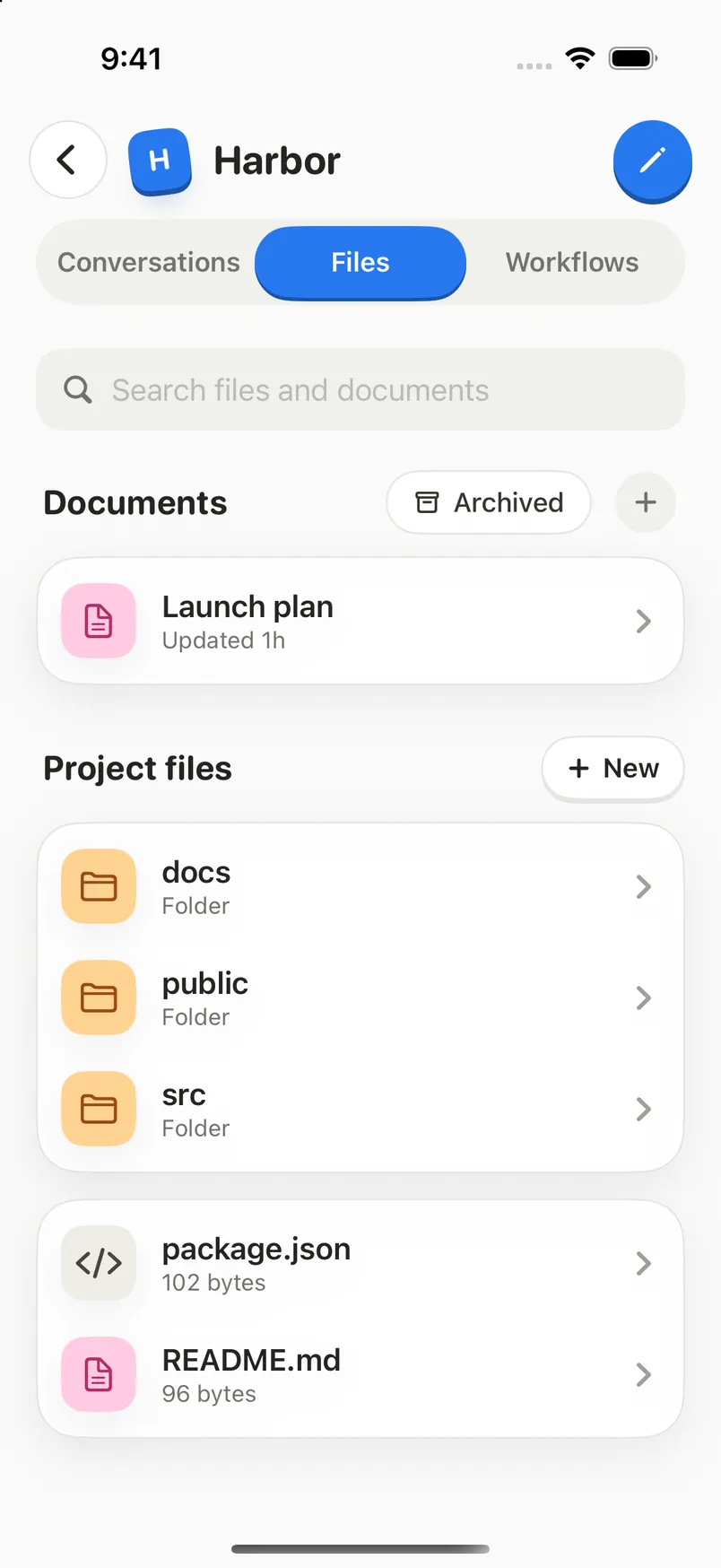
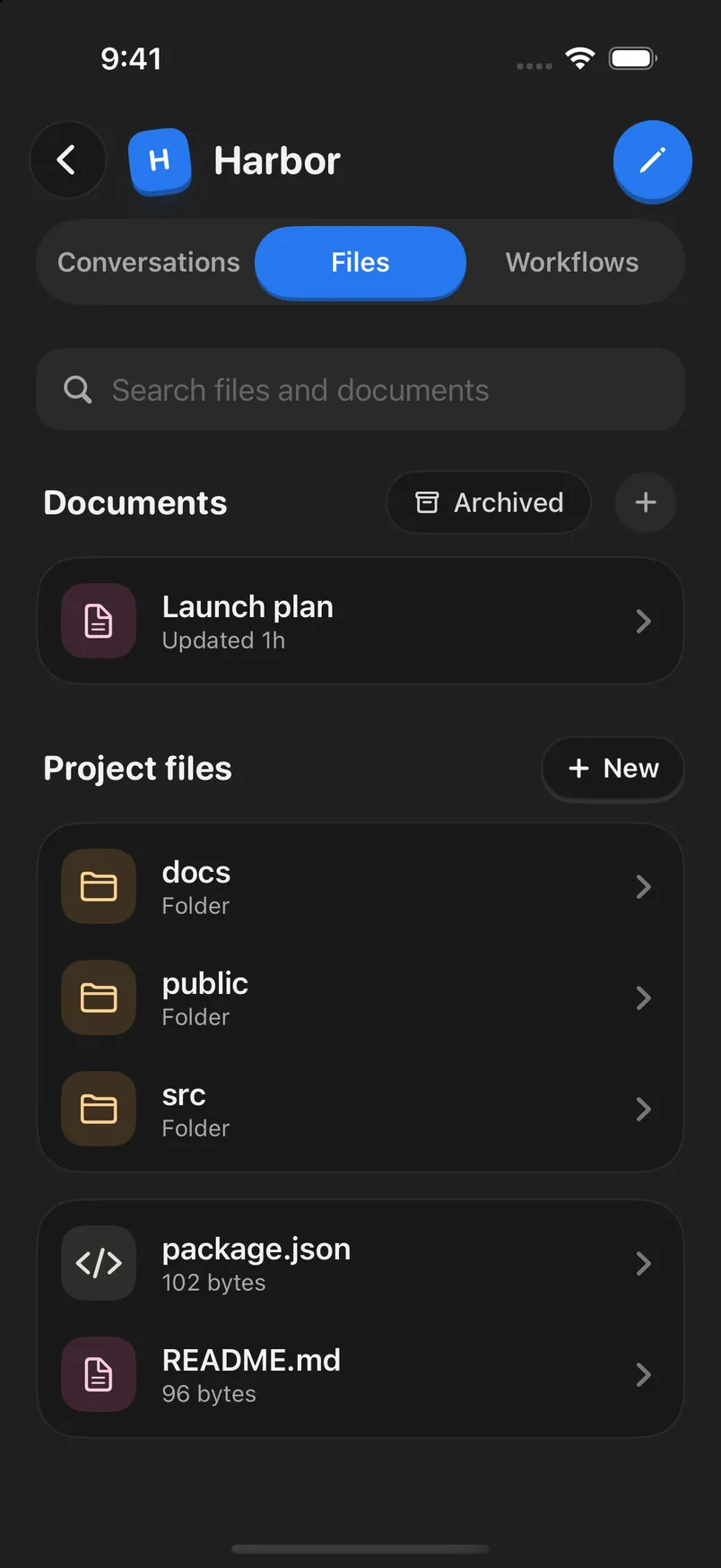
Open a project, then select Files at the top, next to Conversations and Workflows.
Find what you need
Your documents are listed first, under Documents, then Project files. Select a folder to open it. To search, type in Search files and documents. Once you’ve typed two or more characters, matches from other folders appear below the list.
Open a document or file
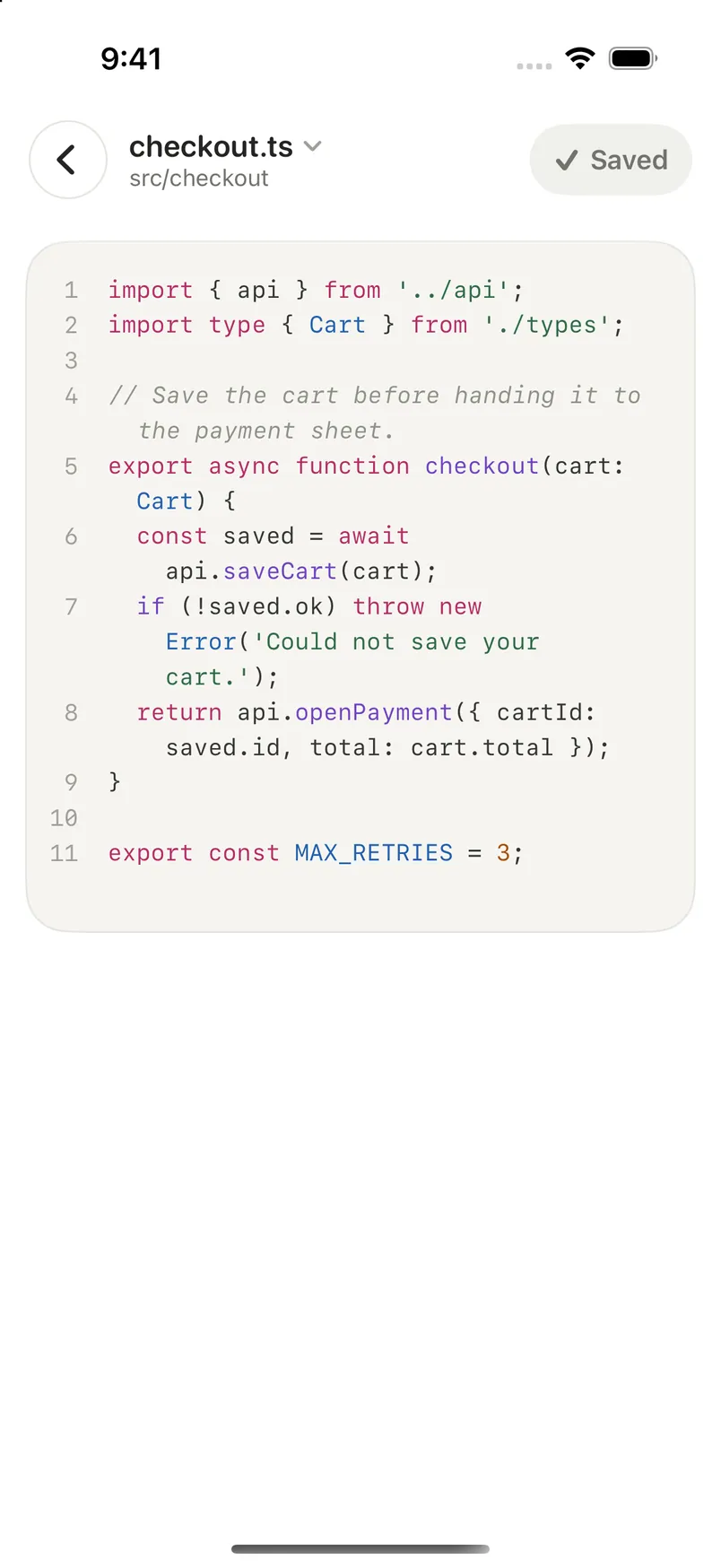
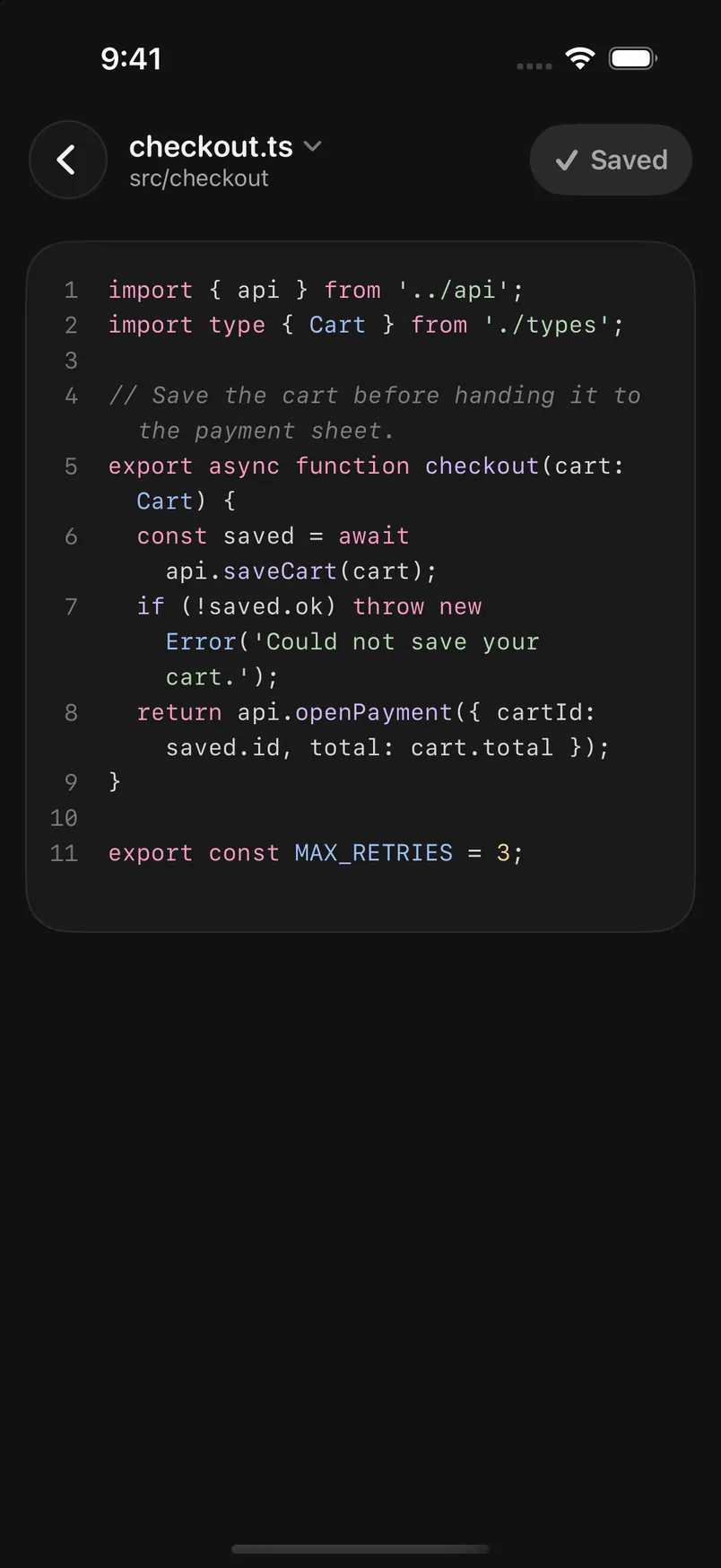
Select it. Markdown opens in Edit view with a formatting bar for headings, bold, italic, bulleted lists, checklists, quotes, code, and links. Select Preview to read it formatted. Other text files open in a code editor.
Make your changes
Enjoy saves a moment after you stop typing. Select Save to save right away. It says Saved when it’s done.
Use the menus for more
For a project file, select its name at the top, then choose Rename…, Copy path, or Delete…. For a document, select … at the top right for Rename, Archive or Restore, and Delete….
Good to know
- To create a document, select + beside Documents. To create a project file, select New beside Project files, or + inside a folder, and choose Markdown, JSON, Plain text, or Other….
- Select Archived beside Documents to see archived documents, each with a Restore button. You can also touch and hold a document to archive or restore it.
- Touch and hold a file, then choose Copy path to copy where it is in the project.
- Pull down on the list to refresh it.
- Pictures show a preview. Files that are too large or aren’t text show a note to open them on your computer.
- Deleting asks you to confirm, and the item is permanently removed from the project.
- Your computer must be on and connected for changes to save. Unsaved drafts are kept on your iPhone, even if you close the app.
- Pins, find and replace, adding images to documents, and starting a conversation from selected text work in the computer app and the web app, not on your iPhone. Opening files in your project’s apps, opening files in other apps, and copying files in work only in the computer app.
If something goes wrong
“Not saved.”
The message continues with the reason. Select Retry. Check that your computer is on and the iPhone app is connected.
A file shows a conflict
The file changed on your computer while you had unsaved edits. Choose Use Mac version to take the computer’s version, or Save a copy to keep yours as a new file. For a document, choose Save my draft as a copy or Use saved version. See What happens when a file changes while you edit it.
The menus are greyed out
You have view-only access to this project. You can read files, but not change them.