Write and send a message
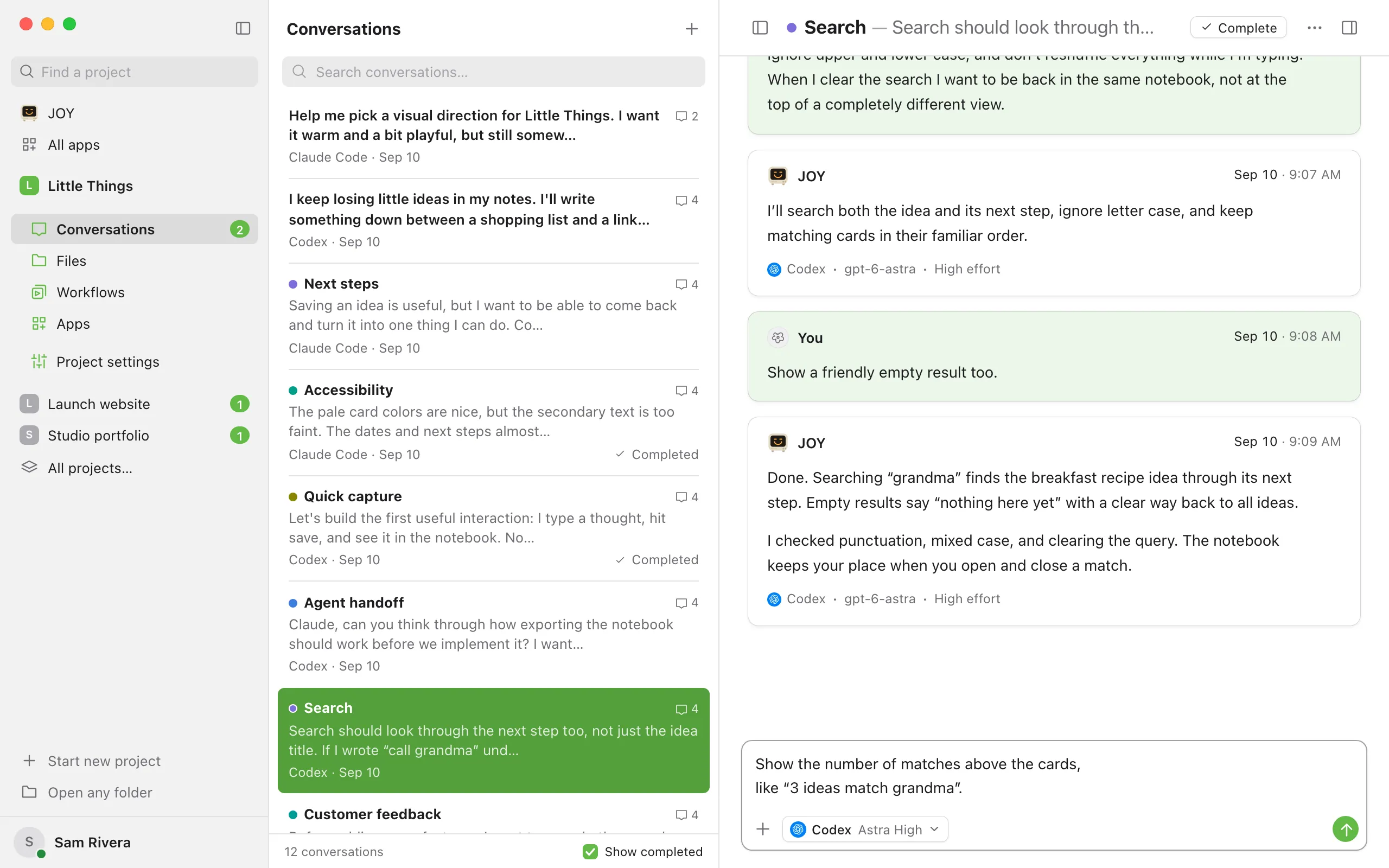
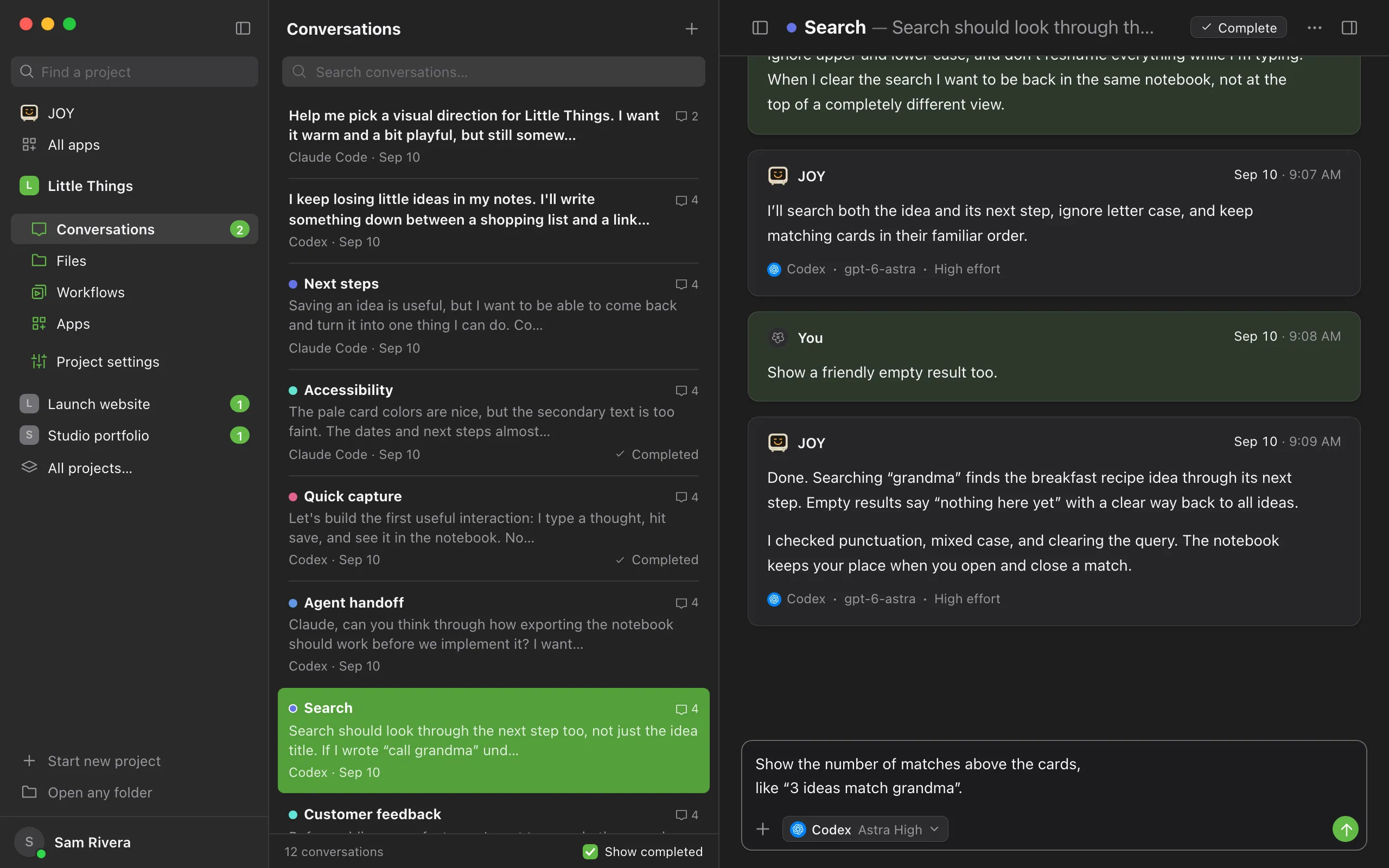
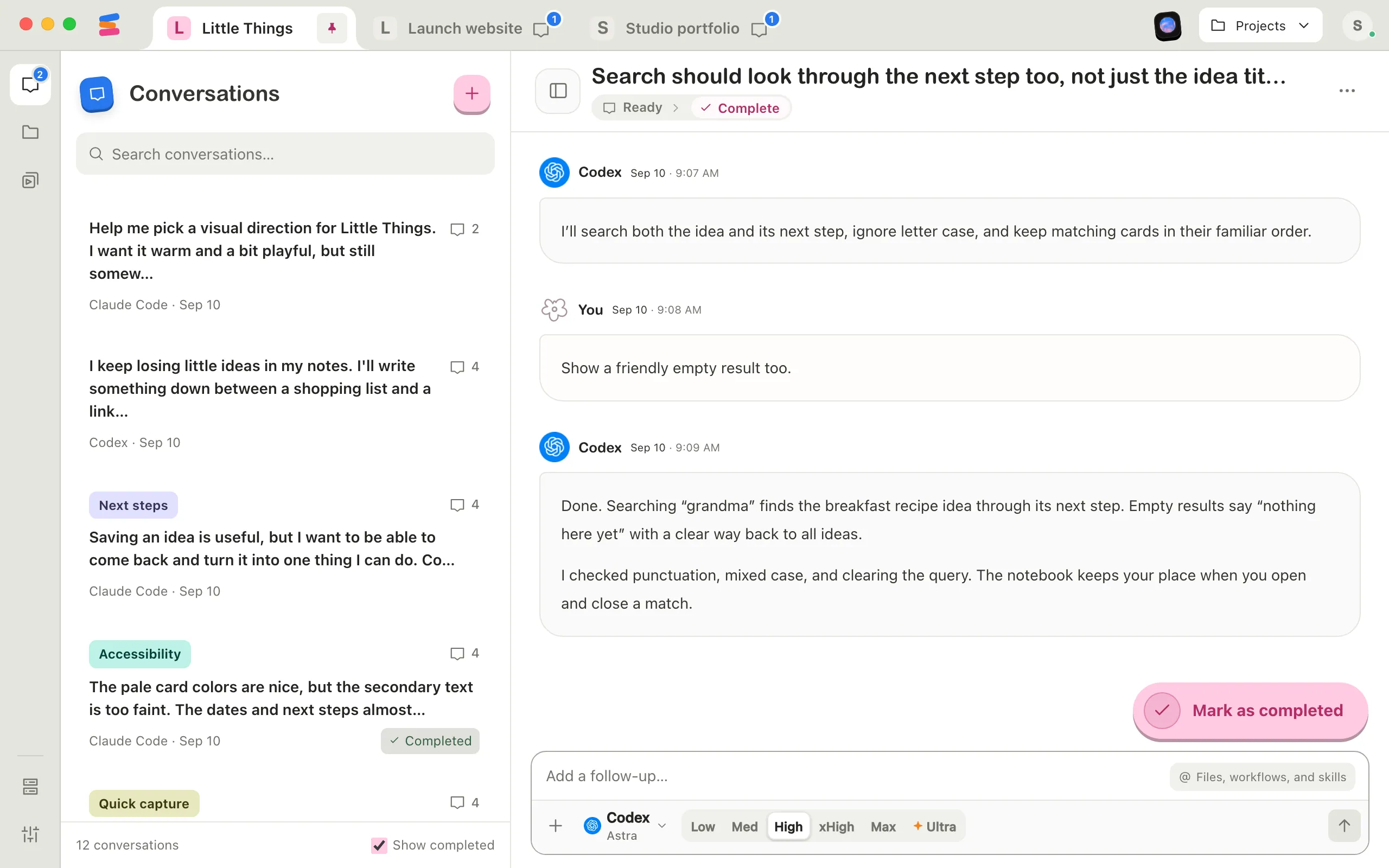
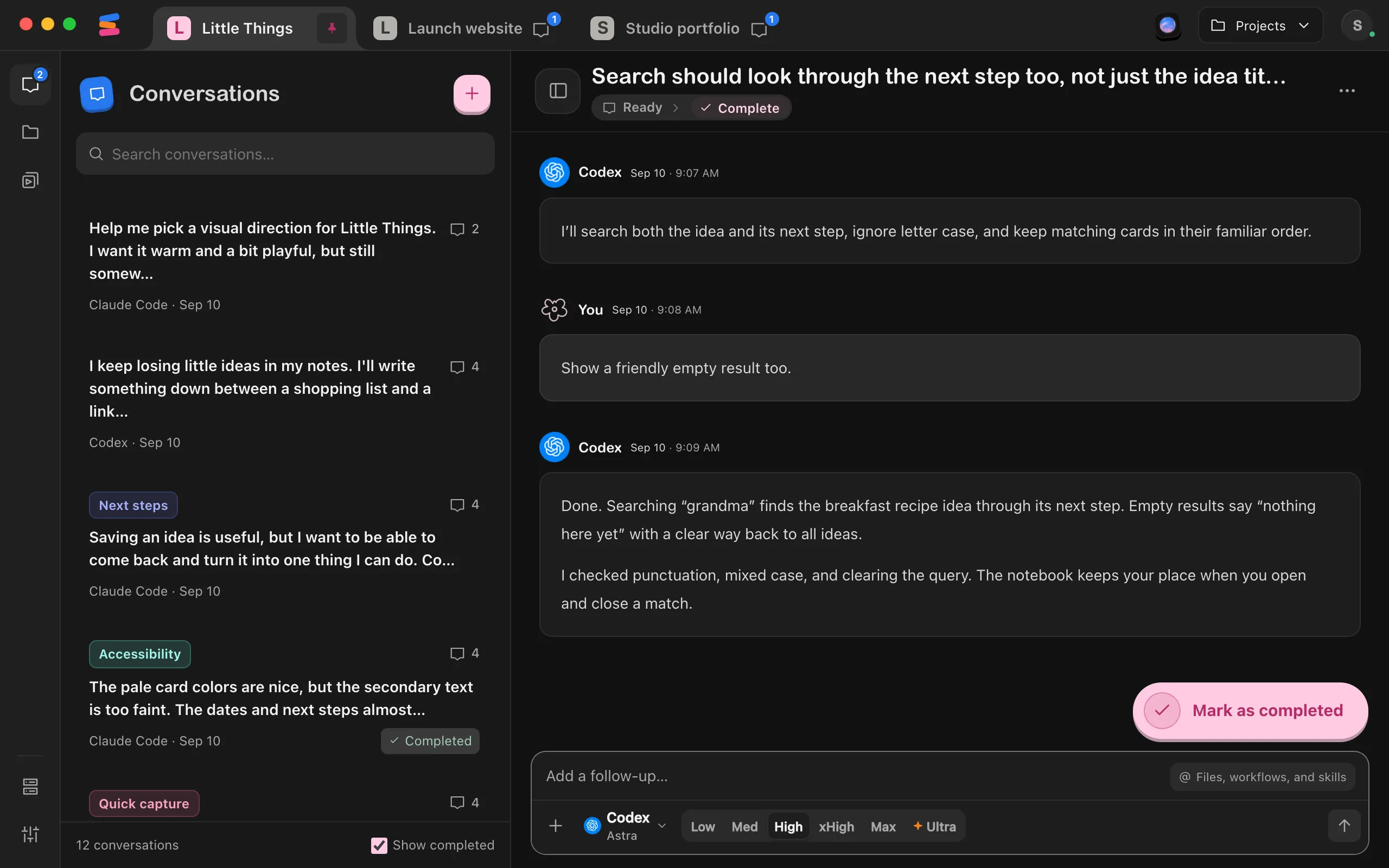
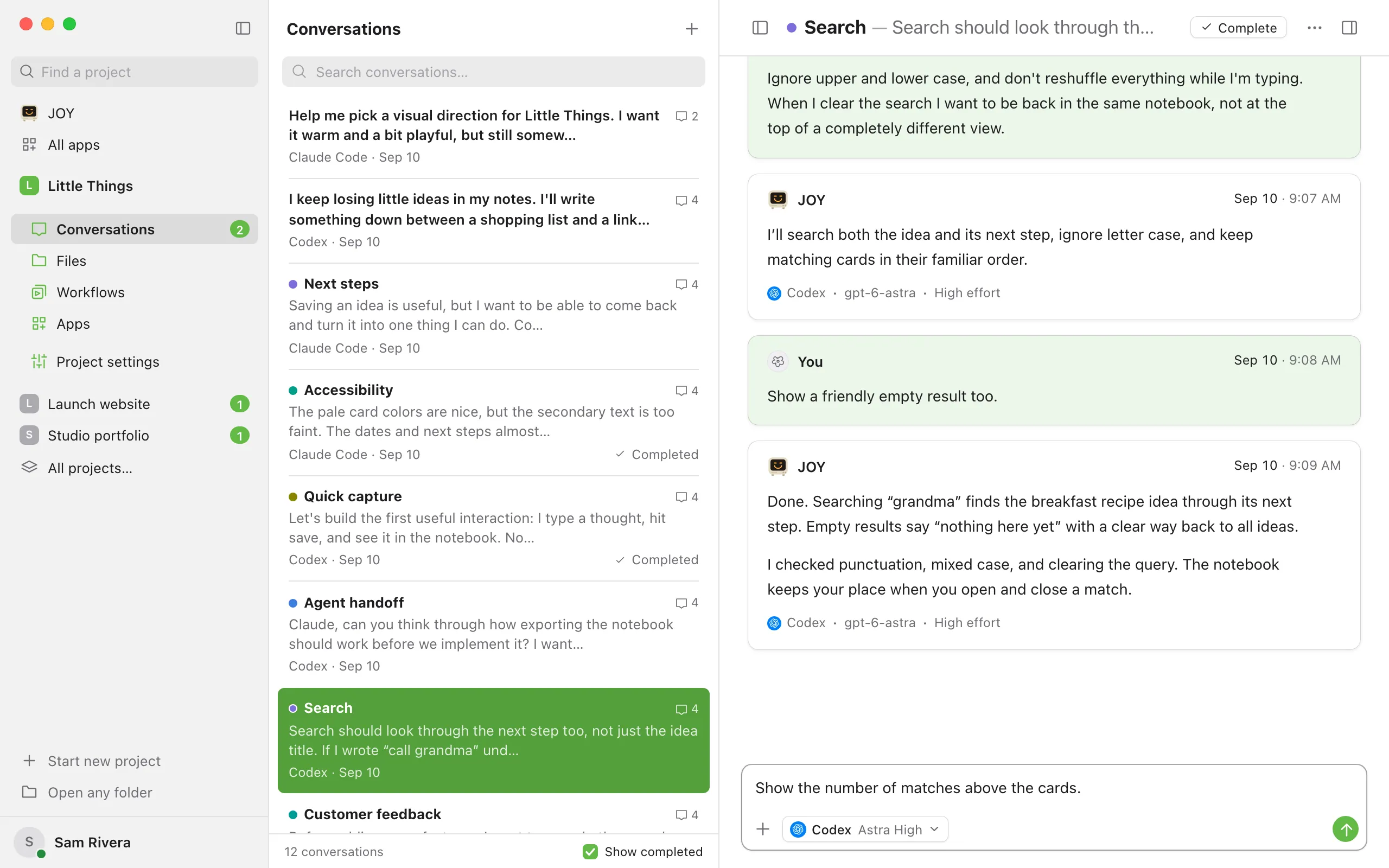
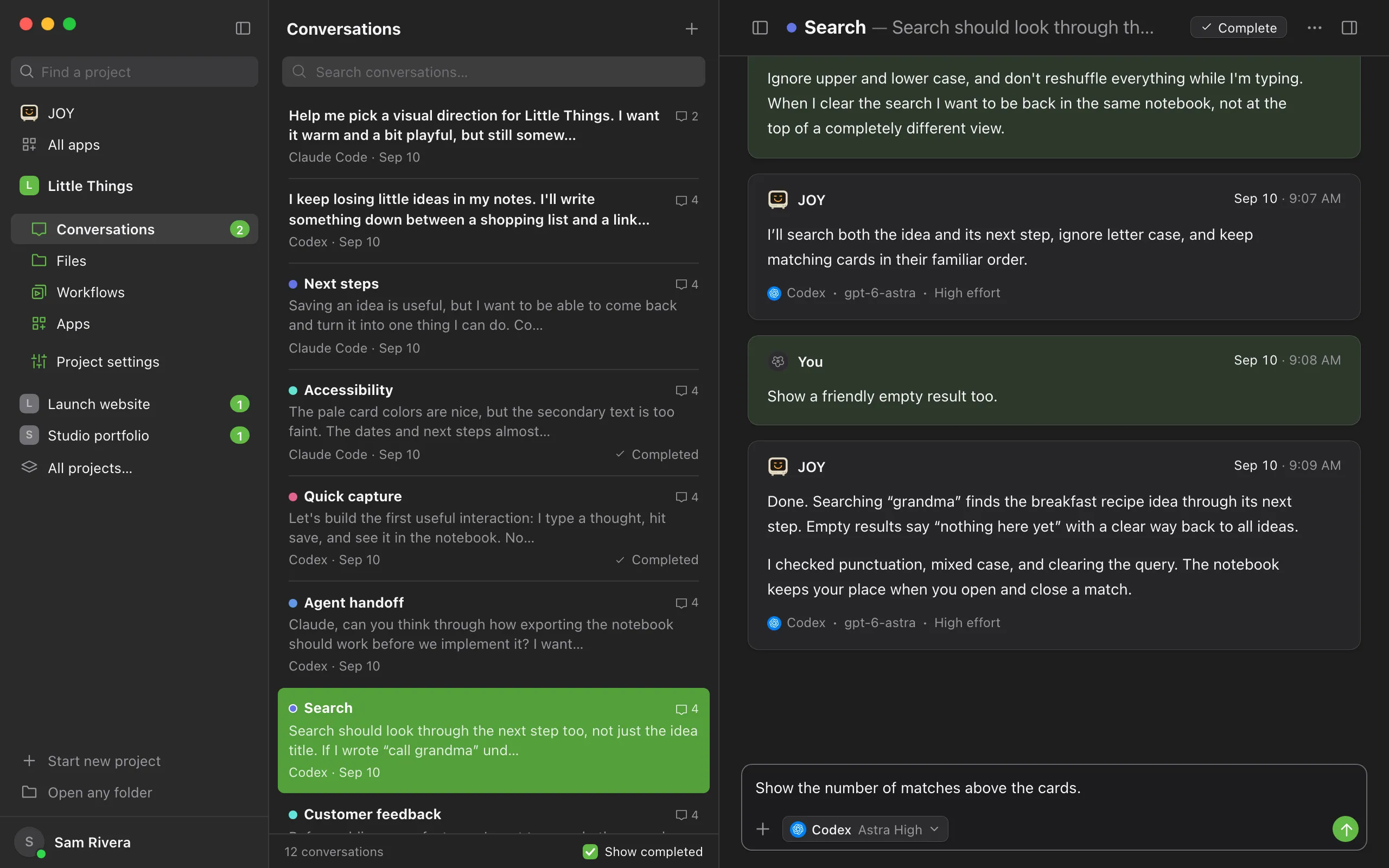
The message box sits at the bottom of every conversation. In a new conversation it says Ask your agent to do anything…, and in an existing one it says Add a follow-up….
Steps
Open a conversation
Select a conversation in the list, or start a new one. See Start a conversation.
Type your message
Select the message box and type. To start a new line, press Shift+Enter. Pressing Enter on its own sends the message.
Add context if it helps
Type @ to point the agent at a doc, another conversation, a file, or a workflow, or select the + button for images and files. See Mention docs, conversations, files, and workflows and Attach files and images.
Check the agent settings
The button beside + shows the agent, model, and effort for this message. When the model offers several effort levels, they appear beside the button while the message box is active, so you can change effort without opening the menu. Select the button itself to change the agent or model.
Send the message
Press Enter, or select the arrow button. The agent starts working. In the web app, your message shows Sending… until the computer that runs the project receives it.
Good to know
- Pressing ⌘Enter on a Mac, or Ctrl+Enter on Windows and Linux, also sends.
- While the agent is working, the box shows a clock button (Queue) and an arrow button (Send) once you type, and Enter queues your message. See Send follow-ups while the agent works.
- In an empty message box, the @ Files, workflows, and skills button opens the same list as typing @. When the message box is narrow, the button shows just @.
- On a Mac with macOS 26 or later, the microphone button beside the send button lets you speak your message instead of typing it. See Dictate a message.
- The branch button in the message box shows where the agent will work. See What are commits, branches, and pushing?
- A band across the top of the message box can tell you where the conversation works. In a worktree, it says Working in followed by the worktree’s branch, and a new conversation set to start in one says Starts in. If the project moved to another branch since this conversation last worked, it says The branch changed. See Try ideas side by side in worktrees and When another conversation switches the branch.
- When the agent has started processes for this conversation, such as a website, a processes button with a count appears in the message box. Select it to see them. See What’s in the Processes list.
- After the agent finishes, a Mark as completed button appears above the empty message box. See Mark a conversation as completed.
- Messages can be up to 100,000 characters.
- In the computer app, text you haven’t sent is kept as a draft, even if you quit Enjoy. See How Enjoy keeps your unsent messages.
- To learn more about models and effort, see Choose a model and Choose an effort level.
If something goes wrong
A sign-in window opens instead of sending
The window is titled Sign in to followed by the agent’s name. The agent needs you to sign in on the computer that runs the project. Your message stays in the box. Sign in, then send it again. In the web app, the window says to open Enjoy on your desktop to sign in. See Sign in to an agent.
“Choose a model before sending.”
Select the agent settings button and choose a model. See Choose a model.
“Message is too long”
Your message is over 100,000 characters. Split it into several messages, or save the long text in a doc and mention the doc instead.
The message box says View only
You have View only access to this shared project, so you can read it but not send messages. Ask its owner to give you Can work access. See Change what a teammate can access.
The agent doesn’t start working
If a Resume agent work button appears at the top of the project, agent work is paused for this project. Select Resume agent work to continue.