Mention docs, conversations, files, and workflows with @
A mention adds a numbered chip with the item’s name above the message box, and a matching marker such as [1] into your message. It tells the agent exactly which doc, conversation, file, or workflow you mean, so you don’t have to describe where to find it.
Steps
Type @
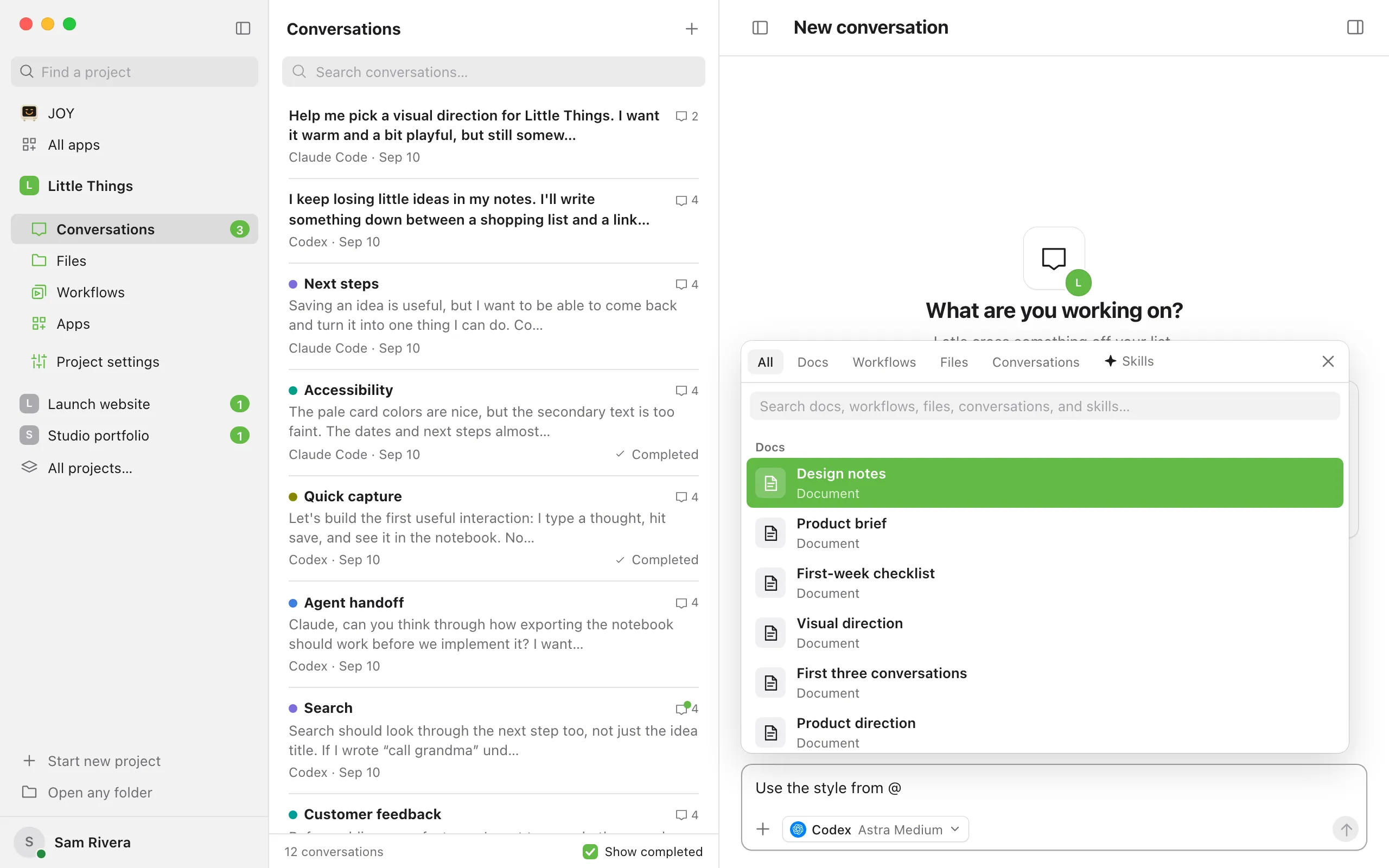
In the message box, type @ at the start of a line or after a space. A picker opens with the tabs All, Docs, Workflows, Files, Conversations, and Skills. On All, docs, workflows, and files are listed before conversations. In an empty message box, you can also select @ Files, workflows, and skills.
Search for the item
Keep typing after the @ to narrow the list, or type in the picker’s search field. On the Files tab, you can search by file name or by folder path.
Pick a tab if the list is long
Select Docs, Workflows, Files, or Conversations to show only that kind. The left and right arrow keys switch tabs.
Choose the item
Select it, or move to it with the up and down arrow keys and press Enter or Tab. Its chip appears above the message box, and its marker, such as [1], replaces what you typed after the @.
![The message box after choosing a doc, with its marker [1] in the sentence and its numbered chip above. Highlighted: The doc chip.](/help/shots/conversations/mention-docs-files-and-workflows/4-light.webp)
![The message box after choosing a doc, with its marker [1] in the sentence and its numbered chip above. Highlighted: The doc chip.](/help/shots/conversations/mention-docs-files-and-workflows/4-dark.webp)
Finish and send
Keep writing around the marker, then send the message as usual. Each marker becomes a link to its item.
Good to know
- Skills don’t get a marker: choosing one runs it with your message. See Run one of your agent’s skills.
- Docs are the documents you write in the Files area. Your message includes a link to each doc you mention, so the agent can open it. See Create a document.
- Conversations are the other conversations in this project. Enjoy tells the agent to read the conversation you mention before it continues, so you can pick up decisions or results from it without copying them over. Each one shows its agent, its status, such as Working or Completed, and how many messages it has. The conversation you’re writing in isn’t listed.
- Files are files in your project folder. The agent sees each file’s path in your project.
- Workflows are saved instructions. When you send, Enjoy adds the workflow’s instructions to your message, and the agent follows them. If you mention a workflow while starting a new conversation and it prefers an agent, the message box switches to that agent. See Add a workflow to a message.
- You can mention up to 8 docs, 8 conversations, 8 files, and 8 workflows in one message. Workflows marked Desktop review needed don’t appear in the picker.
- To remove a chip, select its X. Its marker is removed from your message too. If you delete a marker yourself, the item stays and goes at the end of your message. In an empty message box, Backspace removes the last chip.
- To close the picker without choosing anything, press Escape or select its X.
- In a sent message, hover over a chip to peek at what’s inside, and select it to open it. See Links, files, and images in replies.
- In the iPhone app, type @ or select the @ button to open Add context, with Files, Docs, Workflows, and Conversations tabs.
If something goes wrong
“More files are available. Refine your search.”
Your project has more matching files than the picker shows. Type more of the file name or its folder.
“No references found”
Nothing matches what you typed. Check the spelling, or type less of the name. On the Docs, Workflows, Files, or Conversations tab, the message names that kind instead, such as “No files found”.
The picker says “Up to 8 documents per message.”
You’ve already mentioned 8 docs in this message. Conversations, files, and workflows have the same limit, with “Up to 8 conversations per message.”, “Up to 8 files per message.”, or “Up to 8 workflows per message.” Send the message, then mention the rest in a follow-up.