Mark a conversation as completed
Completing a conversation marks its task as finished. You can then hide finished conversations, so your list shows only what still needs work. See Mark finished work as completed for why it helps.
Steps
Wait for the agent to finish
Once the agent stops working, Complete appears beside the conversation’s title. After the agent’s final reply, a larger Mark as completed button also appears above the empty message box.
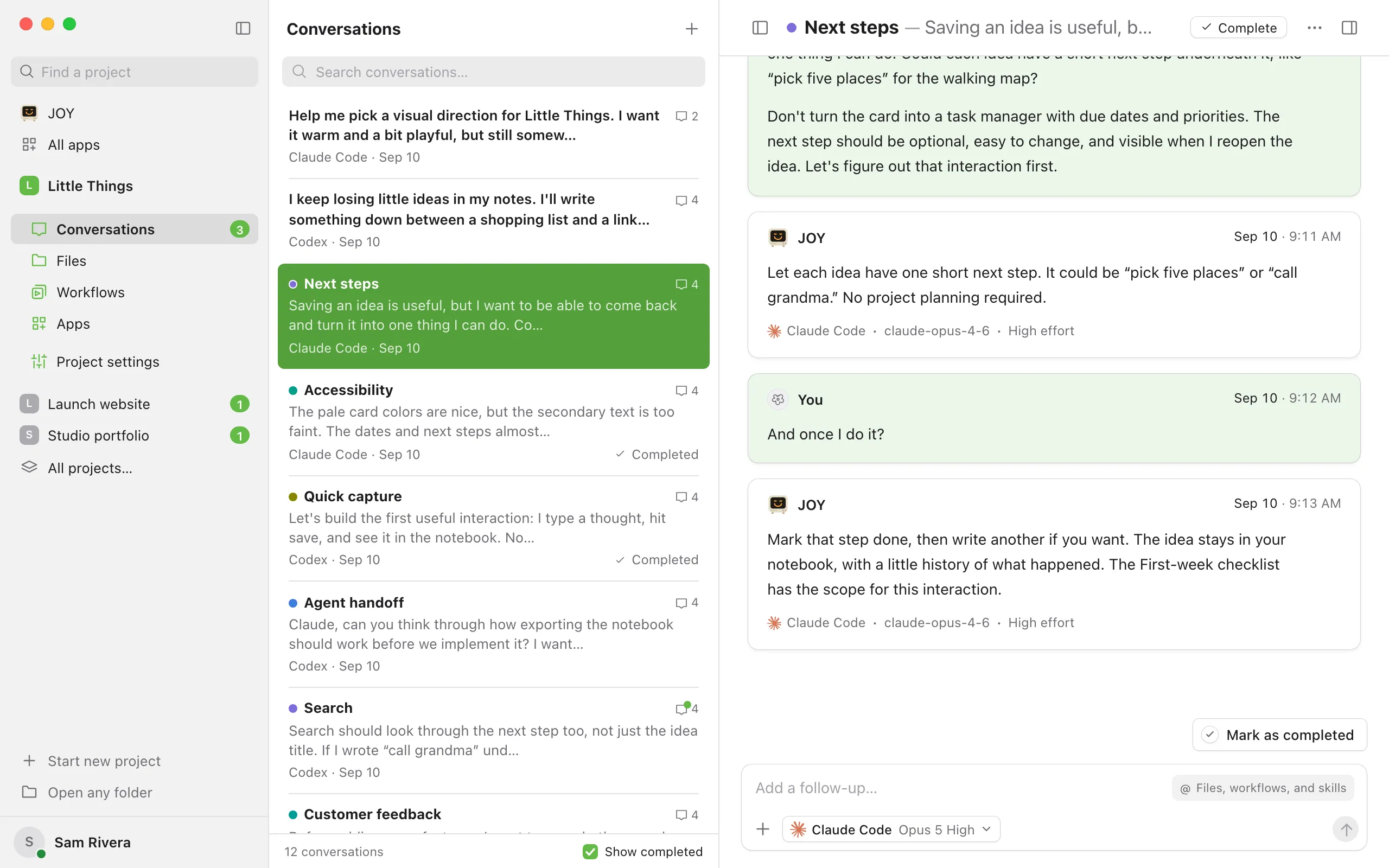
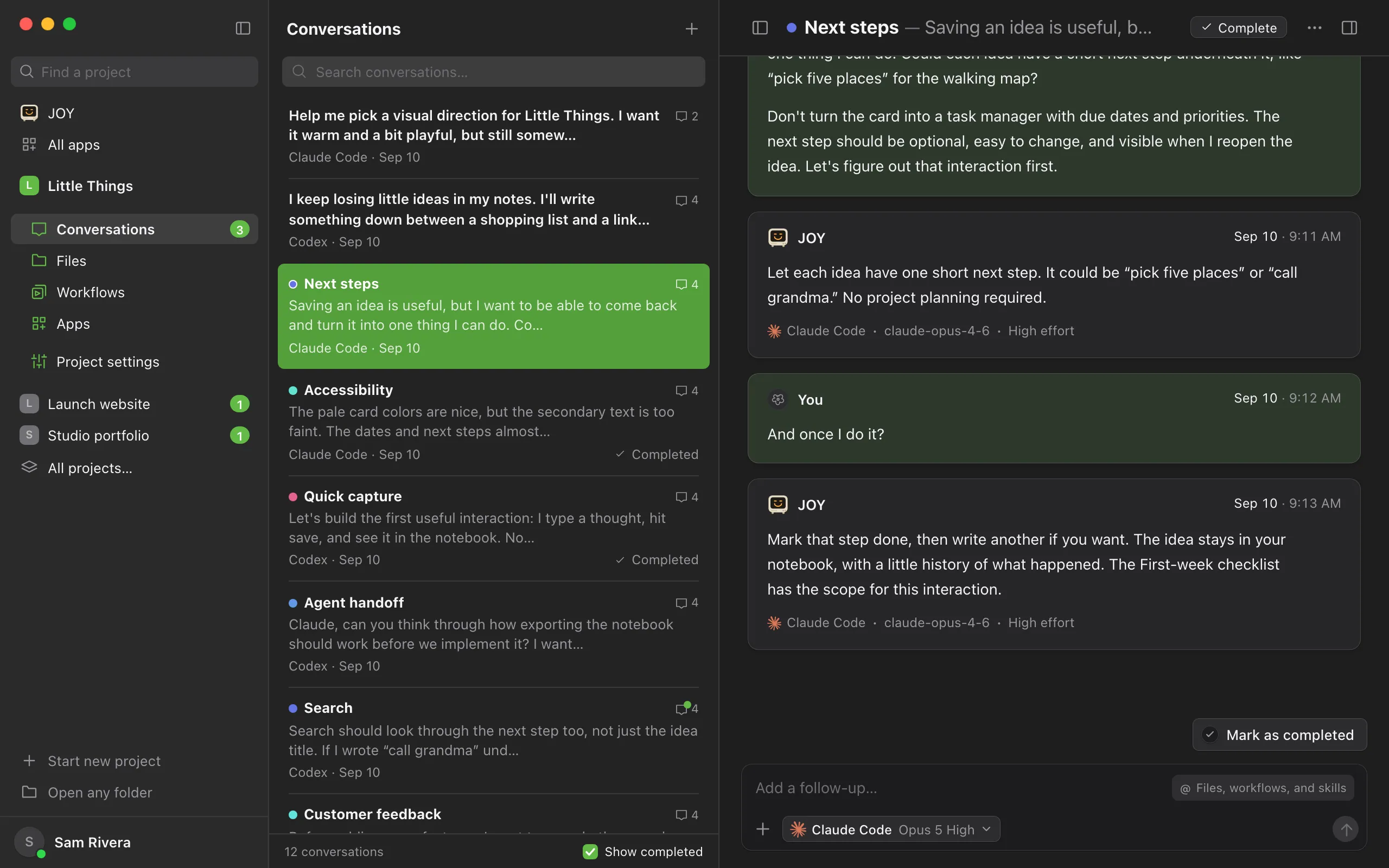
Select Complete or Mark as completed
The conversation is marked Completed, and a moment later a new conversation opens with the message box ready for your next task. The completed conversation stays in your list, marked Completed, until you hide completed conversations.
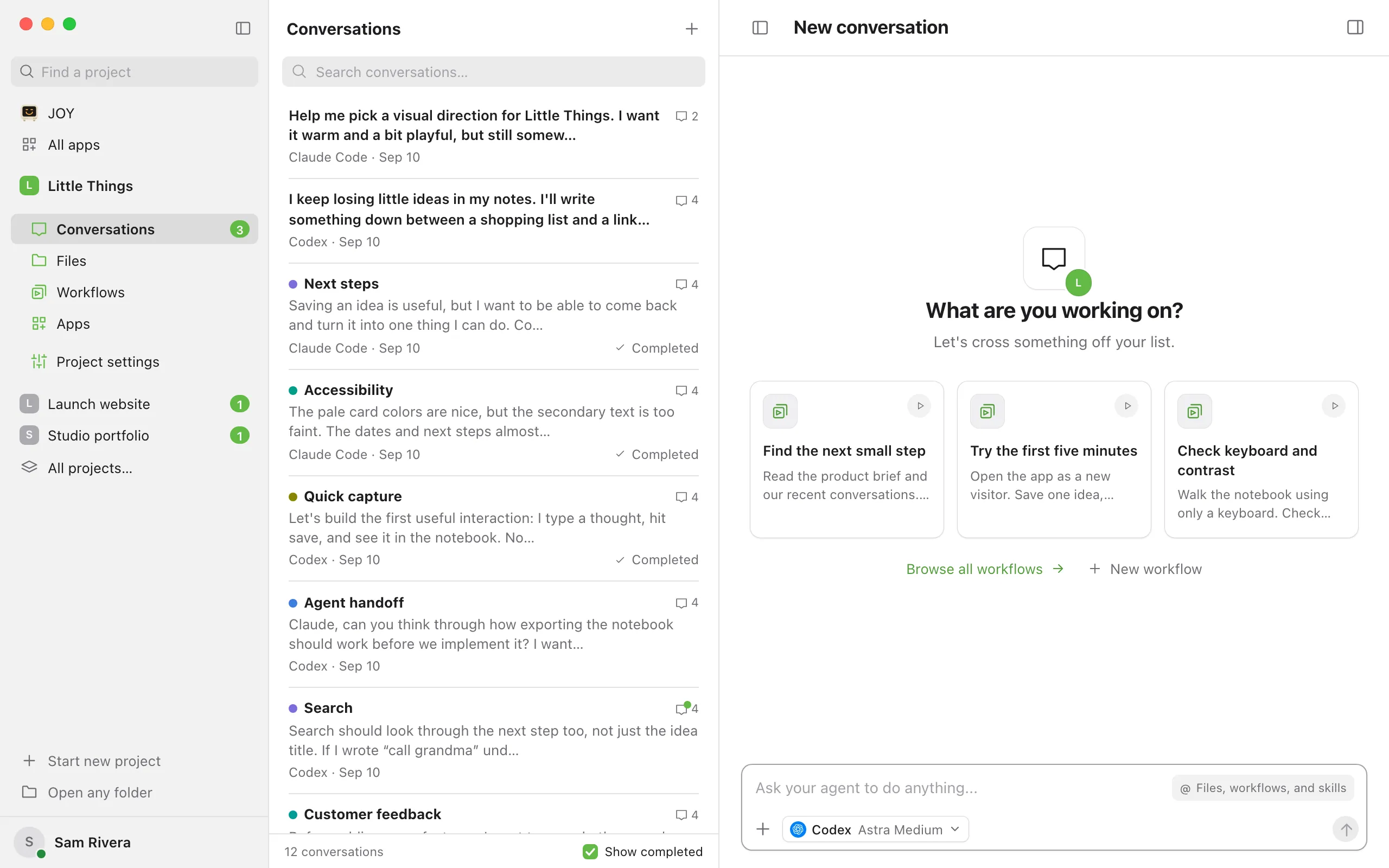
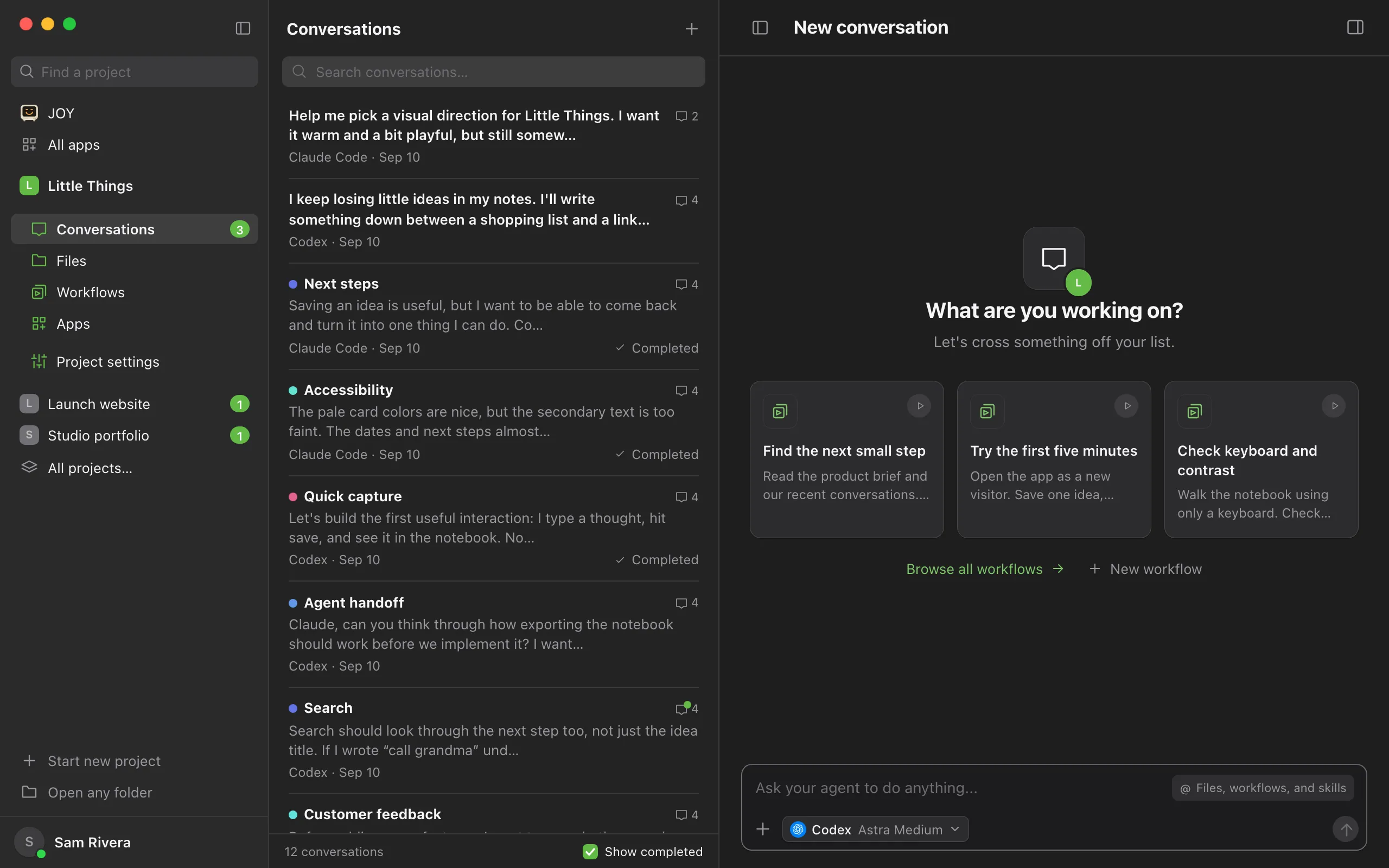
Choose whether to see completed conversations
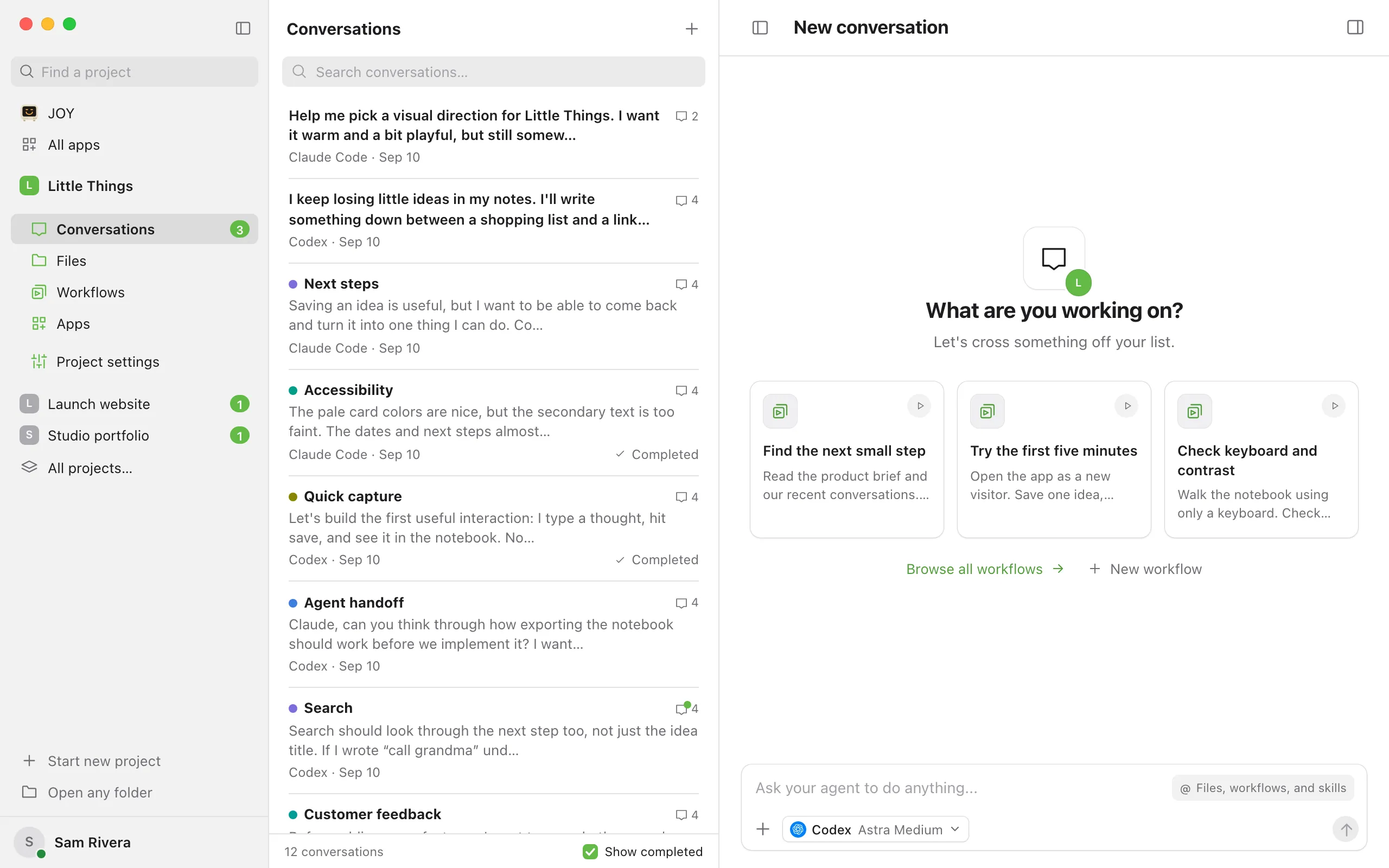
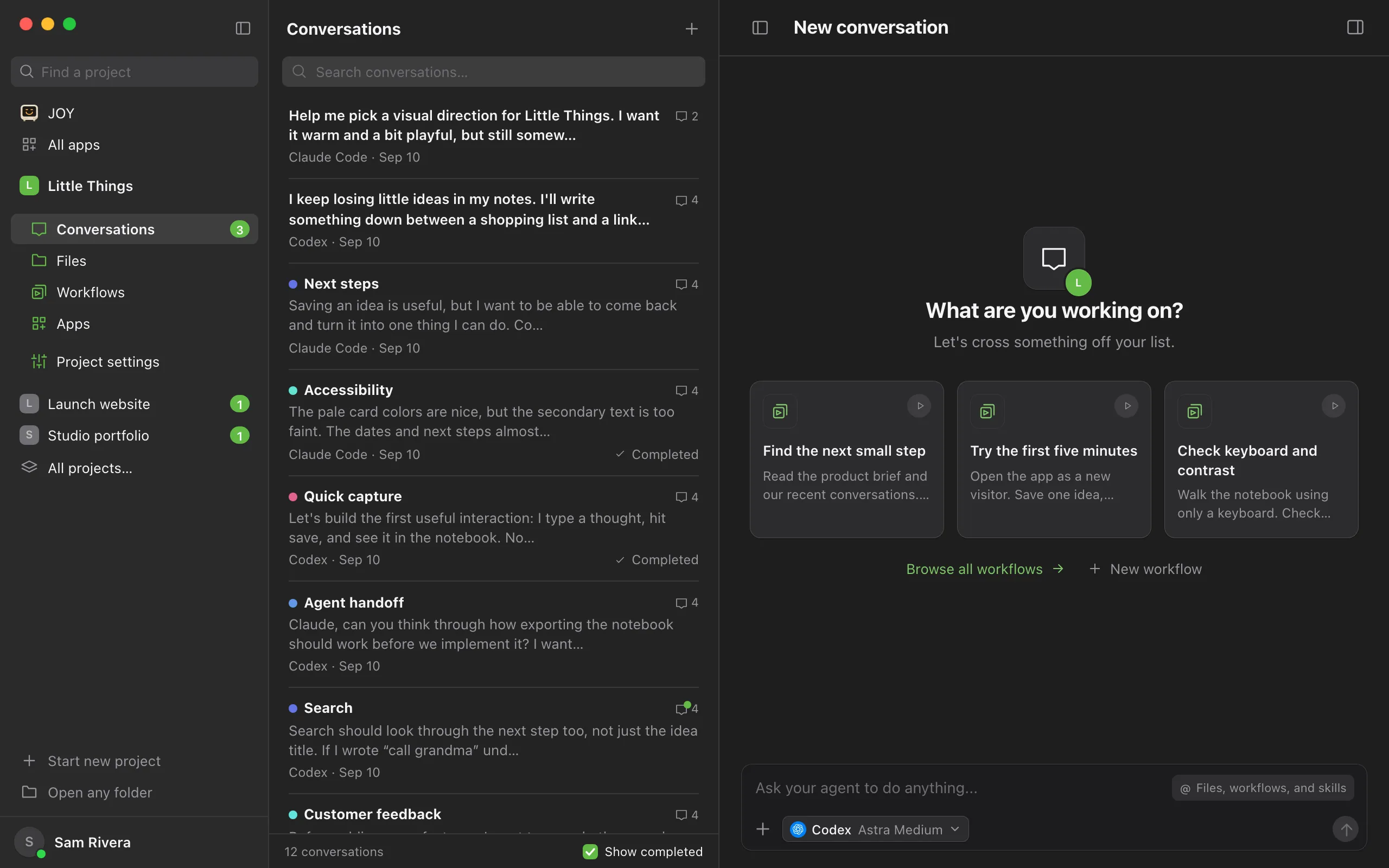
At the bottom of the conversation list, clear Show completed to hide completed conversations, or select it to show them again.
Good to know
- Complete isn’t shown while the agent is working, while messages are queued, or while a question is waiting for you. The ⋯ menu (Conversation actions) also has Mark as completed, which still works while a question is waiting. It’s unavailable only while the agent works or messages are queued, and pointing to it shows why: Stop work before marking completed or Send or remove queued messages first.
- You can ask the agent to mark the conversation as completed when it’s done, in your message or in a workflow’s instructions. It’s marked Completed once the agent’s final reply arrives, unless you’ve sent or queued another message by then or the agent is waiting on your answer. The reply stays unread, so the conversation stays in your list until you read it.
- In the computer app, you can also ask JOY to mark finished conversations completed across your projects, or to reopen one. It follows the same rules, and tells you which it couldn’t complete and why. See Ask JOY, which oversees your agents.
- If you open something else or reopen the conversation before the new one appears, Enjoy leaves you where you went.
- To stay on a conversation after completing it, open Appearance (the sun or moon button in the top bar) and turn off Start new conversation when completing another. The setting is saved on this device.
- To reopen a conversation, open it from the list, then select Reopen beside its title, select Mark as uncompleted above the empty message box, or choose Mark as uncompleted from the ⋯ menu. Sending a new message to a completed conversation also reopens it.
- Show completed is on at first. Your choice is remembered for each project on this device.
- To complete several conversations at once, select them in the list with ⌘-click (Ctrl-click on Windows and Linux) and choose Mark as completed beside the list. See Select several conversations at once.
- When completed conversations are hidden, a completed conversation with unread replies stays in the list until you read it.
- Searching includes completed conversations, even when they’re hidden. See Find a conversation.
- In the computer app, completing a conversation also closes its website in the built-in browser. The address is kept, so you can open it again. See See your site beside the conversation.
- In the iPhone app, open Conversation actions (the ⋯ button) and choose Mark complete; a new conversation then takes its place. You can also touch and hold the conversation in the list and choose it there, which keeps you in the list. Reopen undoes it. The Completed filter at the end of the list’s filters opens your completed conversations.
If something goes wrong
Complete doesn’t appear
The agent may still be working, or waiting on your answer. Wait for it to finish, stop it, or answer or dismiss its question. If messages are queued, send them or remove them first. See Send follow-ups while the agent works.