Pin files and documents for quick access
Steps
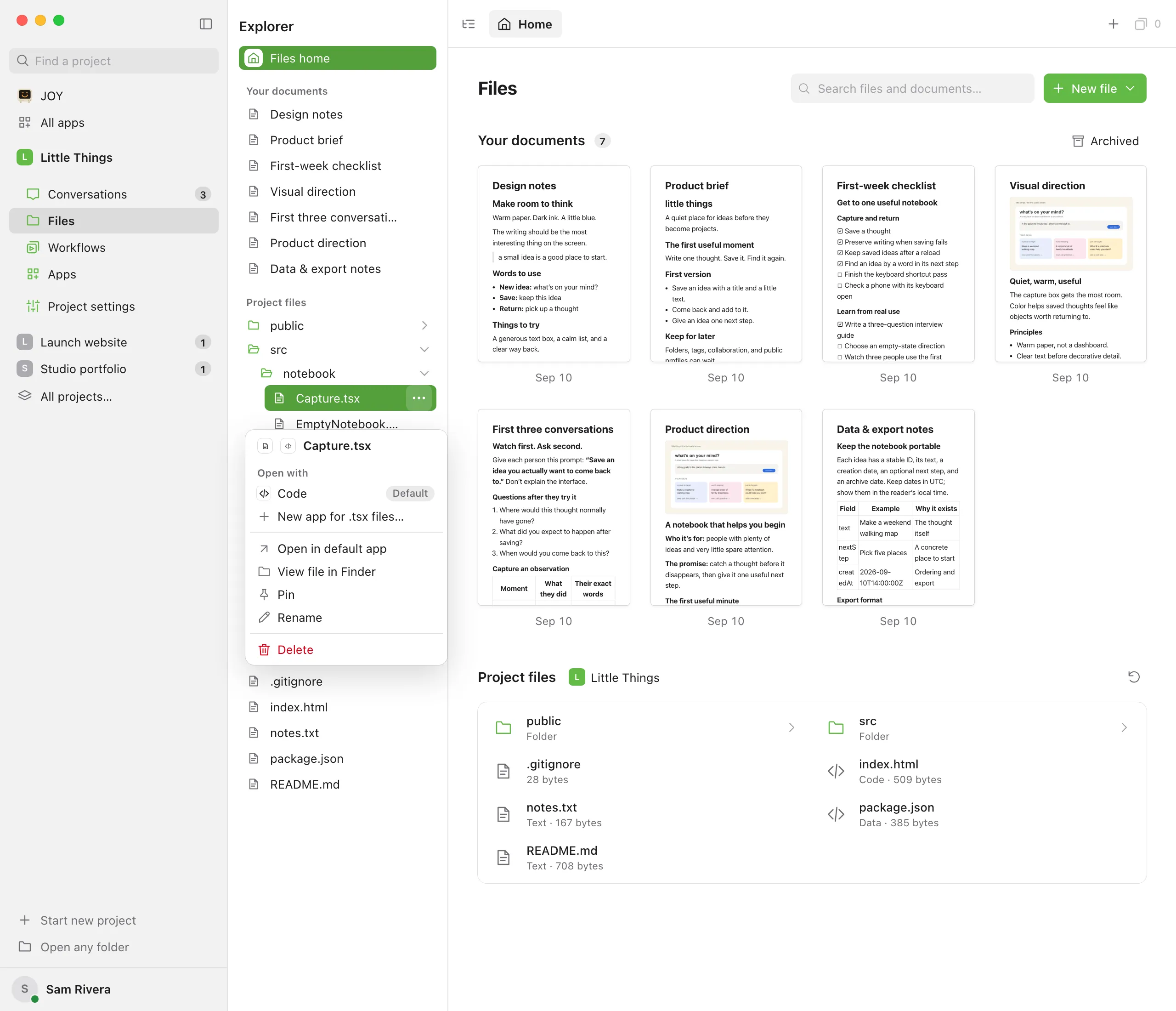
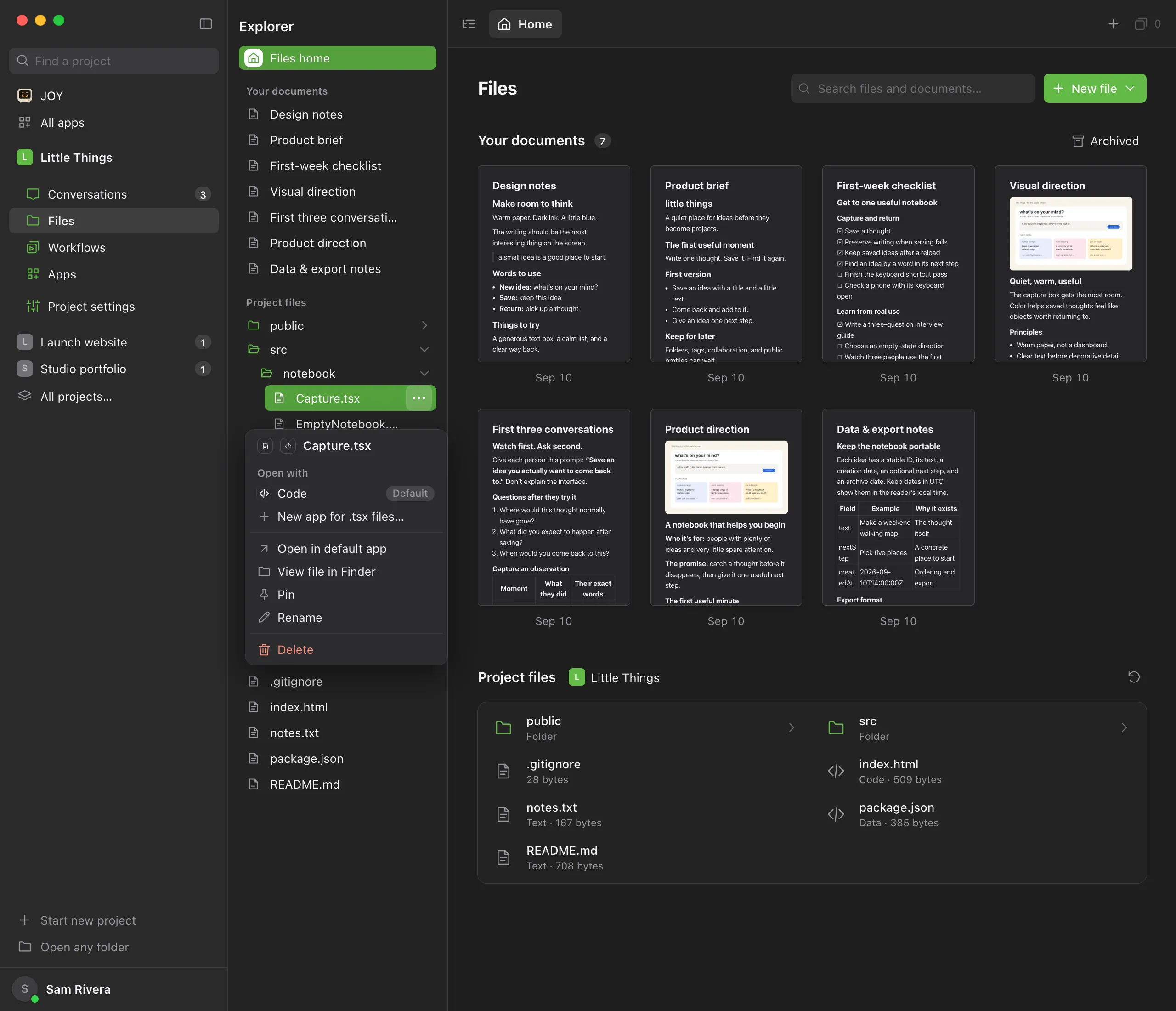
Open the item’s menu
In Files, right-click a document or project file on Files home, in the explorer, or on its tab. You can also point to it and select the … button.
Choose Pin
For a document you have open, you can instead select the pin button at its top right.
Open it from the sidebar
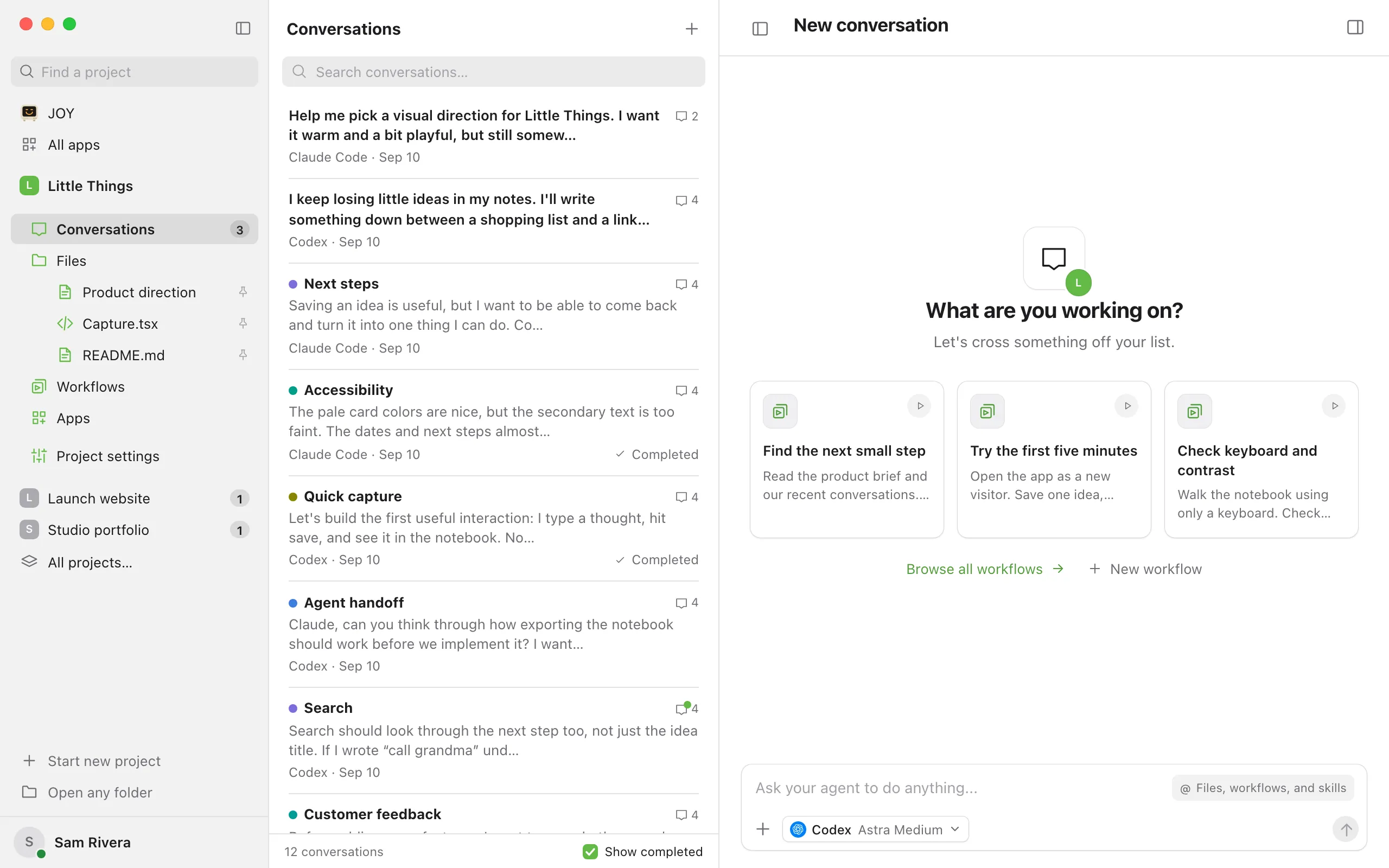
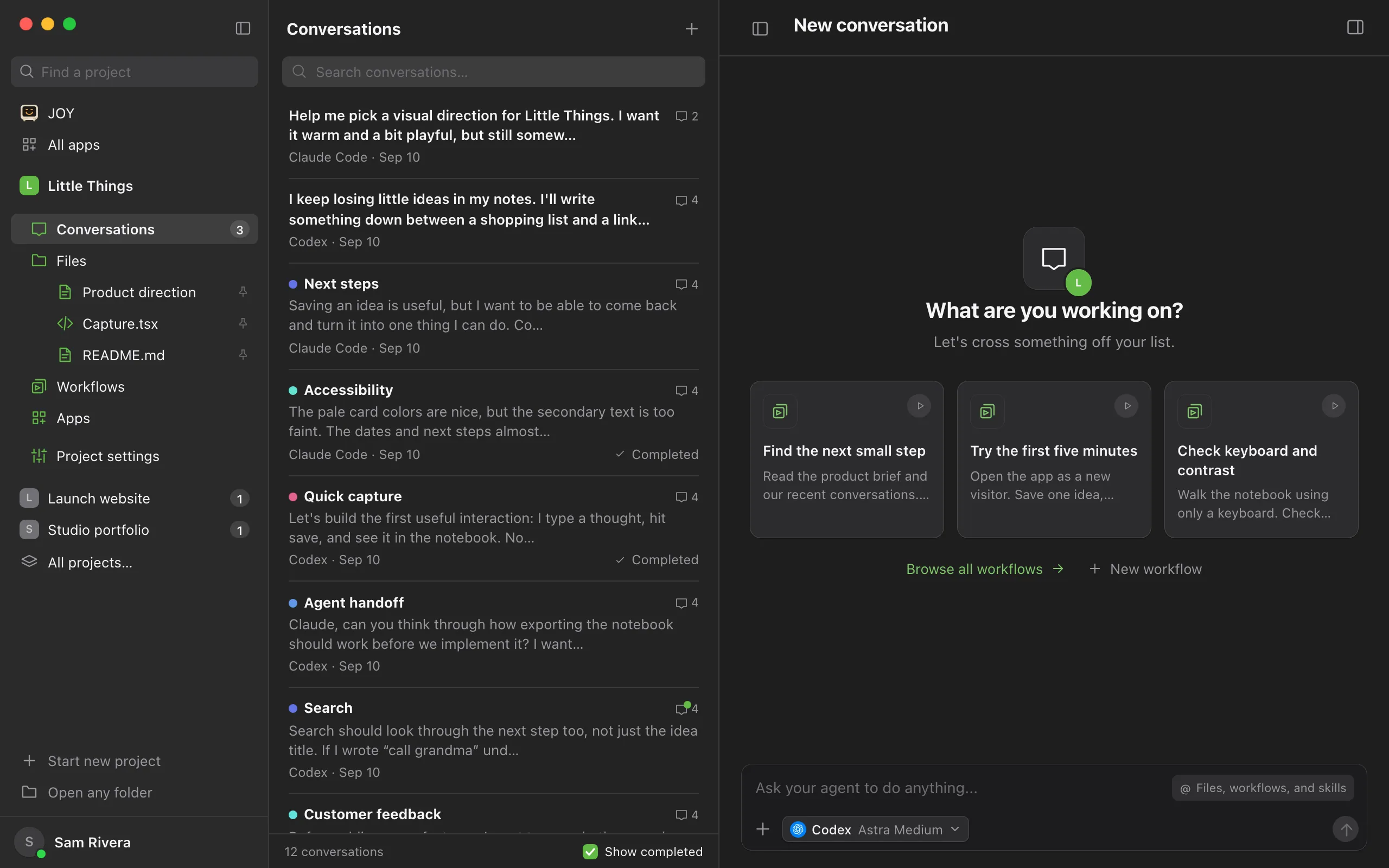
The item appears in the sidebar under the project’s Files, one step in, with a small pin at the end of its row. Select a pinned document to open it in a window over the section you’re in, with the full editor, the same way a doc opens from a message. To work with it in Files instead, select Open in Files. A pinned project file opens in Files.
Unpin when you’re done
Choose Unpin from the same menu, or select the pin button on the document again.
Good to know
- Every pinned item shows under Files, in the order you pinned them. The one you have open is highlighted in place of Files.
- To unpin an item from the sidebar, right-click it and choose Unpin. With the keyboard, press Shift+F10, or the Menu key, on its row.
- On a phone, or in any narrow window, select Show sidebar at the top left to reach your pinned items.
- Pinned documents come first in Your documents, with a small pin beside their date. To unpin one there, choose Unpin from its menu.
- In a document’s Document actions menu, the options are Pin document and Unpin document.
- Pins belong to each project and are saved on this device. In the web app, they’re saved in this browser. Other devices and the iPhone app don’t share them.
- Renaming a pinned file keeps its pin. Deleting it from its menu removes the pin.
- Archived documents can’t be pinned. A pinned document you archive keeps its pin, but its row is hidden until you restore it. See Archive and restore documents.
- Pinning projects is different. See Pin projects as tabs. So is pinning apps, which lists an app under Apps in the sidebar. See Open, pin, and stop an app.
If something goes wrong
Pin is greyed out
The document is archived. Restore it first.
A pinned item opens “This document is no longer available.”
The document was deleted somewhere other than its menu in Files, such as from Document actions or on another device. Right-click its row in the sidebar and choose Unpin.