Find a conversation
Steps
Select the search box
At the top of the conversation list, select Search conversations….
Type a word or phrase
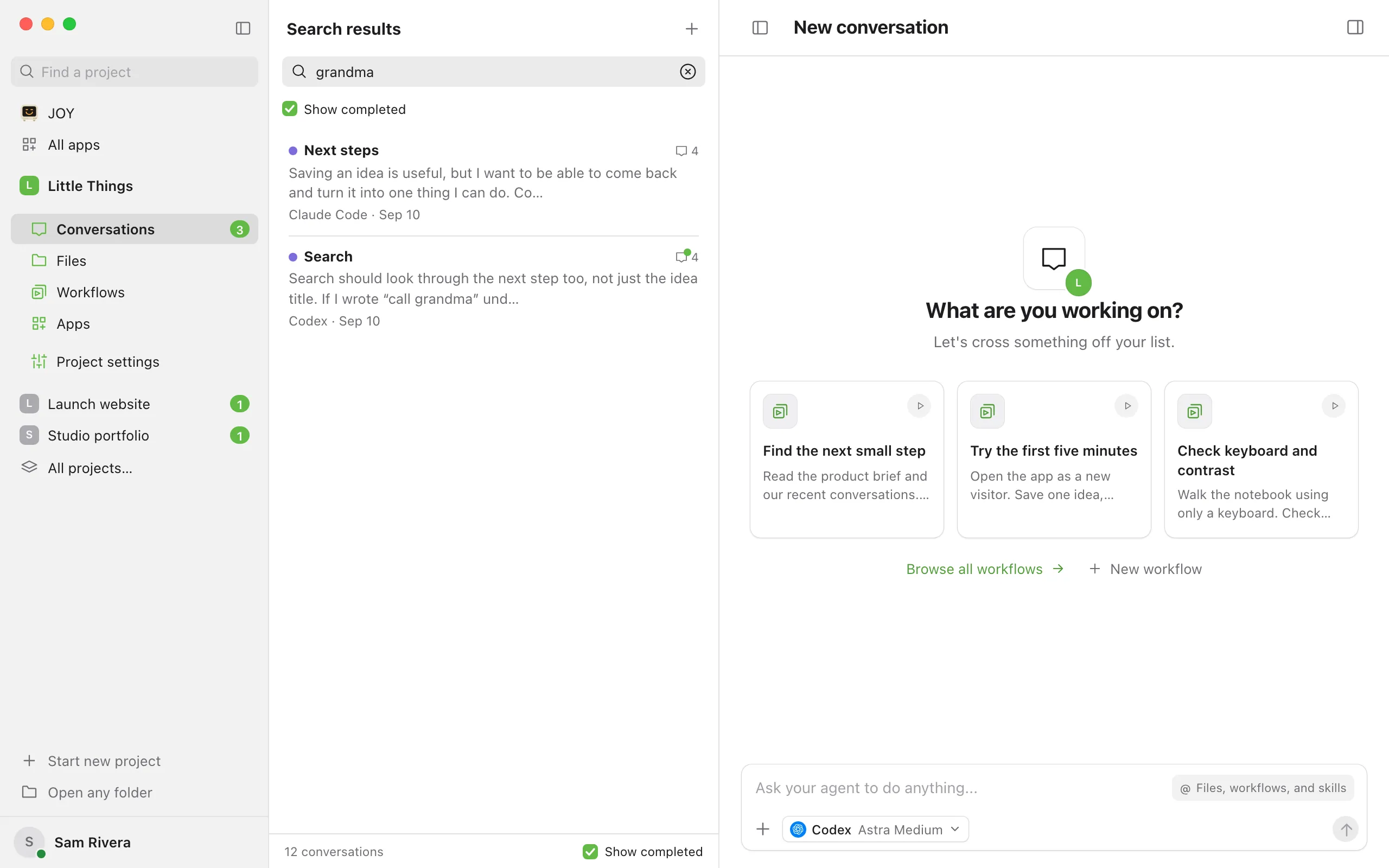
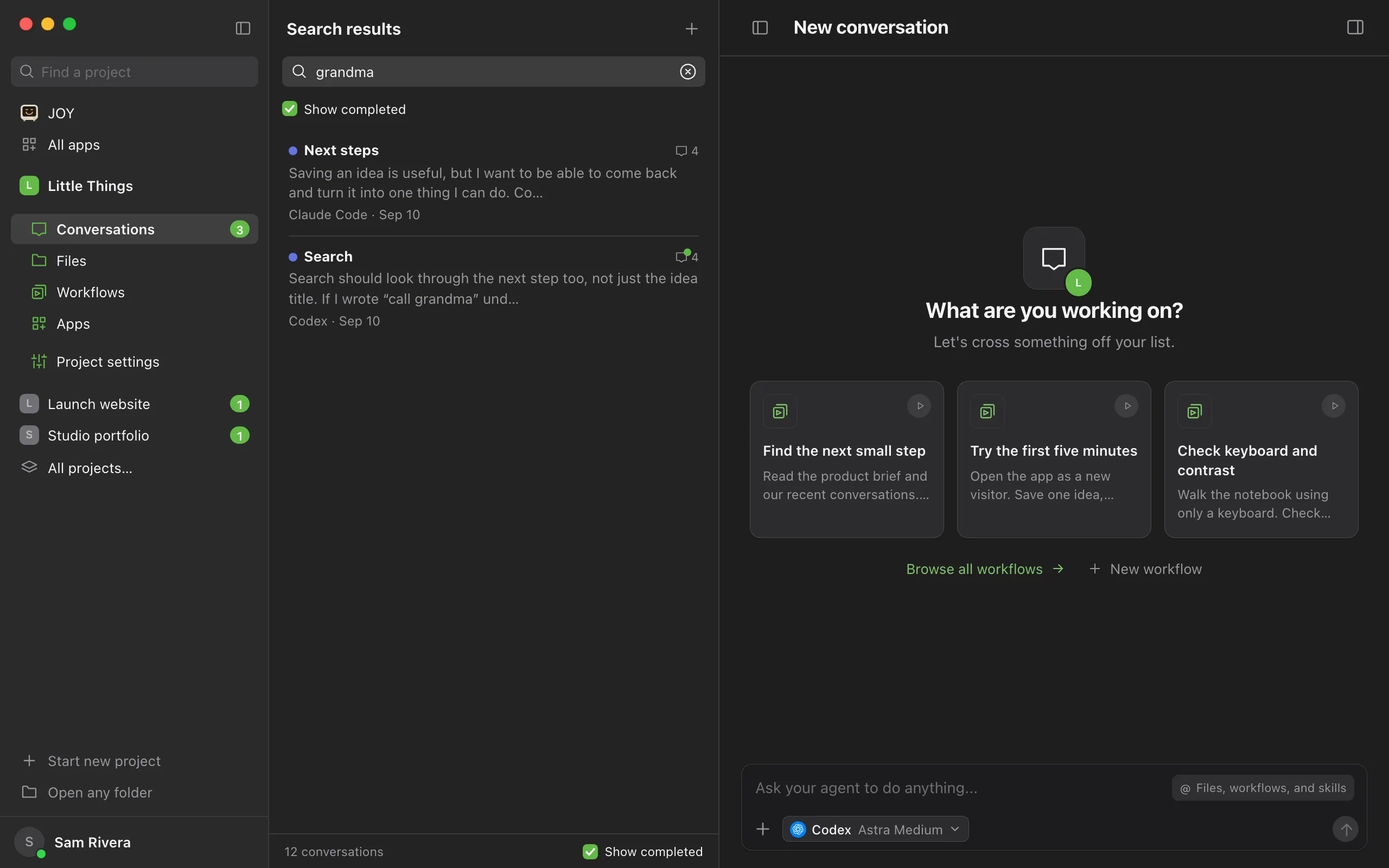
The list updates as you type. Once you move out of the search box, the list’s heading says Search results. Search looks through your messages, the agent’s replies, the agent’s questions, conversation titles and labels, and the names of workflows used in messages.
Decide whether to include completed conversations
Below the search box, Show completed is selected while you search, so completed conversations are included. Clear it to leave them out.
Open a result
Select a conversation. It opens at its latest message, like any other conversation. On a computer, use Find words in a conversation to jump to the words you searched for.
Clear the search
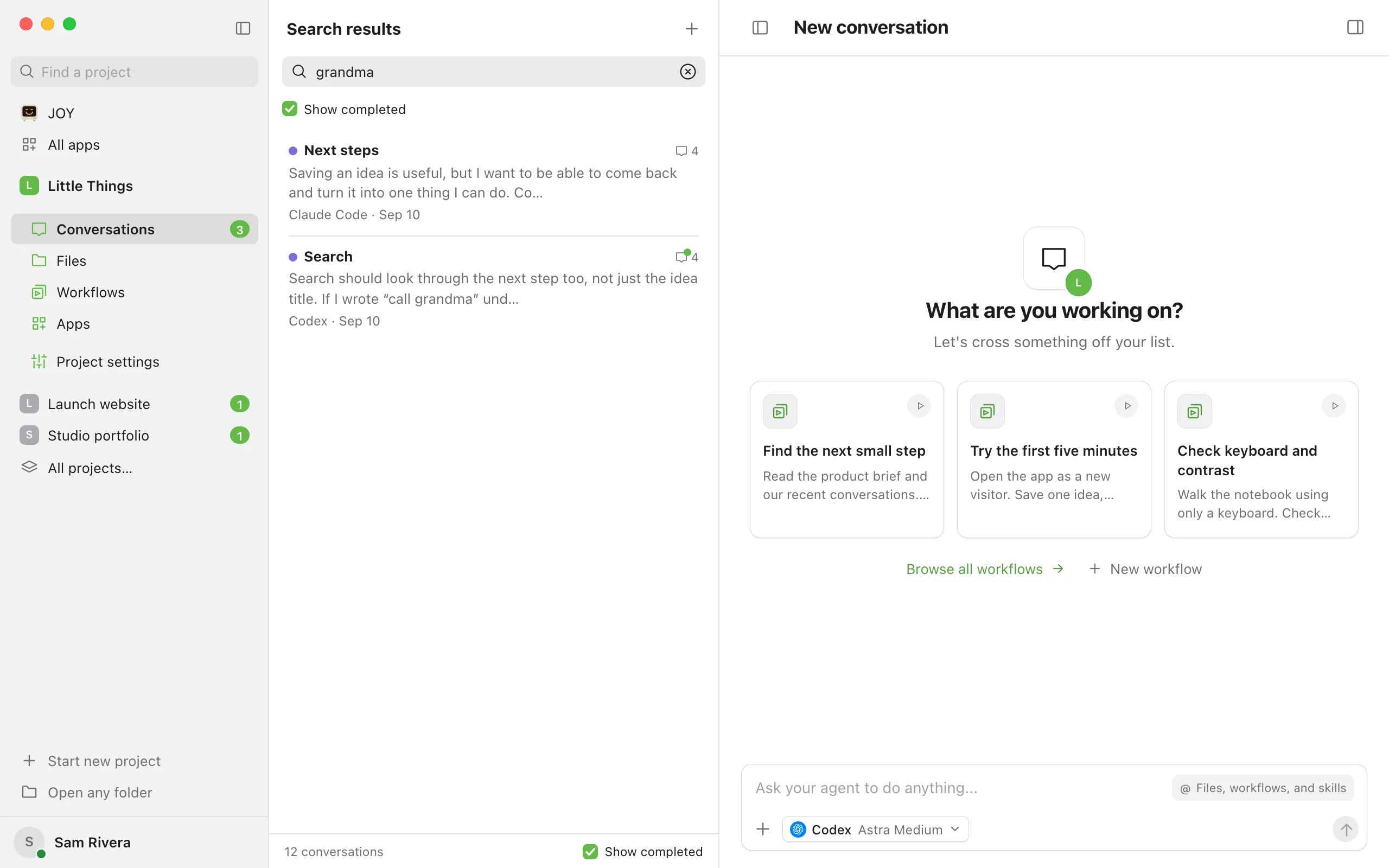
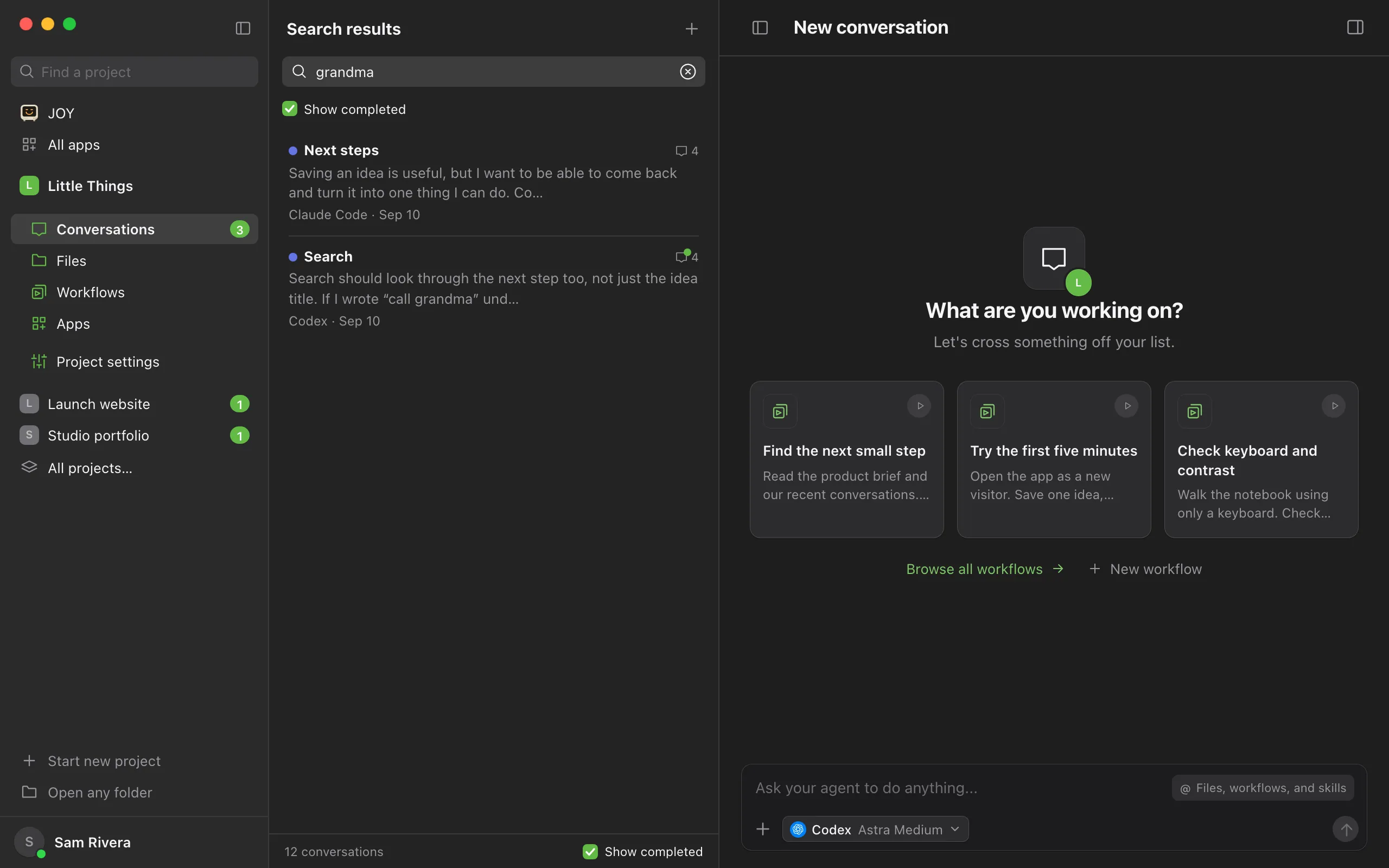
Select the X at the end of the search box to see the whole list again.
Good to know
- The list shows the most recently active conversations first. Once any conversation works in a worktree, the list is grouped by the folder each conversation works in.
- Clearing the search brings back the Show completed choice you had before you searched.
- With no conversation open, pressing ⌘F on a Mac, or Ctrl+F on Windows and Linux, jumps to the search box. With a conversation open, the same shortcut searches inside that conversation. See Find words in a conversation.
- To fit more conversations on screen, or to show or hide previews, agent names, and dates, see Use Compact view for conversations and messages.
- In the iPhone app, use Search conversations at the top of a project’s conversation list. The Completed filter there opens your completed conversations, with its own search.
If something goes wrong
“No matching conversations”
Nothing matches what you typed. Try a different or shorter word, and make sure Show completed is selected. Select Clear search to see the whole list.
The list is empty but you have conversations
“You’re all caught up” with “No open conversations.” means every conversation is completed and Show completed is off. Select Show completed at the bottom of the list.