Use suggested next steps
When an agent finishes, it can suggest what to do next, written as messages from you, such as “Add tests for the signup form”. Not every reply includes suggestions.
Steps
Find the suggestions
Look below the agent’s latest reply for Potential next actions.
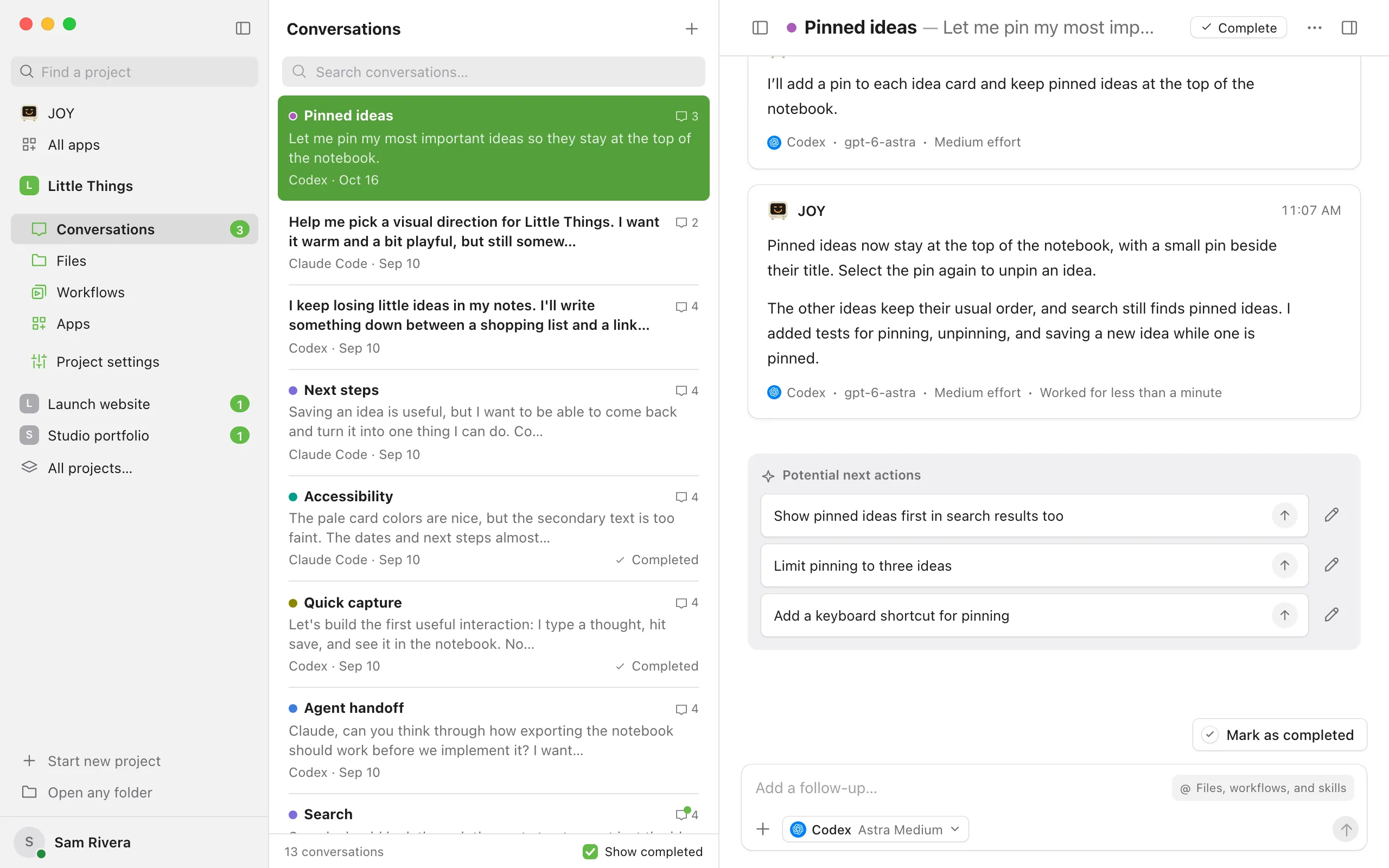
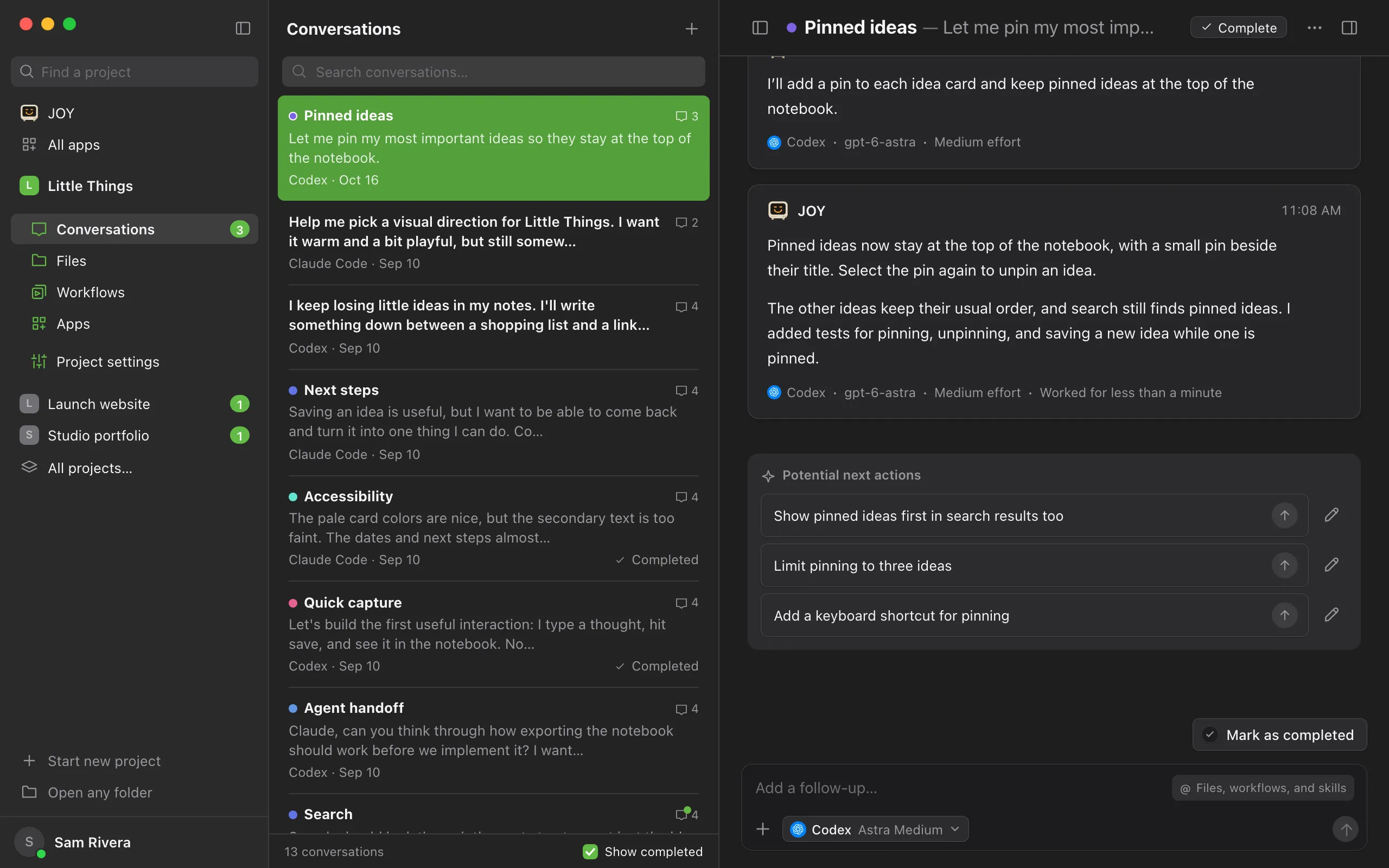
Send one as it is
Select a suggestion to send it right away as your next message. It uses the agent, model, and effort shown in the message box, so change those first if you want a different setting for this step.
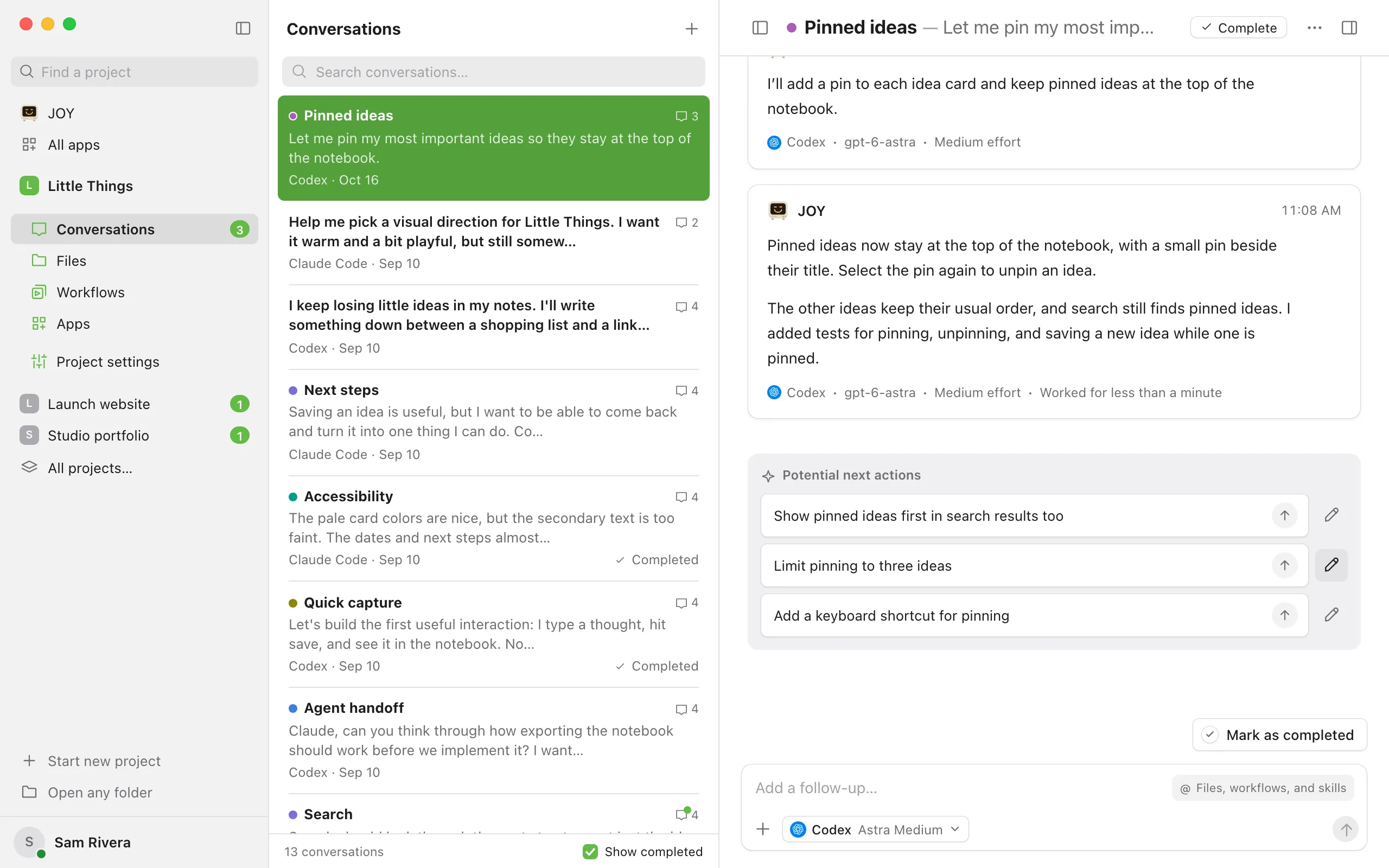
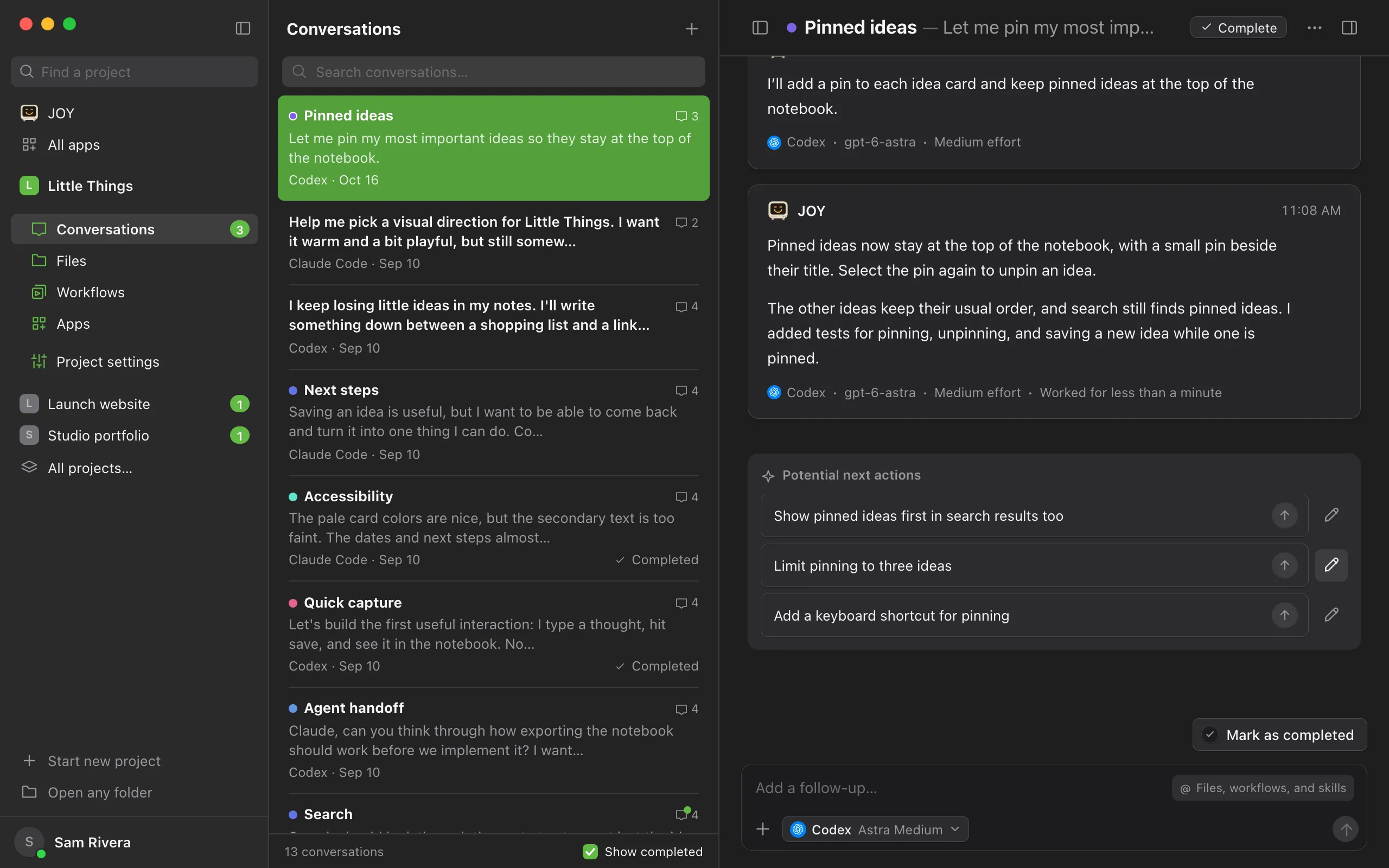
Or edit it first
Select the pencil beside a suggestion. The text goes into the message box, where you can change it and then send it. The pencil works only while the message box is empty.
Good to know
- An agent can offer up to three suggestions with each final reply.
- Suggestions disappear as soon as a new message arrives in the conversation, including one you send.
- A sent suggestion appears in the conversation as your message, like anything you type.
- In the iPhone app, suggestions appear at the end of the conversation, without a heading, and are hidden once the conversation is completed. Select one to add it to your message. To send it right away, touch and hold it and choose Send now.
If something goes wrong
The pencil is unavailable
The message box already has text in it. Pointing to the pencil shows Clear the composer to edit a suggestion. Send or clear your draft, then select the pencil again.
“This suggestion is no longer current. Choose an action from the latest reply.”
A newer message arrived after the suggestions were shown, for example from another device. Use the suggestions under the latest reply, or type your own message.
“Choose a model before sending.”
The message box has no model selected. Select the agent settings button and choose a model, then select the suggestion again. See Choose a model.