Approve or decline agent requests
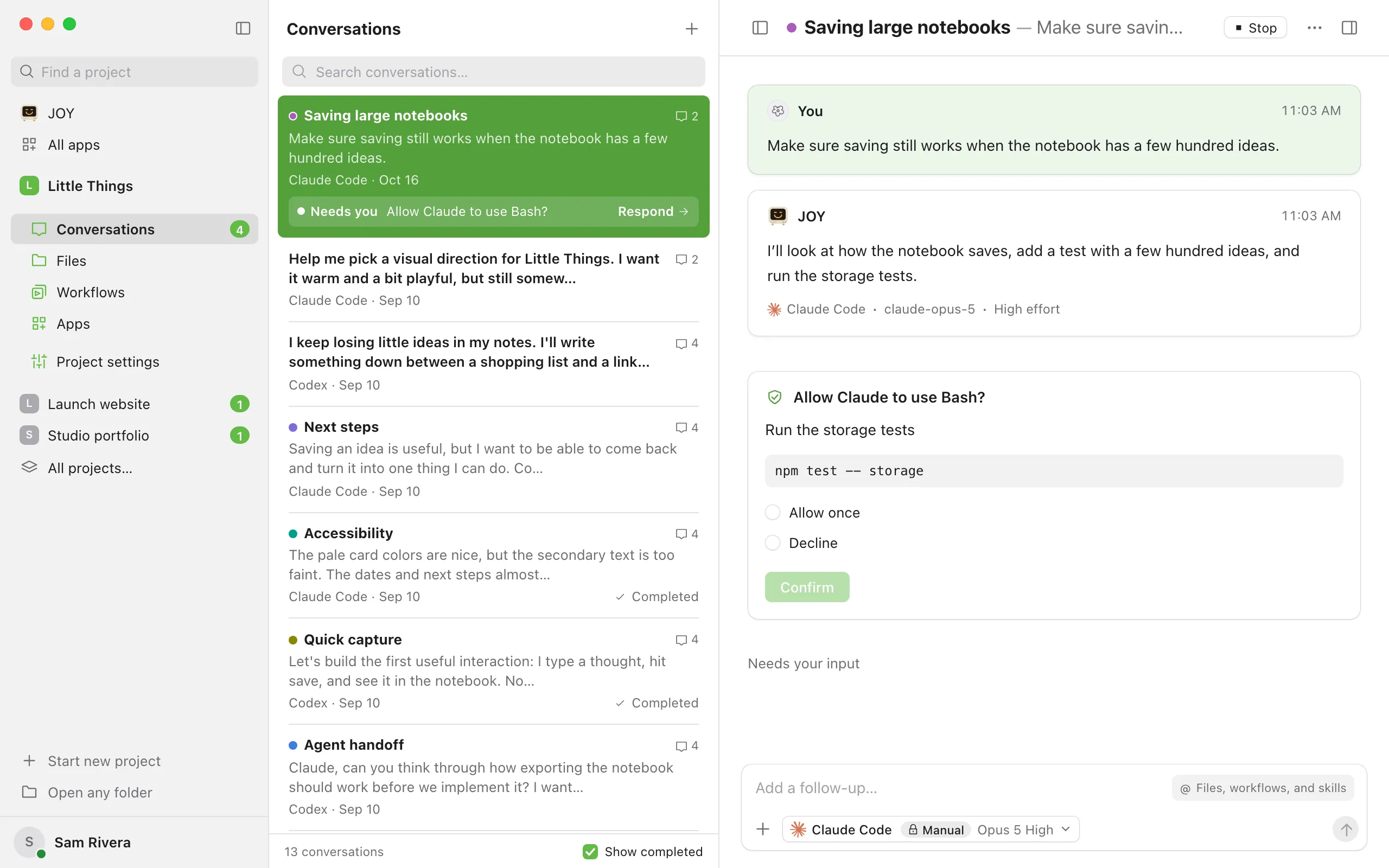
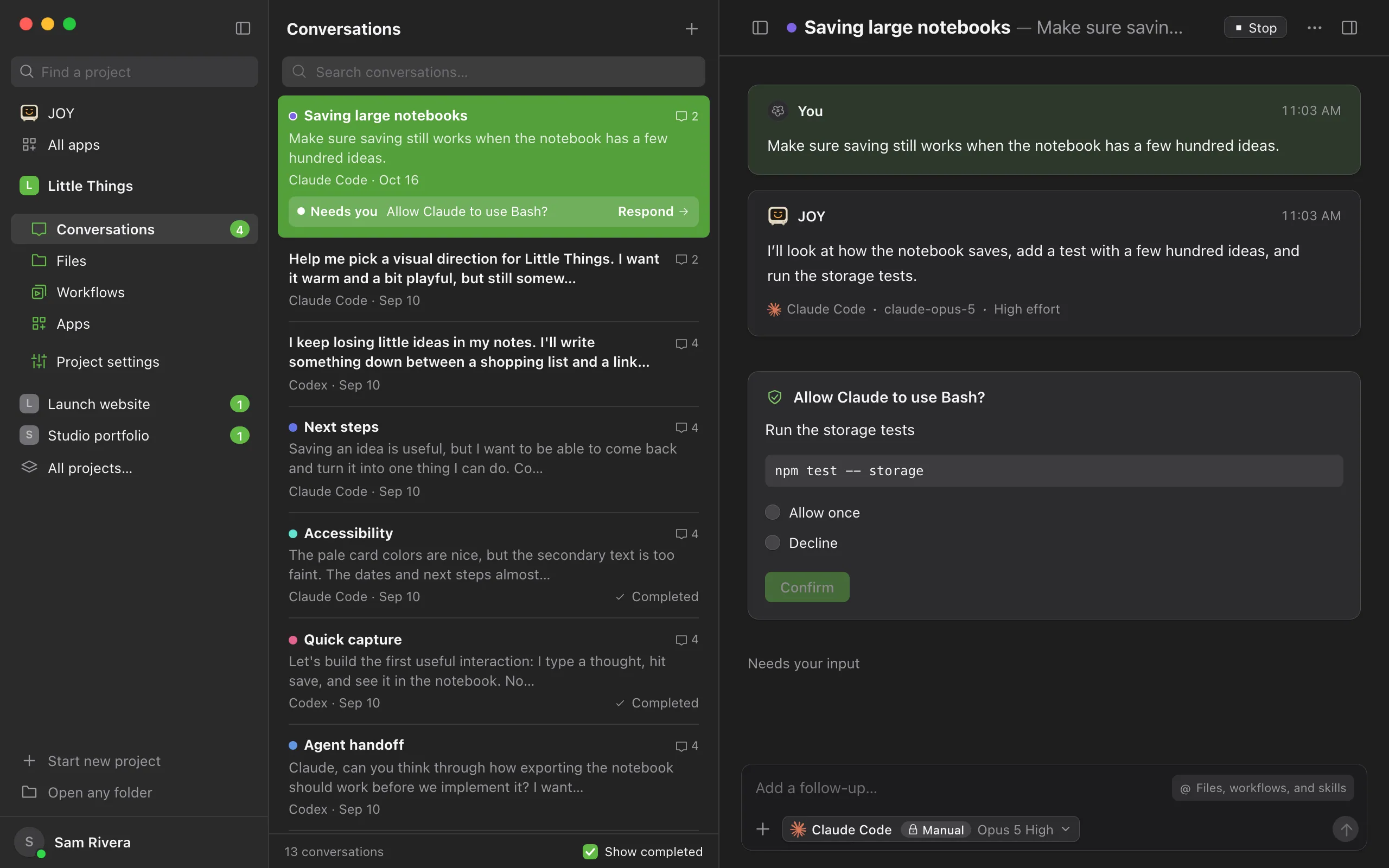
Depending on its permission mode, an agent may stop and ask before it runs a command, edits files, or uses a tool. The request appears as a card in the conversation, and the agent waits until you decide. While it waits, the conversation’s status says Needs input, and the end of the conversation says Needs your input.
Before you start
- Use the computer that runs the project, or one of your own devices with Full access. You choose the device’s level on that computer. See Manage your devices.
Steps
Open the conversation
Select it in the conversation list. A conversation waiting for you shows a Needs you box with its request.
Review the request
The card, marked with a shield, says what the agent wants to do, such as Allow Claude to use Bash? Below it are the agent’s reason, when it gives one, and the details, such as the exact command.
Pick a choice
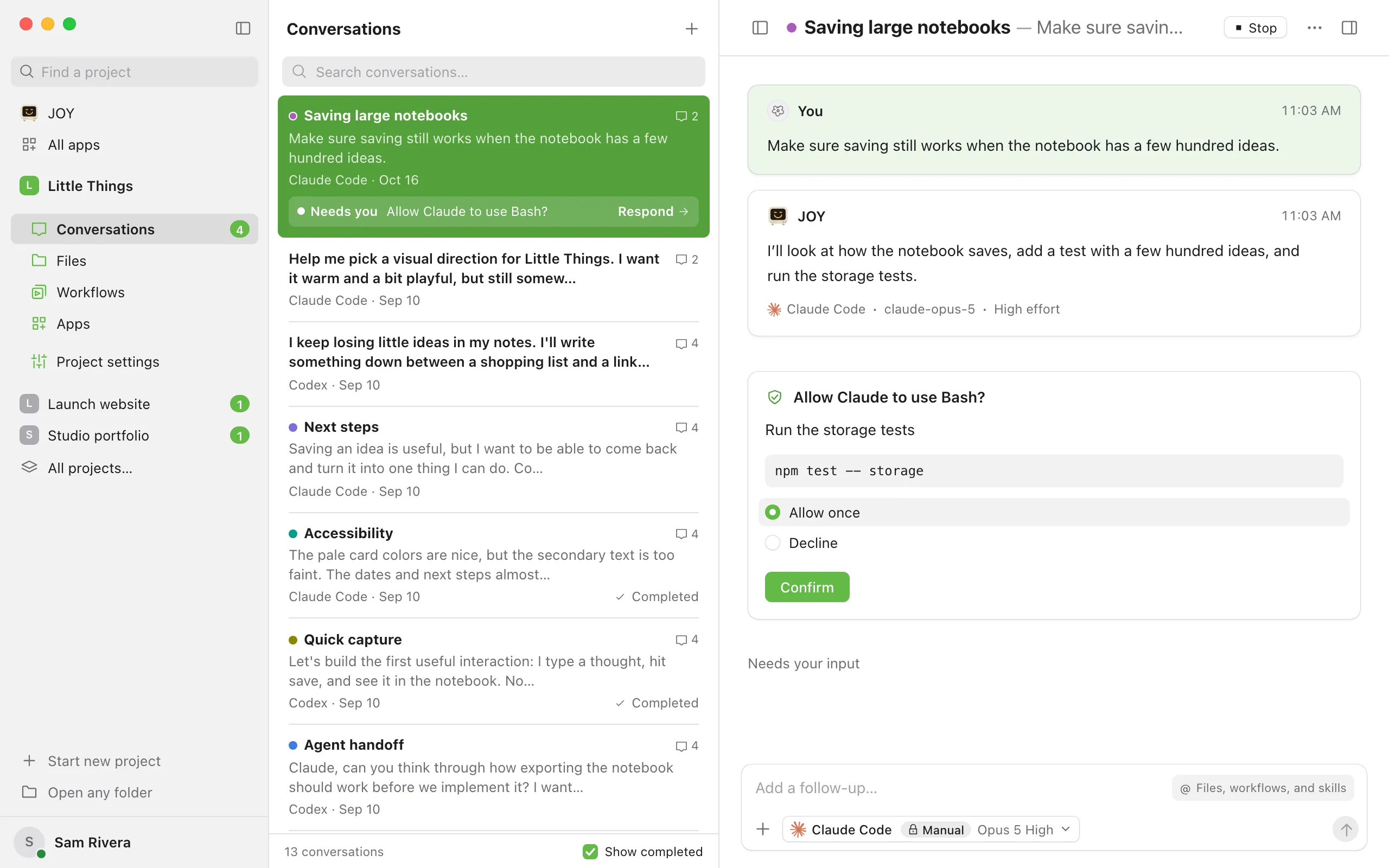
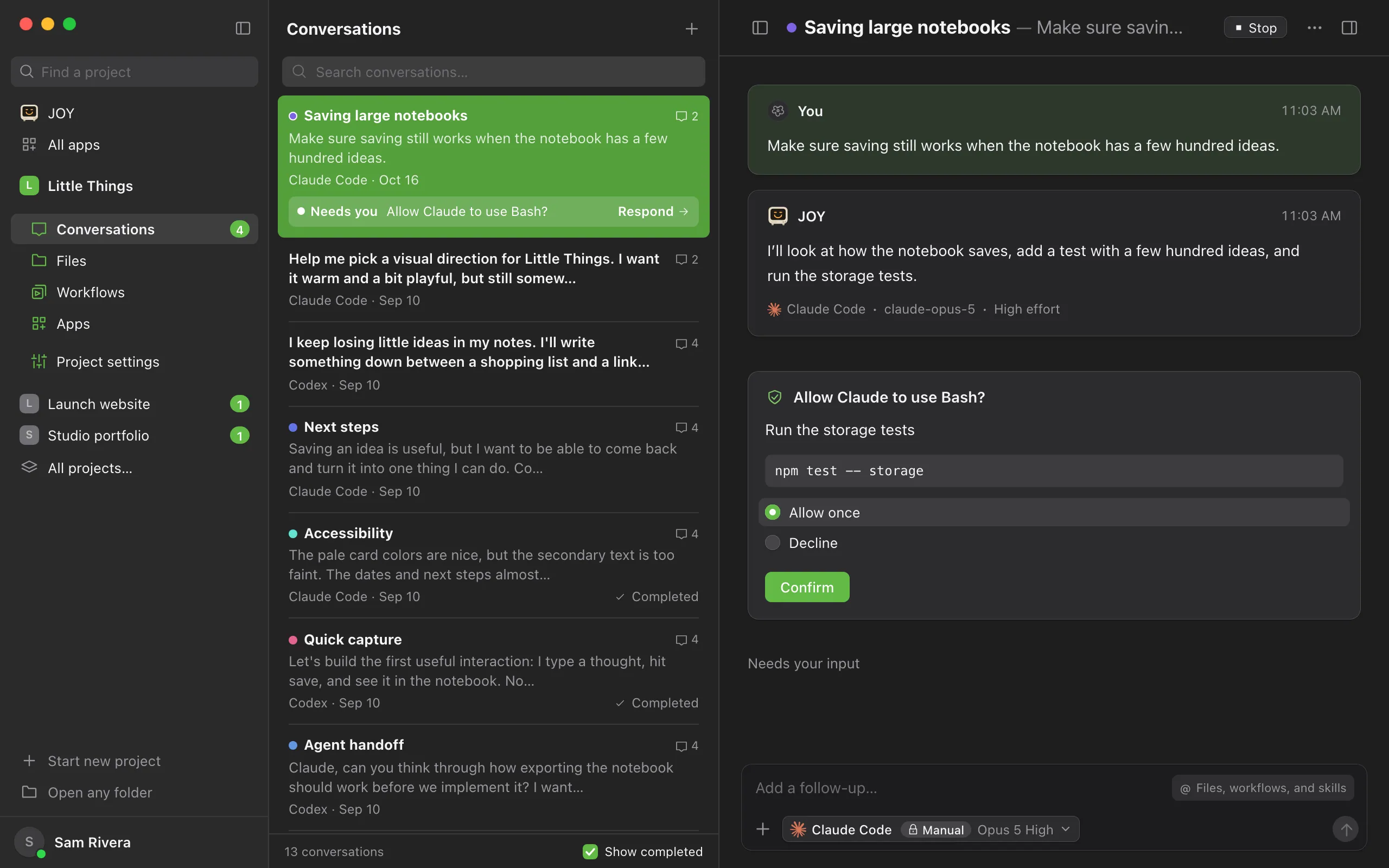
Select Allow once to let the agent do this one thing, or Decline to refuse. Some agents offer more choices, such as Allow for this session.
Select Confirm
The agent continues. If you declined, it doesn’t take that action, and it’s instructed to explain in its reply what it couldn’t do.
Good to know
- How often an agent asks depends on the permission mode you choose for it. To be asked less, or more, see Choose what your agent can do without asking.
- After you confirm, the card folds into a line that says 1 decision with Approved or Declined. Select it to see the request again. Closed means the request ended before you answered.
- If Enjoy quits while a request is waiting, the request is recorded as declined when Enjoy opens again, and the conversation shows that its work was interrupted. Select Retry in the conversation to continue.
- Antigravity never sends these requests. With Bypass permissions, its default, it allows every action. With Configured permissions, actions that need approval are skipped.
- Choices such as Allow for this session or Always allow come from the agent itself, and the agent remembers them, not Enjoy.
- When Claude Code finishes a plan in Plan mode, its card shows the plan and asks Start working on this plan? Choose Start working or Keep planning. See Plan before you build.
- Muse Code can ask about a command with several parts one part at a time, and each card says which part, such as Stage 1 of 2. Its Reject choice refuses the whole command. See Use Muse Code.
- Requests have no Dismiss button. Choose Decline if you don’t want the agent to go ahead, or stop the agent. See Stop an agent.
- To tell the agent something else instead, send a message. Enjoy declines the waiting request for you, so the agent can read your message and carry on, and the card shows Closed. A queued message leaves the request waiting. See Send follow-ups while the agent works.
- On Limited devices and for team members, the card asks for approval on the computer that runs the project. Decline can stop the waiting work from the device.
- Only approve commands you understand. If you’re unsure, decline and ask the agent to explain the step first. See Staying safe with agent permissions.
If something goes wrong
“This request expired. Retry the conversation.”
The agent is no longer waiting for this answer. Select Retry in the conversation so the agent can continue, and ask again if it still needs to.
The card has no choices to select
Your device has Limited access, you’re using a shared computer, or the computer is running an older Enjoy version. Approve on the computer that runs the project. For your own devices, you can also change the level in that computer’s My computers window.