Manage your devices
Your devices are listed on the computer they connect to, in the Enjoy computer app.
Steps
Open your account
On your computer, select the circle with your initial in the top-right corner of Enjoy.
Open My computers
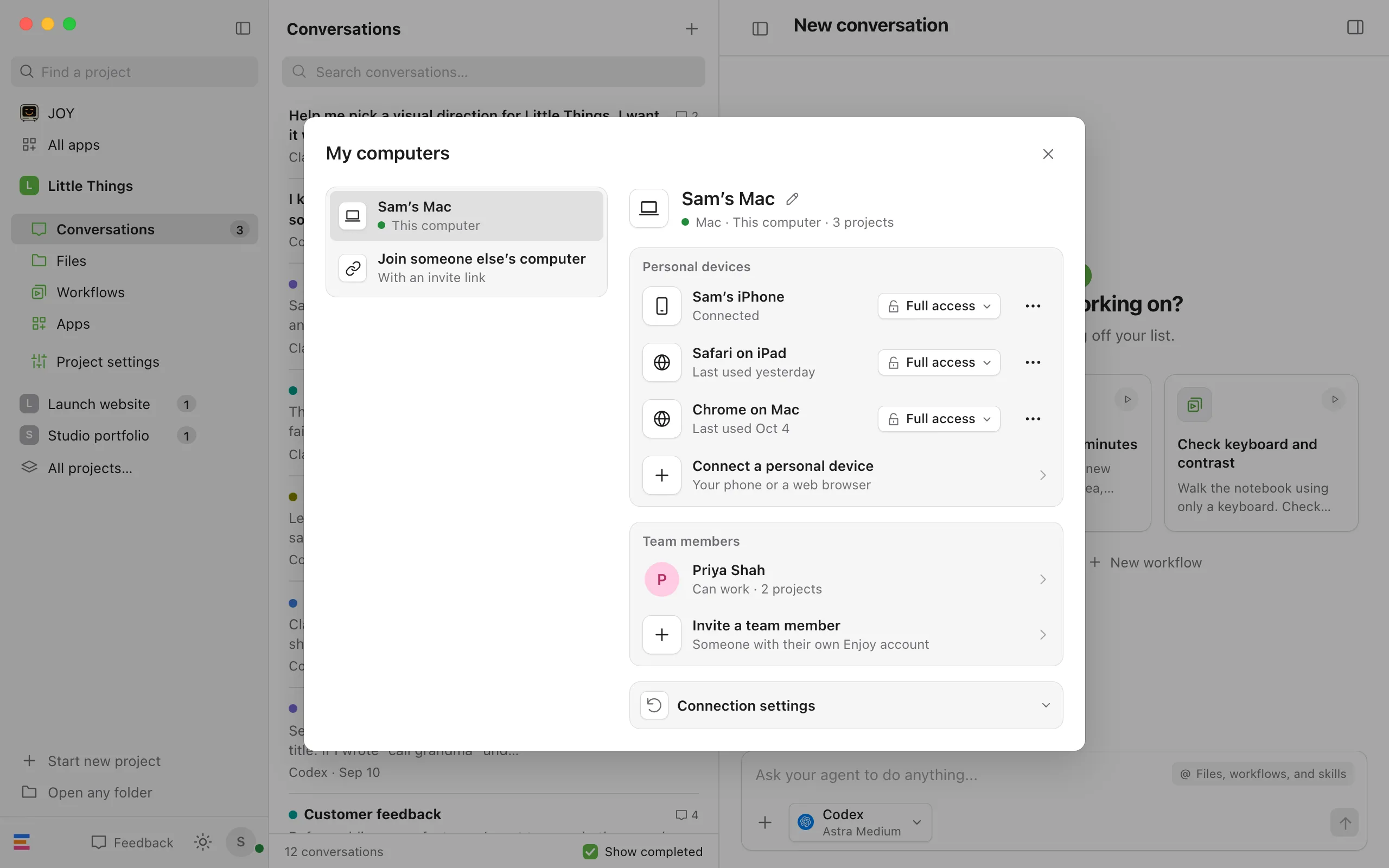
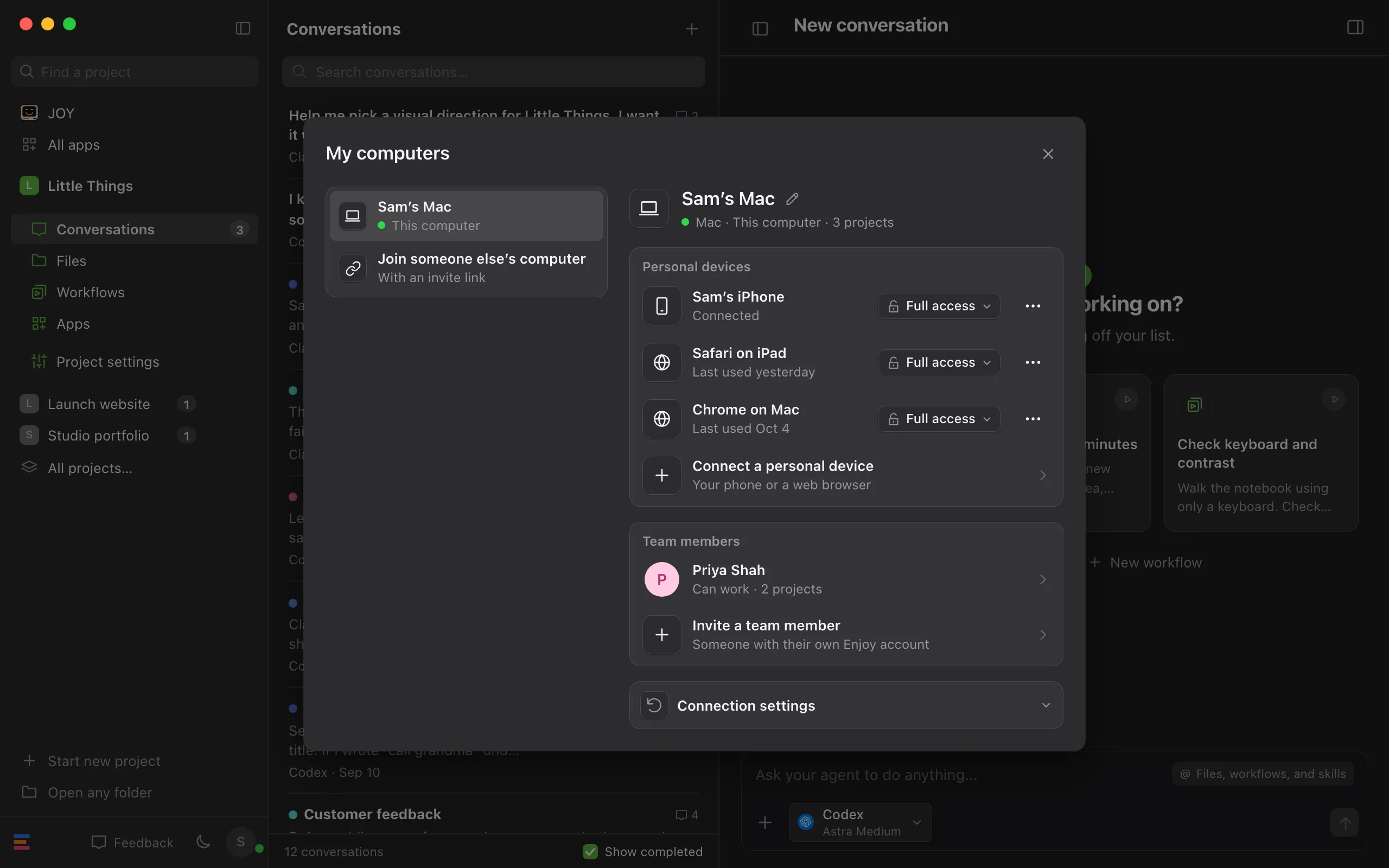
Under My computers, select your computer’s name. If you have more than one computer, you can also choose My computers from the computer menu in the top-left corner.
Find the device
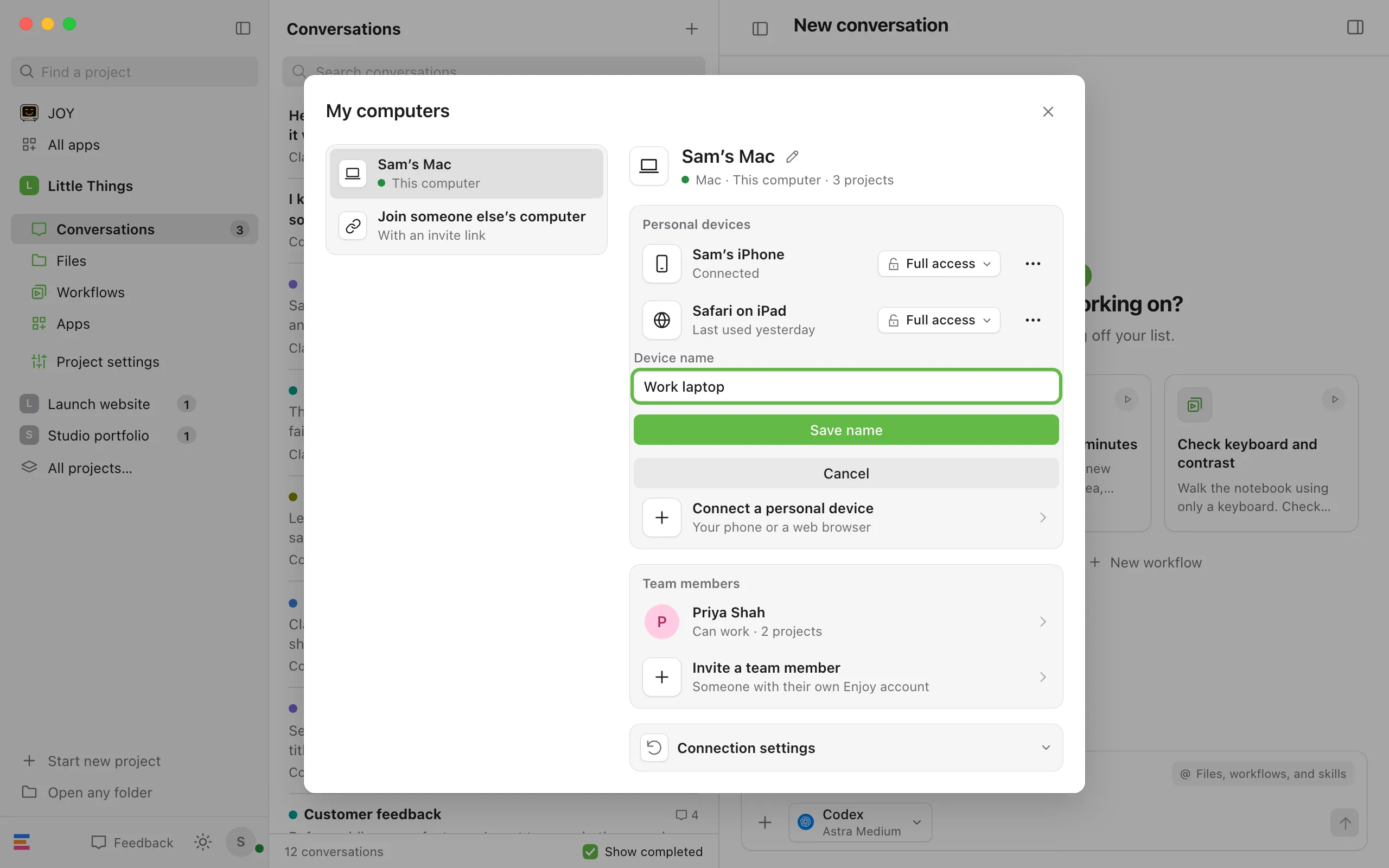
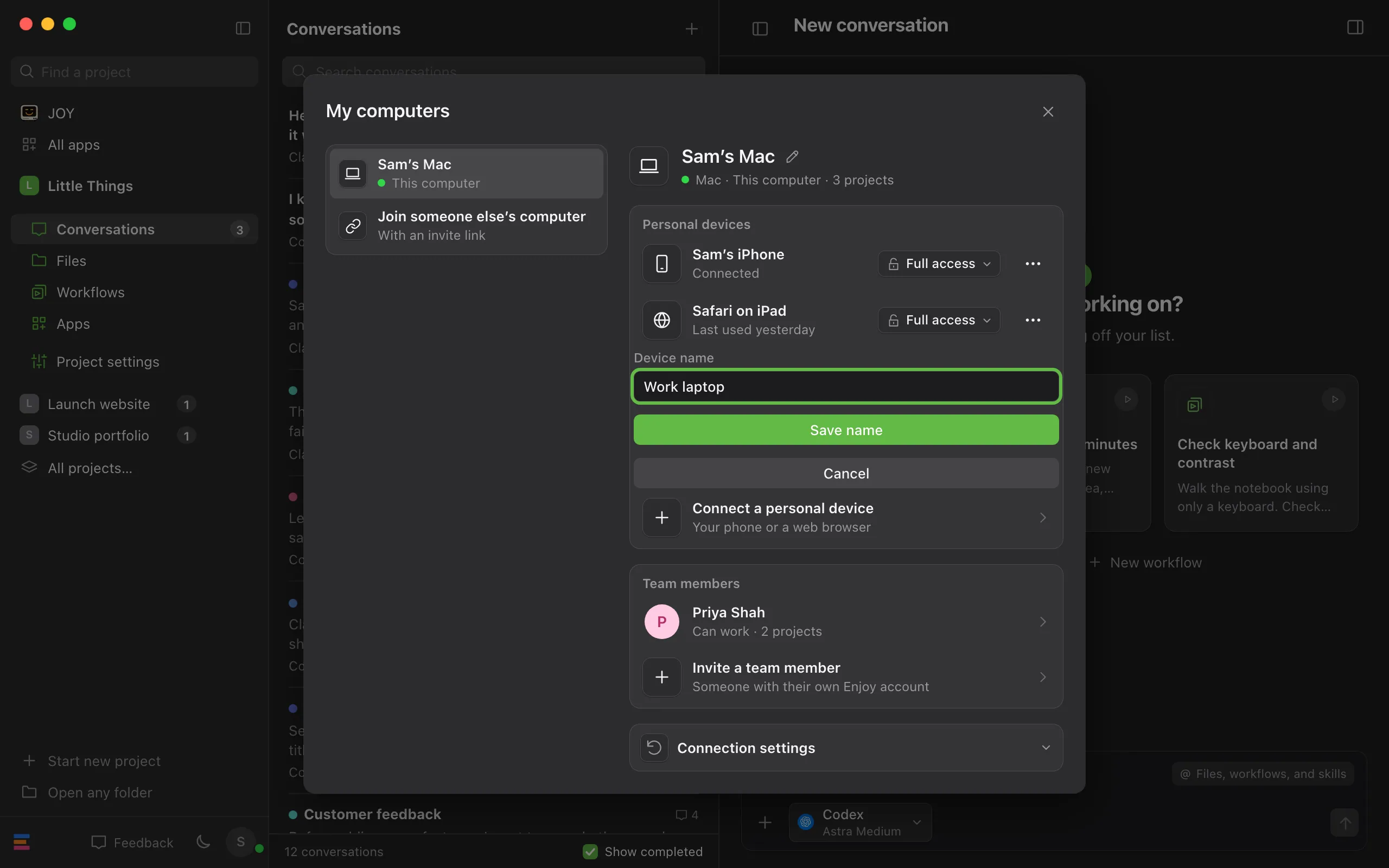
Under Personal devices, each device shows its name, connection status and Full access or Limited.
Open its menu
Select the ⋯ button beside the device.
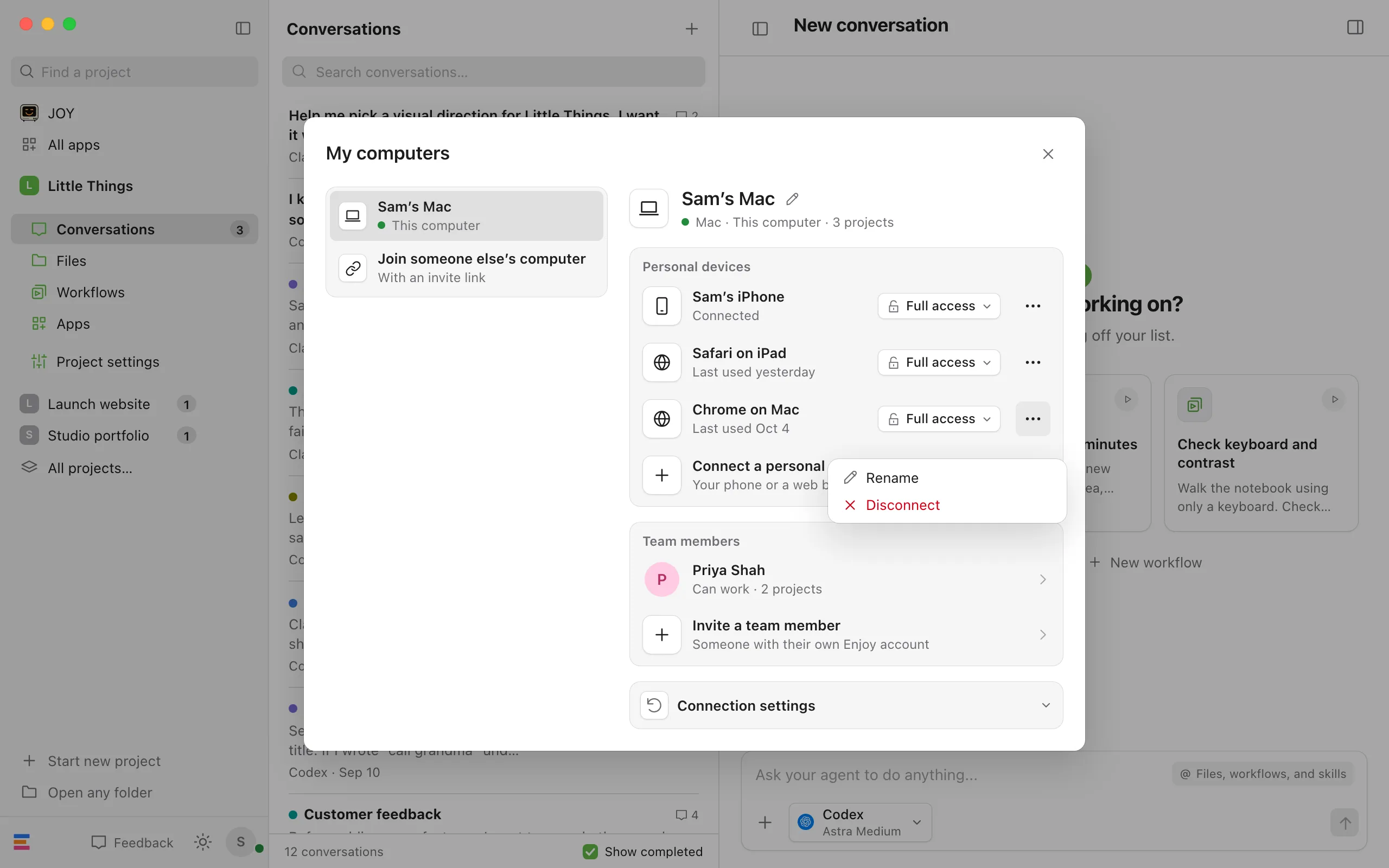
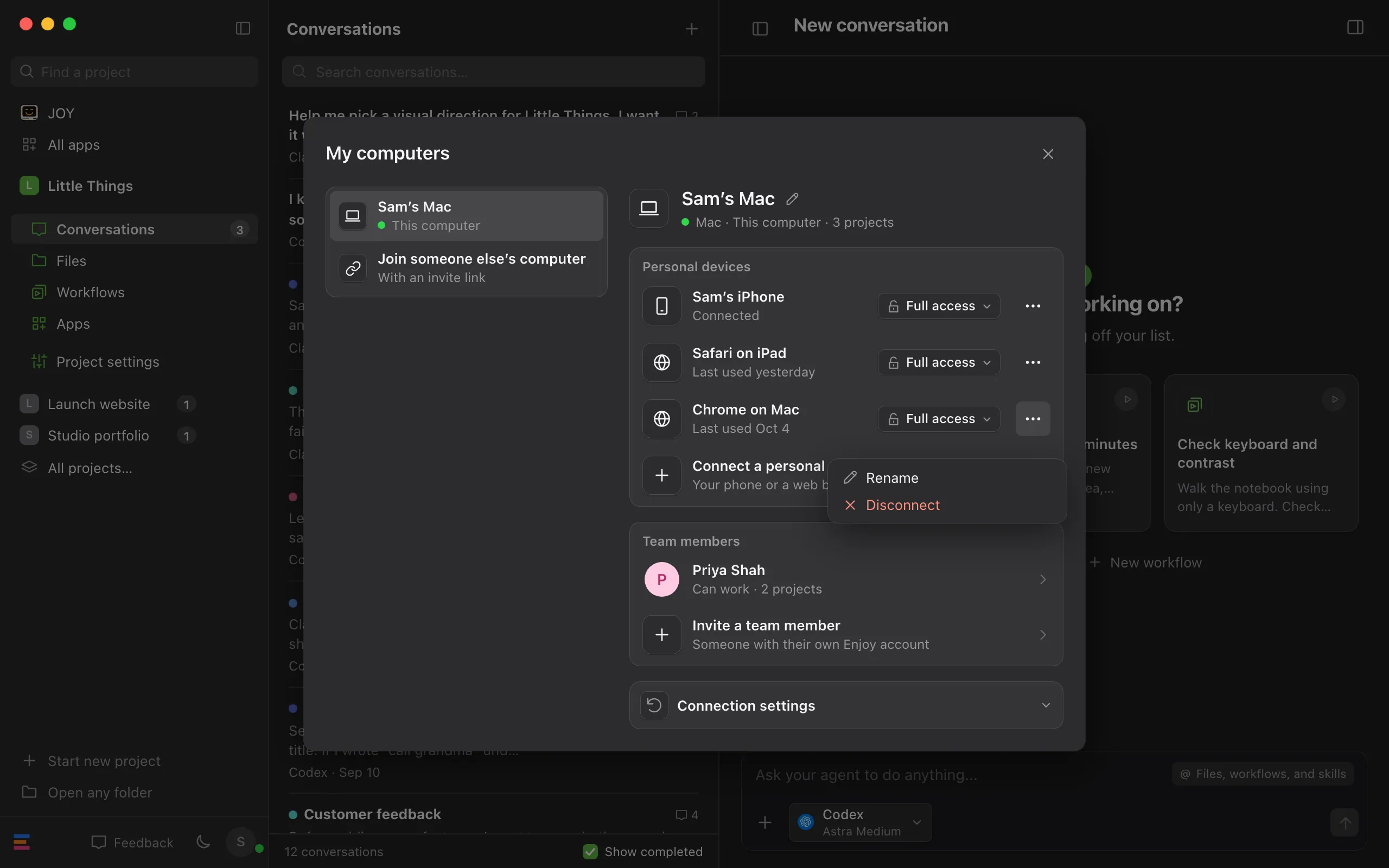
Choose Rename or Disconnect
Disconnect removes the device’s access right away, without asking first. Rename opens a name field instead.
Save the new name
If you’re renaming, type a name of up to 80 characters and select Save name.
Change a device’s access
On the computer it connects to, open My computers, find the device under Personal devices, and select its Full access or Limited button.
- Full access lets the device answer agents’ permission requests and choose how much agents may do. It is the default for your own devices, including browsers.
- Limited lets you keep working with chats, files and workflows, while agent approvals and permission changes wait for you on the computer. On a shared or work computer, pick Limited.
The change is saved on your computer. The device cannot change its own level or another device’s level. Changing the level ends its current connection; reconnect it to use the new level. Switching to Limited also stops ongoing work involving that device and pauses workflows derived from it. Your conversations stay.
Existing personal devices start with Full access after your computer updates. Team members keep their separate project access. Full access does not let a connected device approve new devices.
Good to know
- Disconnecting also stops anything the device started on your computer that’s still running. Its conversations stay.
- A disconnected device can’t reconnect on its own. To use it again, connect it with a new code. A browser offers Connect with a new code.
- Lost a phone? Disconnect it here. If you can’t tell which device is which, you can disconnect them all at once by resetting remote access. See Reset remote access.
- Names are only labels to help you tell devices apart. They don’t change what a device can do.
- To rename the computer itself, select the pencil beside its name, type a new name, and select Save name. For the computer you’re on, a Use default: button puts back the name Enjoy gave it.
- On another computer connected to yours, My computers lists your main computer’s devices and lets you rename them. Disconnecting only works on the main computer, so the menu says to disconnect it from there.
- In a browser, select your initial, then Disconnect this browser to stop using that browser. It stays on your computer’s list until you disconnect it there too.
- In the iPhone app, open Settings with the round button with your initial at the top right of the Projects screen, or of the Computers screen if you have more than one computer. Select the phone’s name under This iPhone to rename it. To rename the computer the phone is connected to, select it in Settings, then the pencil beside its name. To stop using a computer on the phone, select the computer in Settings, then Forget on this iPhone. To use it there again, connect with a new code.
- Team members’ devices are listed in the People window instead. See Remove someone from your computer.
If something goes wrong
Enter a device name of 1–80 characters.
The name is empty or too long. Type a name between 1 and 80 characters.
This device is no longer available.
The device was disconnected, from here or elsewhere, before the name was saved. Close and reopen My computers.